How to Update a Draft Plan Status to In Force
Learn how to progress a new business draft plan, add policy details, update propositions, and move its status to 'In Force'.
By Elliott Potter
Once you have implemented a new plan, it will appear as a draft in your plans category. Follow these steps to update the plan's details and progress its status from 'Draft' to 'In Force'.
1. Locate the Draft Plan
1
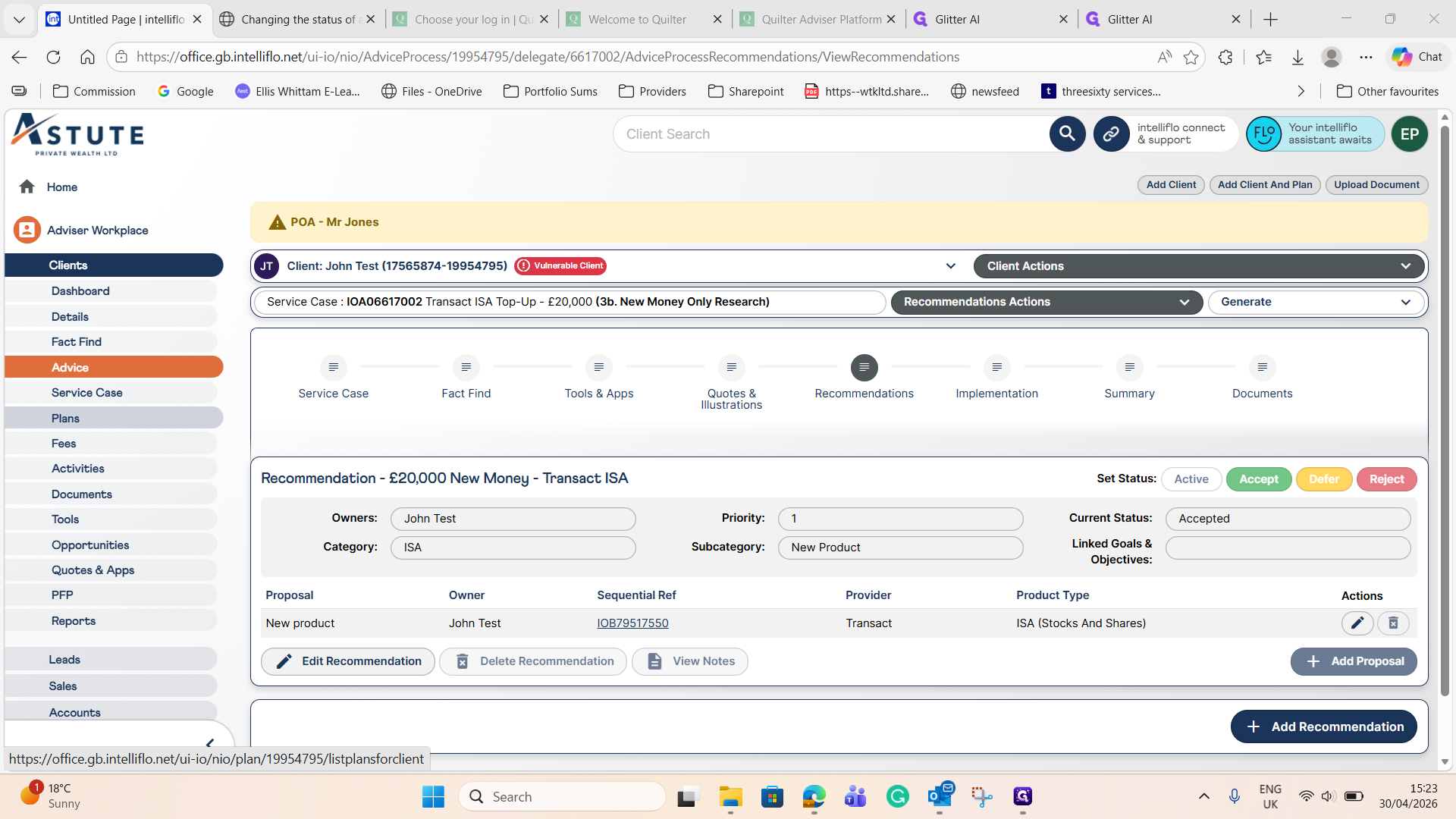
Navigate to the Plans section on the left-hand menu.
2
Select the draft plan you wish to update from the data table.
2. Add Policy Details
3
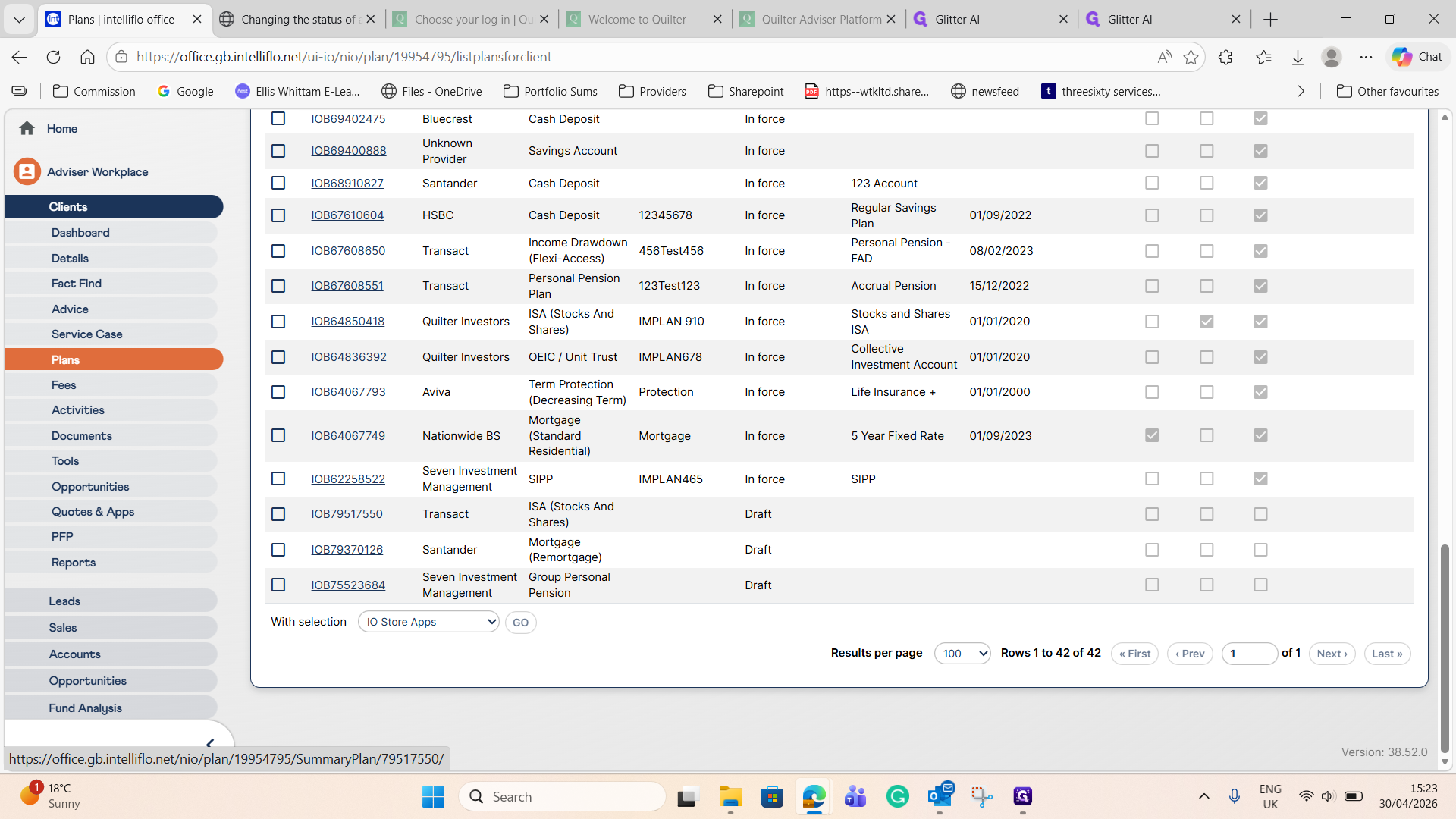
Enter a recognizable Policy Number to easily identify the plan.
4
Click Save to secure your changes.
3. Update Status to 'Submitted to Provider'
5
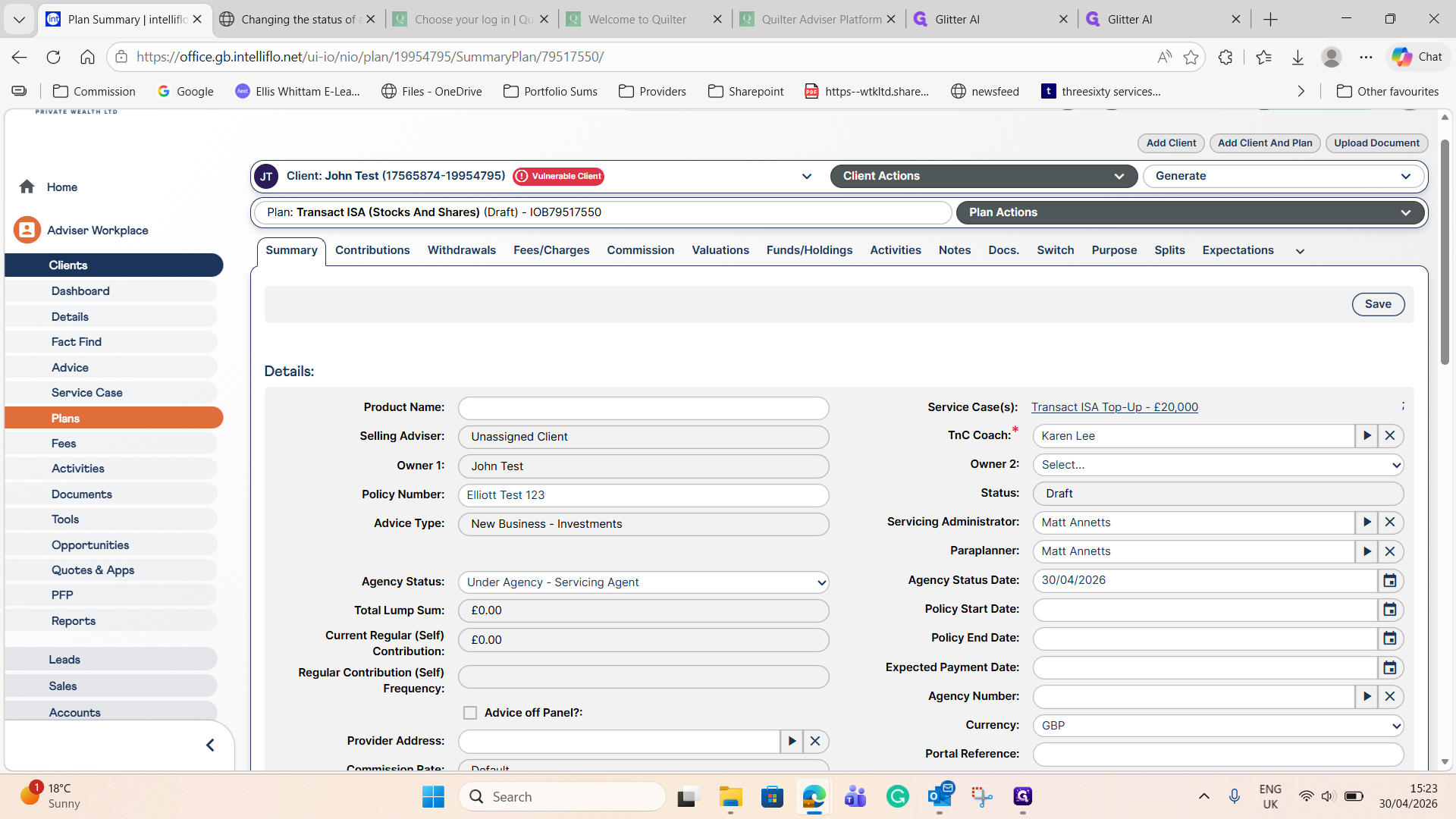
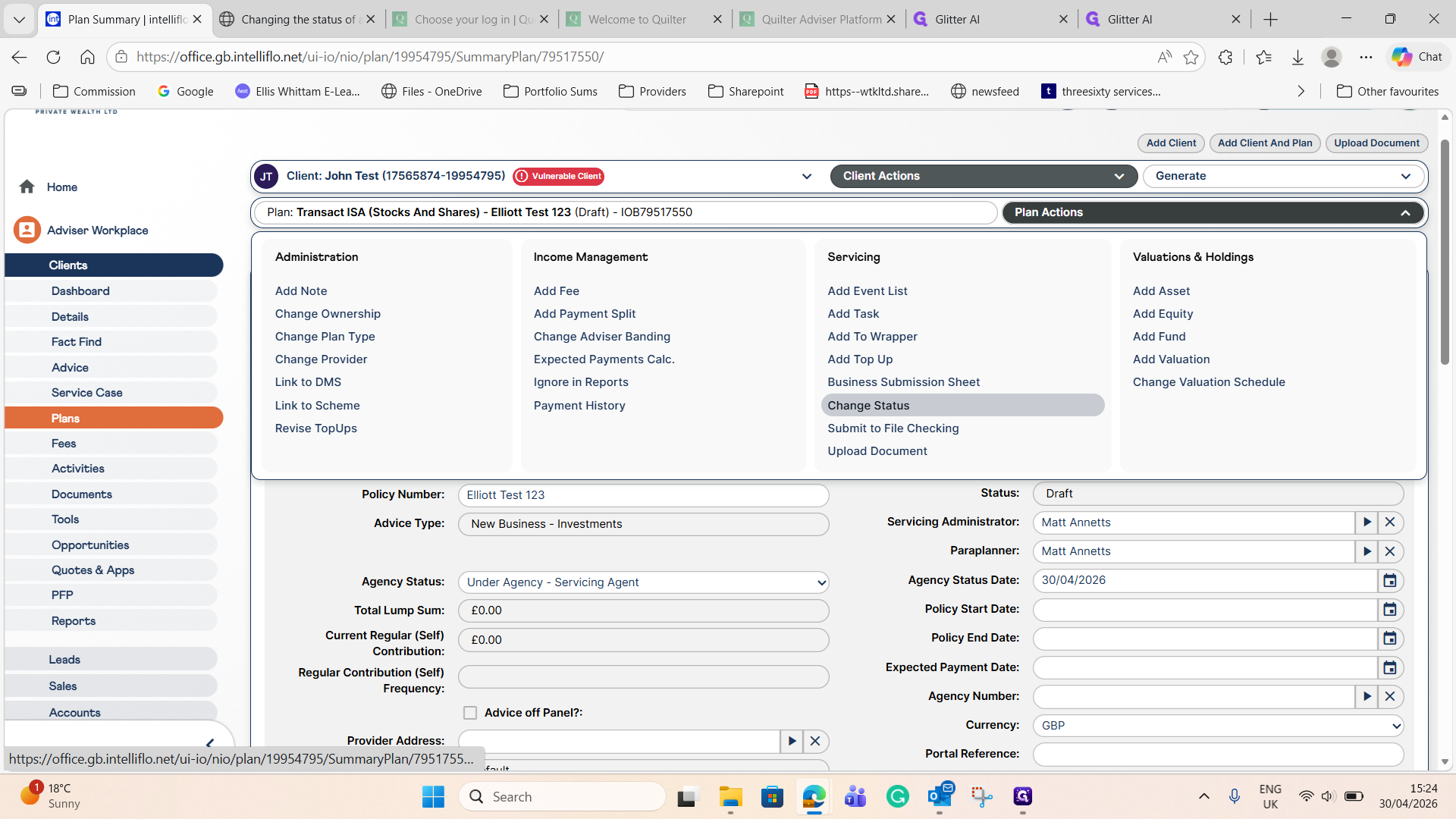
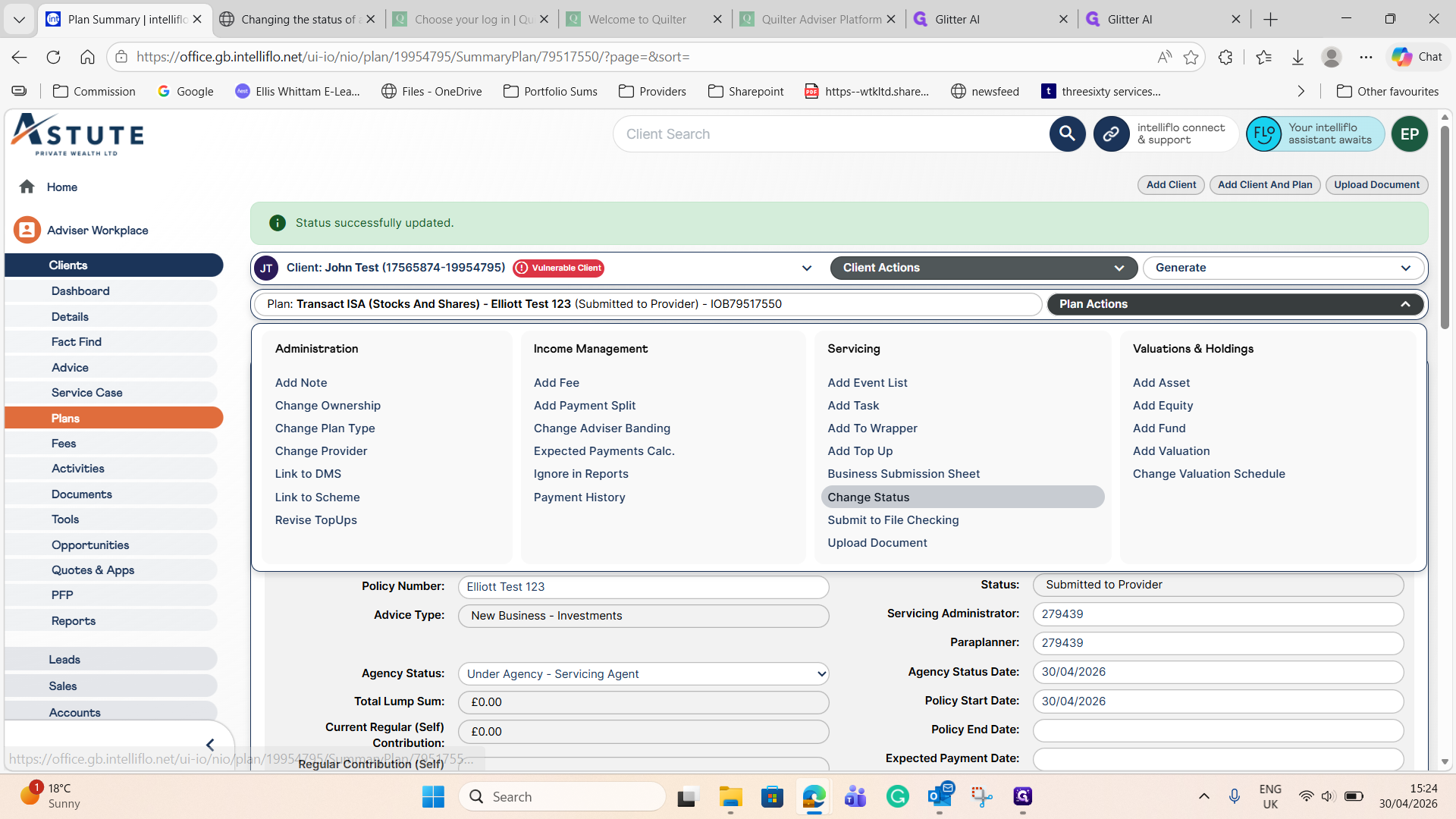
Open the Plan Actions menu and click on Change Status.
6
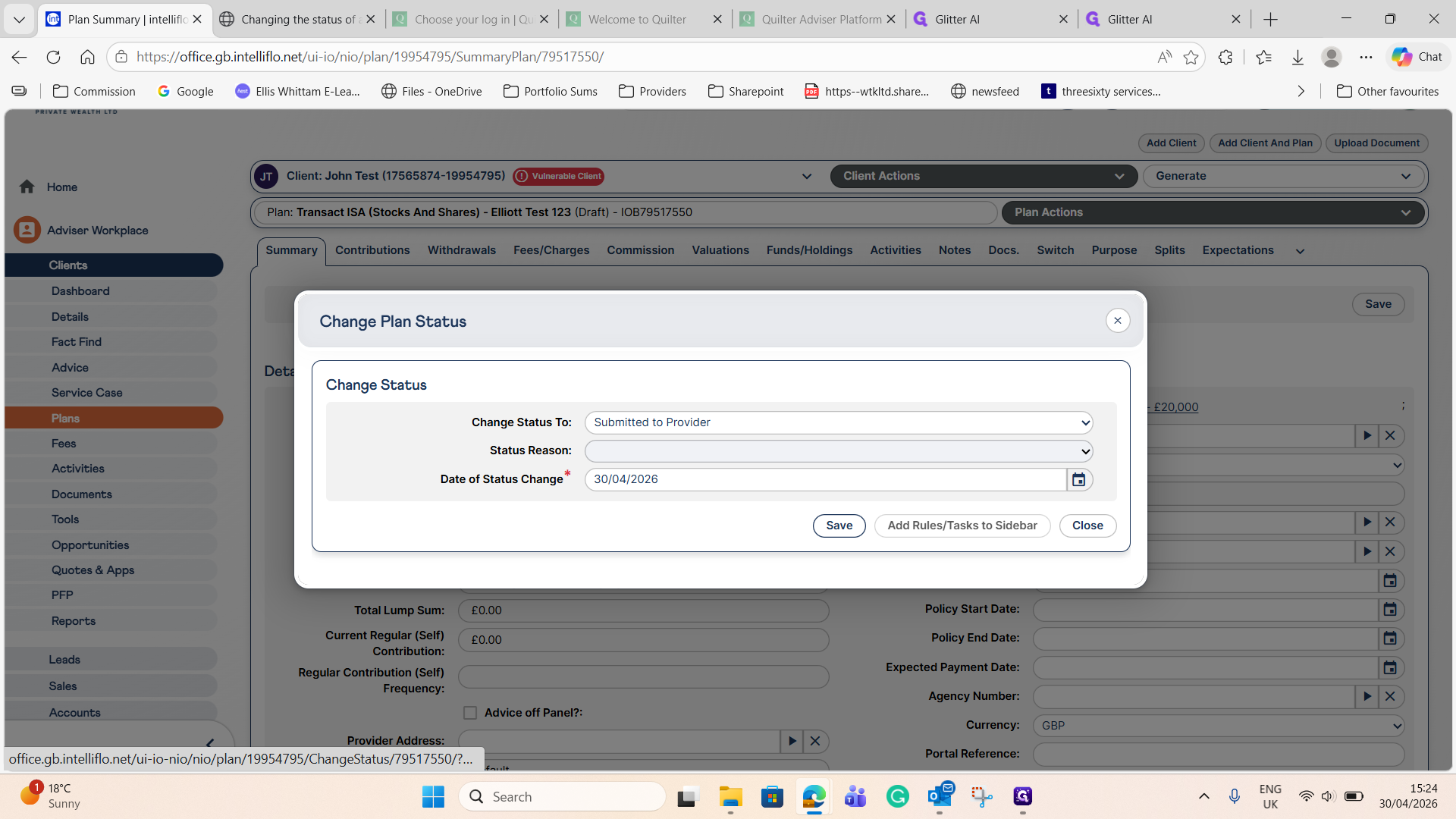
Set the new status to Submitted to Provider and click Save.
4. Finalize the Plan Status
Once the business process is complete and the plan is active, you must update the policy details and change the status accordingly.
7
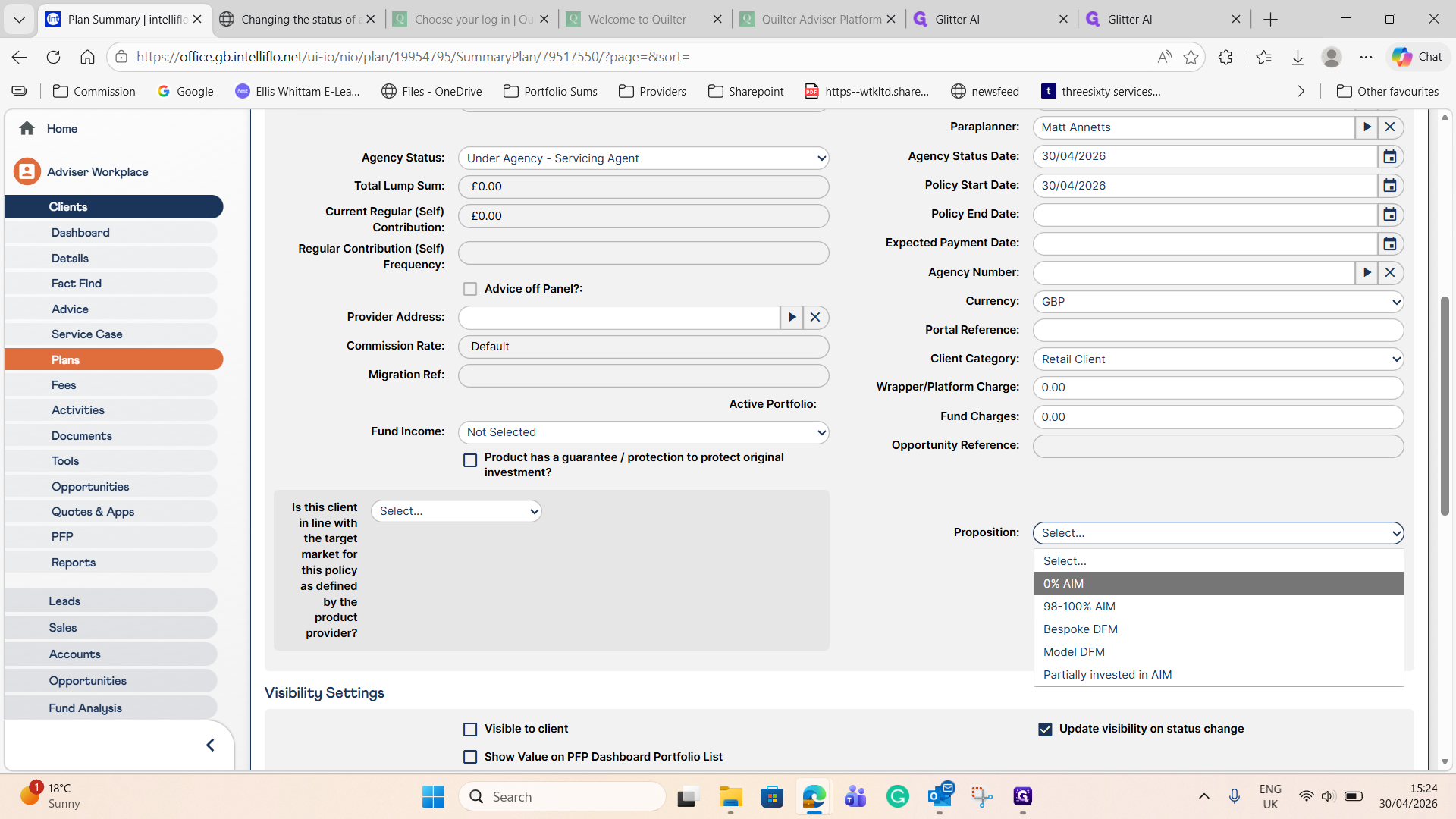
Enter the Policy Start Date.
8
Select the appropriate Proposition from the dropdown menu.
9
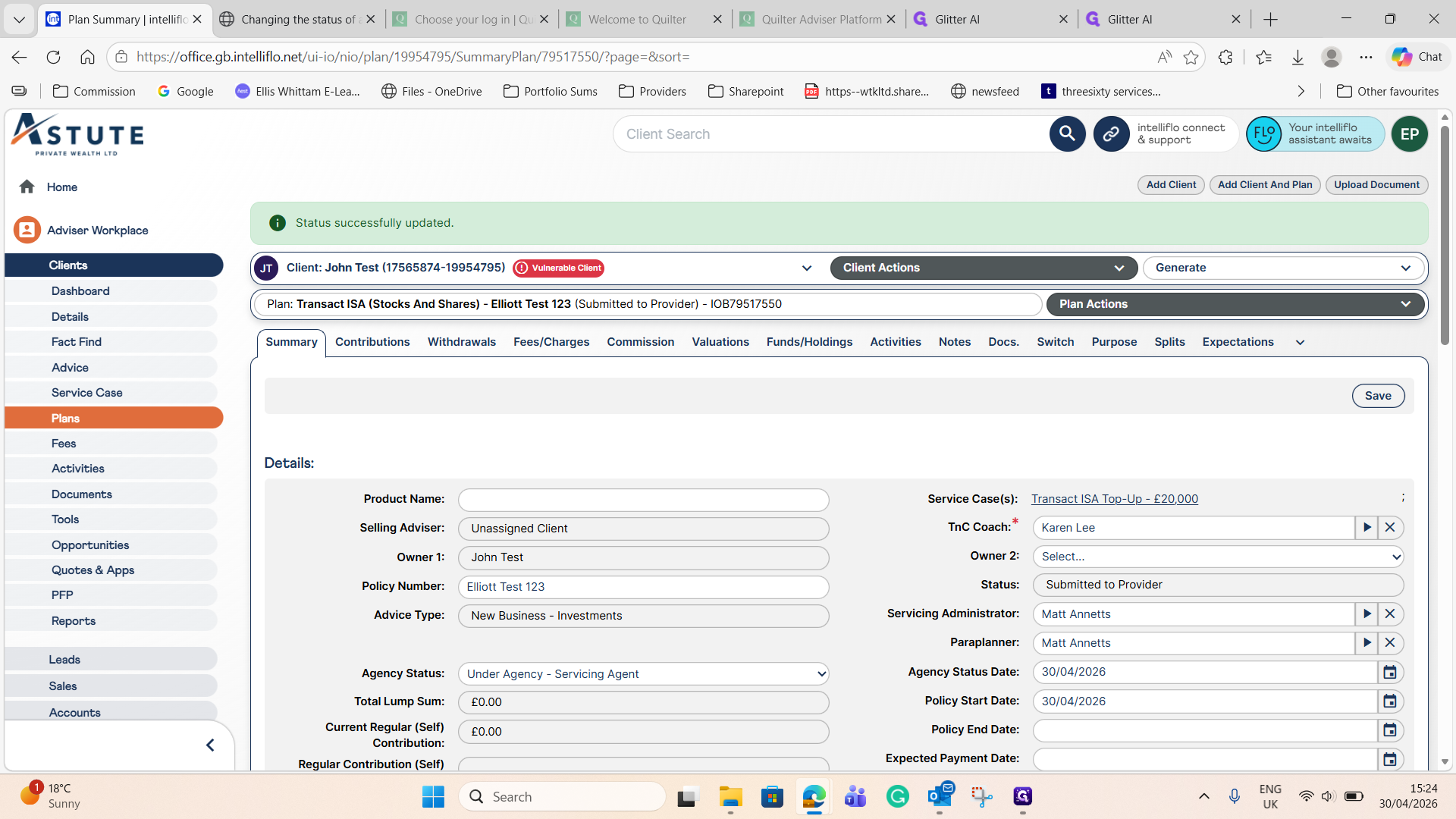
Click Save.
10
Open the Plan Actions menu again and click on Change Status.
11
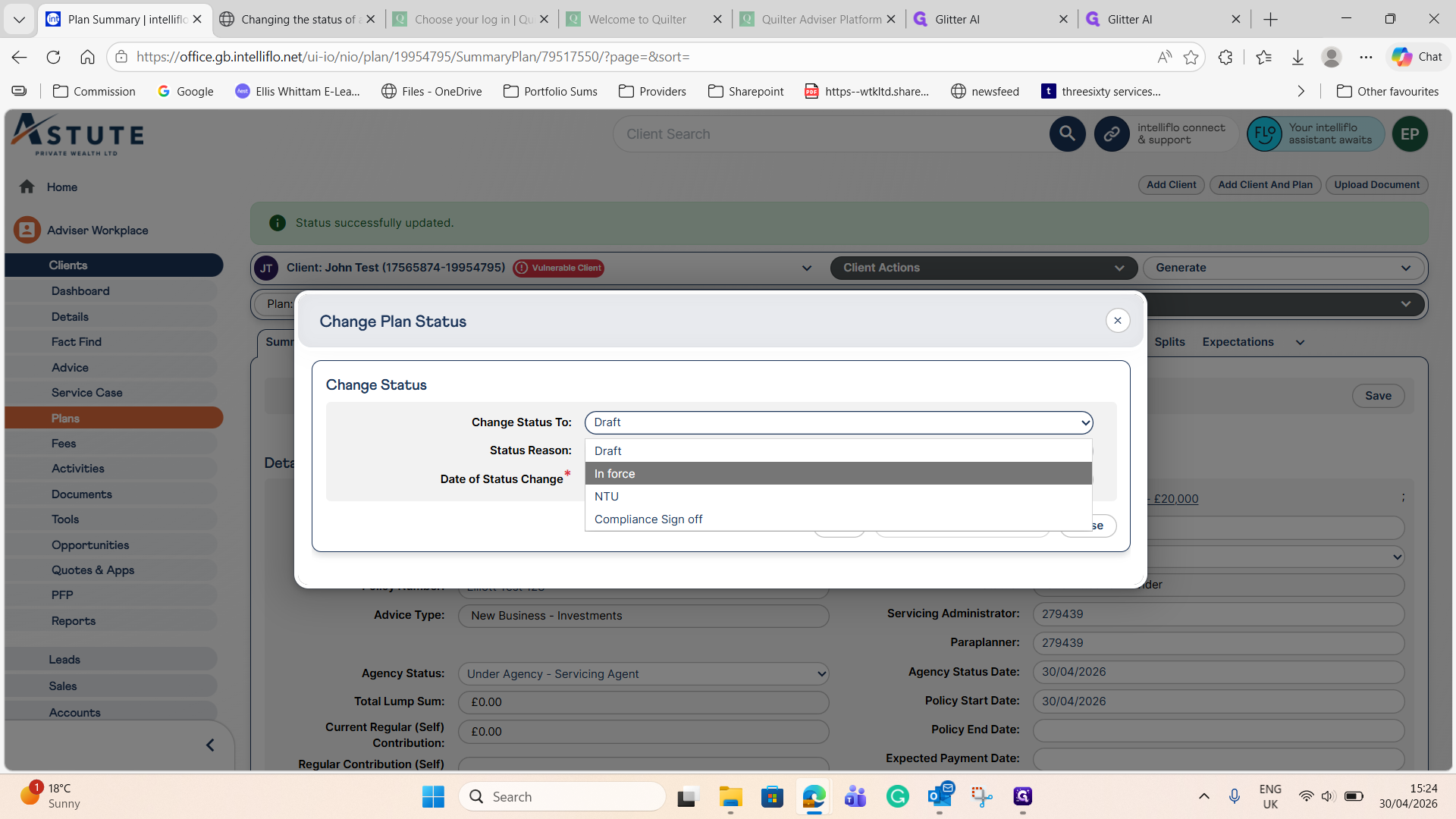
Select In force from the status dropdown menu.
12
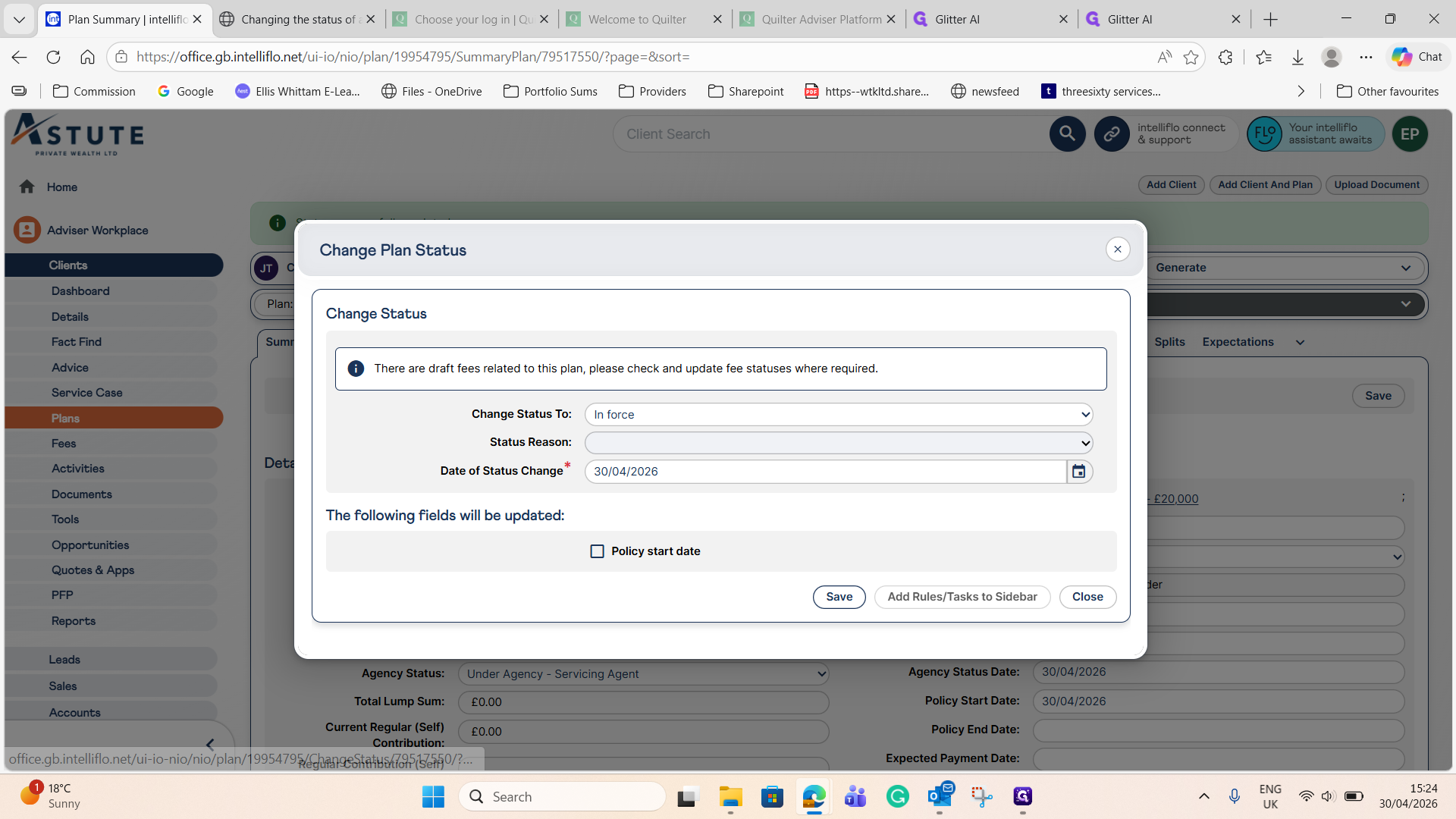
Click Save.
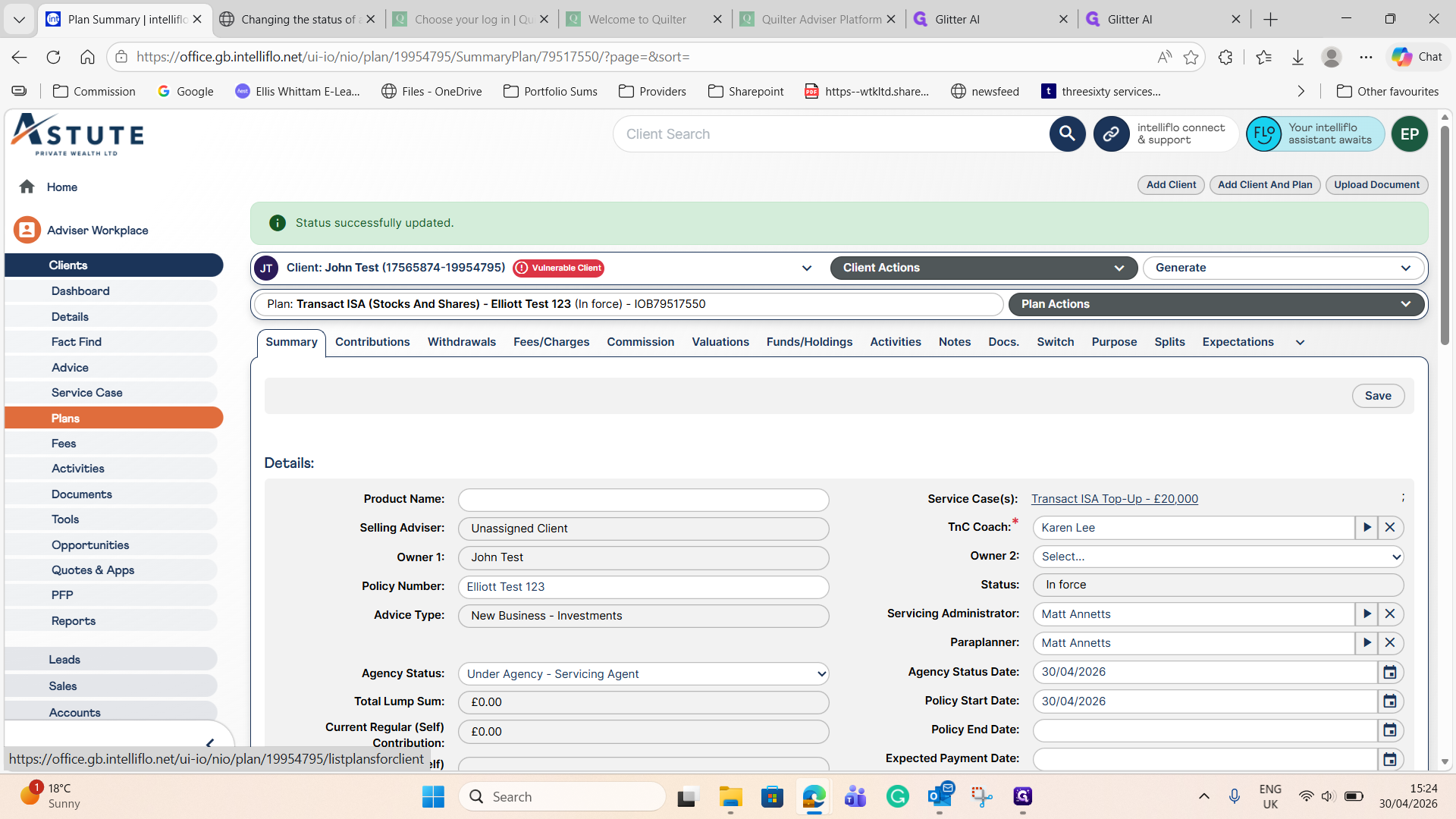
5. Verify the Update
13
Navigate back to the main Plans list.