
Update a Policy Version in Sentrient
Learn how to update or replace an existing policy document in Sentrient without interrupting active workflows, using the built-in version control system.
This guide explains how to update or replace a policy document in Sentrient. Sentrient's version control system allows you to make changes to documents even while they are part of a live workflow, ensuring users complete the newest requirements without manually pausing processes.
This workflow applies to HR and compliance administrators managing organizational policies. You will use this process whenever new legislation or internal changes require an updated policy rollout for staff.
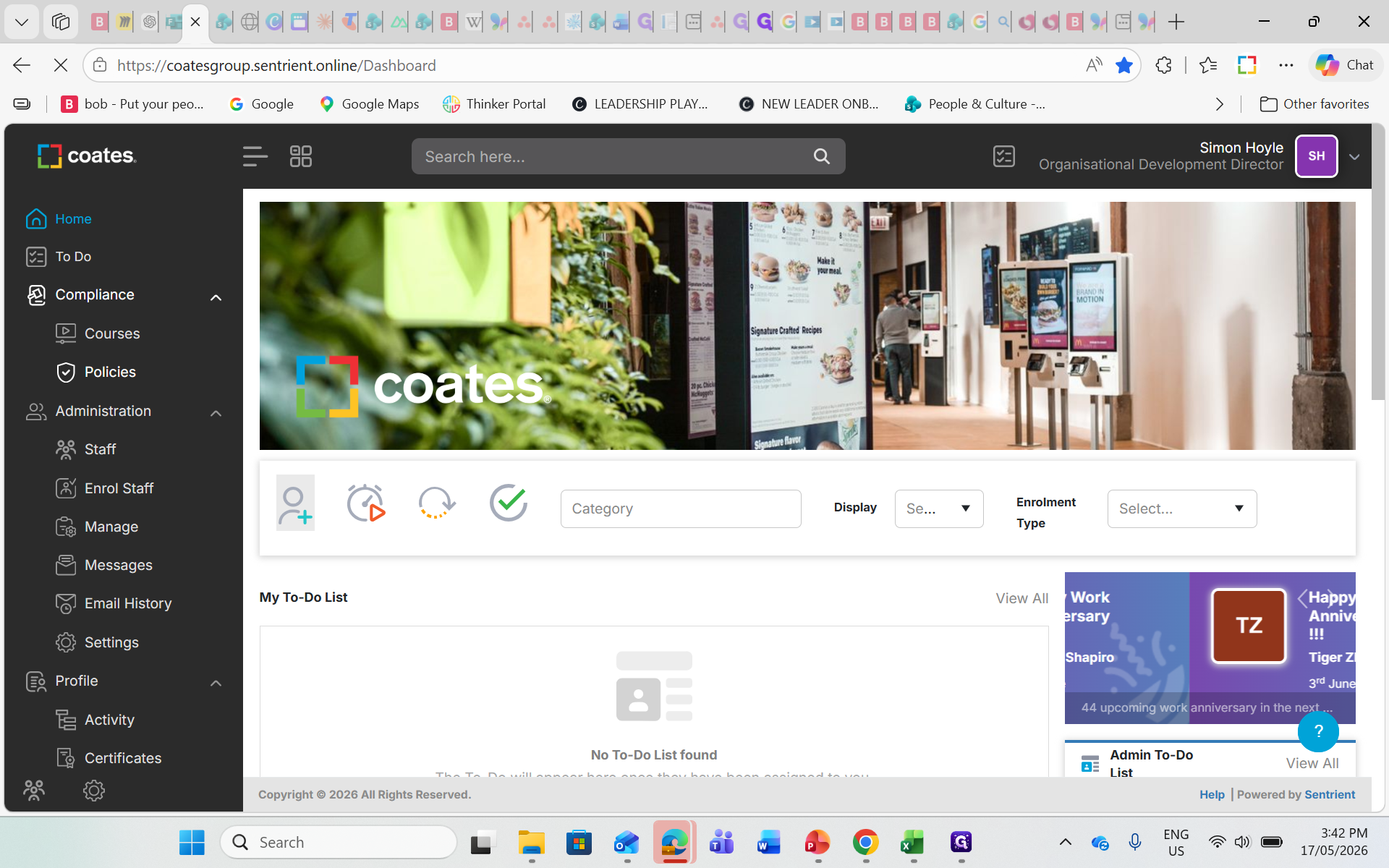
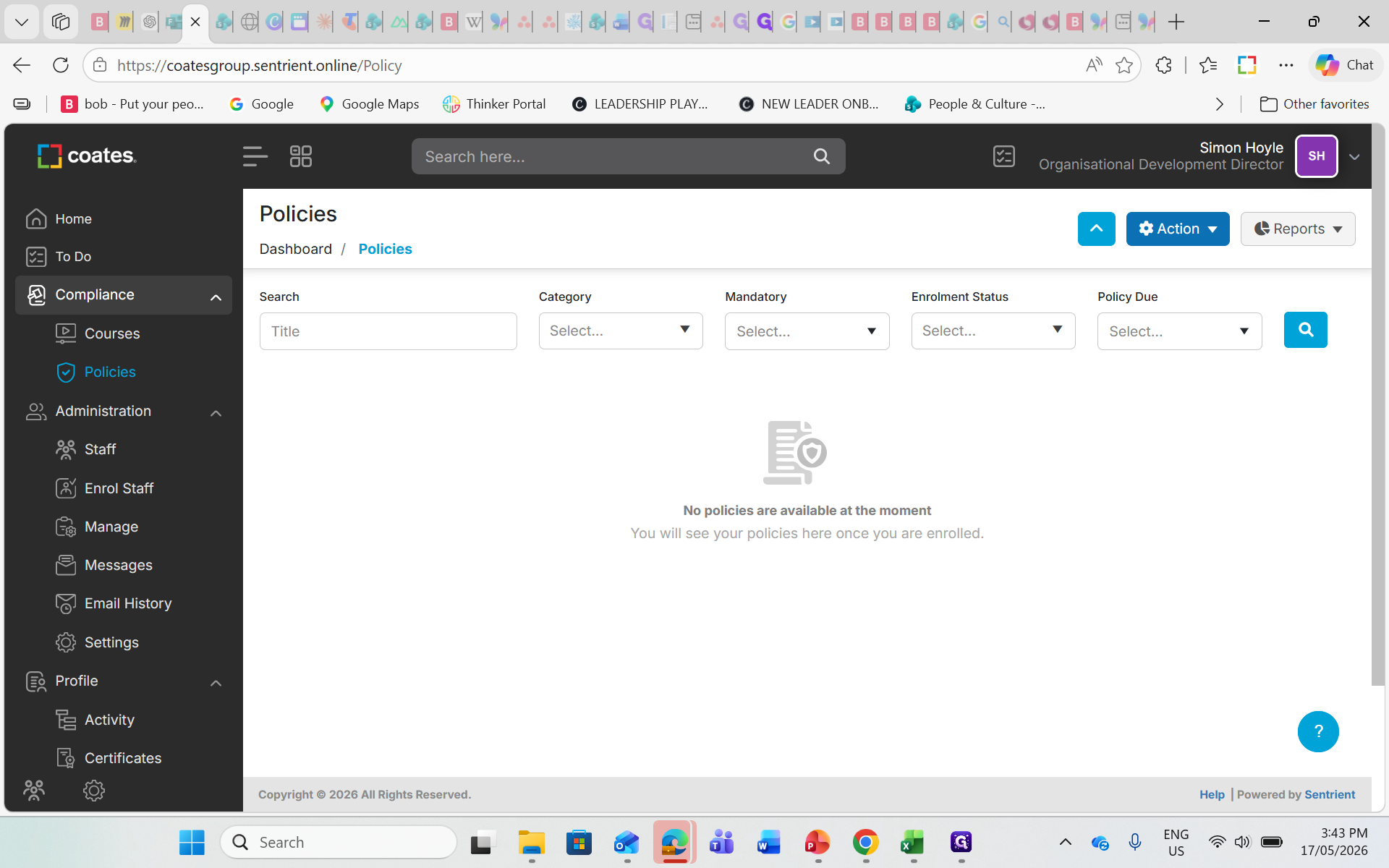
Locate the Policy
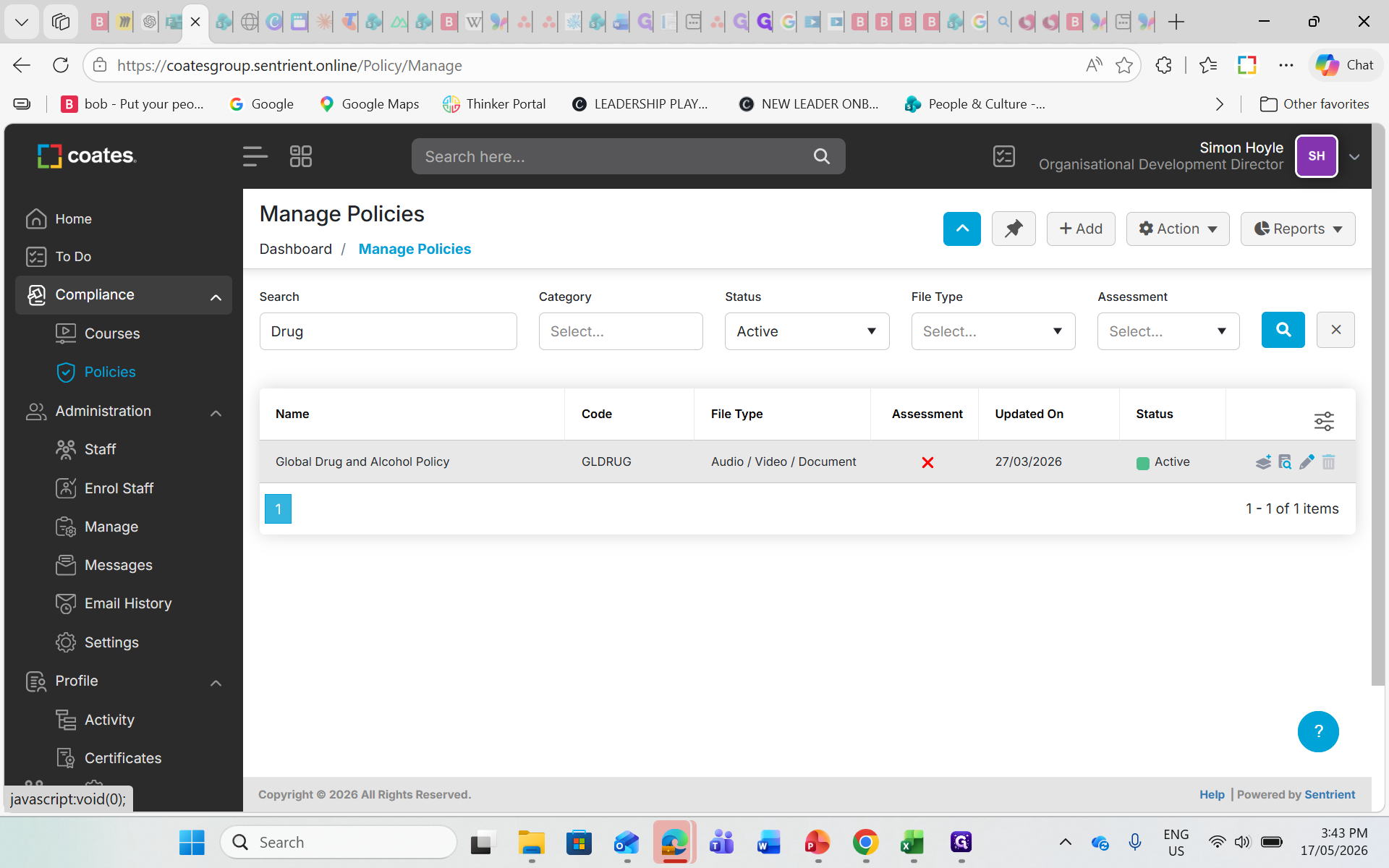
Create a New Version
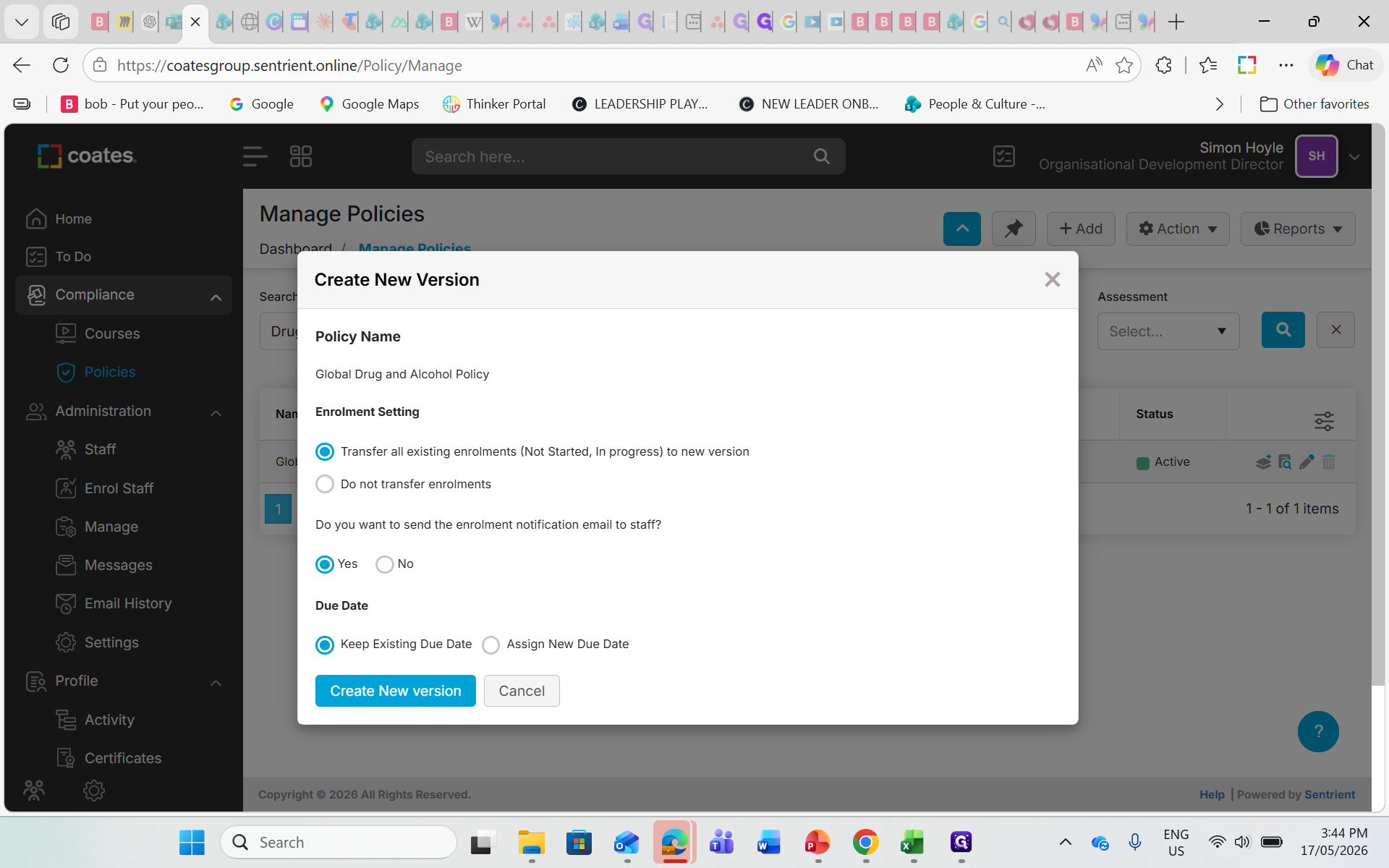
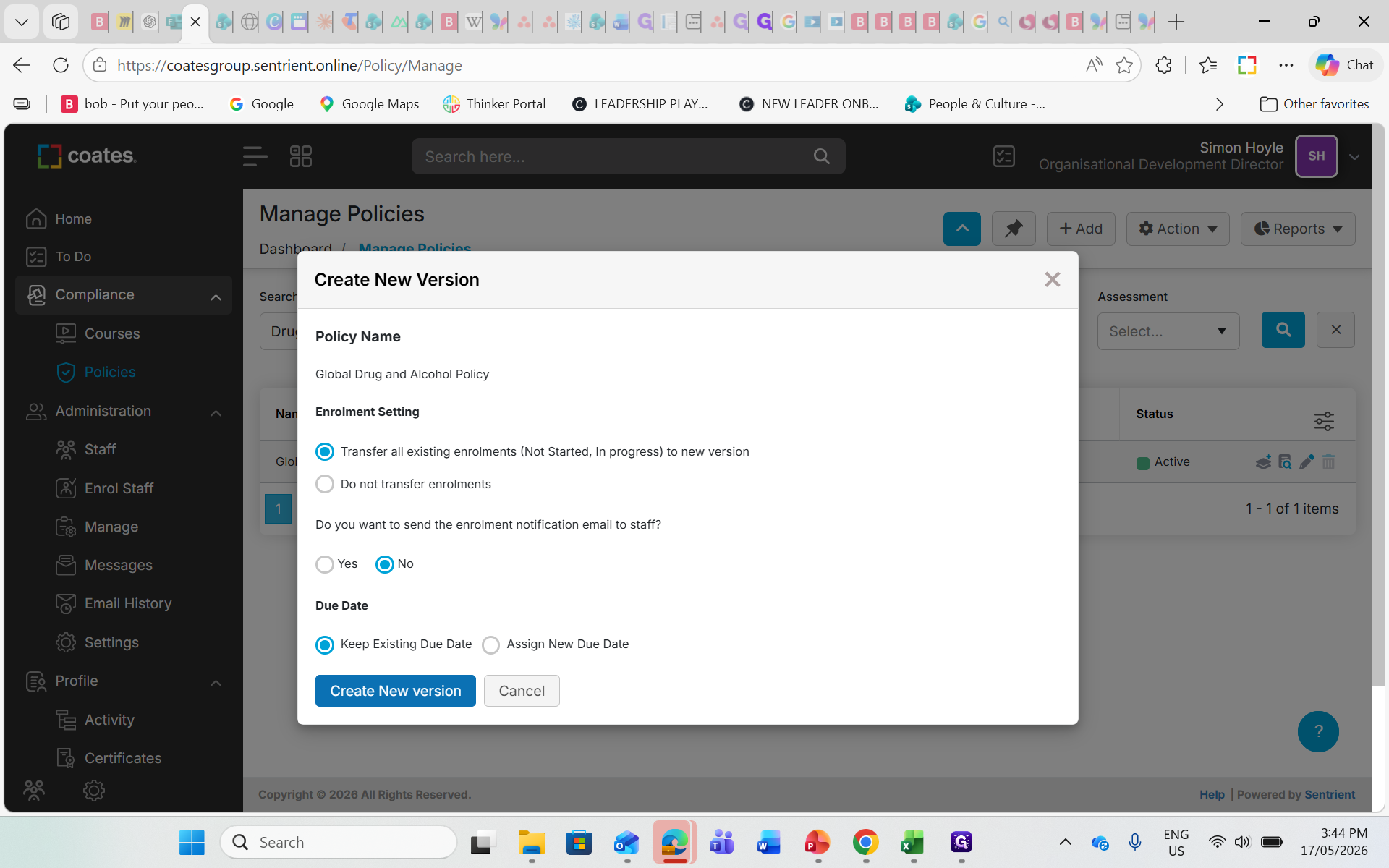
When creating a new version, you must determine how to handle users currently assigned to the policy.
Setting | How it works | When to use |
|---|---|---|
Transfer All Existing Enrollments | Automatically transitions users who haven't started the policy to the new version. | Use this in most cases to ensure compliance with the newest policy version. |
Do Not Transfer | Leaves users on the old version to finish their workflow. | Use only if a specific cohort is legally required to complete the legacy document. |
Email Notification | Determines whether to trigger a new enrollment email to users. | Leave unchecked if users already received an initial workflow notification, preventing duplicate emails. |
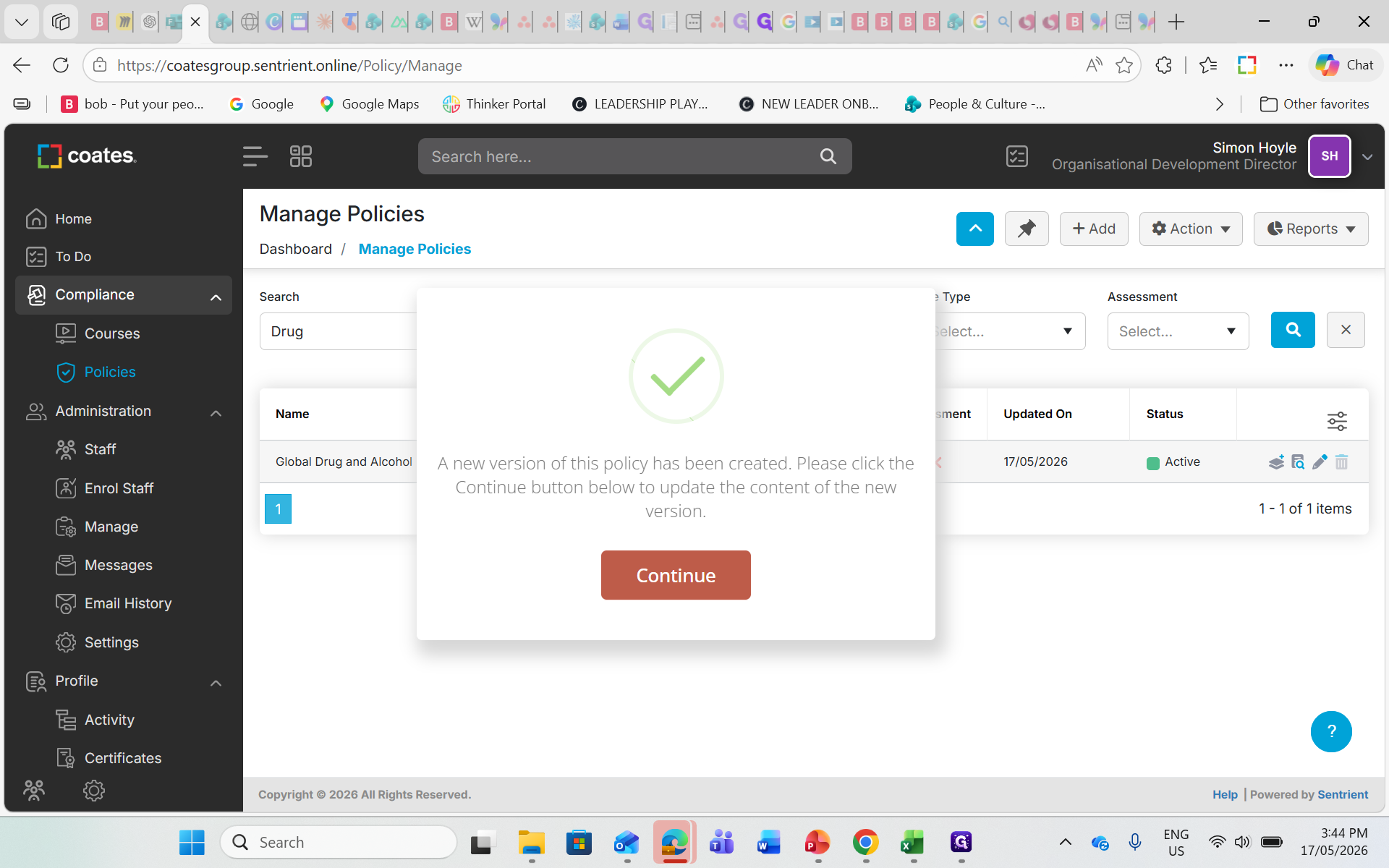
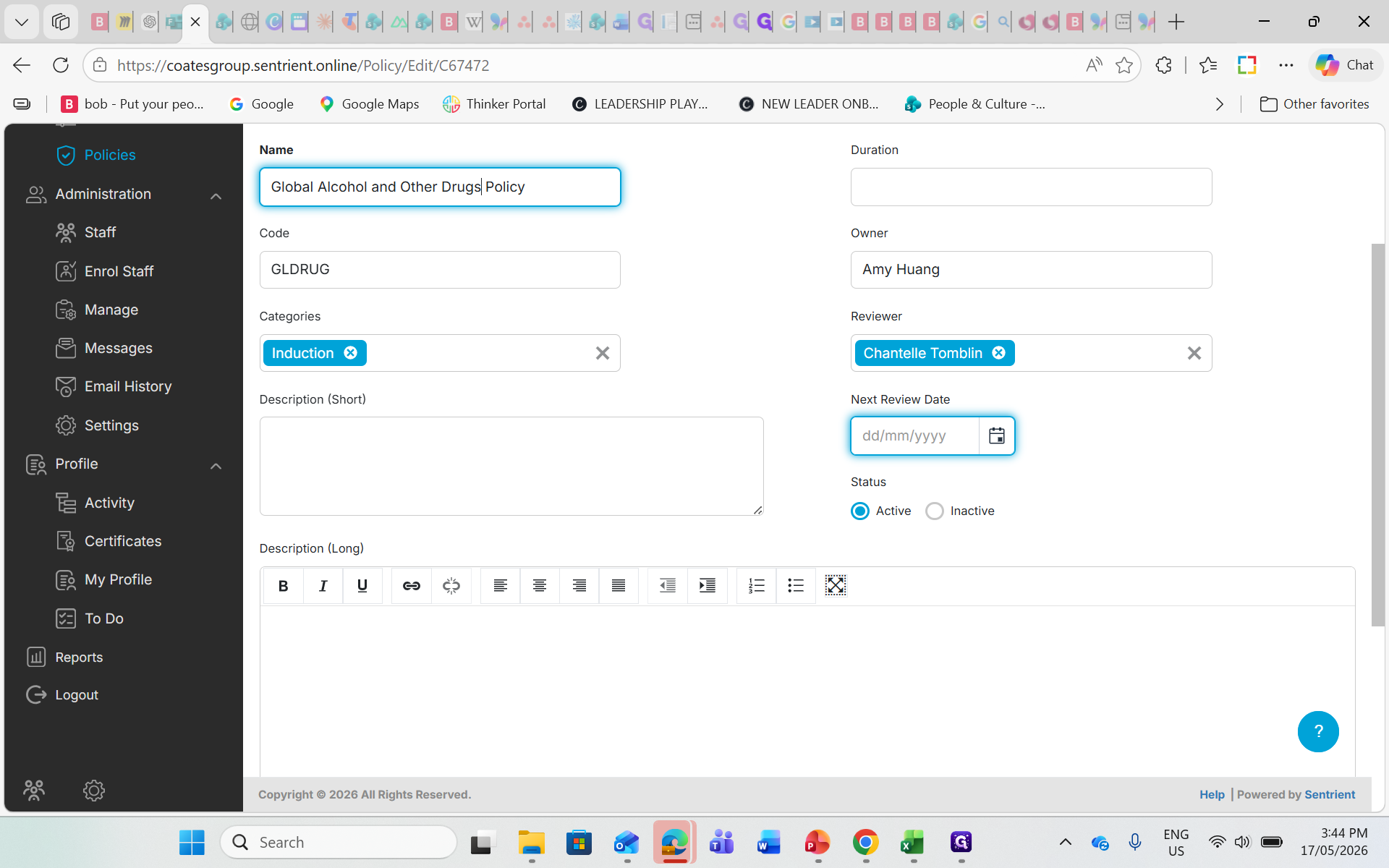
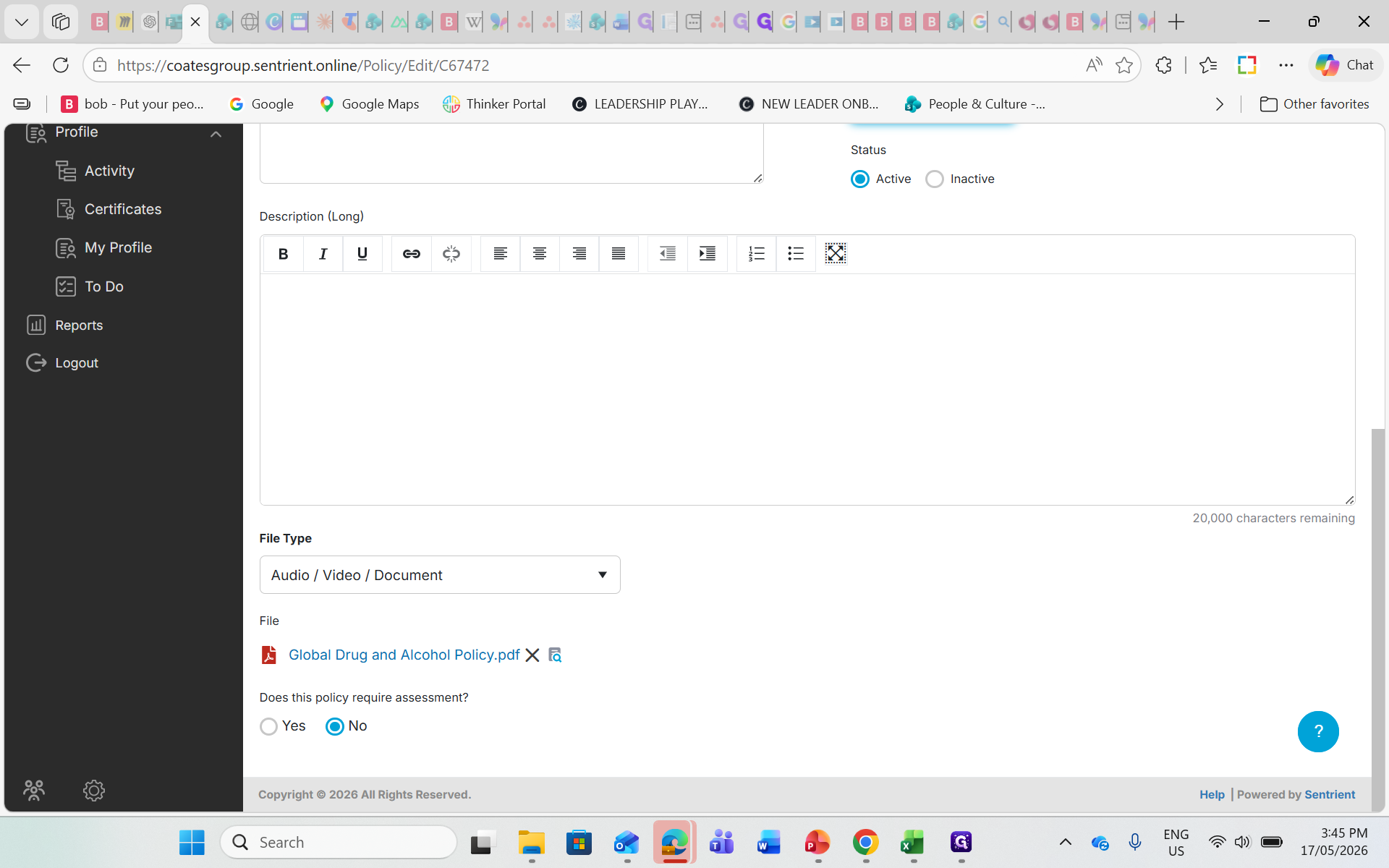
Update Policy Details
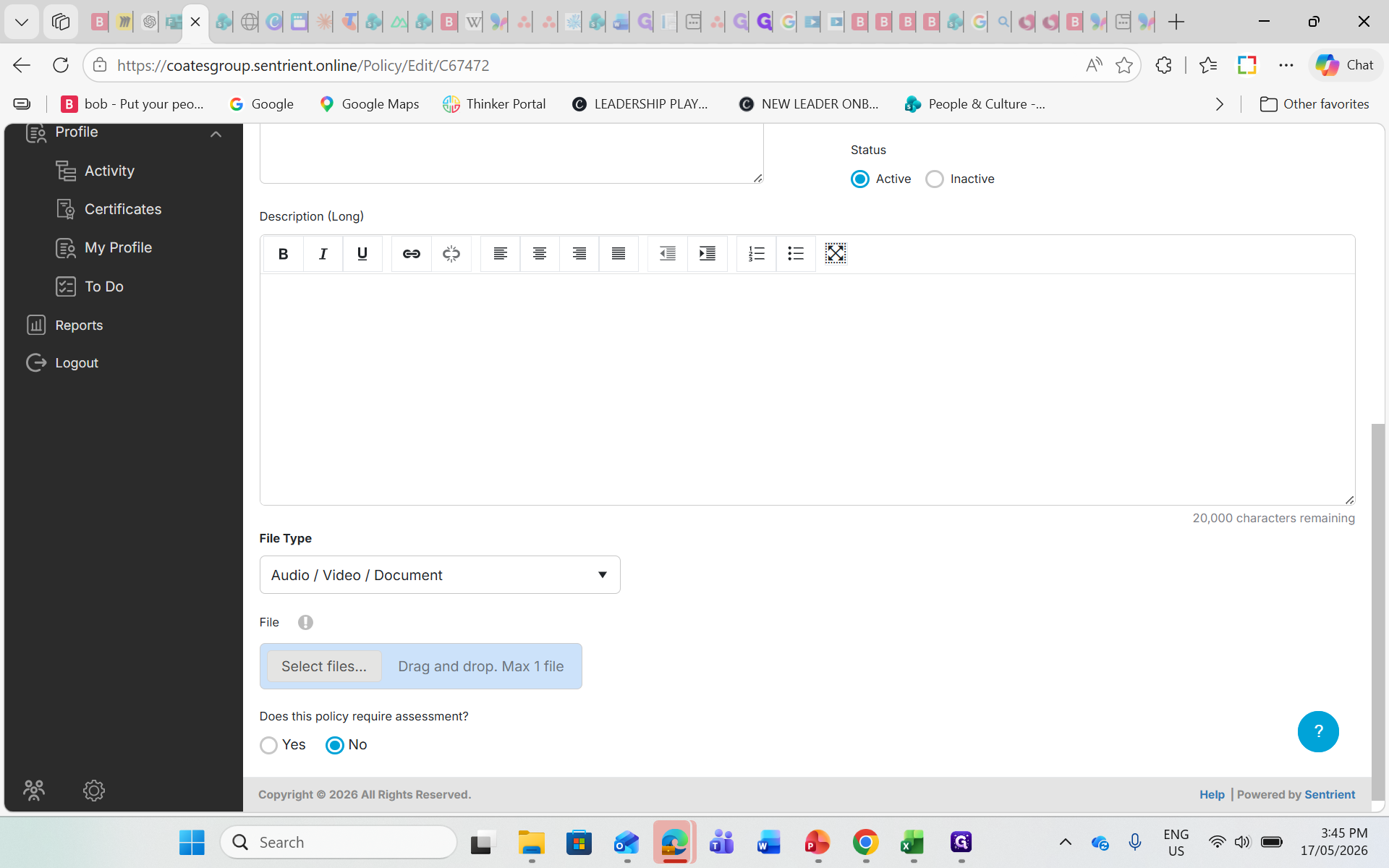
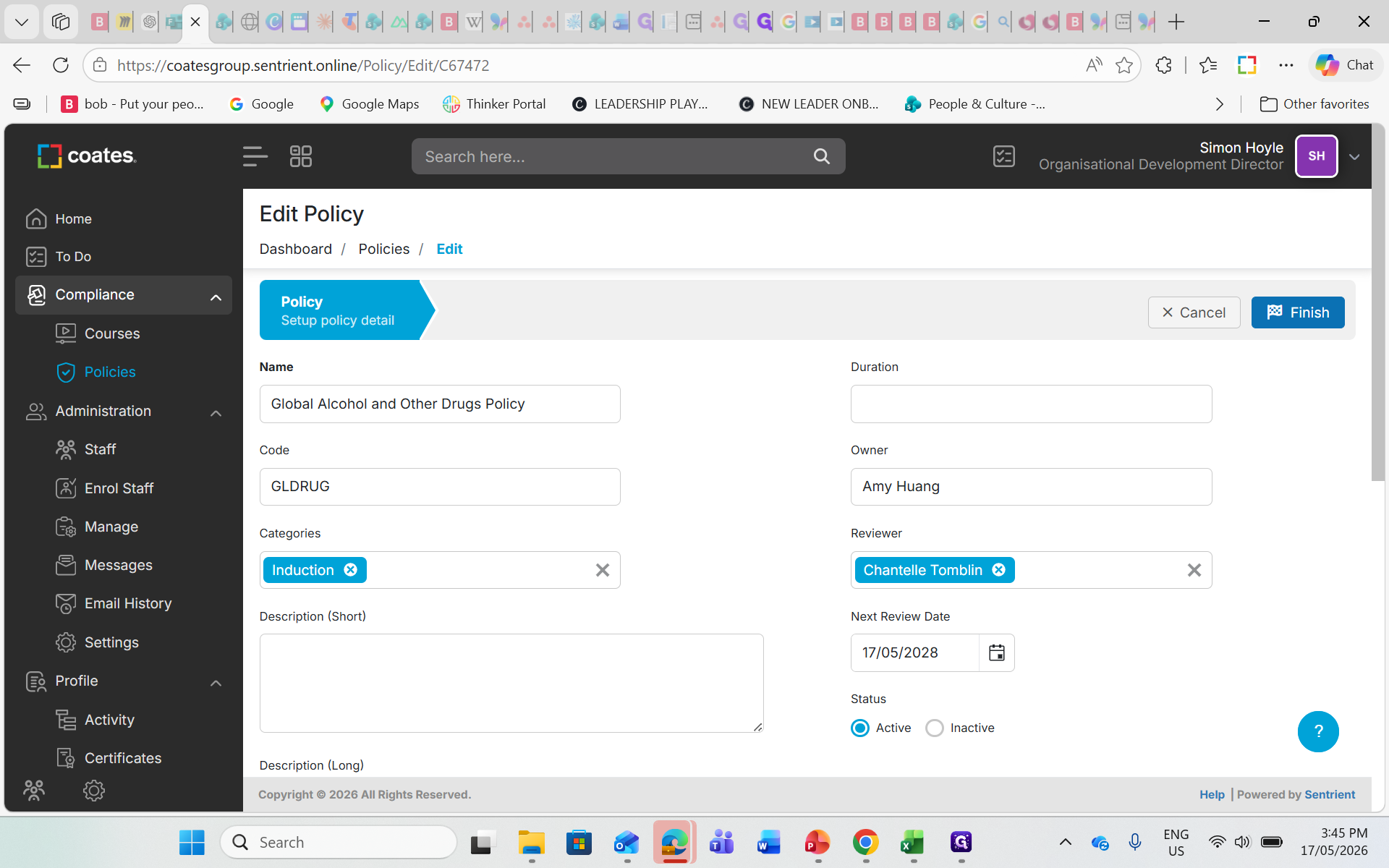
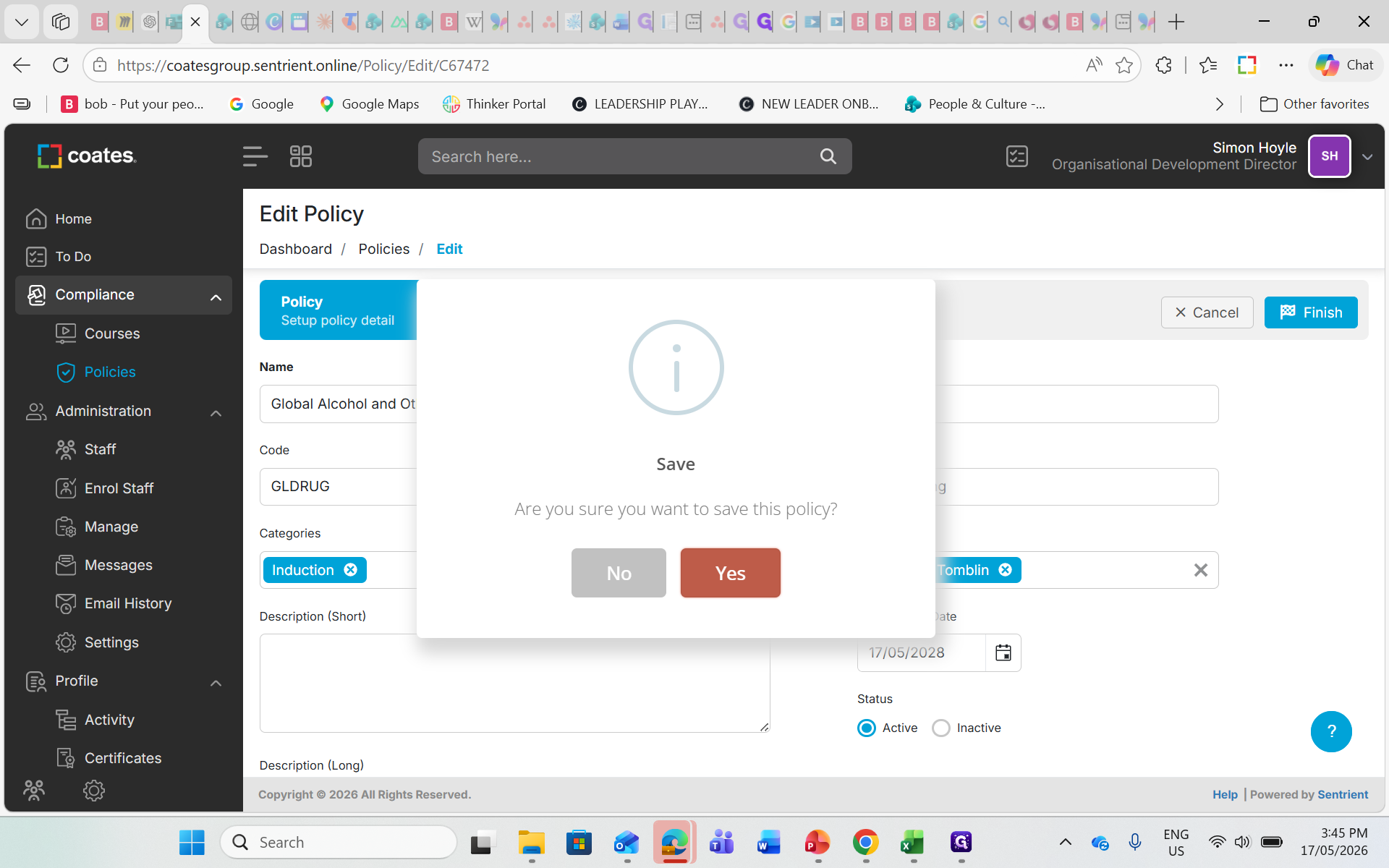
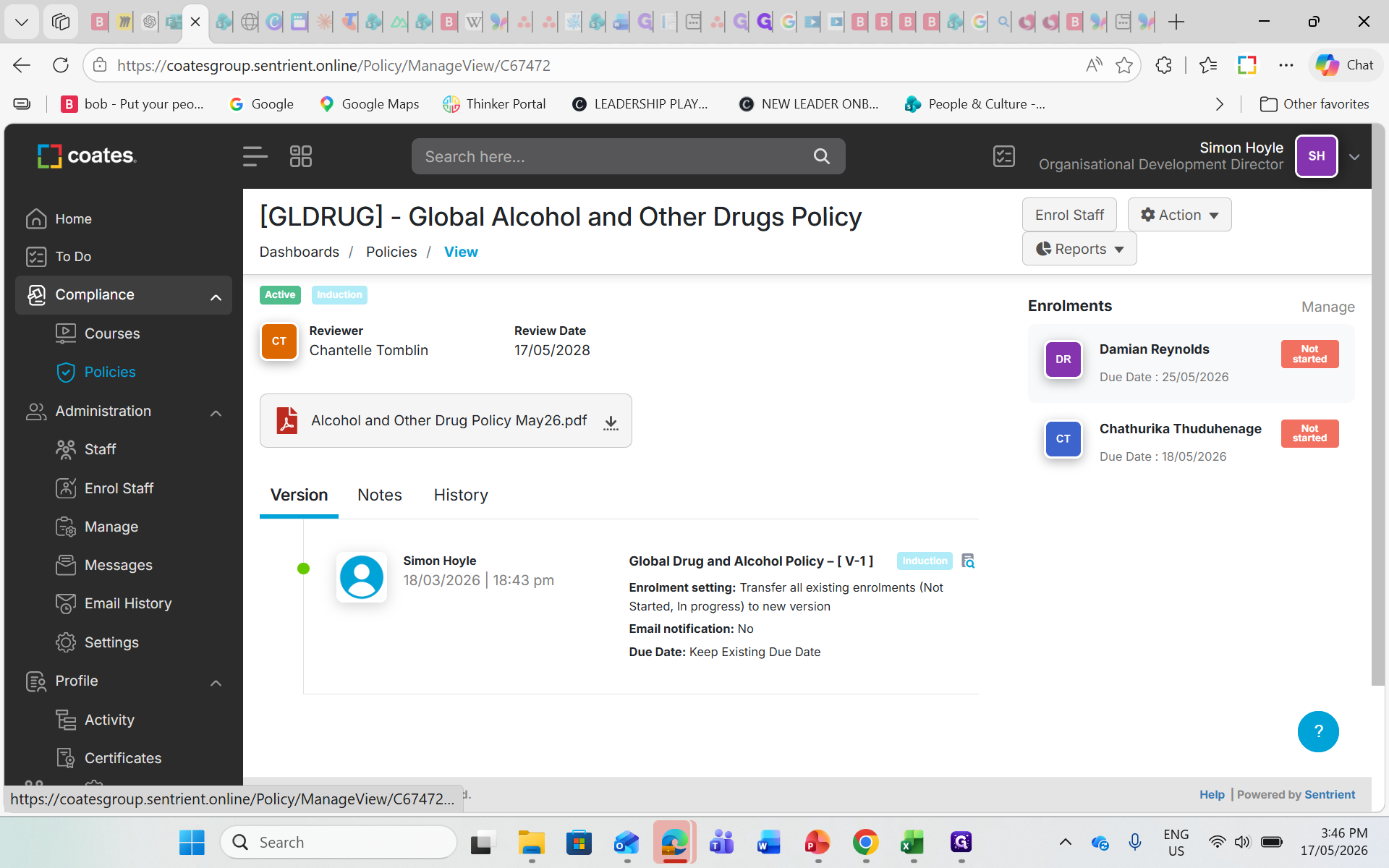
Verify Version Control
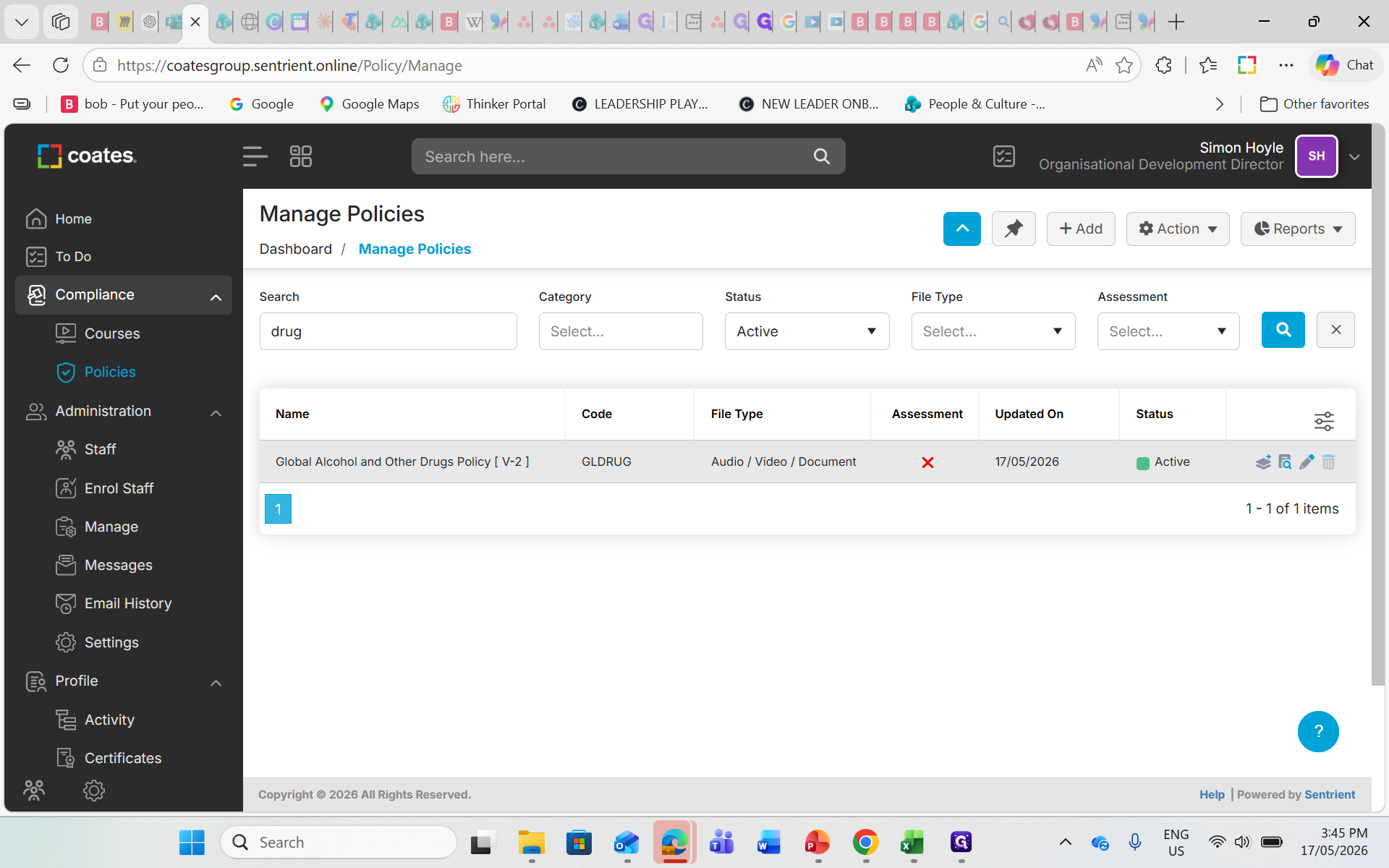
You can view users who are currently enrolled here and verify that their status points to the new version.
FAQ
Q: Will updating the policy send duplicate enrollment emails to users?
A: Not automatically. When configuring the new version, you can disable the email notification setting to avoid spamming users who already received an alert for the original workflow.
Q: What happens to users who are already in the workflow but haven't started the policy yet?
A: If you select "Transfer All Existing Enrollments", users who haven't started yet will seamlessly see and complete the new version when they log in to the platform.
Glossary
Term | Definition |
|---|---|
Enrollment | A user's assigned requirement to complete a specific course or policy within the compliance platform. |
Sentrient | The compliance management and training software platform used to administer policies and courses. |
Version Control | A system that tracks changes to documents over time, maintaining historical records while updating live workflows. |