
Update QRG and Cheat Sheets In Indesign
Learn how to update 1UC Indesign templates
This guide explains how to properly edit template-based Adobe InDesign files, from updating master elements and text styles to safely exporting and packaging the final project. By following these steps, you will prevent missing links, broken fonts, and formatting inconsistencies in your deliverables.
This guide is intended for designers, marketing teams, and documentation specialists who need to modify existing InDesign templates, update graphical assets, or prepare files for client hand-off.
Before opening your document, note that InDesign relies on external linked files for images and graphics. These assets must be kept in a folder (usually named "Links") alongside your .indd file to prevent errors.
Setting Up the Workspace
.indd file to open your document in InDesign.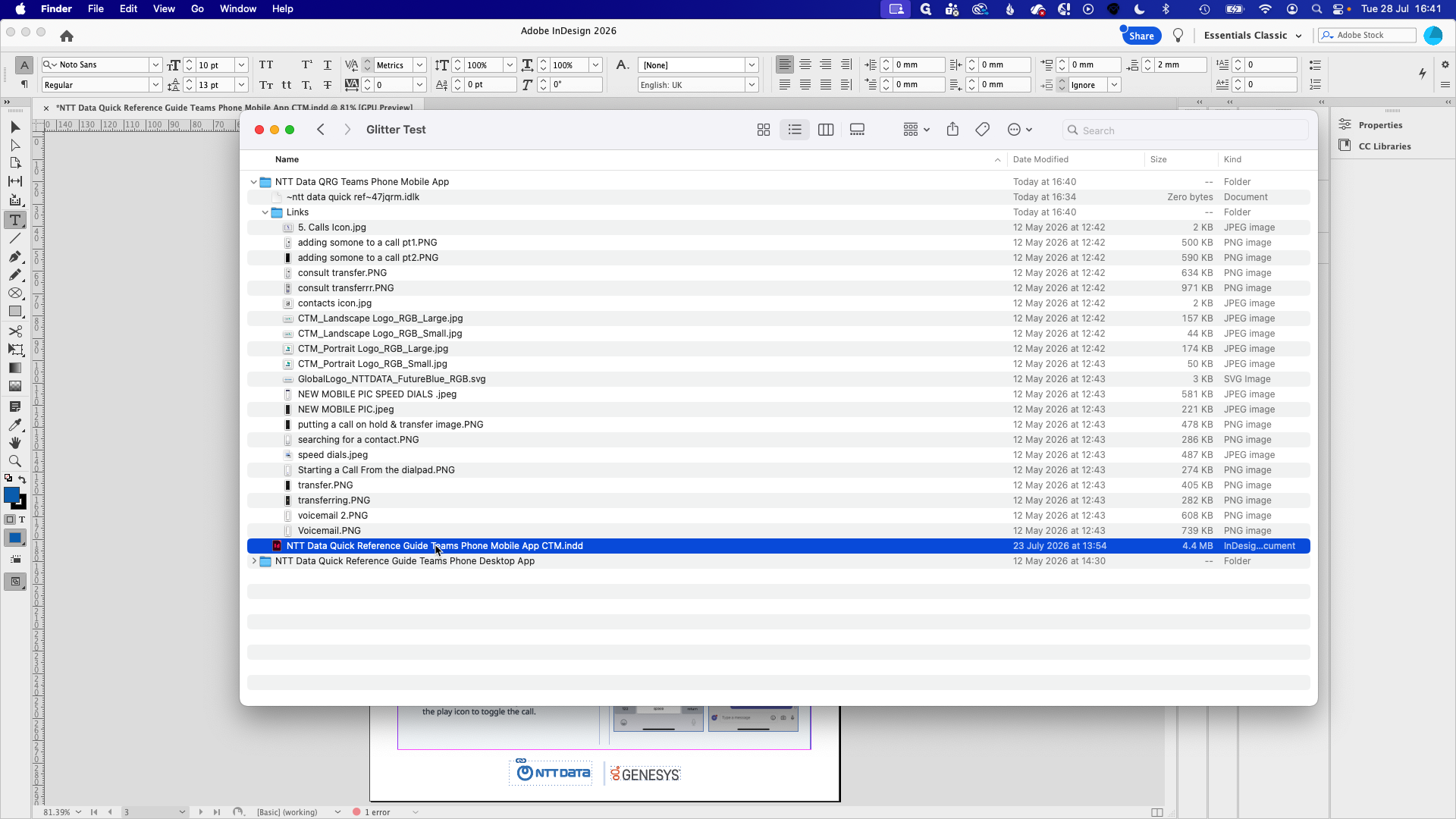
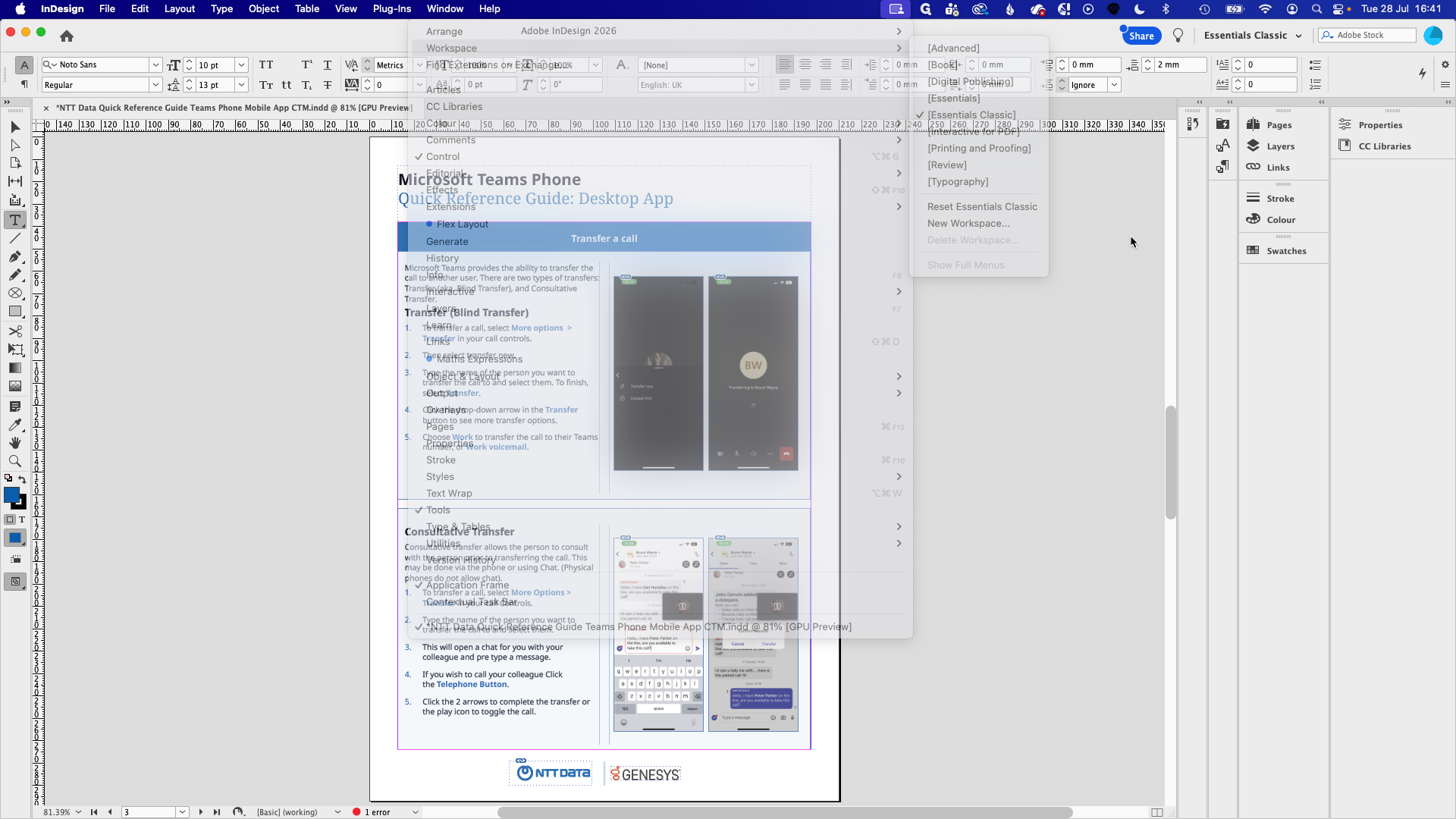
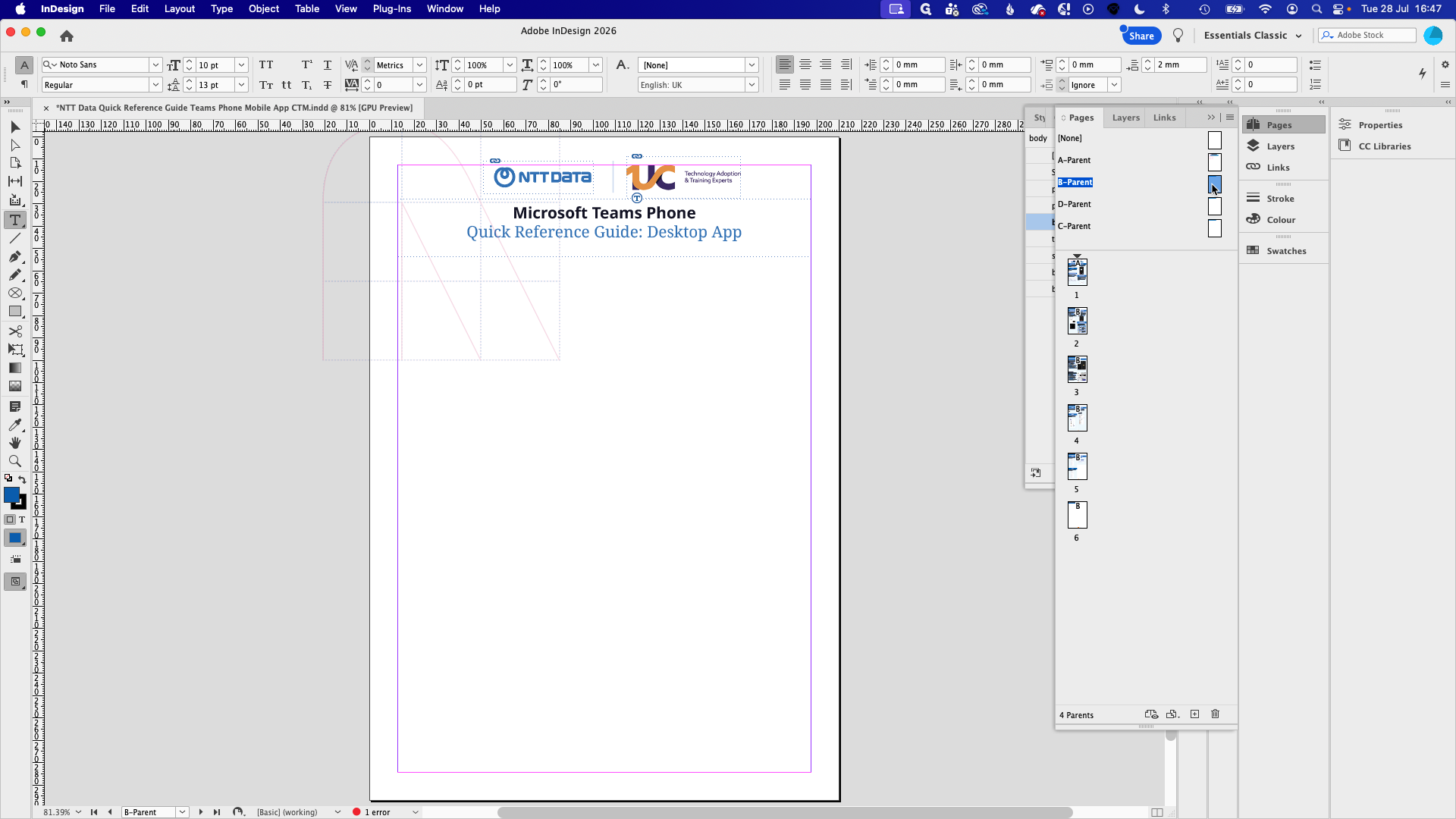
Working with Parent Pages
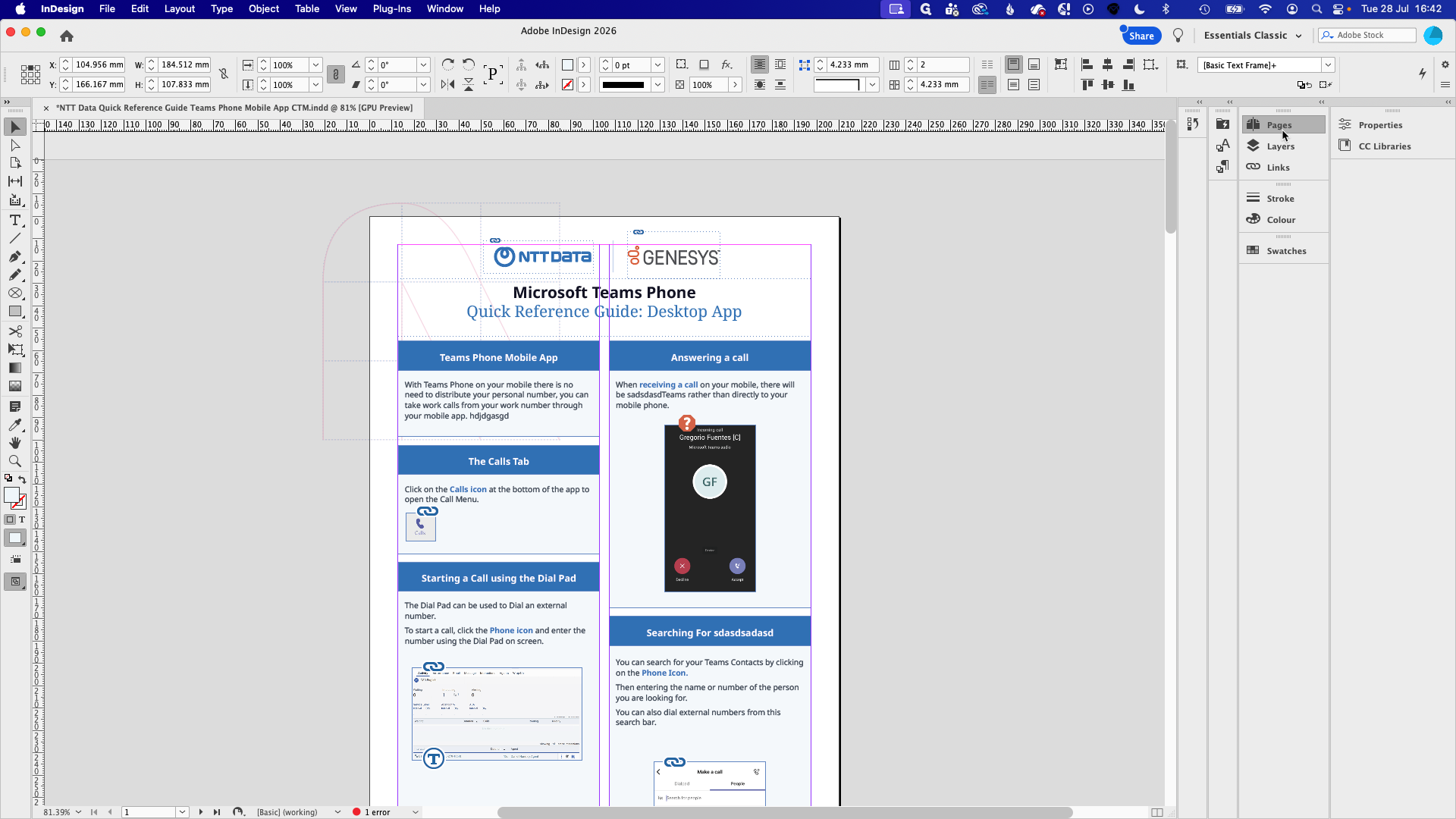
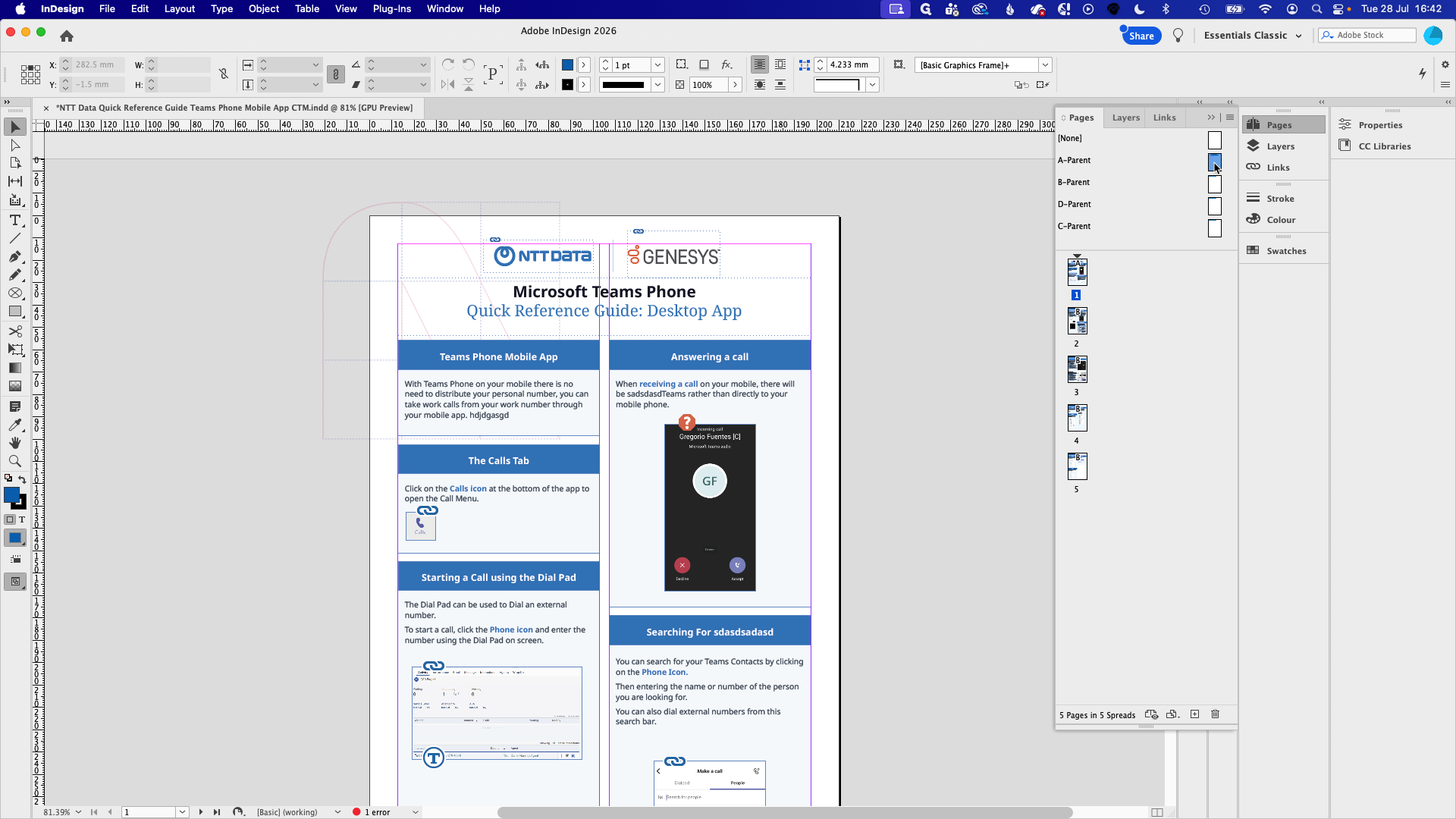
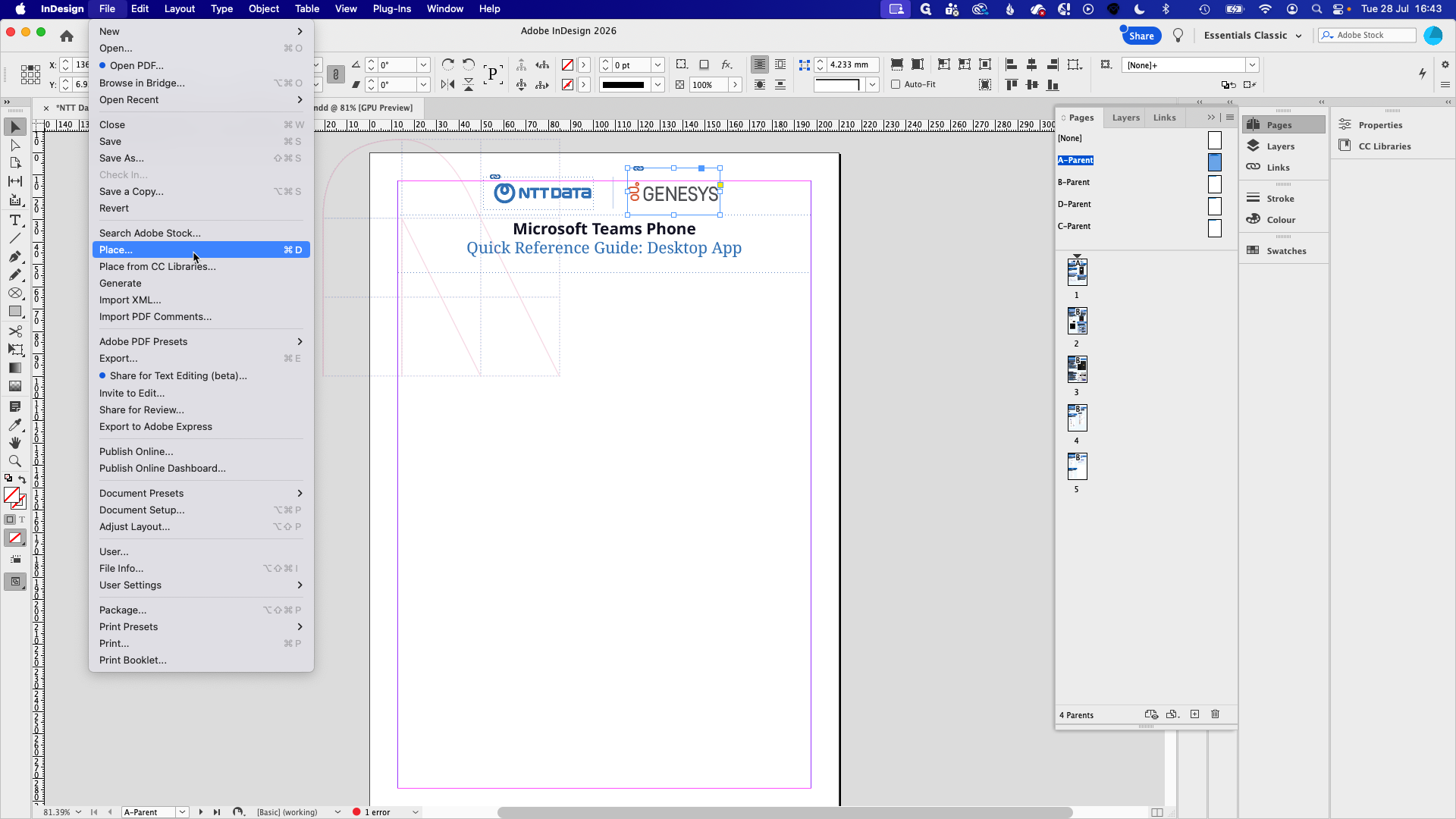
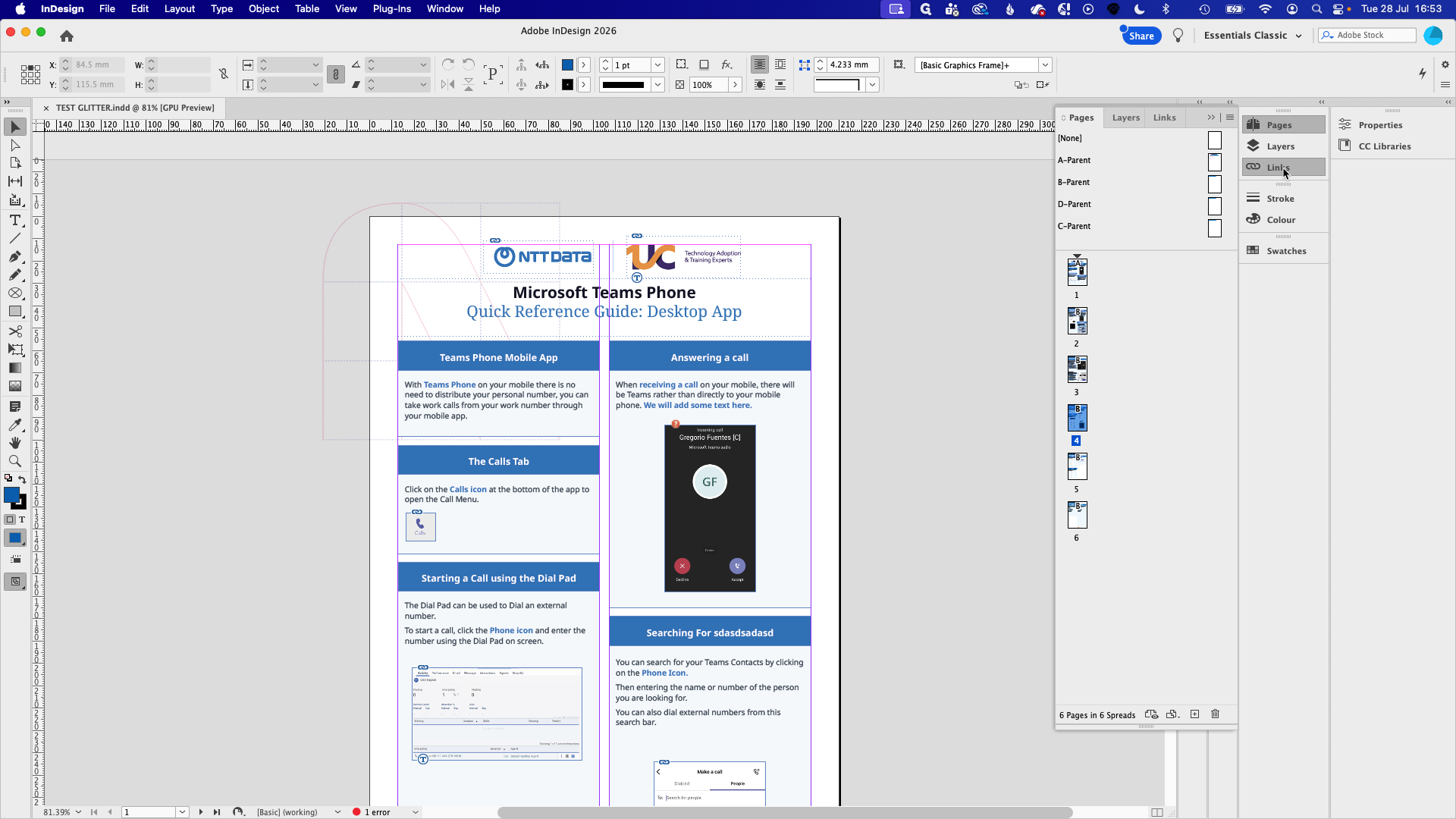
Parent pages (formerly Master pages) contain elements that repeat across multiple pages, such as headers, titles, and logos. If you find an object on a page that you cannot click or edit, it is likely controlled by a Parent page.
Placing Images and Logos
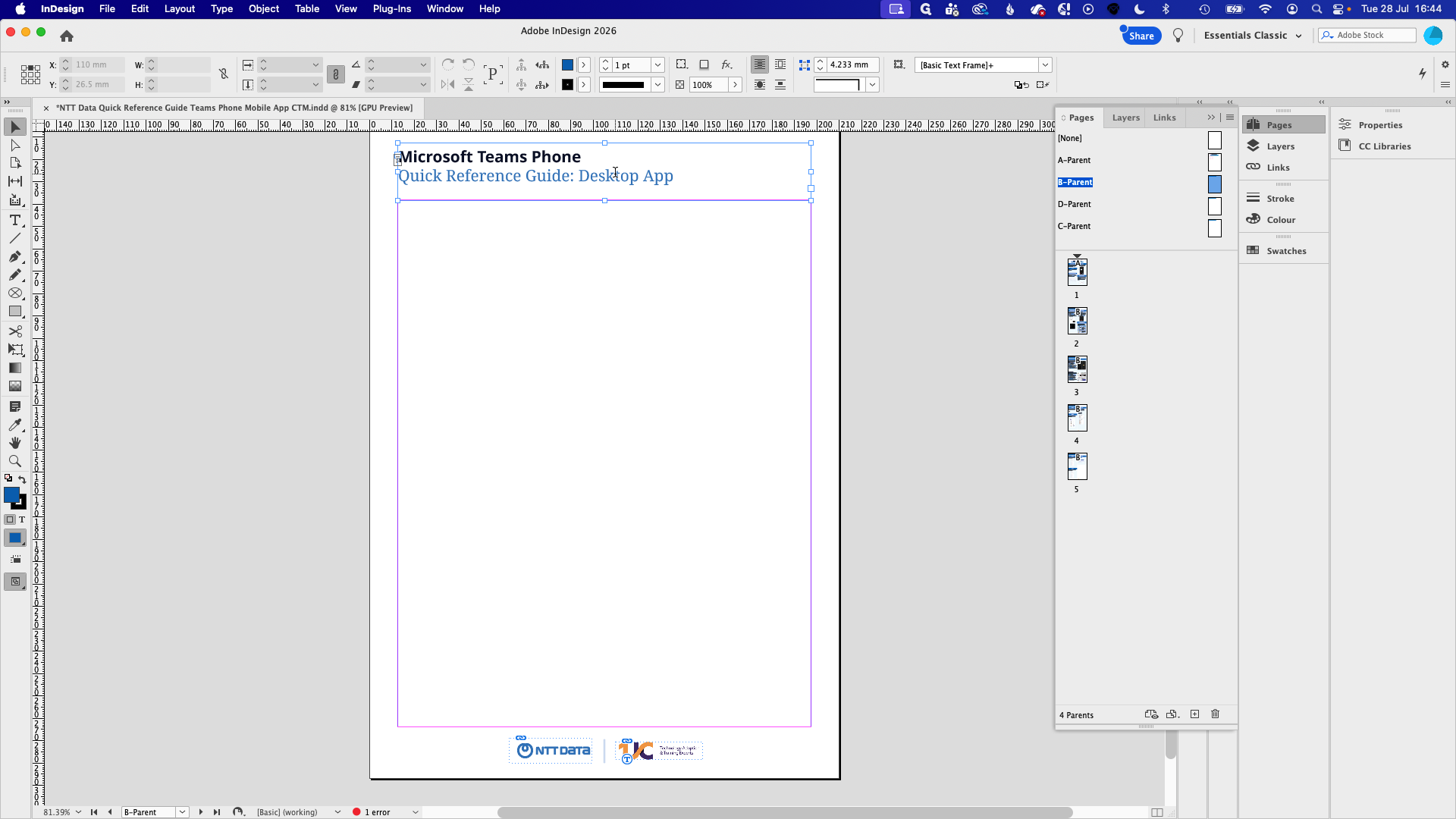
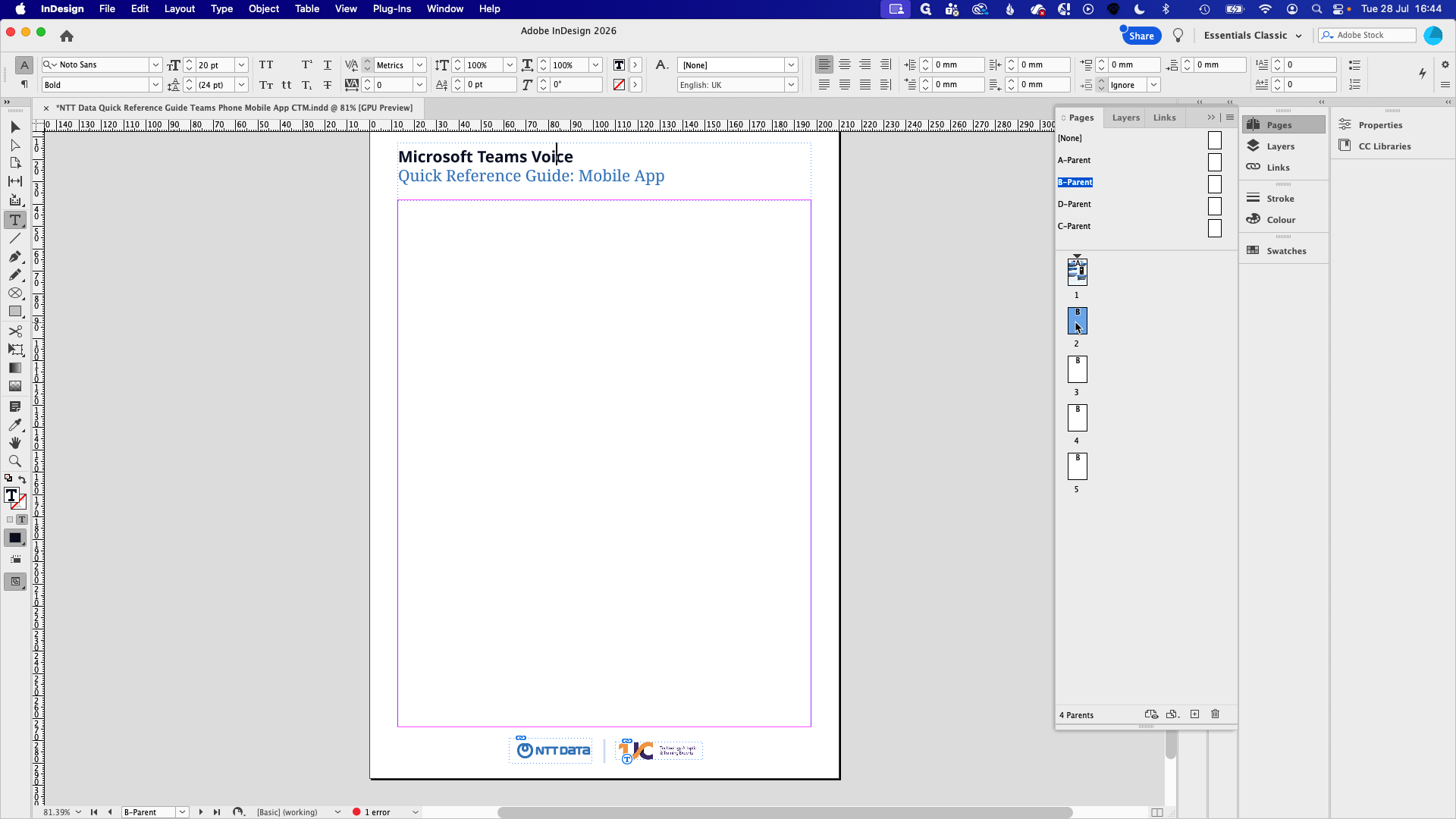
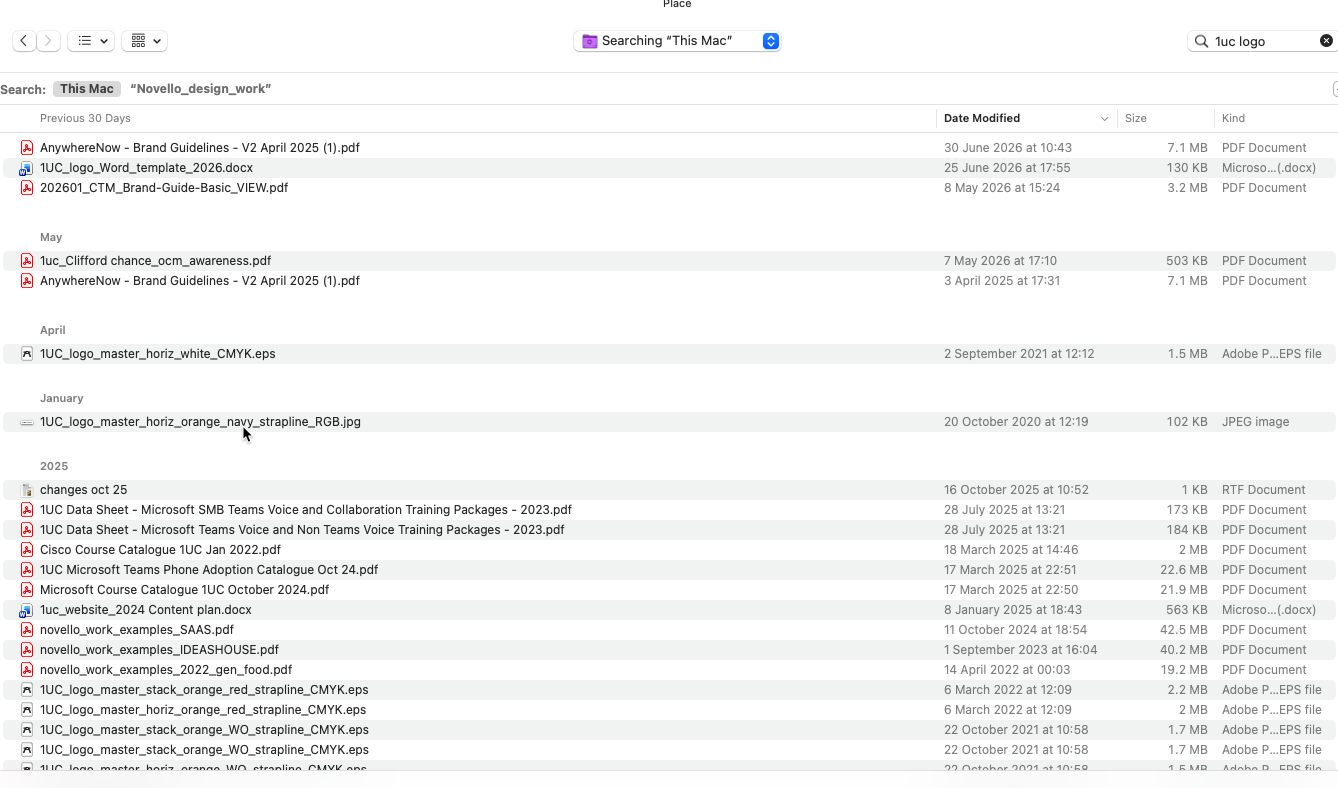
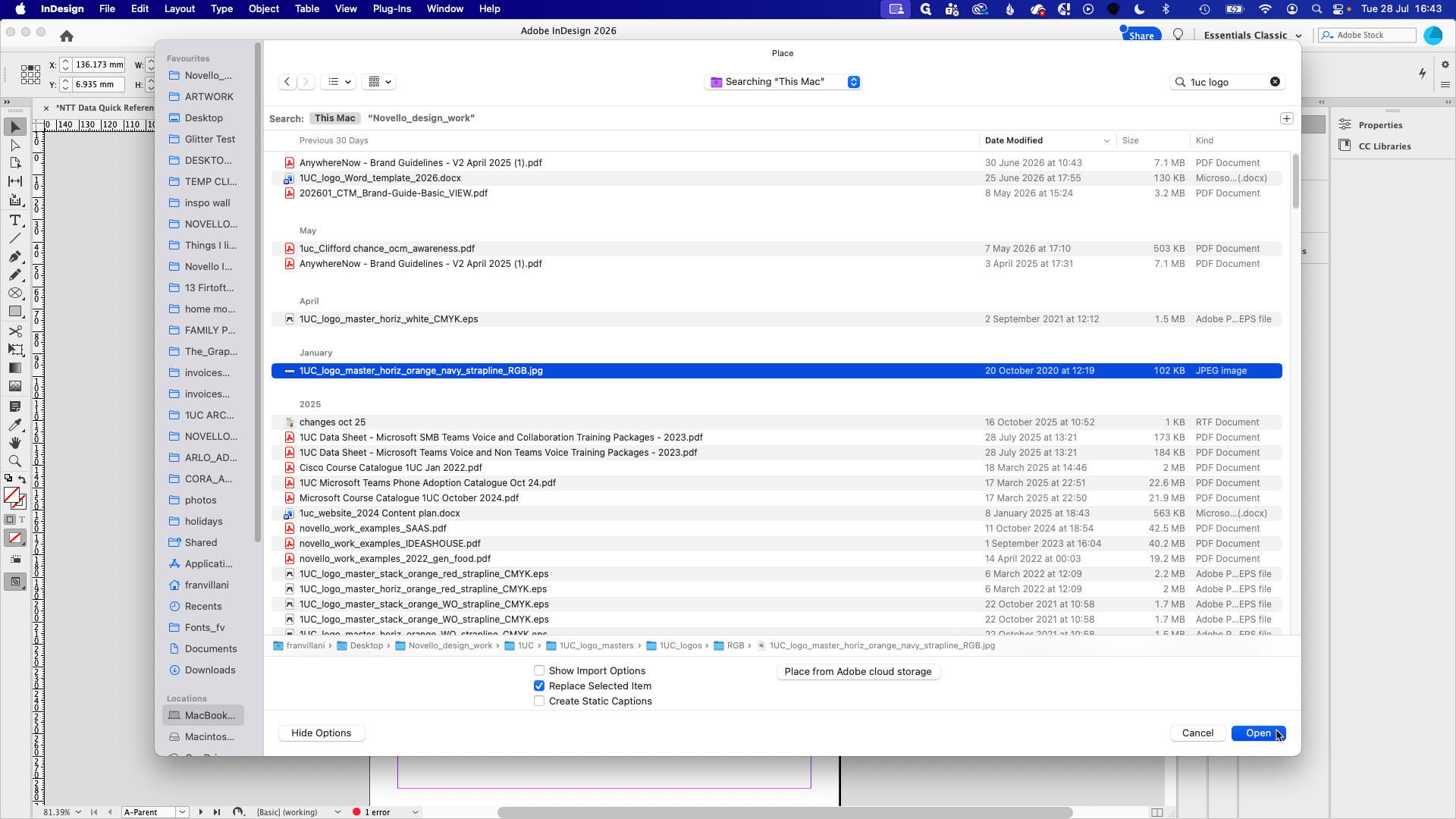
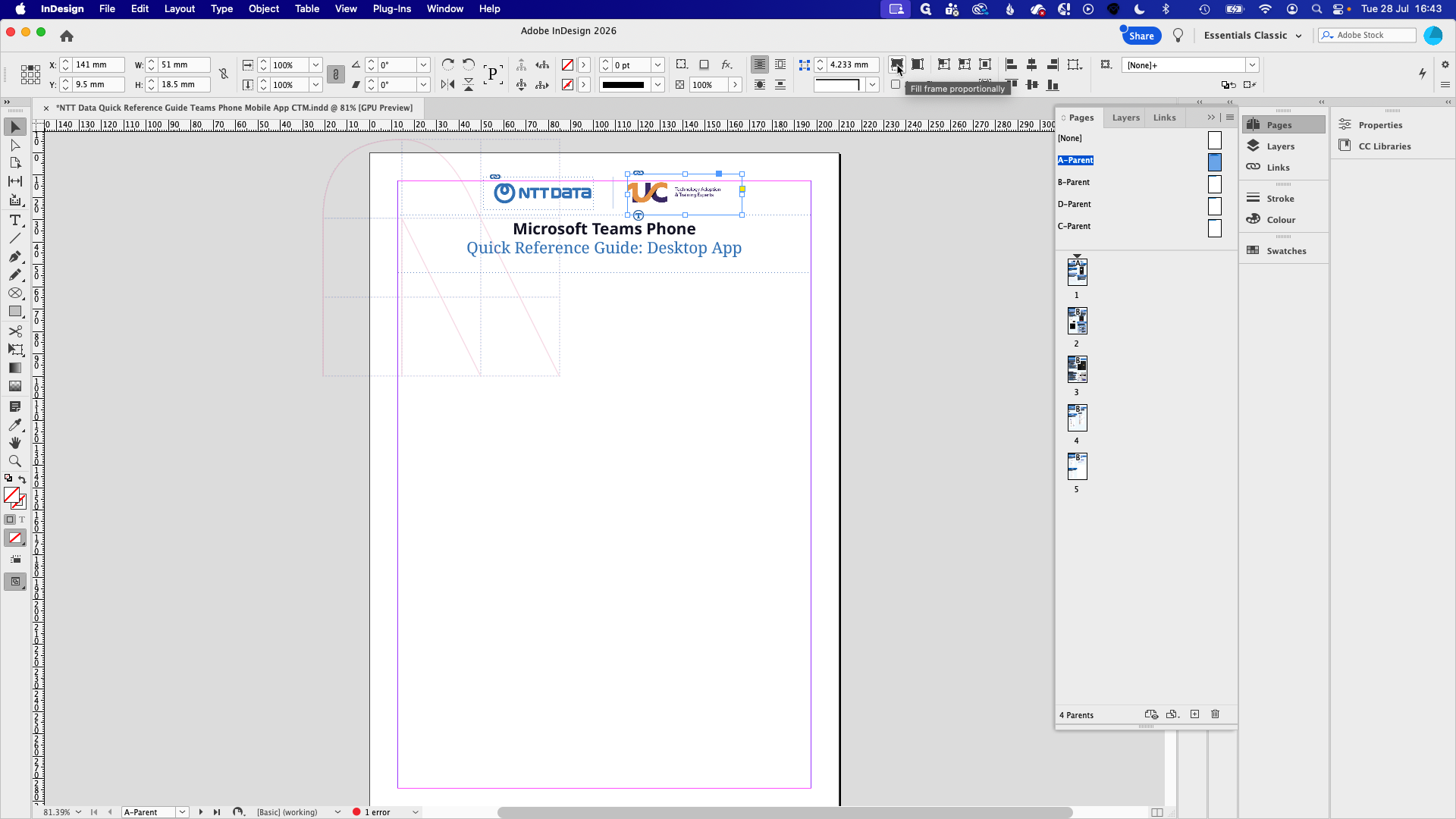
When updating a screenshot or logo, do not delete the existing frame. Instead, place the new image directly into it.
Styling Text Properly
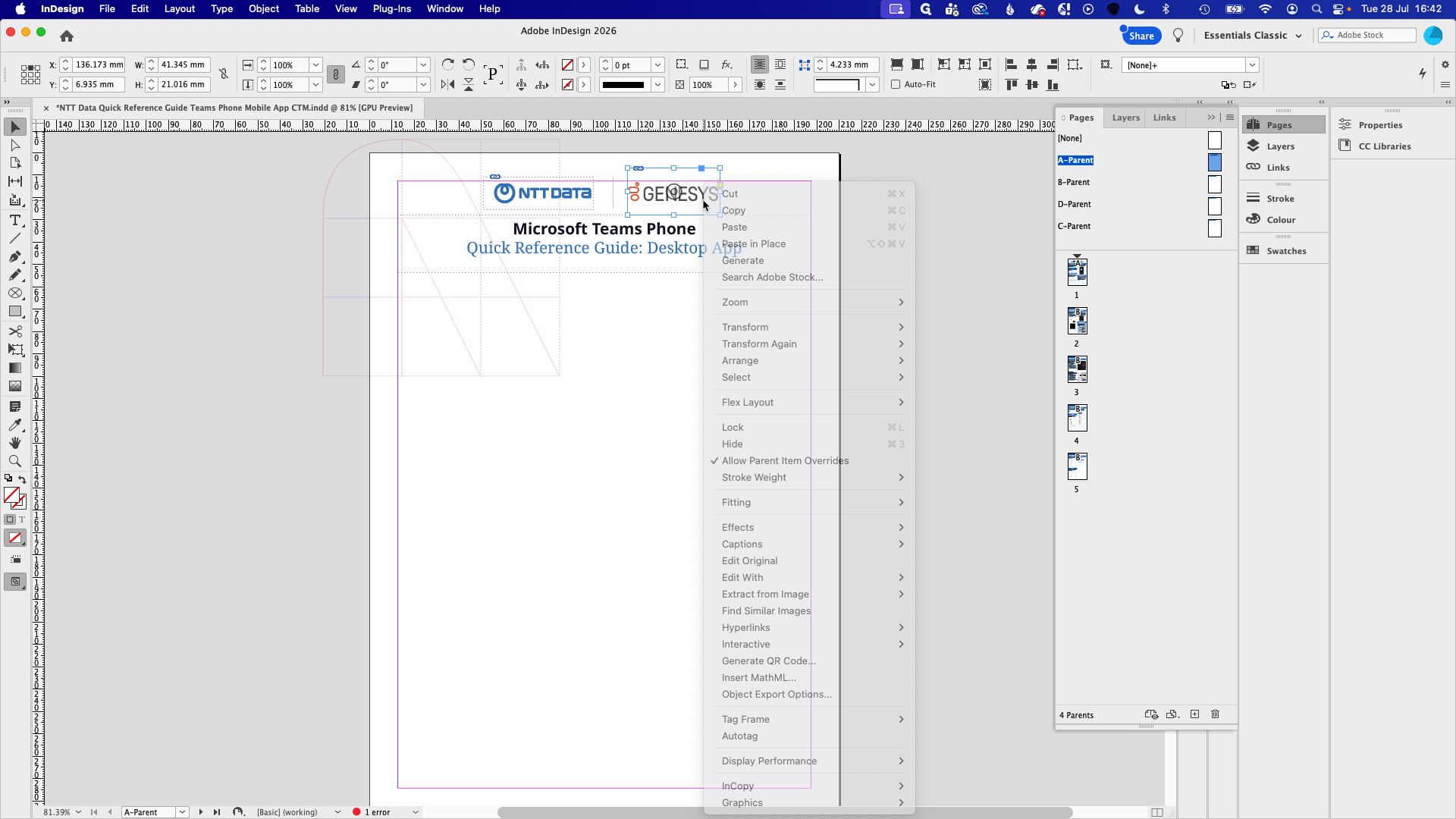
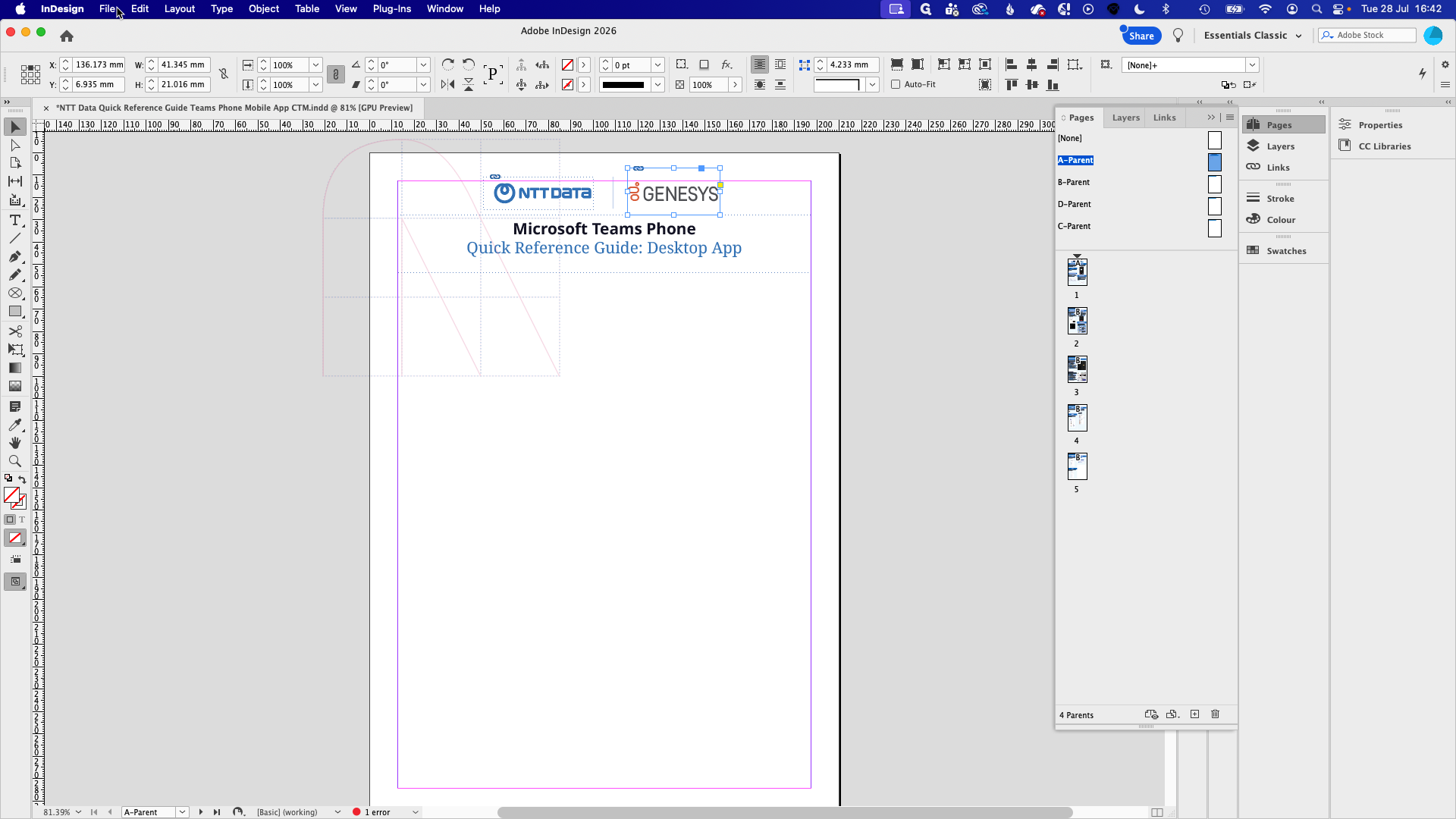
Avoid overriding fonts and sizes manually using the top toolbar. Templates rely on dedicated styles to maintain consistency.
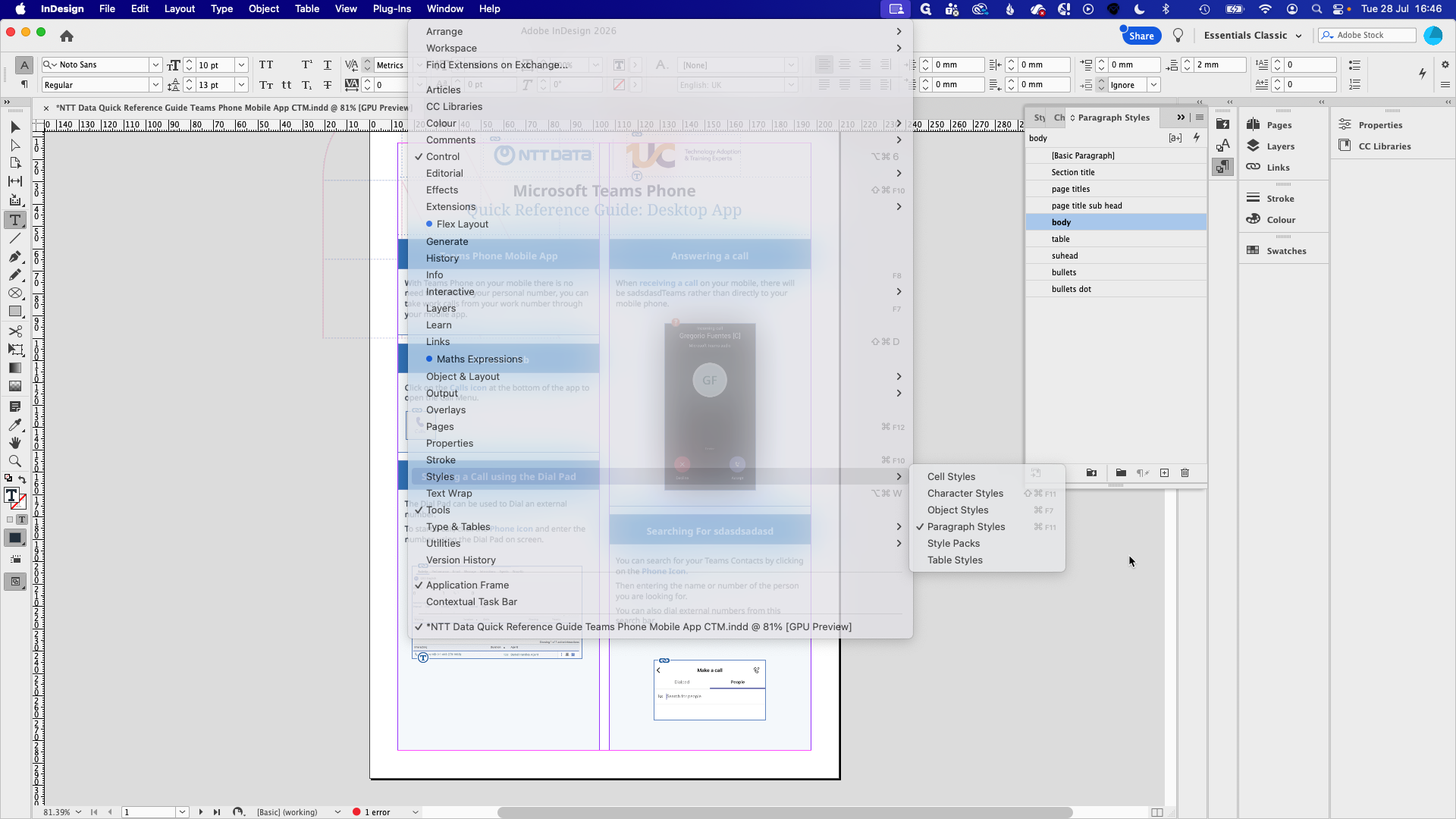
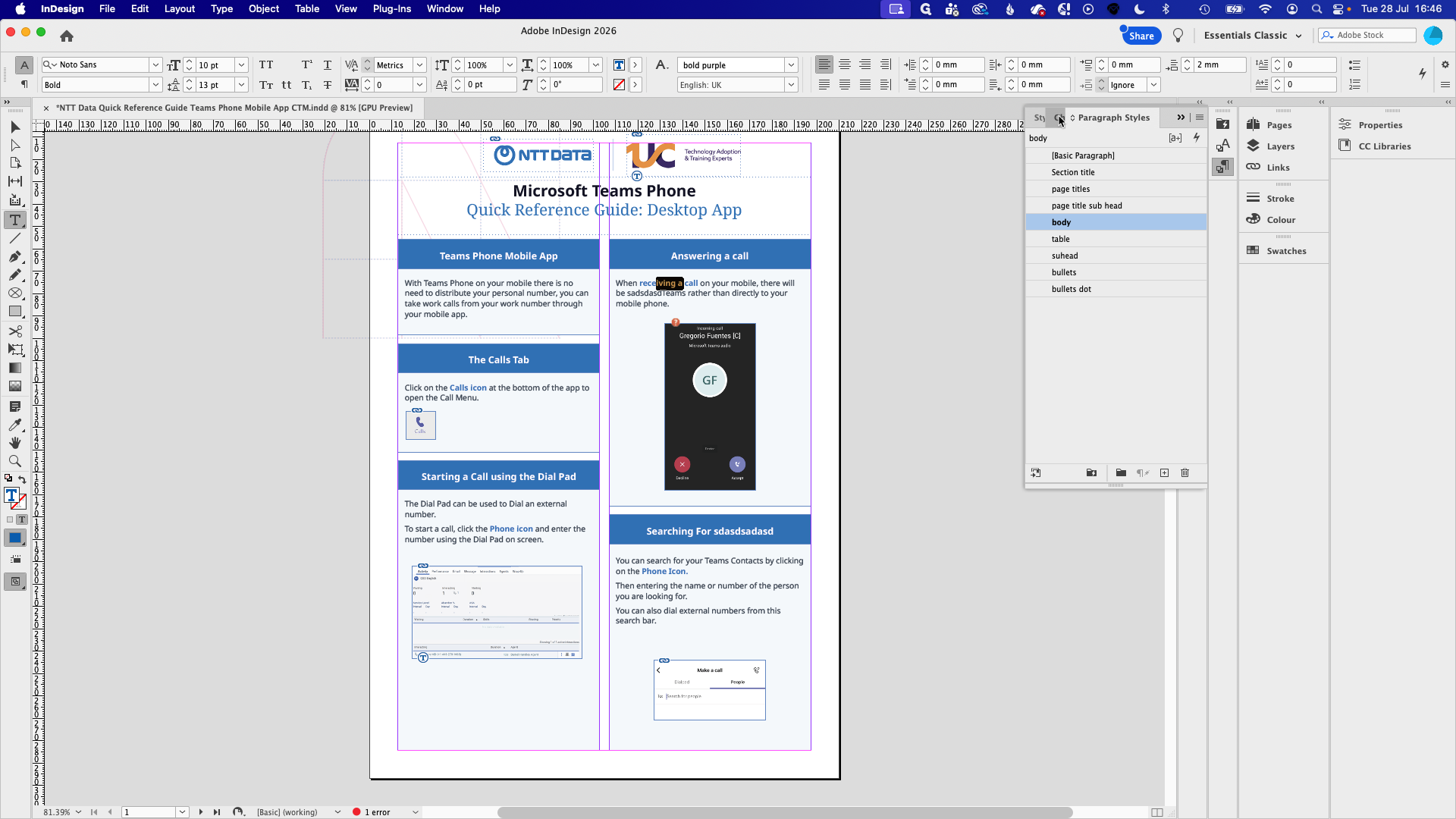
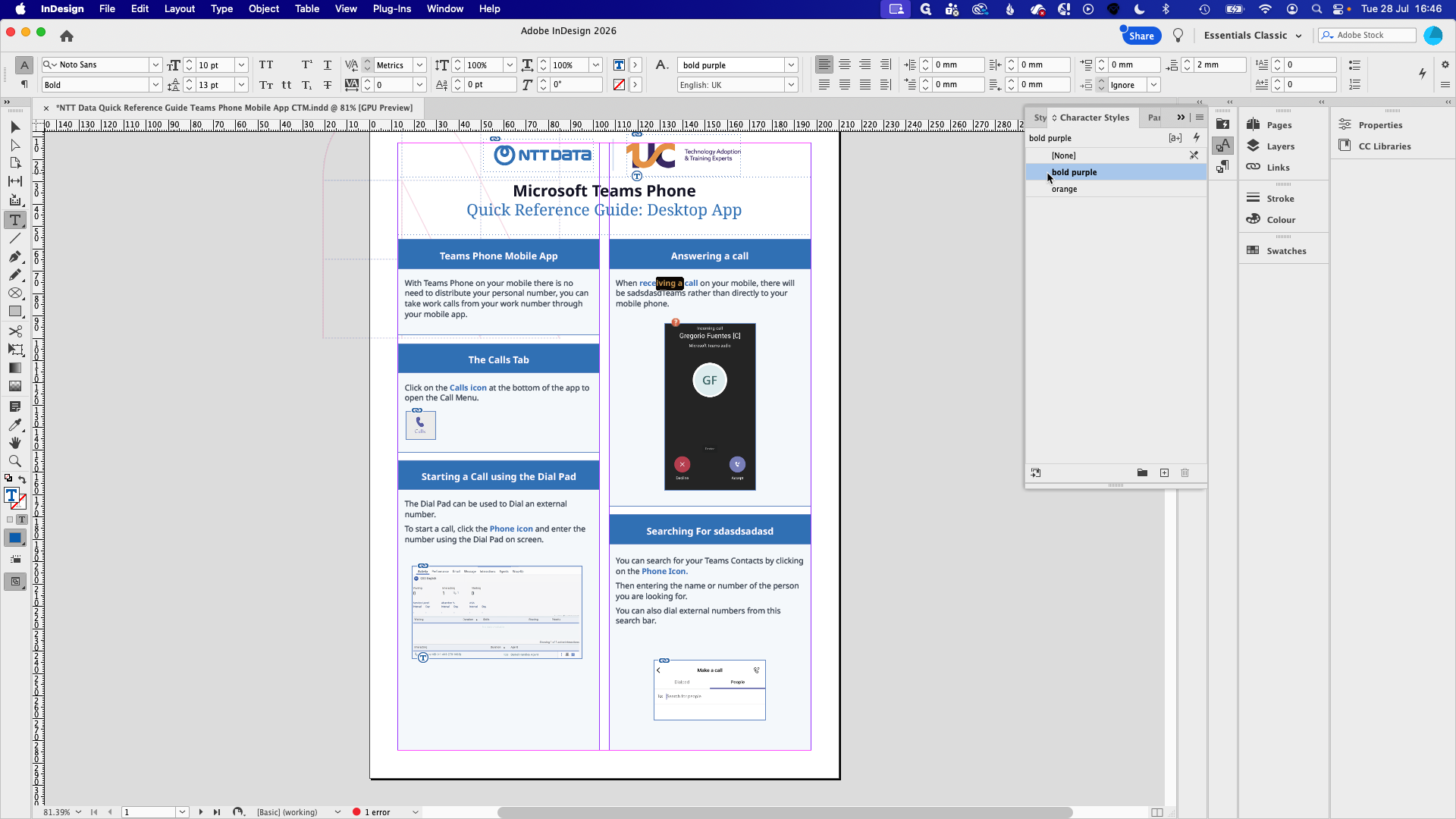
![Step #17: To remove a character style from text, highlight it and click [None] in the Character Styles panel.](https://di8mn0rali2ic.cloudfront.net/uploads/81bc4022-5879-4adc-8fc8-b4e777108db6/bc95c3fc-c1ab-49f8-8481-1905a59c7375.png)
Creating Pages and Duplicating Layouts
When expanding a document, duplicating frames from an existing page ensures everything remains perfectly aligned.
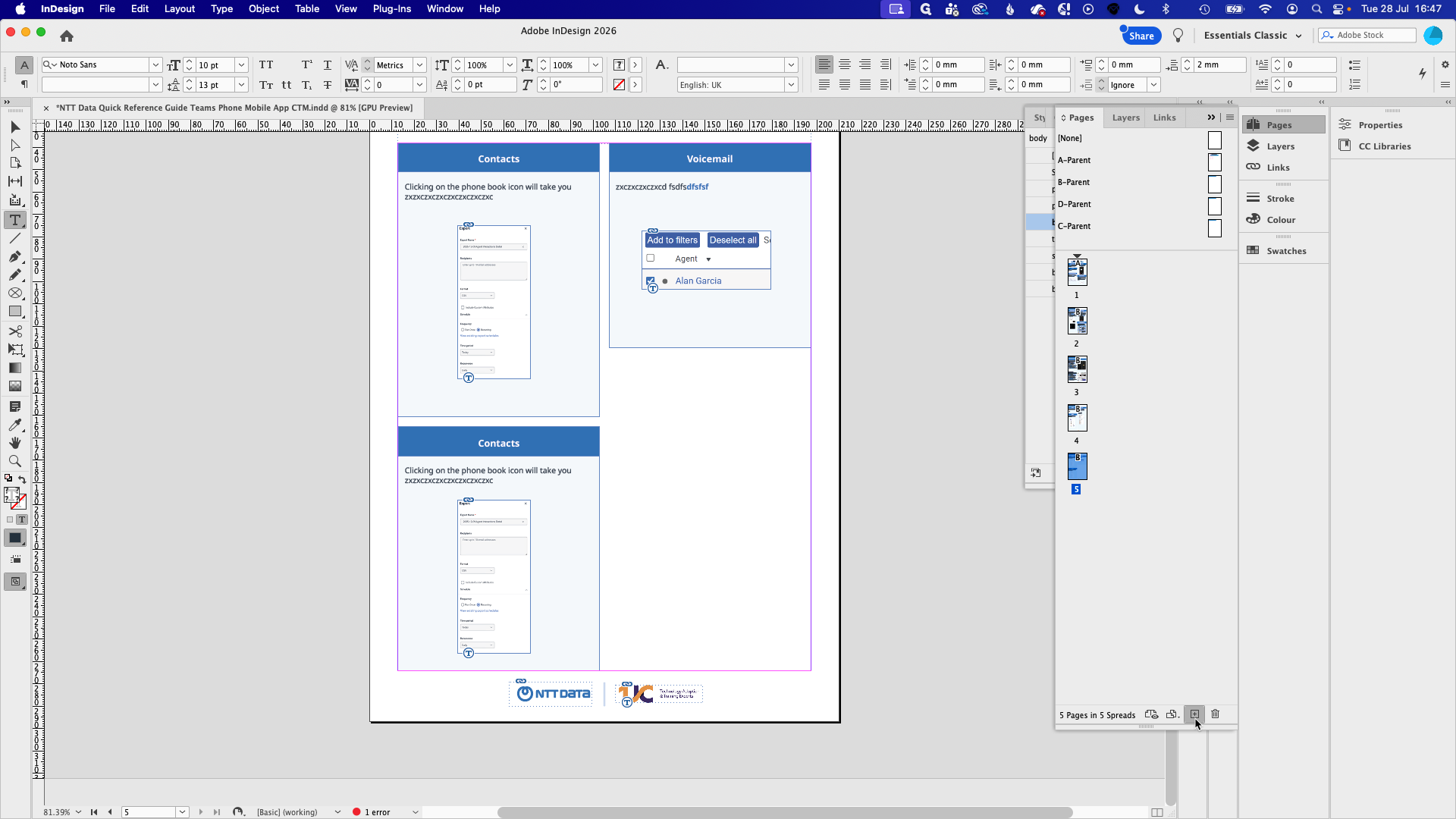
Cmd + C (Mac) or Ctrl + C (Windows) to copy.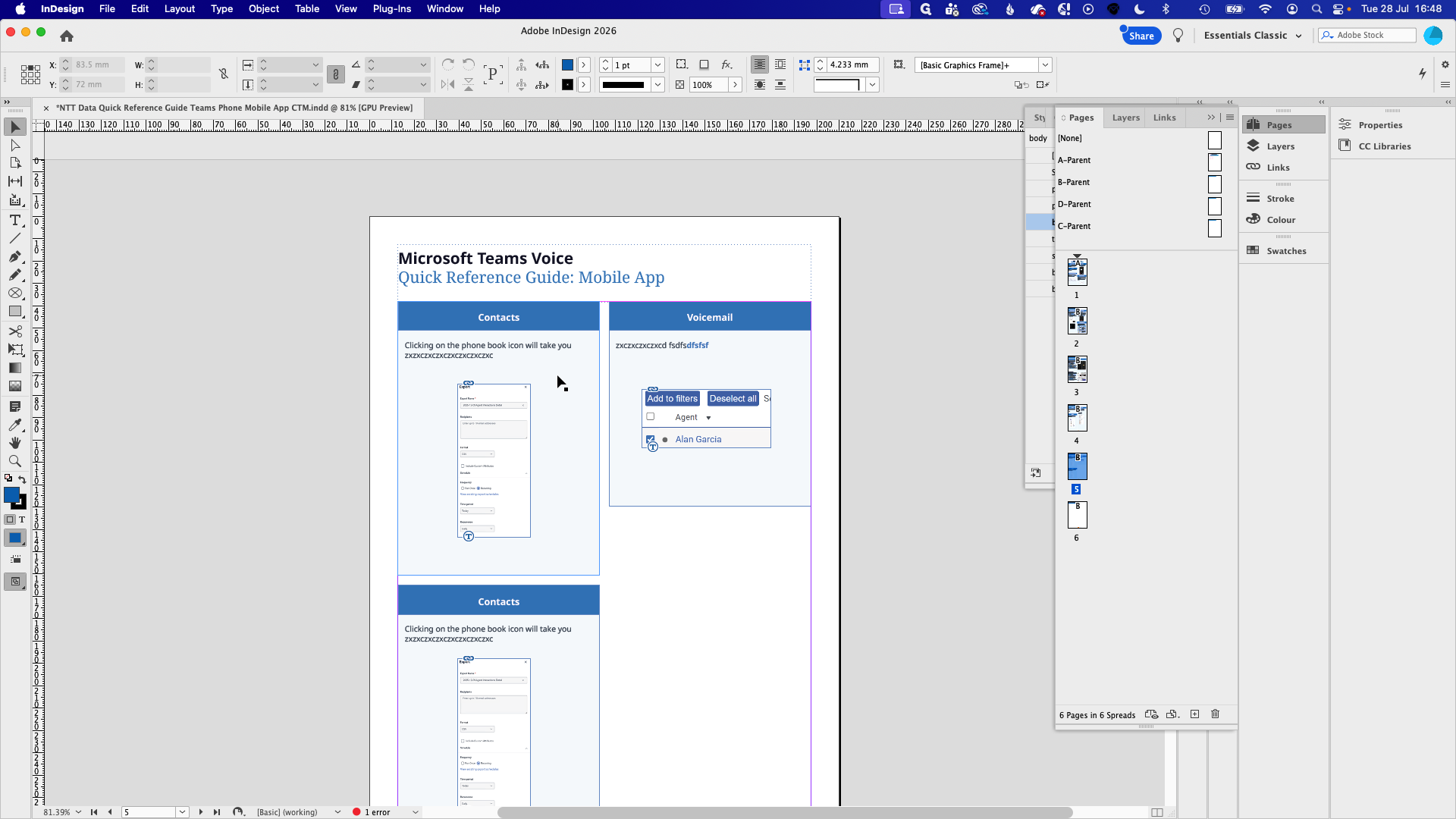
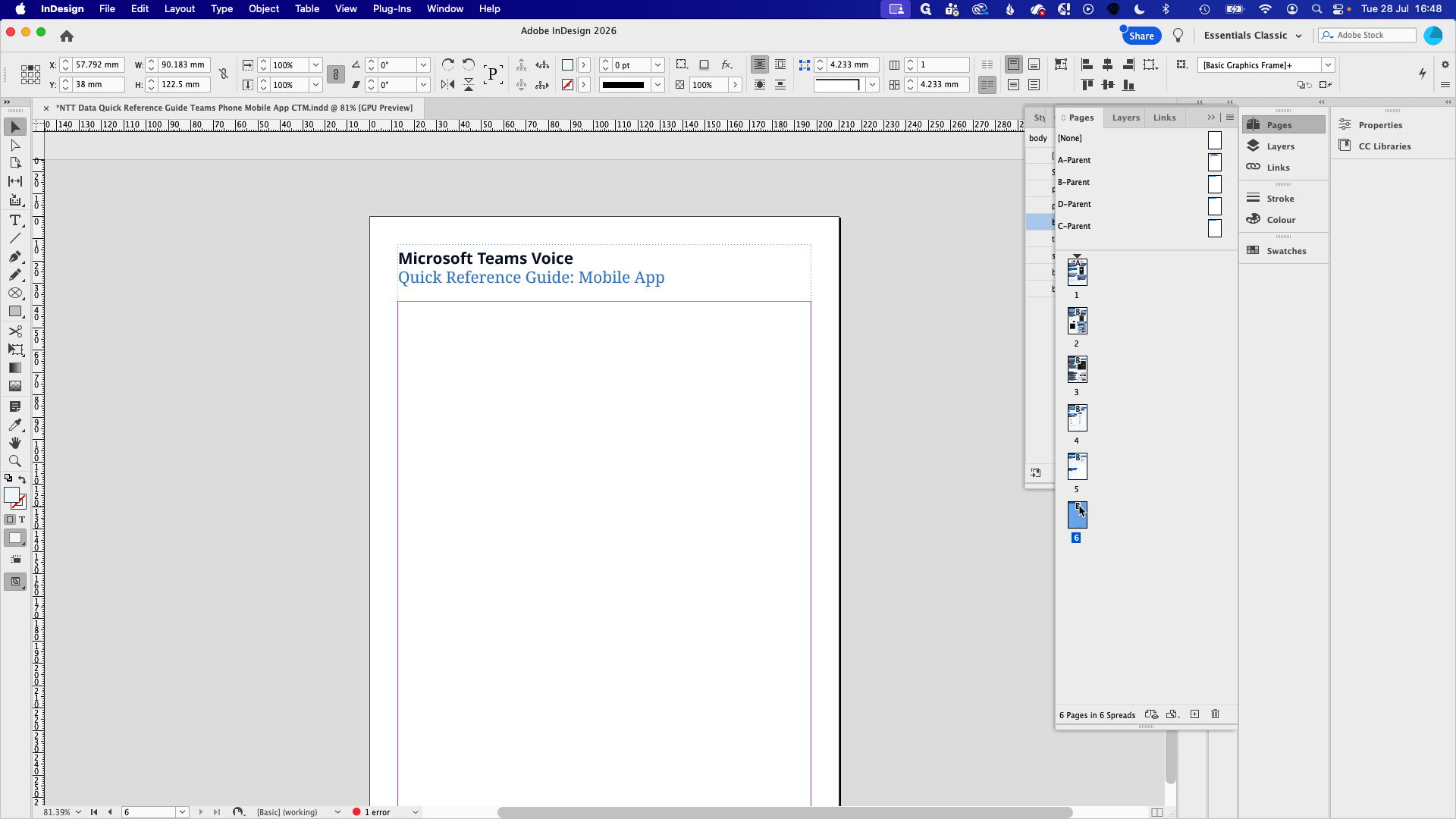
Shift + Alt + Cmd + V (or Shift + Alt + Ctrl + V) to Paste in Place. This pastes the copied frames into the exact same X and Y coordinates.Saving, Exporting, and Packaging
Depending on your goal, InDesign offers multiple ways to save and share your work.
Method | Best For | Output |
|---|---|---|
Save As | Making a new local version of your working file. | A single |
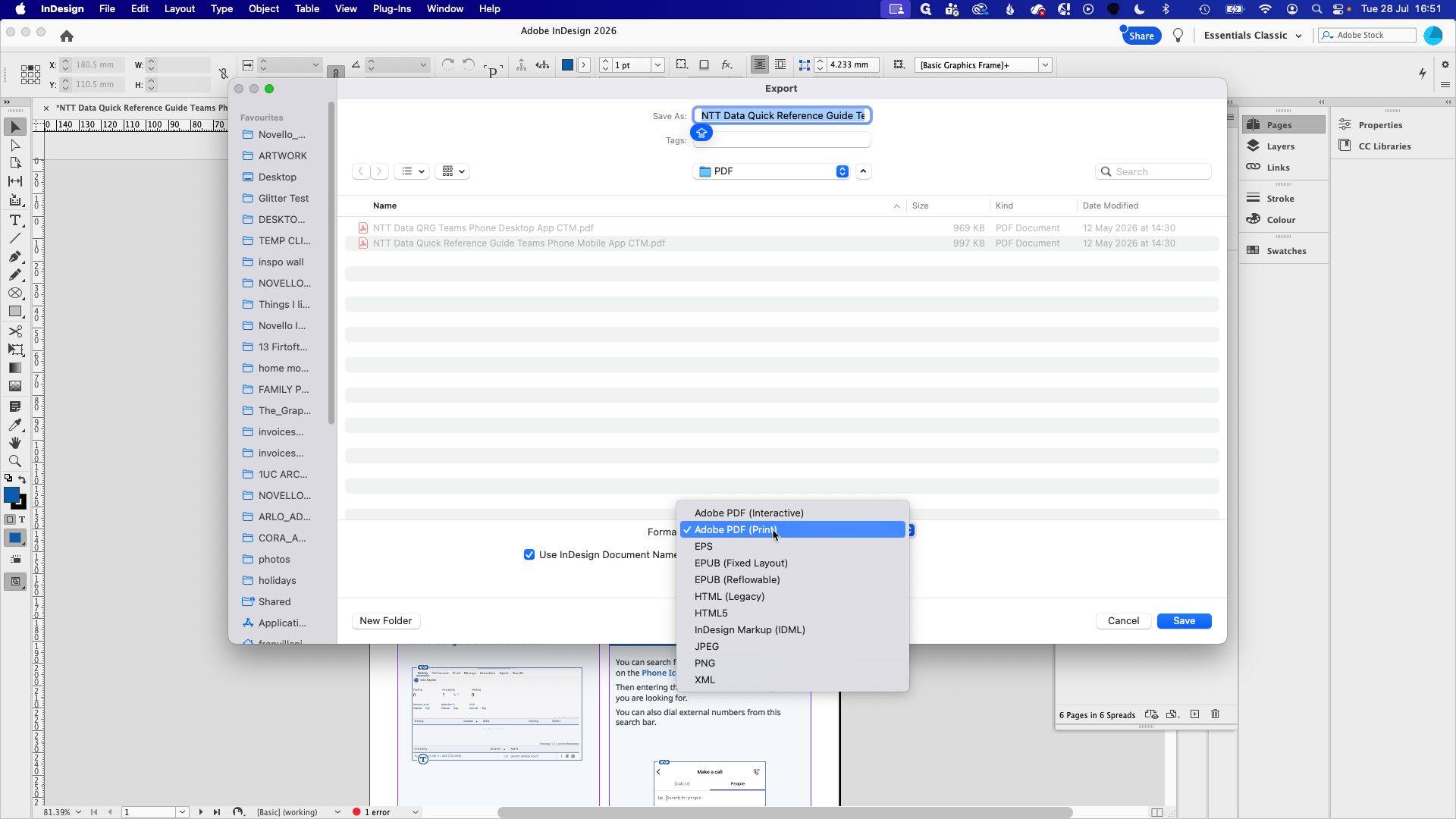
Export to PDF | Sending the design to a client or stakeholder for review. | A single |
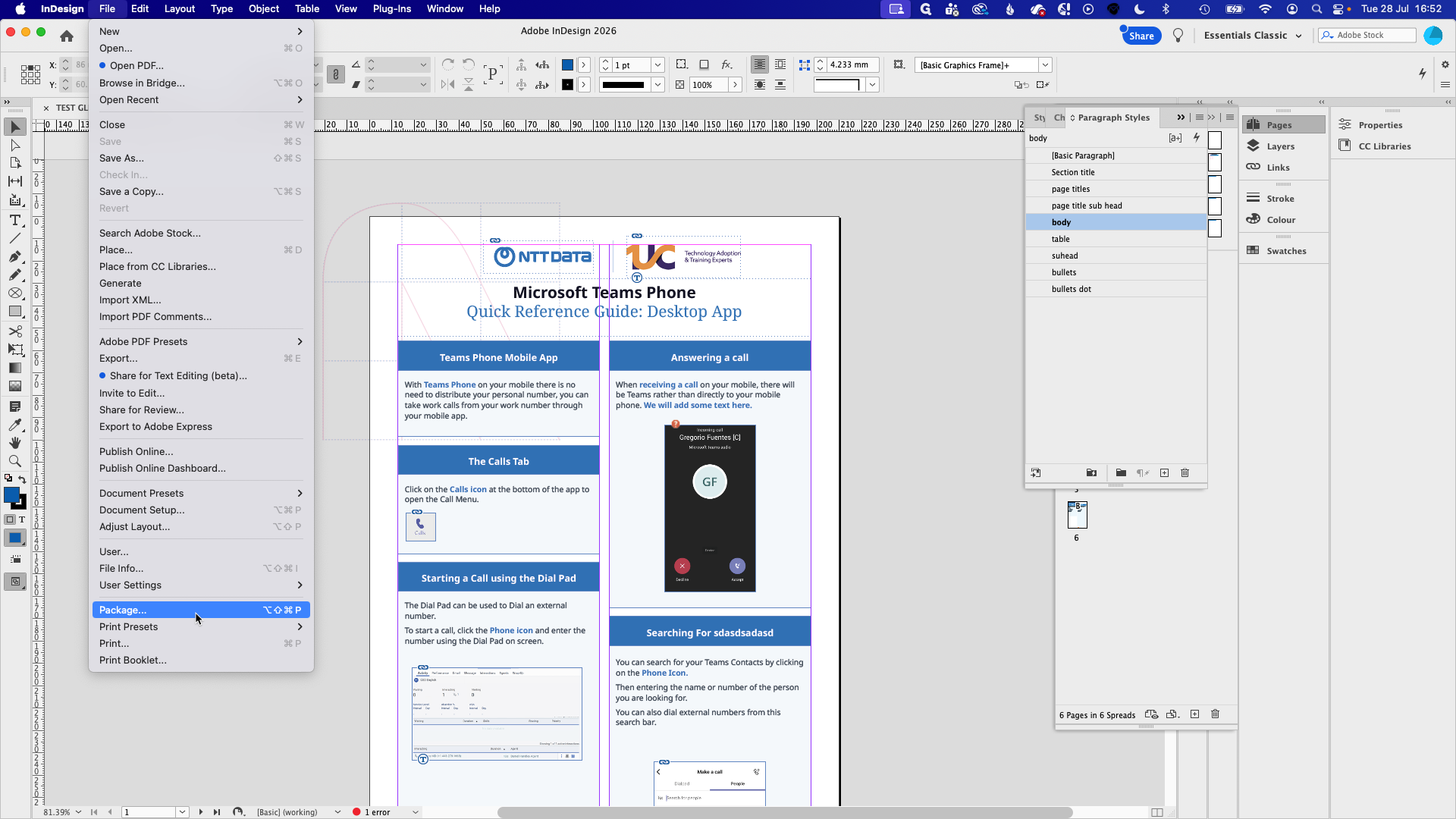
Package | Handing off editable source files to another designer or team. | A folder containing |
Exporting to PDF
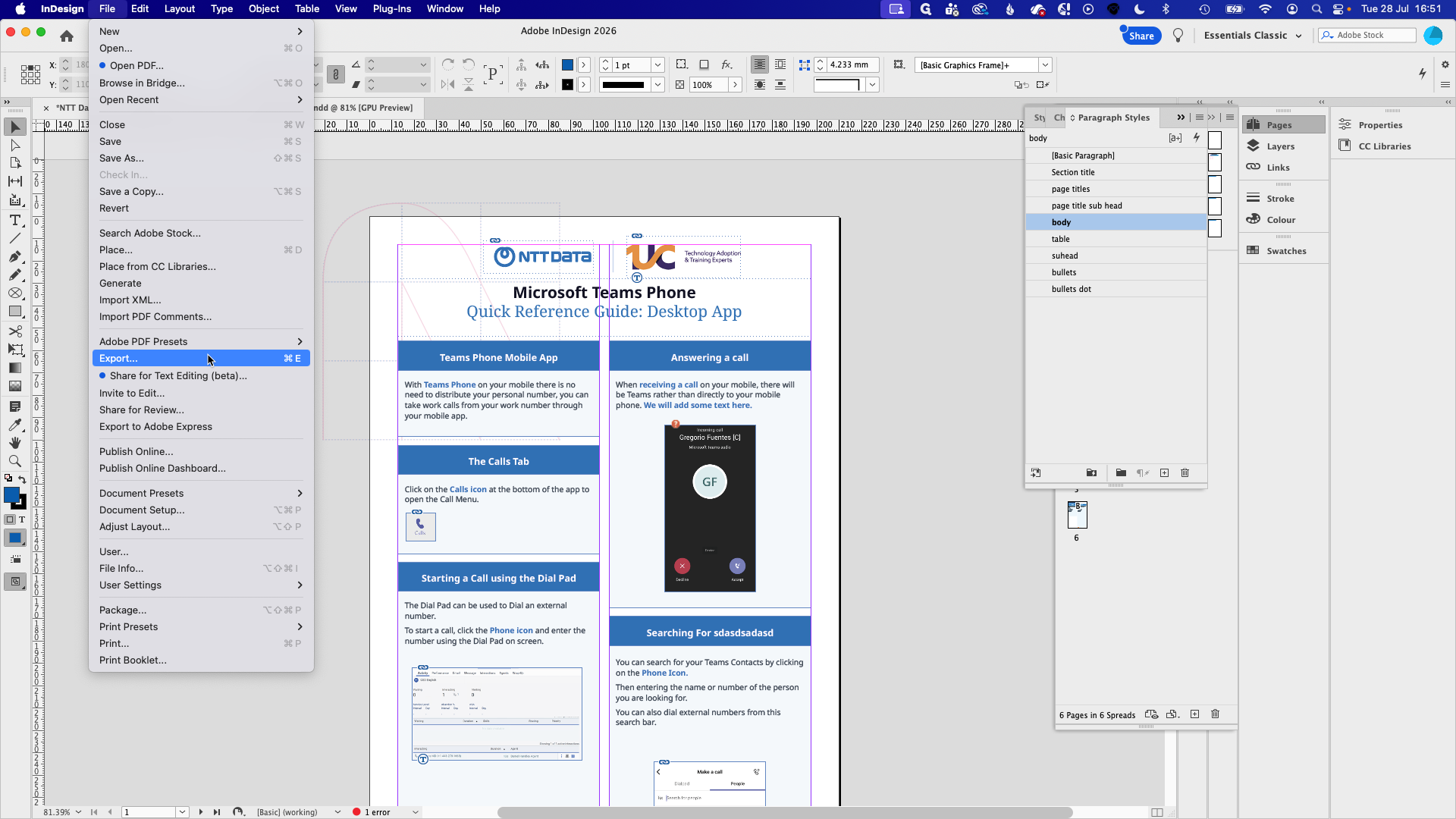
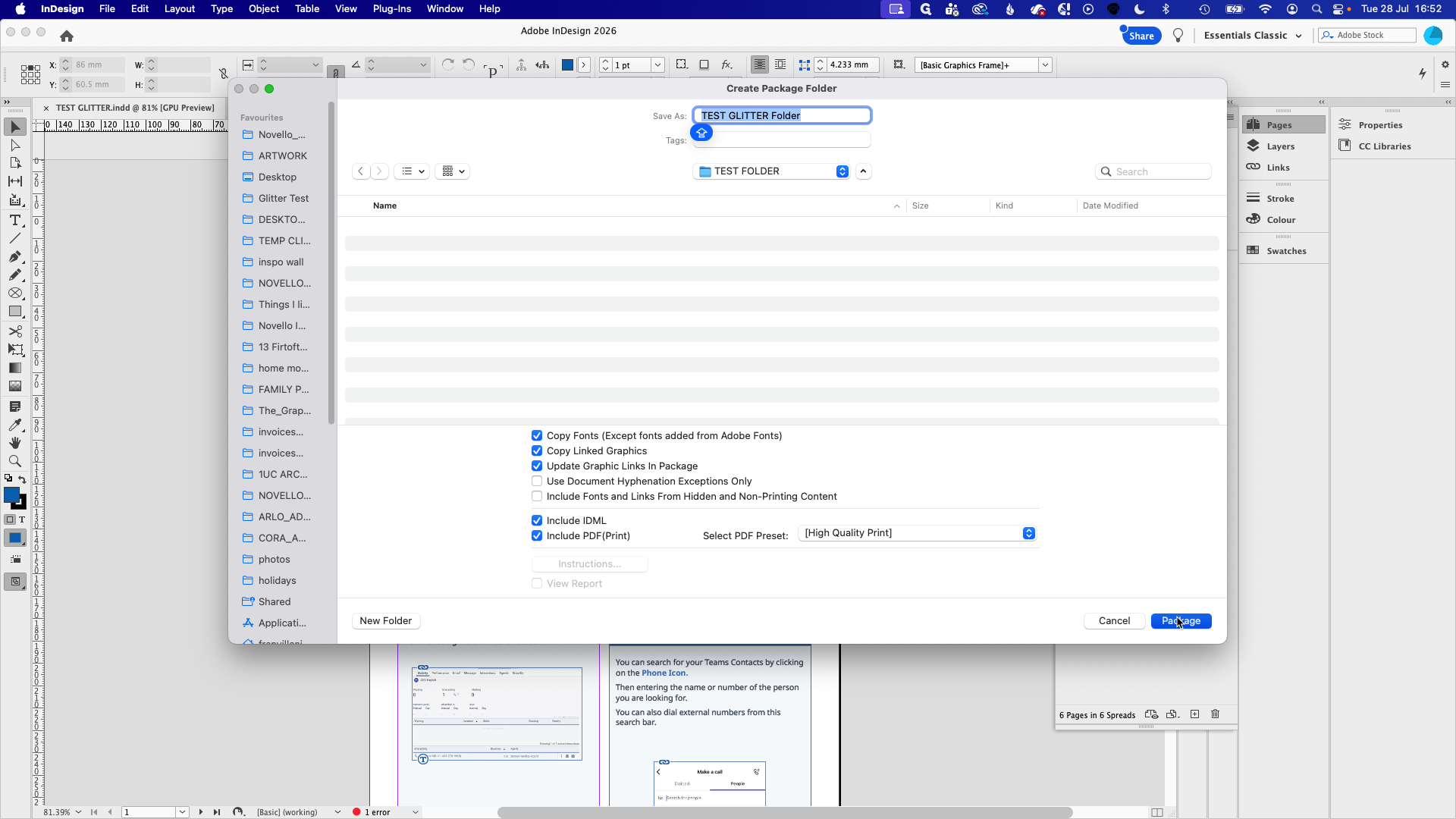
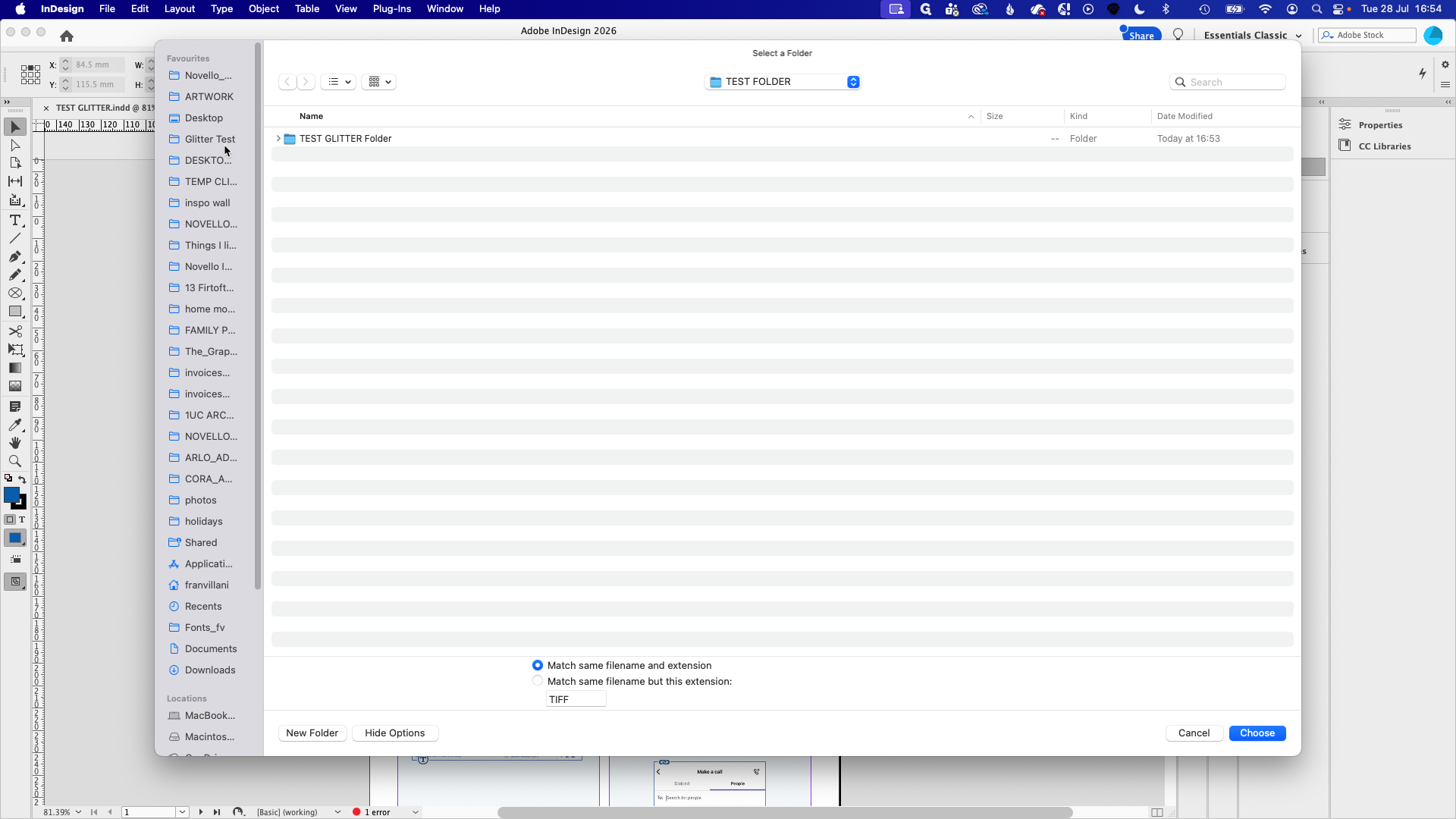
Packaging the Project
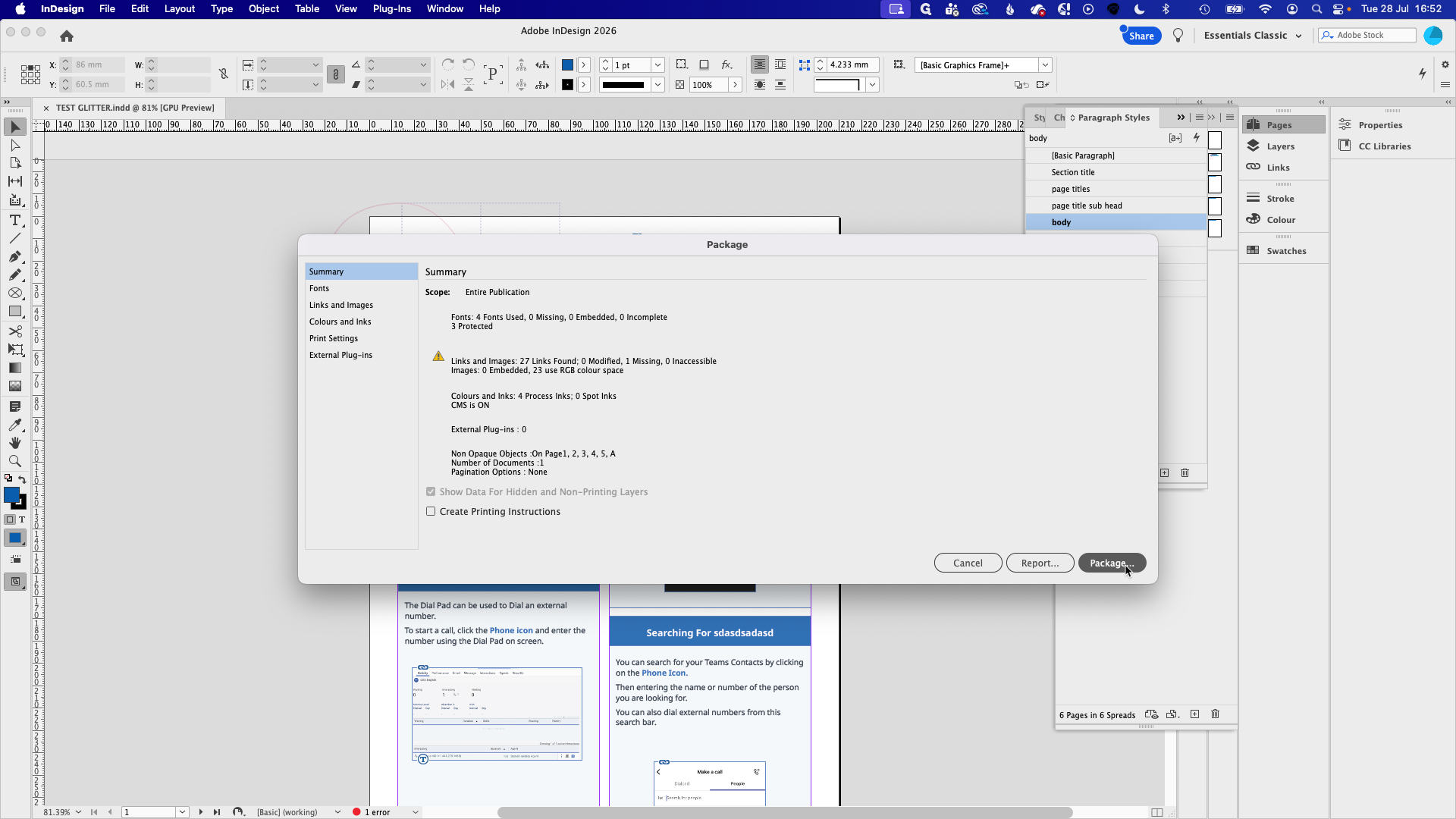
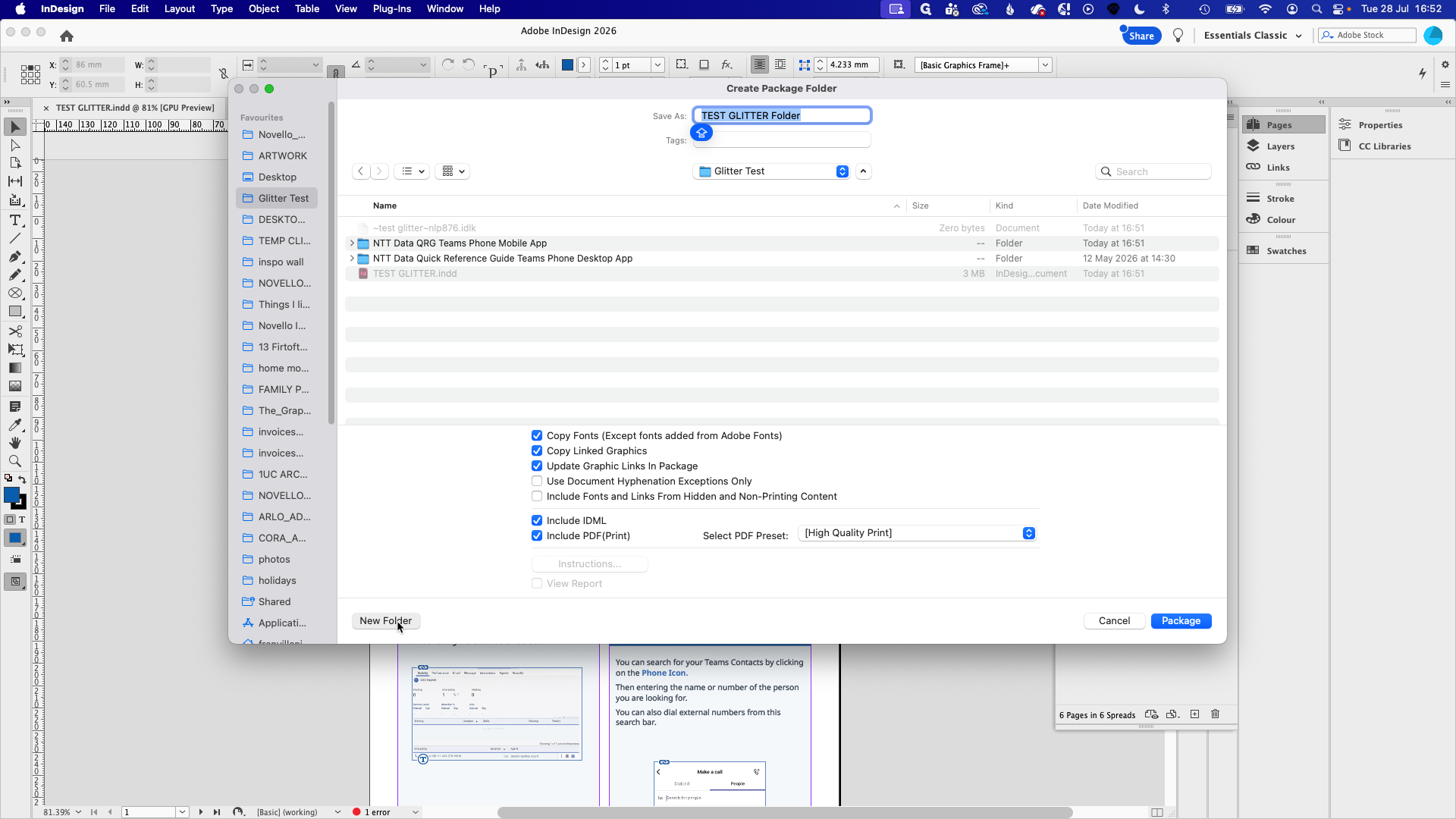
Packaging is mandatory when sharing working files. It prevents the recipient from experiencing missing fonts or broken links.
Relinking Missing Assets
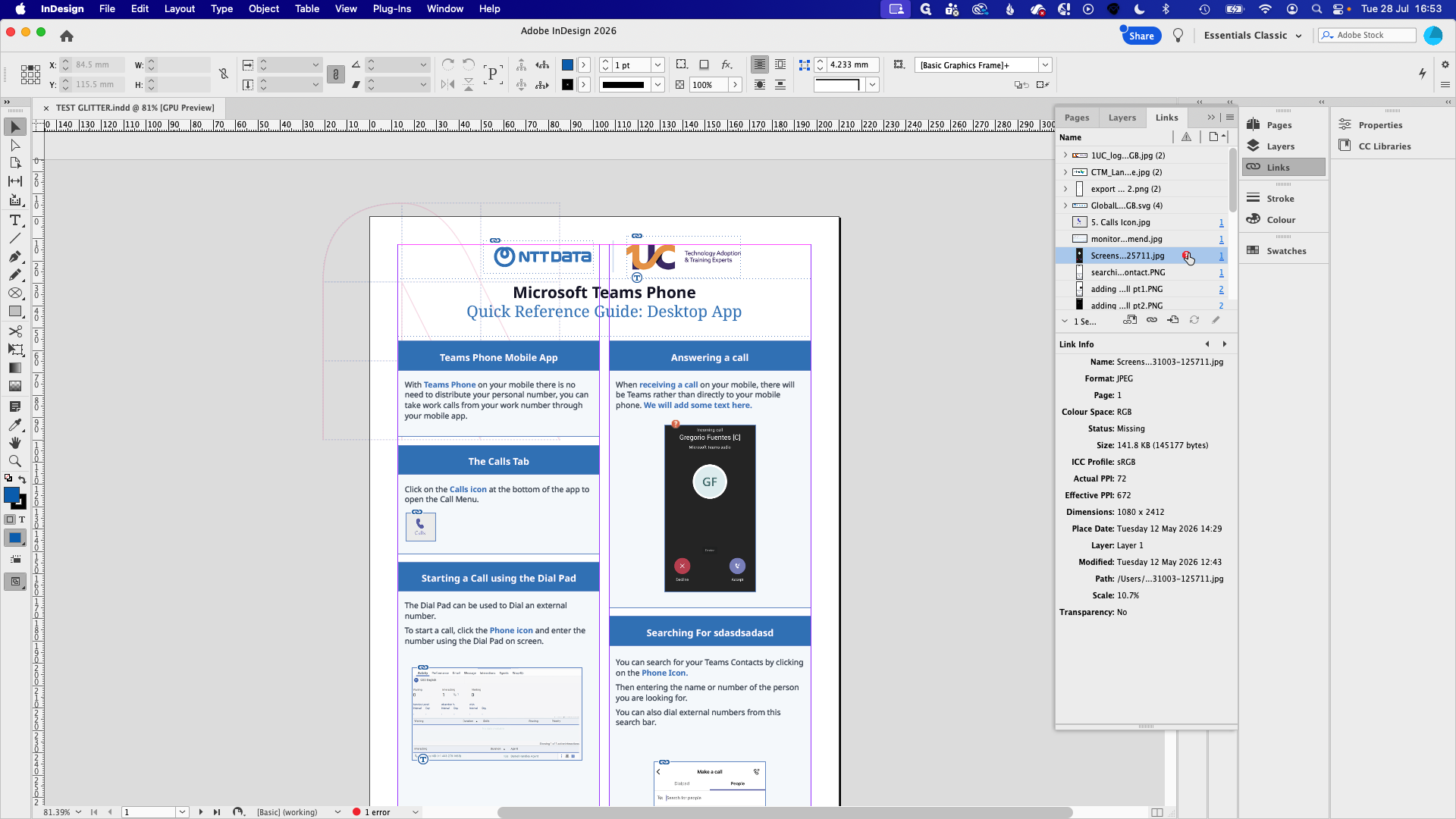
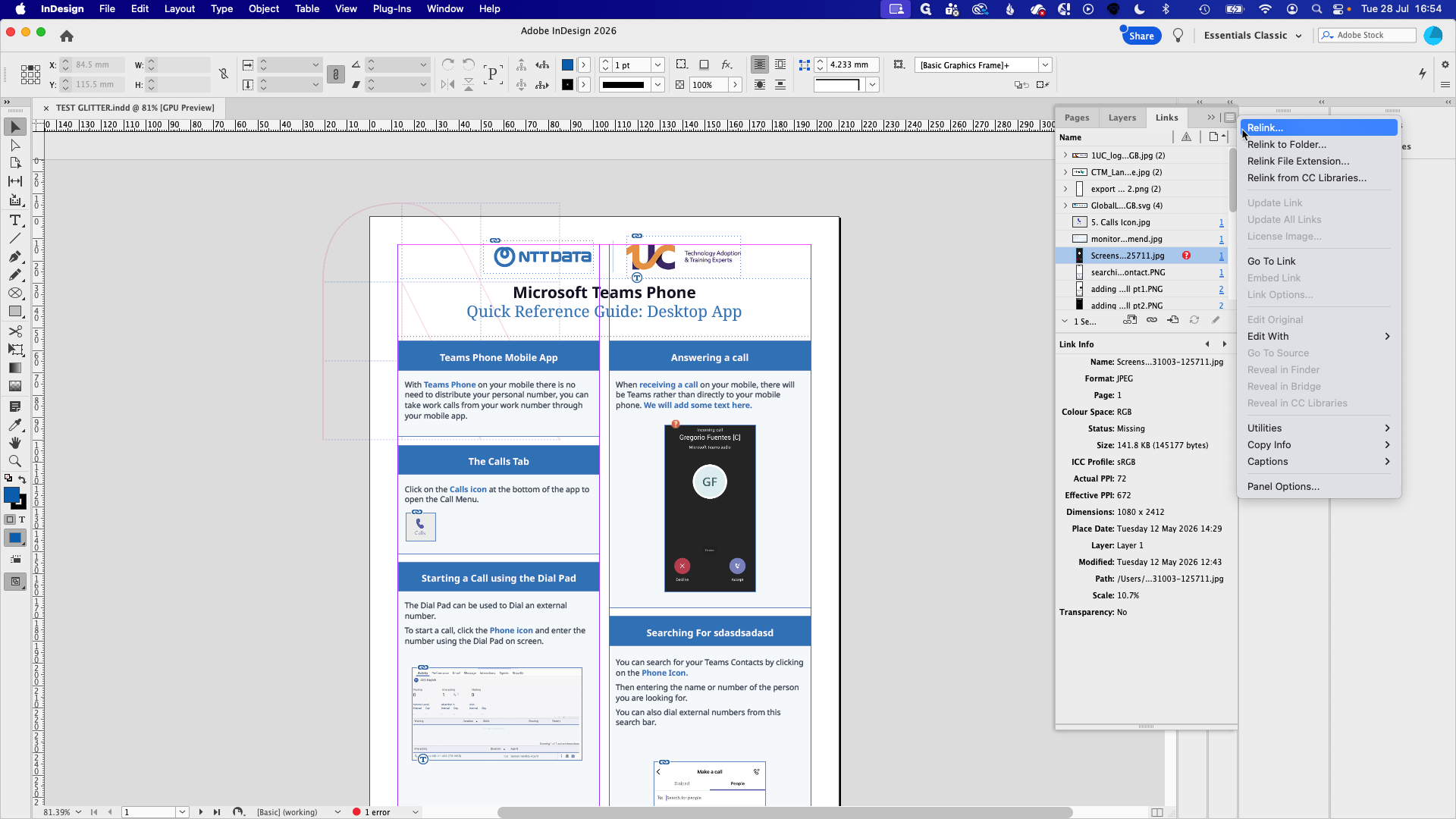
If you open a file and see red question marks on your images, InDesign has lost the path to those files.
Q: Why can't I select or edit the logo at the top of the page?
A: The logo is placed on a Parent (Master) page. You must open the Pages panel and double-click the Parent page thumbnail to edit repeating elements.
Q: Why do my images have a red question mark on them?
A: InDesign relies on external linked files rather than embedding images in the document. If the image files are moved, deleted, or not downloaded to your computer, InDesign cannot locate them and you will need to relink them via the Links panel.
Q: How do I change text styling without breaking the template?
A: Always use the Paragraph Styles panel for bulk text formatting (like body copy or bullet lists) and the Character Styles panel for specific words within a paragraph. Avoid manually overriding fonts or sizes in the top toolbar.
Q: What should I do if an imported image doesn't fit the existing frame?
A: After placing the image into the frame, use the "Fit content proportionally" button in the top control panel. This will scale the image to fit the frame bounds without skewing or stretching it.
Term | Definition |
|---|---|
Parent Pages | Template pages (formerly known as Master pages) that contain repeating layout elements like headers, footers, and background logos. |
Linked Files | External image or graphic files referenced by the InDesign document rather than being embedded inside it to keep file sizes small. |
Paragraph Styles | Saved formatting rules applied to entire blocks of text, ensuring design consistency across a document. |
Character Styles | Saved formatting rules applied to individual characters or words within a paragraph, such as making a specific term bold and colored. |
IDML | InDesign Markup Language; a backward-compatible file format generated during packaging that allows users with older versions of InDesign to open the document. |
Package | A feature that gathers the InDesign file, all linked graphics, and fonts into a single, organized folder for easy sharing. |
Paste in Place | A command that pastes copied layout elements into the exact same X and Y coordinates on a new page. |