
How to Update Strat Tables in the Starwood Monthly Report
Learn how to accurately transfer financial strat tables from Excel to Word using the Paste Special method to maintain perfect formatting.
This guide demonstrates how to transfer financial strat table data from the Excel portfolio summary to the Word presentation for the Starwood Monthly Investor Report. Updating these tables correctly ensures formatting consistency across the final published deck.
This process is used by reporting analysts during the final stages of the monthly reporting cycle, specifically after all Excel data has been finalized and validated.
The Paste Special Method
You will use this identical sequence repeatedly to migrate all tables. Rather than standard pasting, using an Enhanced Metafile prevents column distortion.
Source File | Destination | Method | Purpose |
|---|---|---|---|
Excel ( | Word (Monthly Report Template) |
| Pastes the selection as a scalable image to preserve cell formatting. |
1. Initial Excel Formatting
Before copying any tables, ensure no rows or columns are inadvertently hiding data.
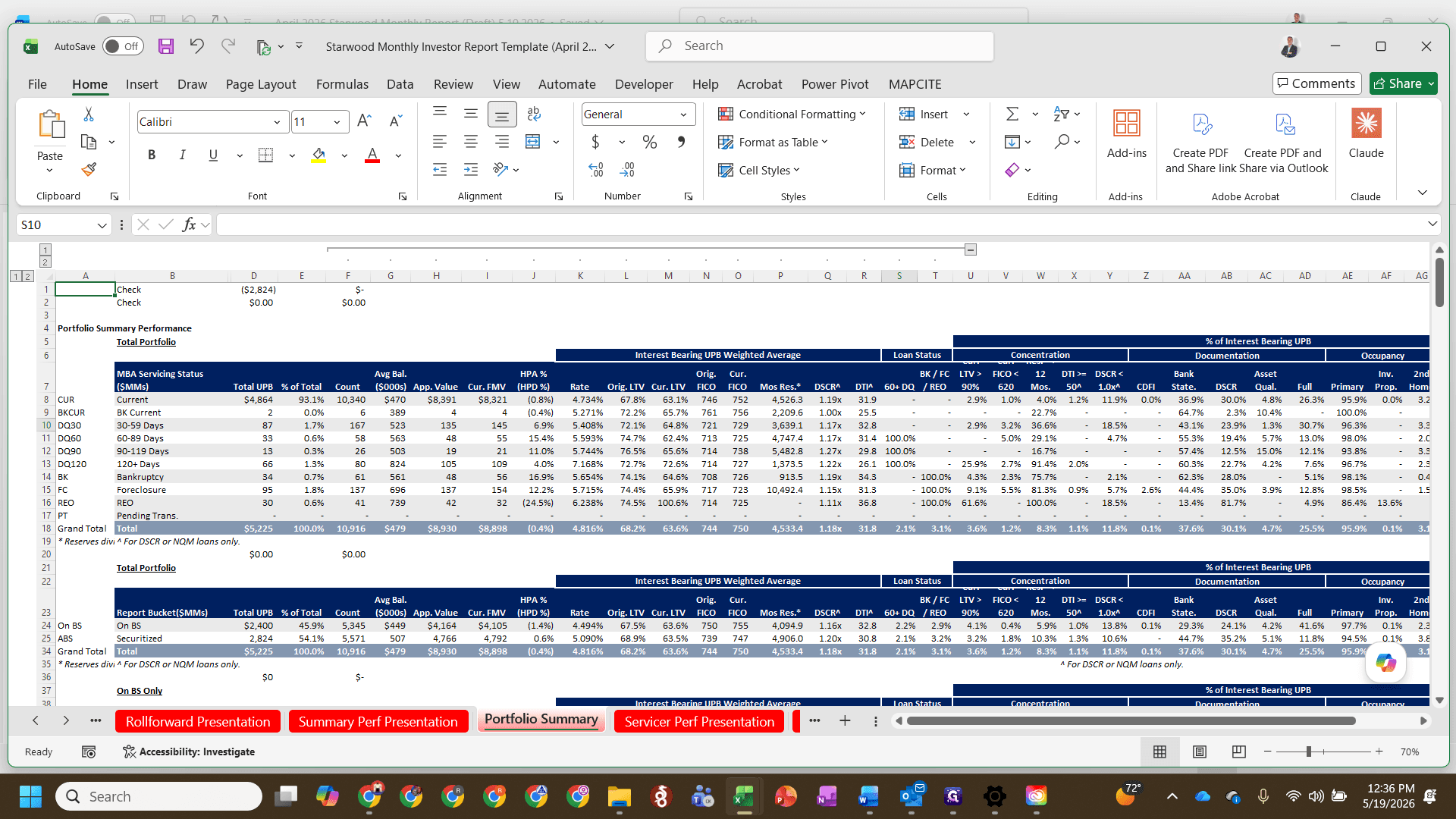
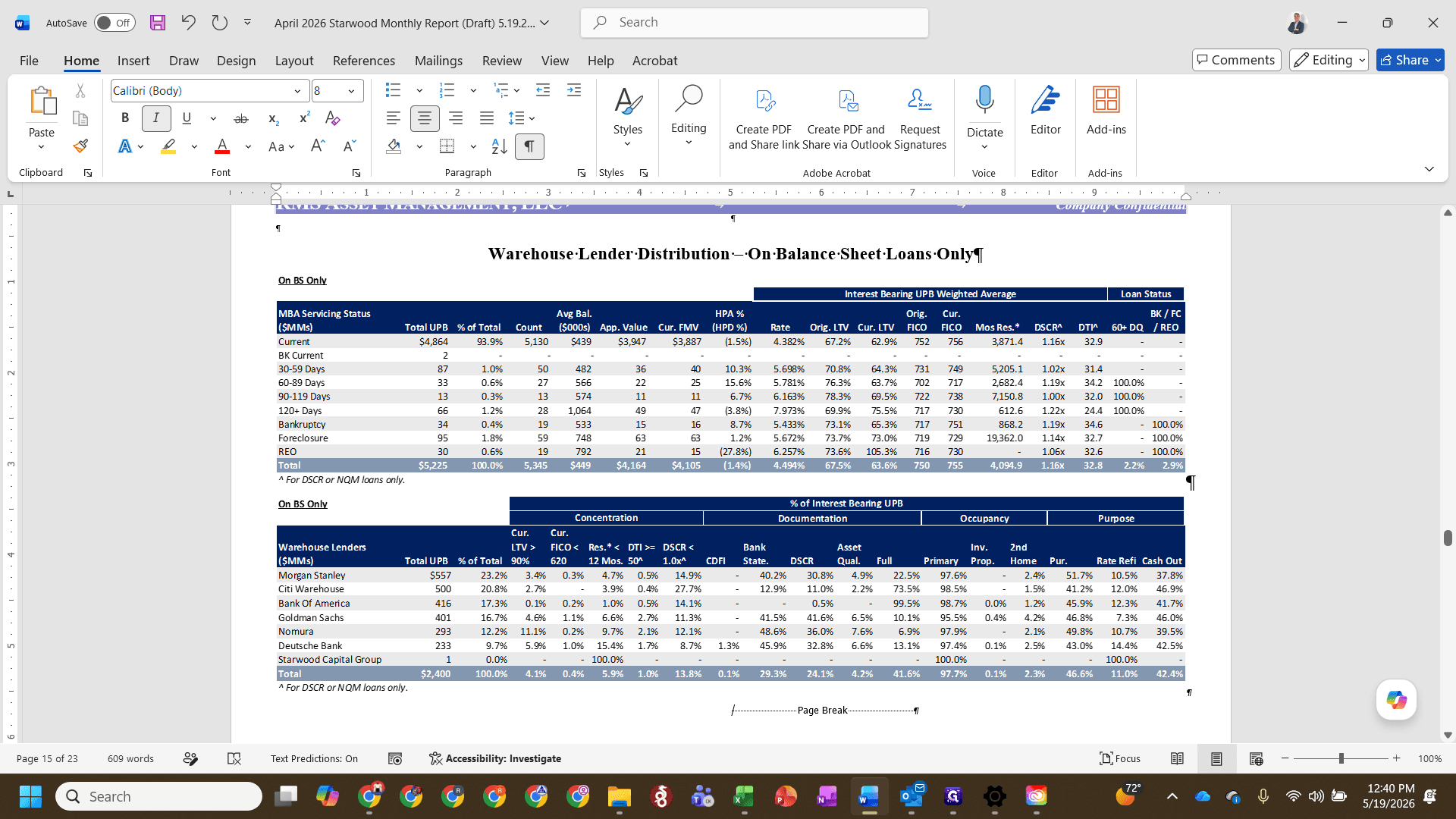
Alt + O, then R, then A to auto-fit row heights across the active sheet.2. Updating Warehouse Lender Distribution
Ctrl + C to copy.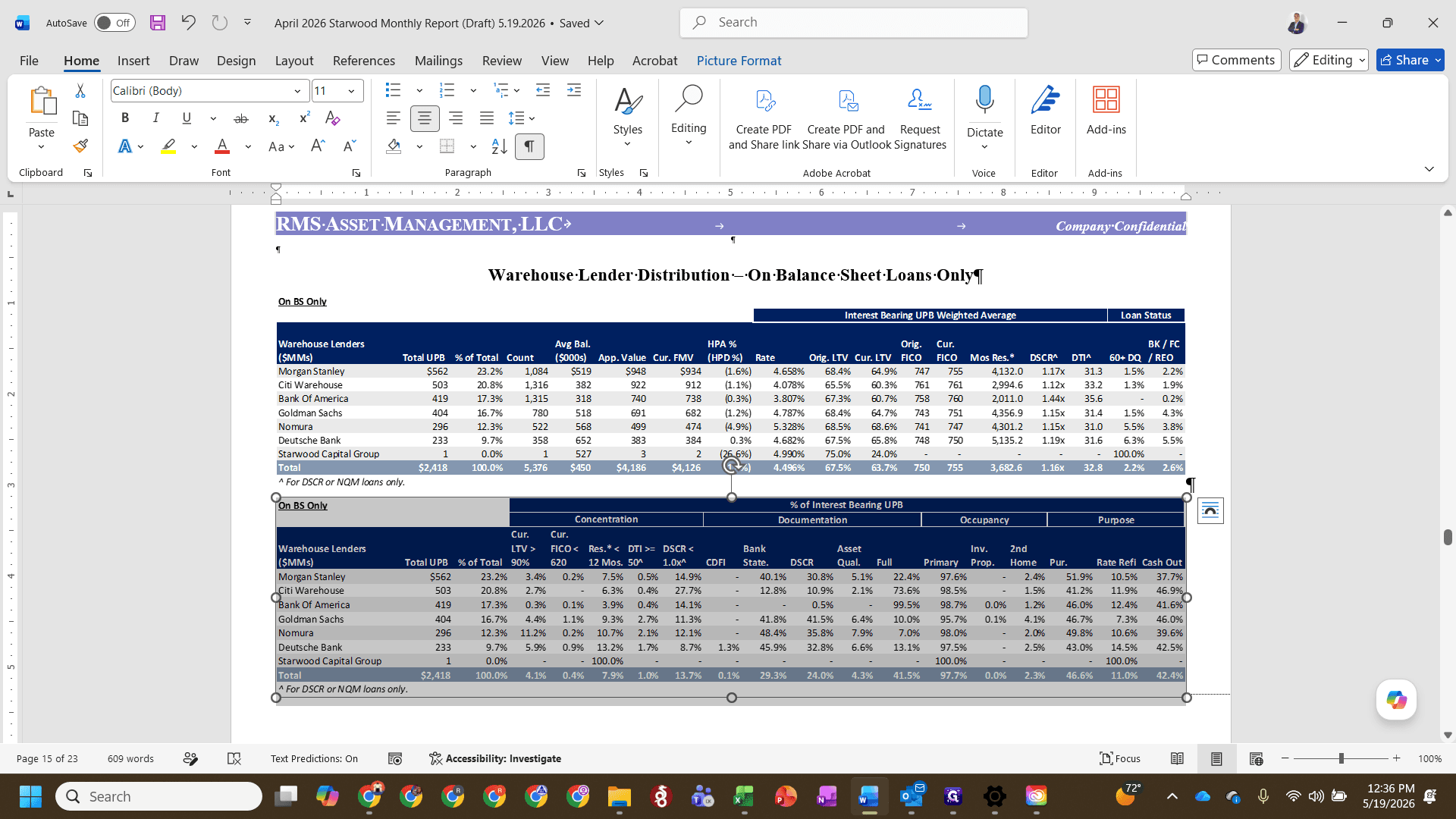
Alt + E to open the Paste Special menu.S and then Enter to paste the table as an Enhanced Metafile.3. Updating On-Balance Sheet (On BS Only)
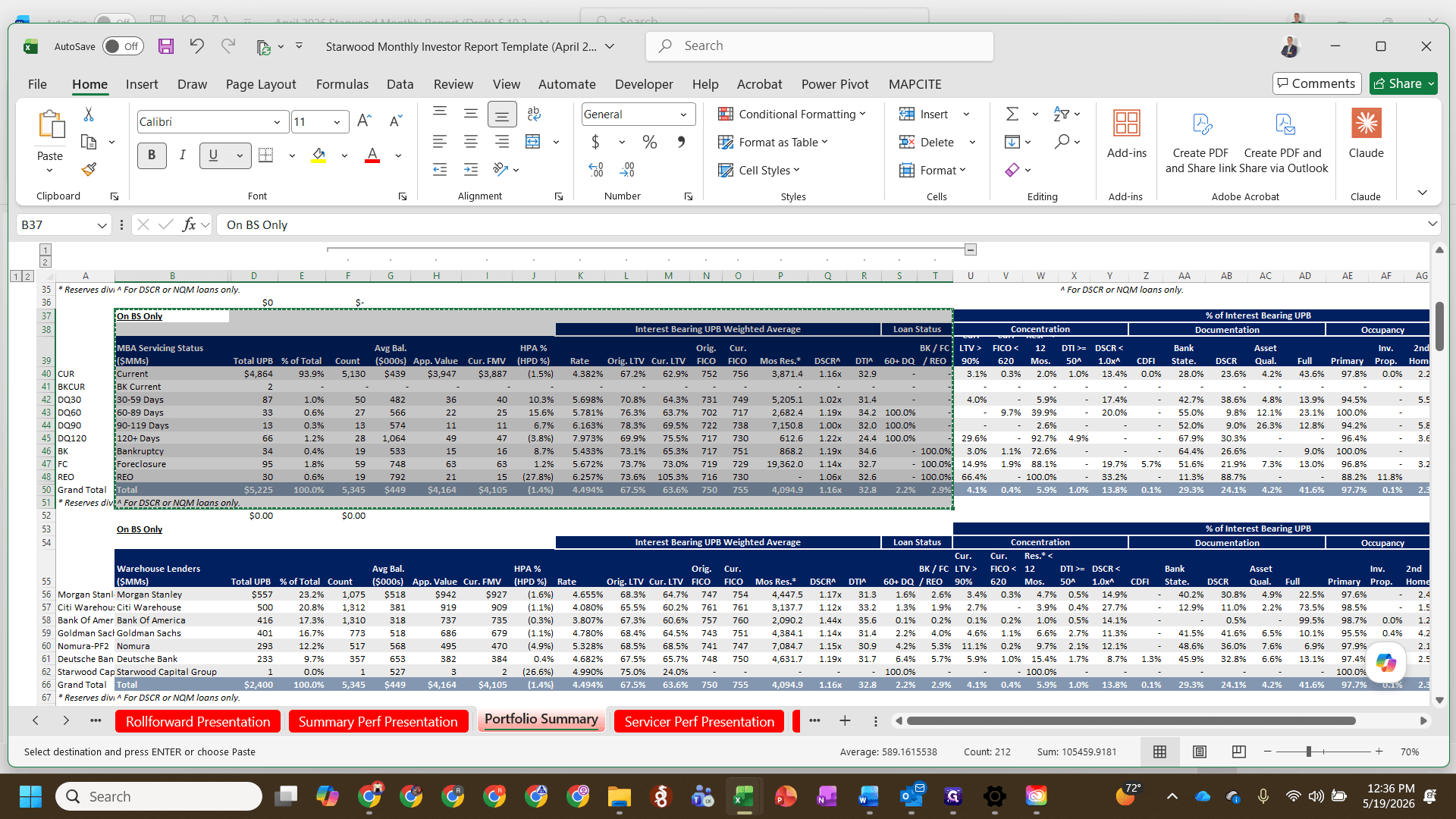
Ctrl + C to copy the selected data.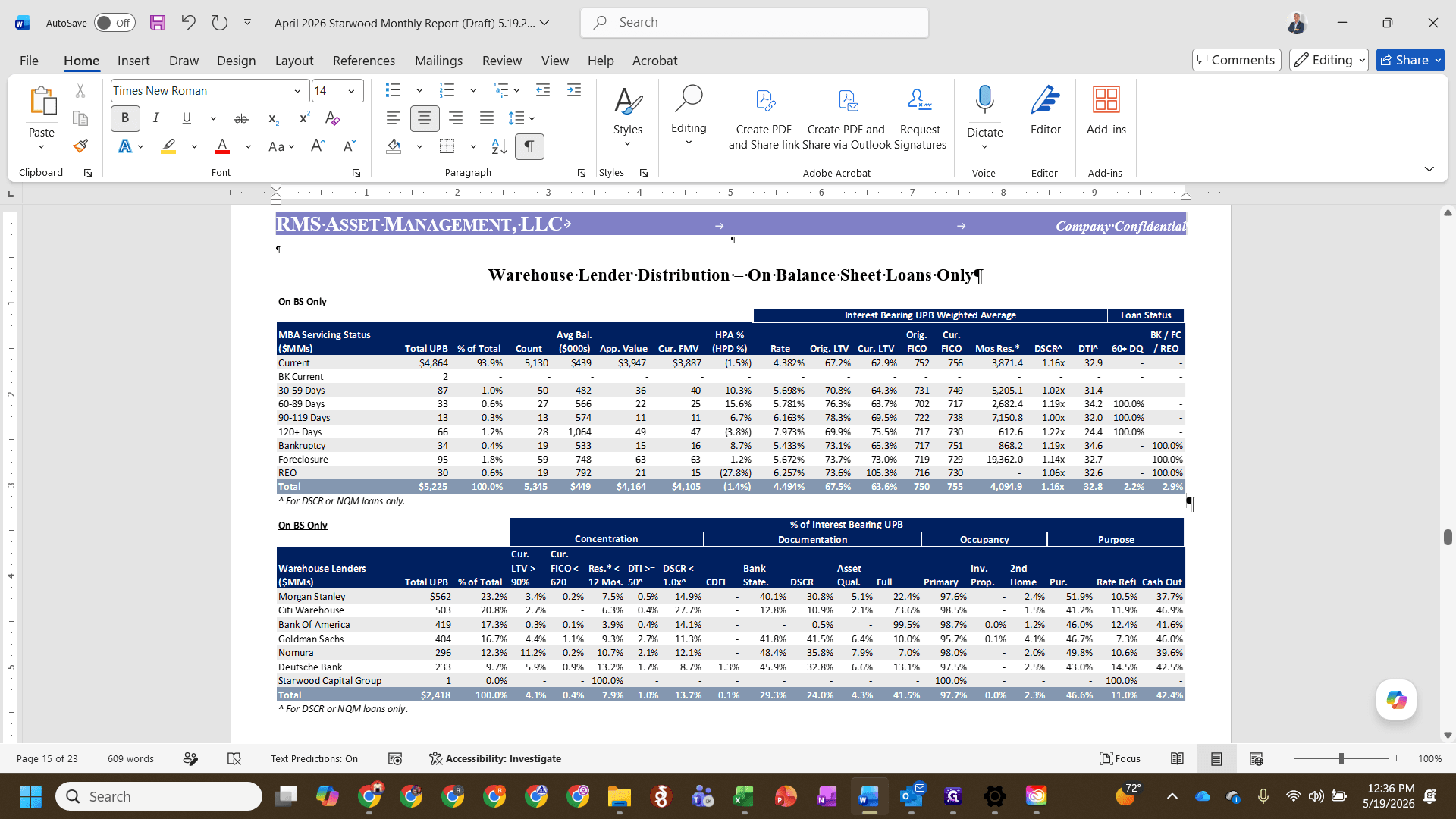
Alt + E.S and Enter to complete the paste action.4. Updating Securitization Trust Distribution (ABS Only)
Ctrl + C.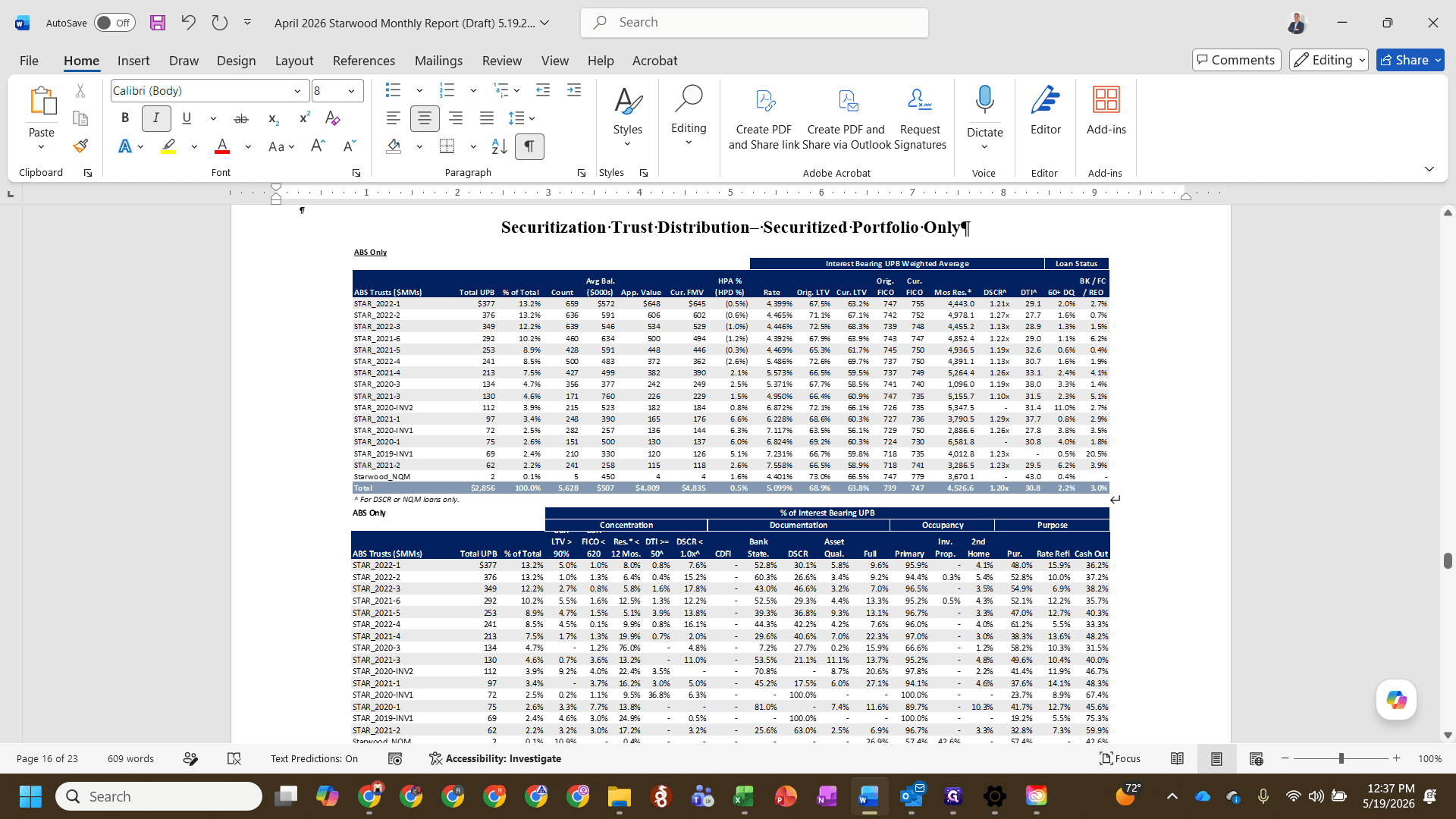
Alt + E, then S and Enter to paste the selection.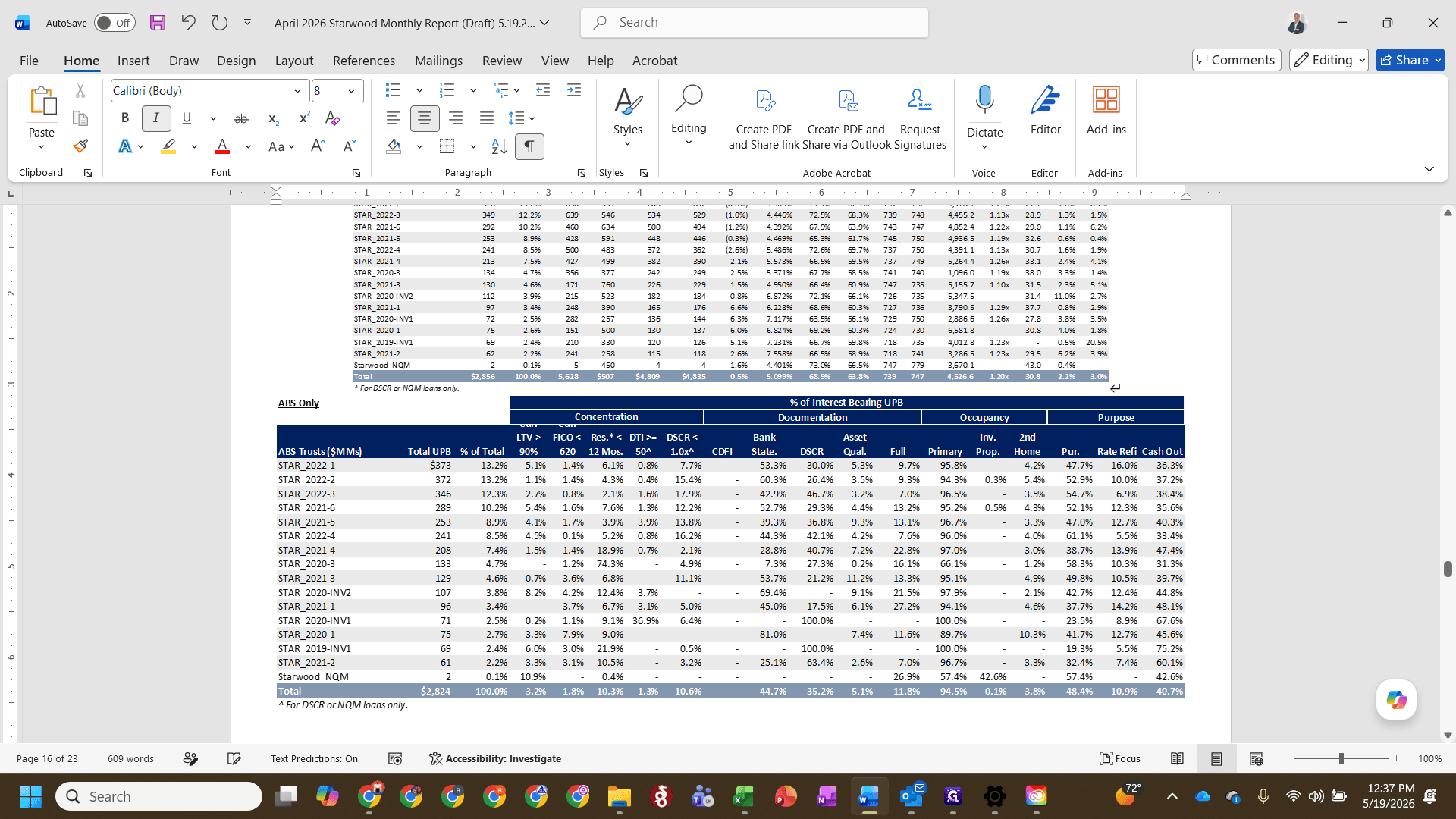
Alt + E, then S and Enter to paste.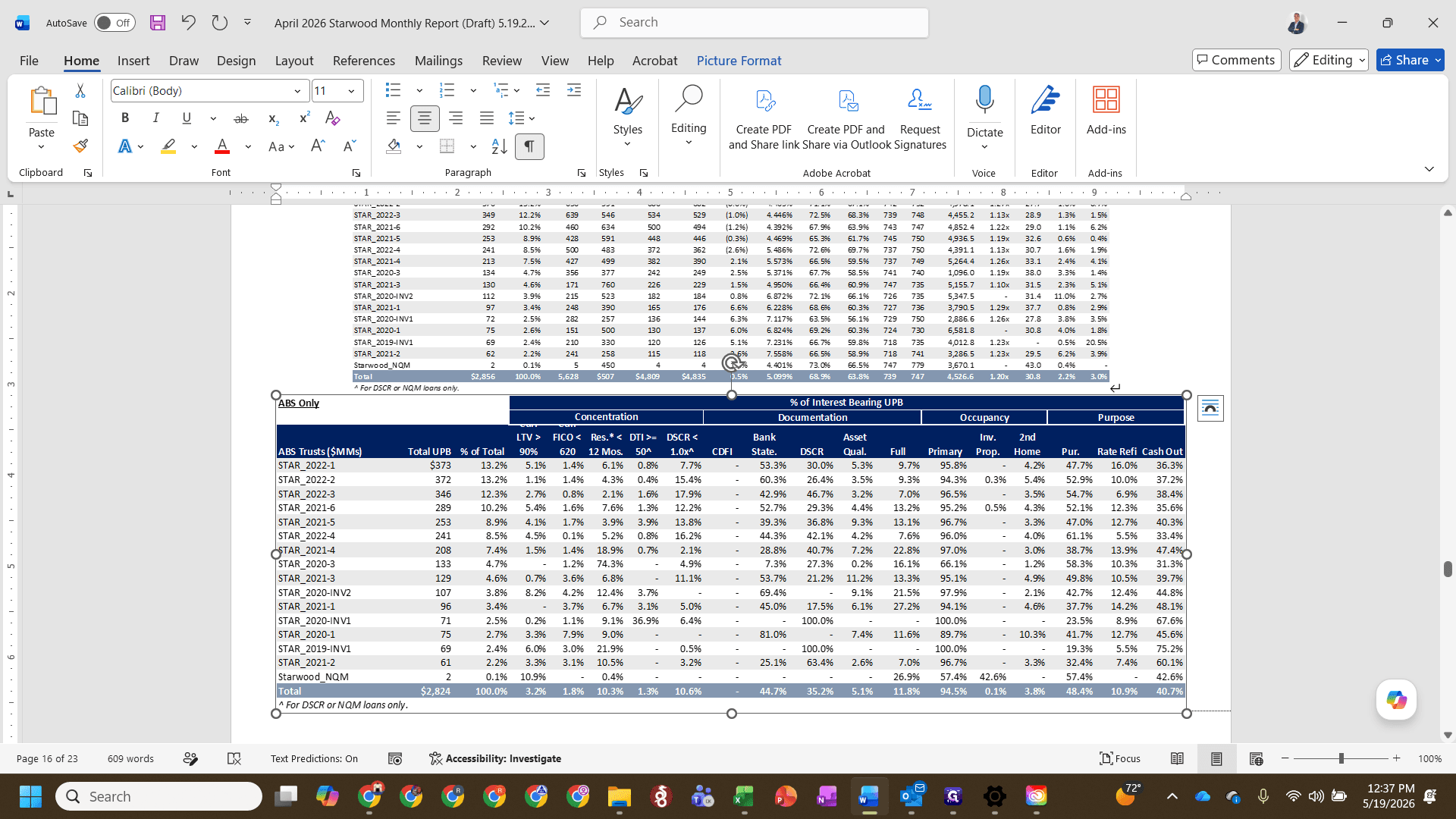
5. Updating the Total Portfolio Tables
Ctrl + C.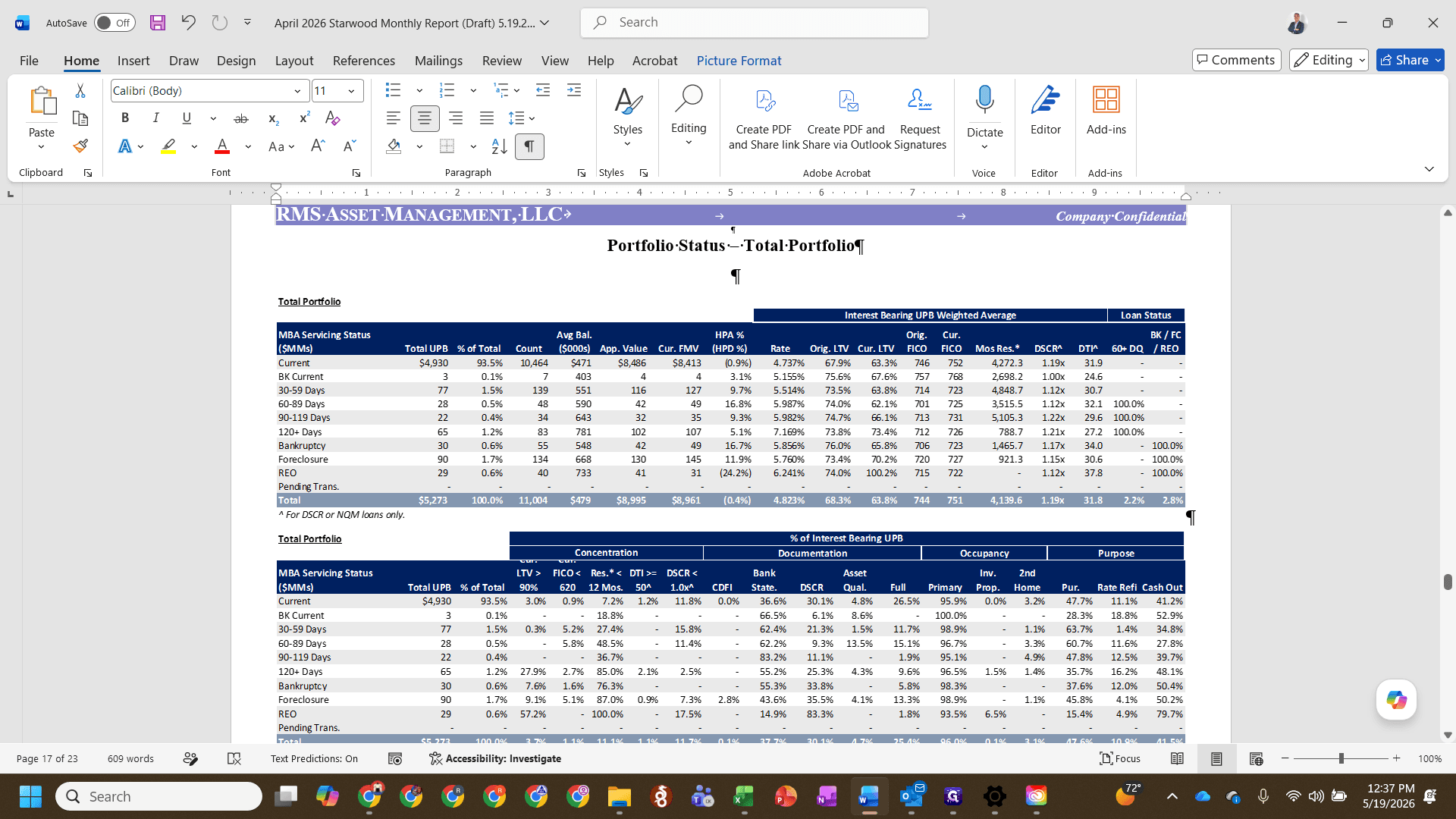
Alt + E, then S, and Enter to overwrite it.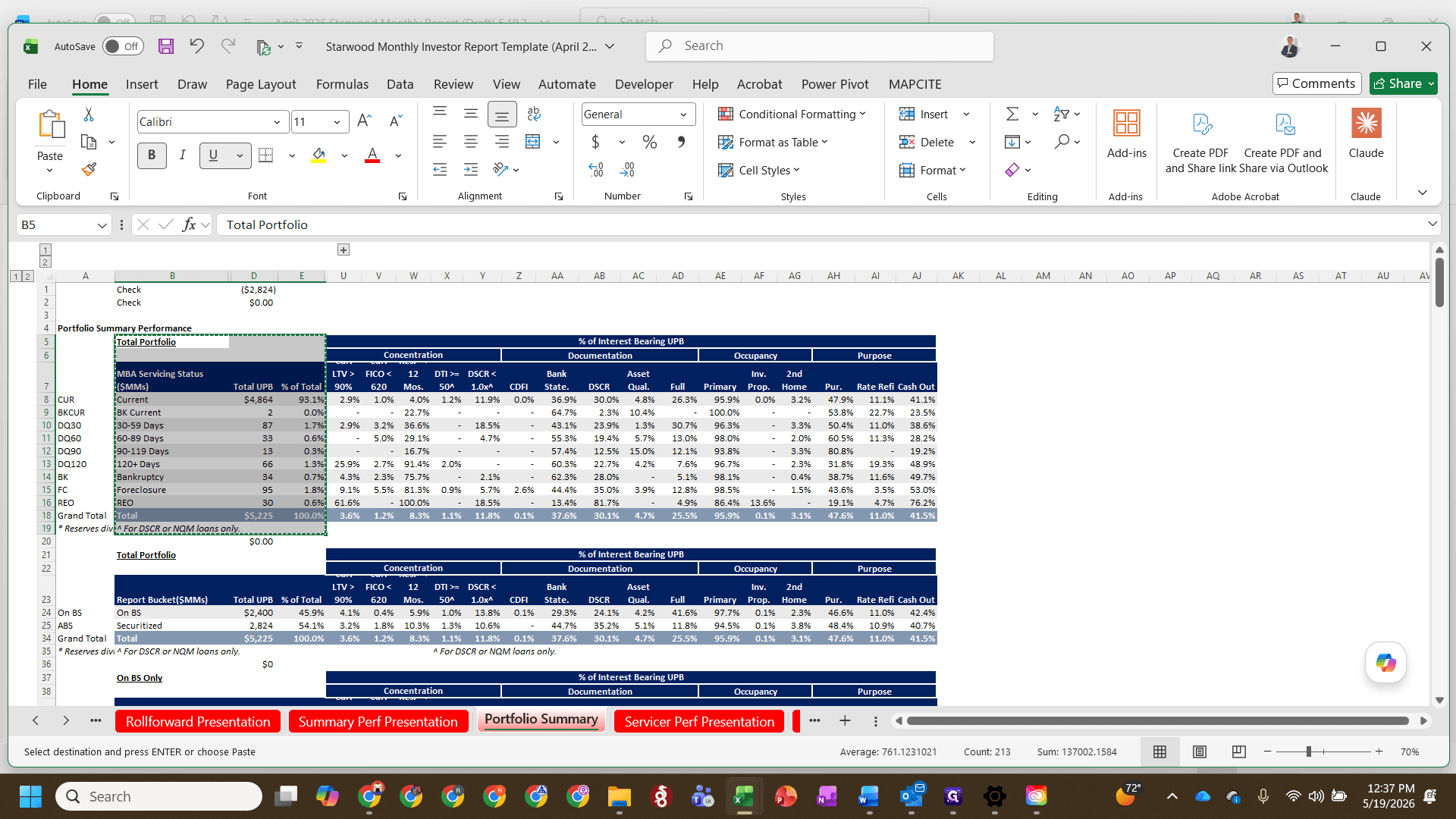
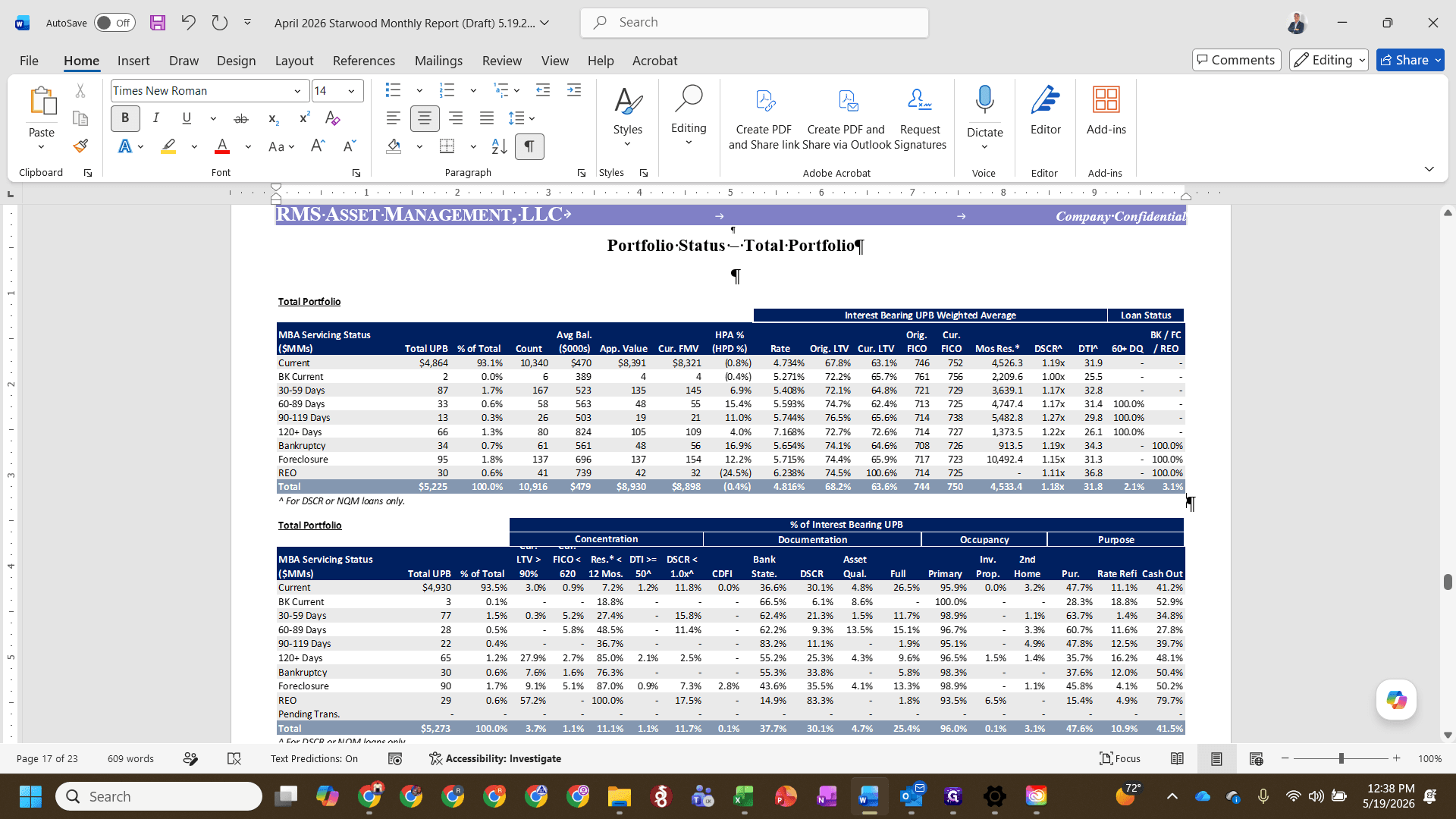
Alt + E.S and Enter to paste.6. Troubleshooting Formatting Issues
If you copy a table from Excel and the text appears squeezed or #NAME? / #REF! values appear, the source columns are too narrow.
Alt + O, then C, then A to auto-fit the columns so no text is truncated.Ctrl + C.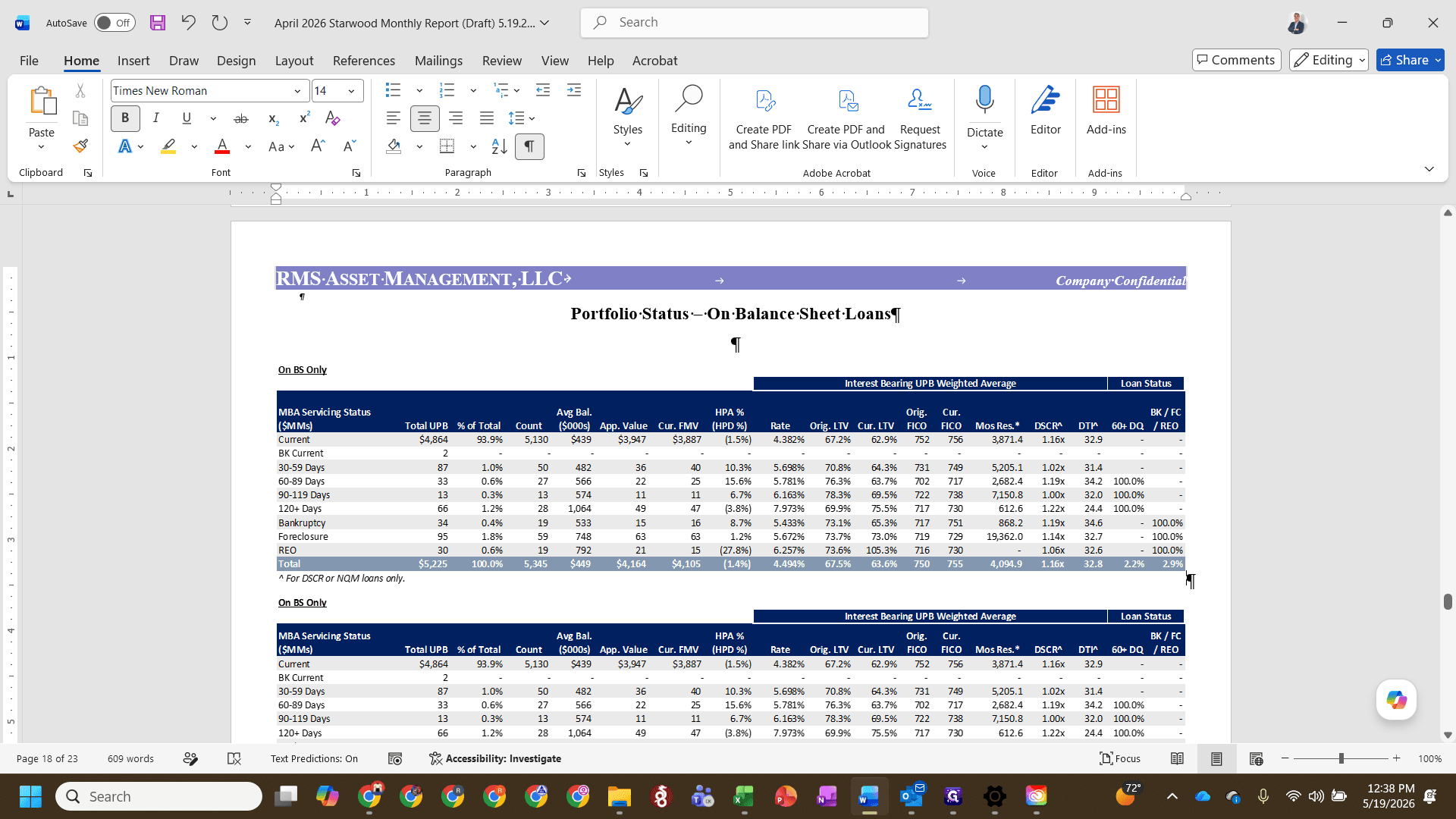
Alt + E.S and Enter to cleanly re-paste the corrected table.7. Finalizing Appendix Tables
Once you reach the Appendix pages, any previously hidden tables in Excel must be unhidden and copied over.
Alt + E.S and Enter to paste the final table.FAQ
Q: Why are there zeros at the bottom of the on-balance sheet tables?
A: They act as an internal checksum to guarantee the ending balance exactly matches the sum of the rows above it. If these are not zero, an error exists in the strat data.
Q: Why do we use Paste Special (Enhanced Metafile) instead of standard paste?
A: Standard pasting transfers HTML or Rich Text, which can break column widths and formatting in Word. Enhanced Metafile pastes it as a scalable vector image, guaranteeing it looks exactly as it does in Excel without losing quality when stretched.
Glossary
Term | Definition |
|---|---|
Strat File | A financial data file containing stratified metrics about a loan portfolio. |
Enhanced Metafile | A graphic format used in Windows to copy complex objects like Excel tables into Word perfectly. |
ABS | Asset-Backed Securities, representing the securitization trust segment of the portfolio. |