
How to Update Your User Profile and Password in Craftable
Learn how to access your user settings, update your email address, and change your password in the Craftable dashboard.
By Wendy
This guide explains how to update the email address associated with your Craftable account to your Thompson Restaurants email address.
Using your Thompson Restaurants email helps ensure your account is compatible with Single Sign-On (SSO) and allows the Corporate IT team to provide support when assistance is needed. If your account is registered with a personal or non-Thompson Restaurant email address, we may not be able to assist with account-related issues.
If your Craftable account is already using your Thompson Restaurants email address, no action is required.
Logging In
1
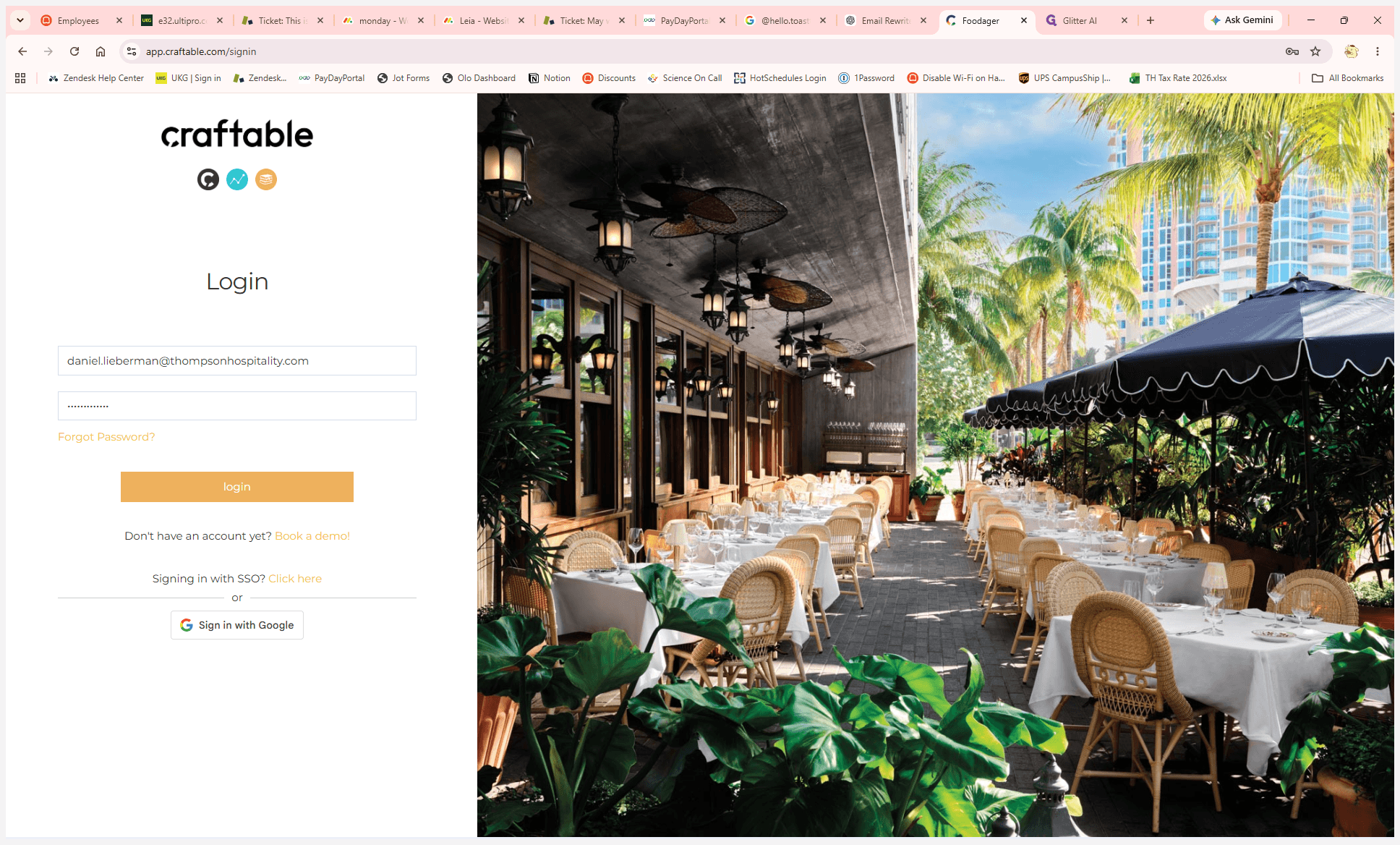
Enter your current email and password, then click Login.
2
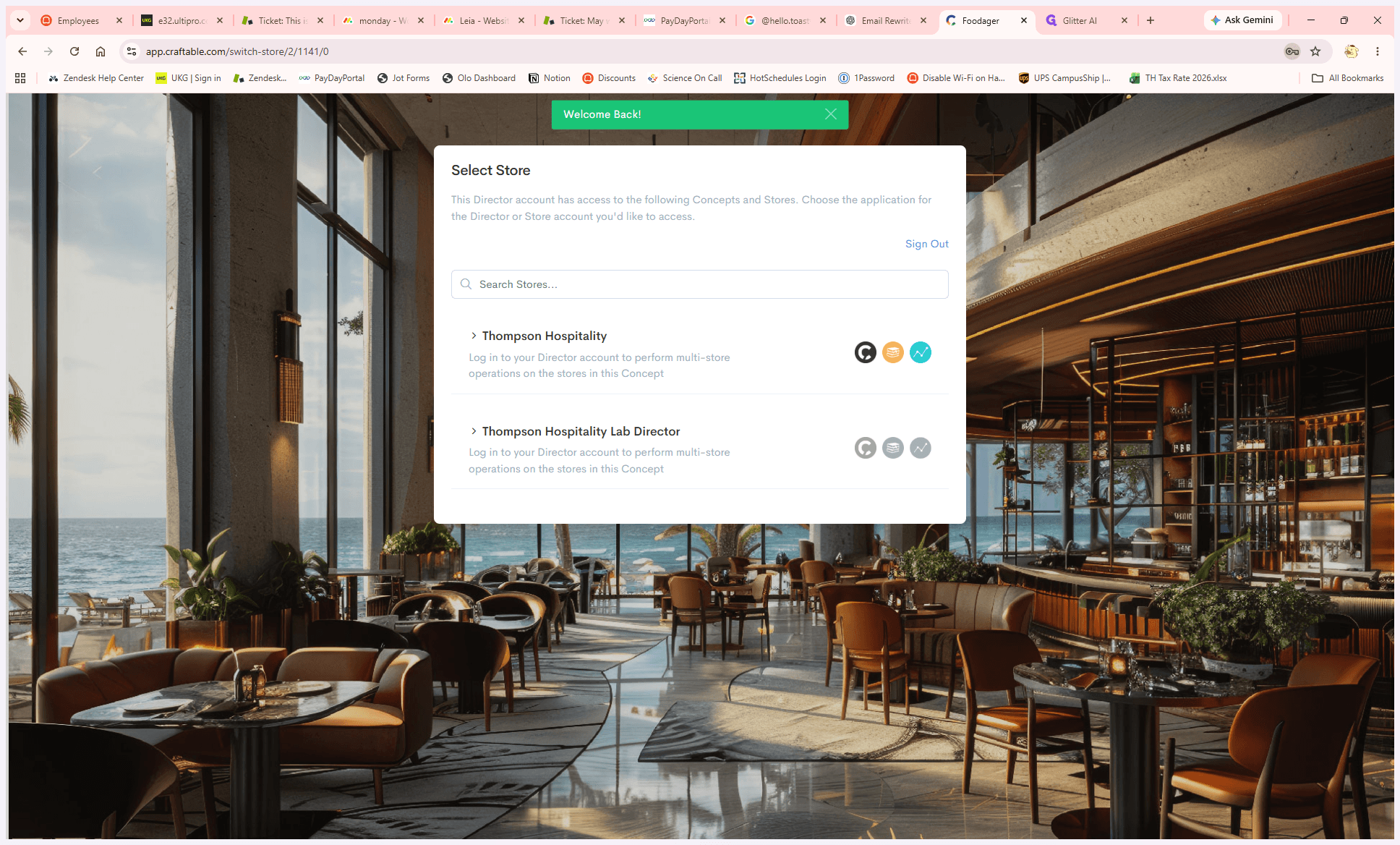
Select your store or account from the modal list to proceed to the dashboard. Note: this step only applies if you have access to multiple locations.
Accessing User Settings
3
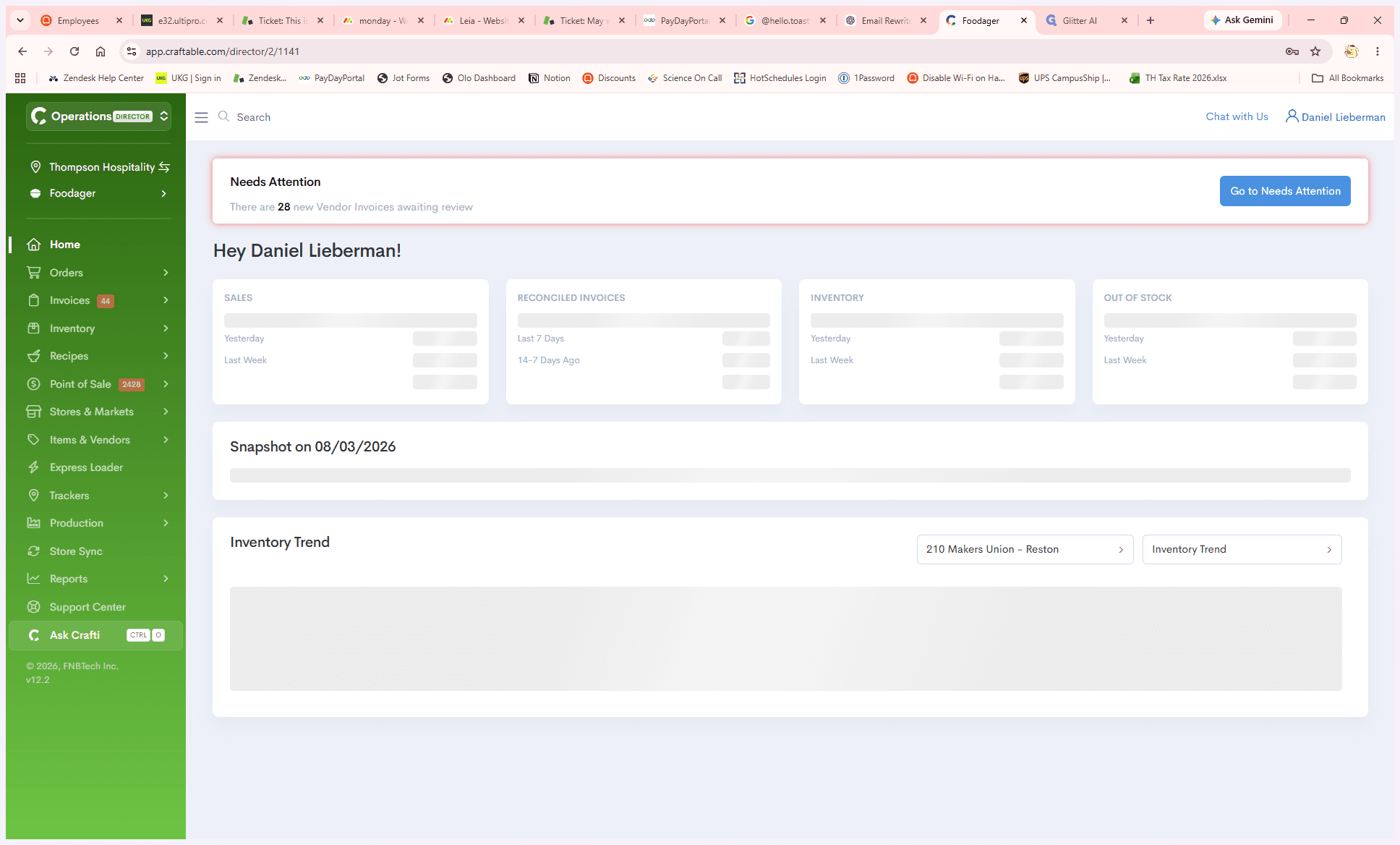
Click your user profile name in the top right corner of the dashboard to open the account menu.
4
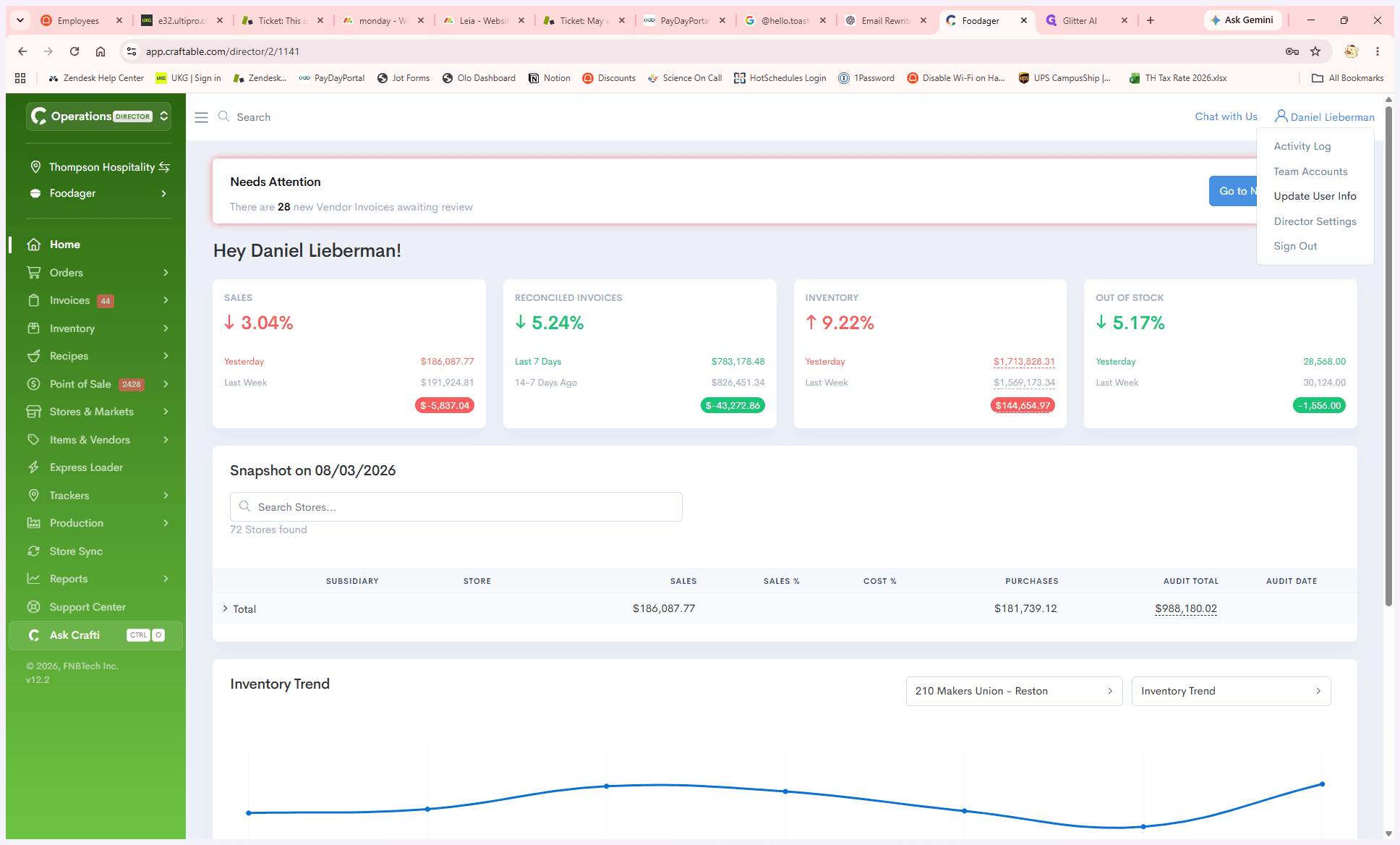
Select Update User Info from the dropdown menu.
Updating Information and Password
5
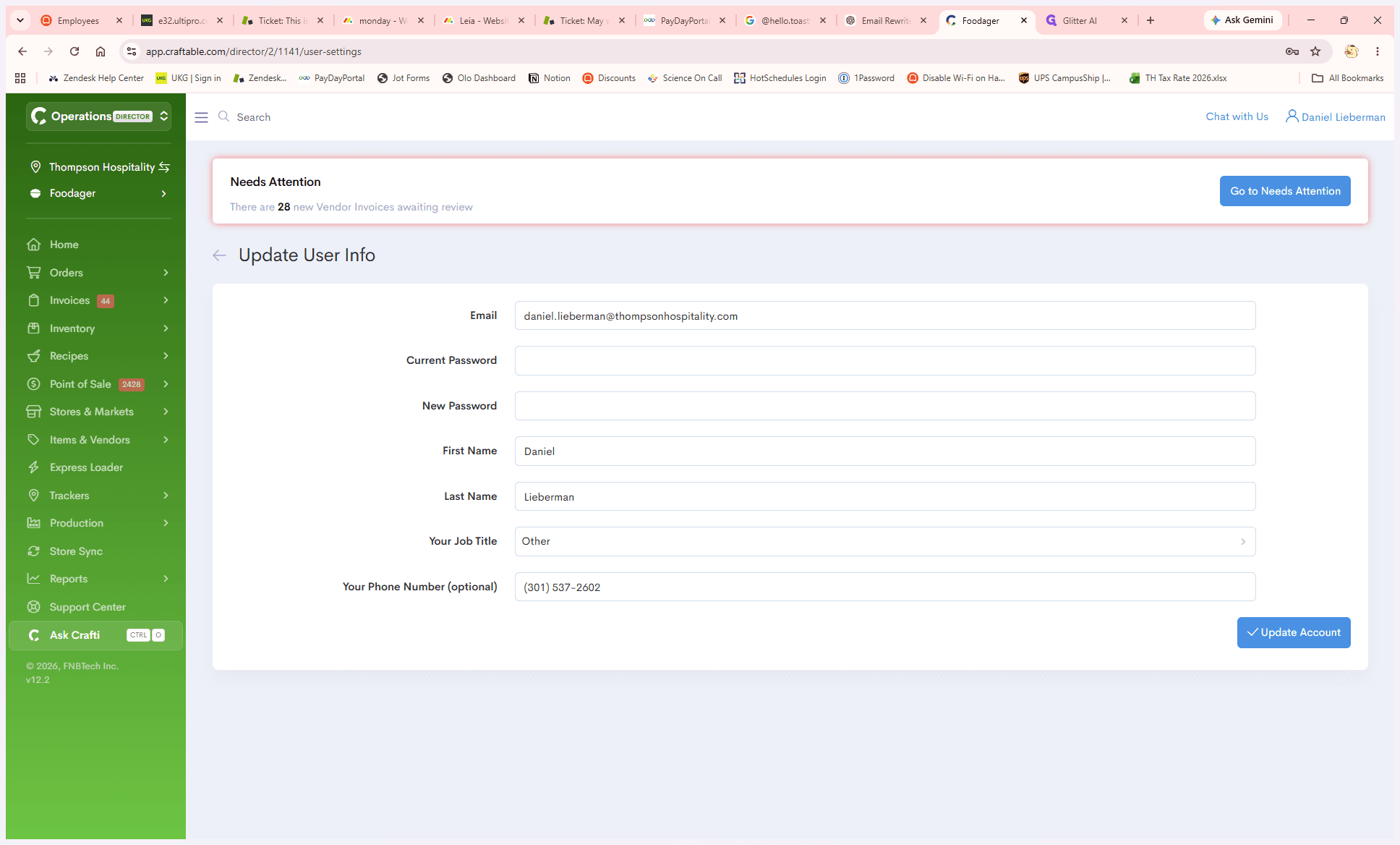
Update your email address in the provided input field.
6
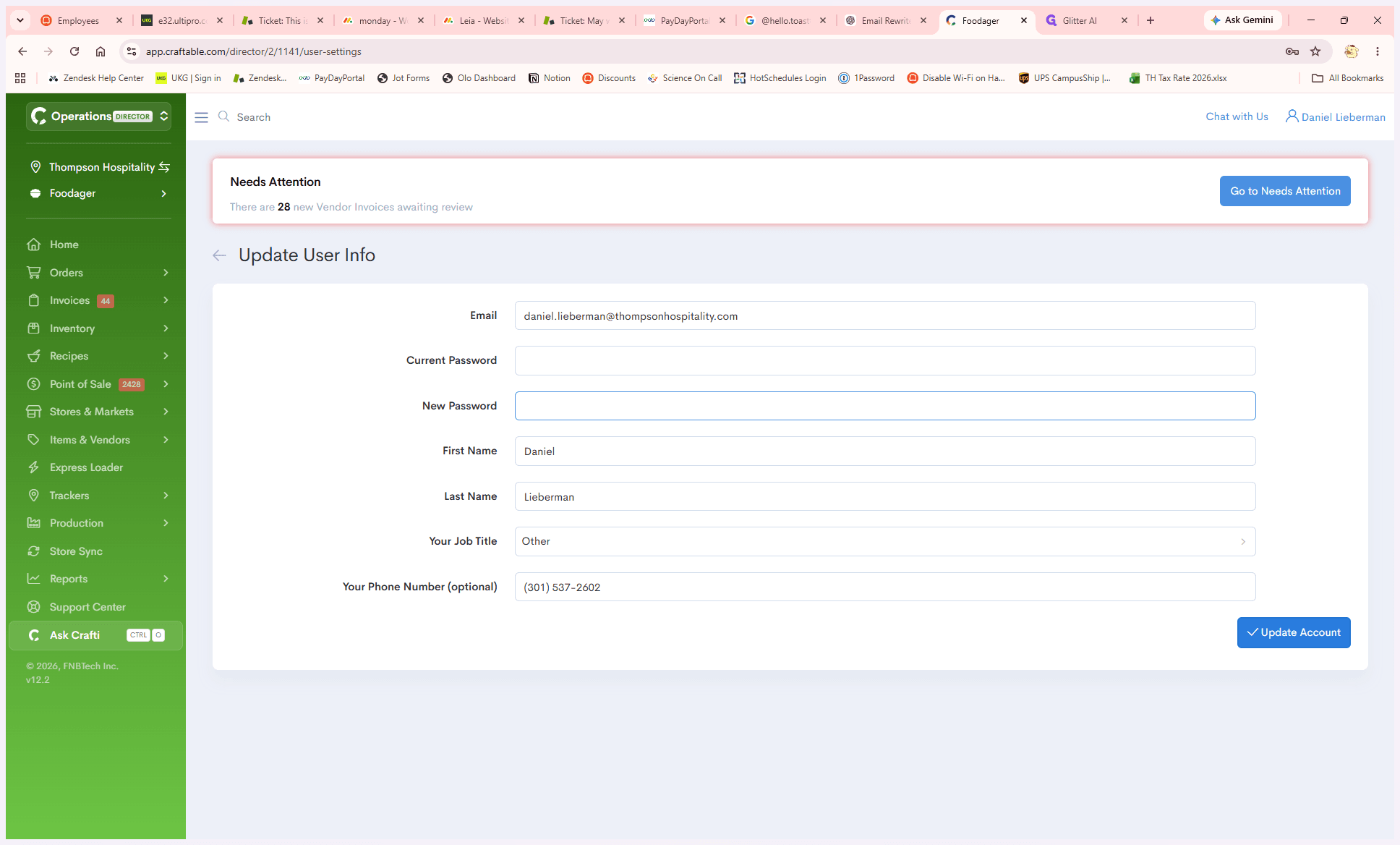
Click Update Account to save your changes. Once saved, you're done!
7
If you run into any issues, please reach out to Daniel Lieberman at daniel.lieberman@thompsonhospitality.com for additional support.