Upload and automatically process invoices
Learn how to upload and validate invoices automatically and transfer consumption data to emission sources in DATAIE Sustainability Analytics.
By Soporte DATAIE
In this guide, you will learn step by step how to upload invoices to DATAIE Sustainability Analytics, process them automatically, and validate or correct the extracted data. At the end, the consumption data is correctly transferred to the matching emission sources in the right business units.
Open automatic invoice reading
1
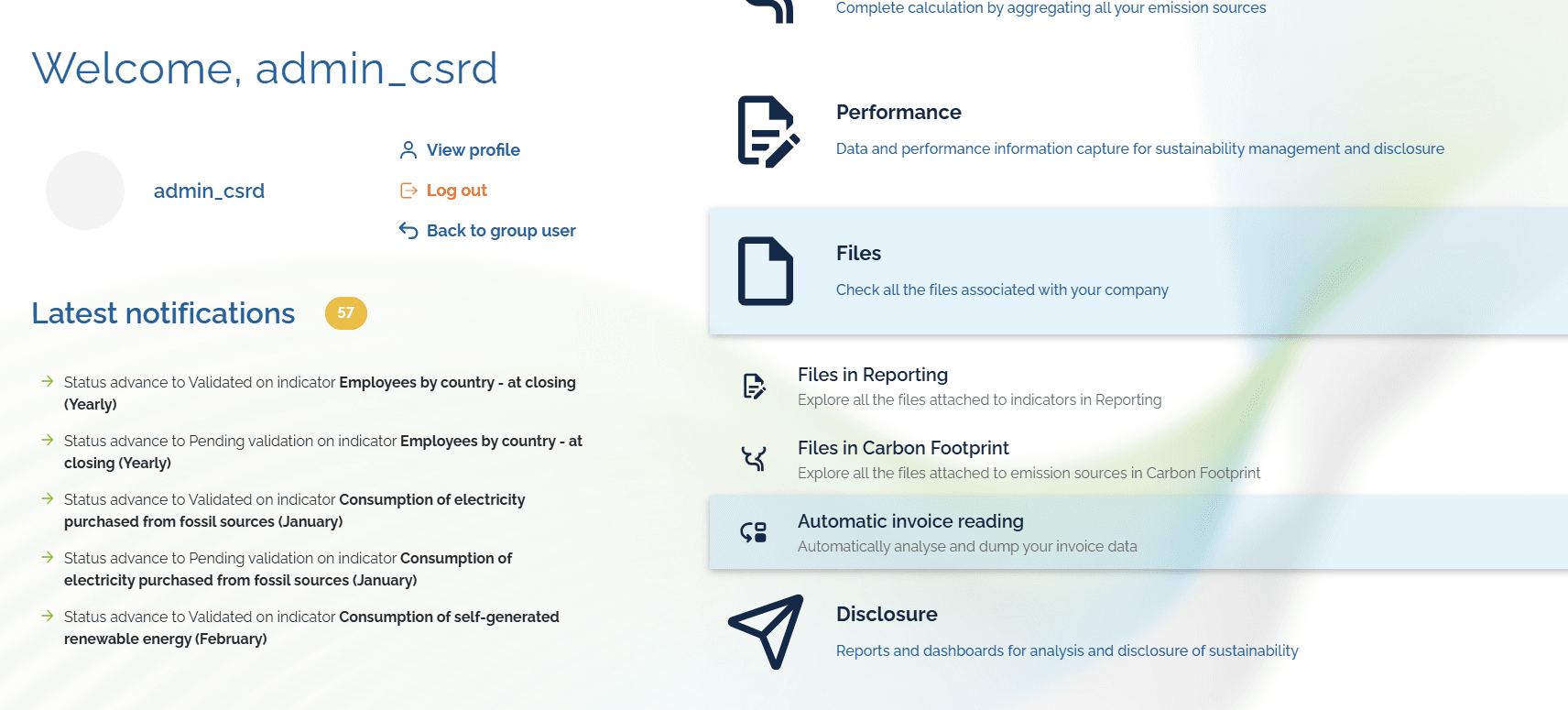
Click "Files" and then "Automatic invoice reading".
2
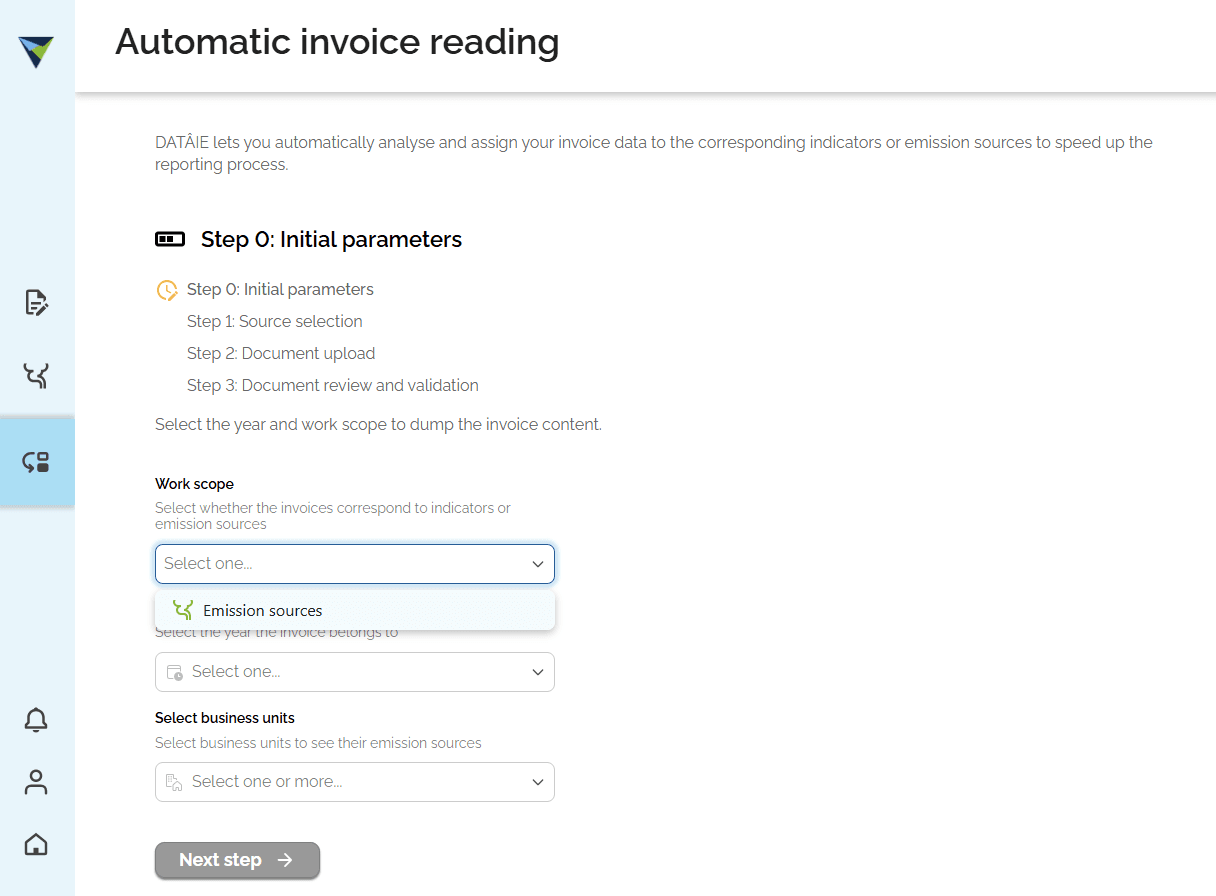
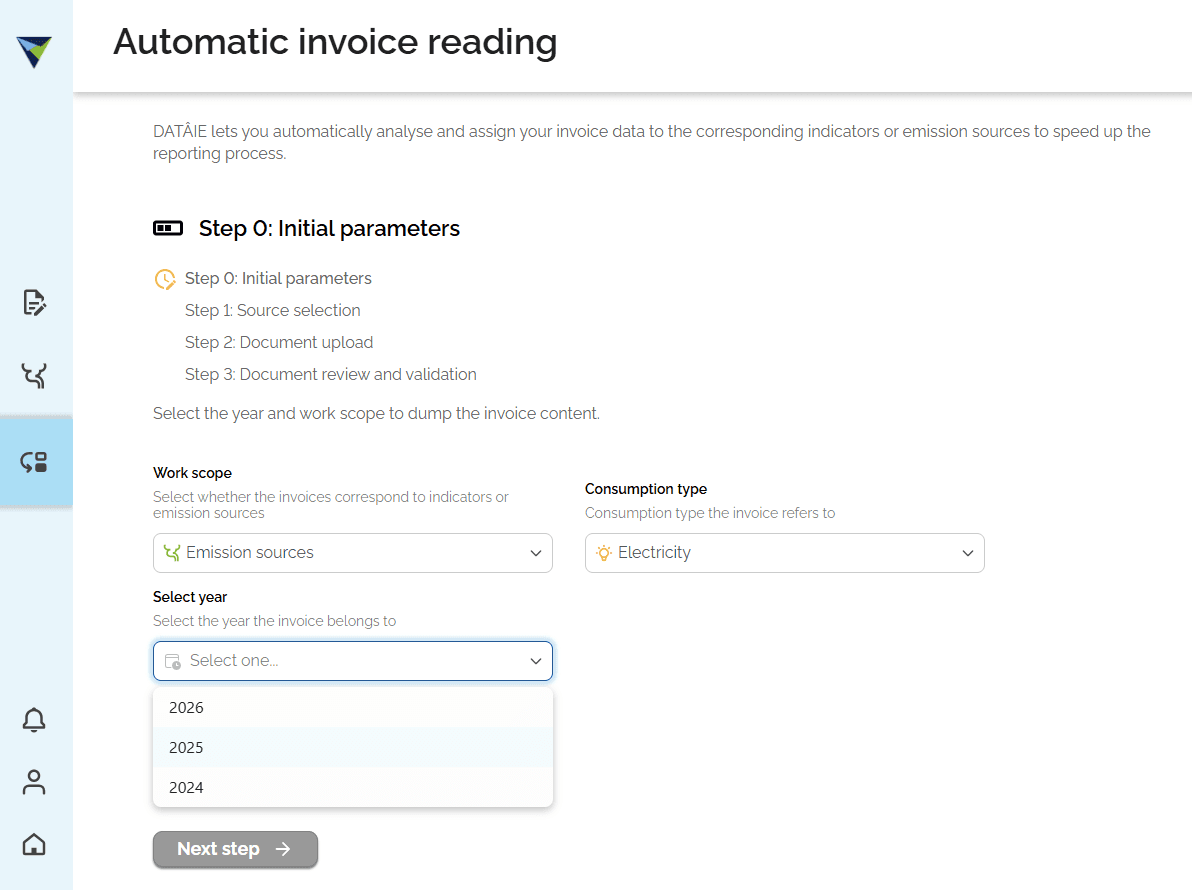
Select the right options. In the "Work scope" field, select "Emission sources".
3
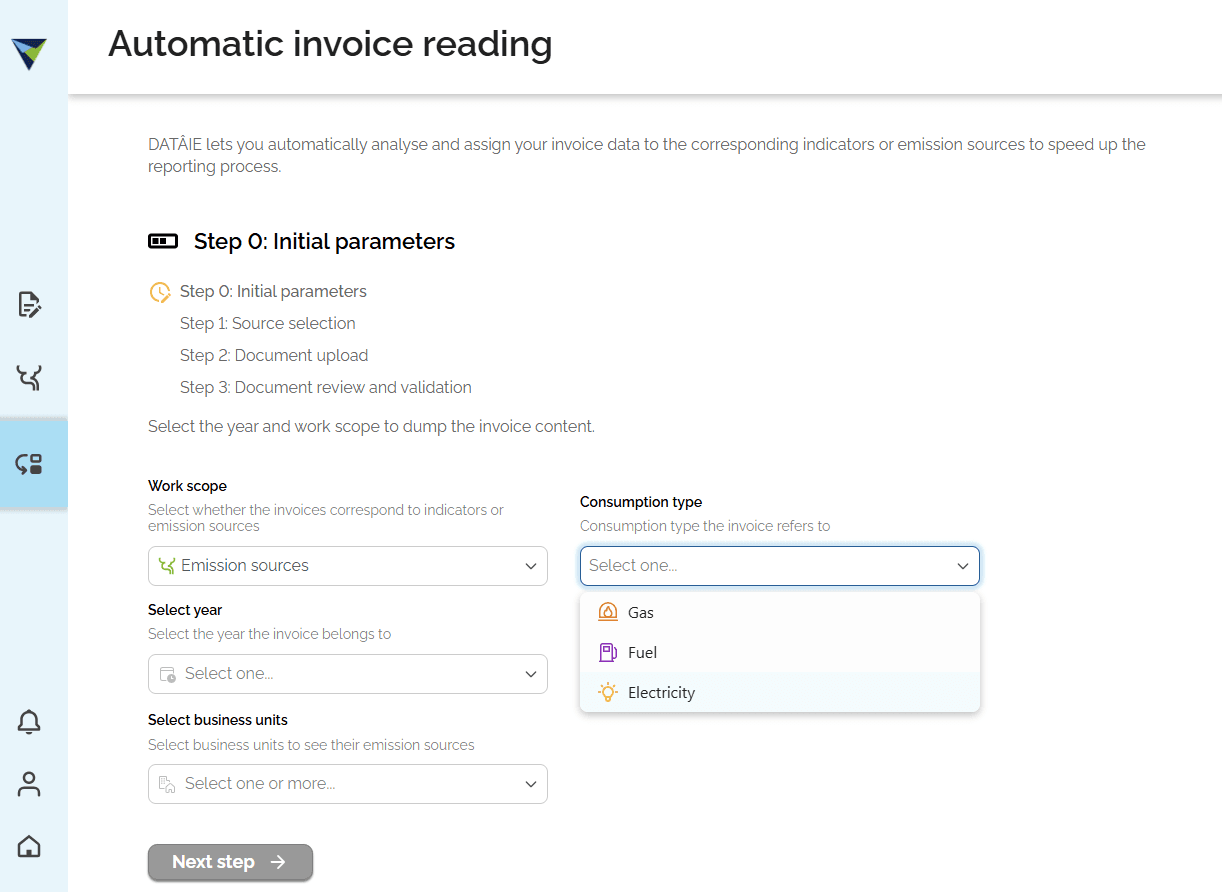
In the "Consumption type" field, select "Gas", "Fuel", "Electricity" or "Water", depending on the consumption you want to enter.
4
Select the year of the emission source where you want to enter the consumption.
5
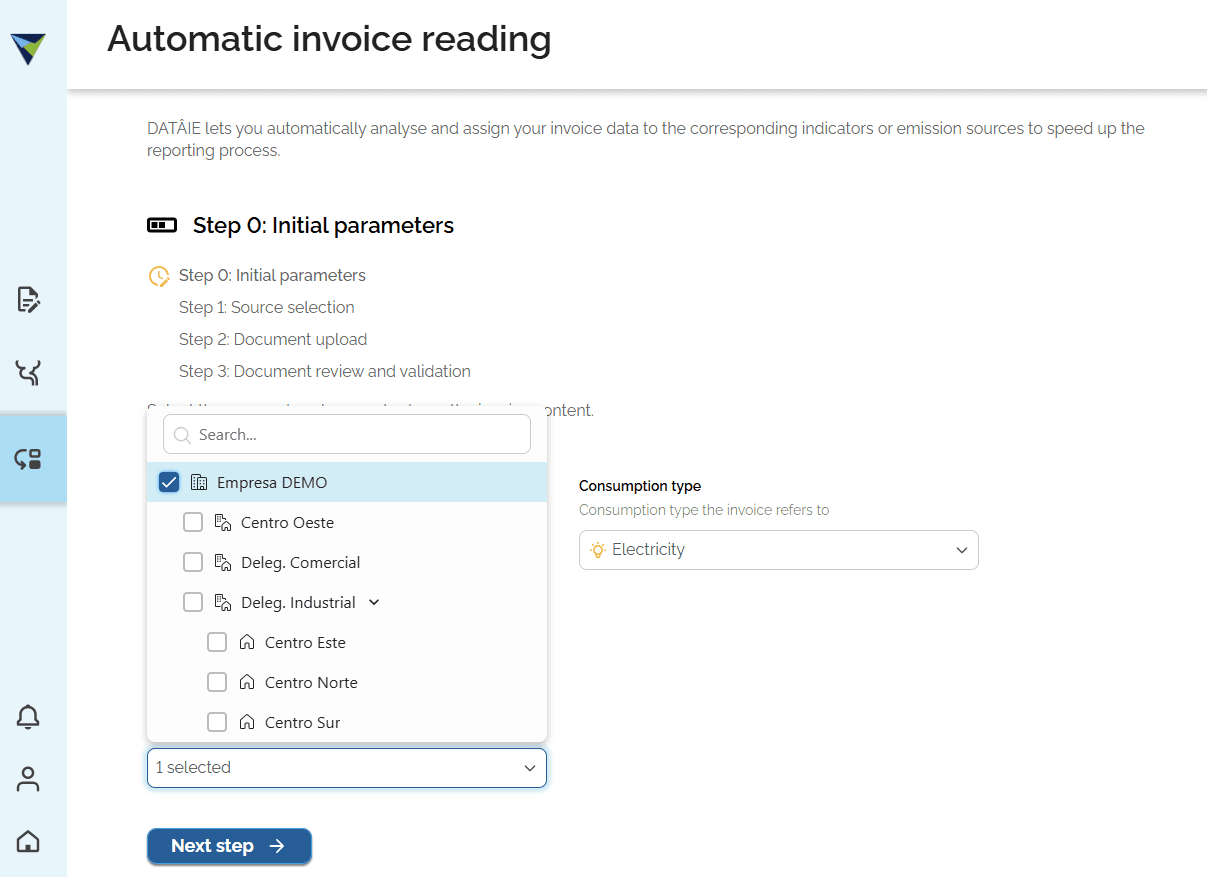
Select the business unit the consumption belongs to. Click "Next step" to continue.
6
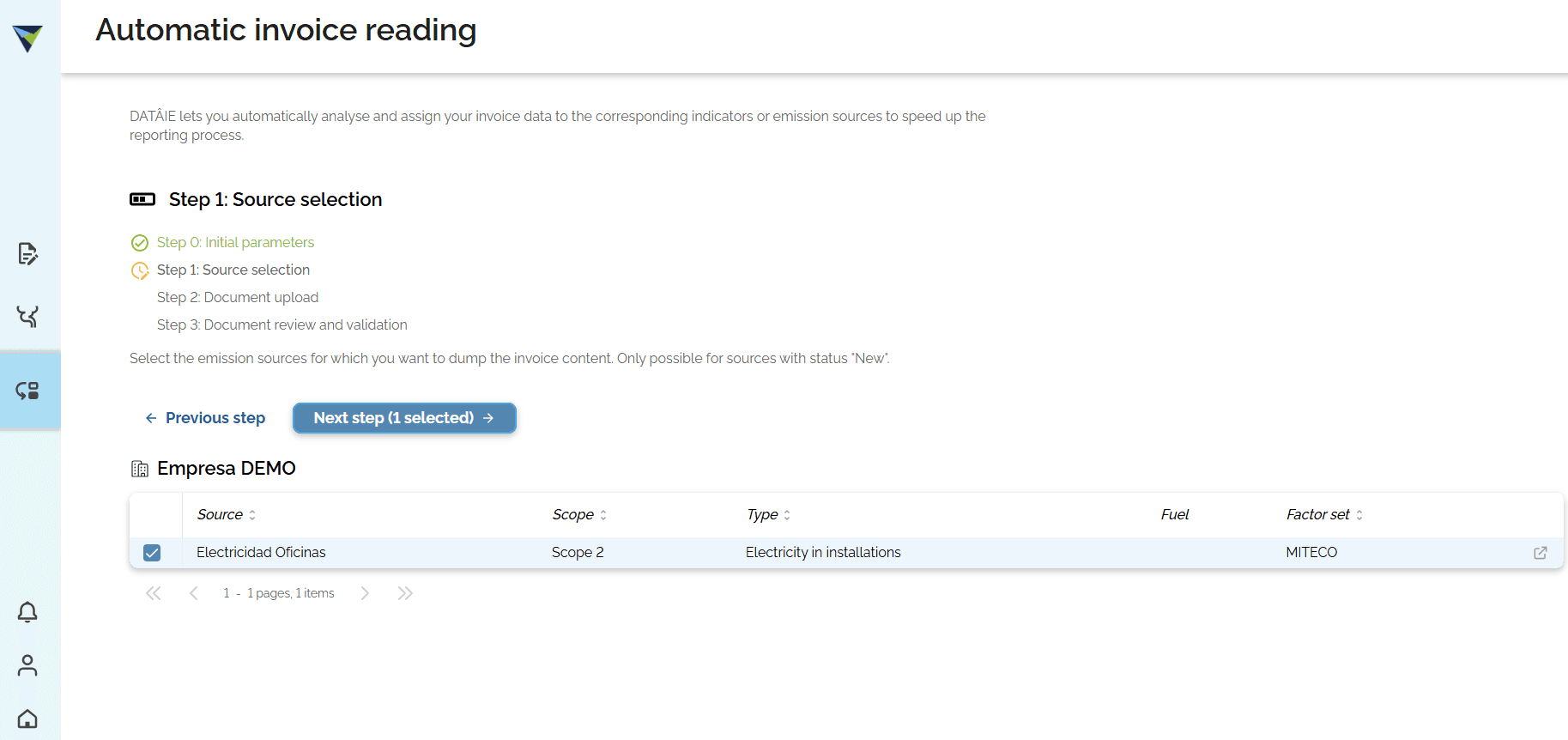
Select the source where you want to enter the consumption. Then click "Next step".
7
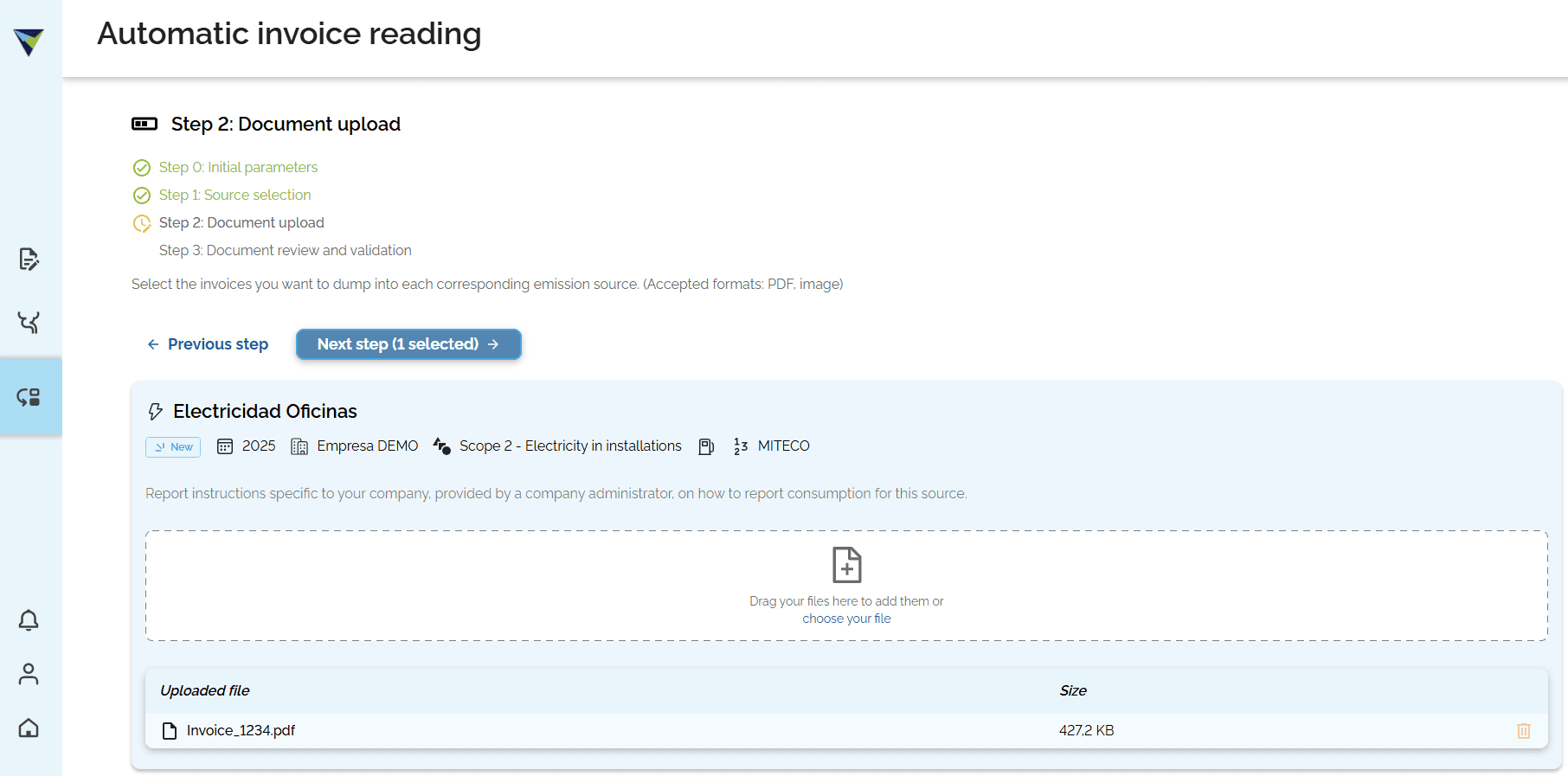
Click "choose your file" to select the invoices you want to read. Choose the invoice and click "Next step" to continue.
Review and validate the data
8
Check the data from the reading, such as the reference, the period, the consumption, the unit of measure, and so on. The data you need depends on the type of consumption you are processing.
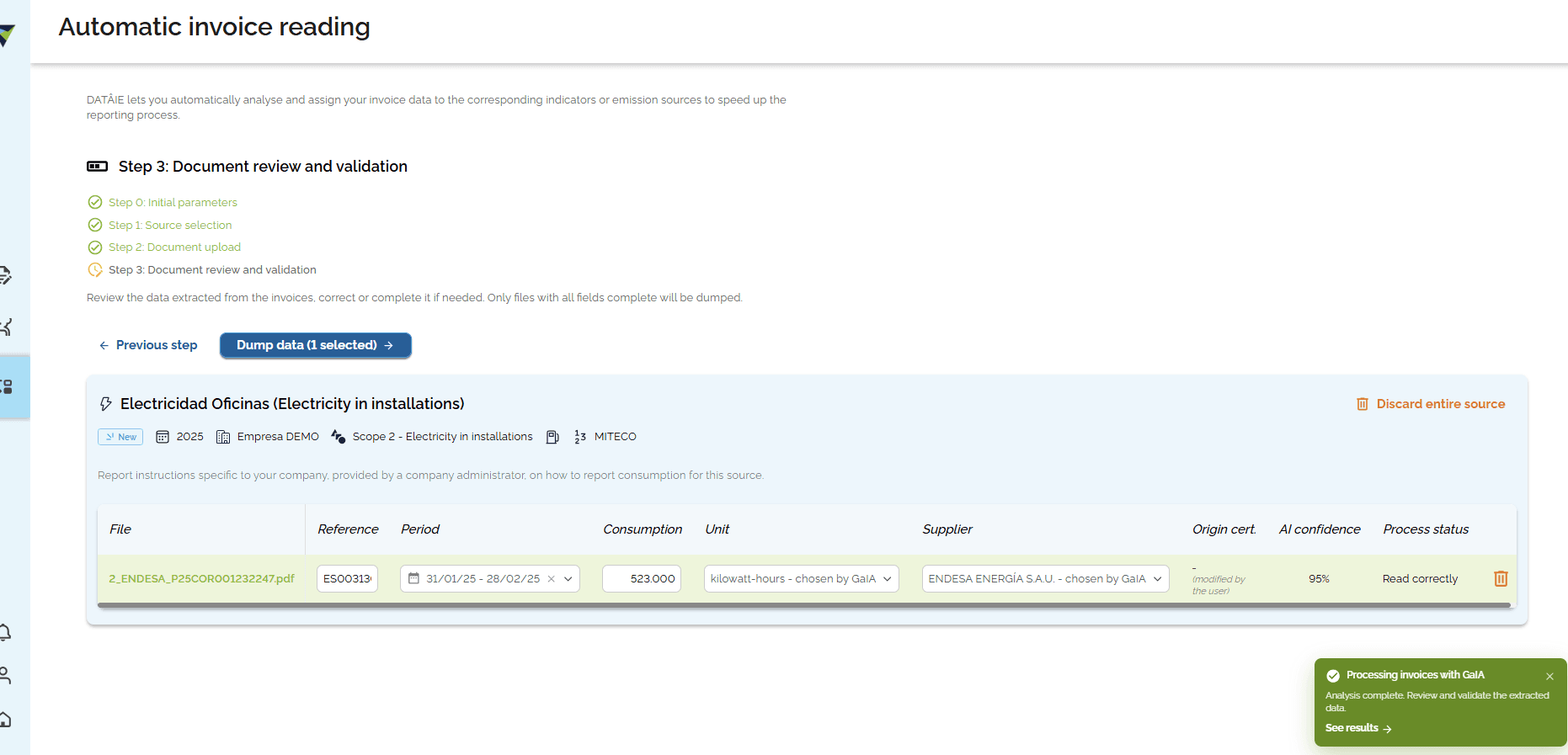
9
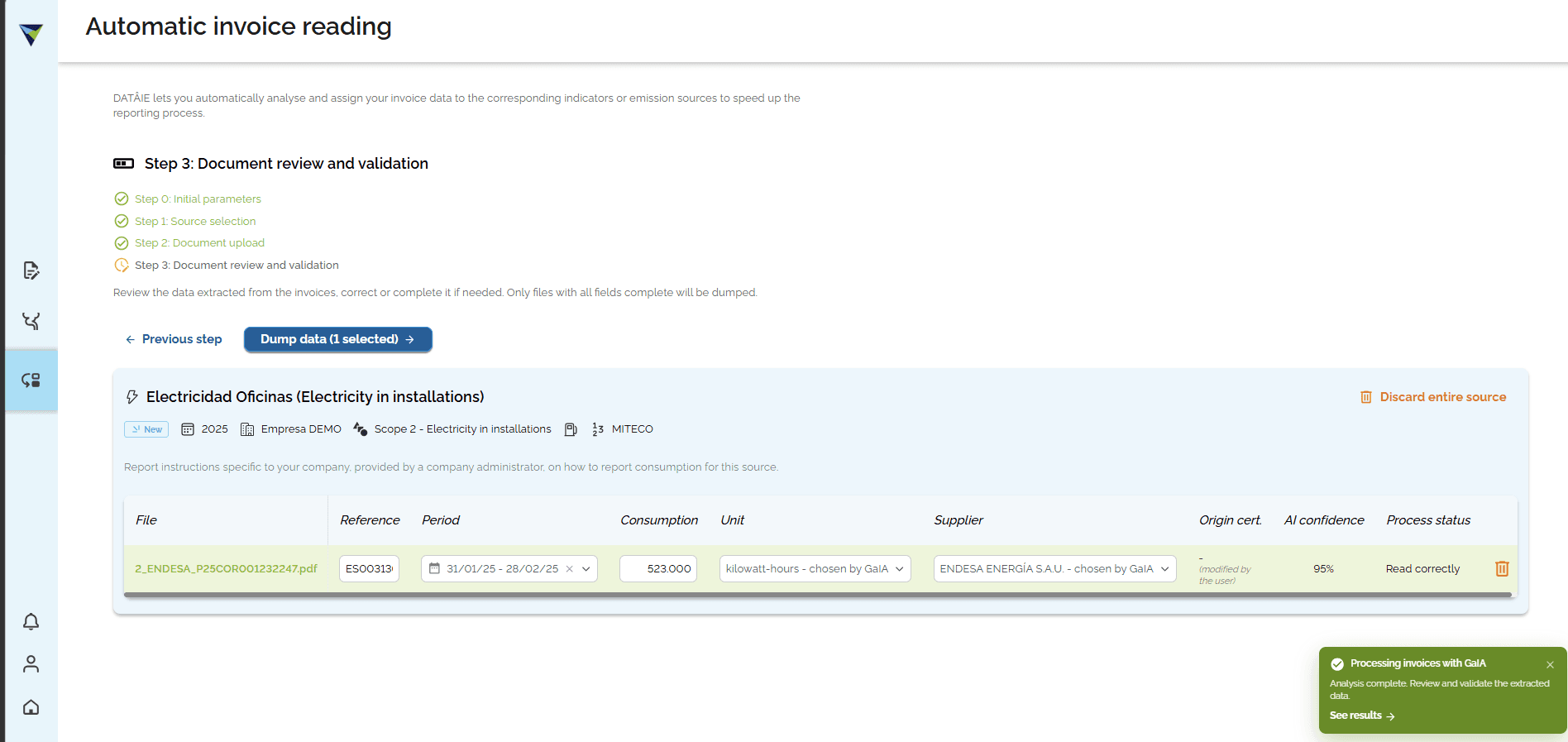
Click "Dump data" to continue. A new screen will appear. Click "Dump" again.
10
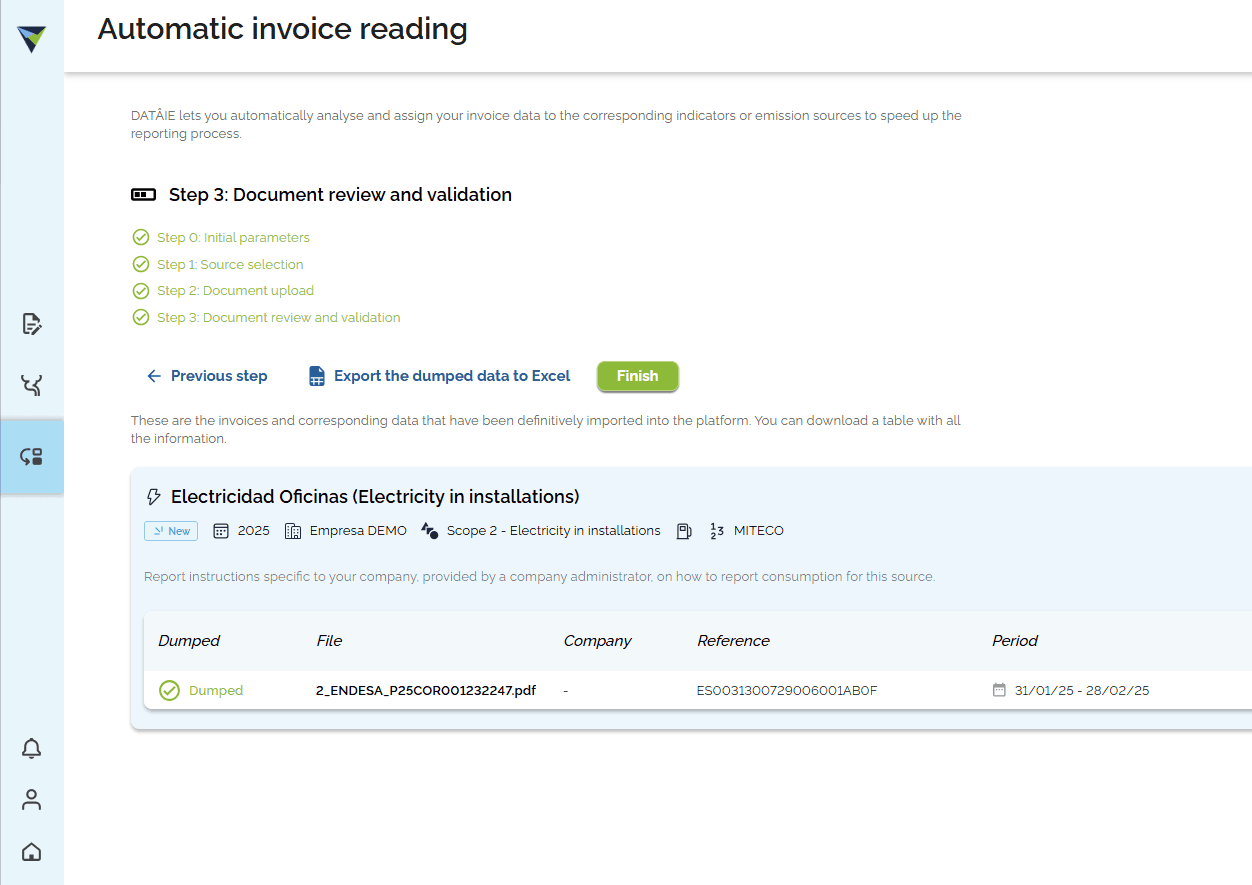
If you want, click "Export the dumped data to Excel" to see a summary of the uploaded data in that format. Finally, click "Finish".
View the transferred data in the source
11
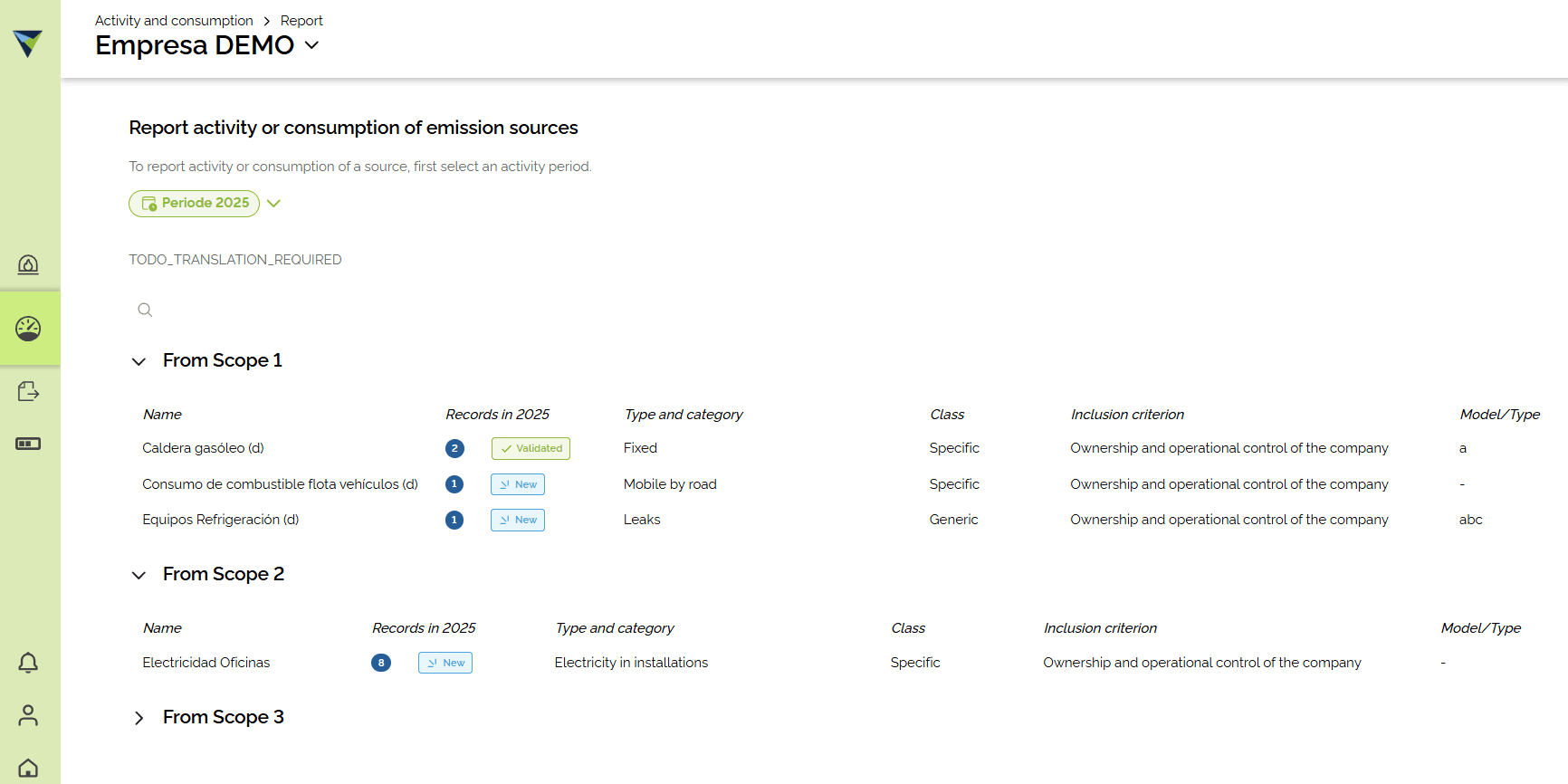
Open the source where the data was loaded.
12
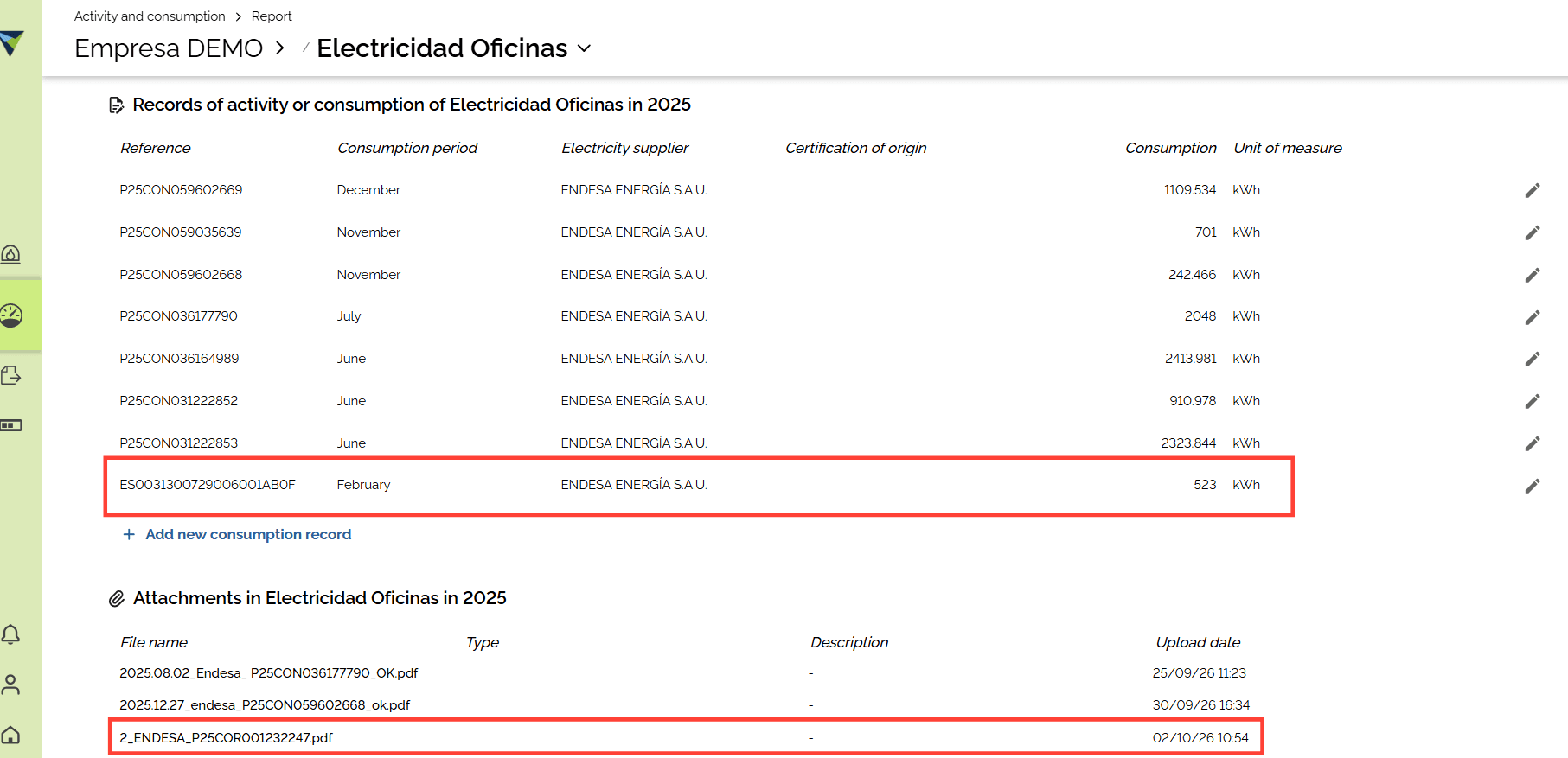
You can see the loaded data, the attached file, and the Excel file with the consolidated information that was loaded.