
WIX - Upload Images and Manage Layout Columns in Wix
Learn how to update page sections with custom background images and organize layouts using the column manager in the Wix website editor.
This guide shows you how to navigate the Wix website editor to upload background images to specific page sections. It also covers how to structure those sections by adding and deleting layout columns, ensuring your visual content is properly organized.
This workflow is useful for website administrators, designers, or marketers who maintain Wix websites and need to regularly update galleries or modify section layouts.
Accessing the Website Editor

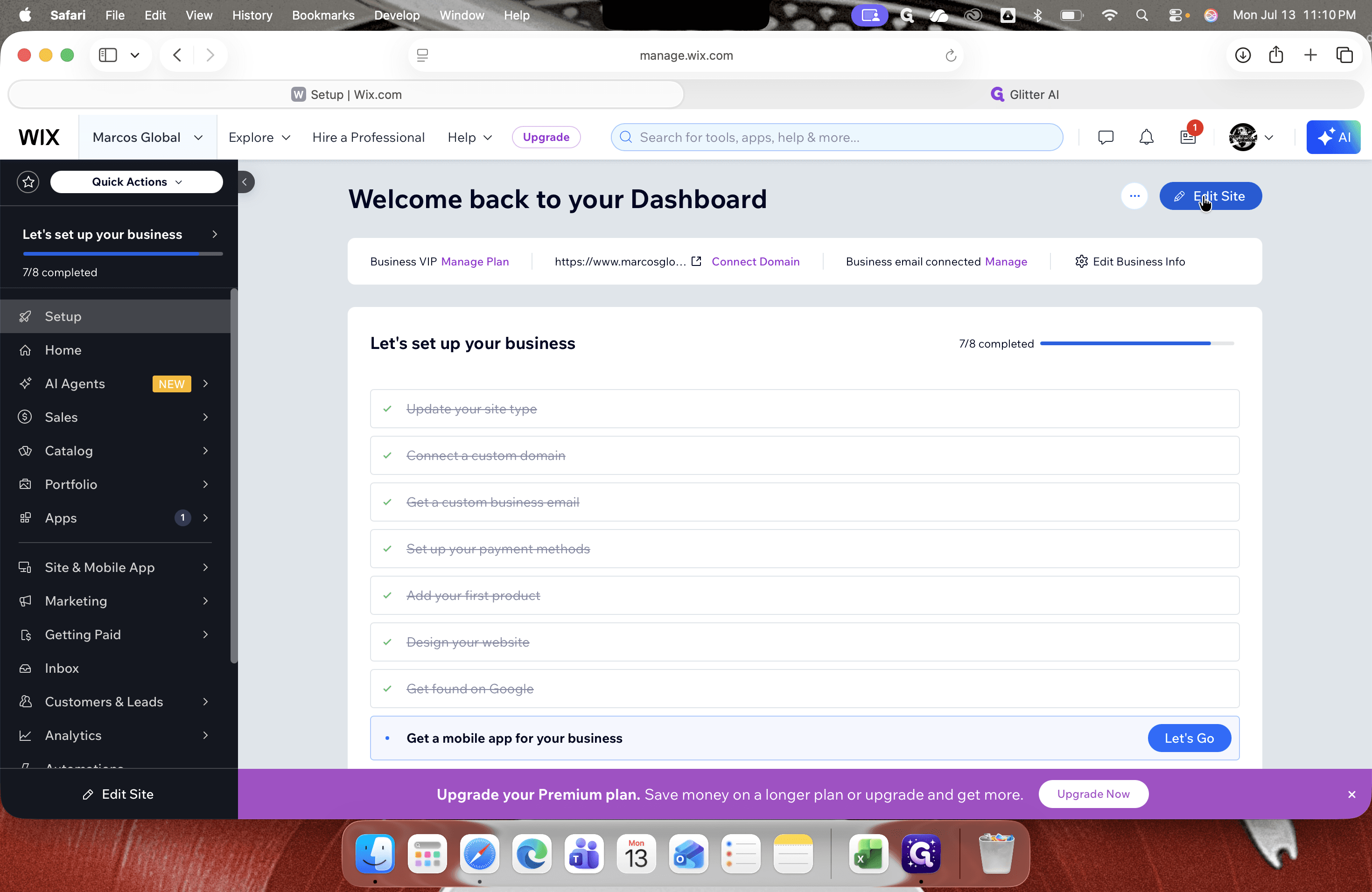
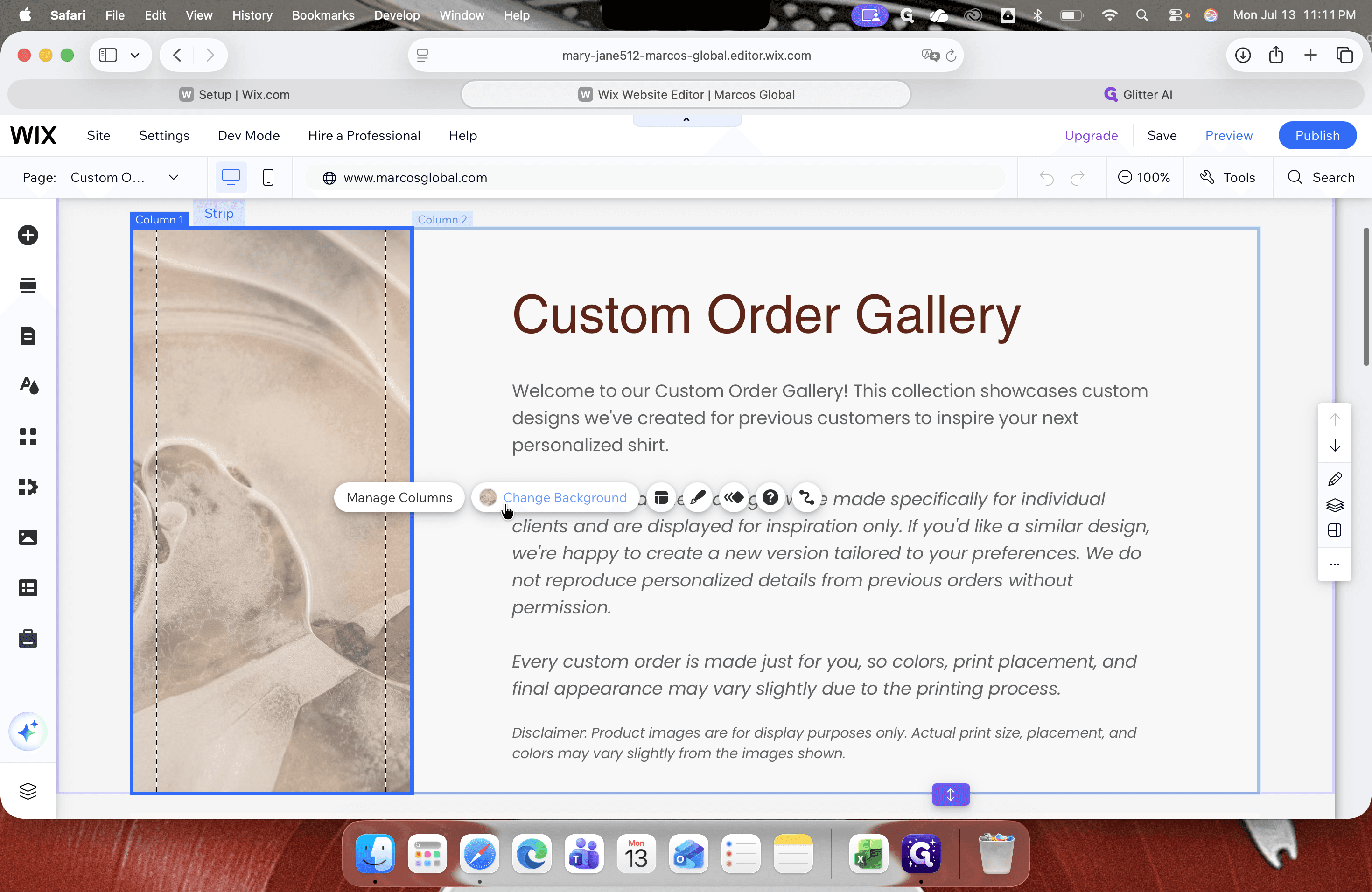
Navigating to the Target Page


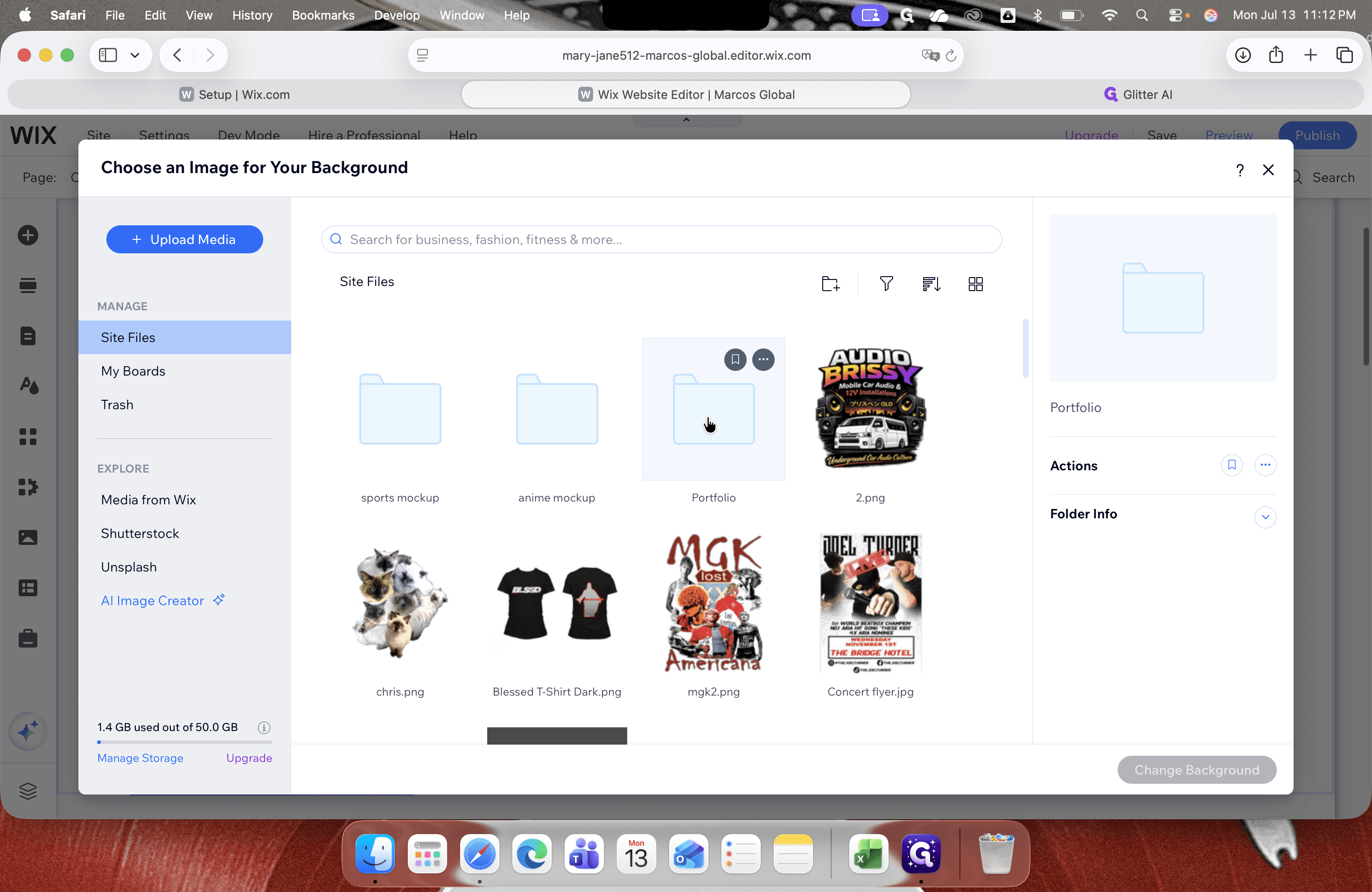
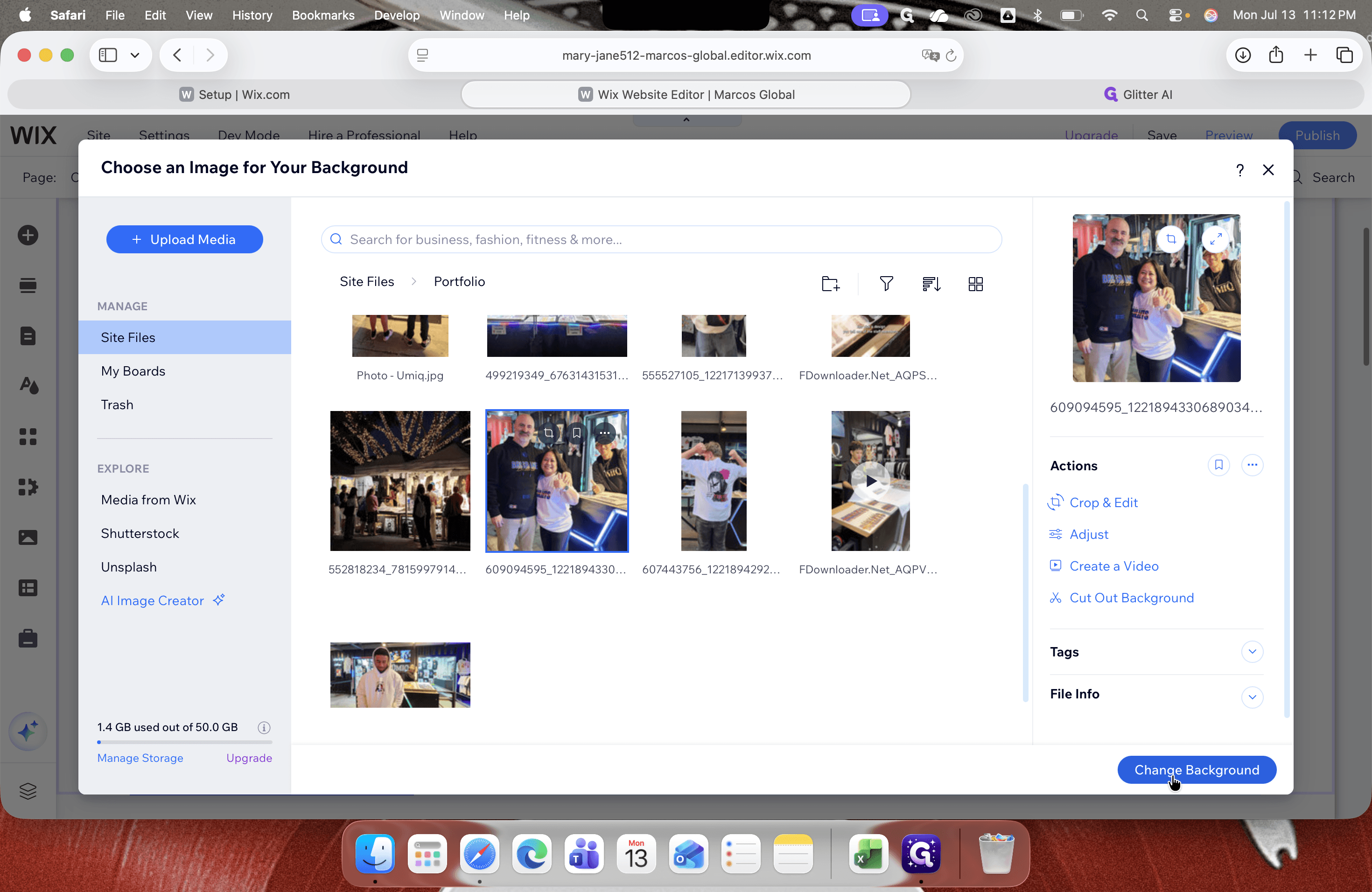
Uploading a Background Image
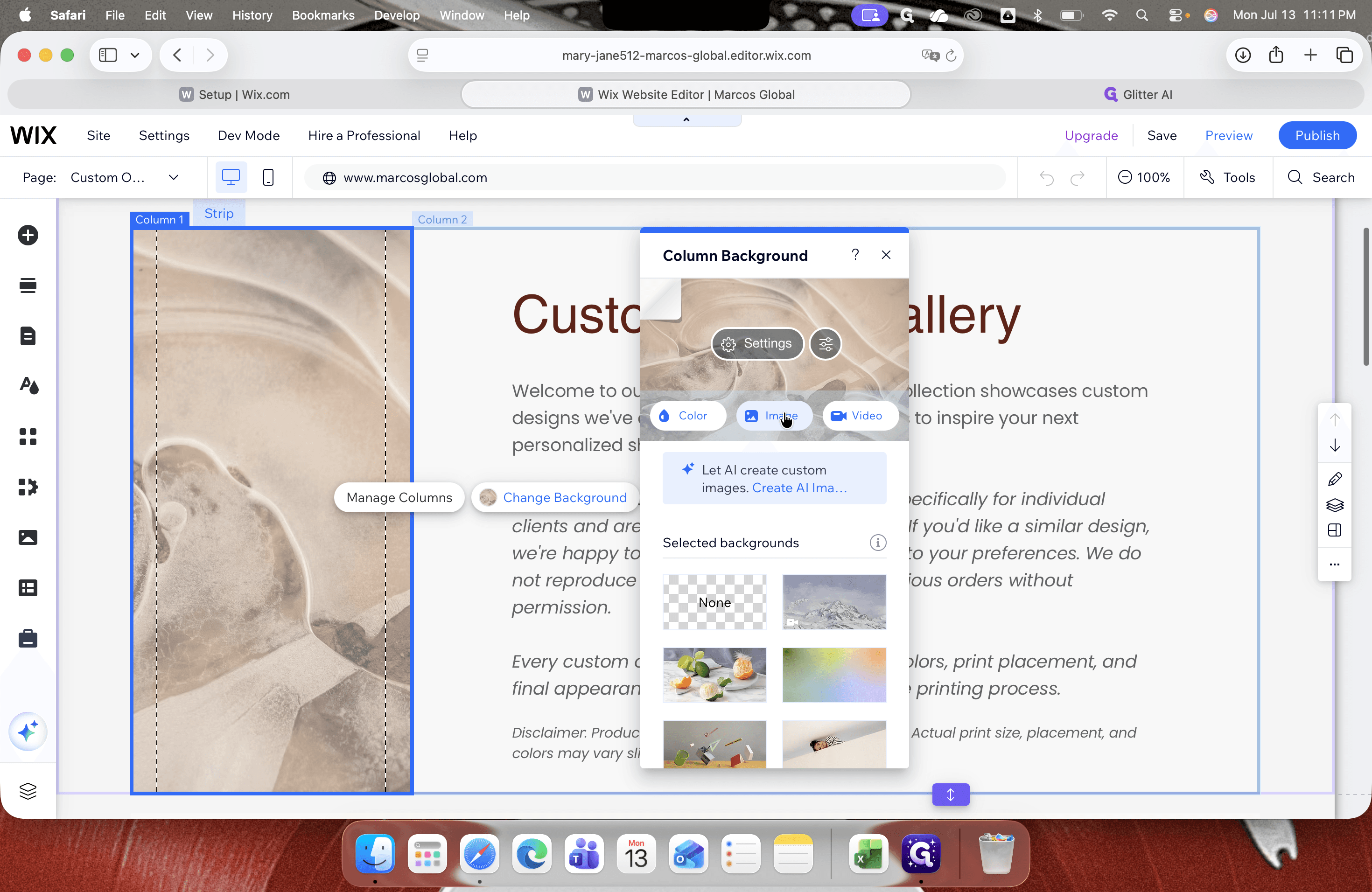
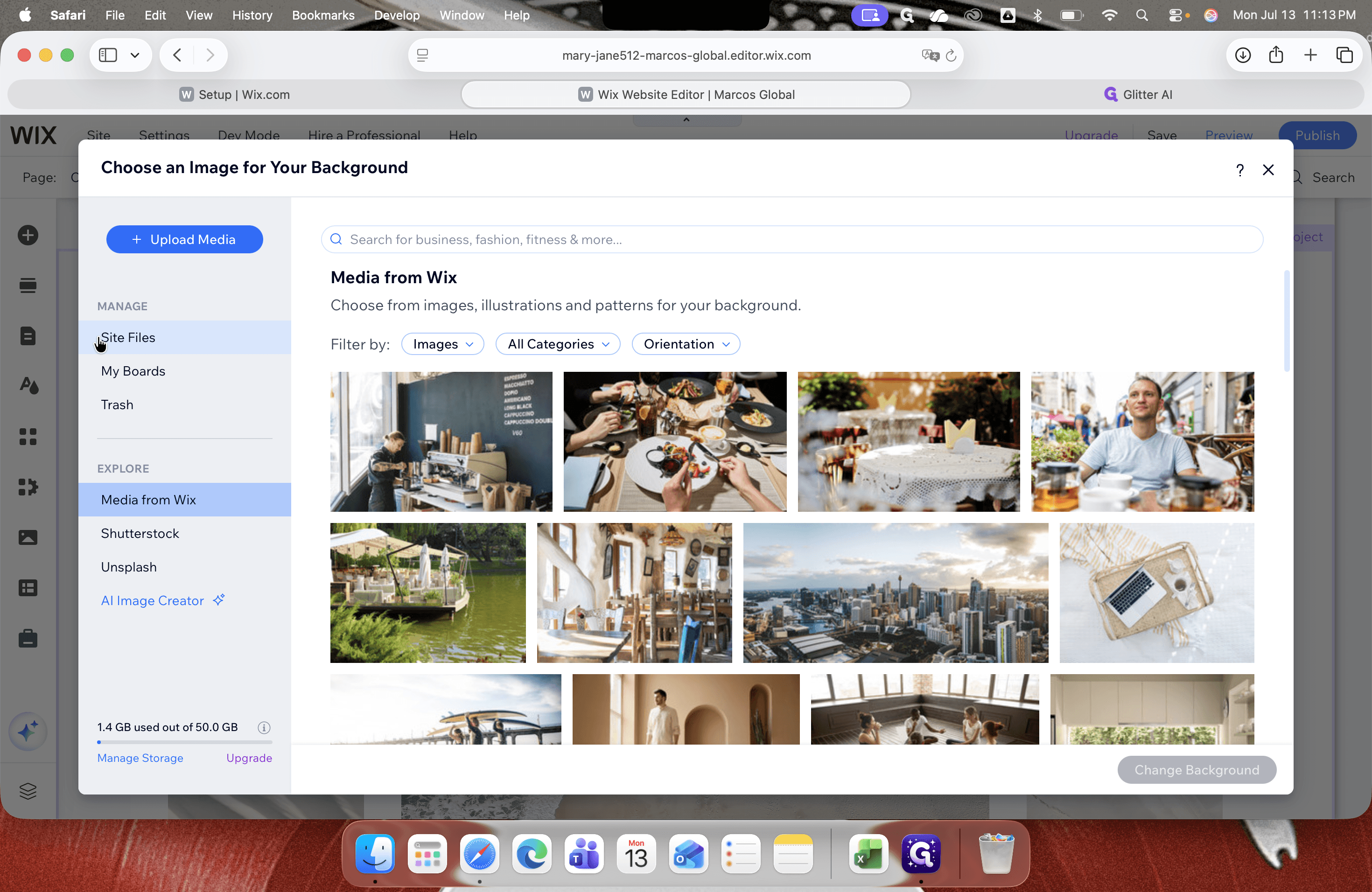
Wix provides multiple options for sourcing your background images.
Image Source | Description |
|---|---|
Site Files | Select from images you have previously uploaded to your Wix account's media library. |
Media from Wix | Browse and apply professional, royalty-free stock photos provided by Wix. |
Upload Media | Upload new image files directly from your computer or device. |
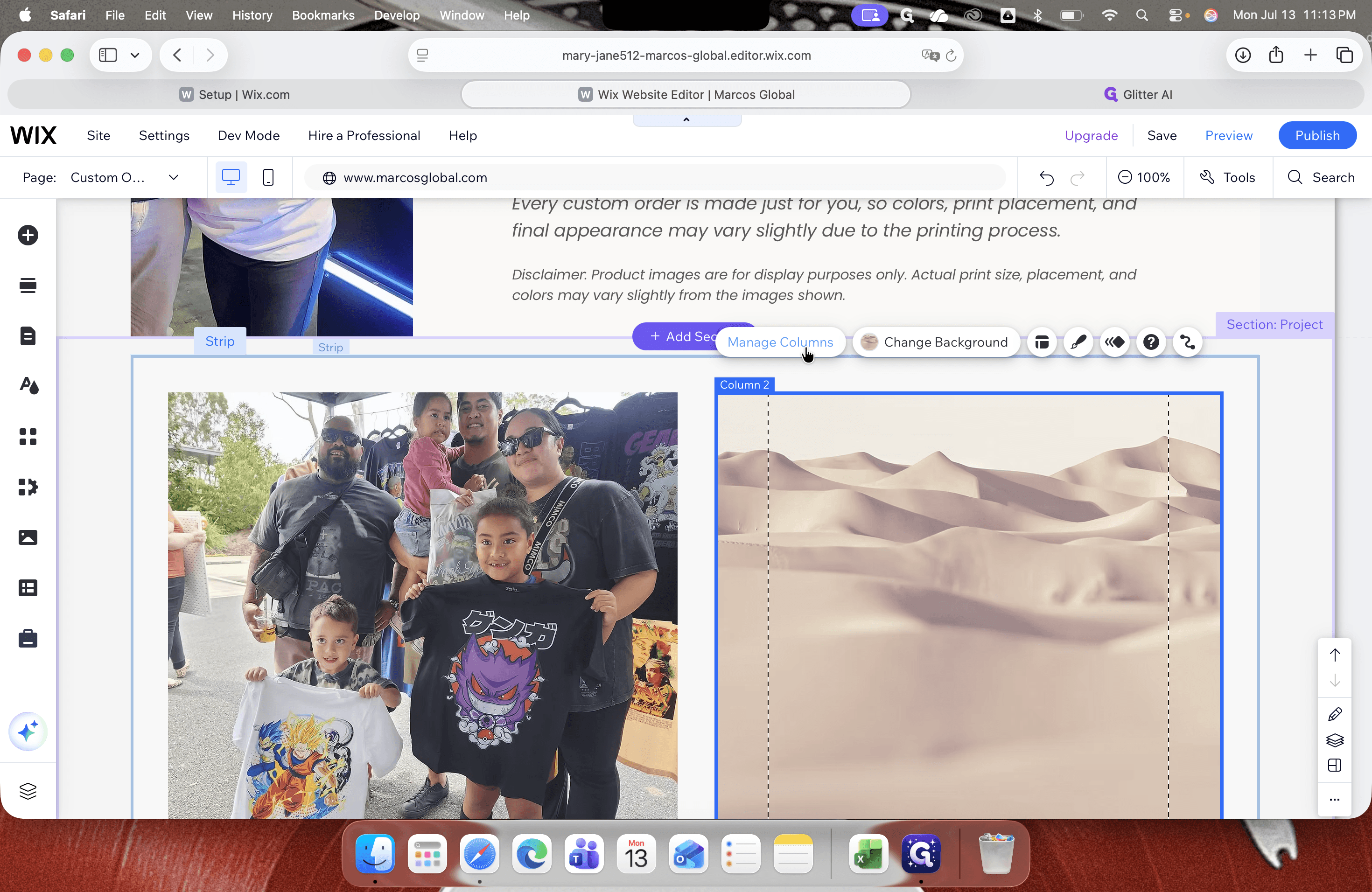
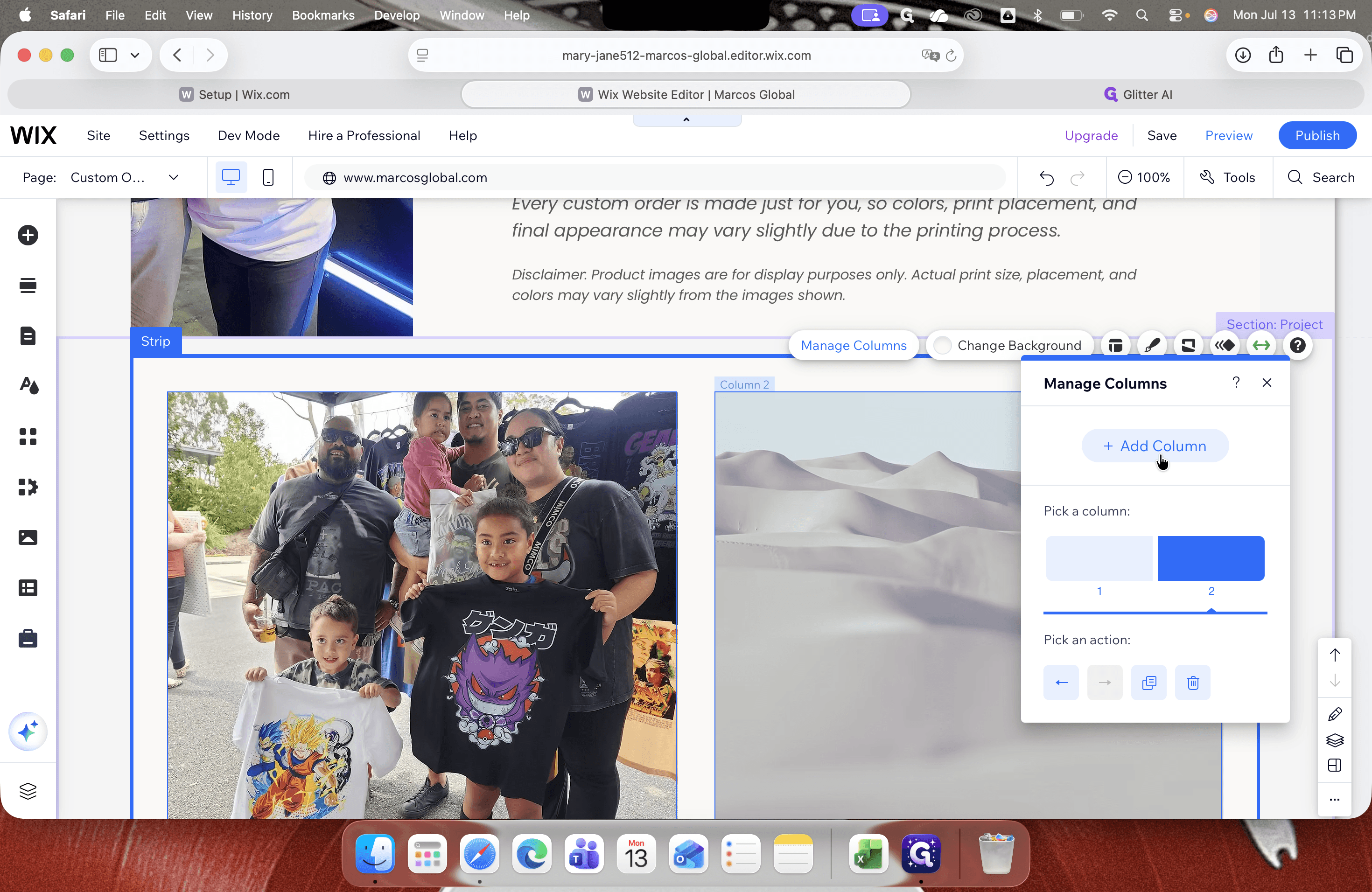
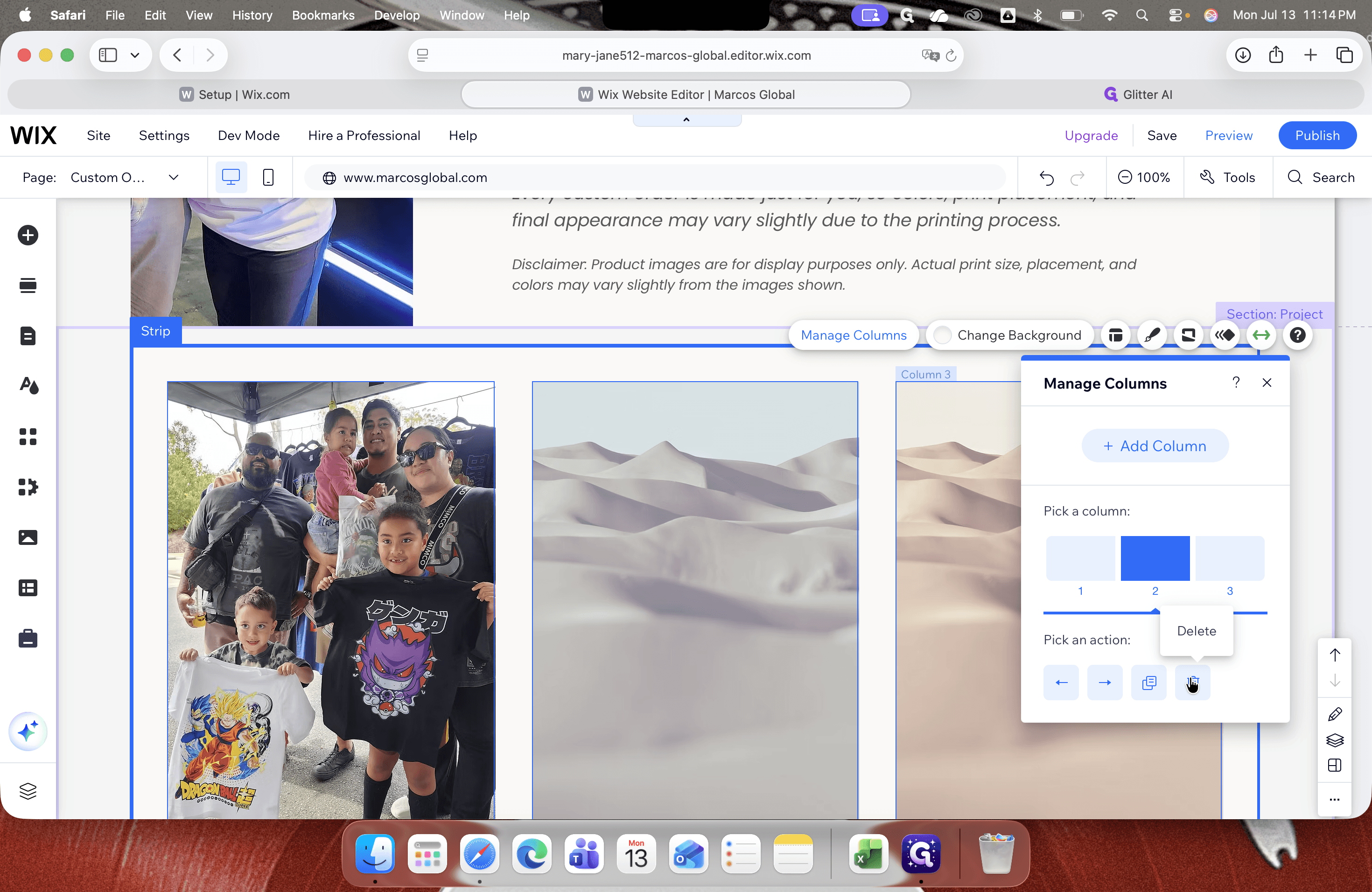
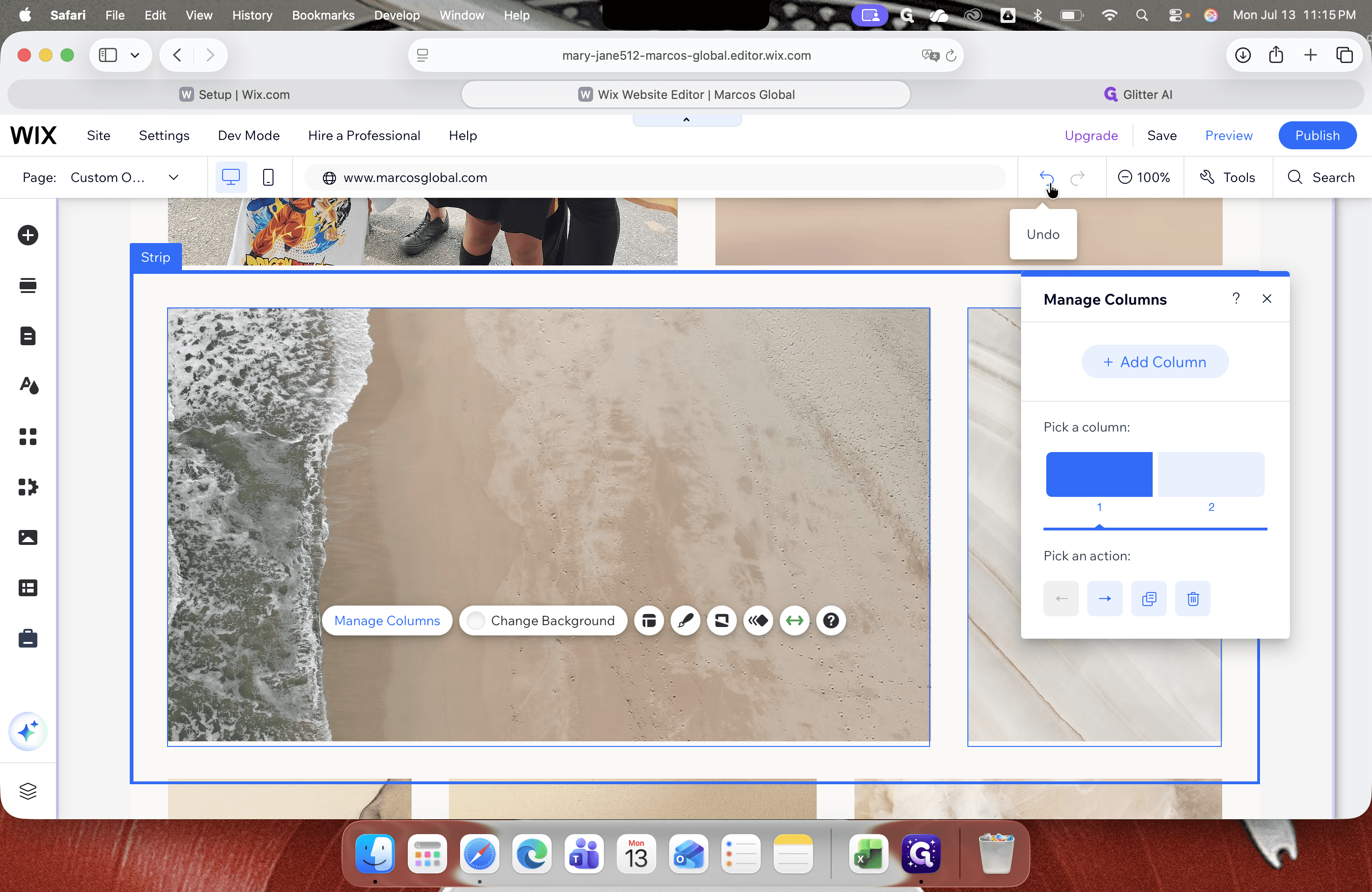
Managing Layout Columns
You can restructure your page strip by adding or removing columns as needed.
Saving Your Work
Q: Will my design changes be visible to visitors immediately?
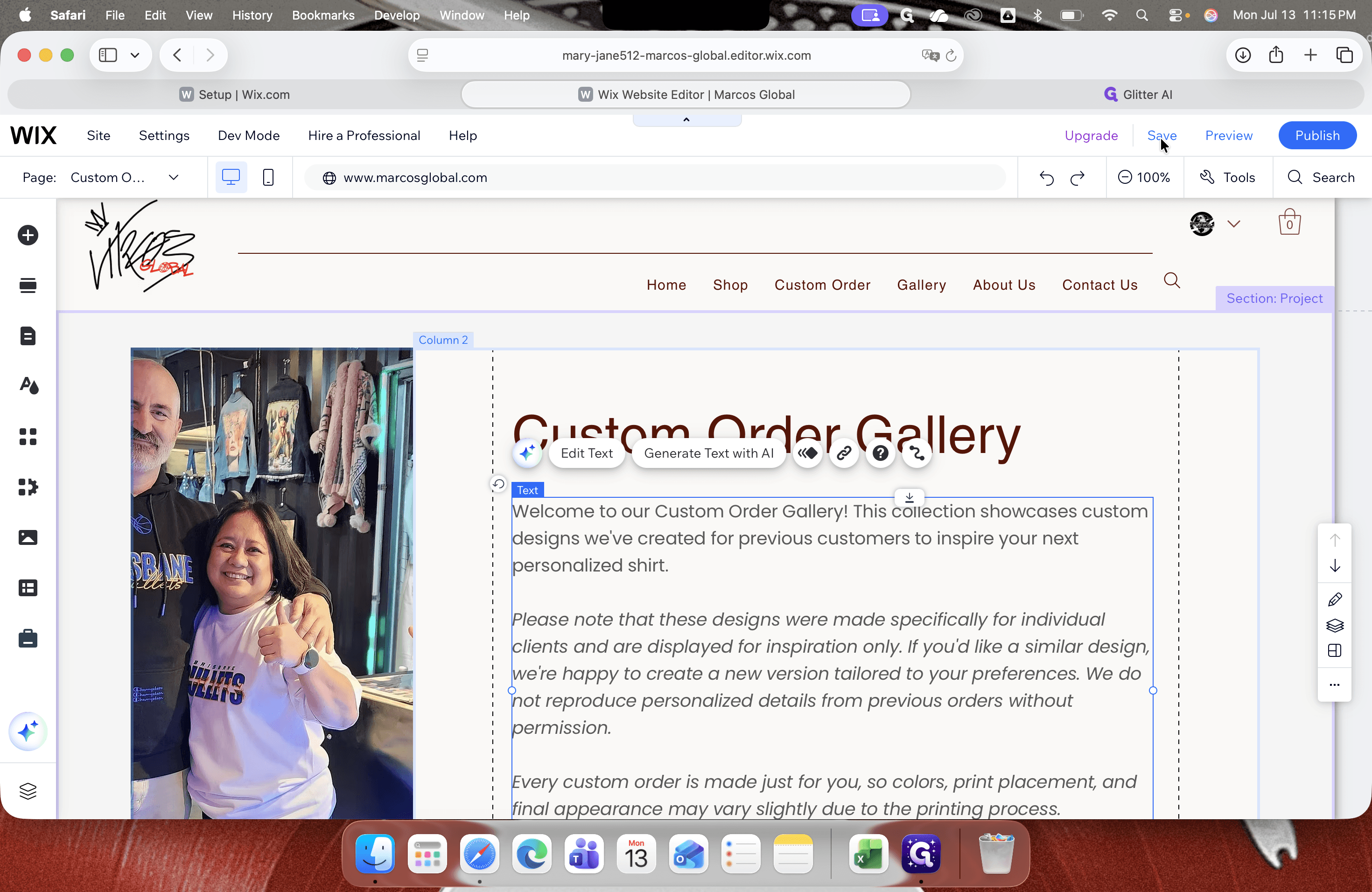
A: No, if you click "Save" or are working on a draft page, your changes will not go live. You must click "Publish" to make the updates visible to website visitors.
Q: Can I recover a layout column if I accidentally delete it?
A: Yes, you can retrieve it by clicking the "Undo" arrow located in the top navigation toolbar immediately after deleting the column.
Term | Definition |
|---|---|
Wix Dashboard | The backend control panel where you manage site settings, domains, and access the editor. |
Website Editor | The drag-and-drop workspace used to build layouts, add elements, and format your website pages. |
Site Files | The centralized media library in Wix that stores your uploaded images, videos, and documents. |