How to Upload and Publish a Video on YouTube
Learn how to upload a video to YouTube, configure details like playlists and audience settings, set visibility, and publish your content using YouTube Studio.
This guide provides a step-by-step walkthrough on how to upload a video to YouTube using YouTube Studio. By following these steps, you will be able to properly configure video details, audience settings, and visibility before publishing your content.
This guide is intended for content creators, marketing teams, and anyone managing a YouTube channel who needs to upload and configure new video content.
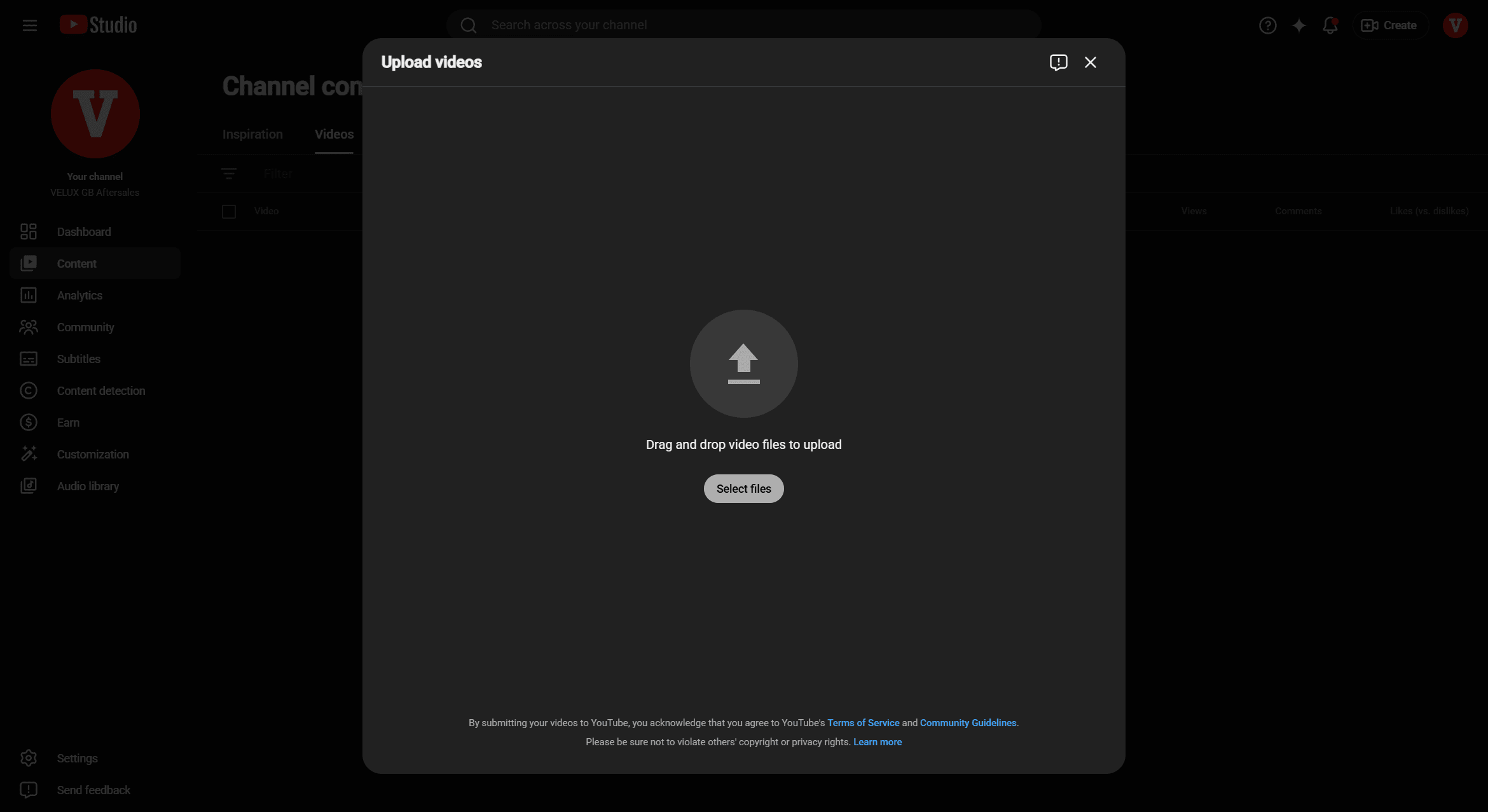
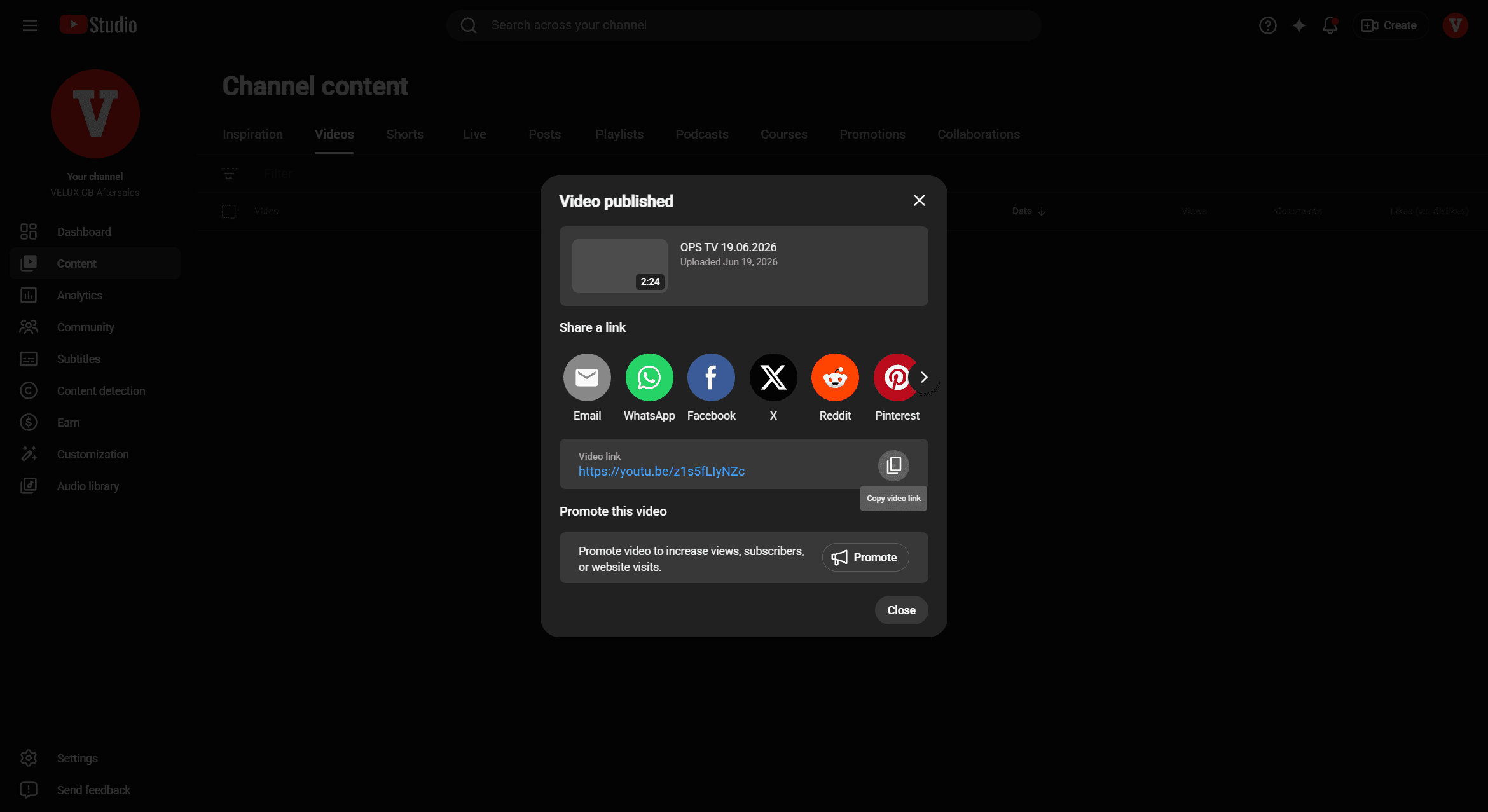
To upload a video to your YouTube channel, follow these steps in YouTube Studio:
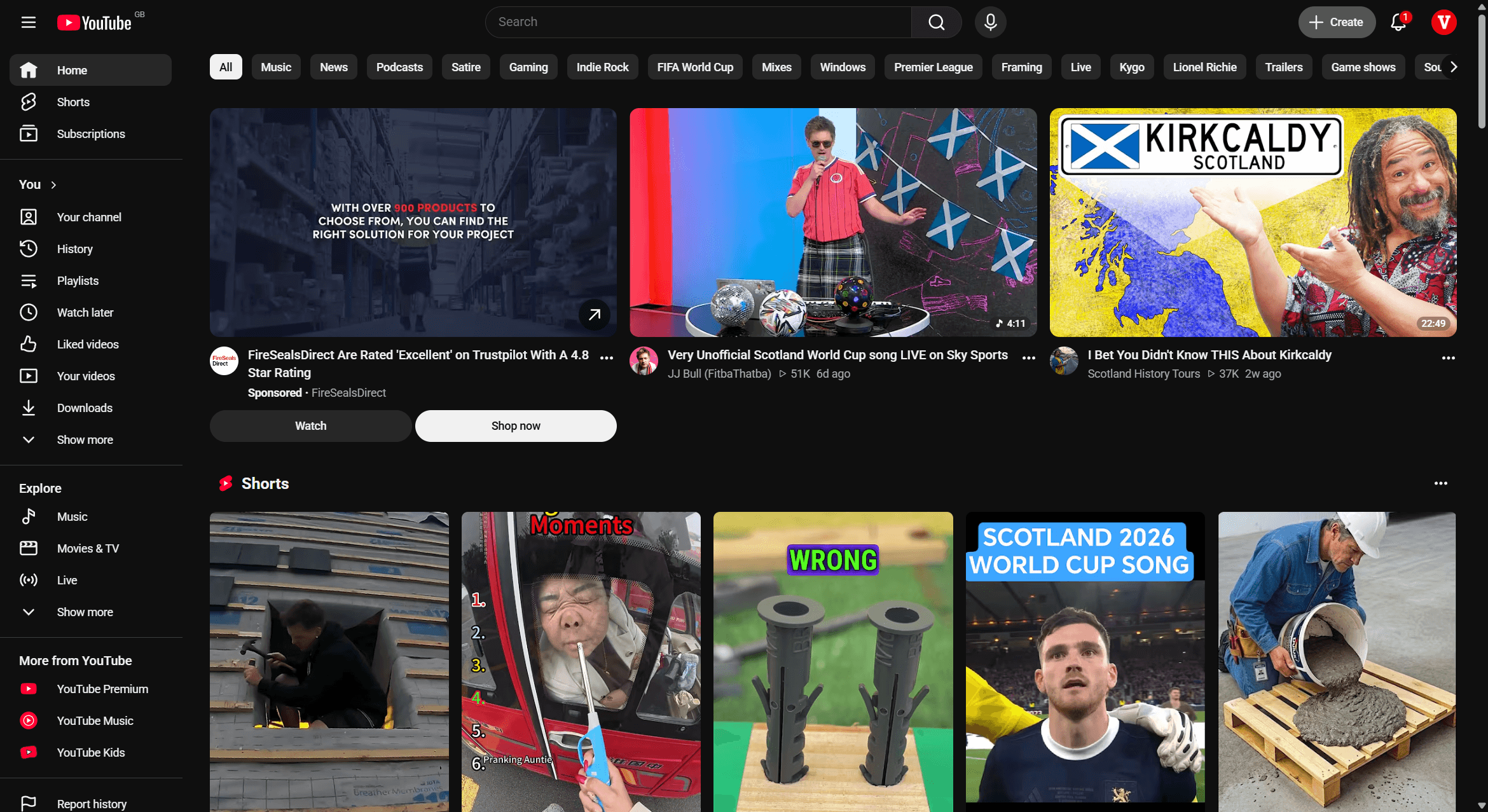
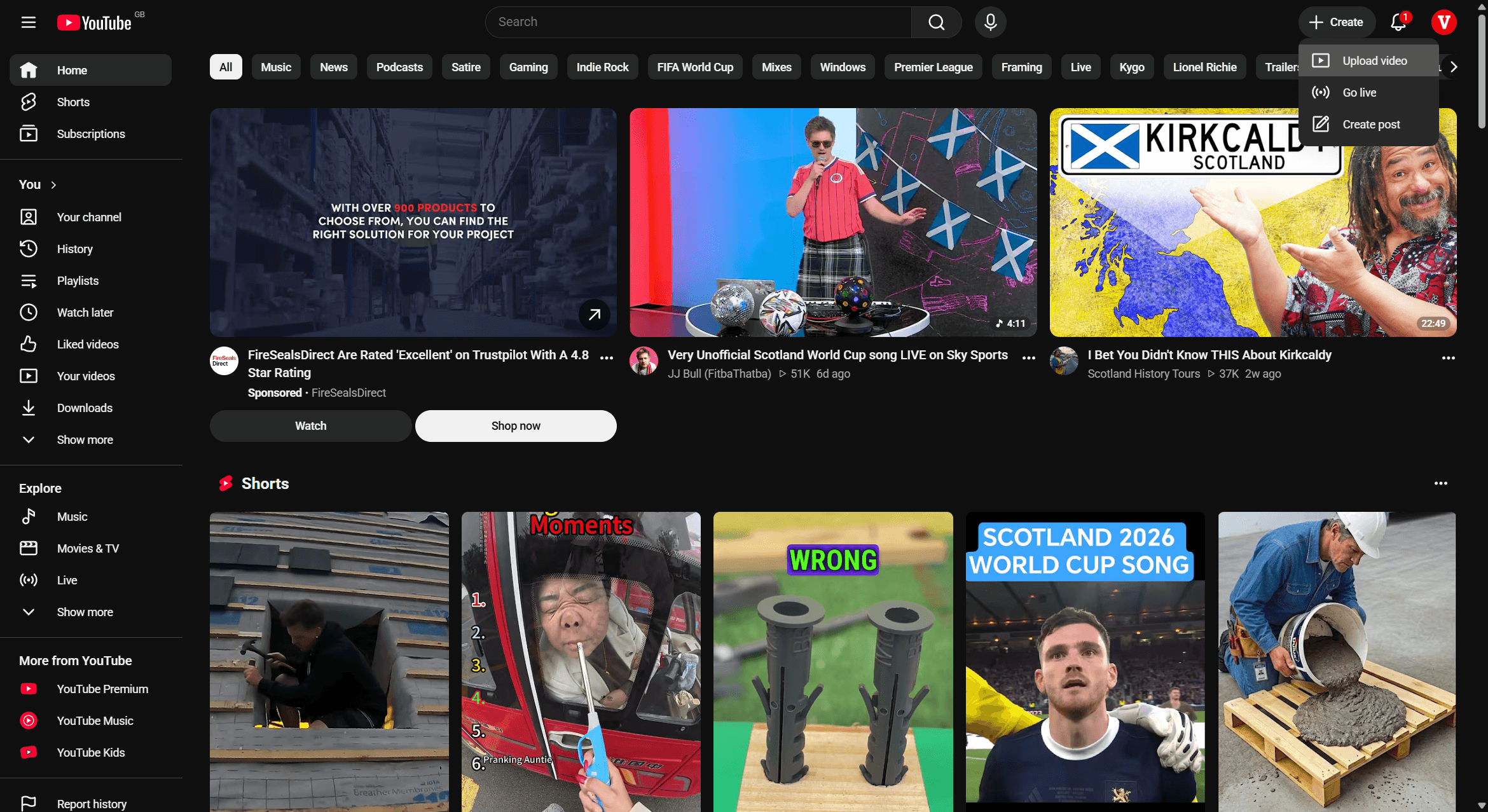
YouTube provides several options for adding content to your channel:
Option | Description |
|---|---|
Upload video | Upload pre-recorded video files from your computer. |
Go live | Broadcast a live stream to your audience in real time. |
Create post | Share text, images, or polls to your channel's Community tab. |
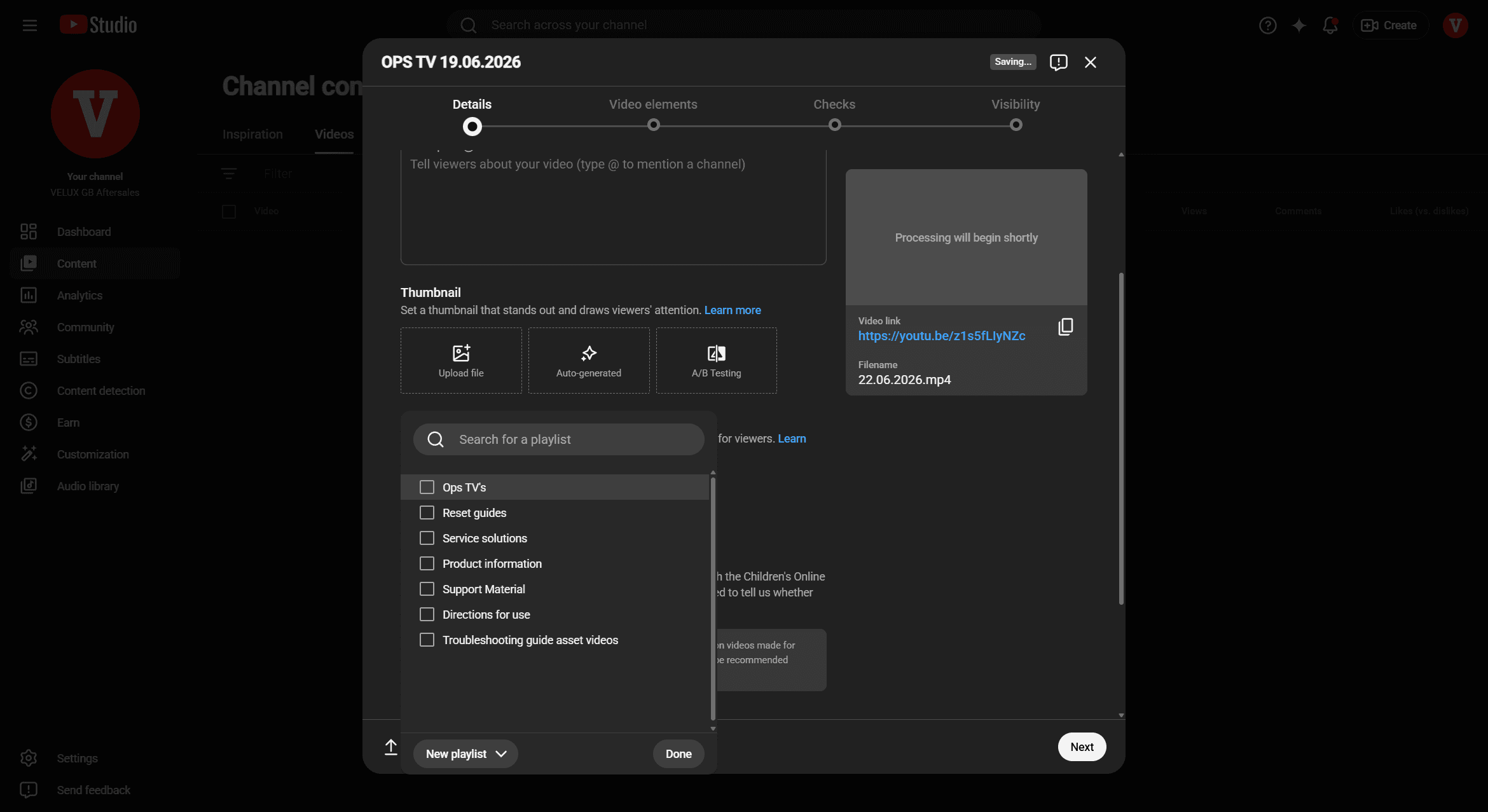
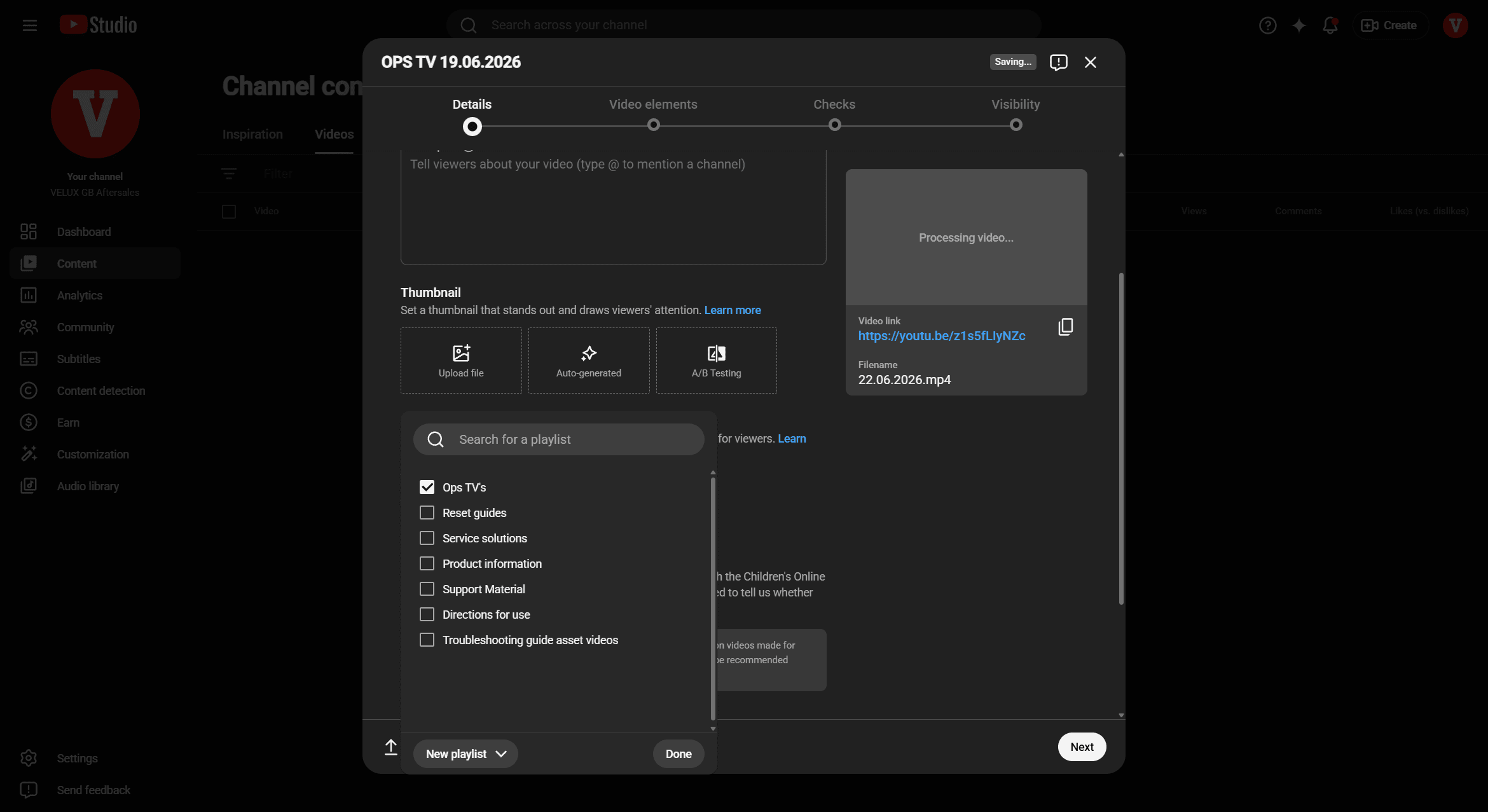
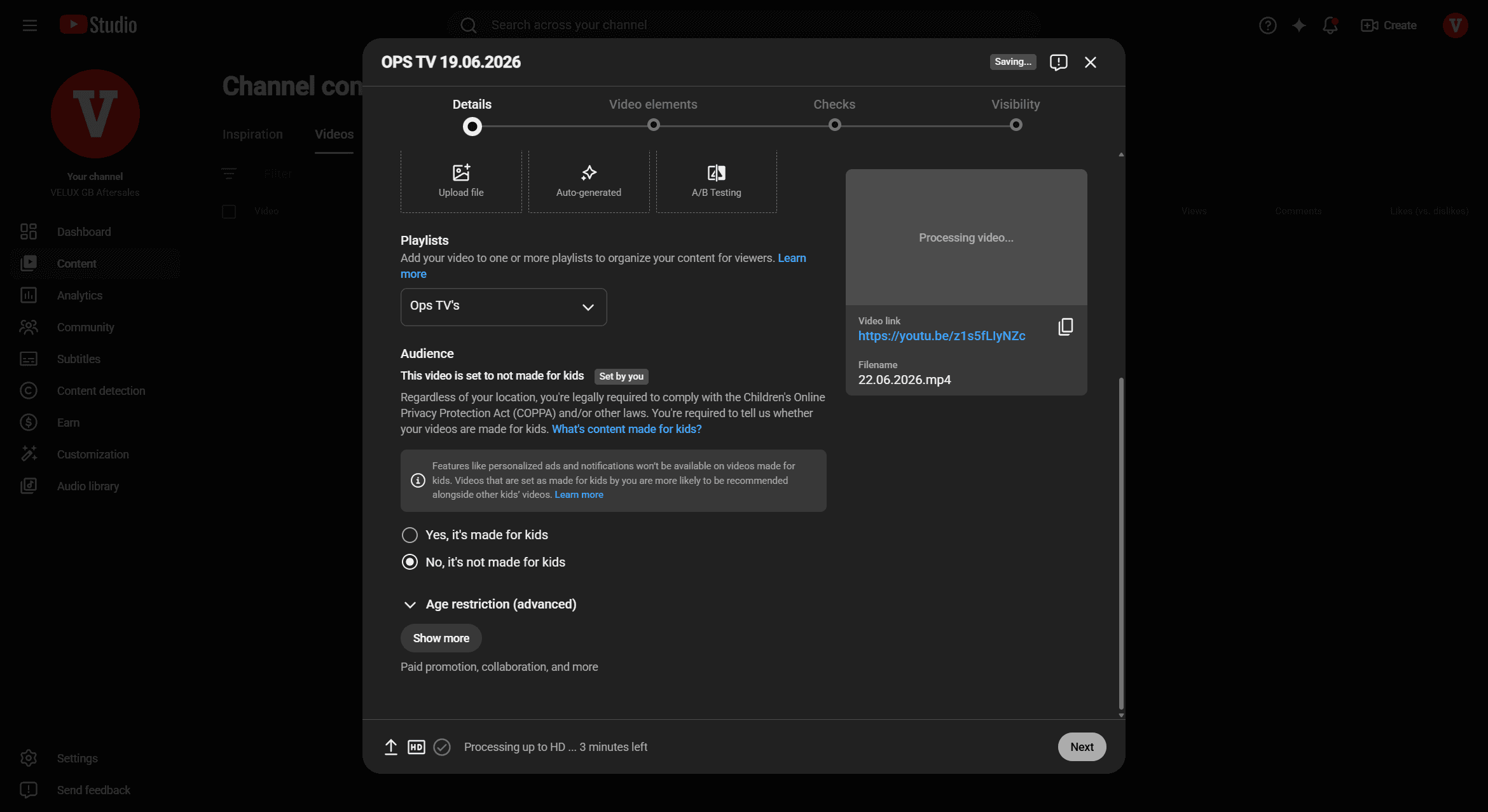
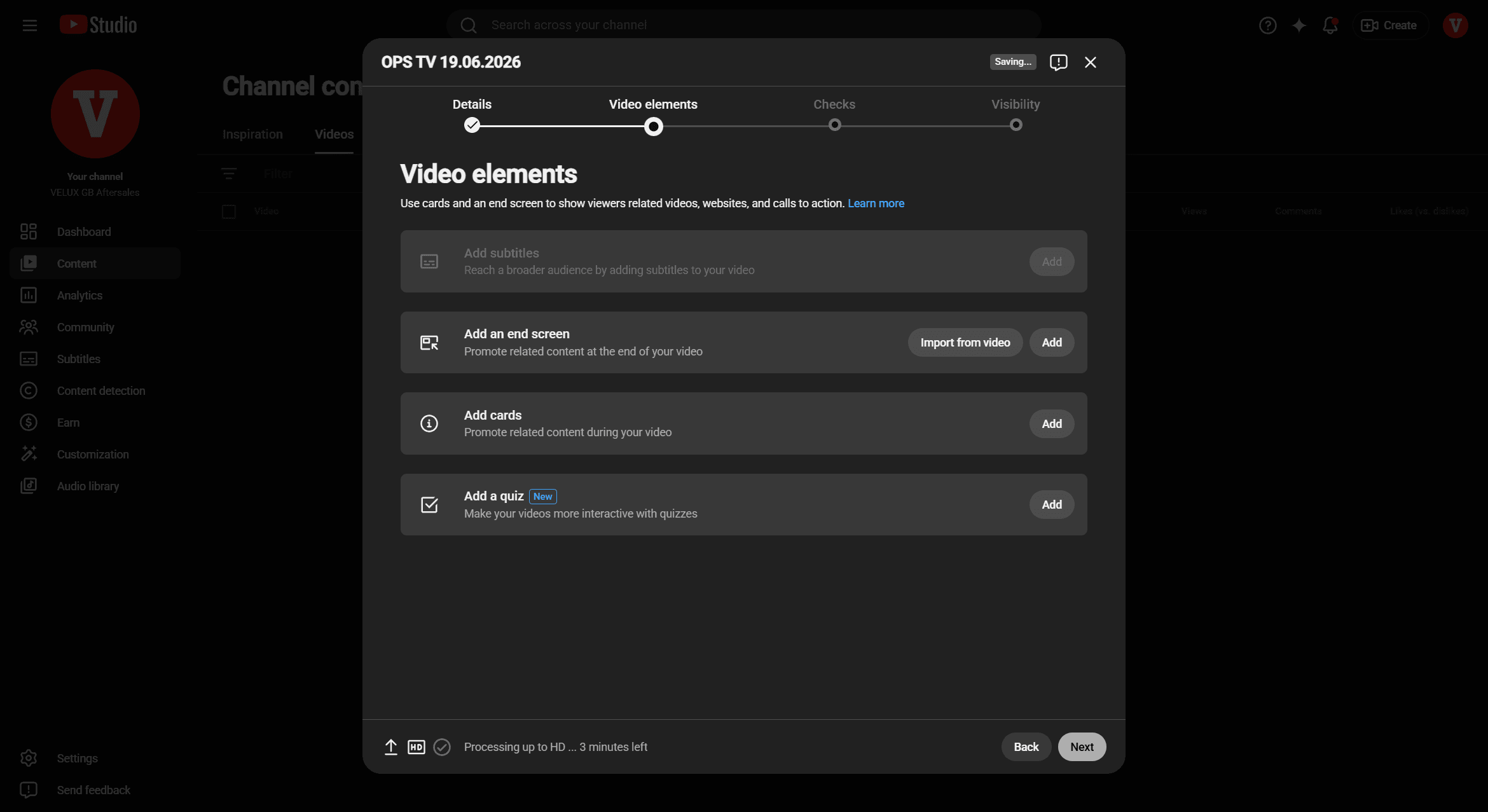
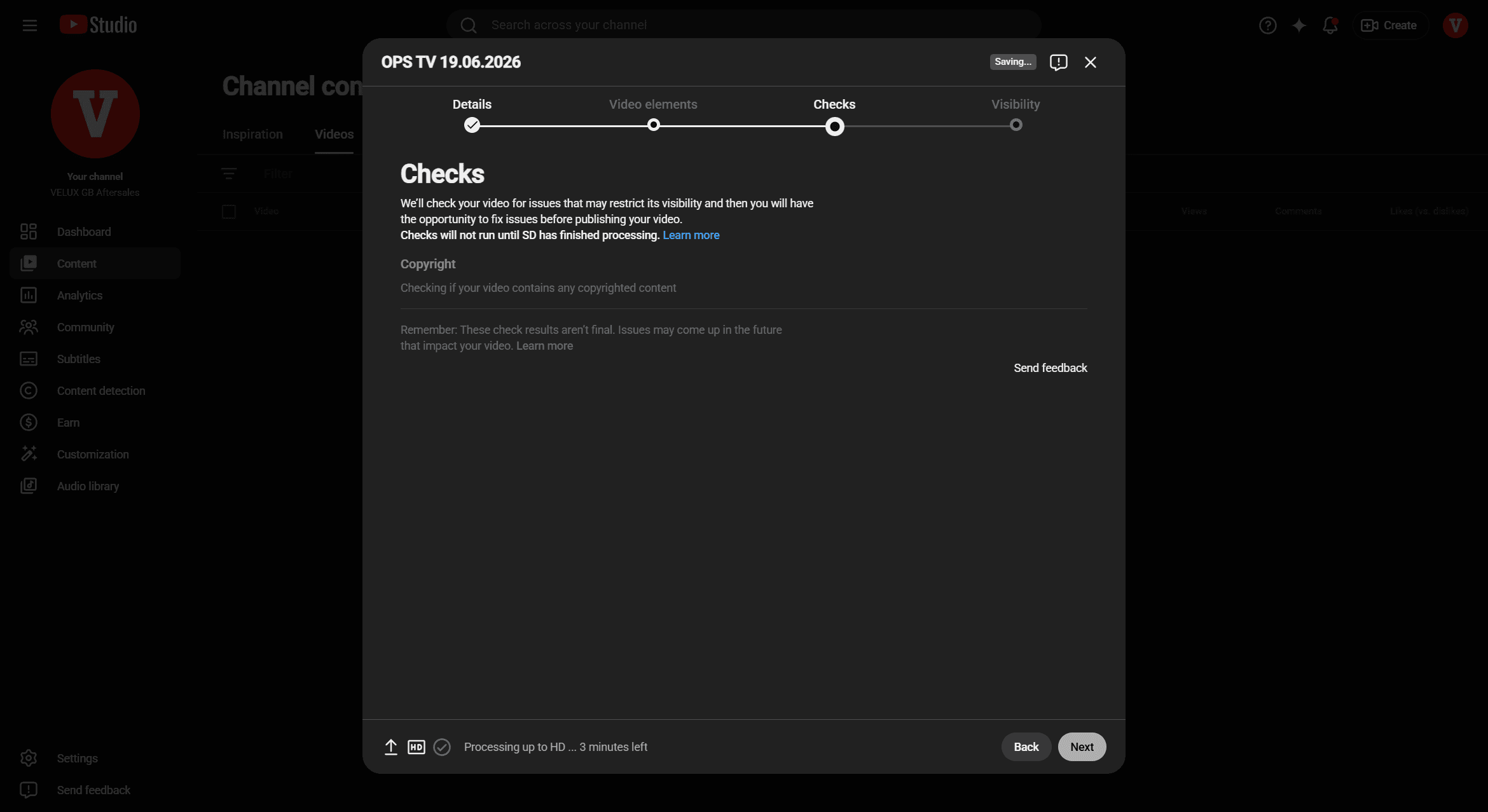
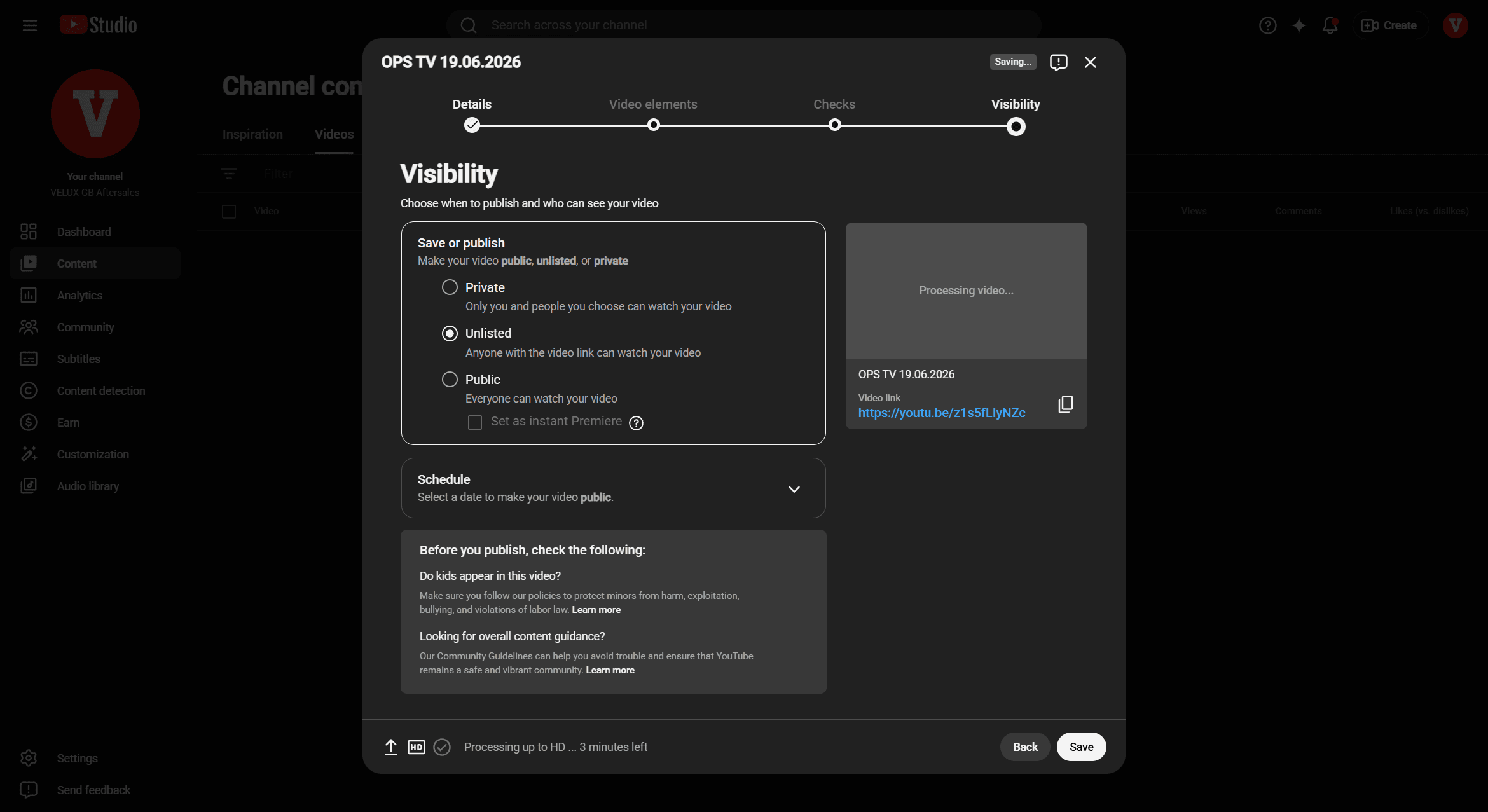
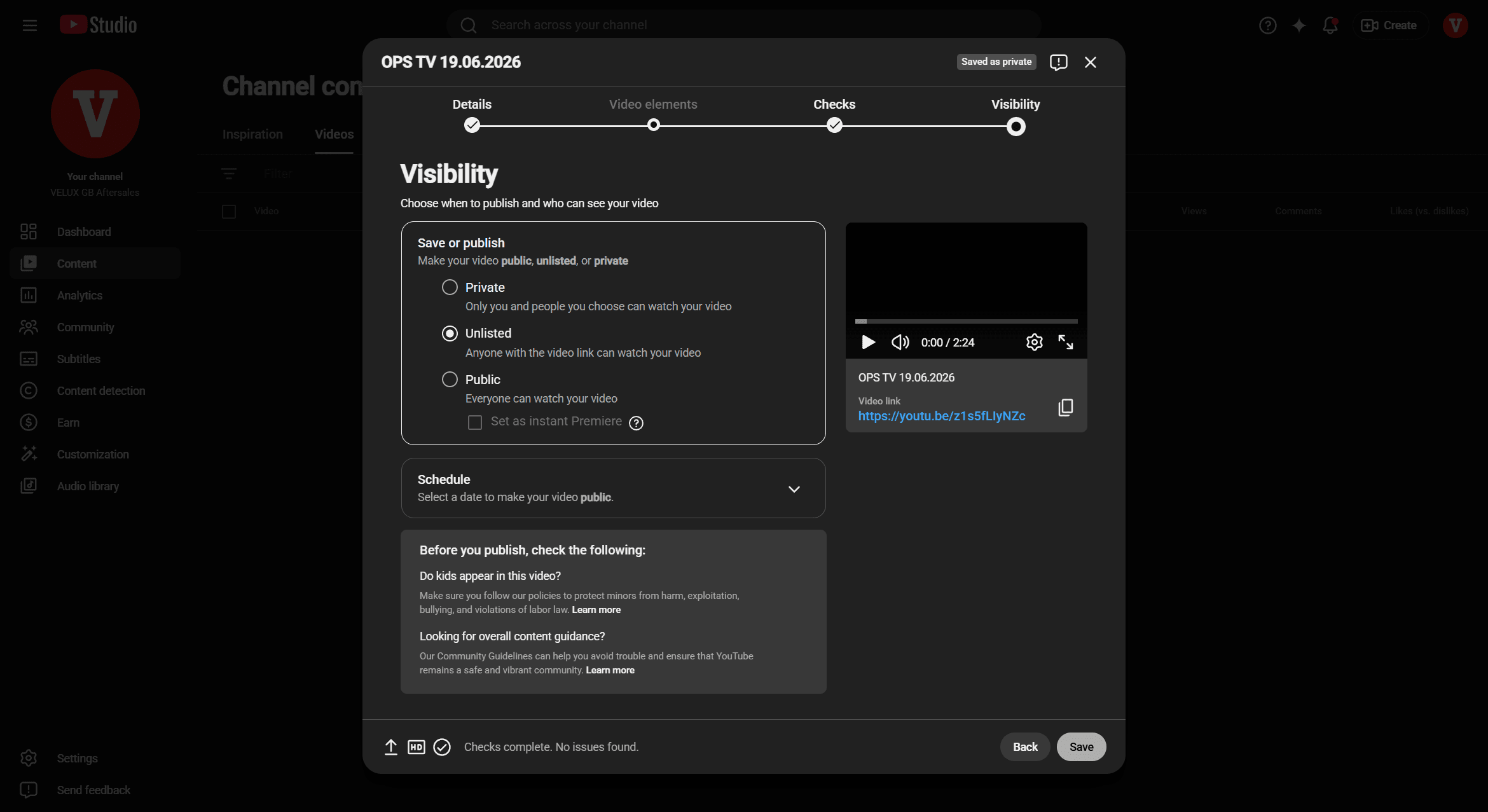
When setting your video's visibility, you have three standard options:
Visibility | Description |
|---|---|
Private | Only you and people you explicitly invite can watch the video. |
Unlisted | Anyone with the direct video link can watch it, but it won't appear in search results. |
Public | Everyone can find and watch your video. |
Term | Definition |
|---|---|
YouTube Studio | The central dashboard where creators can manage their YouTube channels, upload videos, and track analytics. |
End Screen | A YouTube feature that allows creators to add interactive elements, such as links to other videos or subscribe buttons, to the last 5-20 seconds of a video. |
Unlisted | A privacy setting where the video does not appear in public search results or on your channel page, but can be viewed by anyone with the direct link. |