Using Eden AI's Generative Text Models
A guide on how to use Eden AI's generative text models. Learn how to sign up, receive a free credit, make API calls using your API key.
By Kappa Labs
In this guide, we'll learn how to utilize text generation models through Eden AI's platform. Upon signing up, you receive a $1 free credit (should be enough for this coding challenge).
Navigate to the AI technologies section, specifically the generative models, to access the text generation feature. The API reference provides options for implementation in Python or JavaScript.
Lastly, you can optimize the API call credits by utilizing only OpenAI as the sole provider. For more in-depth information, refer to the documentation below.
Let's get started.
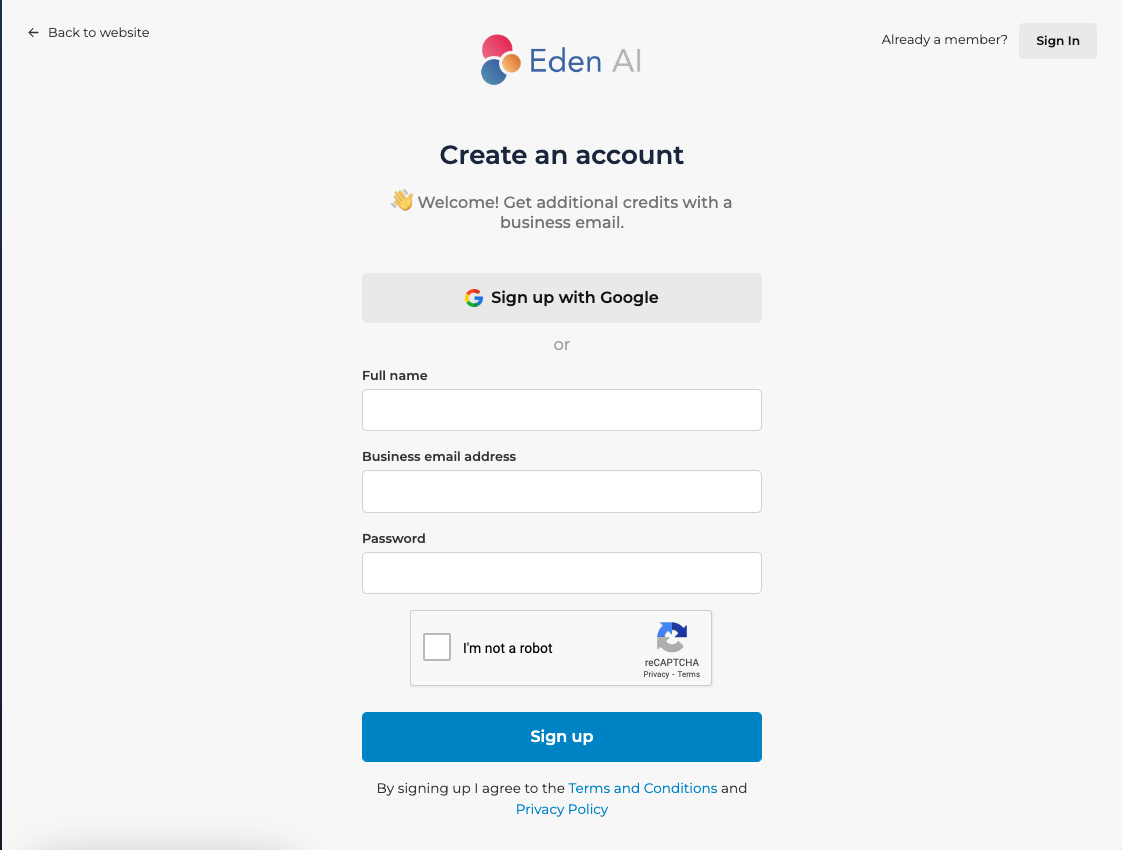
In case Google Sign Up does not work, please sign up by providing your Full Name, Email (personal email works) and setting a Password
2
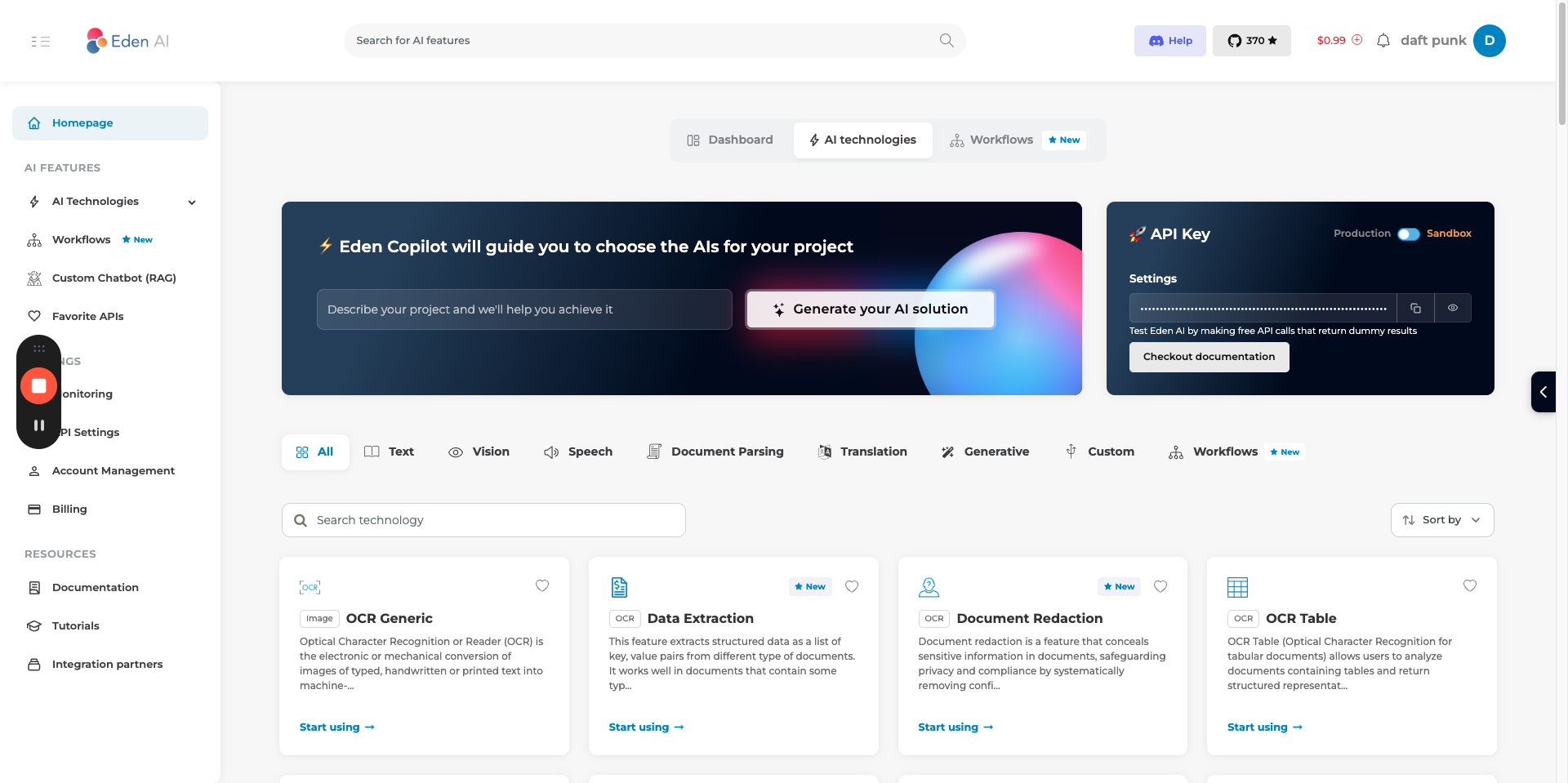
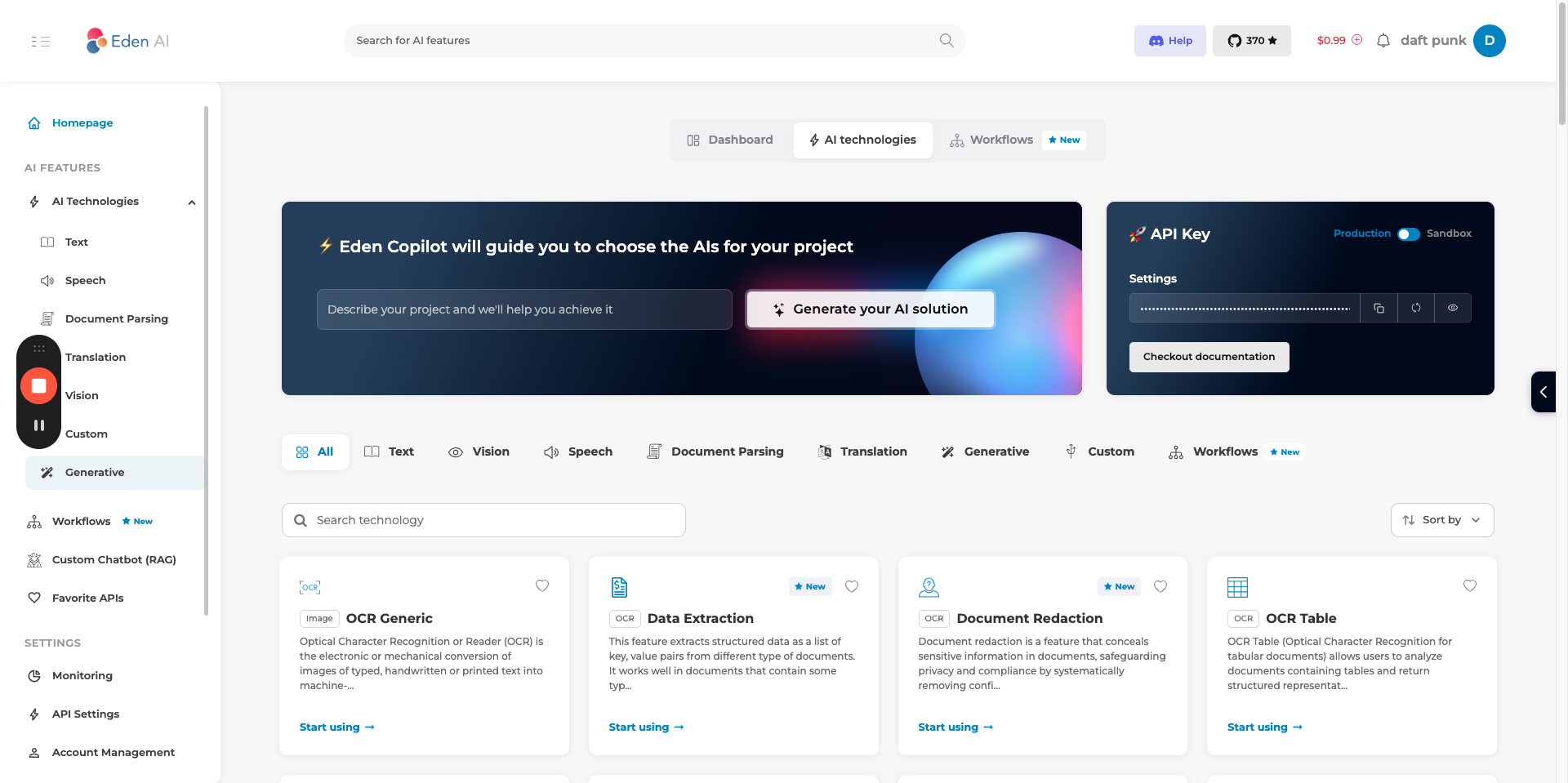
Once you sign up, you receive a $1 free credit. Switch to the production API key.
3
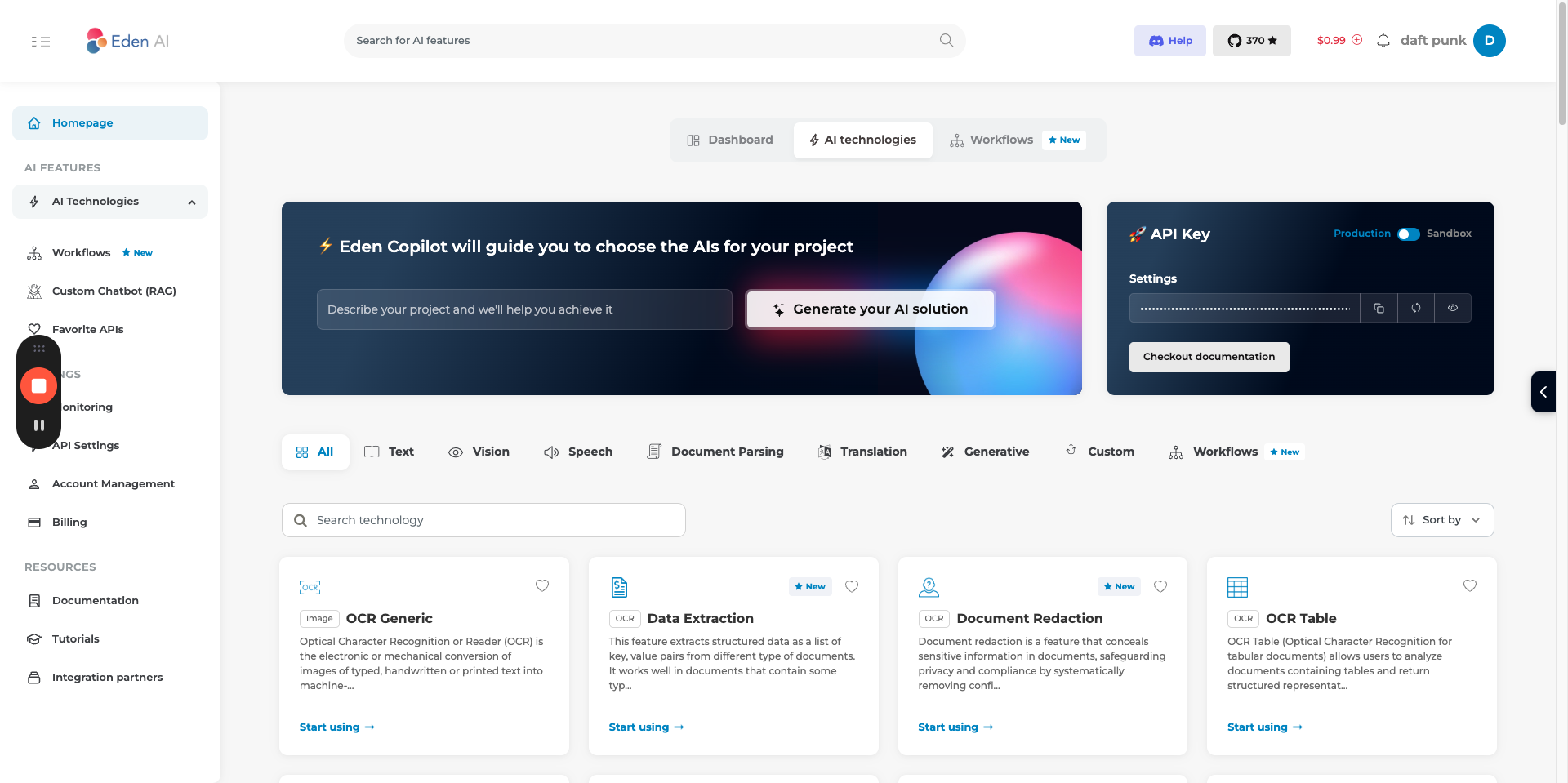
Now, navigate to AI technologies.
4
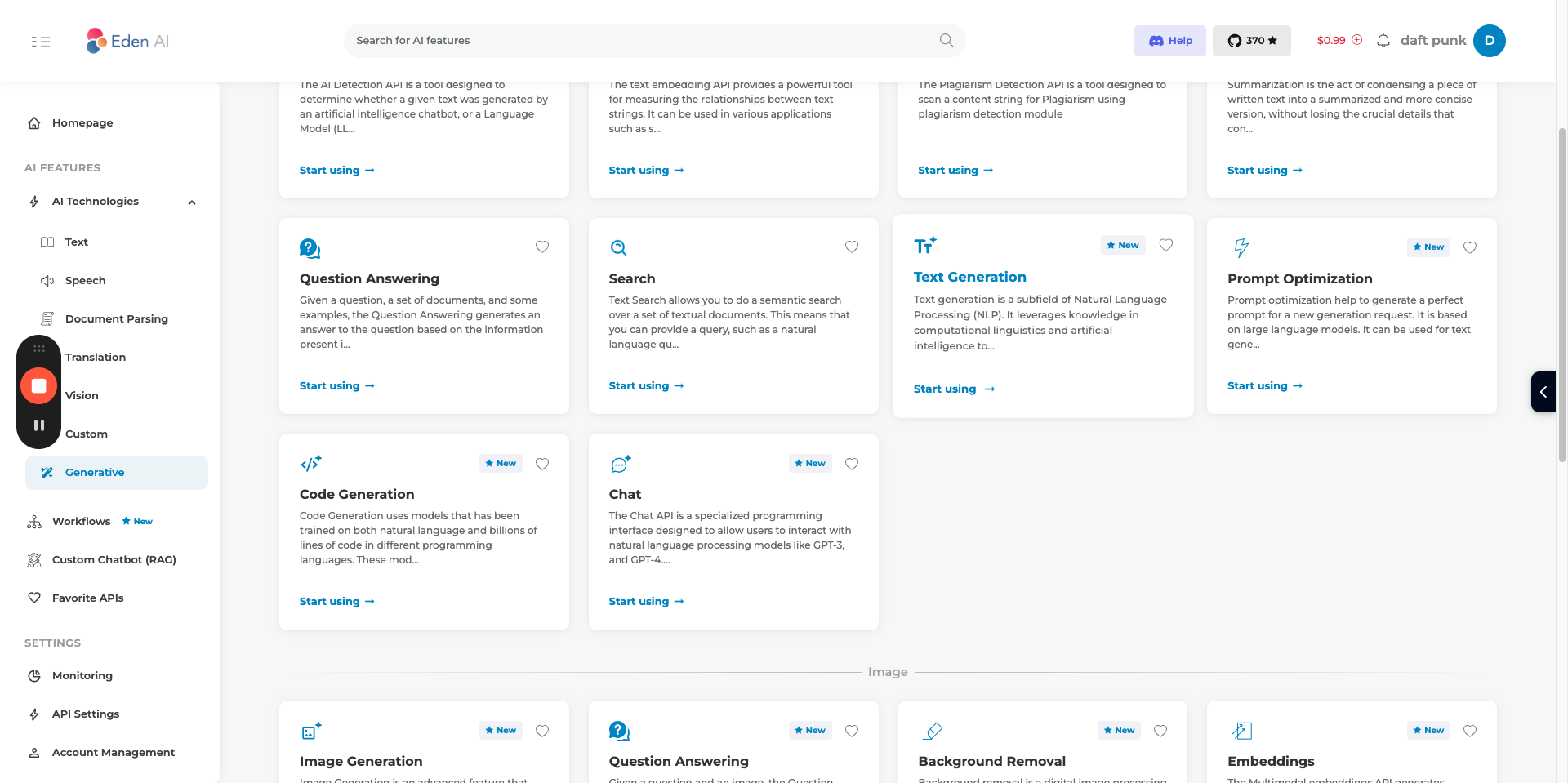
Head to Generative, where we will utilize text generation models.
5
Click "Text Generation"
6
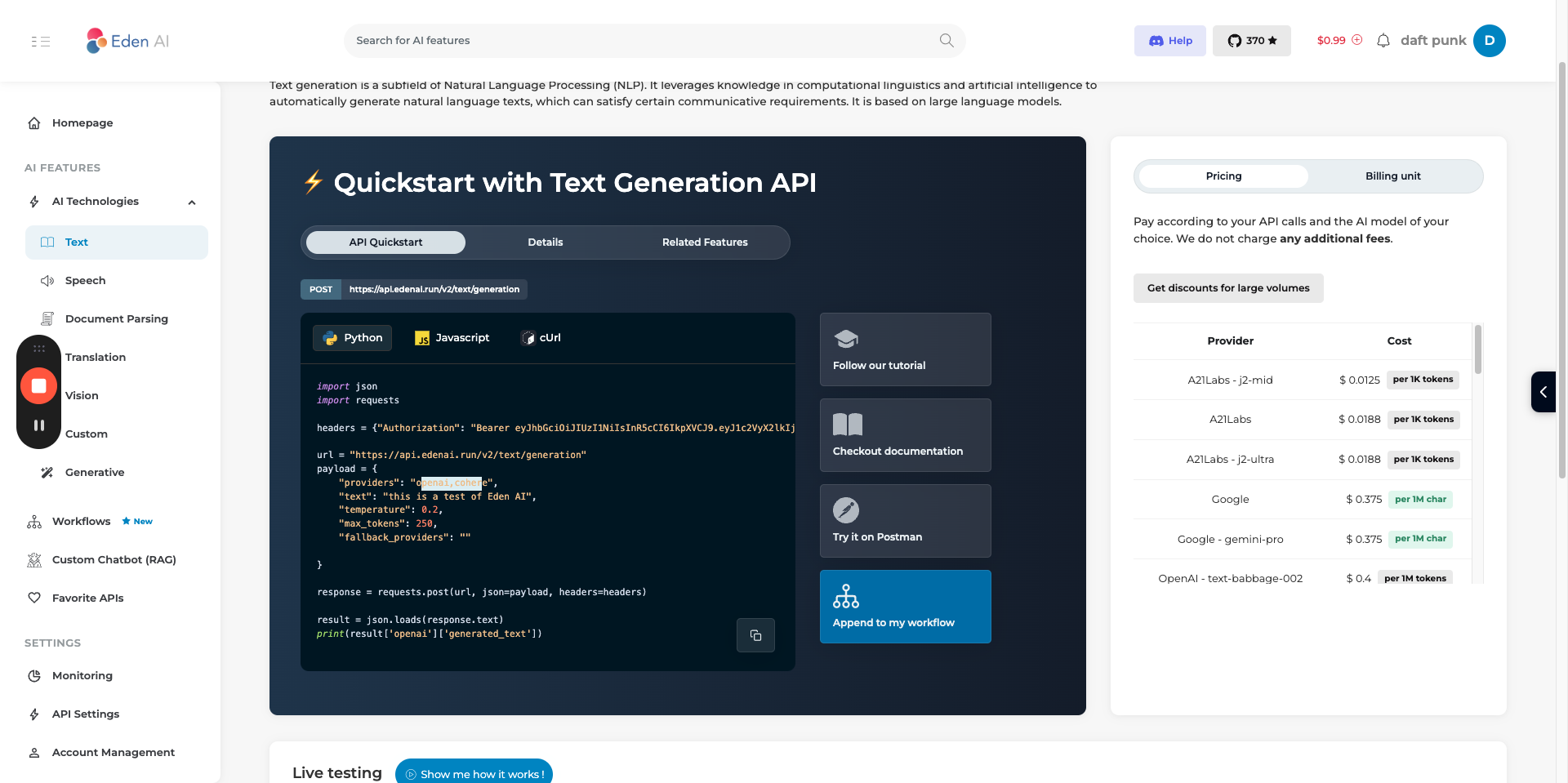
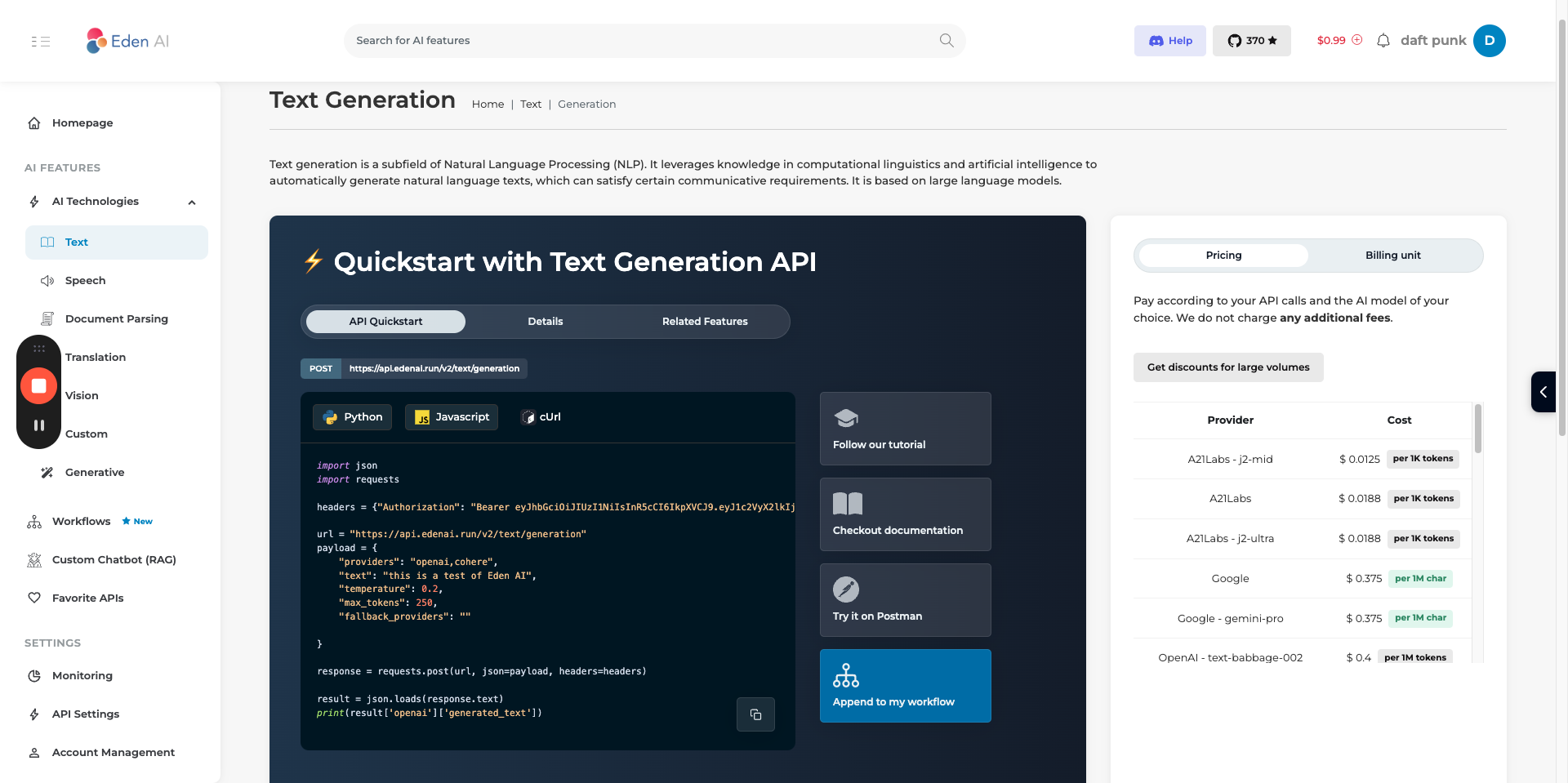
We are here at the API reference. There is a Python option and a JavaScript option (depending on your choice of backend). Check out the documentation / Postman collection for more details.
7
Use only a single provider (OpenAI) in your API call instead of using two providers or any other provider like 'cohere'.