View EAL Caseloads and Student Records in PowerSchool
Learn how to generate a caseload report, review admission details, and find essential student documents as an EAL teacher in PowerSchool.
By Cindy Warner-Dobrowski
This guide is intended for EAL (English as an Additional Language) teachers and demonstrates how to access your caseload and review essential student records in PowerSchool. Use this workflow at the beginning of the school year or when new students join to verify caseloads and review historical student documentation.
Access Your EAL Caseload
1
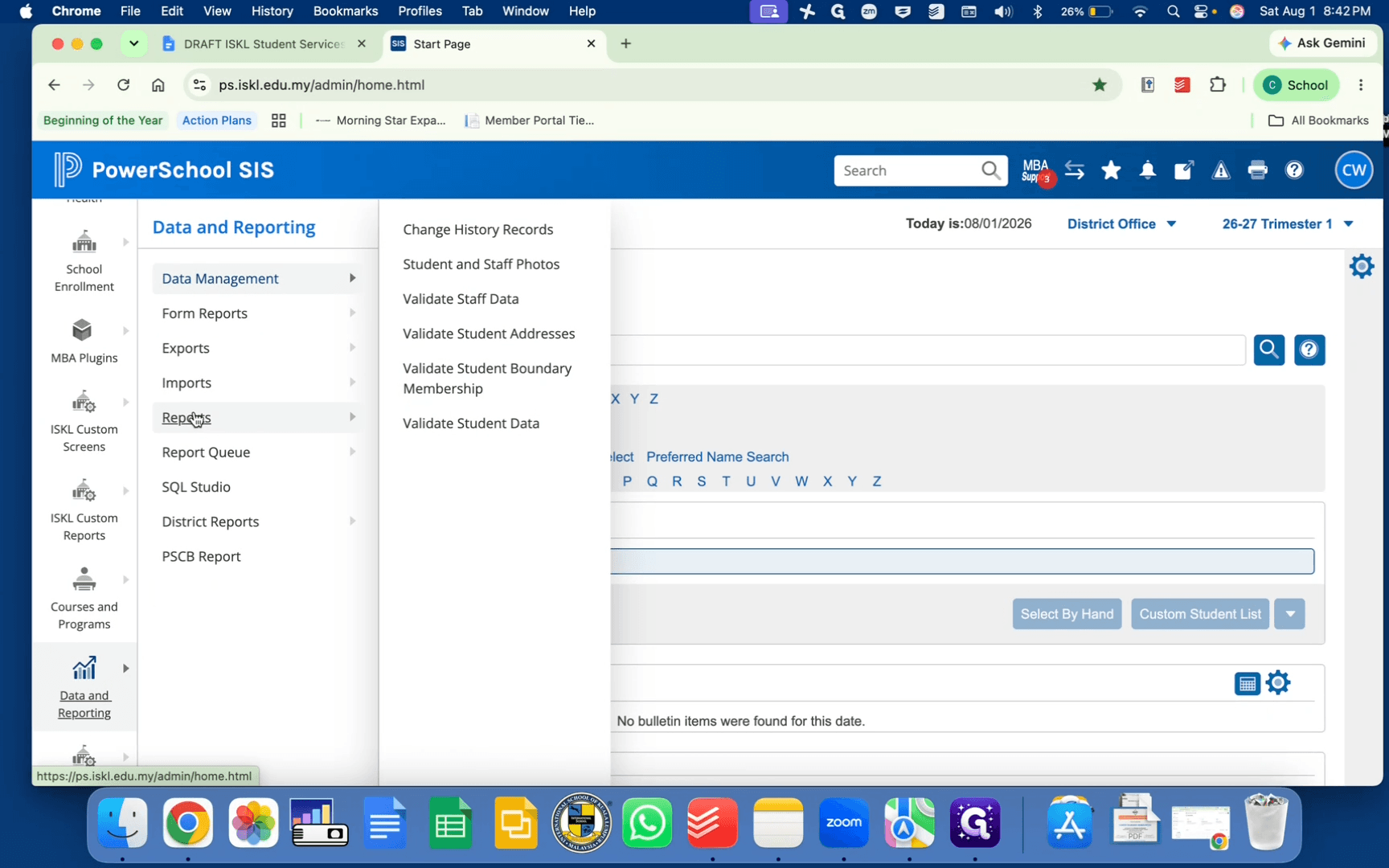
From the PowerSchool start page, navigate to Data and Reporting
2
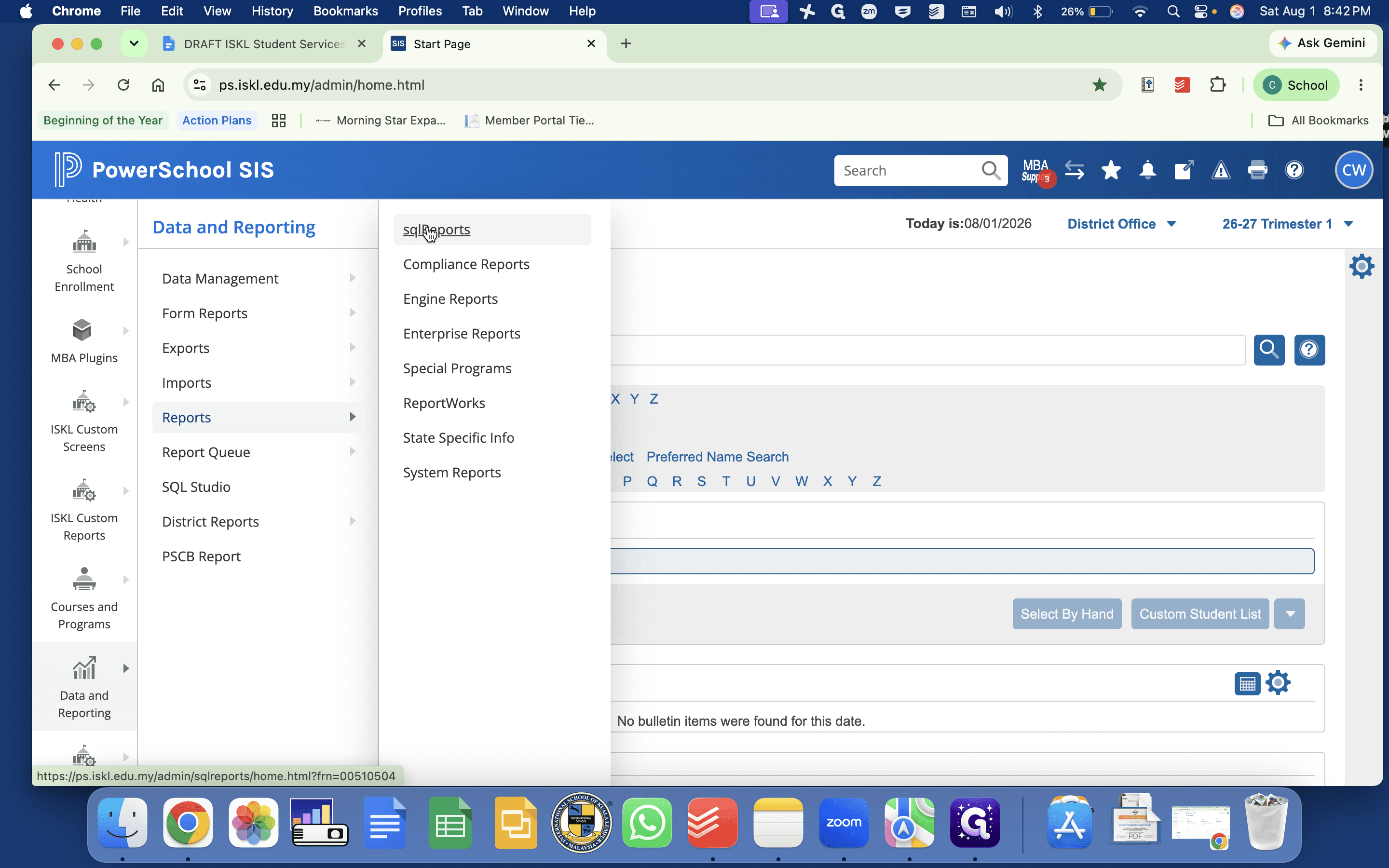
Select Reports, and click SQL Reports.
3
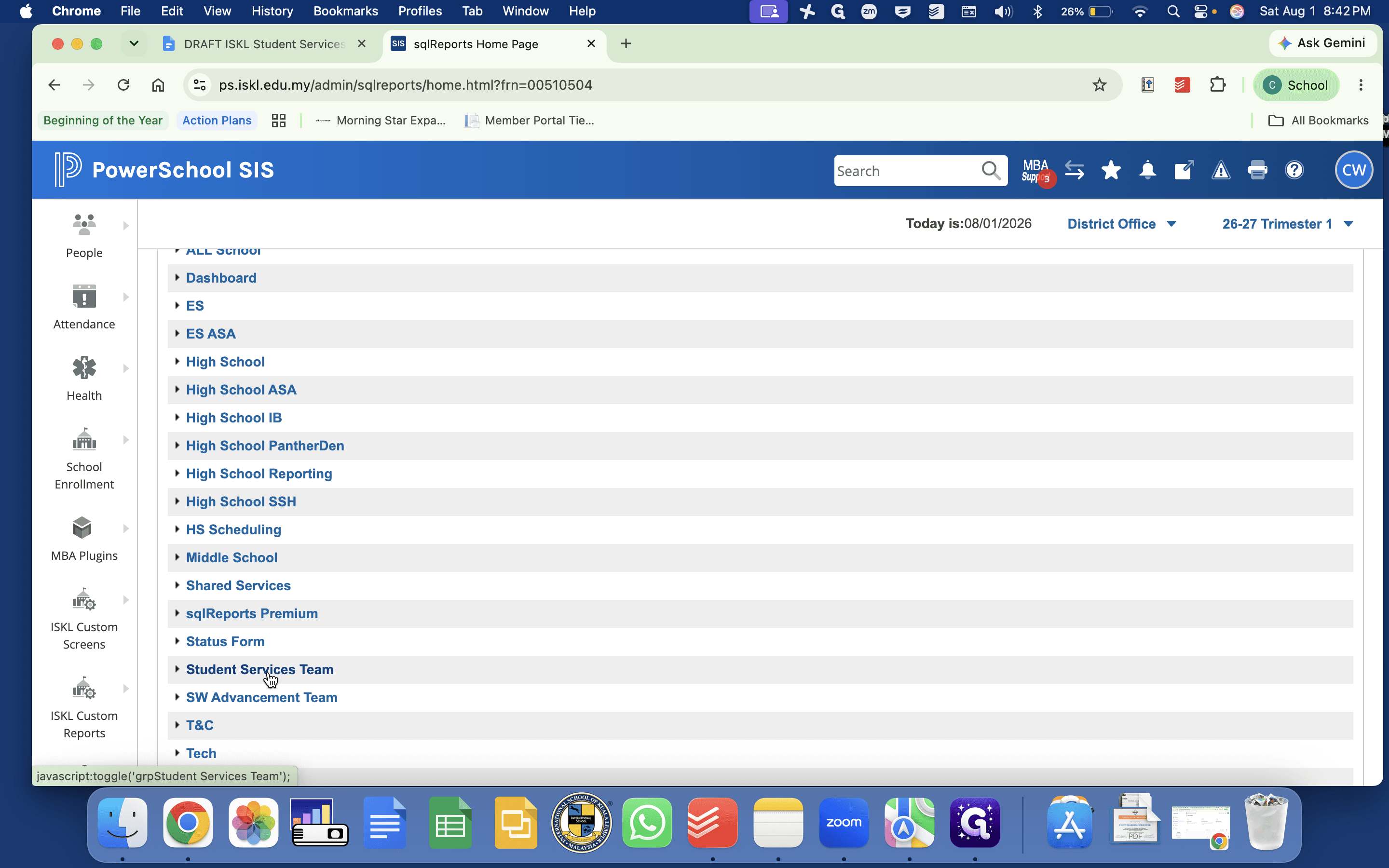
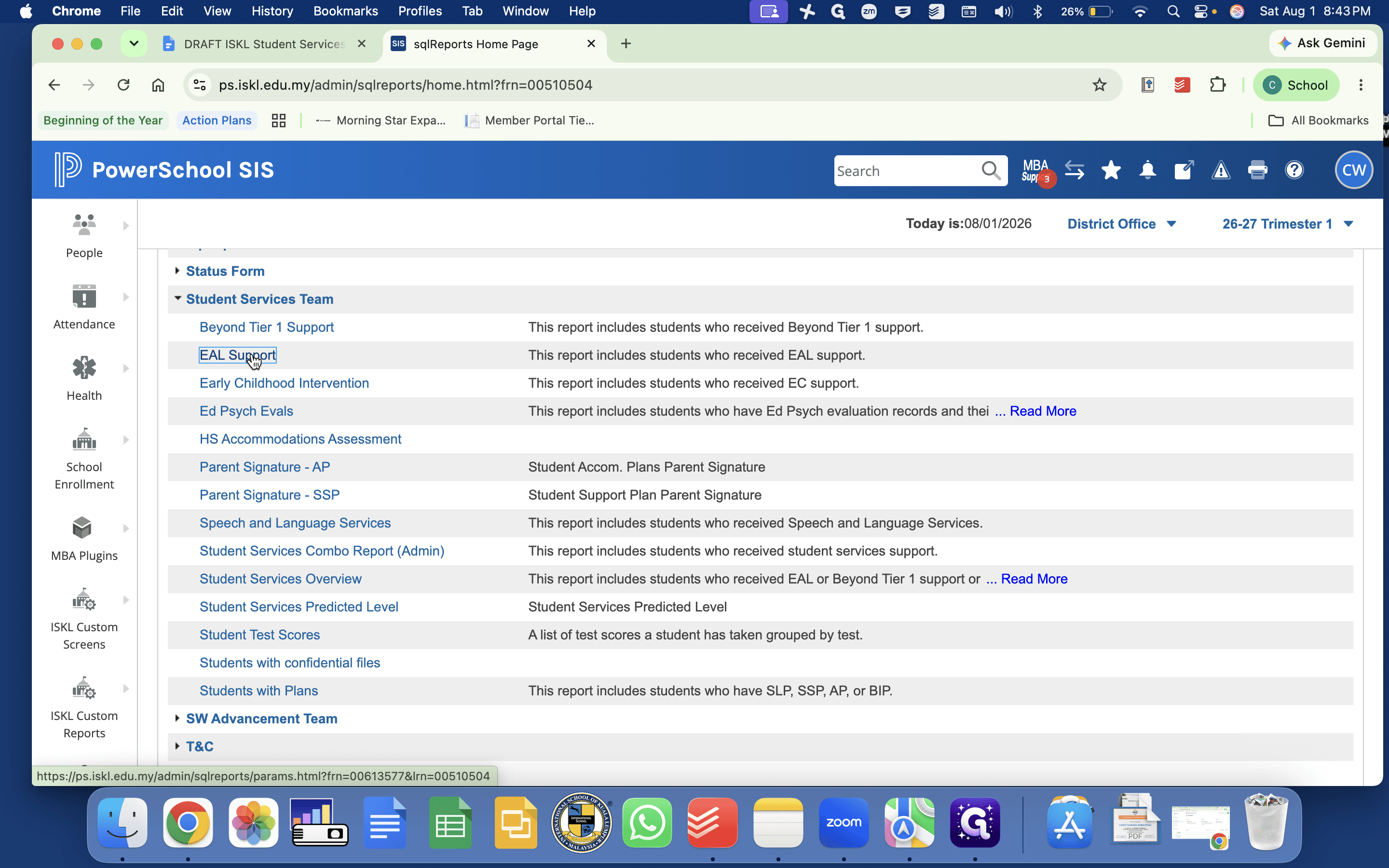
Scroll down and click Student Services Team to expand the list of available reports.
4
Click EAL Support.
5
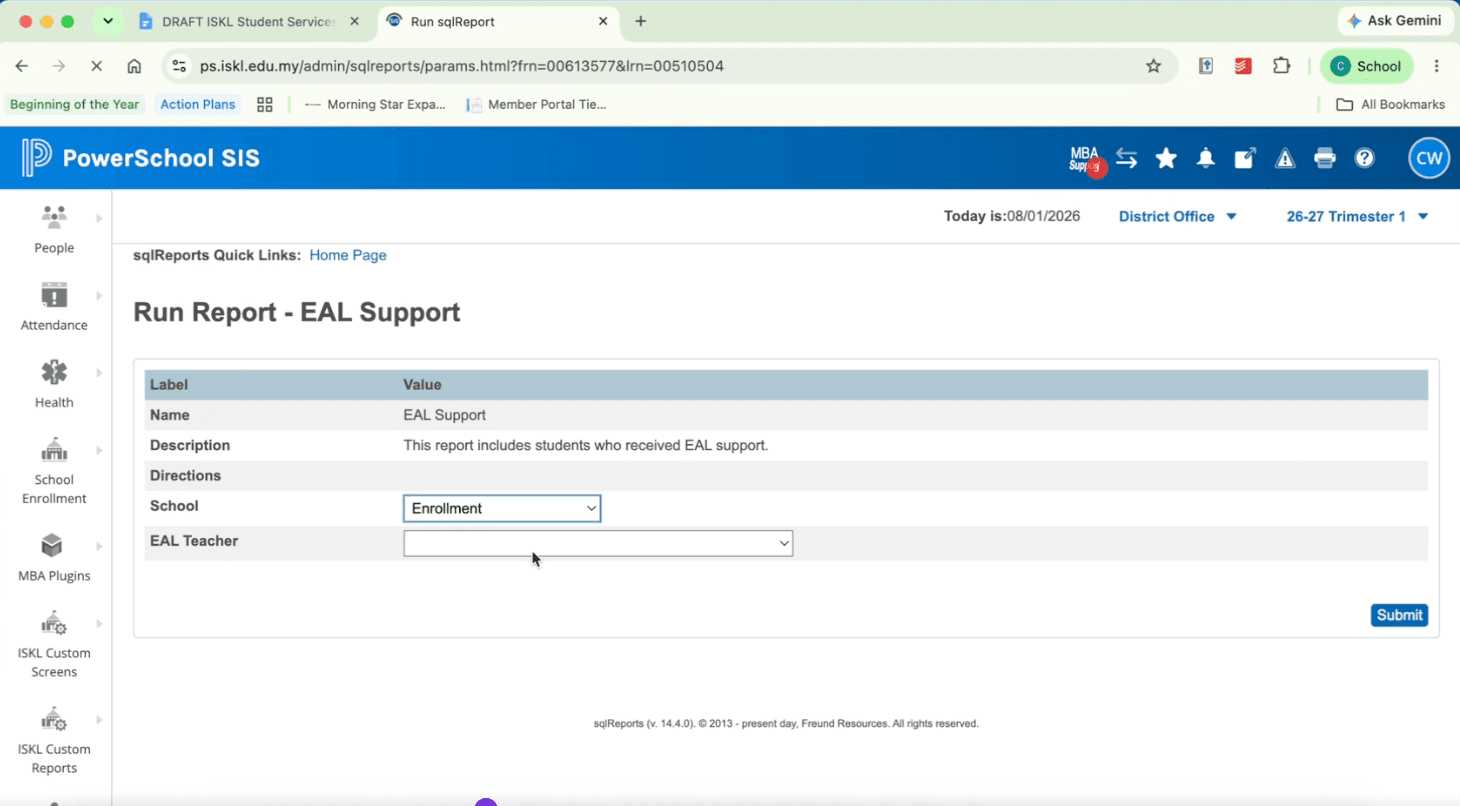
Select your name from the EAL Teacher drop-down menu and click Submit.
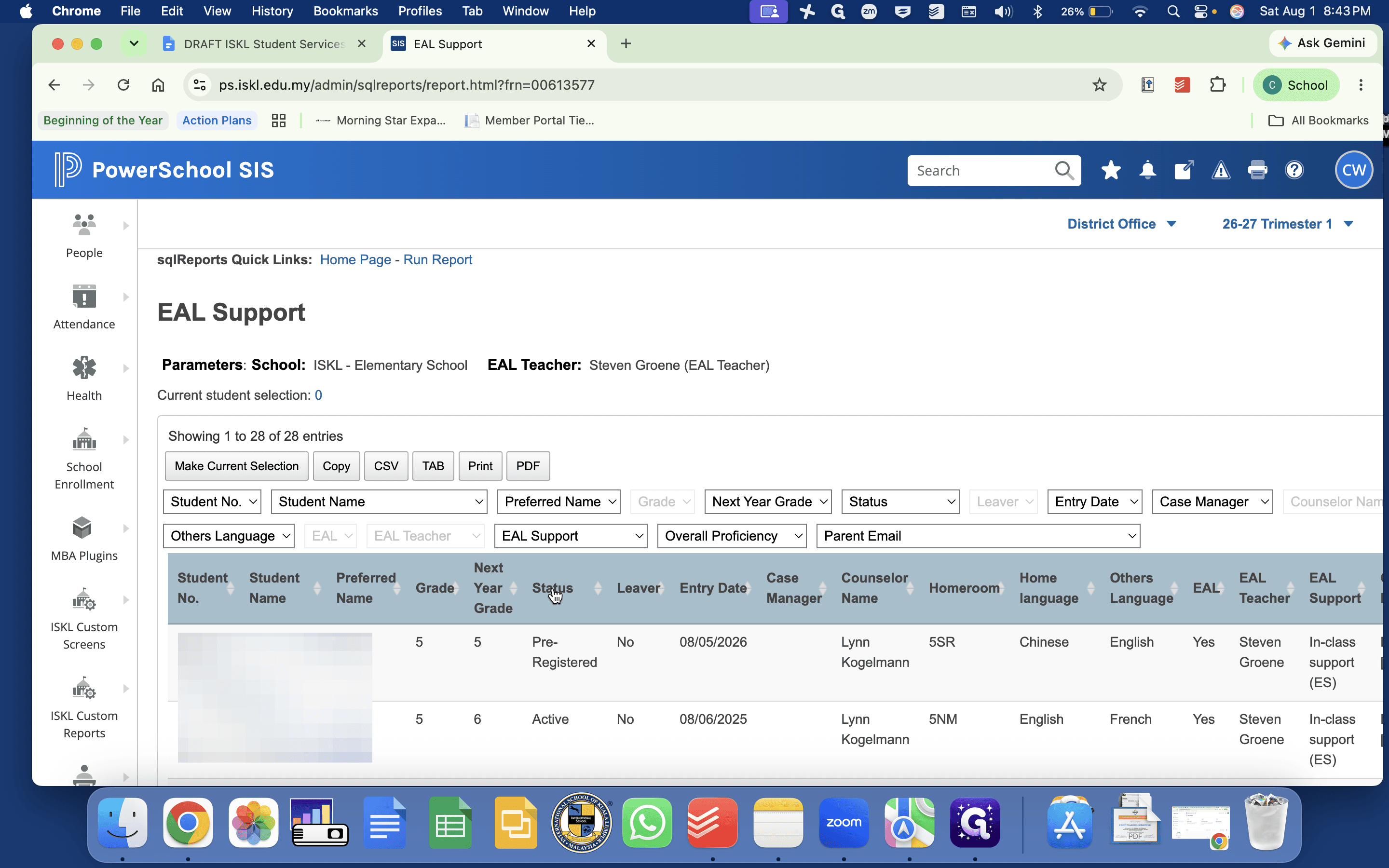
This generates a list of all students in your grade level who receive EAL support.
6
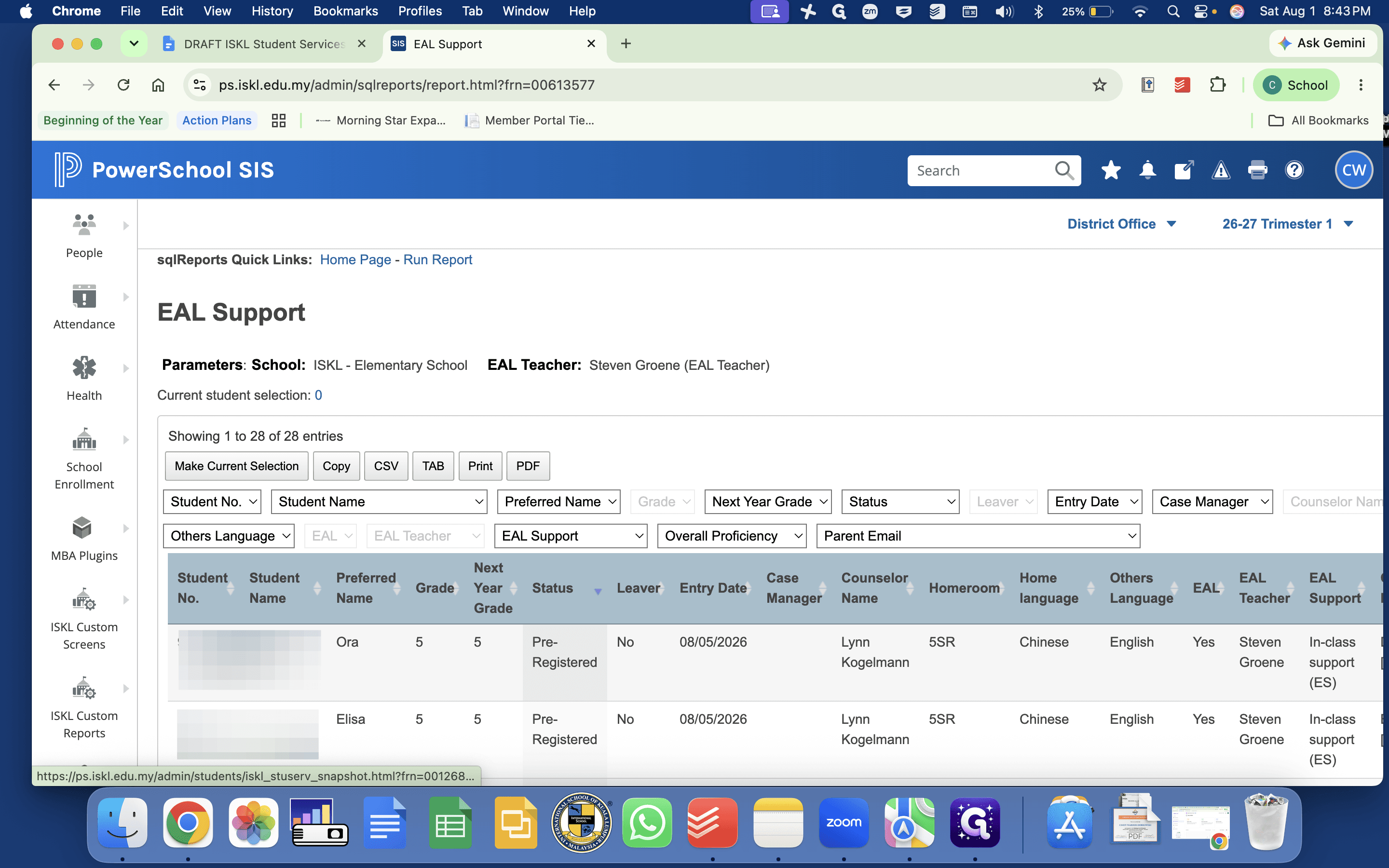
Click the Status column header to sort the list of students by their enrollment status.
Review Student Records and Documents
7
Click on a student's name to open their profile.
8
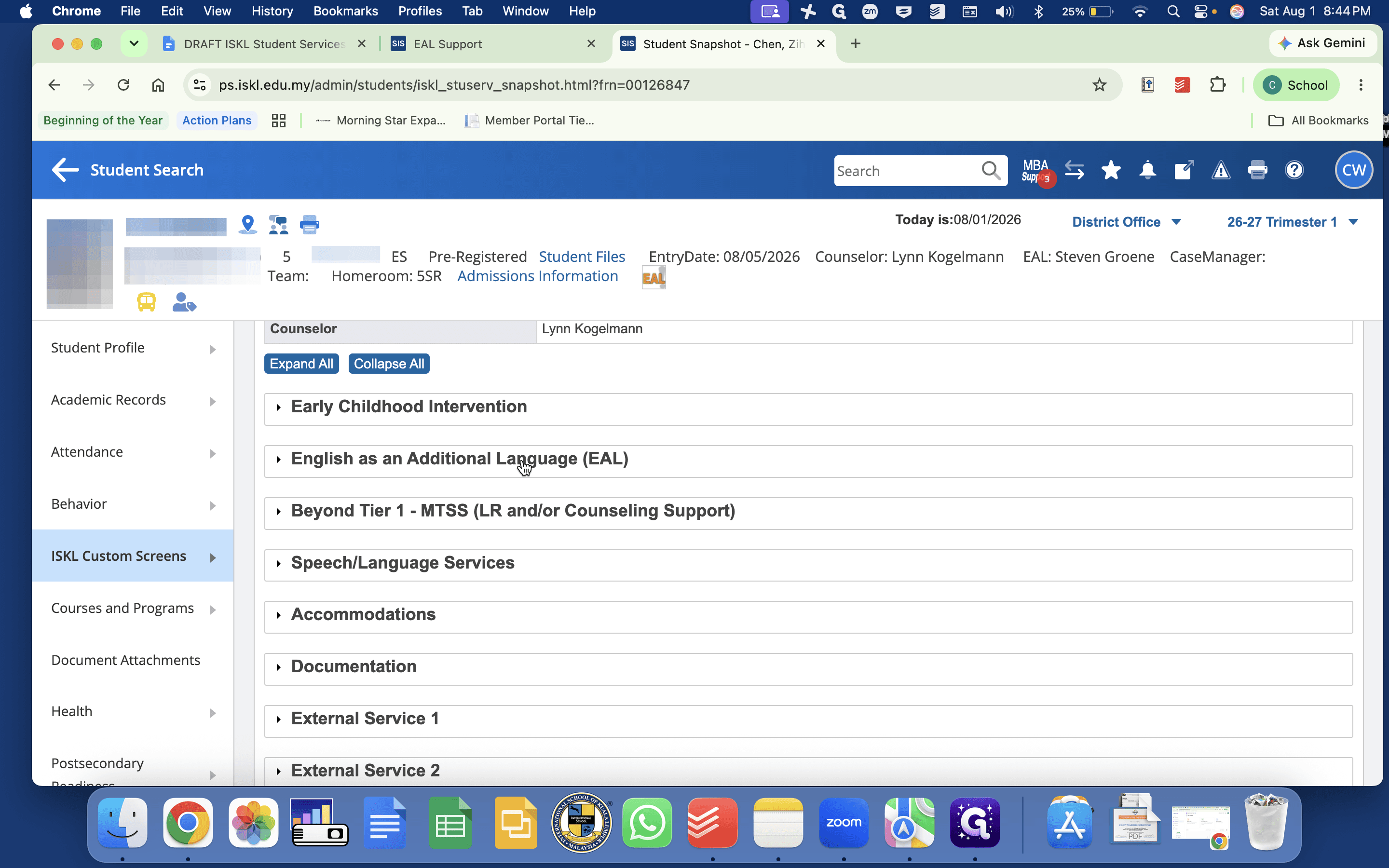
To view recent WIDA scores and correct or update their support, navigate to Student Snapshot under ISKL Custom Screens and open the English as an Additional Language (EAL) section.
9
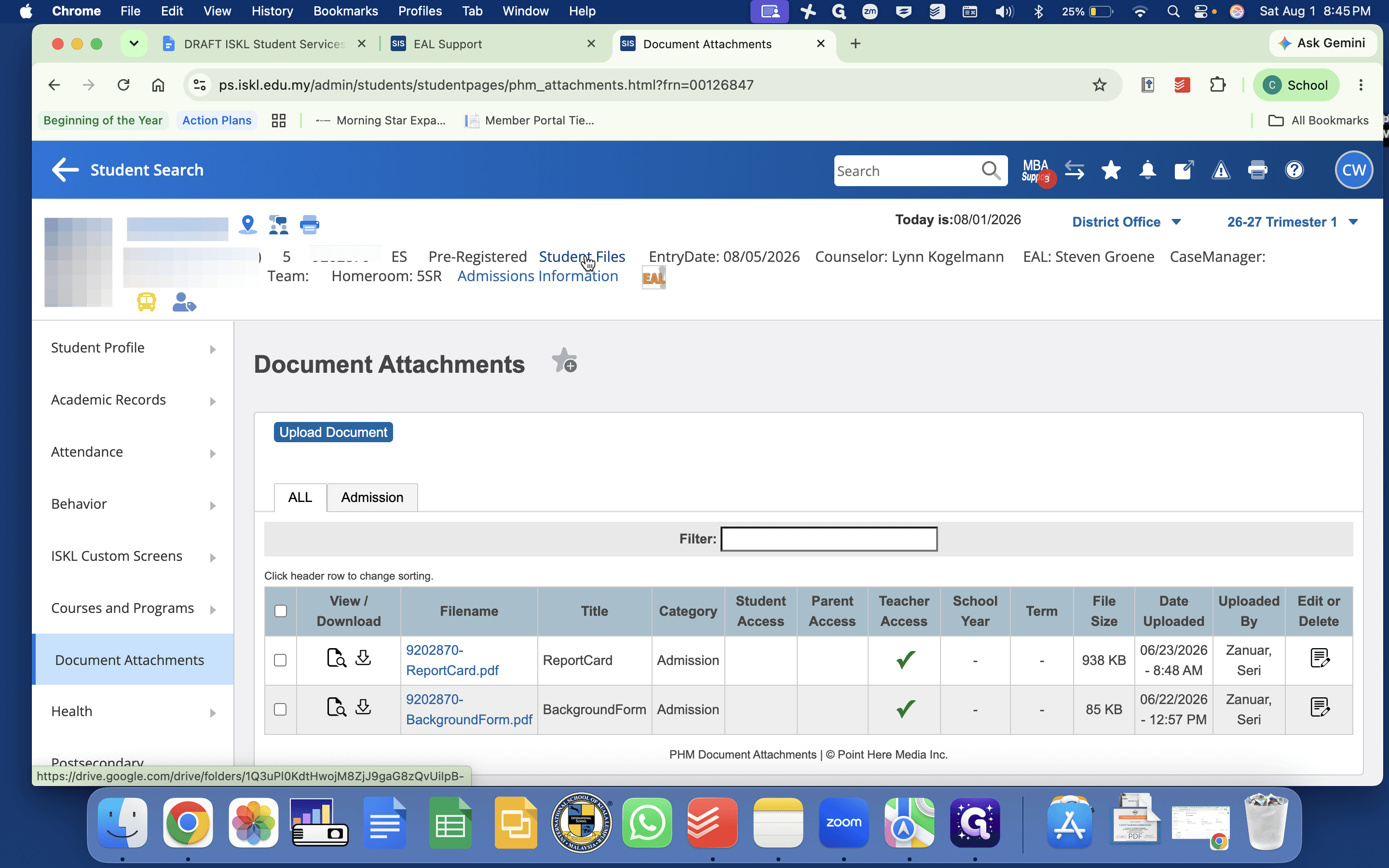
Click Document Attachments in the sidebar to access key student services documents for both new and returning students.
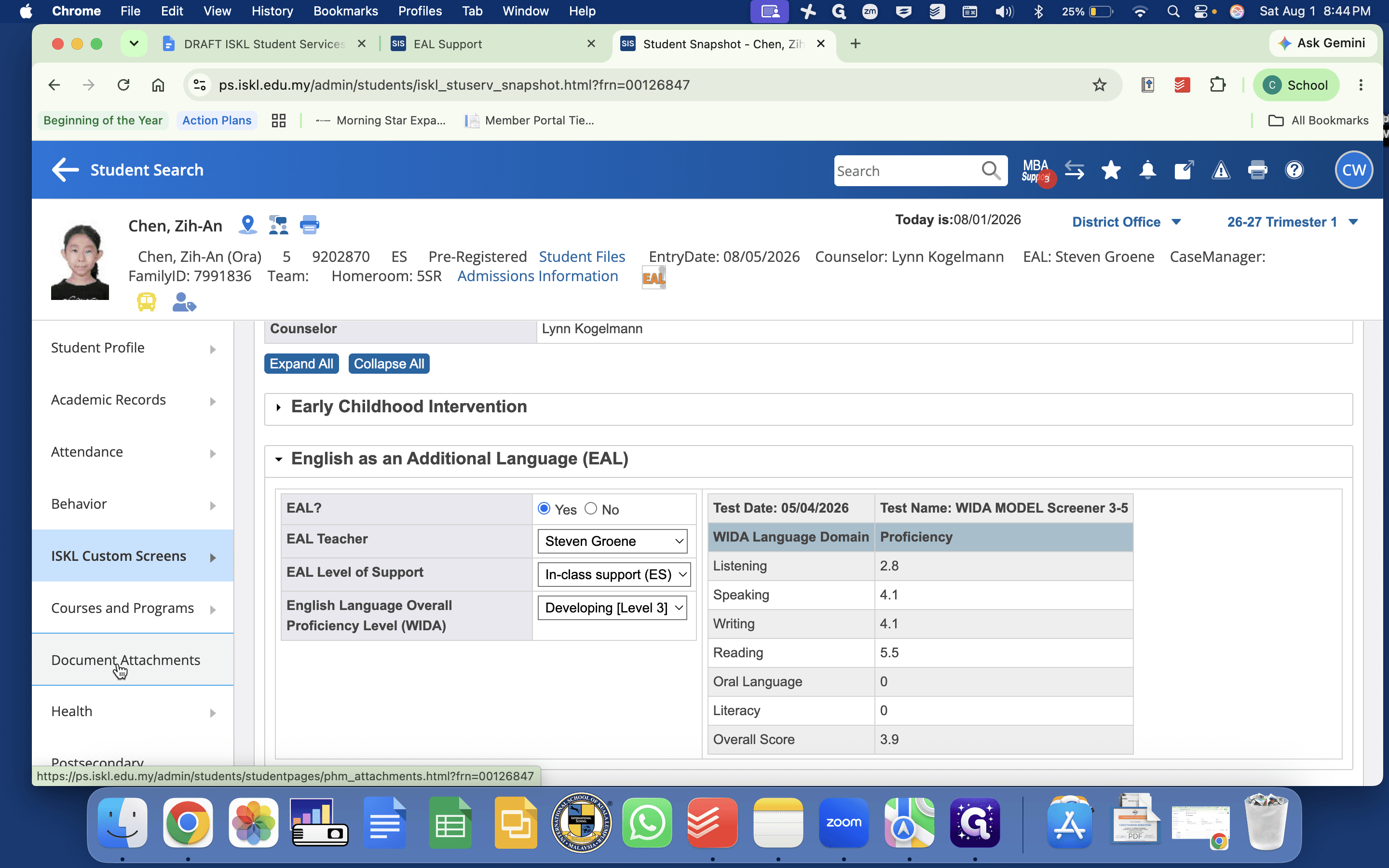
Documents are organized into tabs. Use the Student Services tab to find historical WIDA results, EAL placement letters, and exit letters.
10
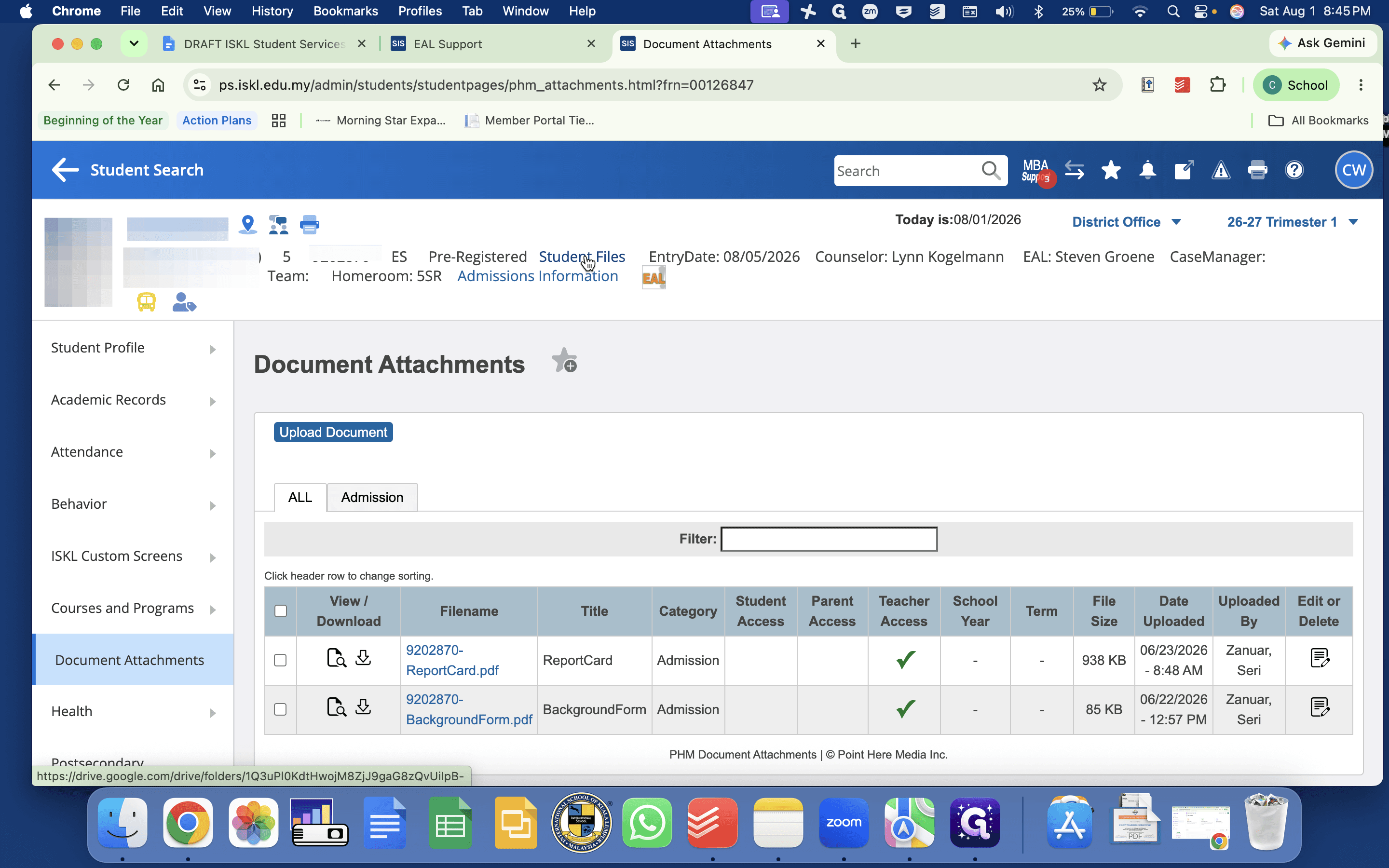
Click the Student Files link to open the student's auto-generated Google Drive folder, where you can view meeting minutes or add student-specific documents to share with other teachers.
11
Click the Admissions Information link to review their file summary and key information from OpenApply.