How to View Item Settings and Configurations in Dynaman
Learn how to search for items, view default settings, and verify storage parameters in the Dynaman warehouse management system.
By Evinia Ryckoort
Dynaman is the warehouse management system used by Locinox. This guide explains how to search for items, view their default settings, check variants, and verify storage parameters like miniload routing and replenishment points.
Logging In and Navigating
1
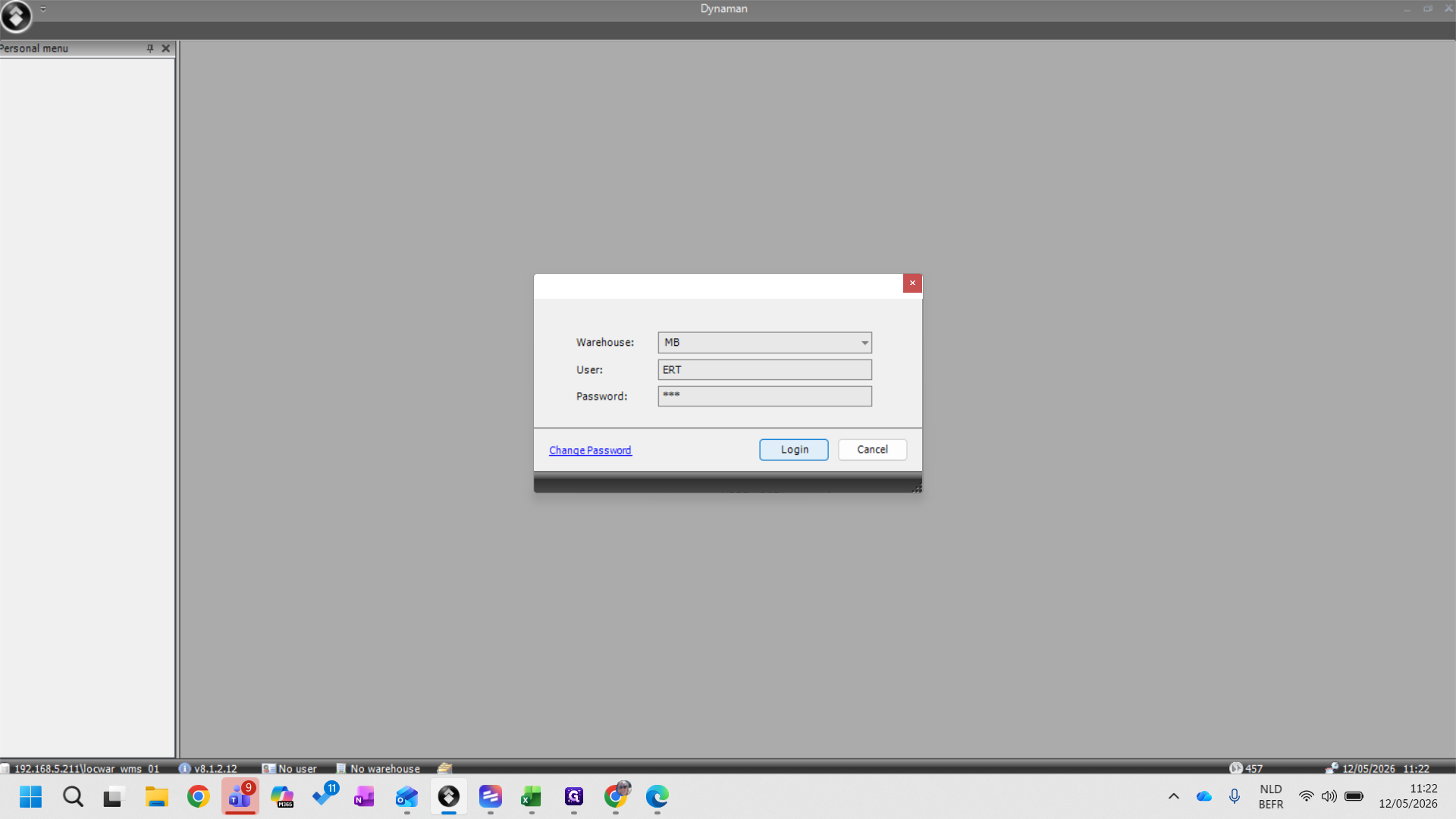
Enter your IT-provided password and click Login to open Dynaman.
2
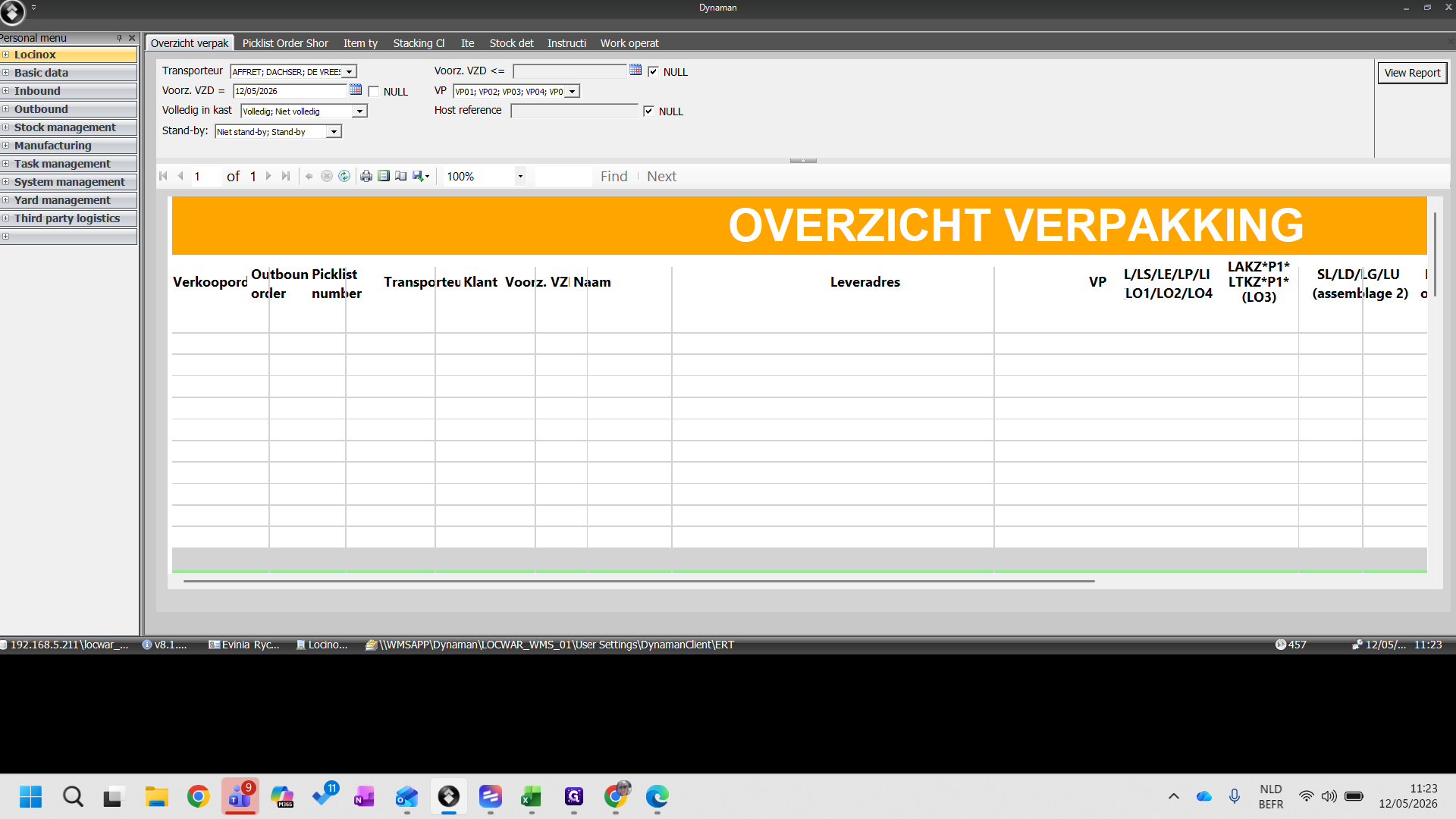
In the left navigation pane, click + Locinox to expand the menu.
Searching for Article Cards
3
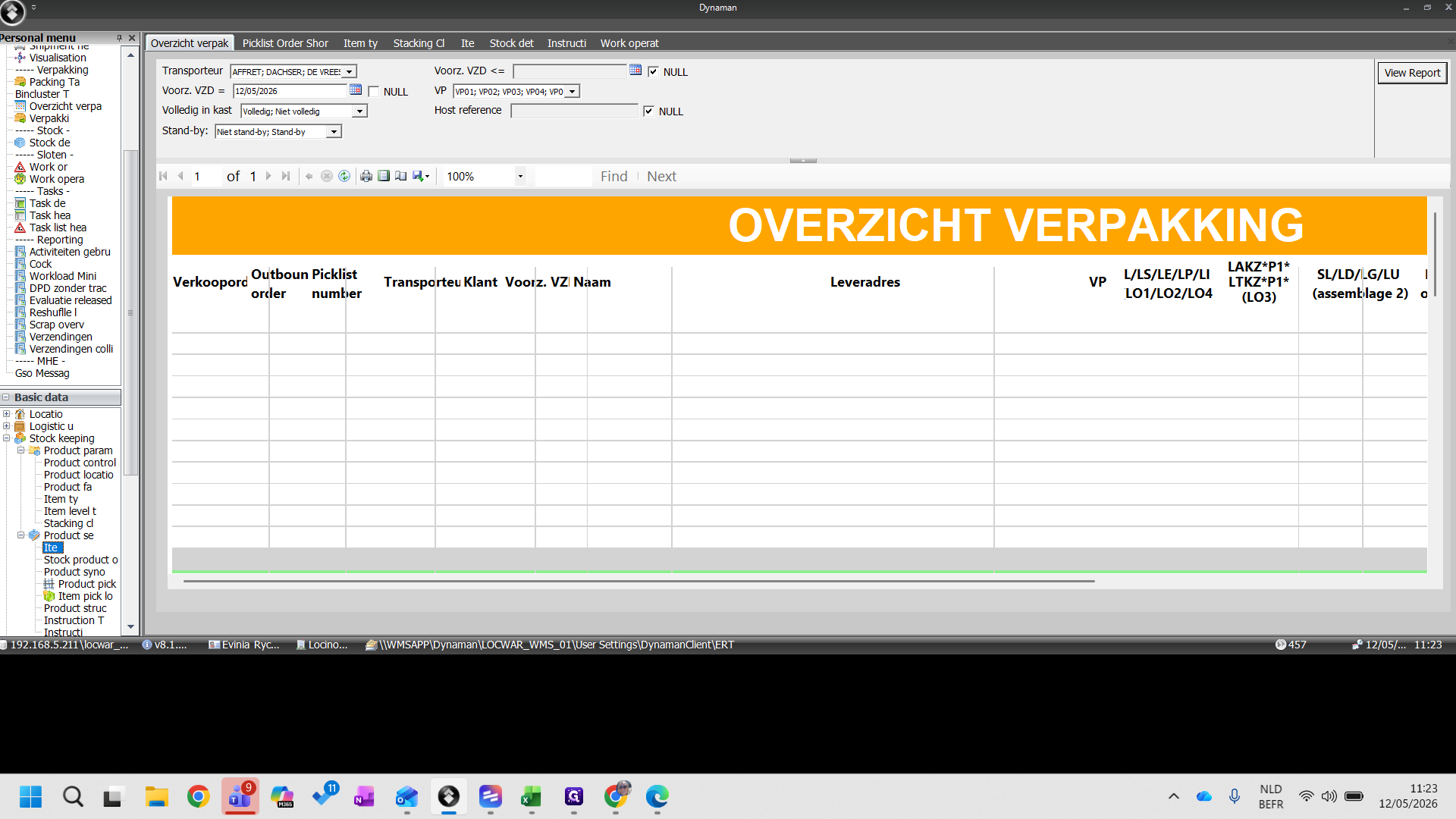
Type
item into the search menu and press Enter.4
Under the Stock keeping menu, double-click Item (Ite) to open the item settings pop-up window.
Filtering for Specific Items
5
Clear any existing filters in the data grid and press Enter.
If you do not know the exact item code (P number), you can search by the product name.
6
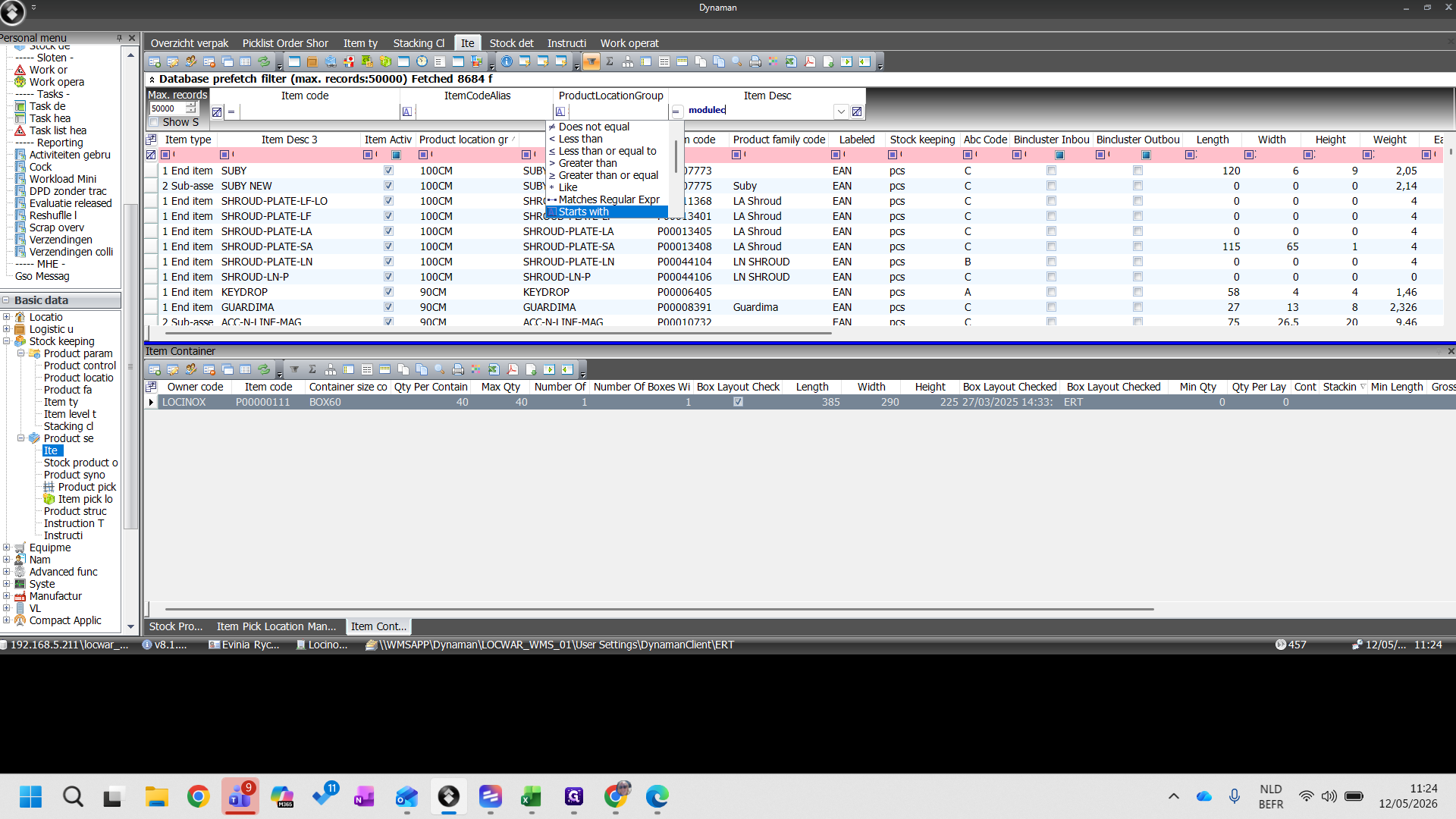
Type the product name, such as
modulec, into the name filter field.7
Click the filter condition dropdown and select Starts with.
8
Press Enter to apply the filter and load the matching item variants.
Viewing Item Details and Specifications
9
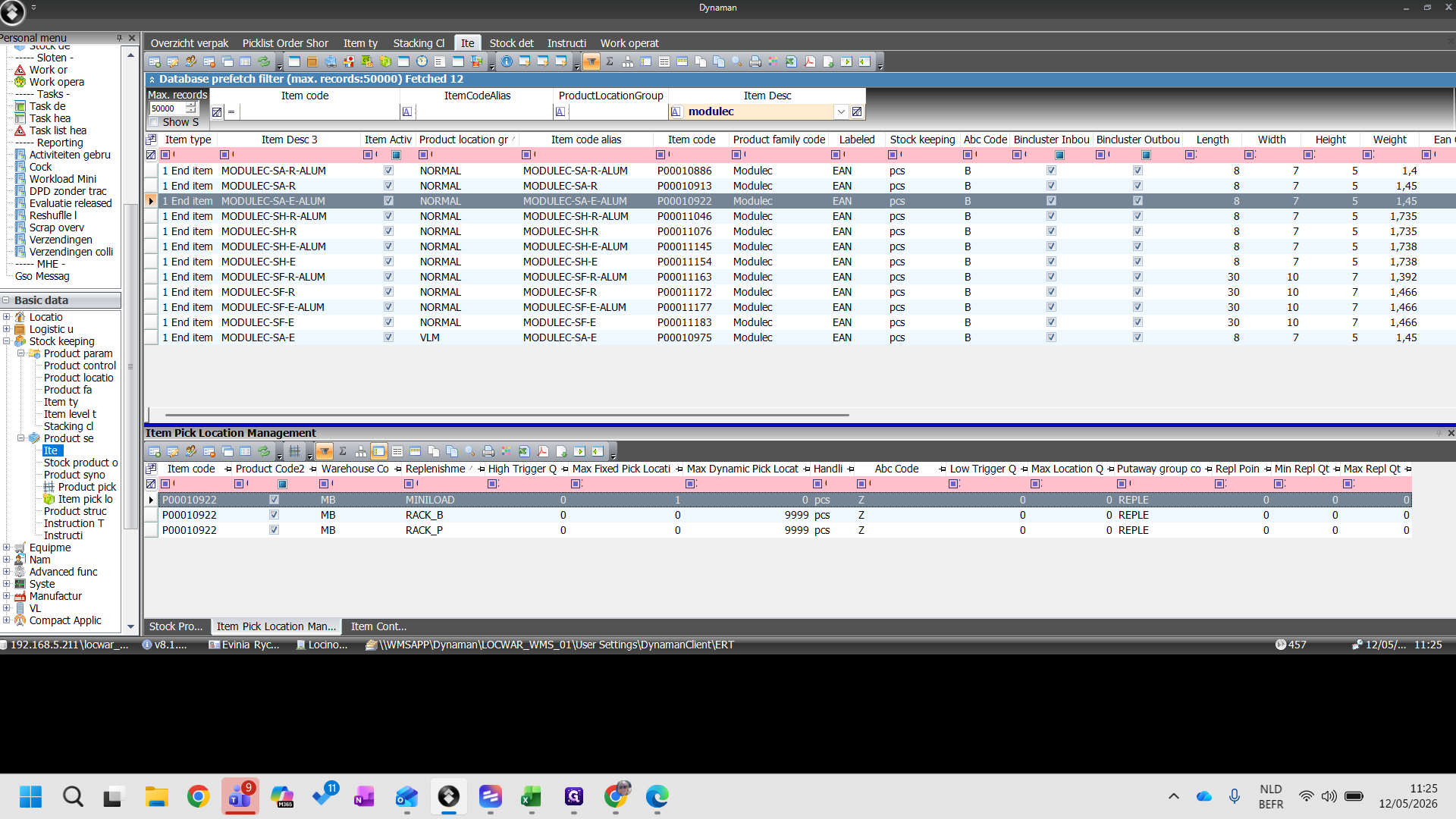
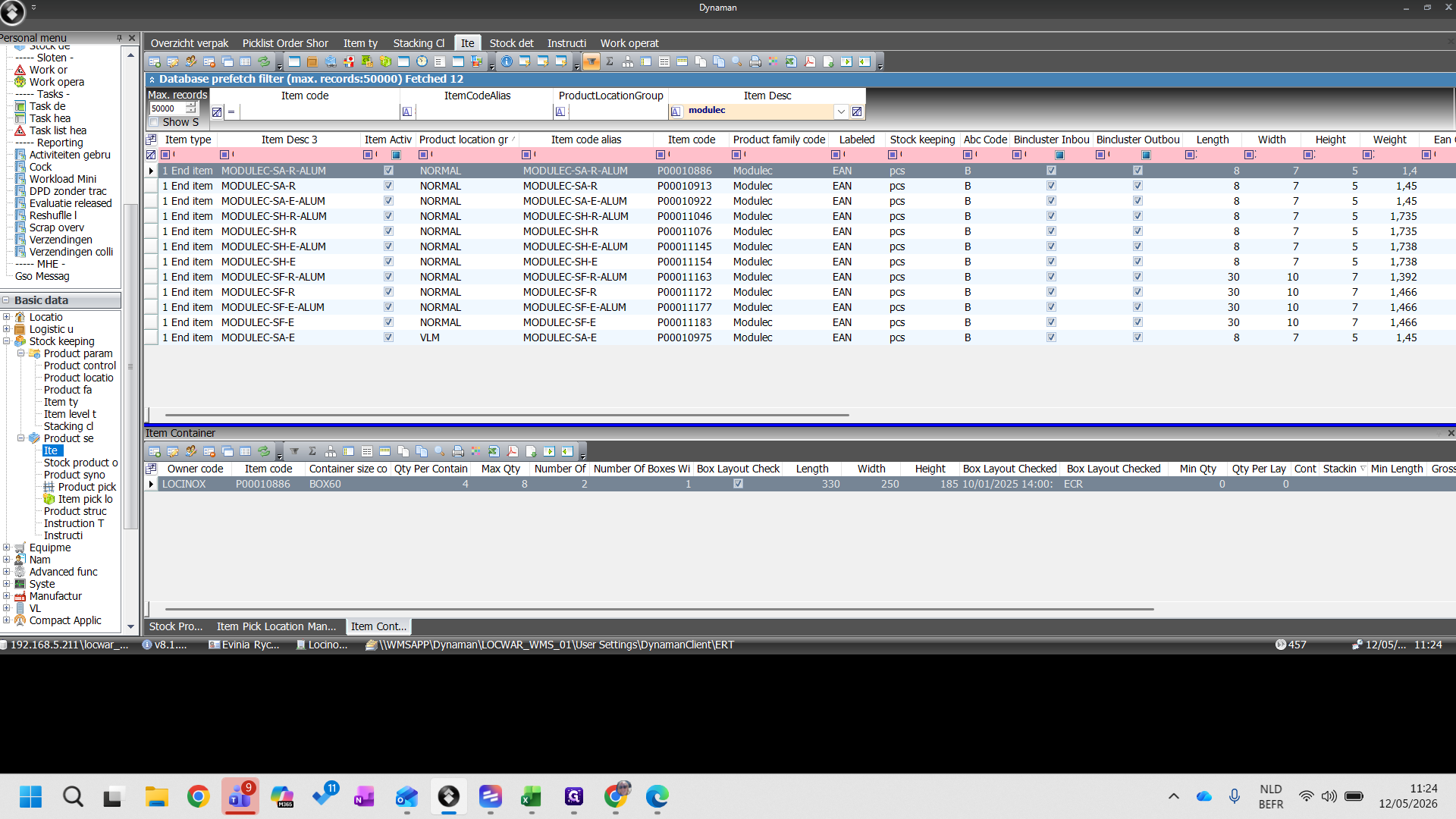
Select an item variant from the grid, such as MODULEC-SA-E-ALUM (Item code 10922), to view its details.
10
Review the container settings in the lower pane to check specifications like box length, weight, and miniload routing.
11
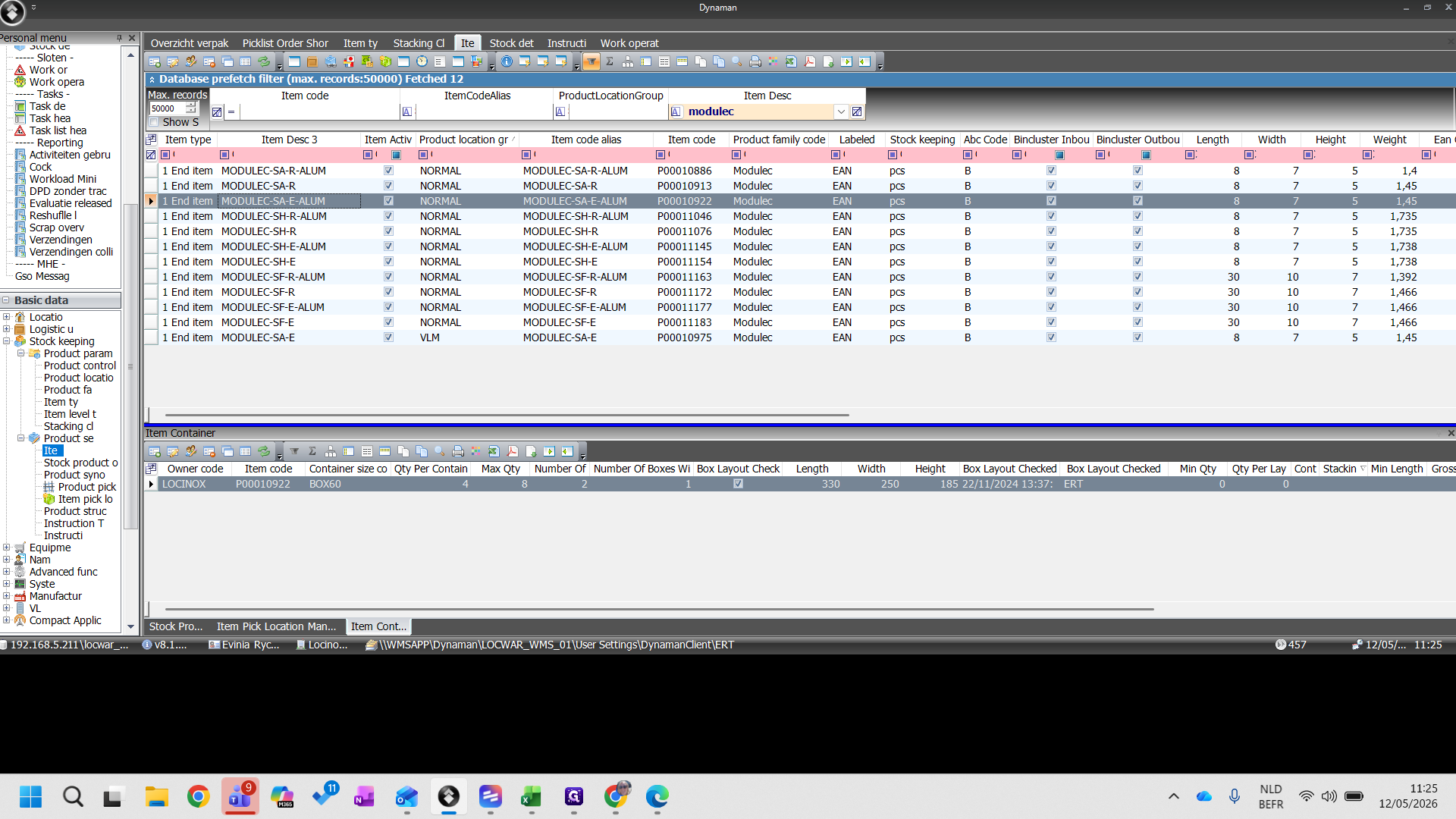
Navigate to the Stock Product tab to browse main part inventory details.
12
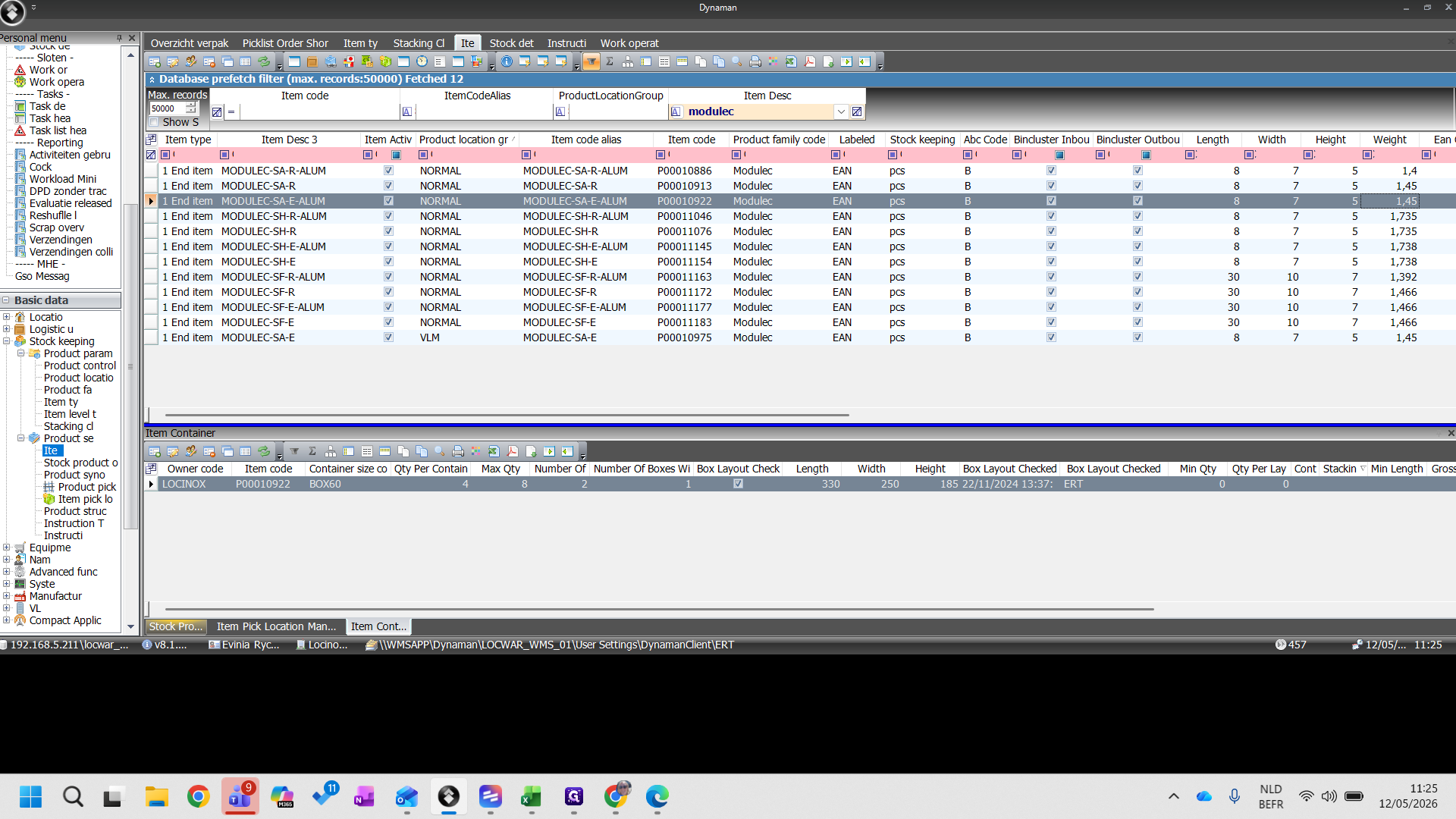
Click on the Item Pick Location Management table to verify the item's storage and replenishment parameters.