How to View Lot Details in WestCreek Developments
Learn how to navigate the WestCreek Developments interactive map to find specific phases and view detailed property information, including pricing and sale statuses.
By Rob
Navigate the interactive map in the WestCreek Developments portal to easily find available lots, view their pricing, and check current builder statuses.
Access the Map
1
Go to the WestCreek Developments portal
2
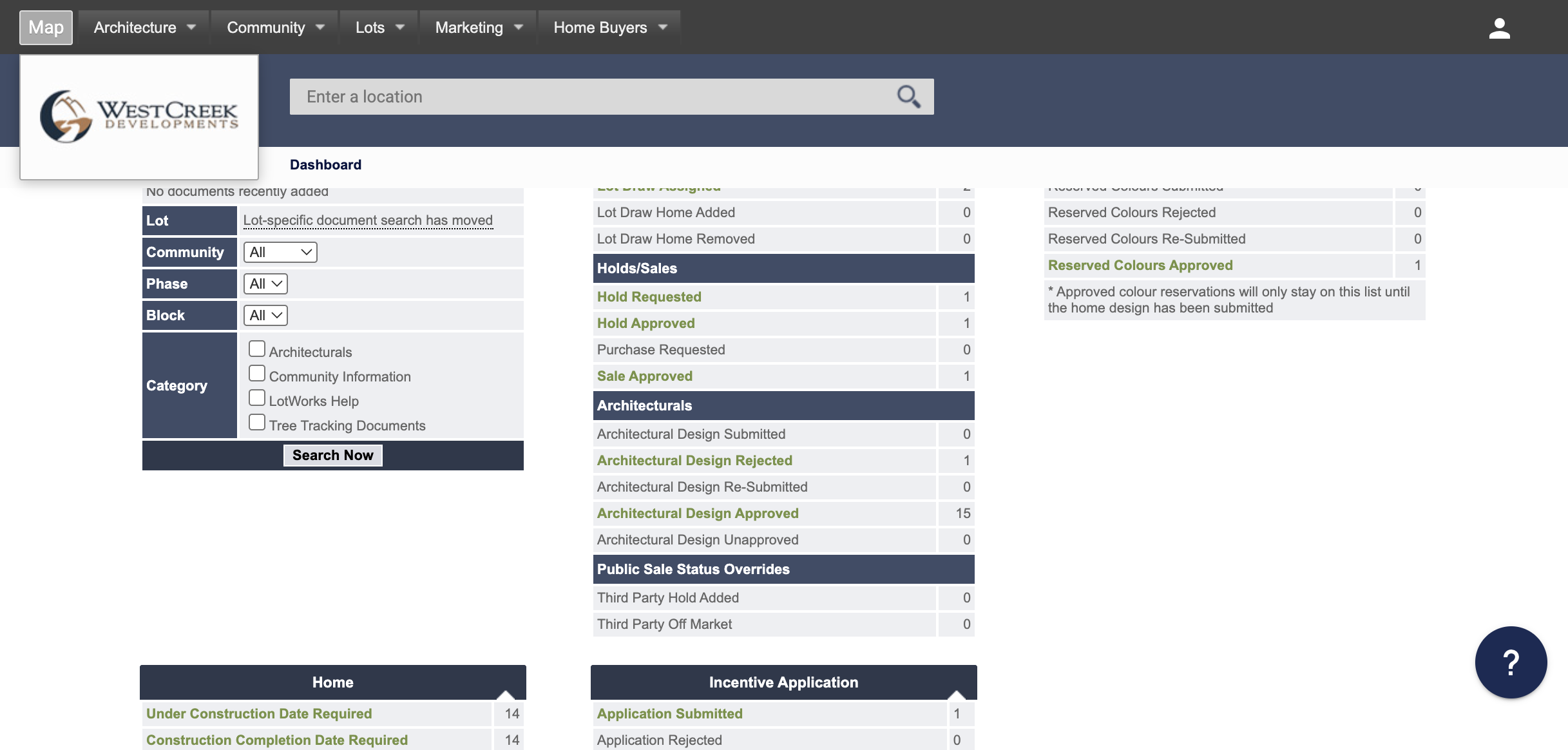
Click Map in the main navigation menu
Locate a Property
3
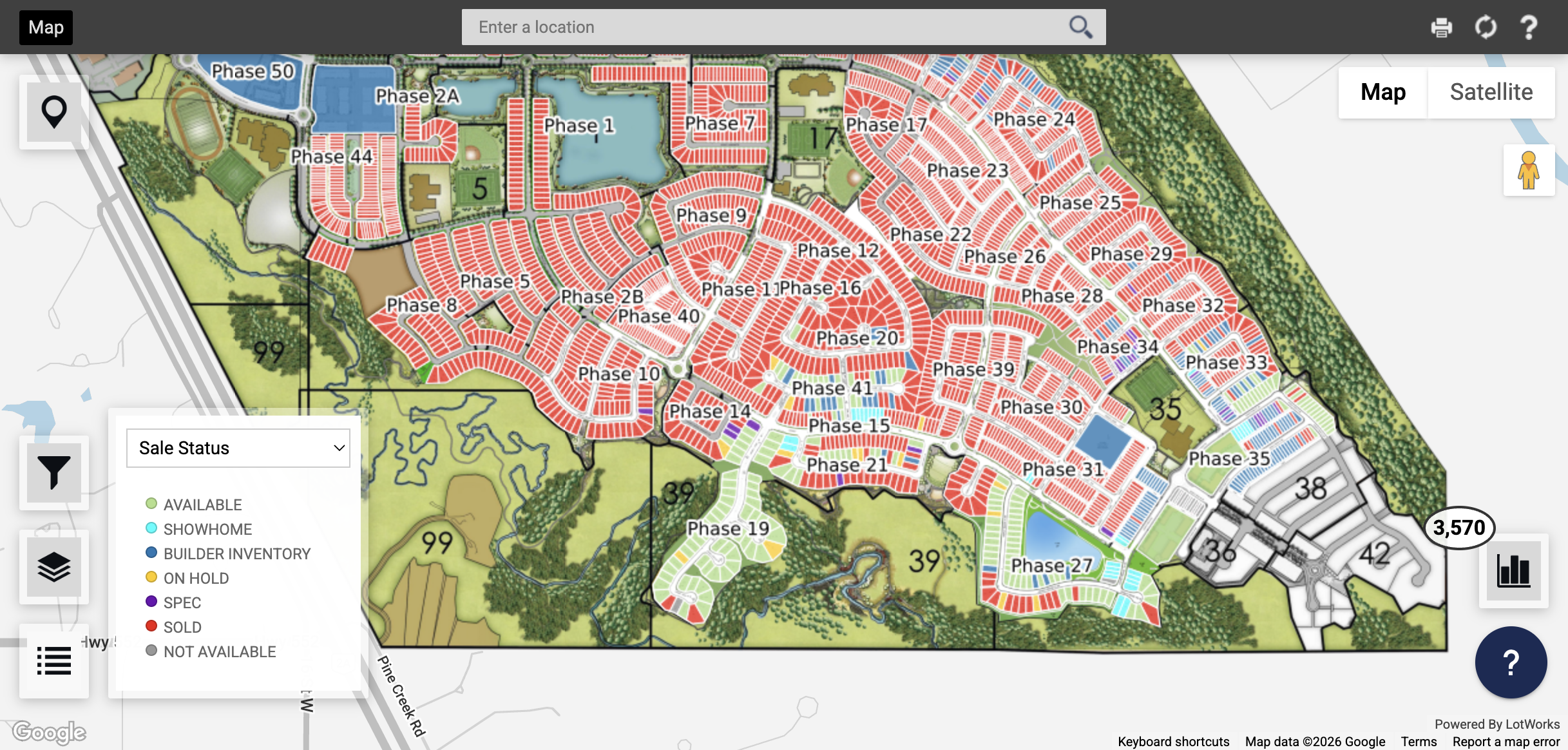
Click the phase selector or map overlay to view available development phases
4
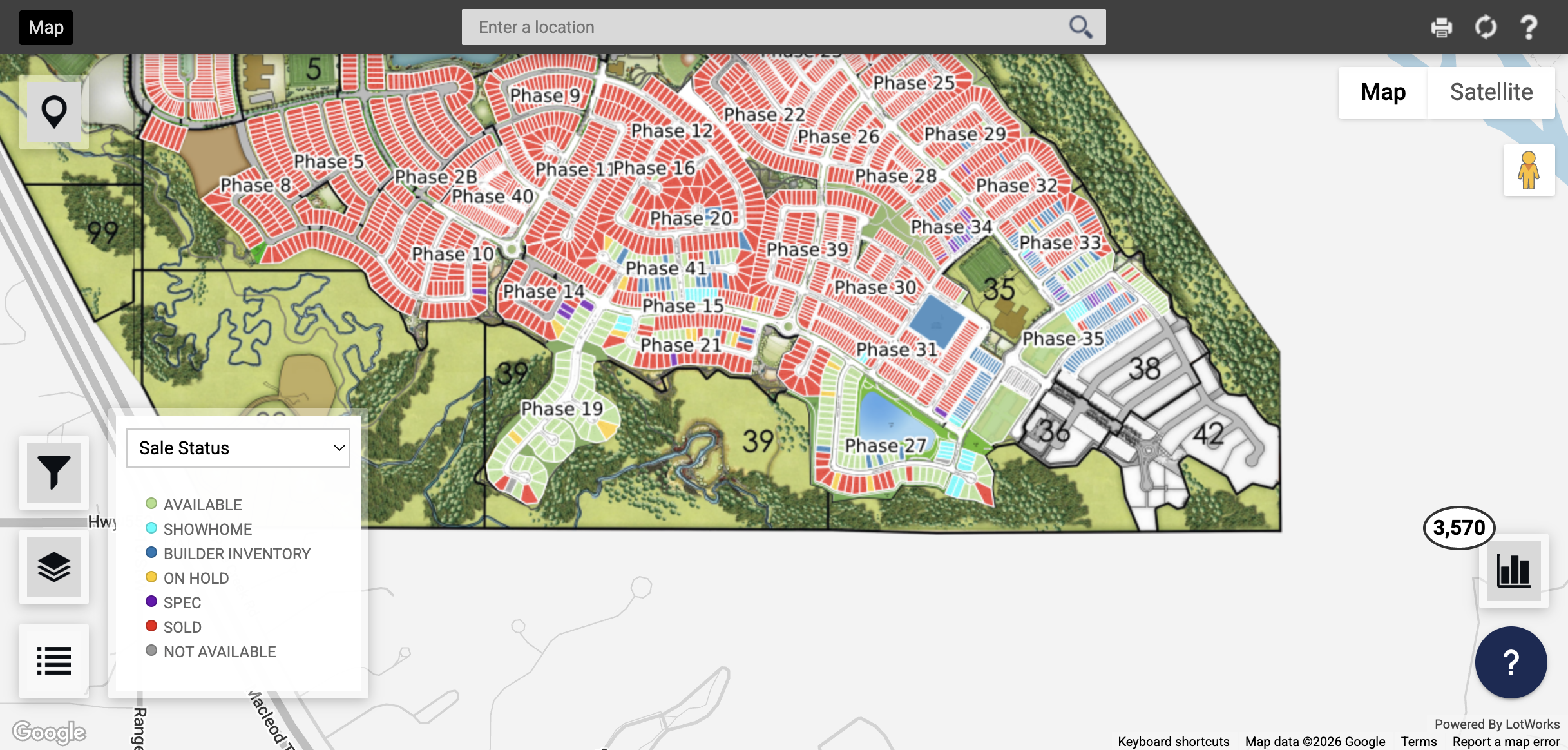
Select Phase 27 from the map
5
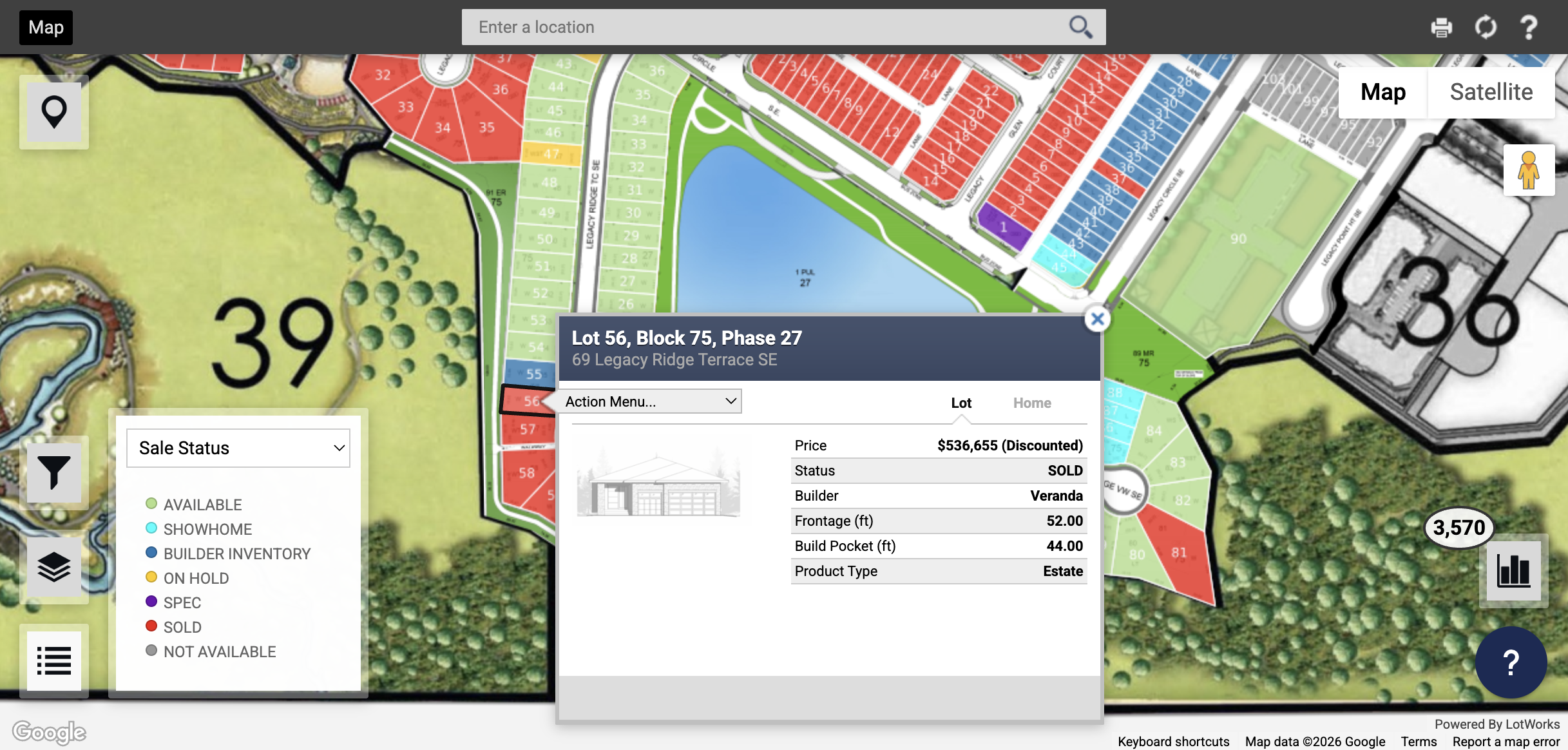
Locate and click on lot 56 to select the specific plot
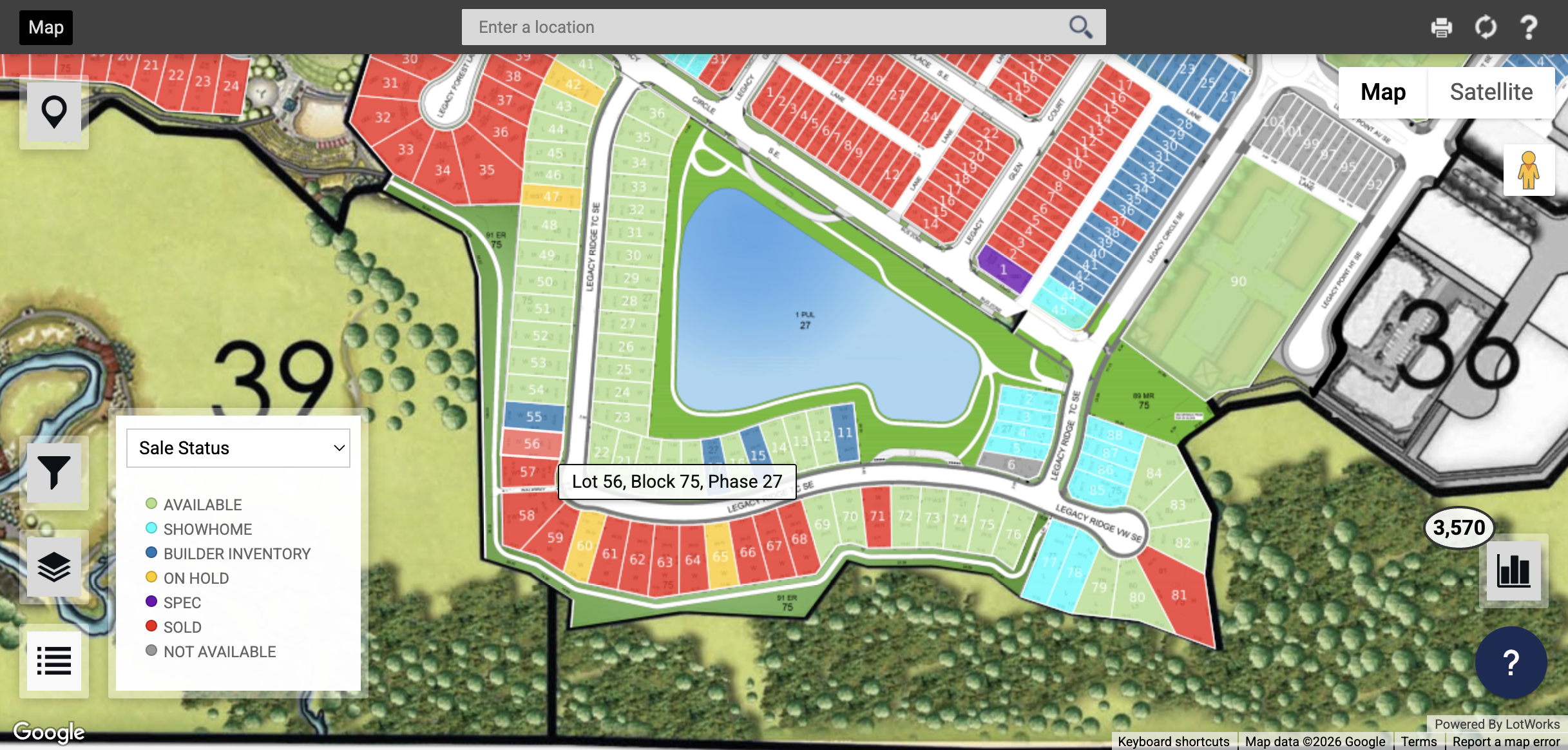
View Details
6
Review the pop-up information window to see the property details, including its list price, builder information, and current sale status