Icon

How to View Customer Telematics and Service Alerts in Volie

Learn how to investigate automated TIS service alerts in Volie to review a customer's vehicle telematics, mileage, and campaign enrollment history.

By Jade Moreno

This guide explains how to look up the details of a telematics service alert for a customer in Volie. Reviewing this data helps you understand exactly why a customer received an automated service message so you are fully prepared to assist them.

This workflow is useful for BDC representatives, service advisors, and dealership staff who handle inbound inquiries resulting from automated TIS (Toyota Information System) alert campaigns.

Access the Customer Profile
1
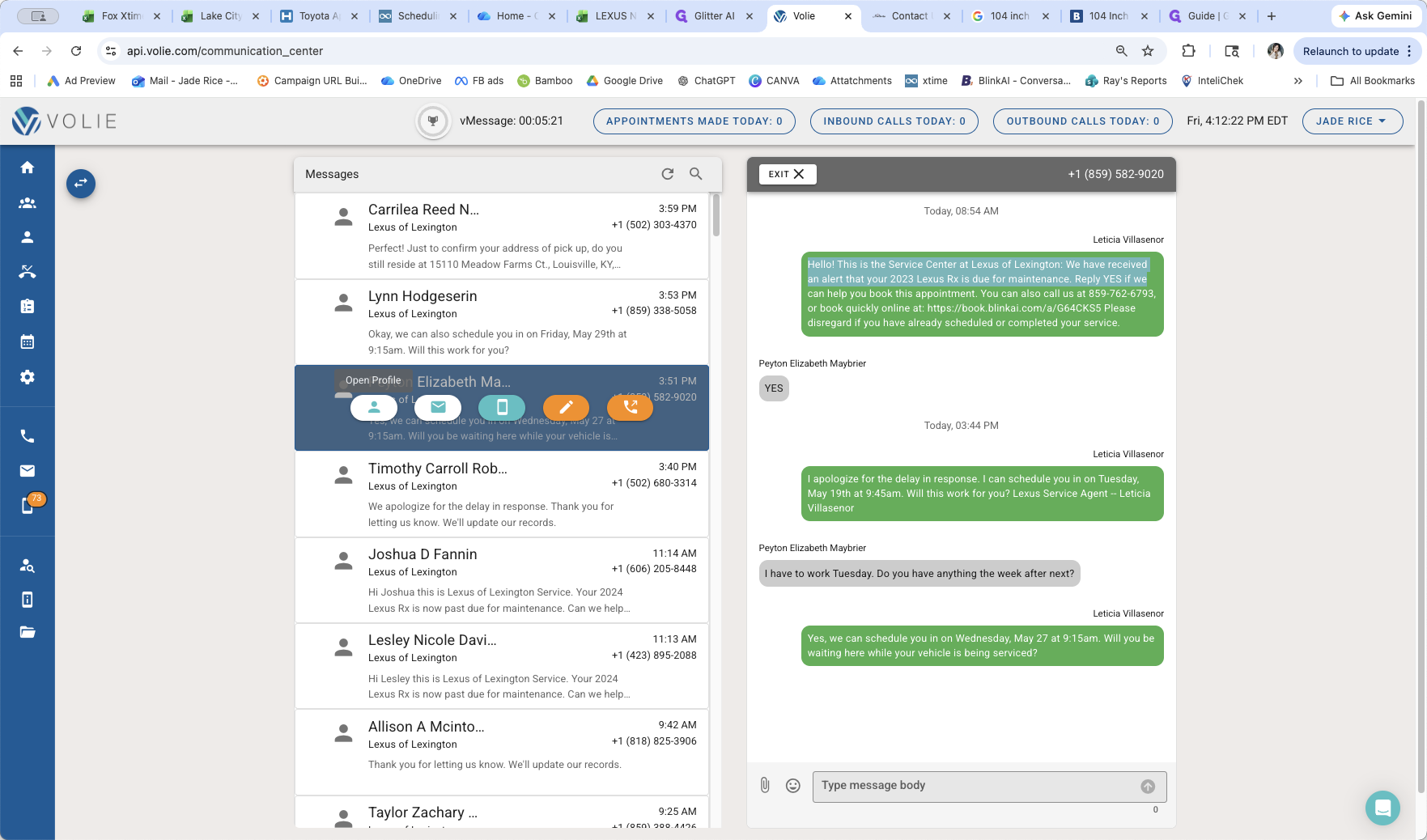
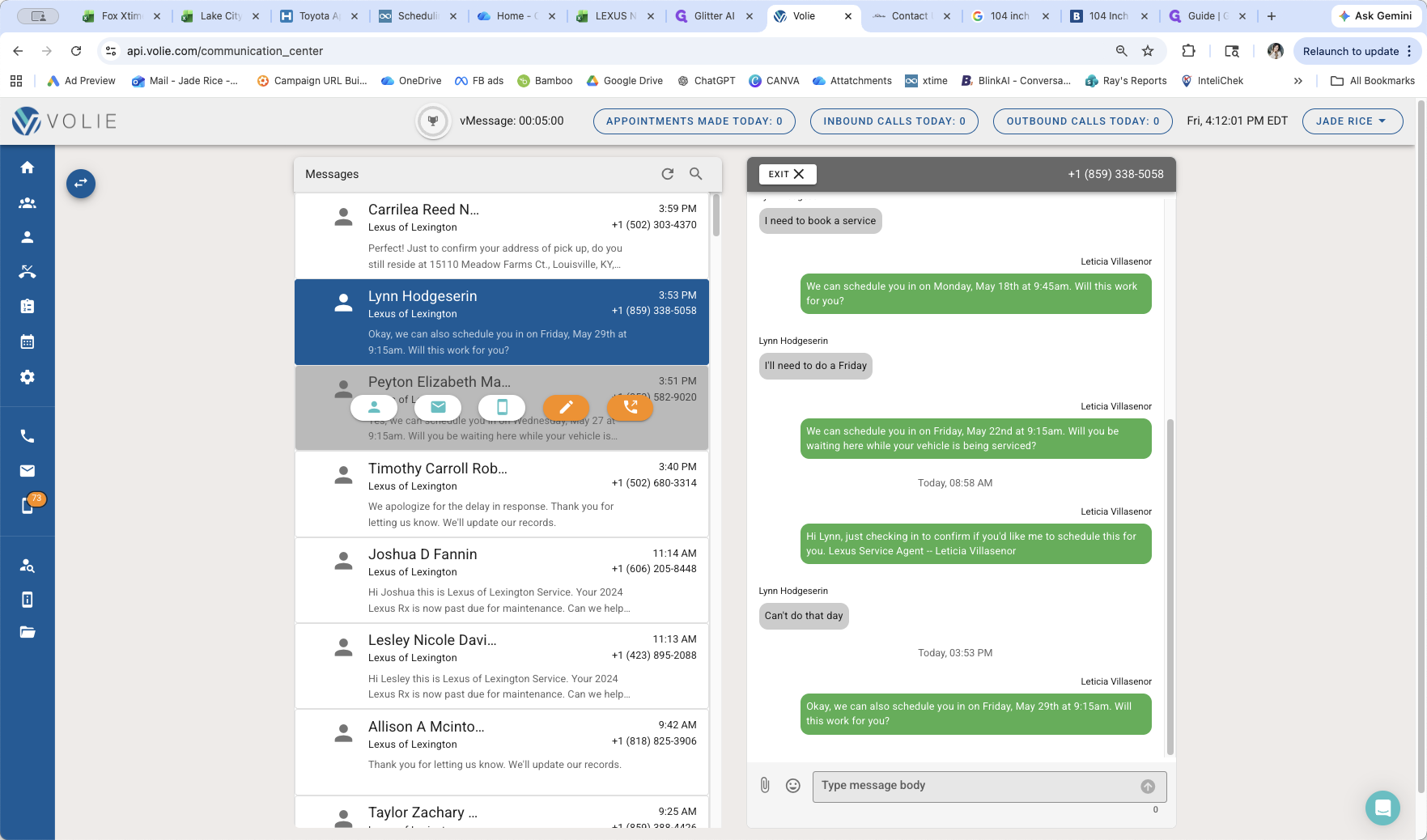
From the message screen, select the relevant customer's message thread.
Step #1: From the message screen, select the relevant customer's message thread.
2
Click the Open Profile icon to view the customer's full CRM details.
Step #2: Click the Open Profile icon to view the customer's full CRM details.

View Campaign Enrollment History

To confirm why a customer received a specific automated message, you should check their active campaigns.
3
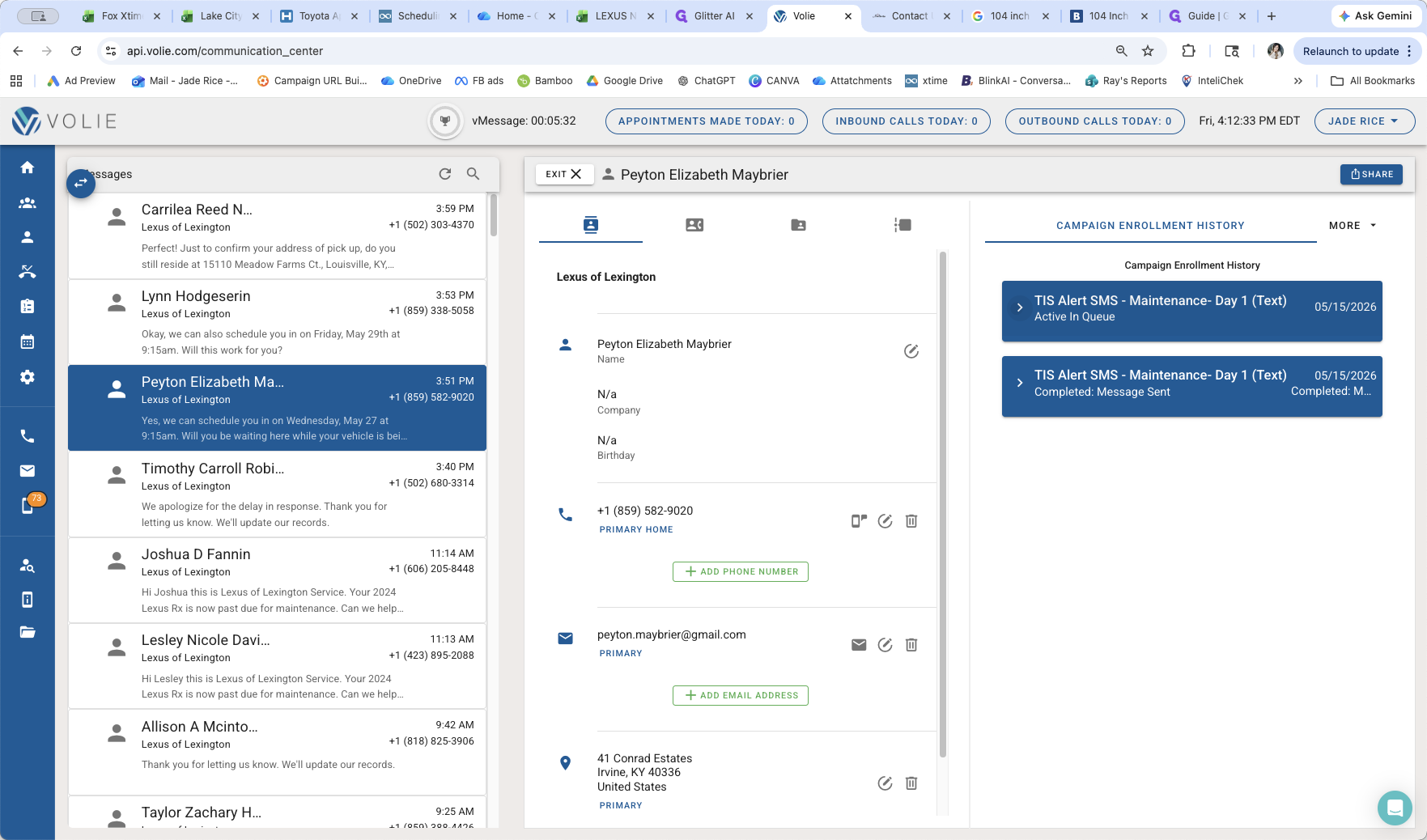
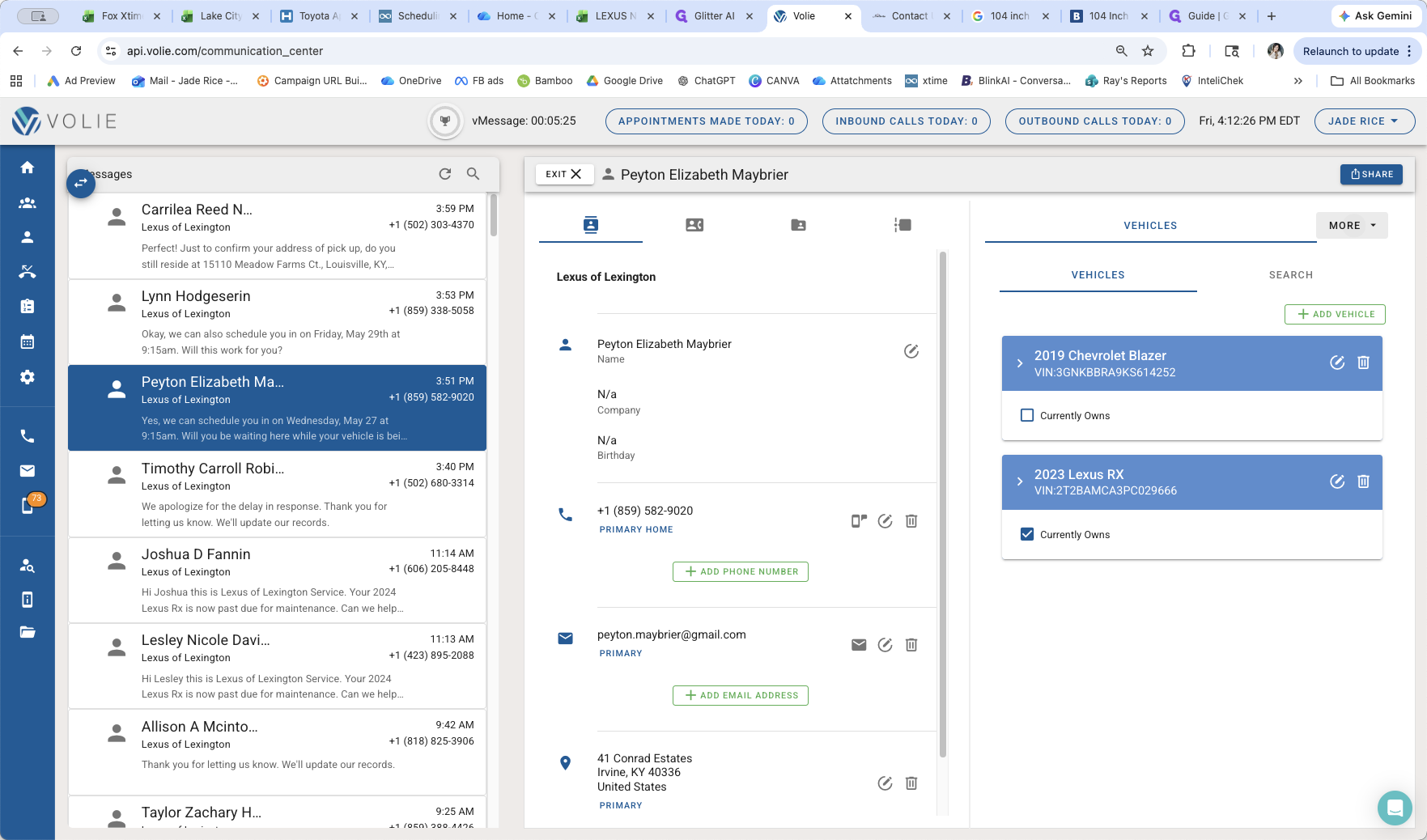
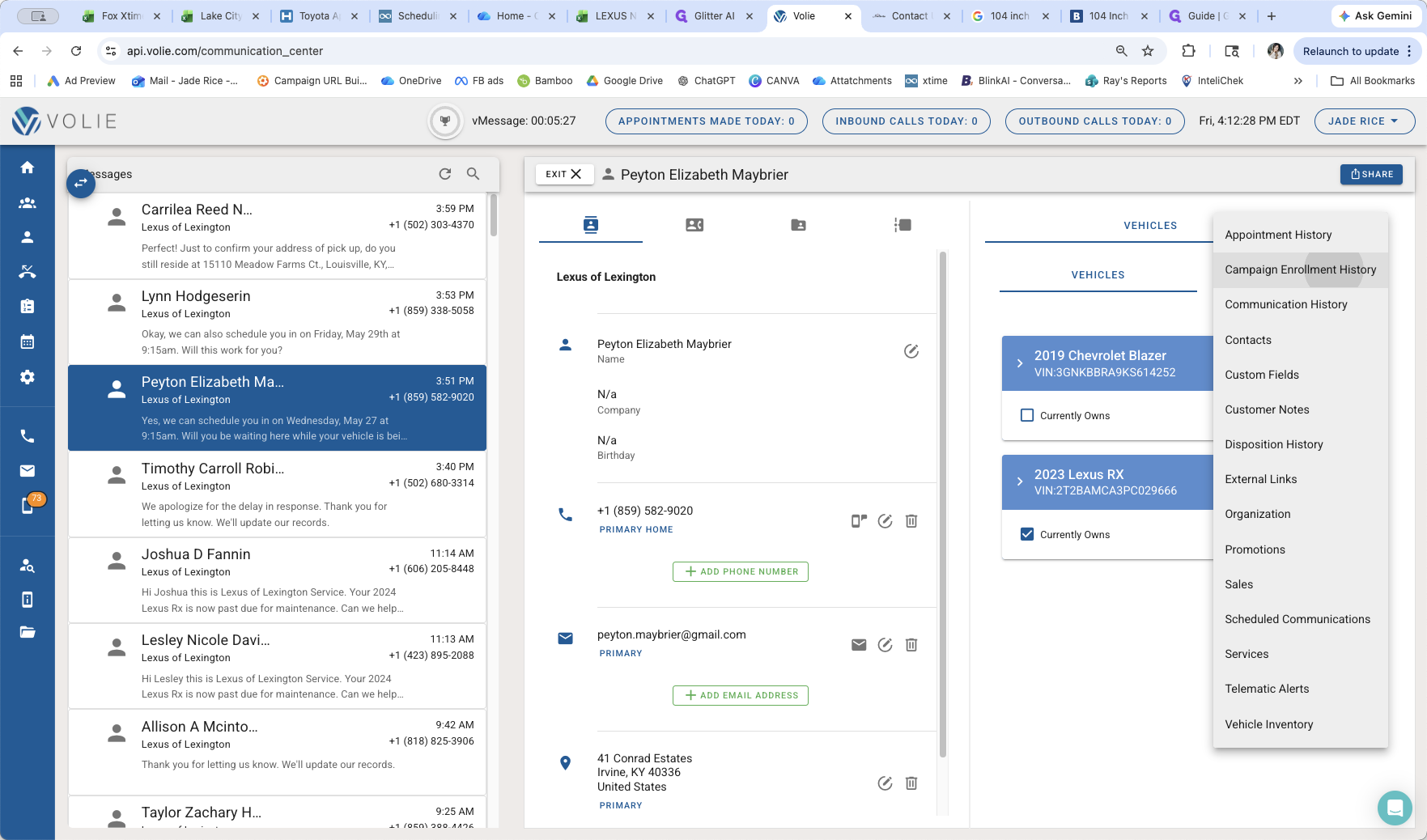
In the customer profile, click the MORE dropdown menu located on the right side of the screen.
Step #3: In the customer profile, click the MORE dropdown menu located on the right side of the screen.
4
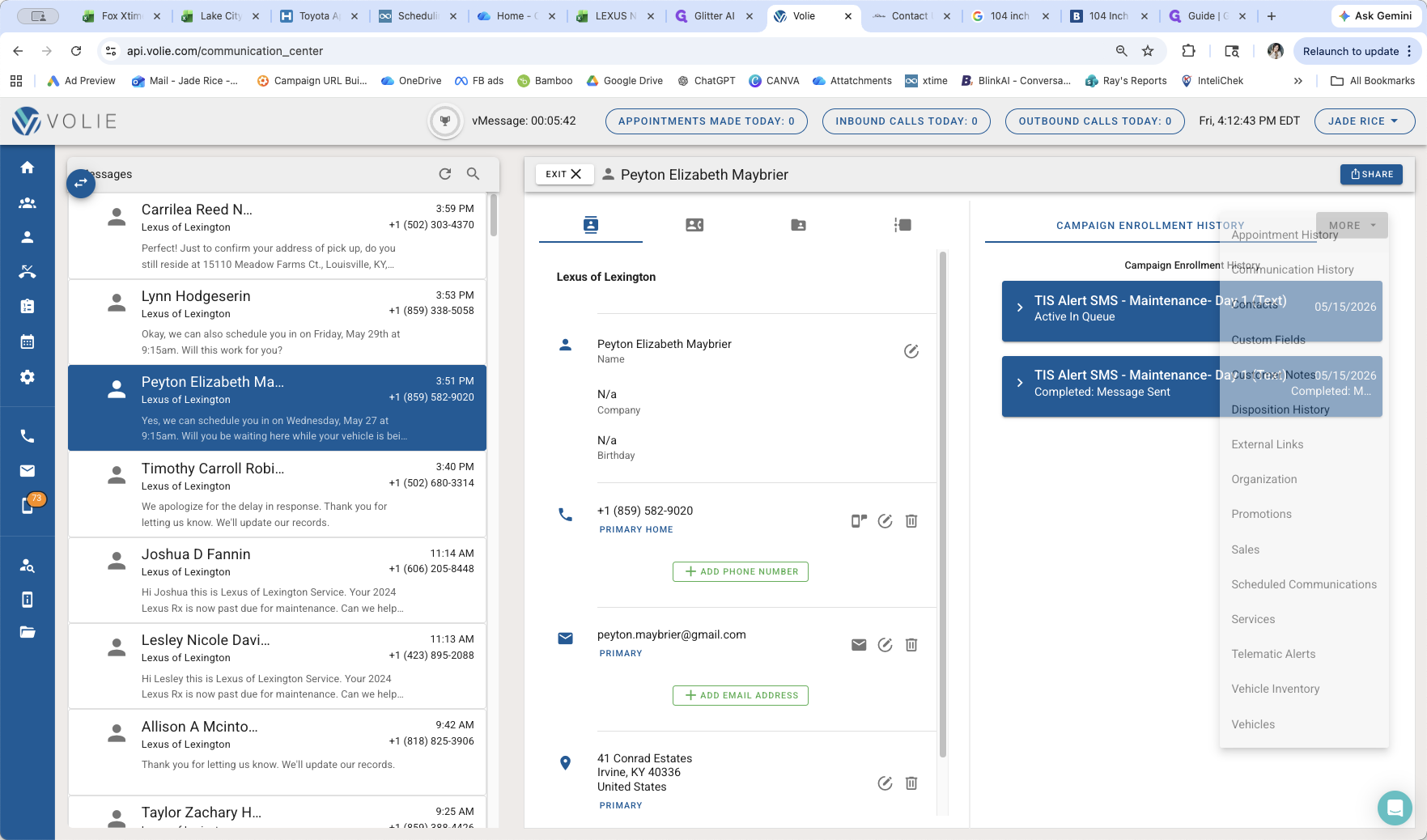
Select Campaign Enrollment History to view a list of campaigns the customer is part of.
Step #4: Select Campaign Enrollment History to view a list of campaigns the customer is part of.
5
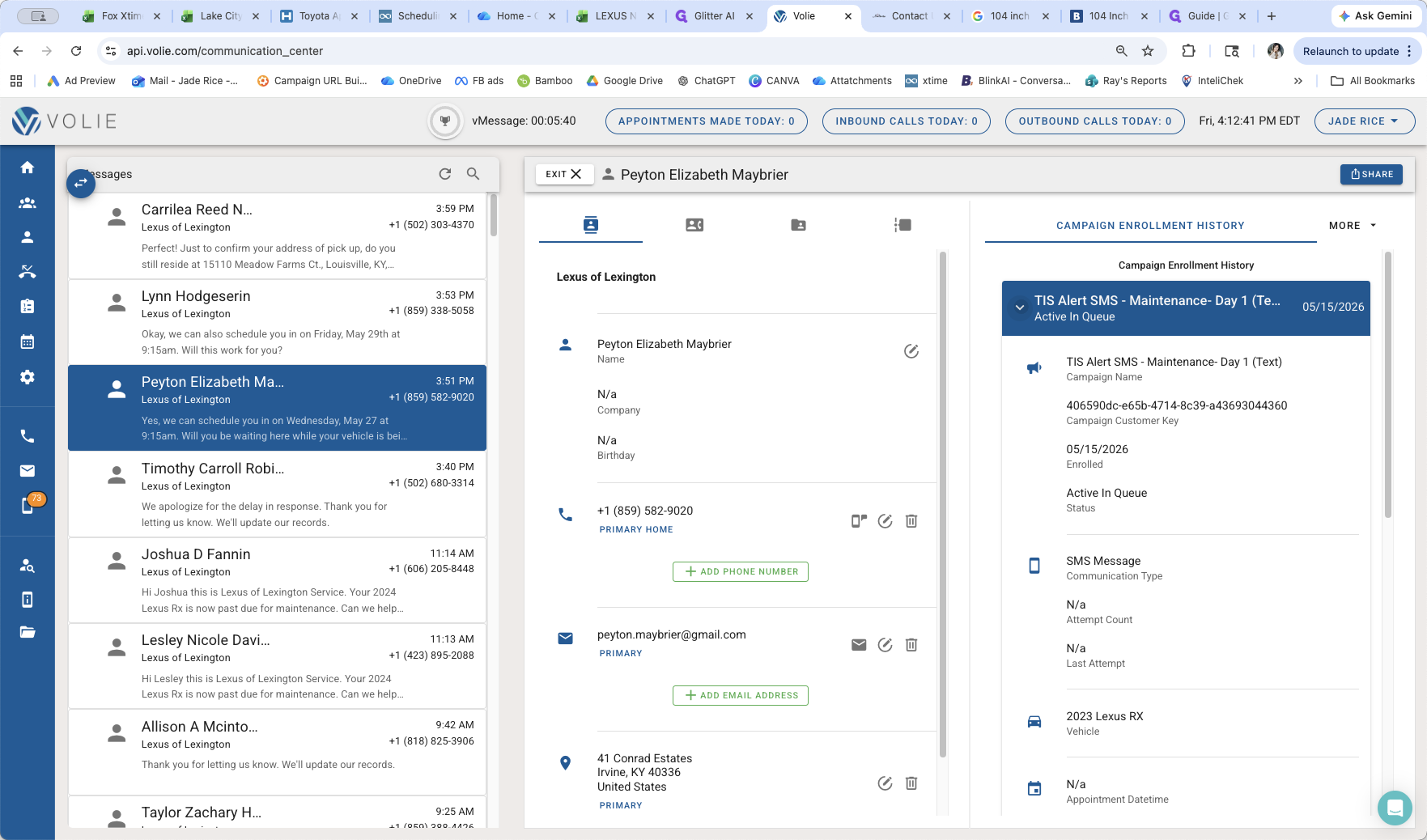
Click the arrow icon next to the most recent campaign to expand it.
Step #5: Click the arrow icon next to the most recent campaign to expand it.
6
Review the campaign details, such as the TIS Alert SMS enrollment date.
Step #6: Review the campaign details, such as the TIS Alert SMS enrollment date.

Review Telematics Data

Once you verify the campaign, you can review the specific vehicle data that triggered the alert.
7
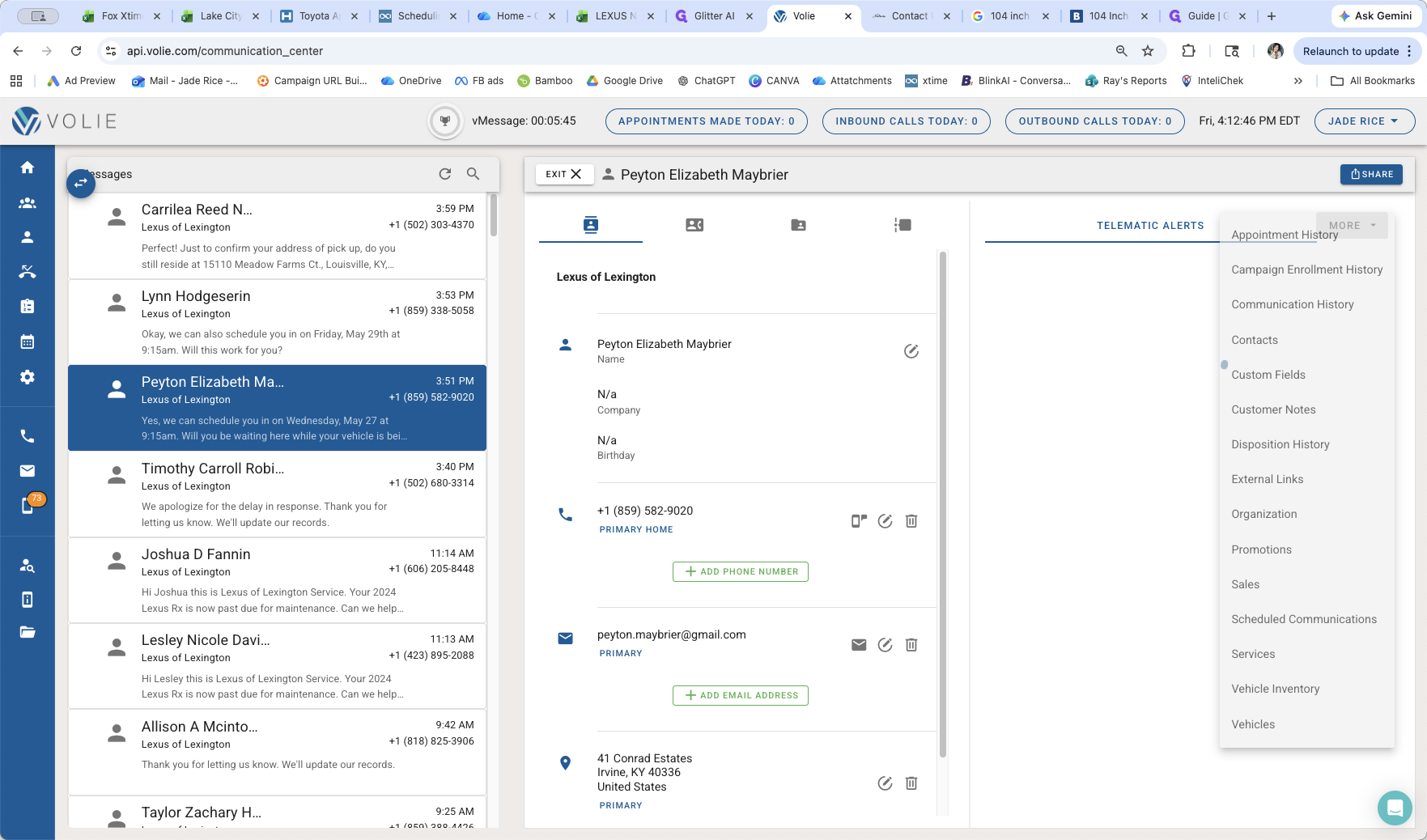
Click the MORE dropdown menu again.
Step #7: Click the MORE dropdown menu again.
8
Select Telematics from the menu to open the vehicle data panel.
Step #8: Select Telematics from the menu to open the vehicle data panel.
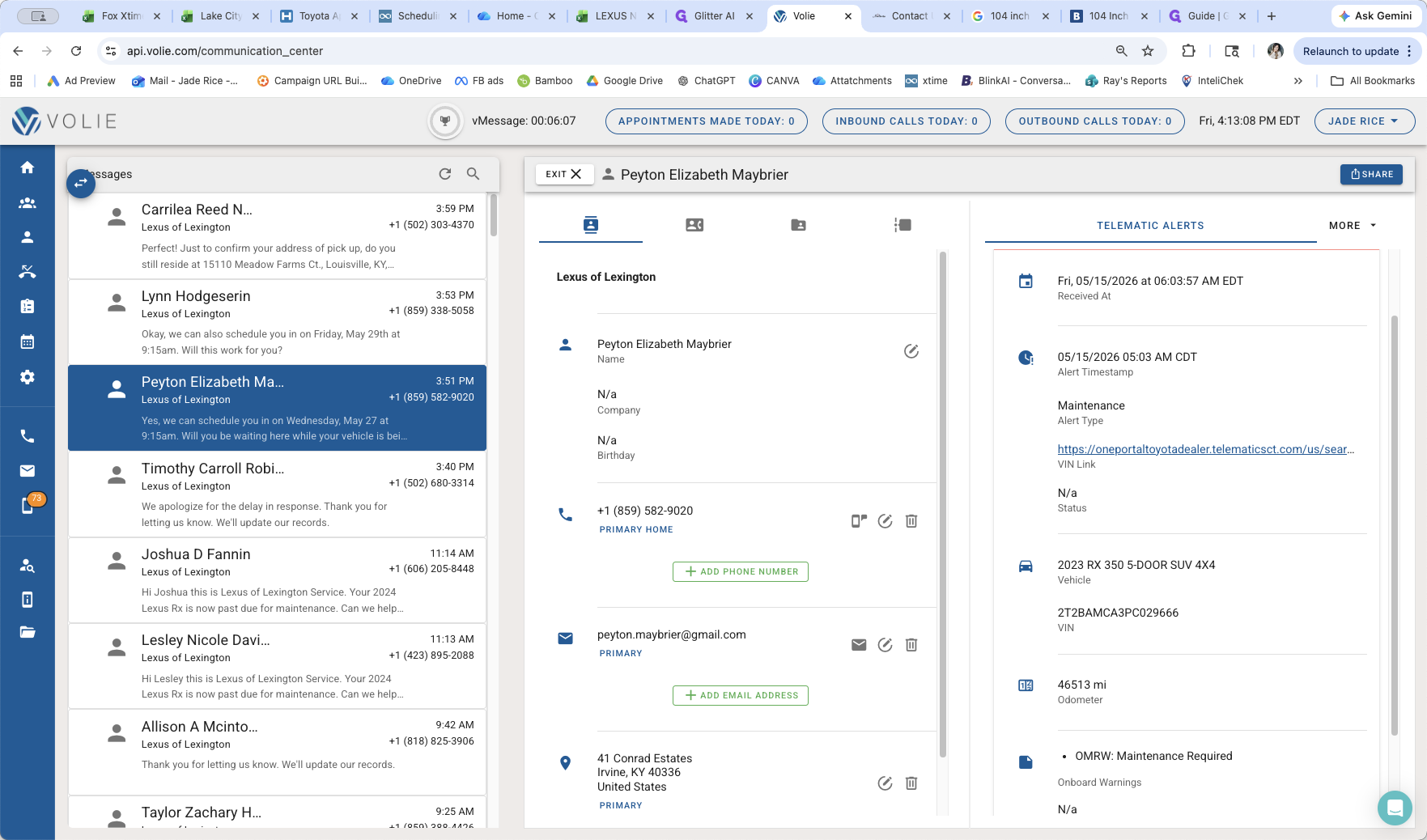
9
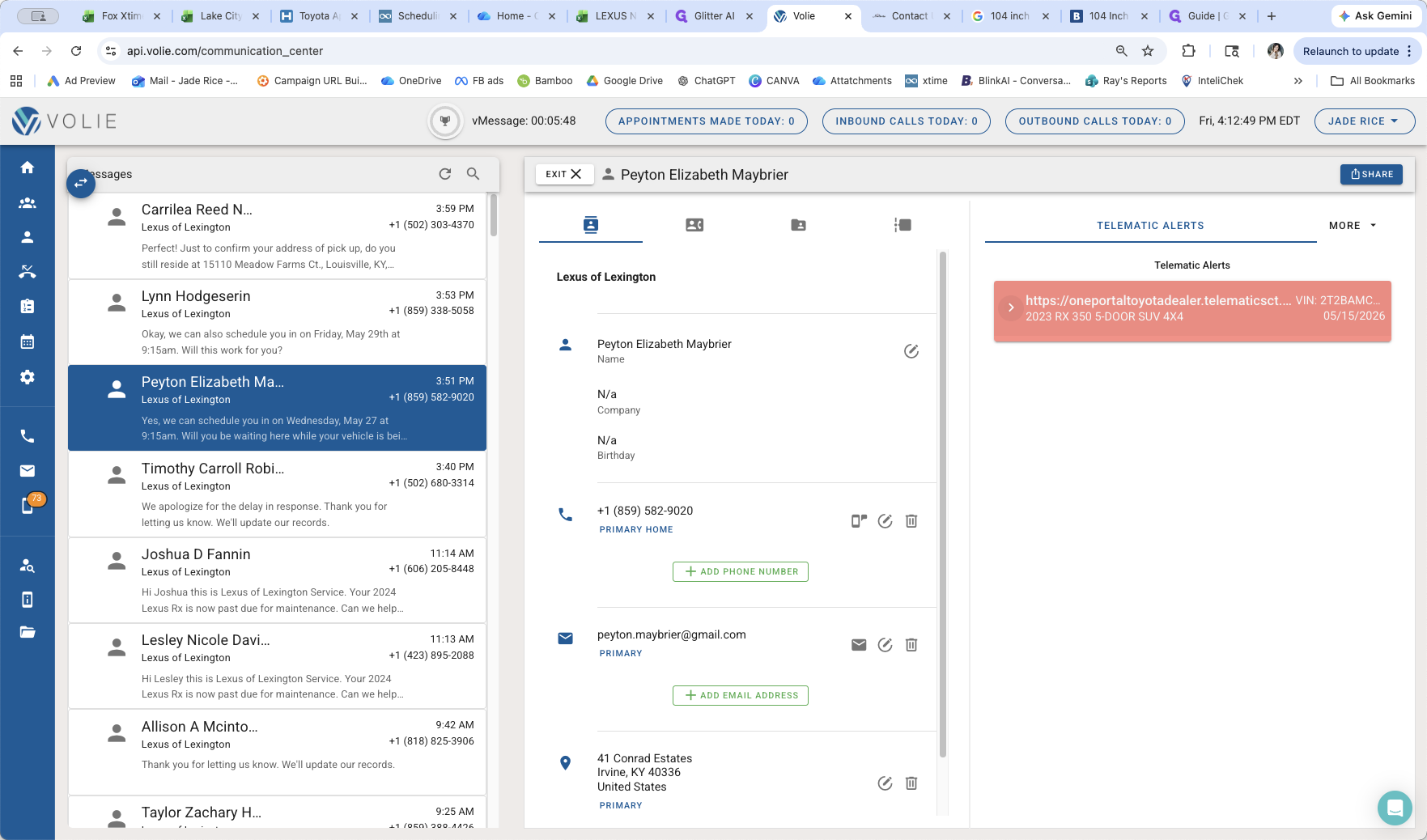
Expand the dropdown for the recent alert to view the vehicle model, VIN, time of the alert, alert type, and the vehicle's exact mileage when the alert fired.
Step #9: Expand the dropdown for the recent alert to view the vehicle model, VIN, time of the alert, alert type, and the vehicle's exact mileage when the alert fired.
10
If you need more advanced diagnostics, click the TIS Portal link to open the Toyota dealer portal directly.
Step #10: If you need more advanced diagnostics, click the TIS Portal link to open the Toyota dealer portal directly.

FAQ

Q: What does "Day 1" mean in the Campaign Enrollment History?

A: It means the diagnostic alert went off in the customer's car today, which immediately enrolled them and triggered the Day 1 campaign message.

Glossary

Term

Definition

TIS

Toyota Information System, a portal providing dealership personnel with service and diagnostic data.

Telematics

Diagnostic and operational data automatically transmitted from a connected vehicle to the manufacturer or dealership.

BDC

Business Development Center, the department handling inbound and outbound customer communications for the dealership.

How to View Customer Telematics and Service Alerts in Volie