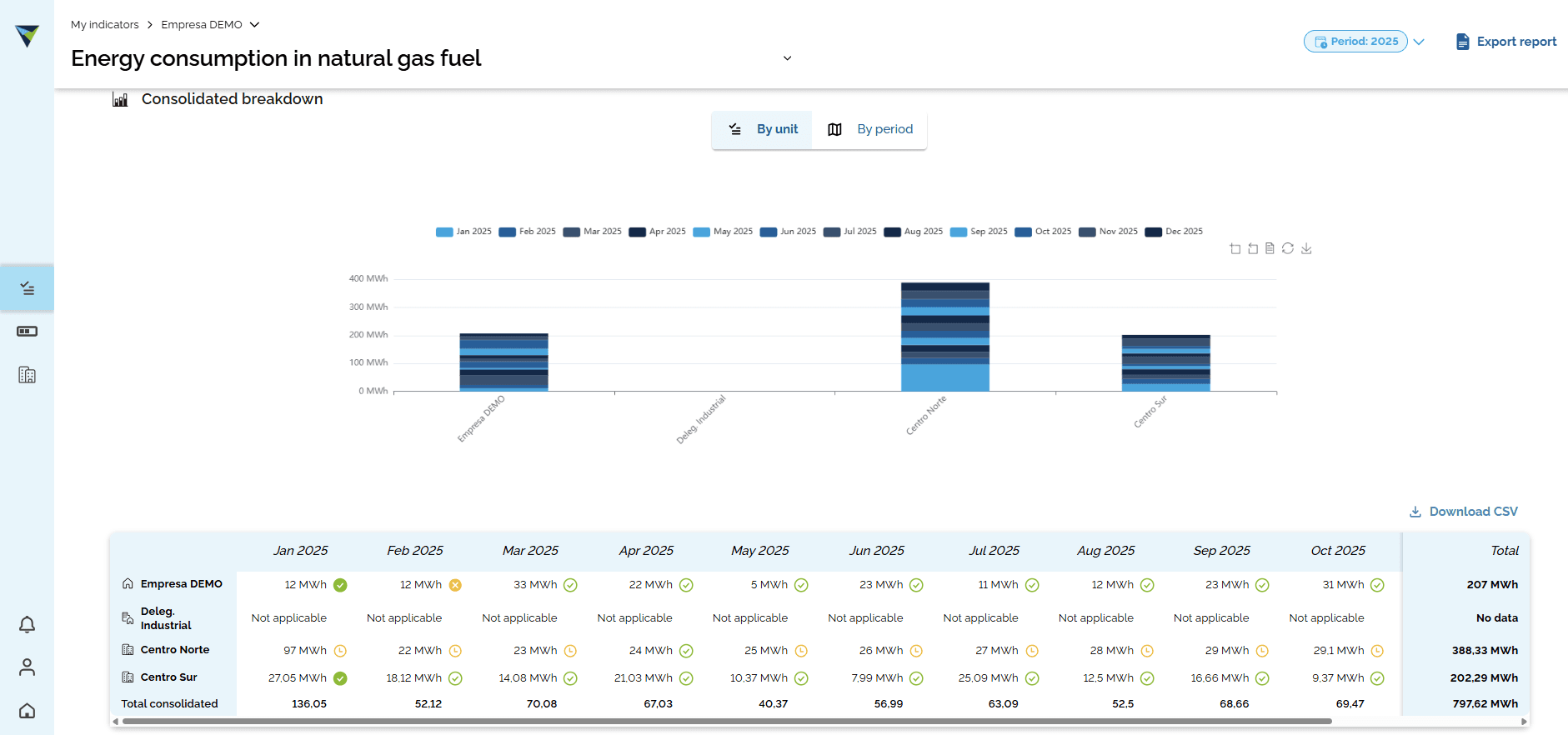
View the consolidated indicator summary and download the data tables
Learn how to get and download a consolidated summary of specific indicators in DATAIE for the business units you want. Here are the steps.
By Soporte DATAIE
In this guide, you will learn how to view a consolidated summary of a specific indicator for the business units you want. We will also go through the steps to get that summary and export it as a CSV file.
Let's get started
1
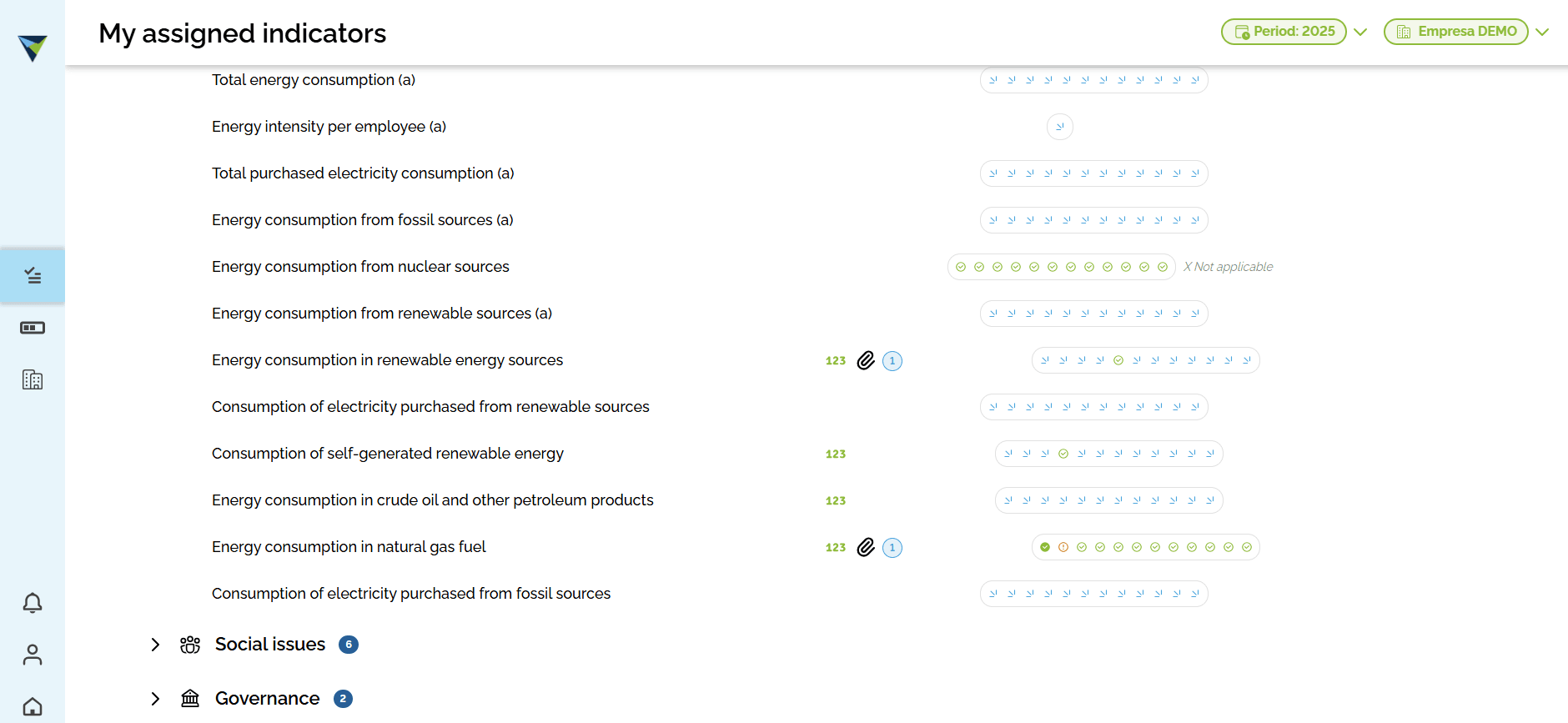
Select the indicator you want. Just click on it.
2
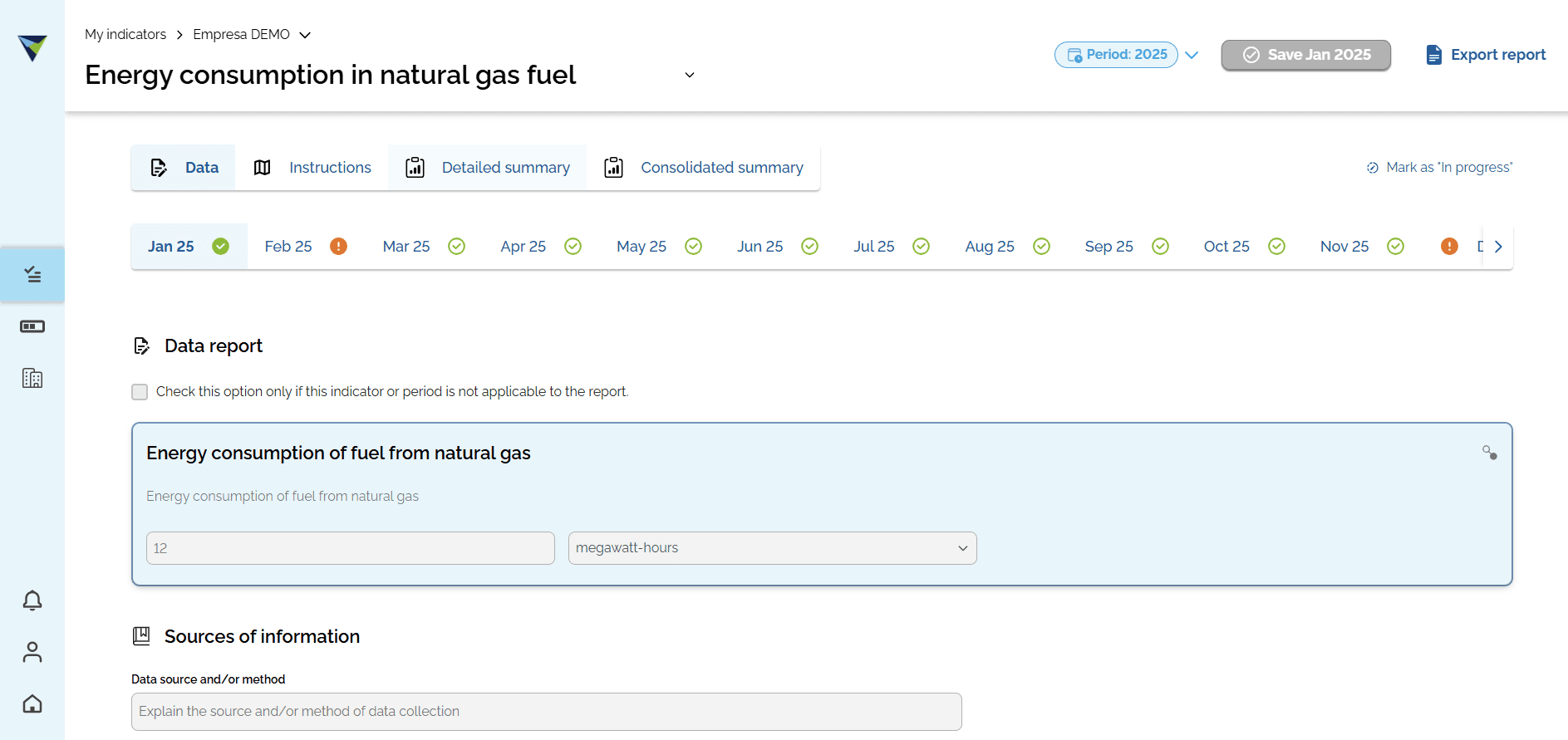
After you open the indicator, you will see different tabs. Click "Detailed summary"
3
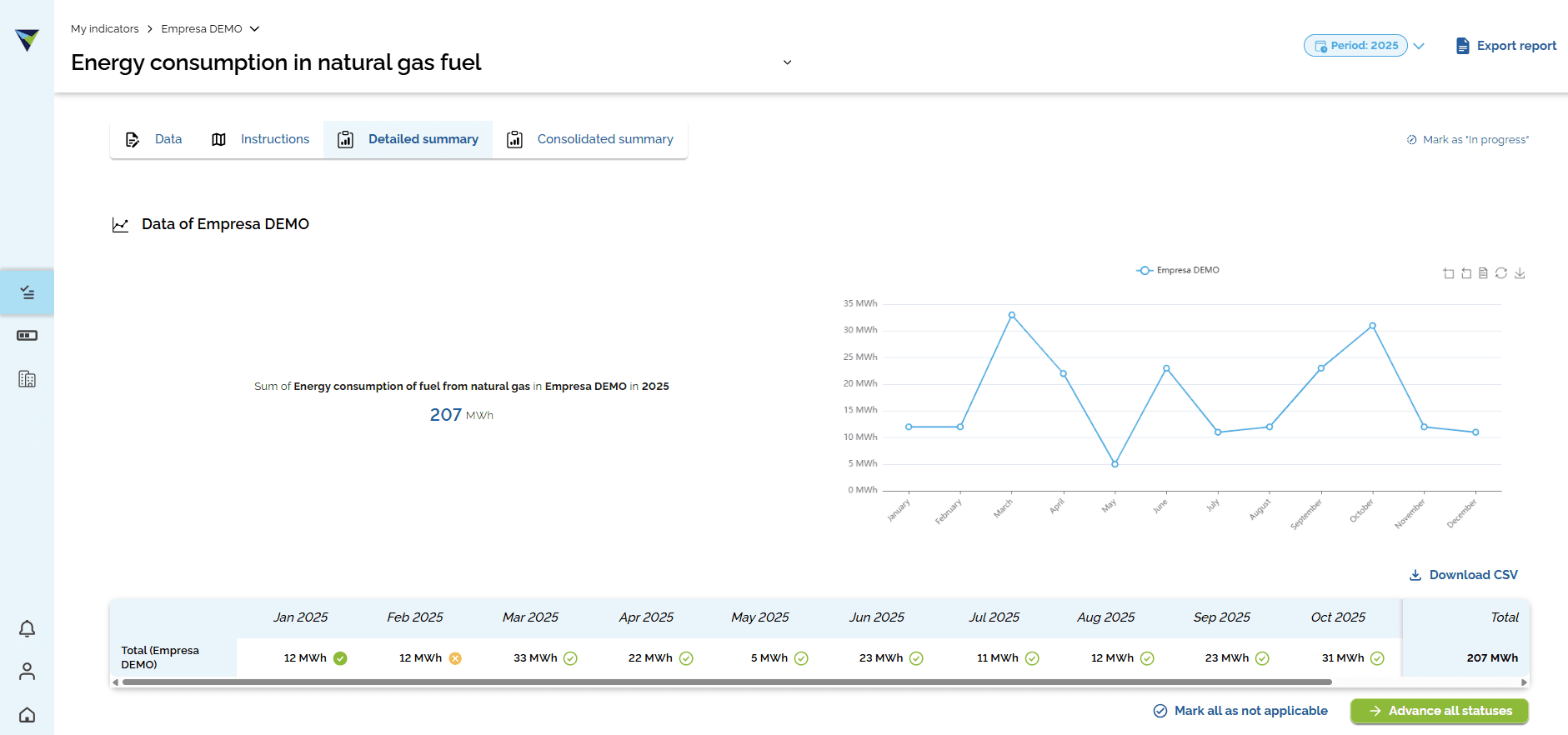
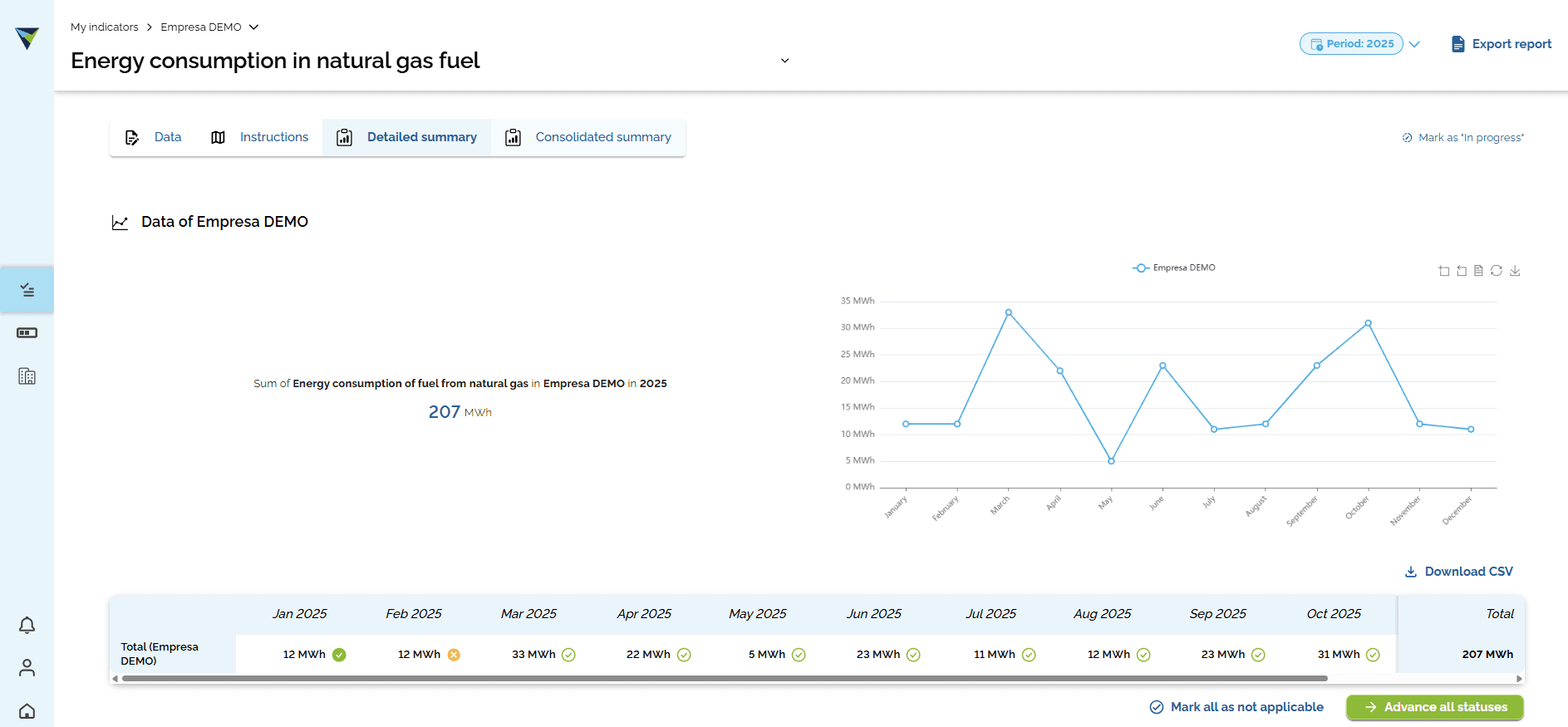
On this tab, at the bottom, you will see a summary table for the indicator in the selected business unit. You can download the information as a CSV file.
4
You can also view the consolidated summary by clicking the "Consolidated summary" tab.
5
As in the previous step, a summary table for the indicator appears at the bottom. This table shows the consolidated data for all the business units involved. You can also download it as a CSV file.