Vima Polls Management
By Thivashini Krishnakumar
Duplicate and Prepare the Poll
First, duplicate an existing poll.
1
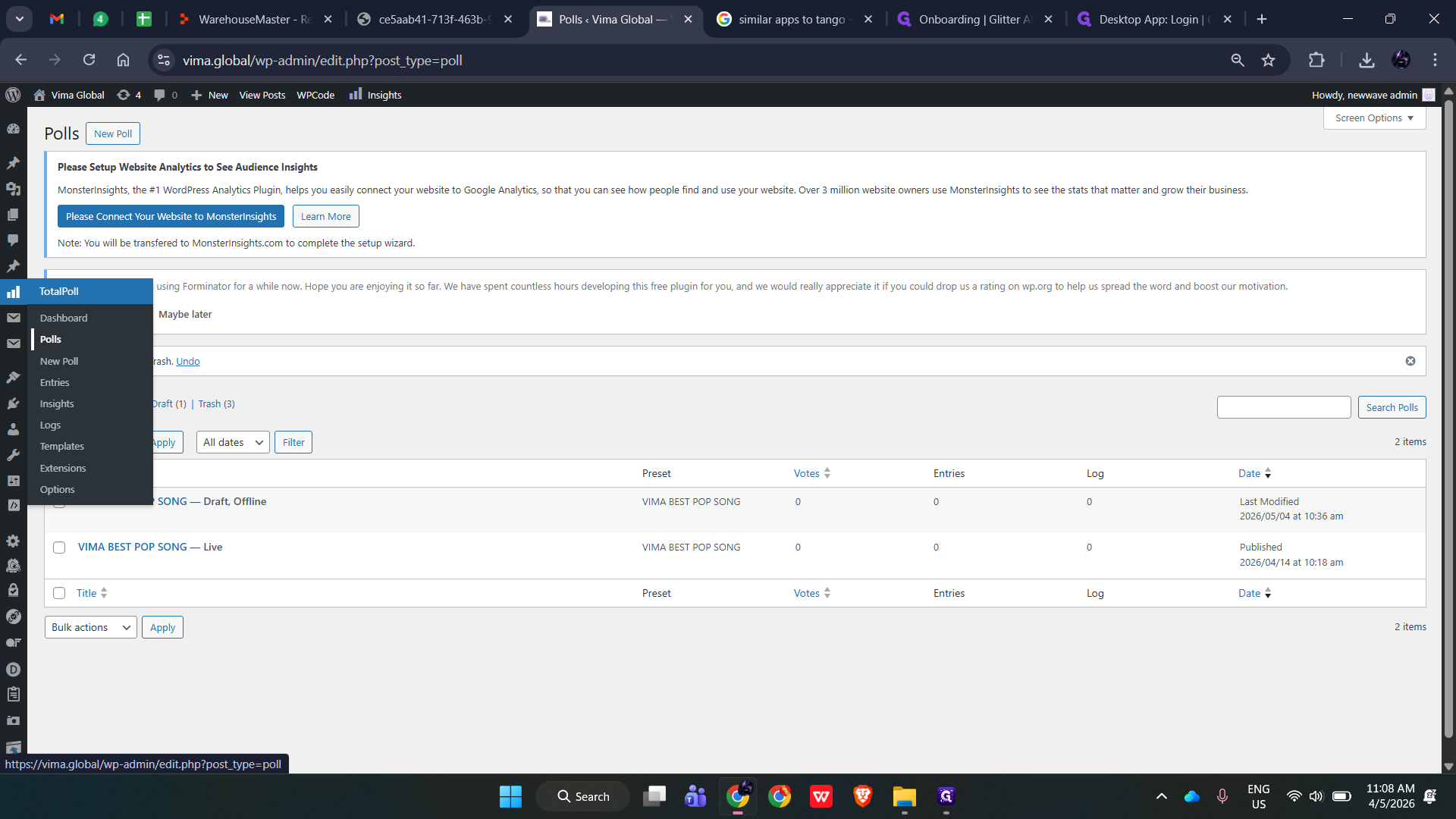
Navigate to your WordPress dashboard and click on Polls in the sidebar.
2
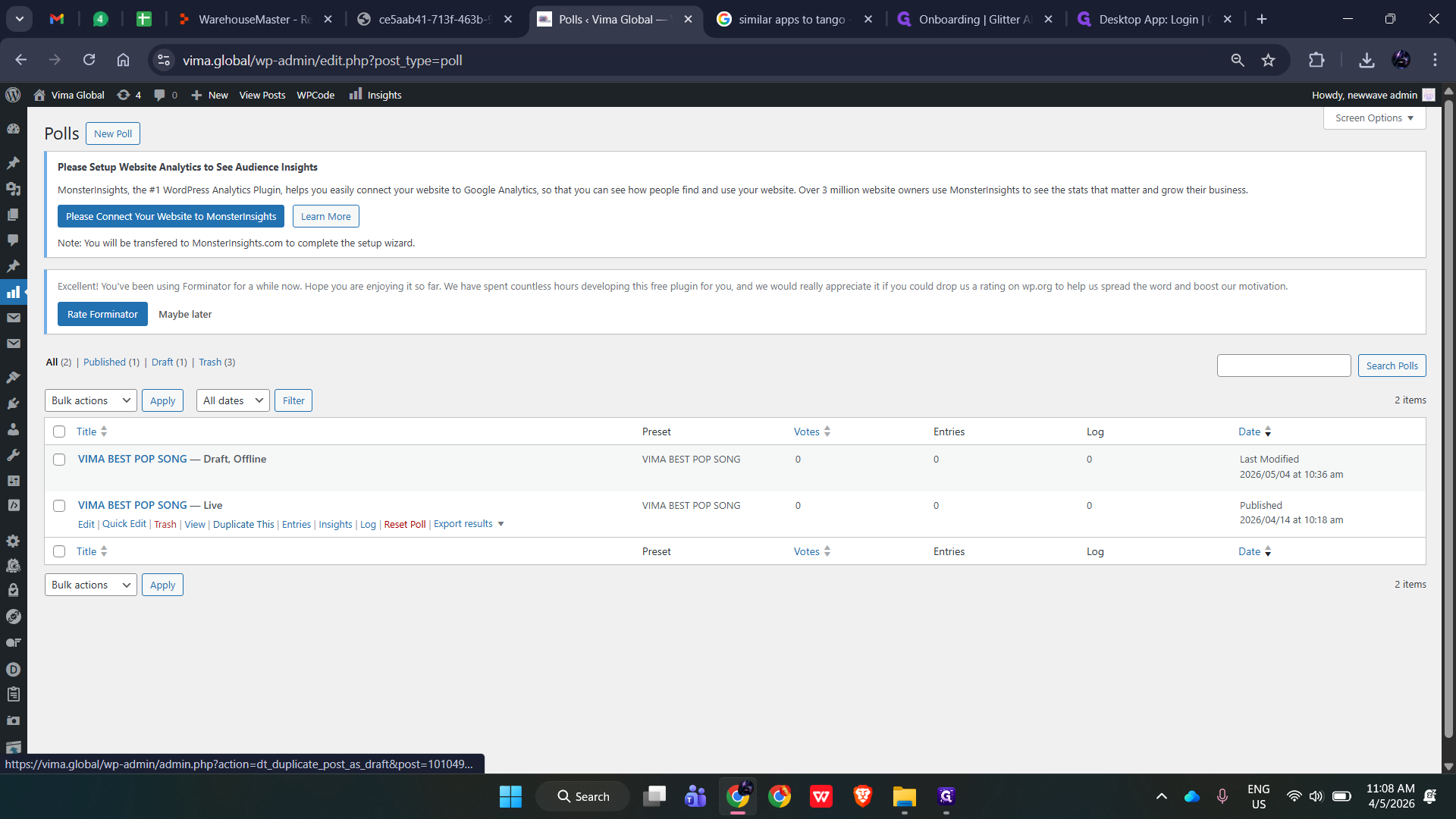
Hover over the poll you want to copy and click Duplicate This.
3
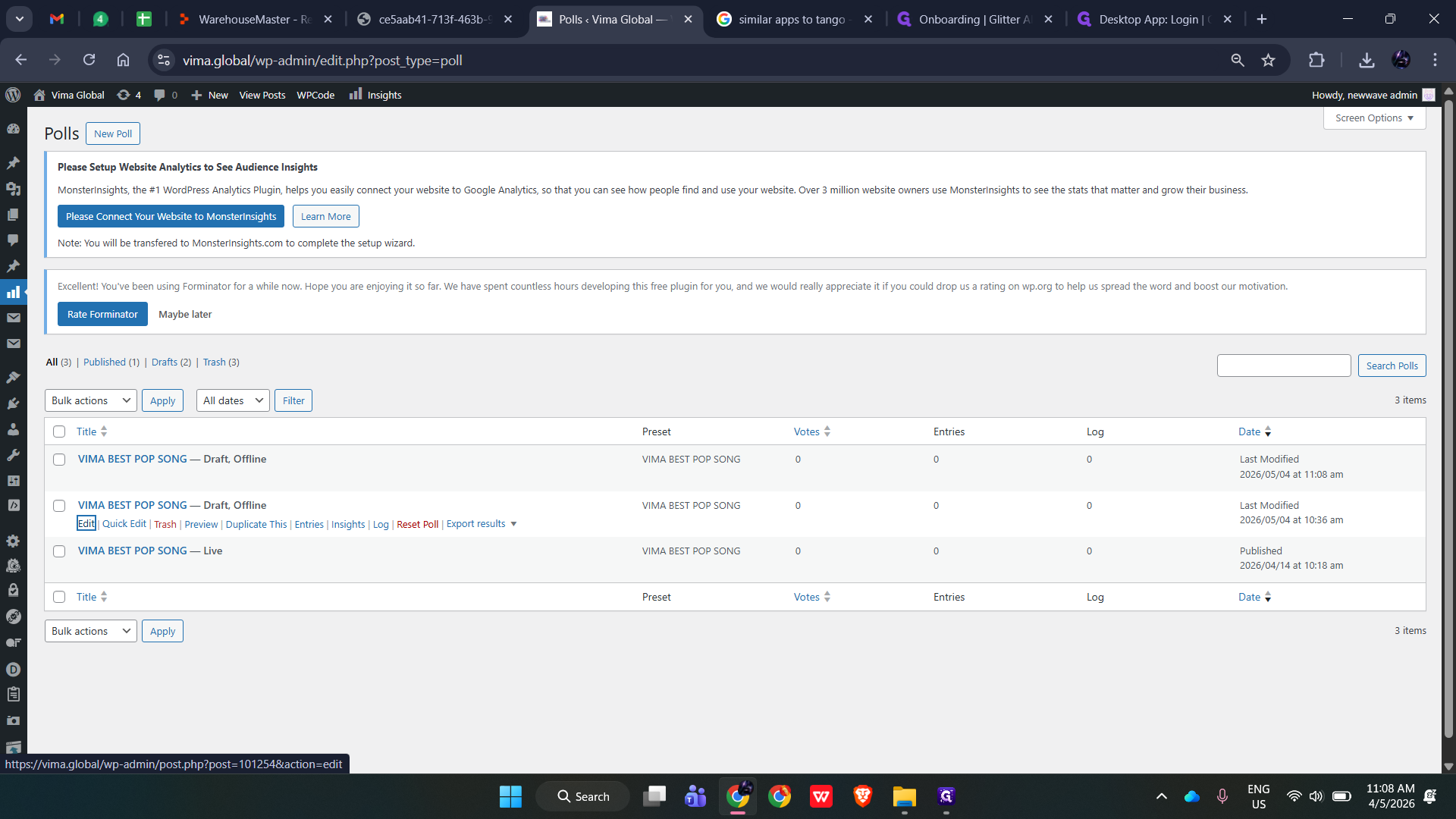
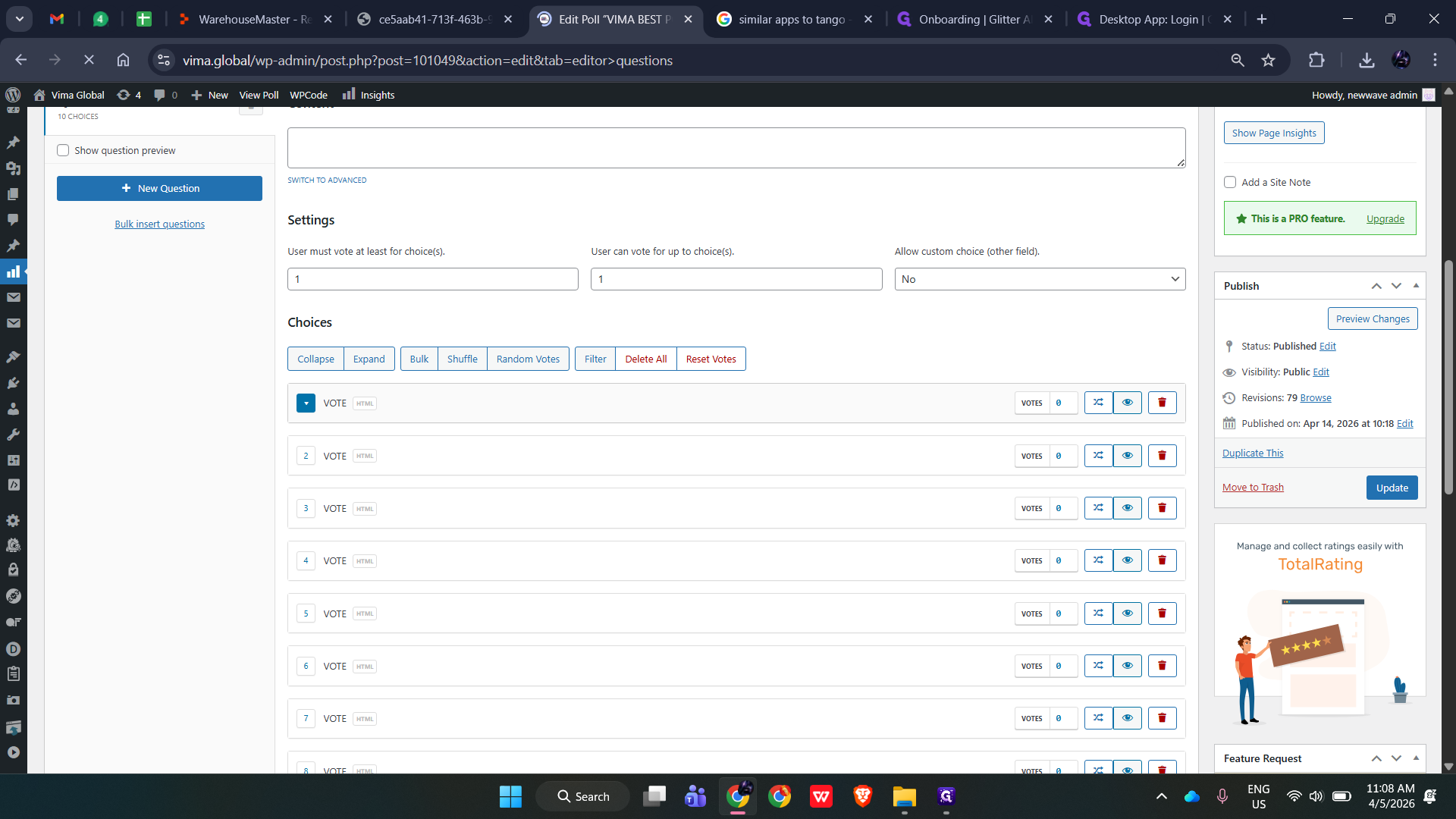
Hover over the live poll and click Edit
4
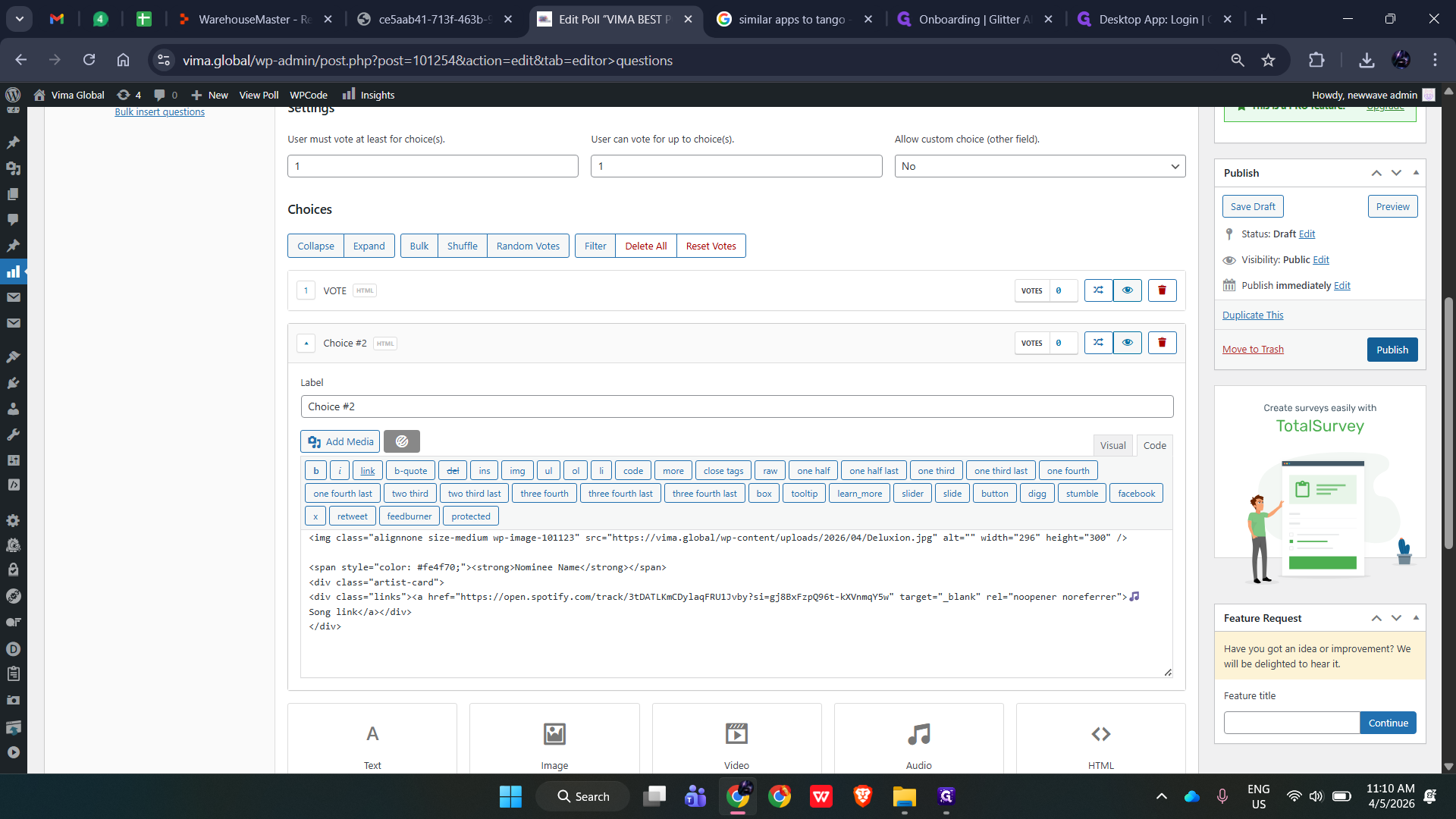
In the Choices section, click arrow on any choice and copy the code
5
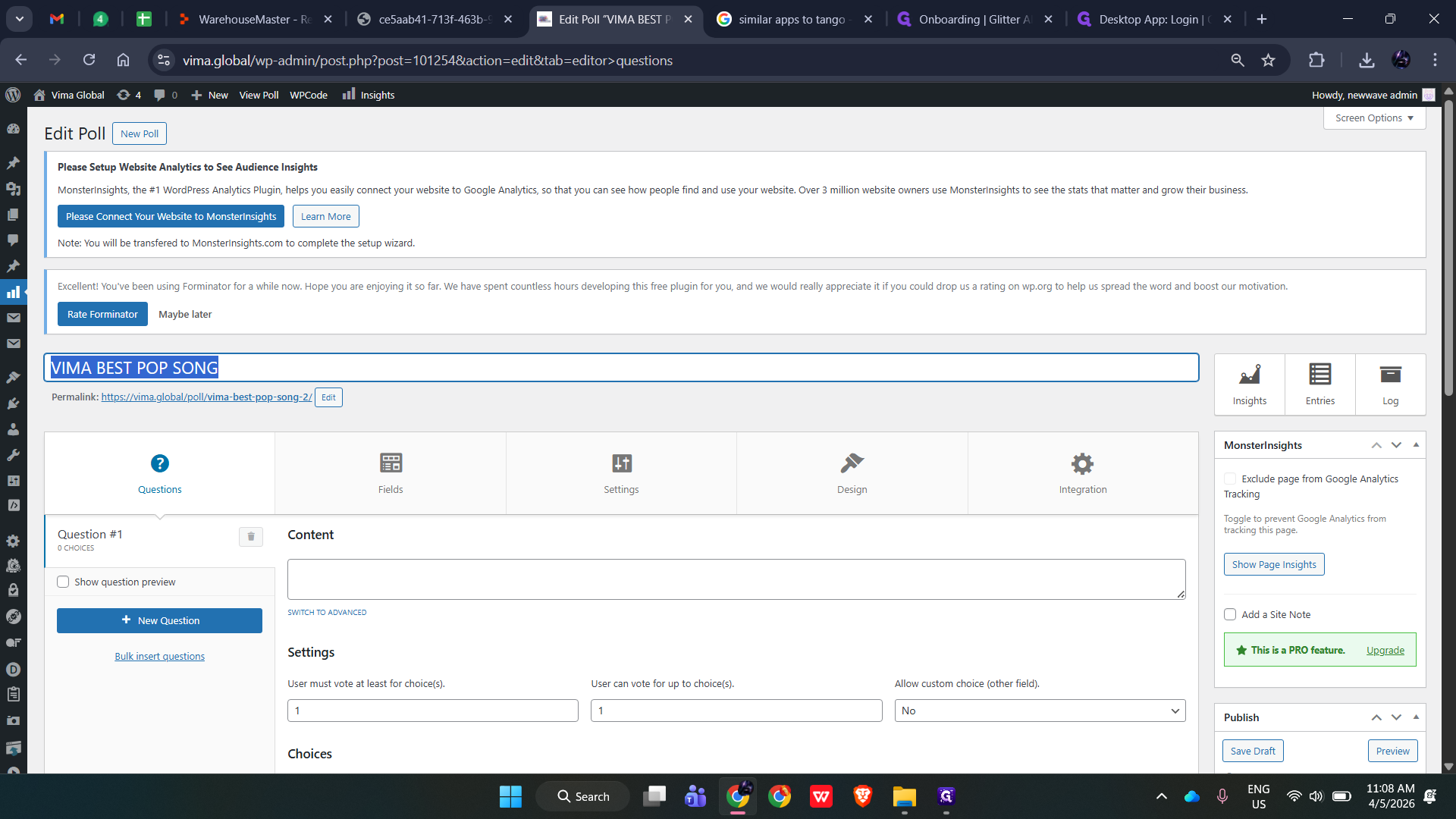
Now go back to the polls page and Edit the newly duplicated poll
6
Type in your new poll category, such as BEST DANCE SONG.
Set Up a Custom Choice Template
7
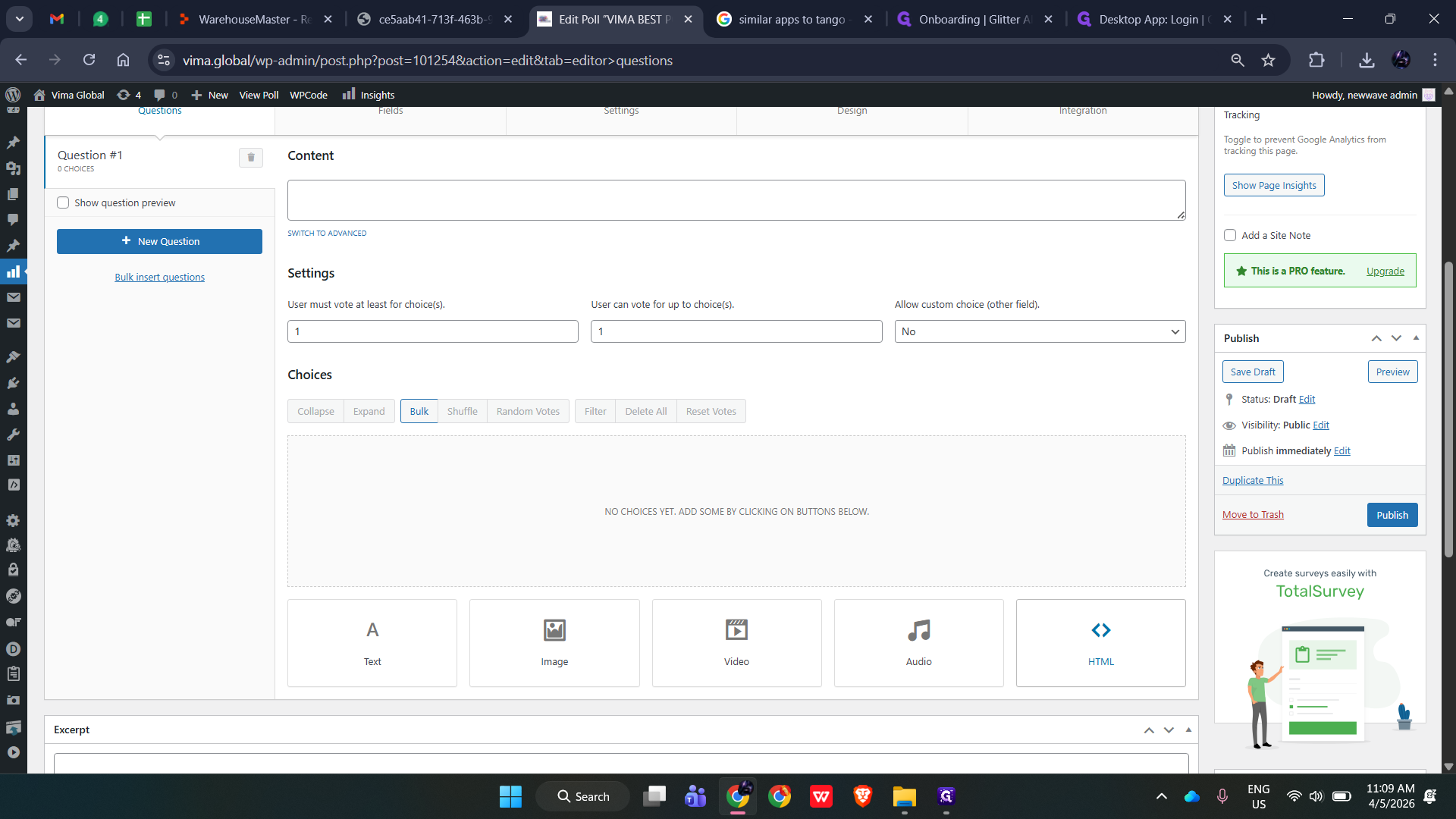
Click the HTML option inside your first choice block to use rich text configuration.
8
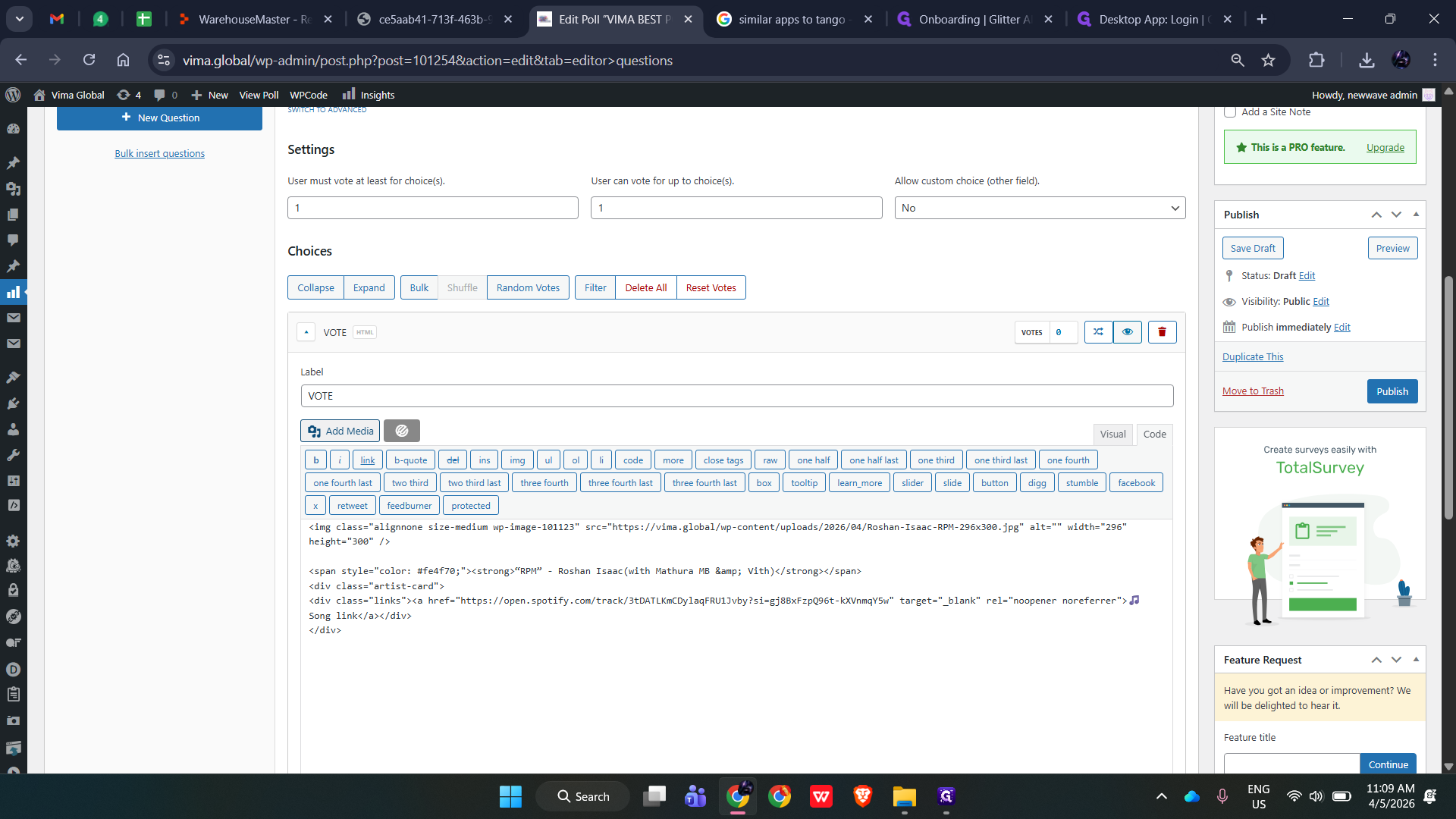
Type VOTE for the label of the choice (for all choices)
9
Paste the copied code here. Click the Add Media button above the editor.
10
Select the image you want to feature for this poll choice.
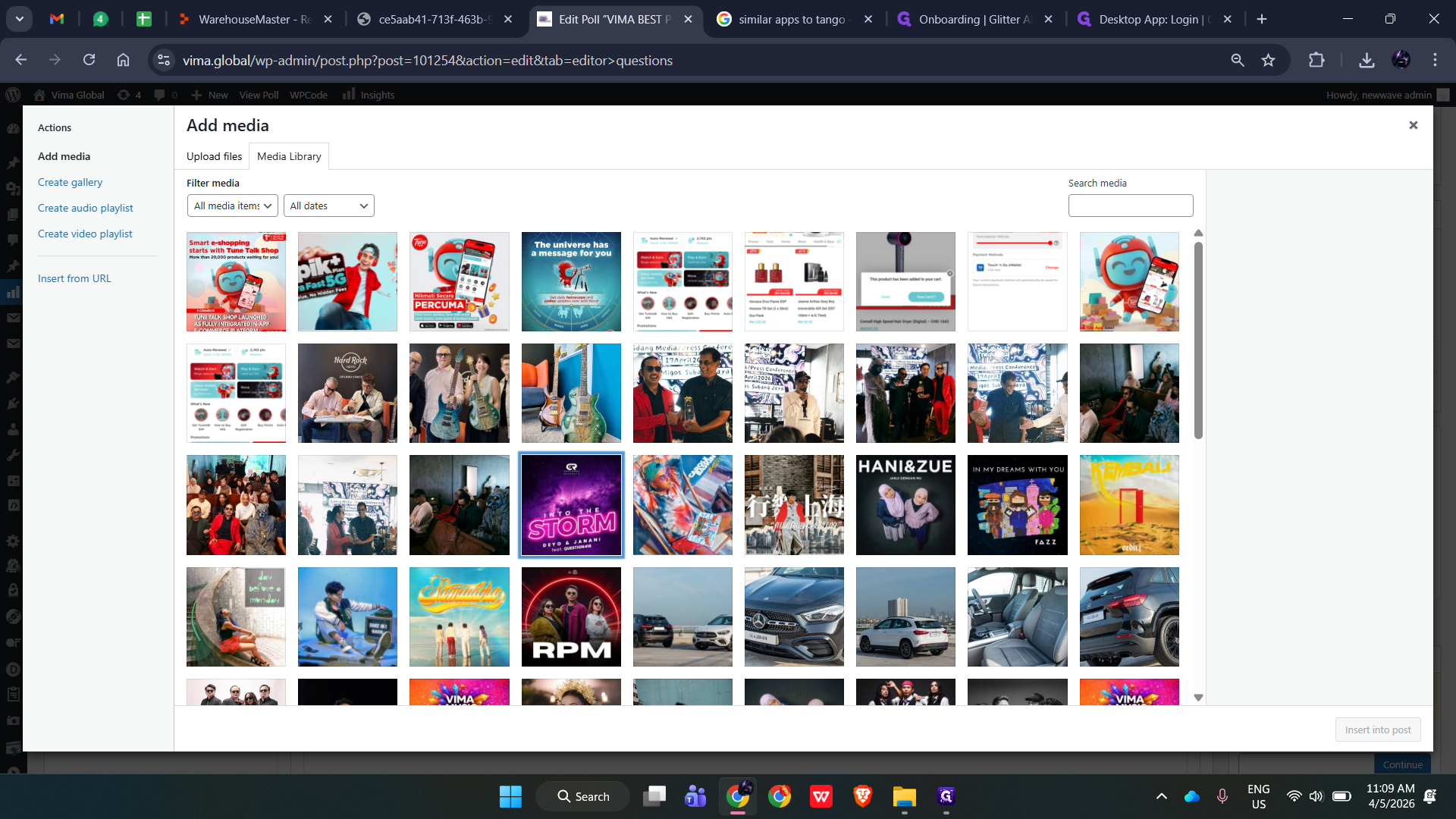
11
In the right-hand sidebar, double-click the File URL field and press
Ctrl + C (or Cmd + C on Mac) to copy the link.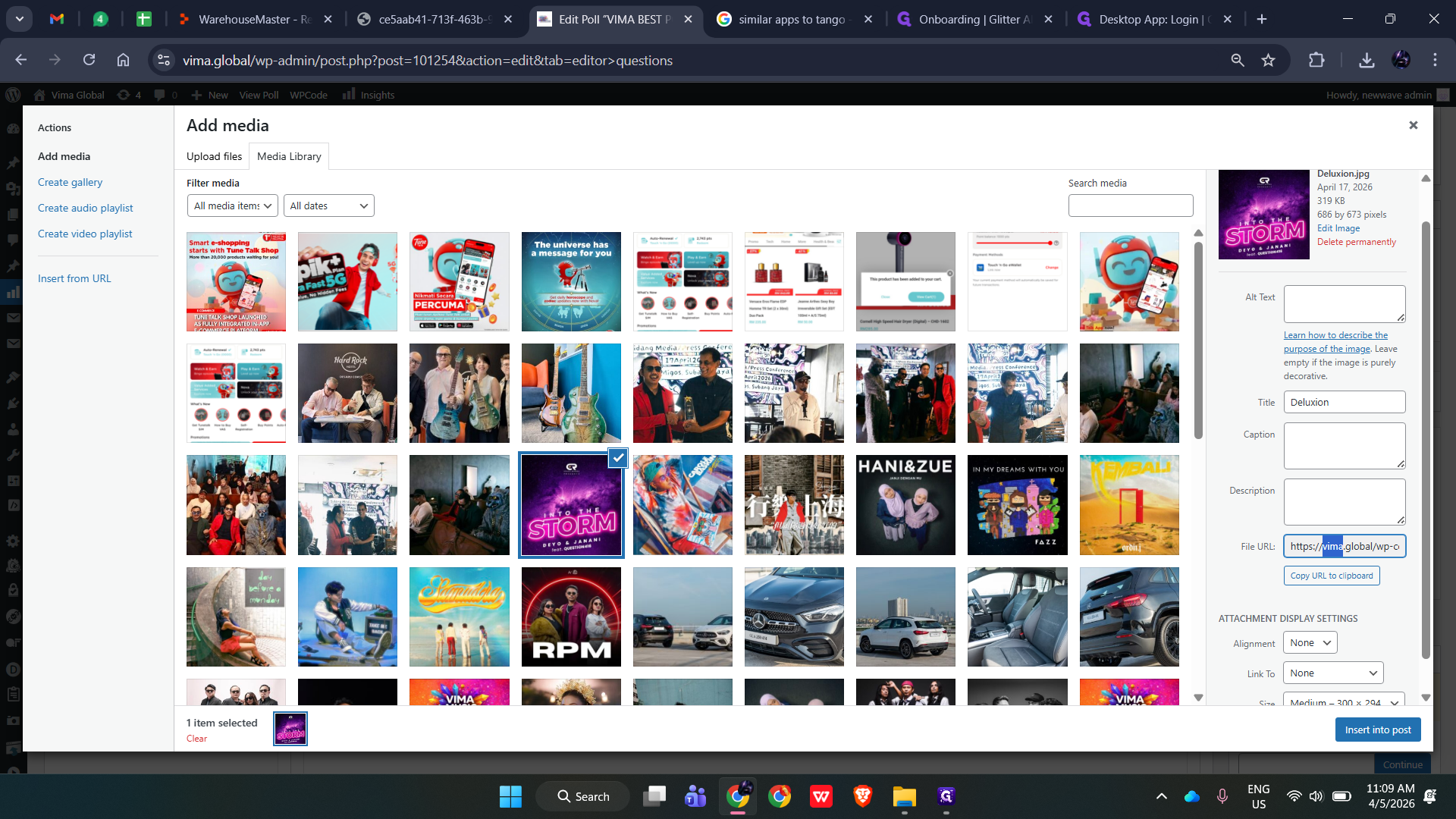
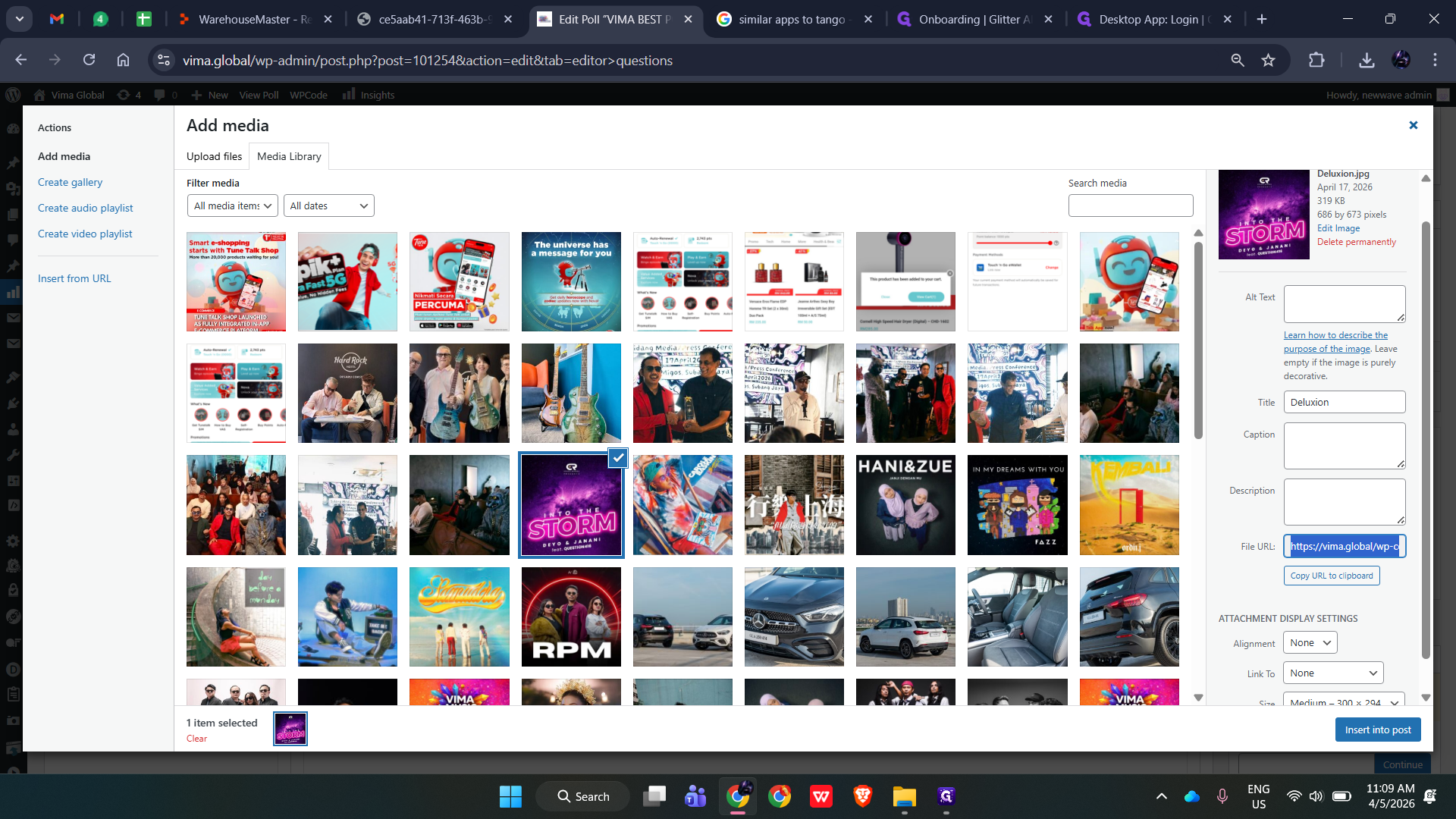
12
Click the × icon to close the Add Media modal without inserting anything.
13
Highlight the image source URL (
src="...") within your choice's existing HTML code.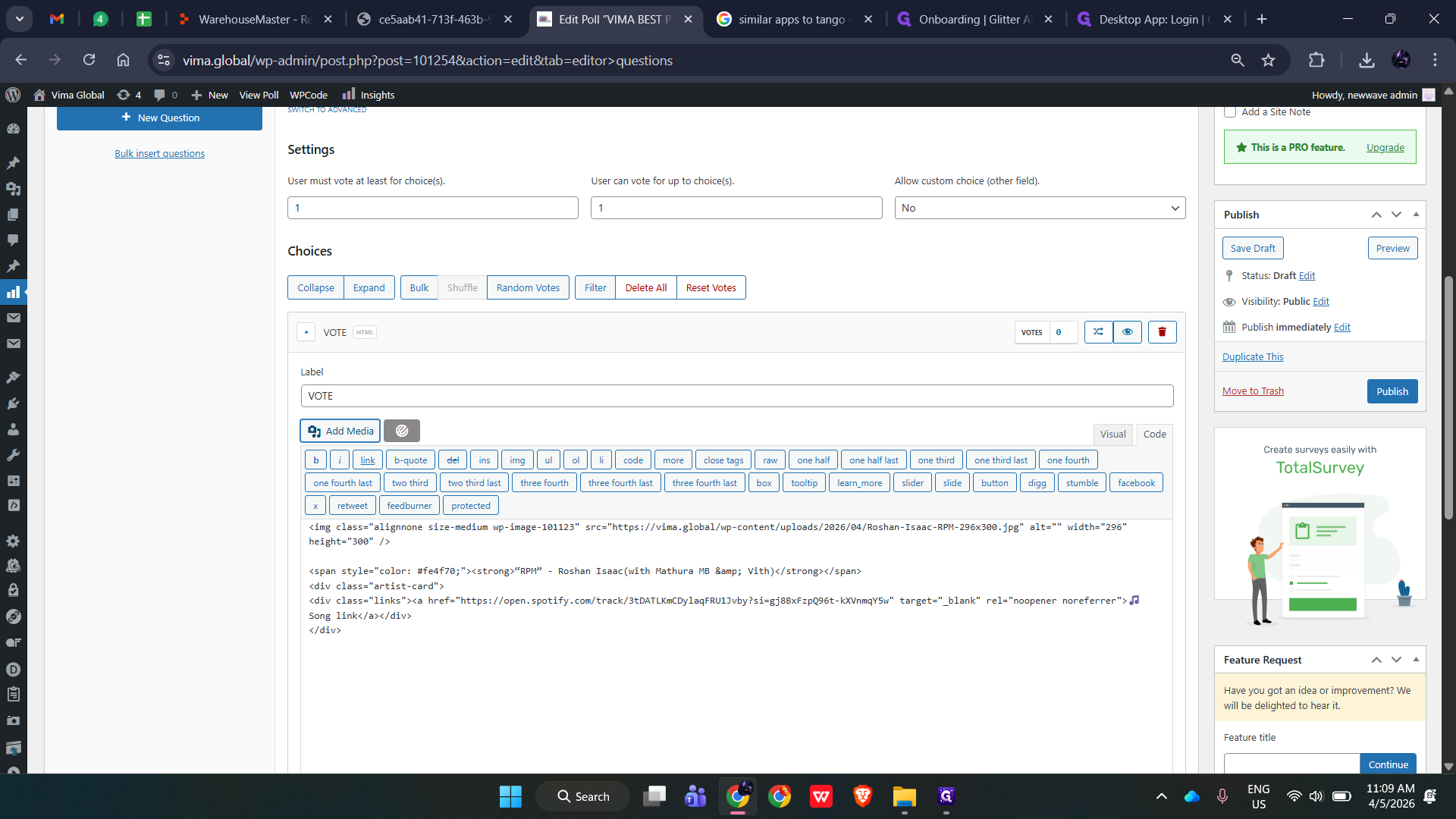
14
Press
Ctrl + V to paste and replace it with the new image URL you just copied.15
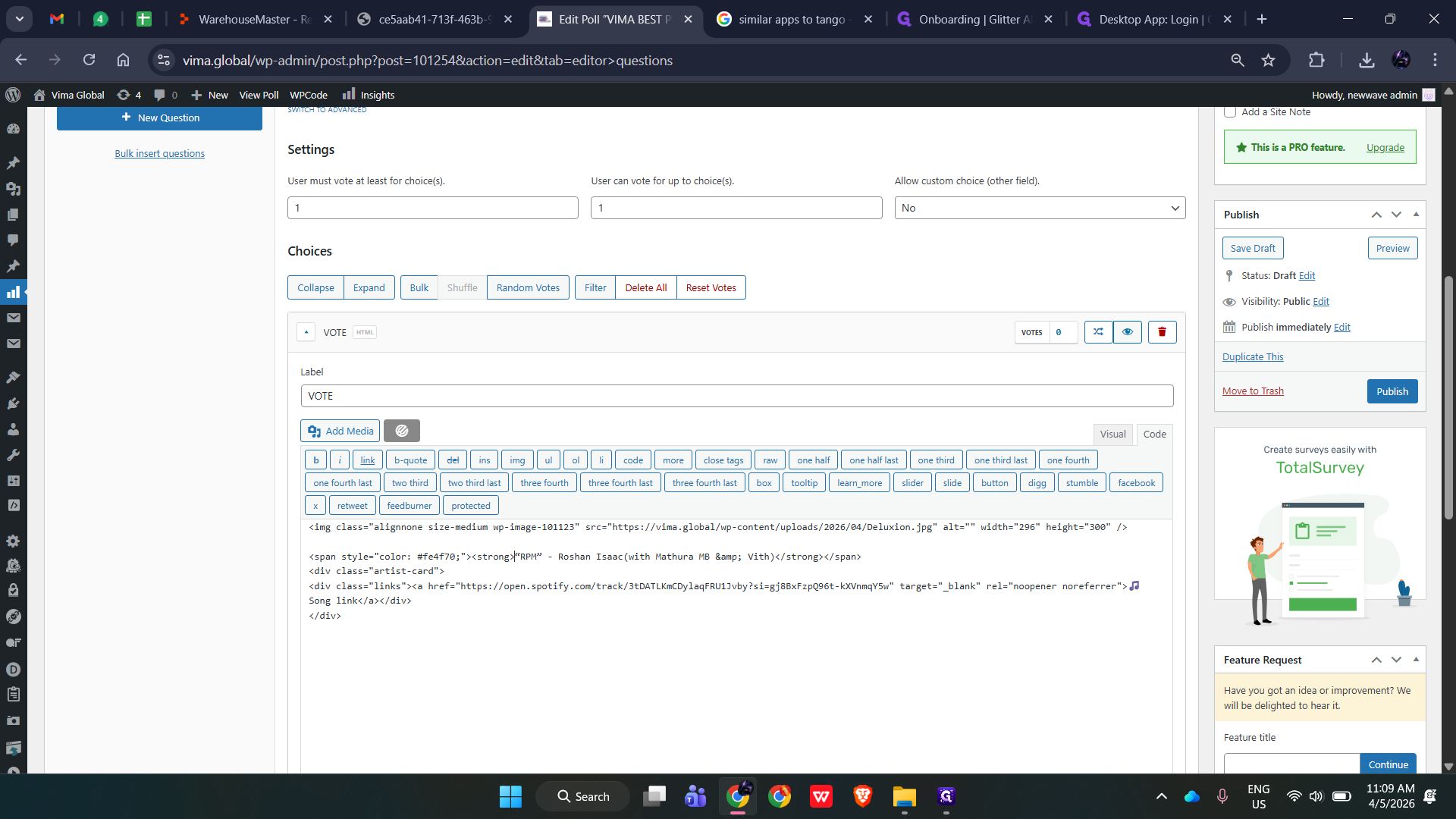
Highlight the old nominee name or song title in the HTML.
16
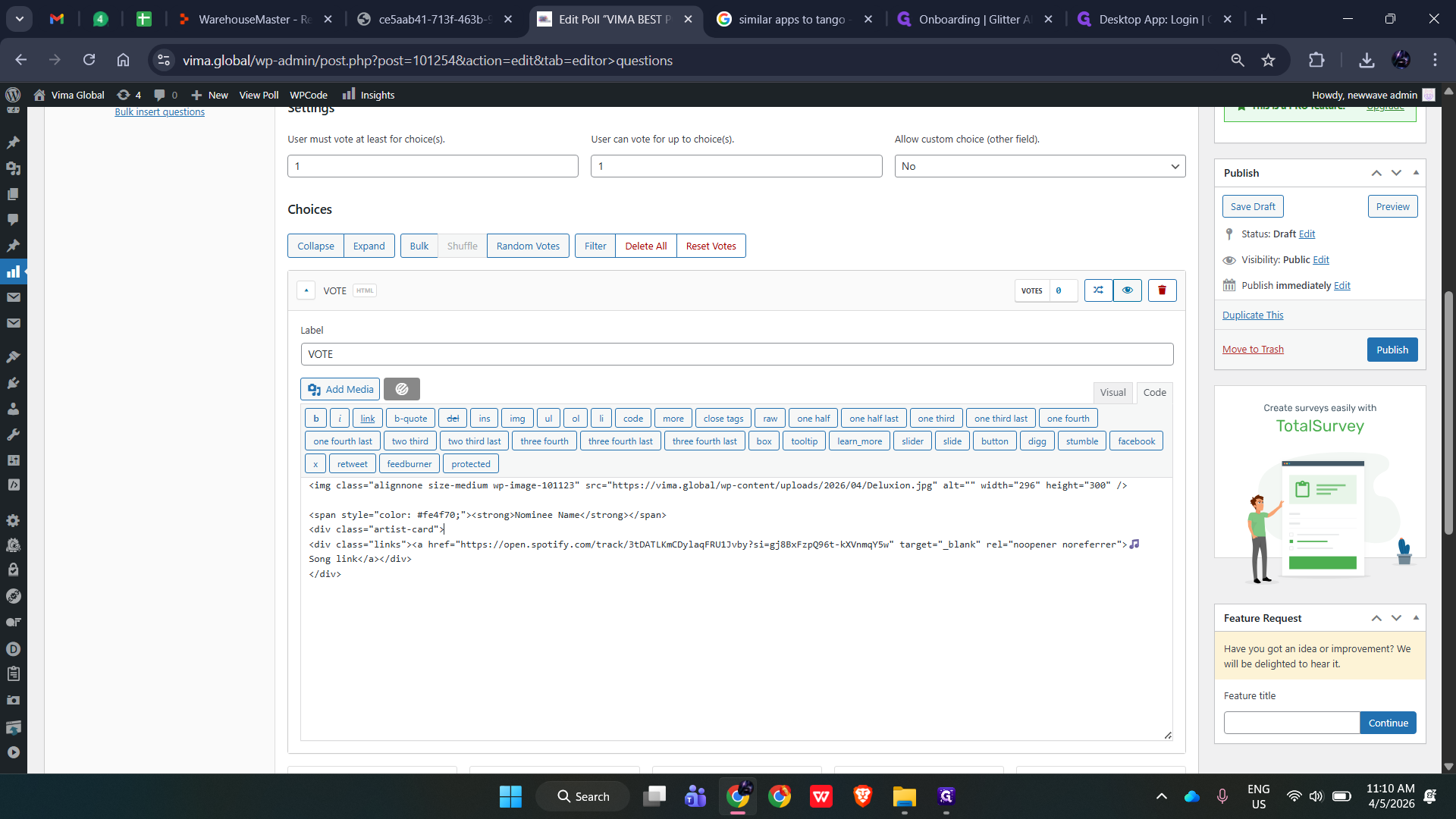
Type the new Nominee Name to update the text.
17
Then go to next links class to change the song link.
18
Repeat until all the choices are added to the poll.
19
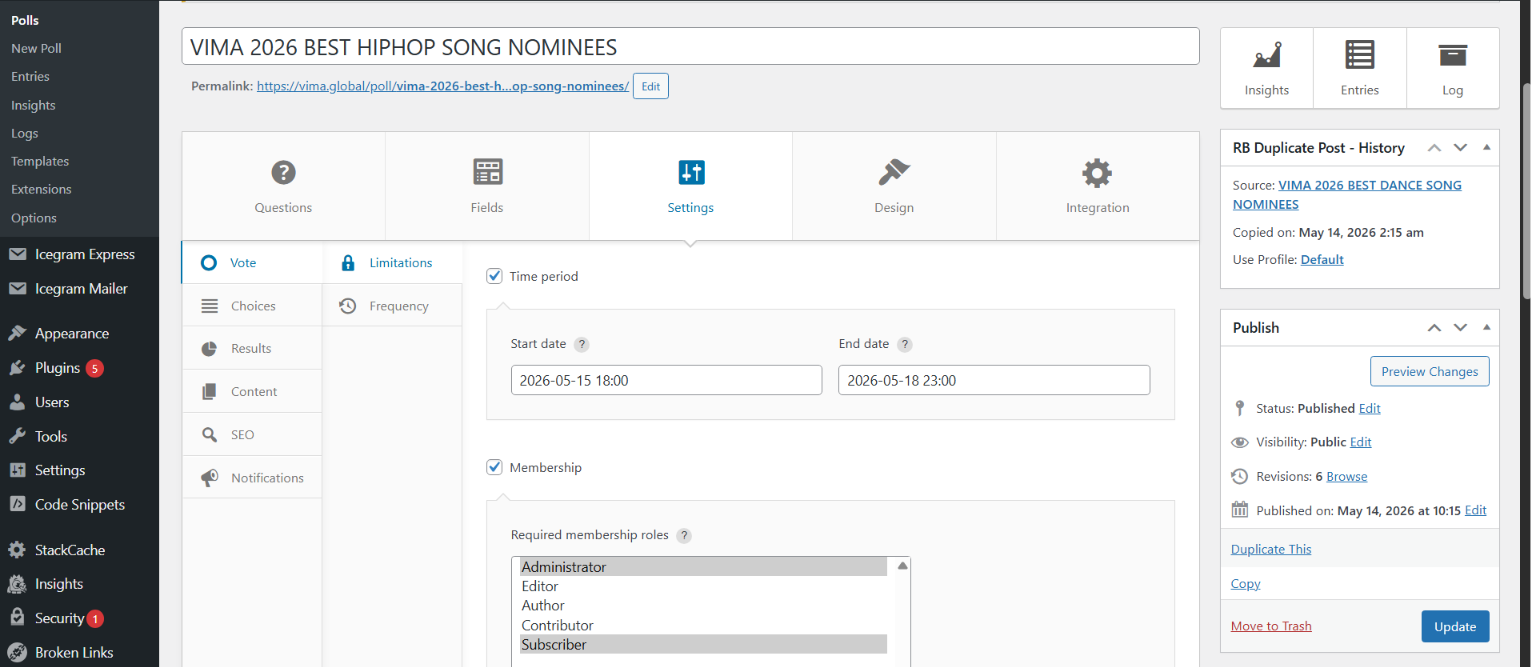
Go to settings tab and update the start and end date and time for the voting session
20
Once all choices are configured, review your poll and click Publish to make it live.