
Zoom - Schedule a Meeting in Focus Mode
Learn how to schedule a Zoom meeting in Focus Mode, manage participant permissions, restrict screen sharing, and safely record the session.
This guide explains how to schedule and run a Zoom meeting in Focus Mode, allowing you to manage participant permissions, restrict screen sharing, and record the session securely.
This process is ideal for hosts, educators, and webinar administrators who need to minimize distractions and maintain strict control over attendee interactions.
Schedule a Focus Mode Meeting
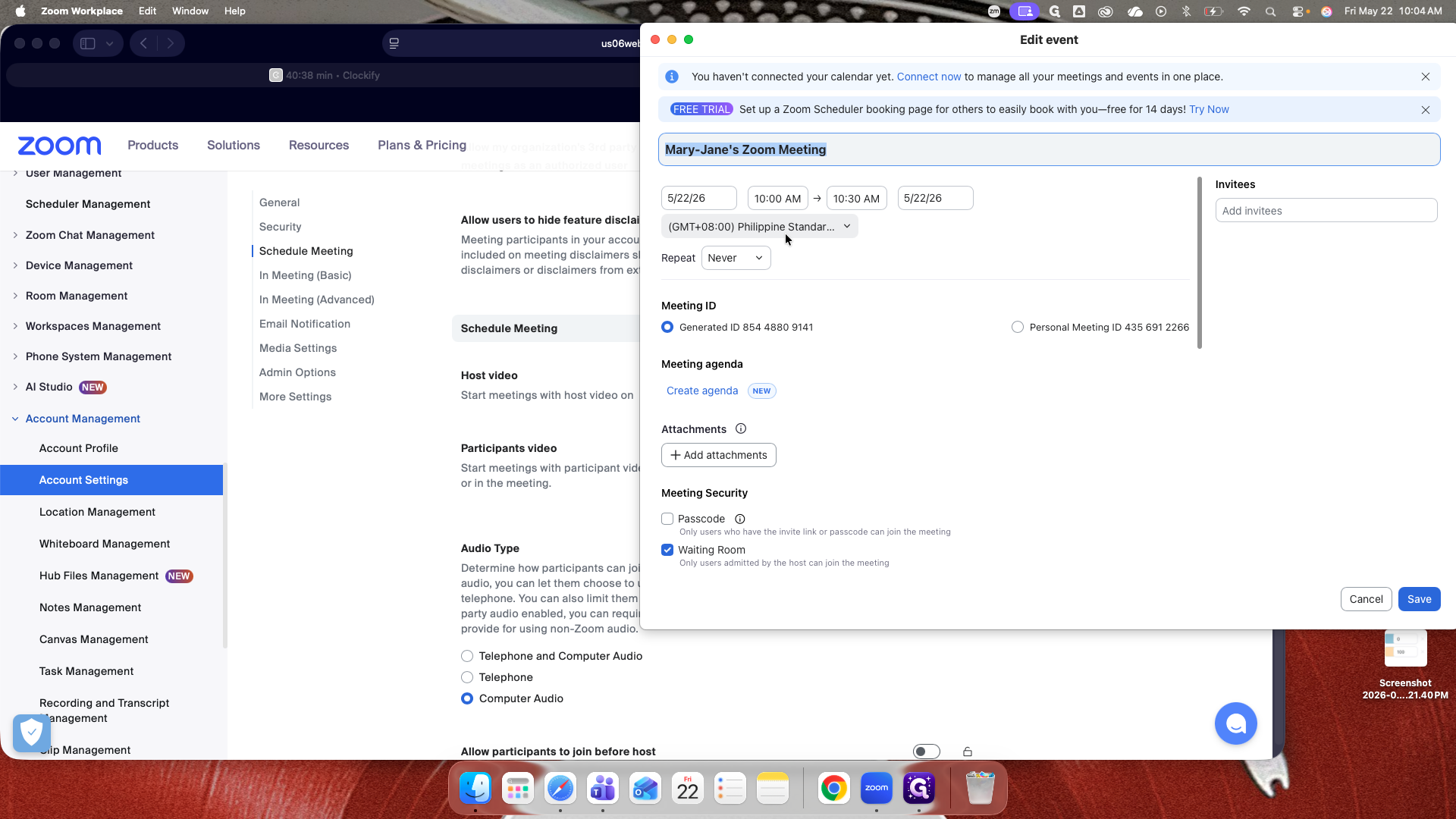
Only check the Passcode button if you only want participants that have an invite link or passcode can join the meeting, this is good for Registered Webinars. As the passcode will be embedded in the invite link. Users who have the invite link will not have to enter the passcode manually.
Only check authenticated users can join: Sign in to Zoom, if you don't want any unnamed or anonymous participants to join your meeting.
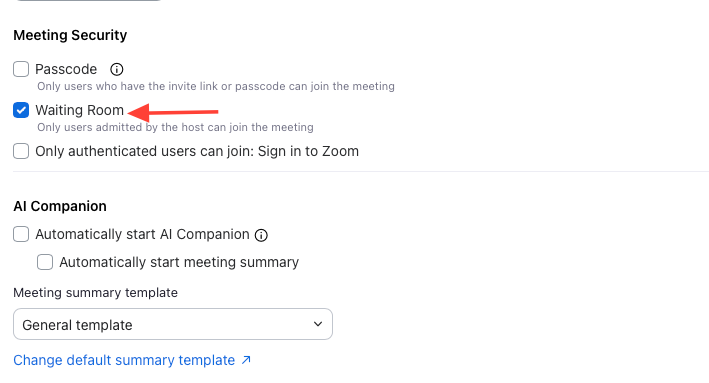
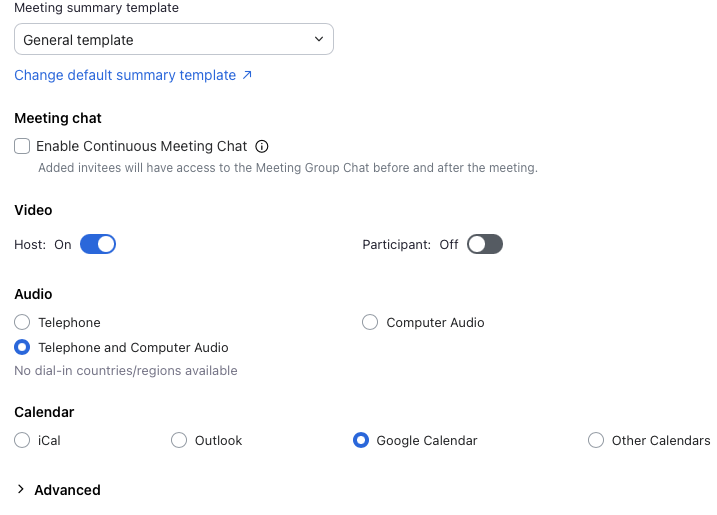
Turn on Video of the Host and Turn off Video for Participants, so if the participants will enter the meeting, their video will automatically be turned off.
For Audio, select Telephone and Computer Audio
For Calendar, select Google Calendar
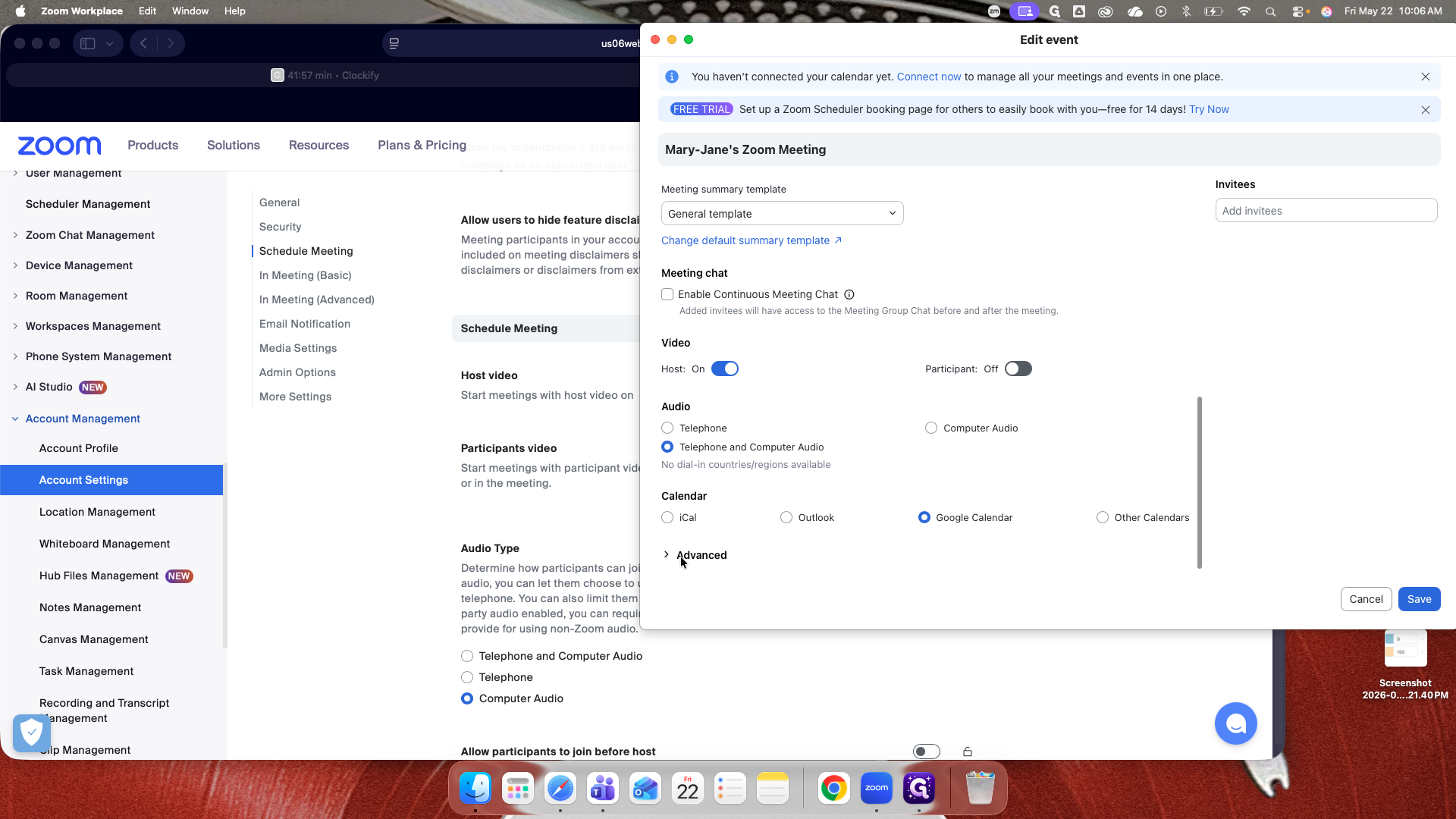
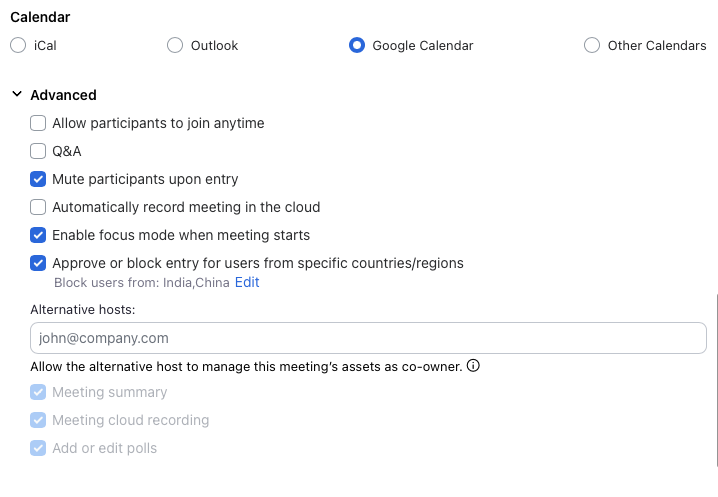
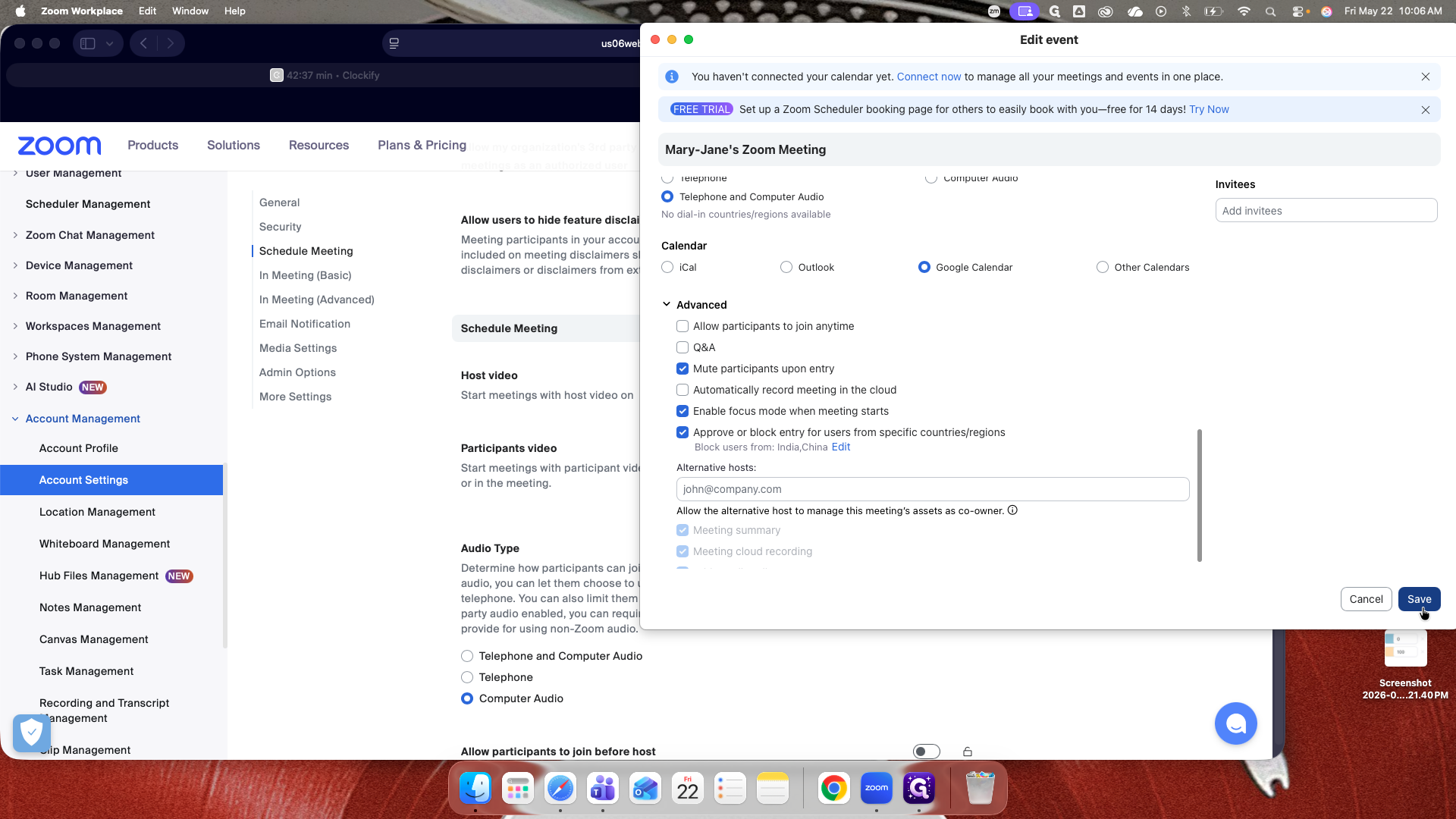
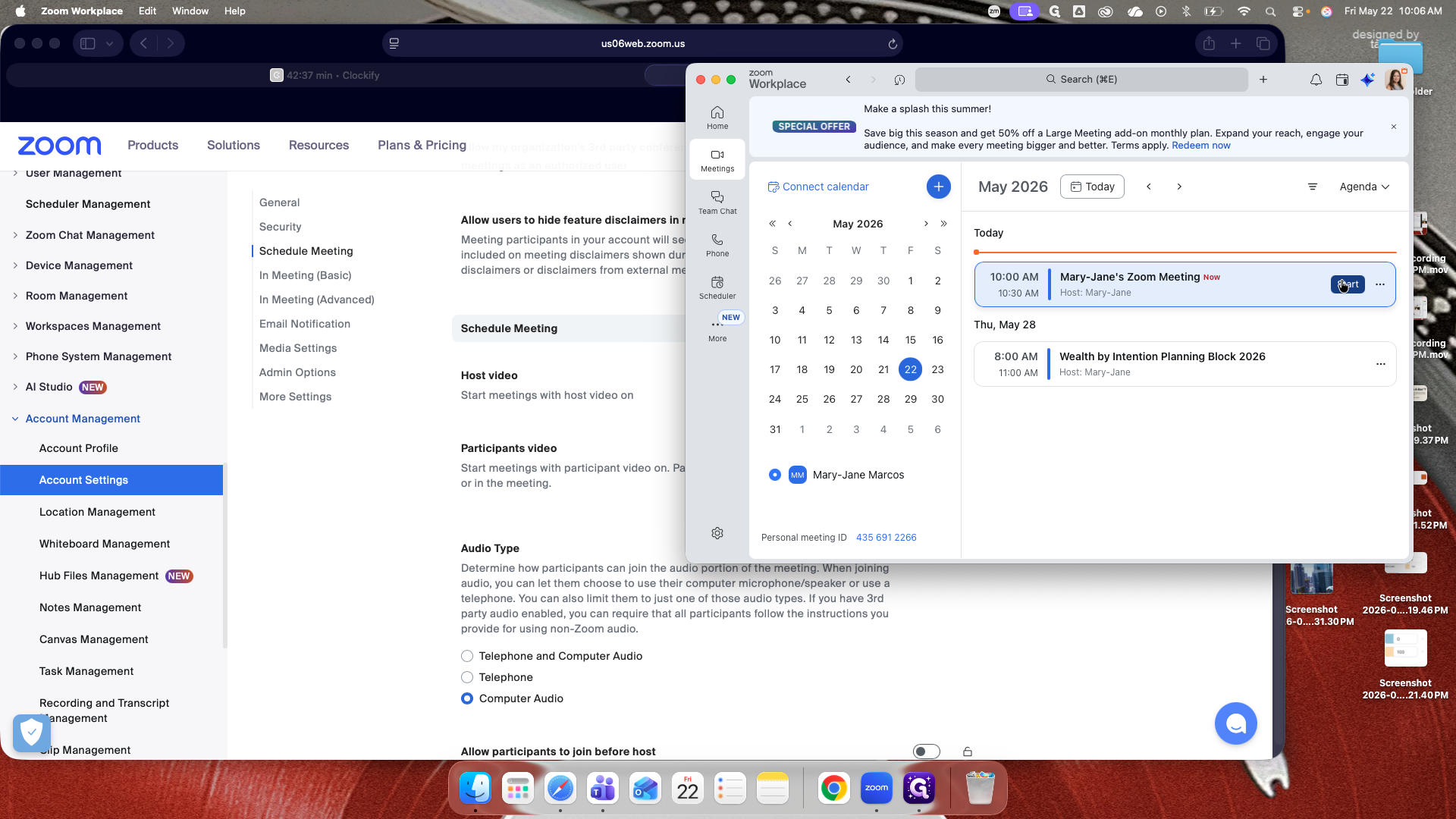
Start the Meeting and Admit Participants
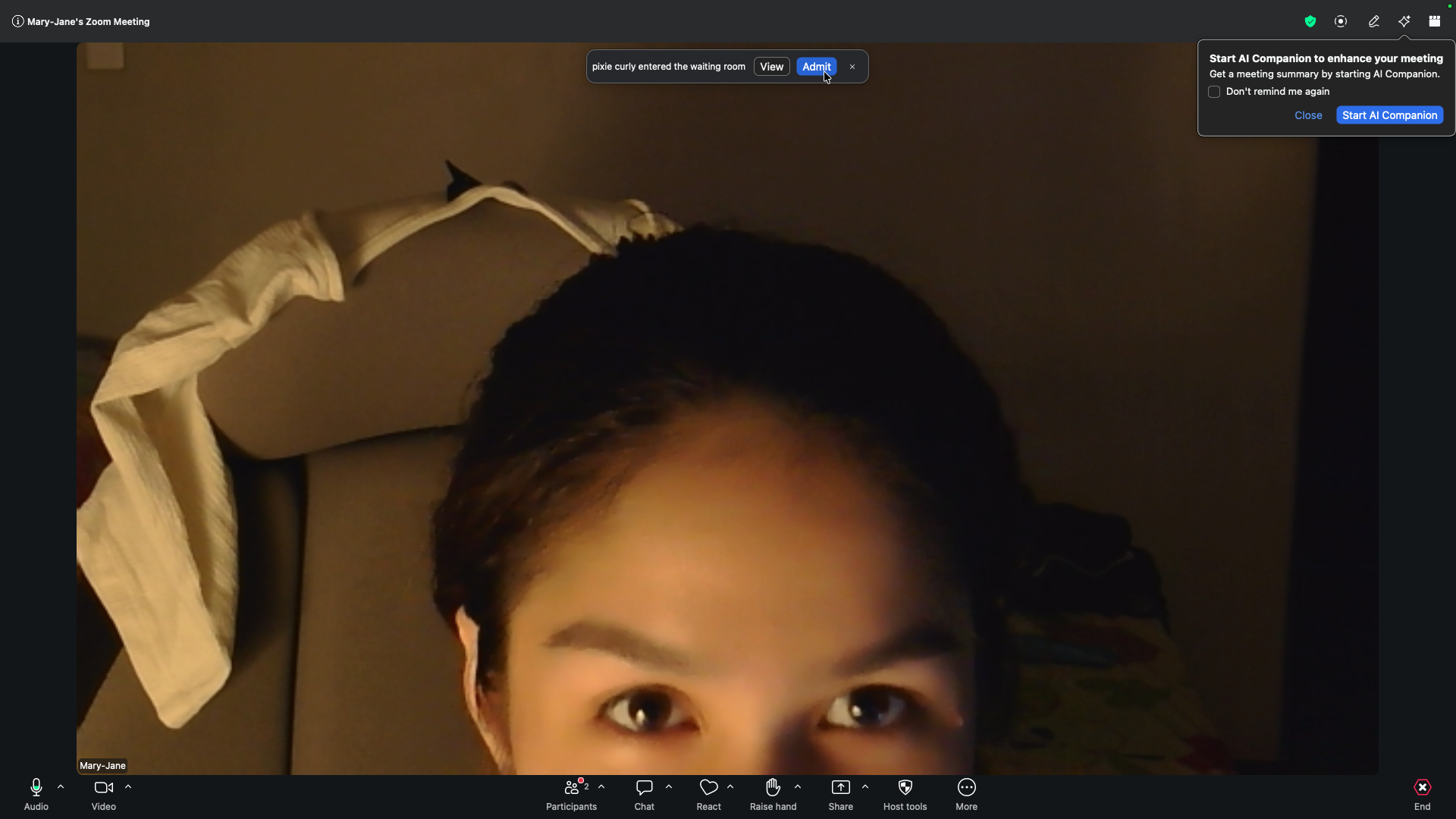
When participants join the meeting, they will be placed in the waiting room.
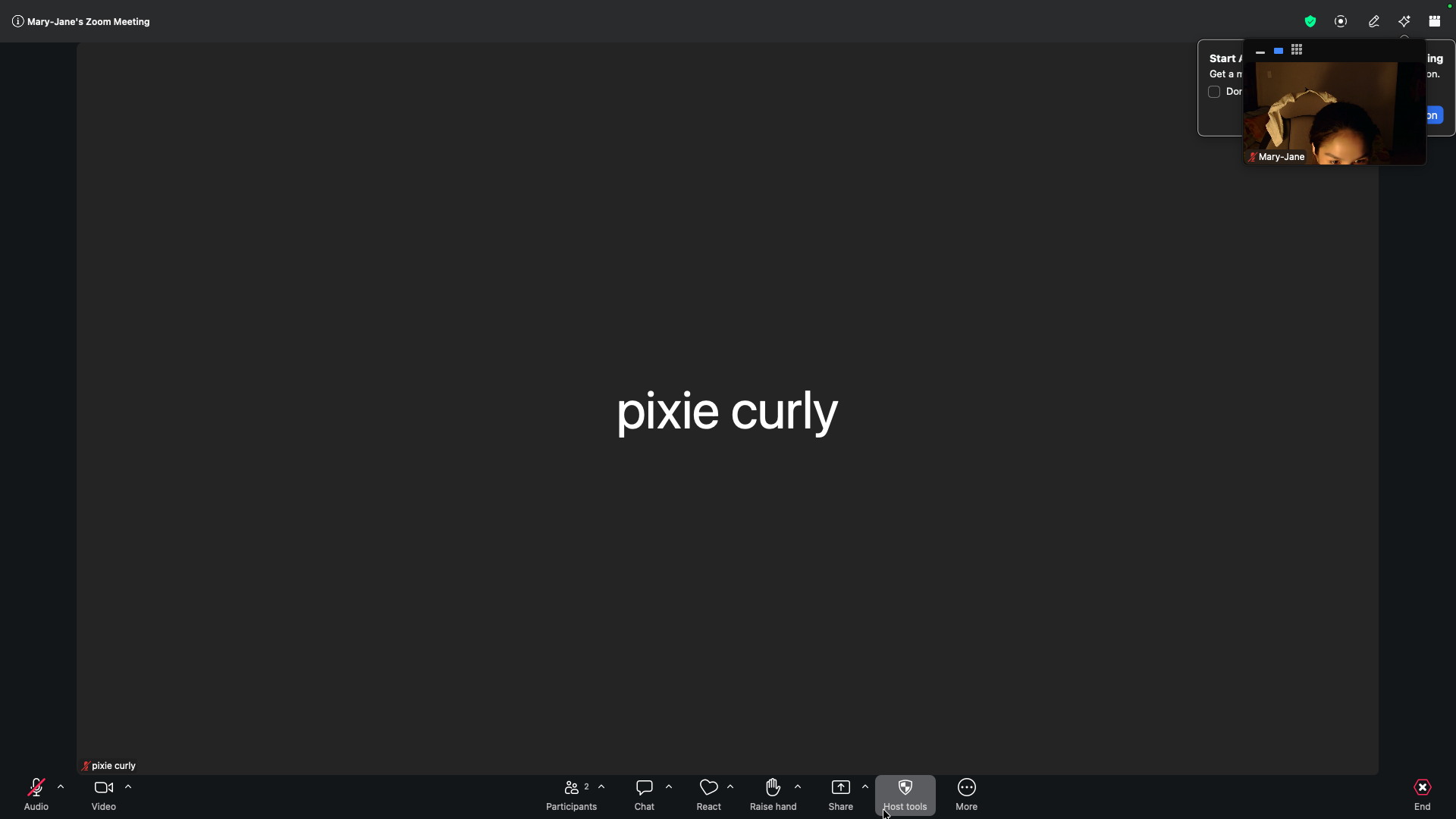
Manage Participant Permissions
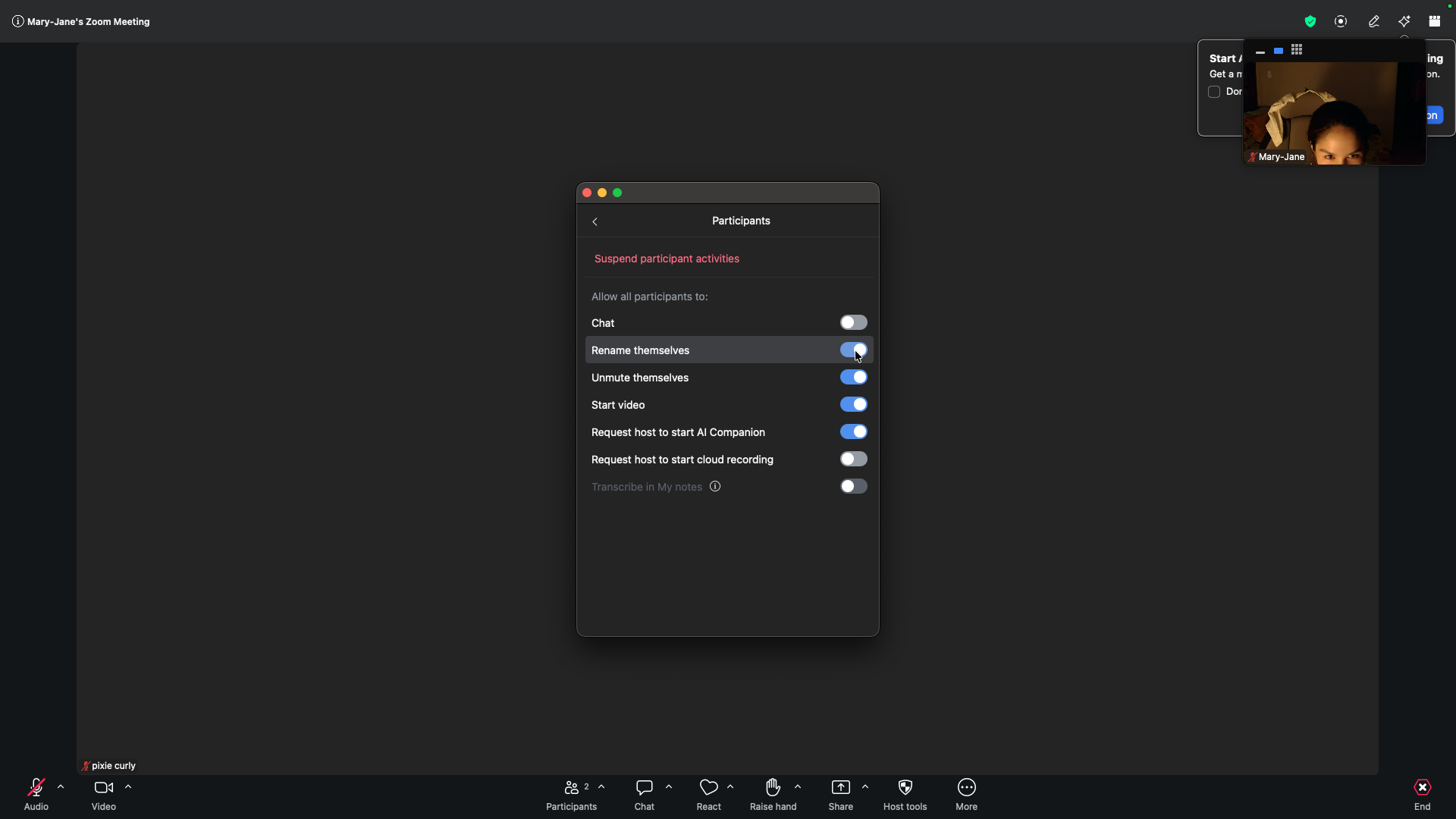
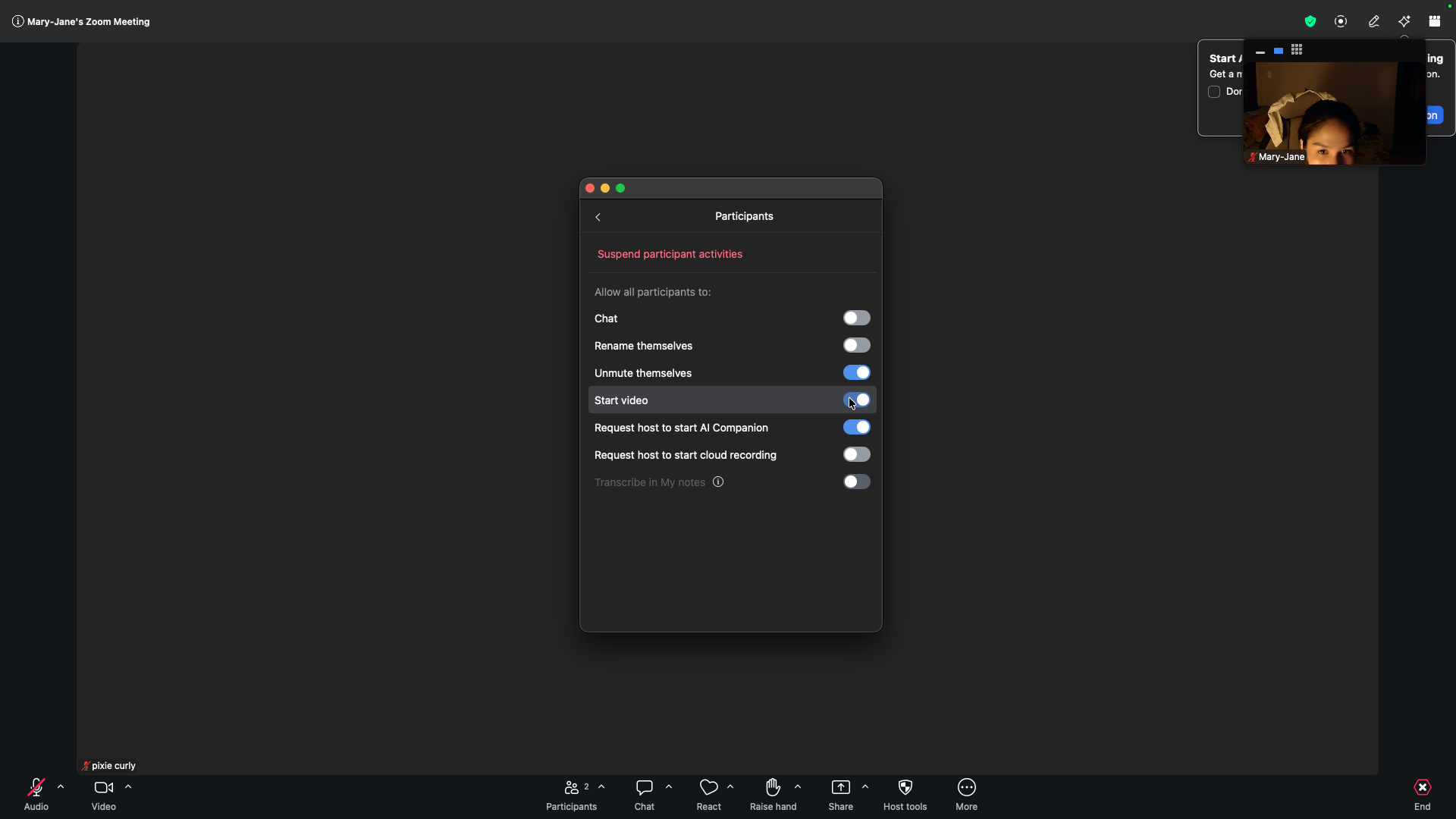
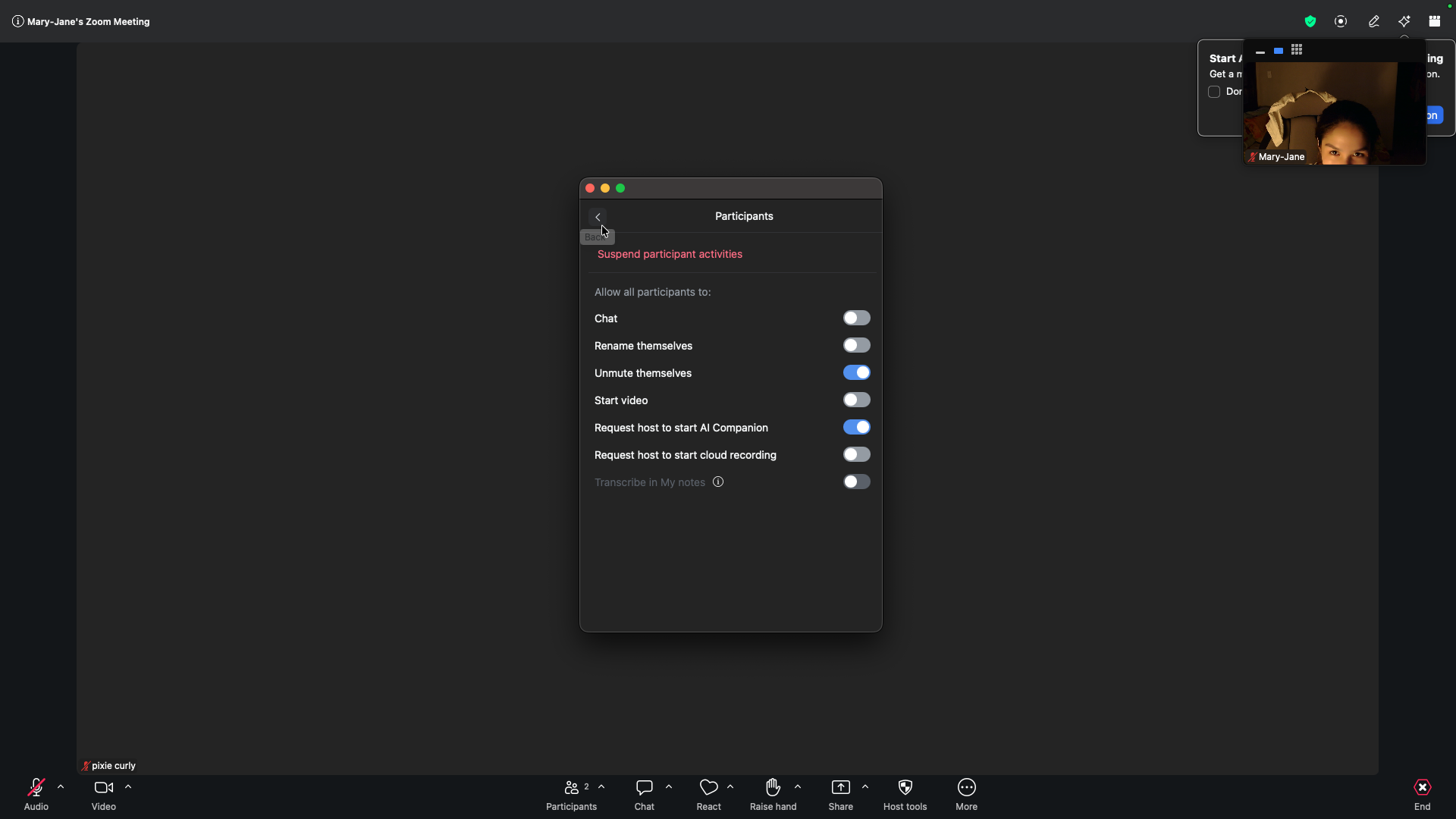
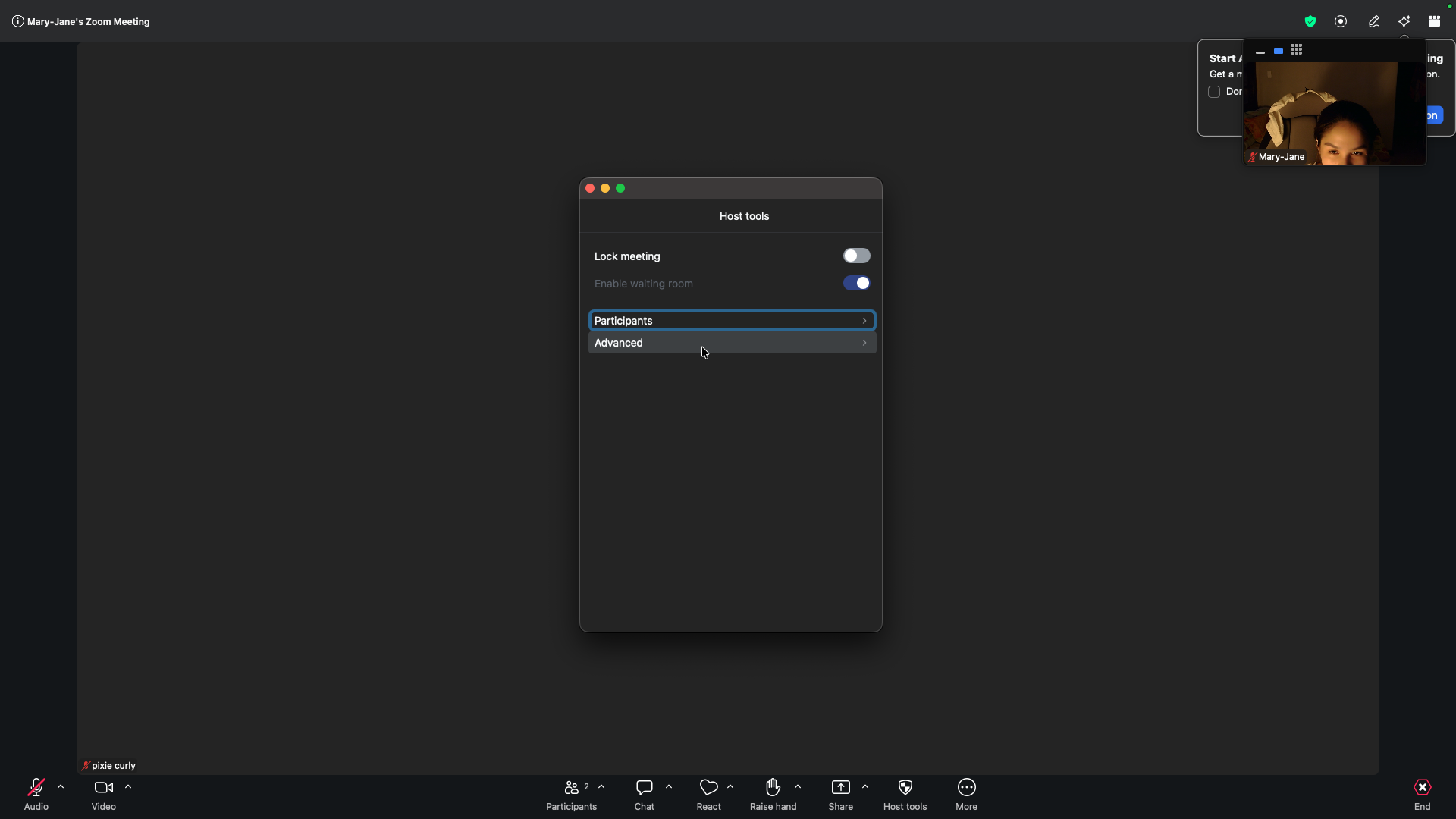
Once your session has started, you can dynamically control what participants are allowed to do.
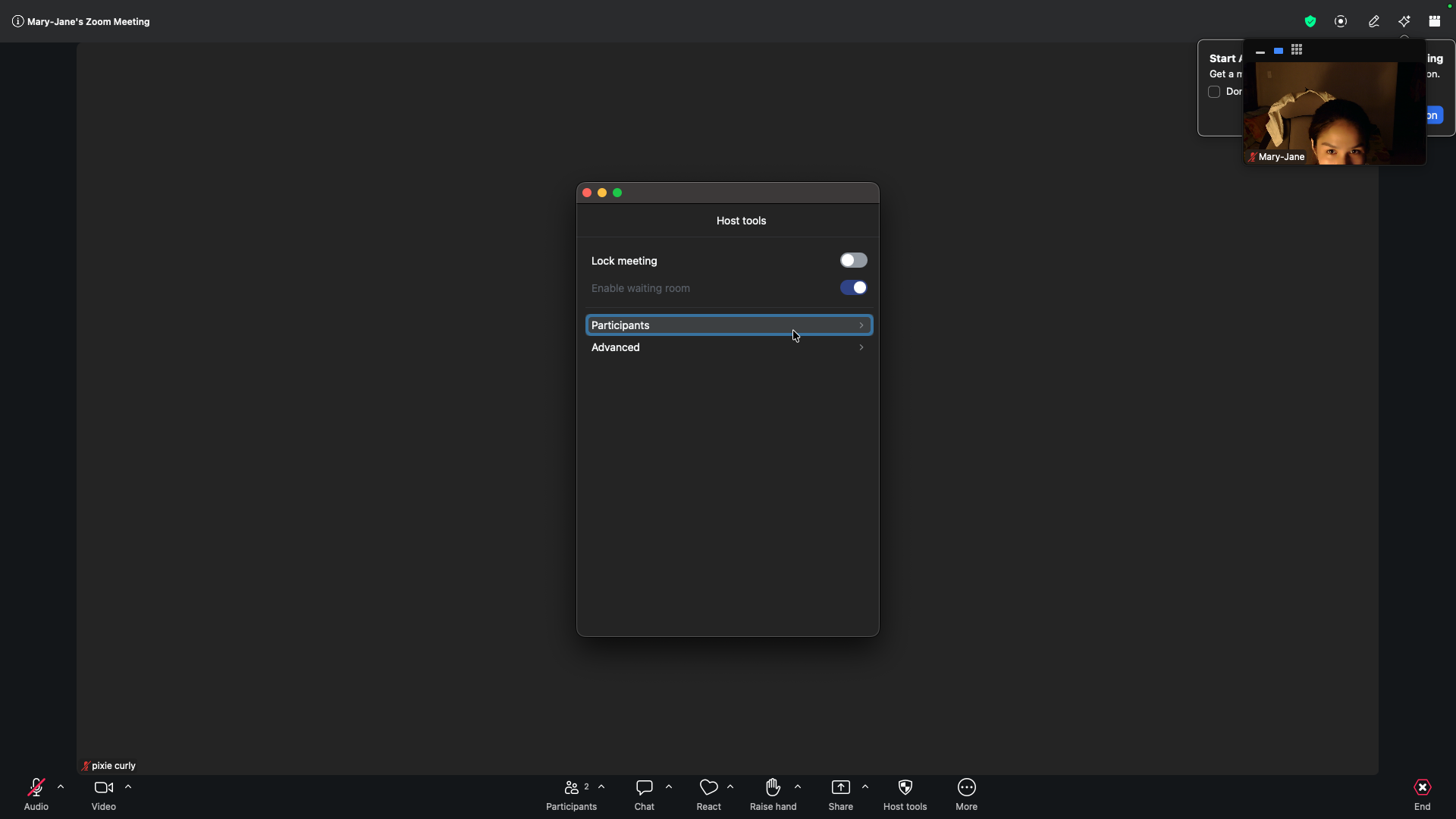
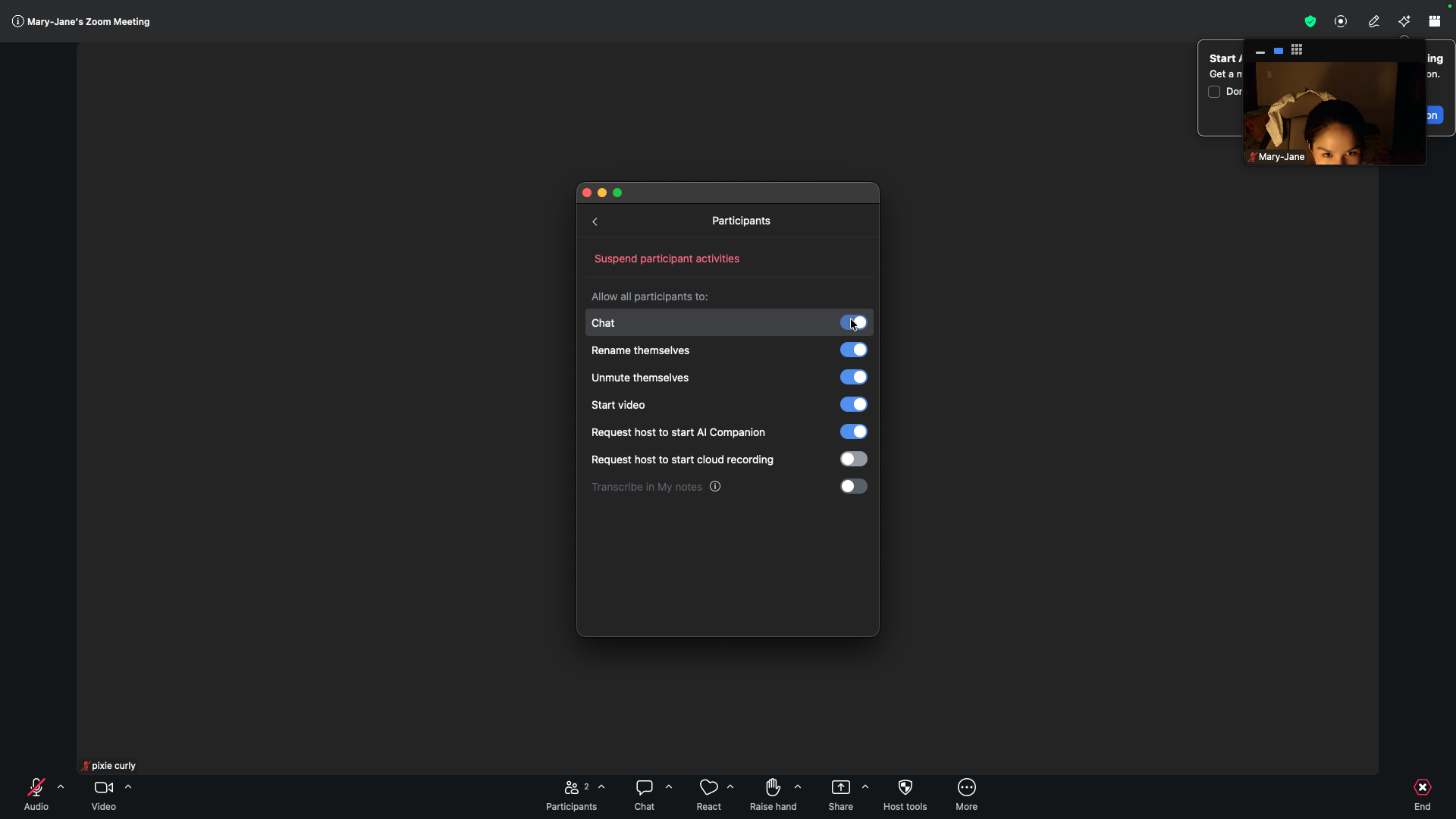
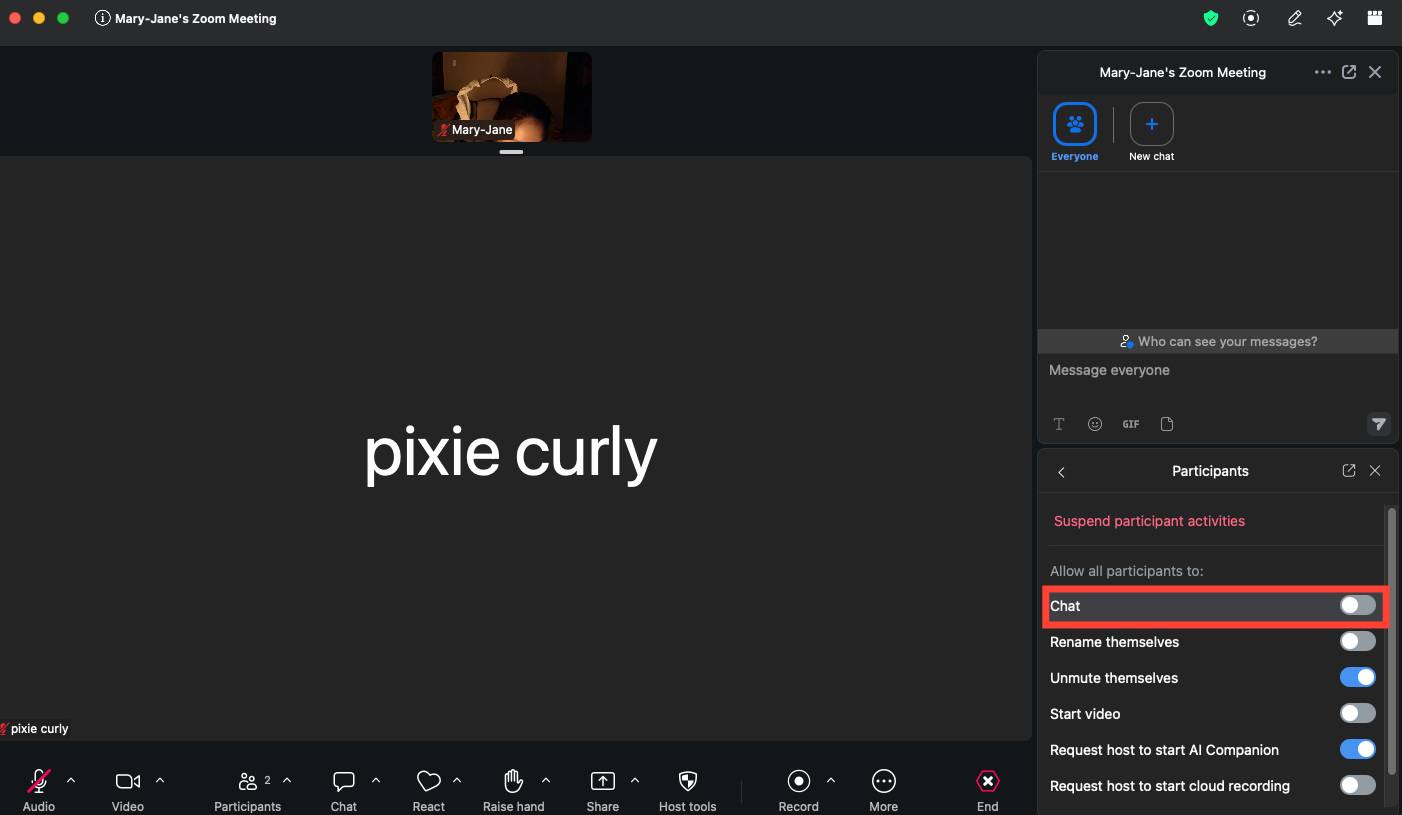
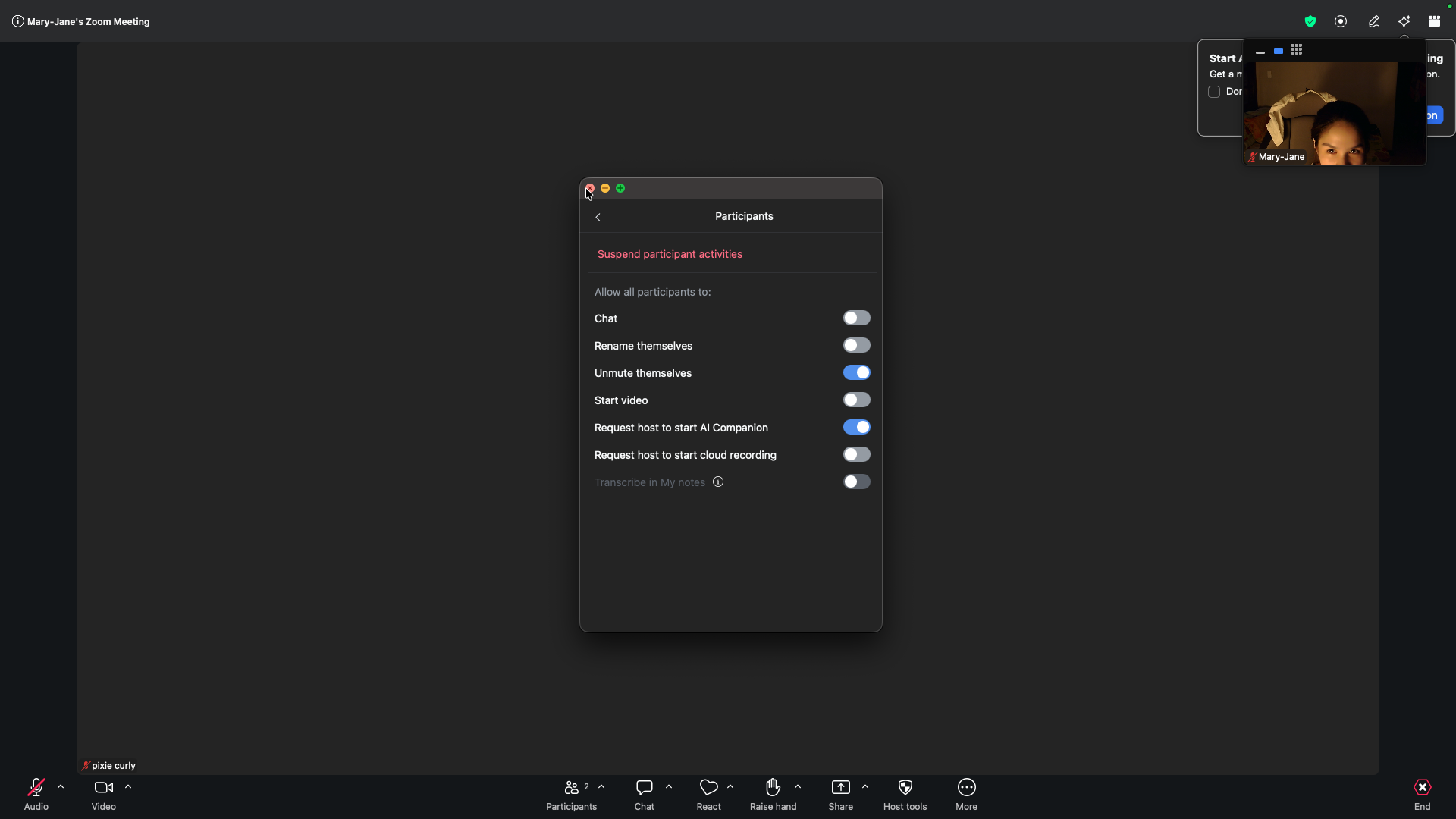
From this menu, you can toggle several permissions.
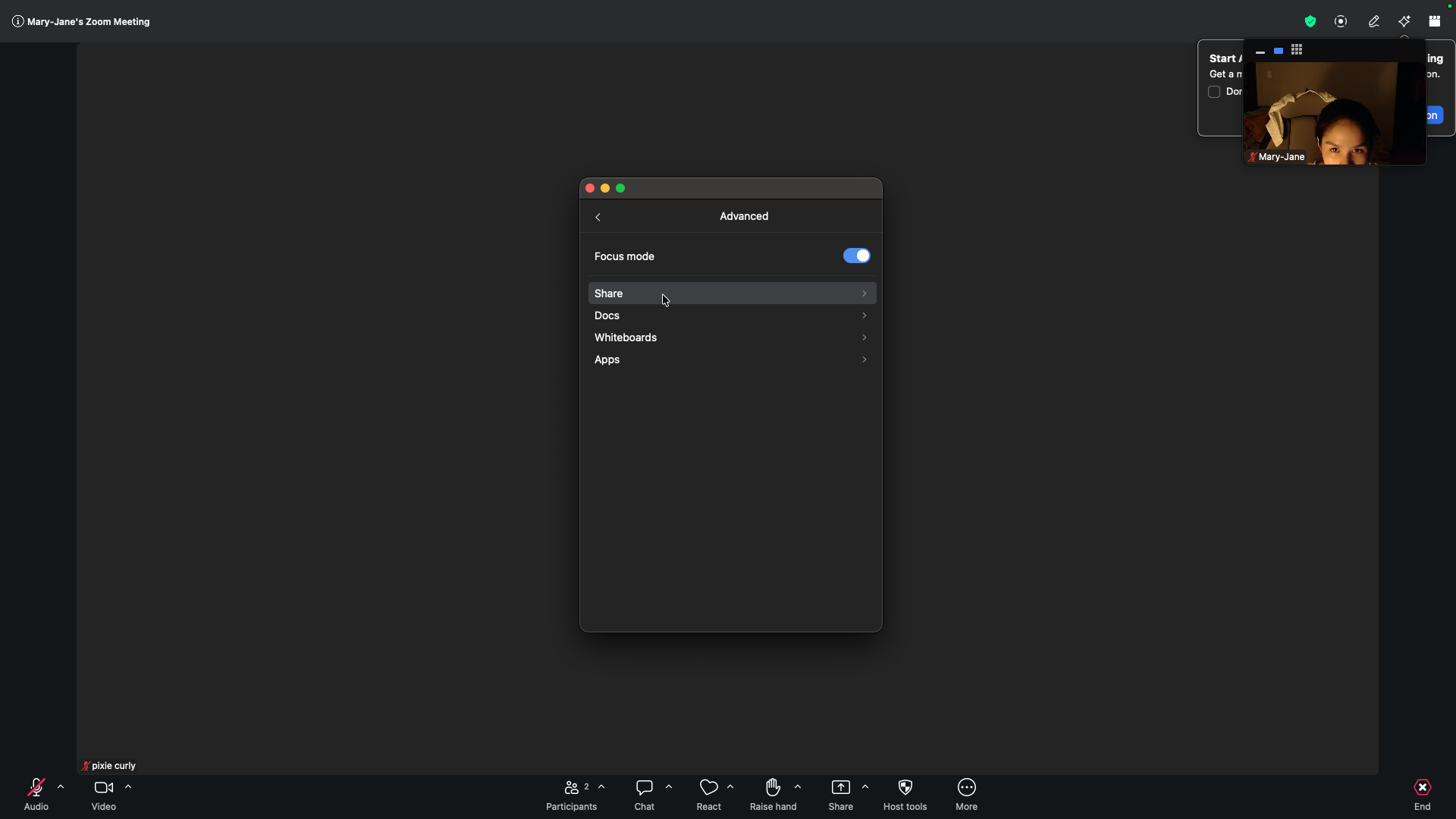
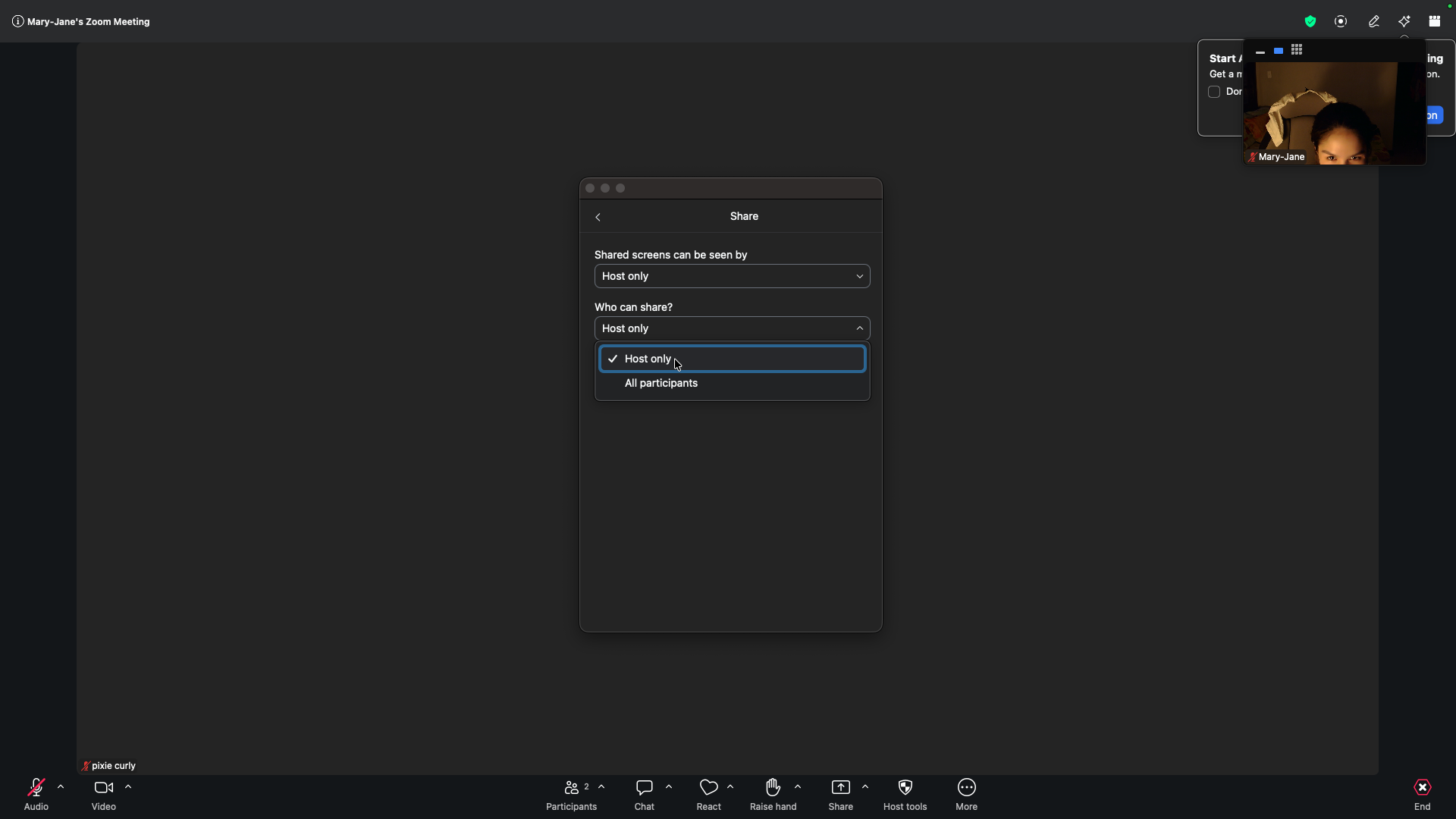
To prevent participants from sharing screens or collaborative items, adjust the advanced host settings:
Participant Permissions Overview
Permission Option | Description | Where to configure |
|---|---|---|
Chat | Controls whether attendees can send messages in the meeting chat. |
|
Rename themselves | Prevents or allows attendees from changing their display name during the session. |
|
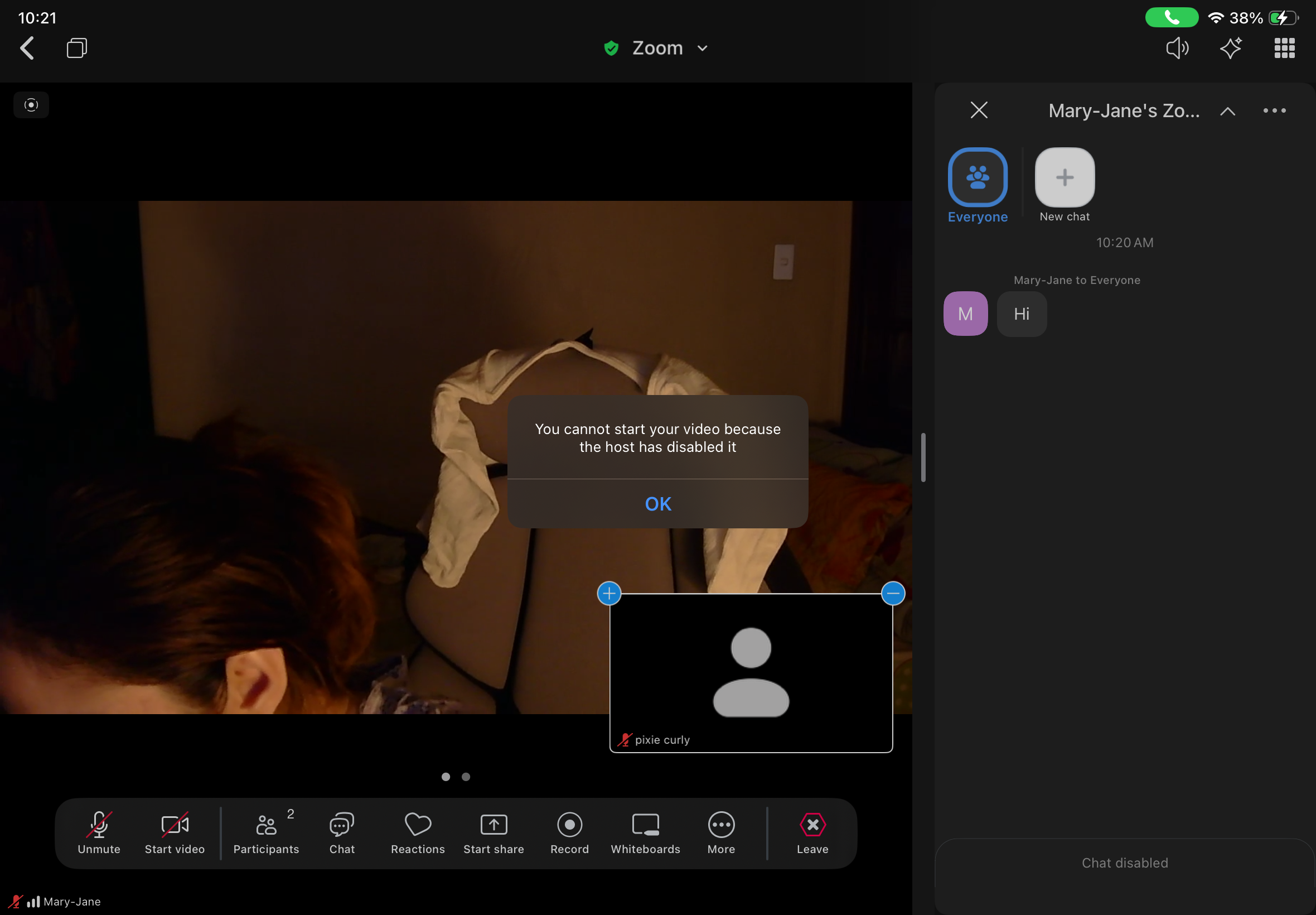
Start video | Determines if attendees can turn on their cameras. |
|
Share / Docs / Whiteboards | Restricts screen sharing and document collaboration to the host only. |
|
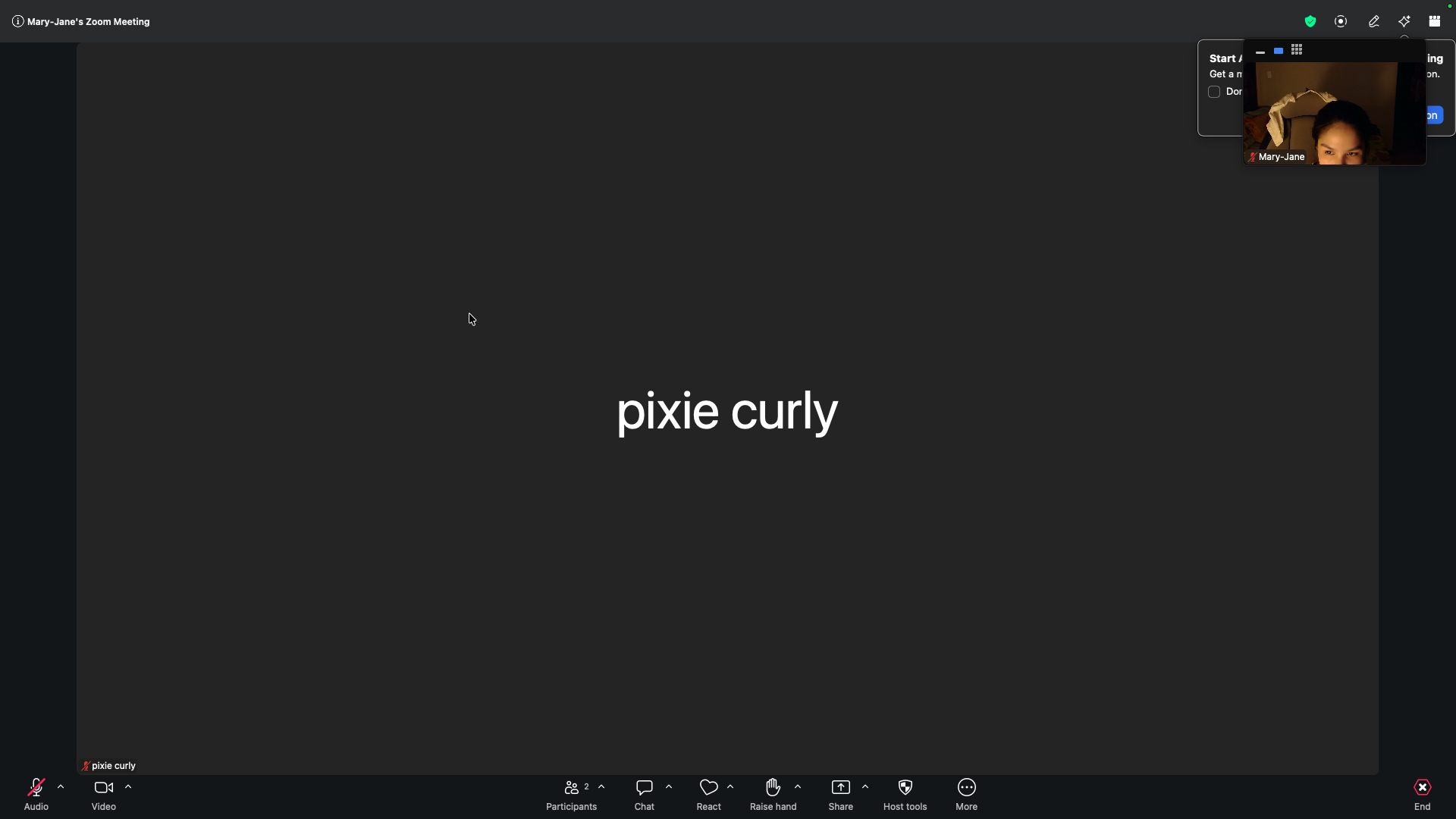
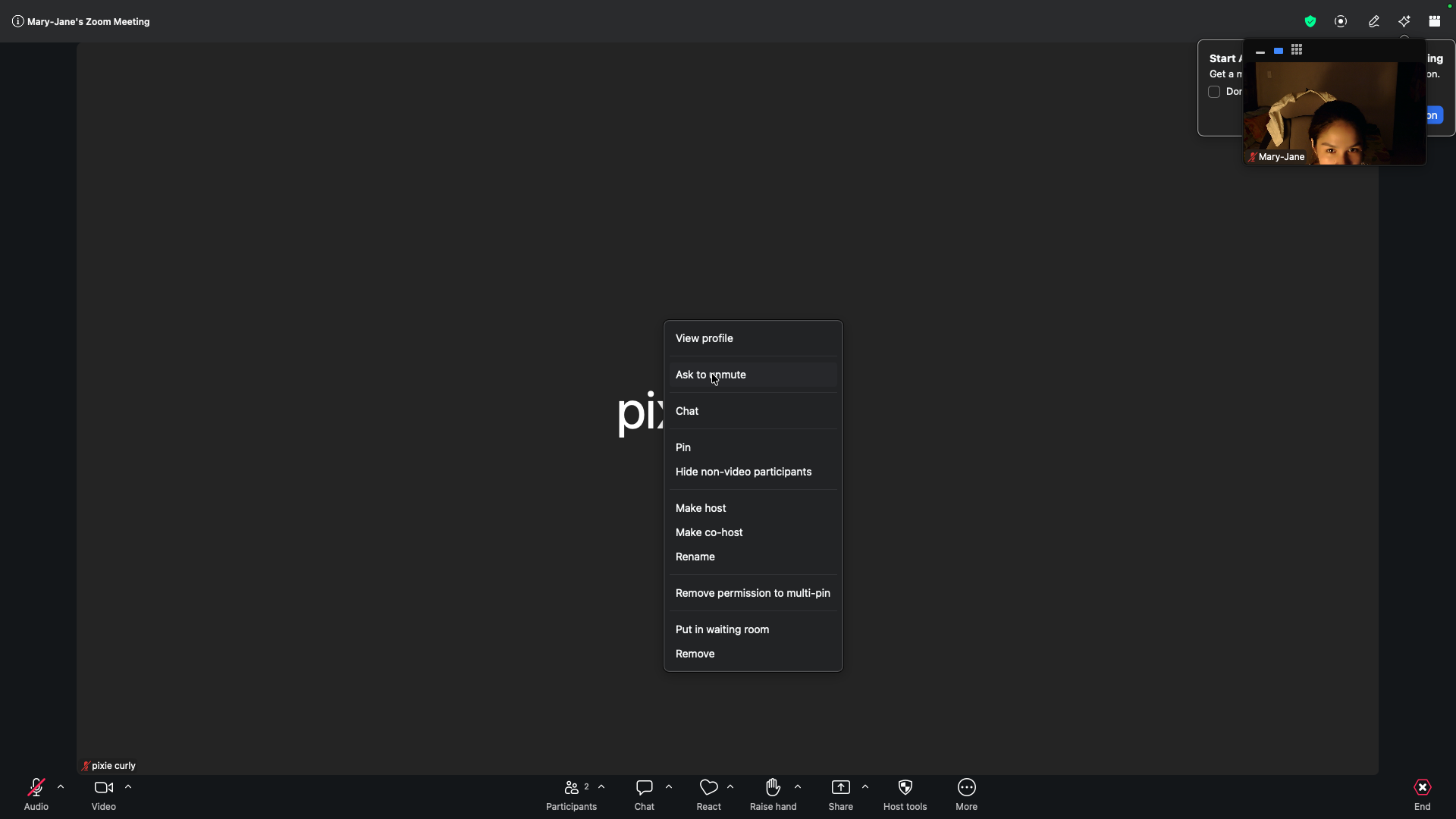
Control Participant Audio and Video
Even when participants are muted, you can prompt them to unmute themselves if they need to speak.
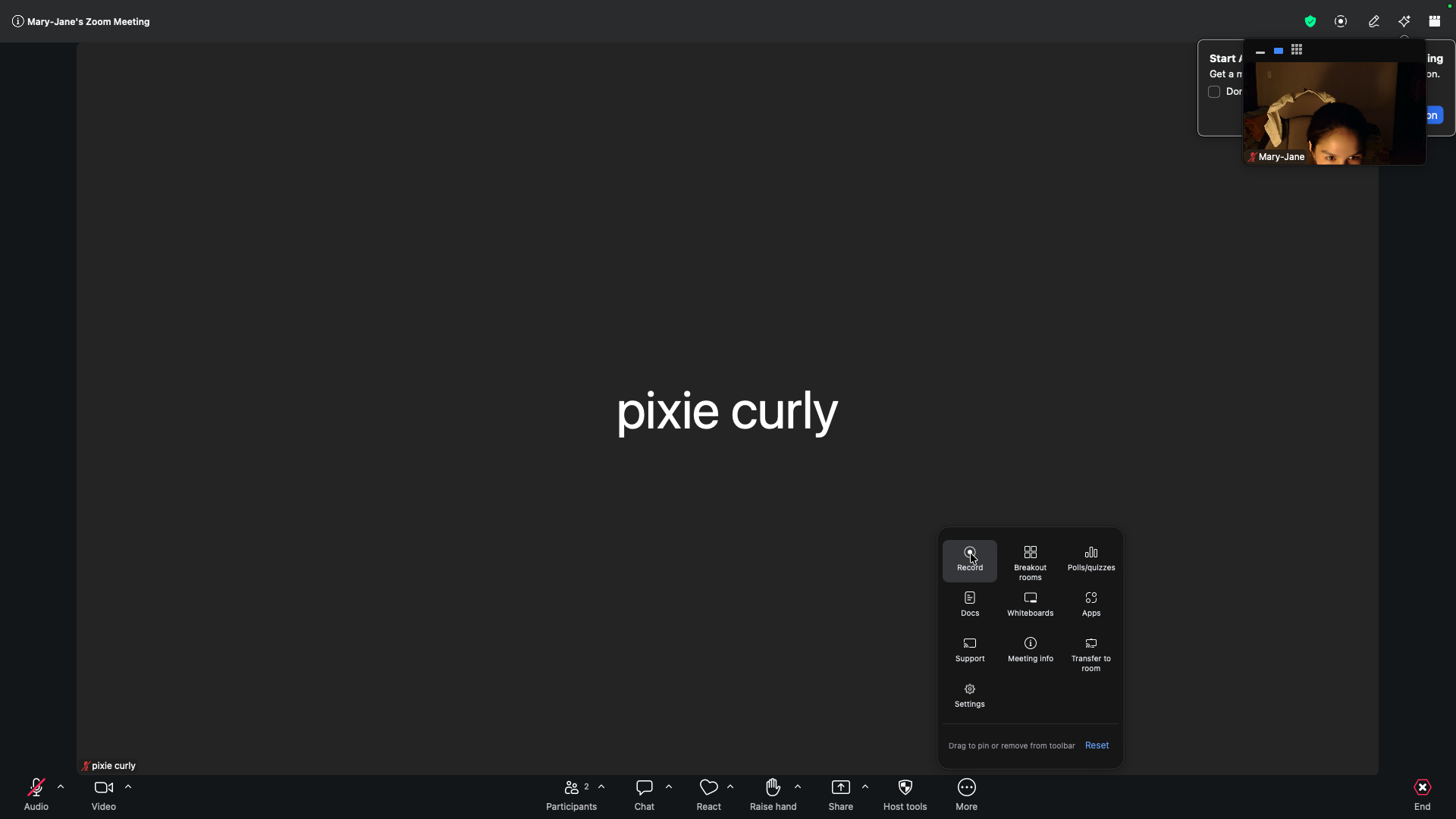
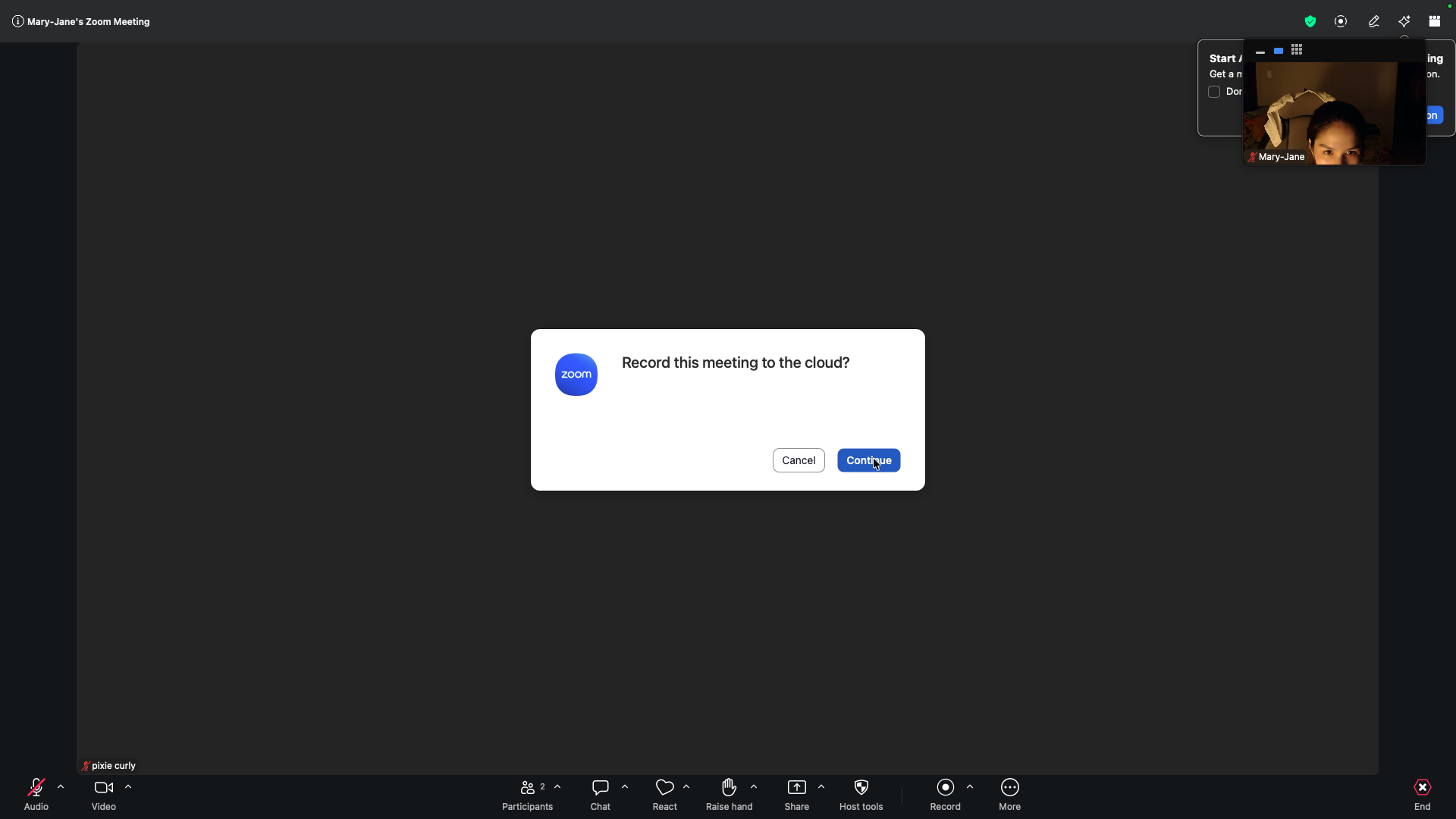
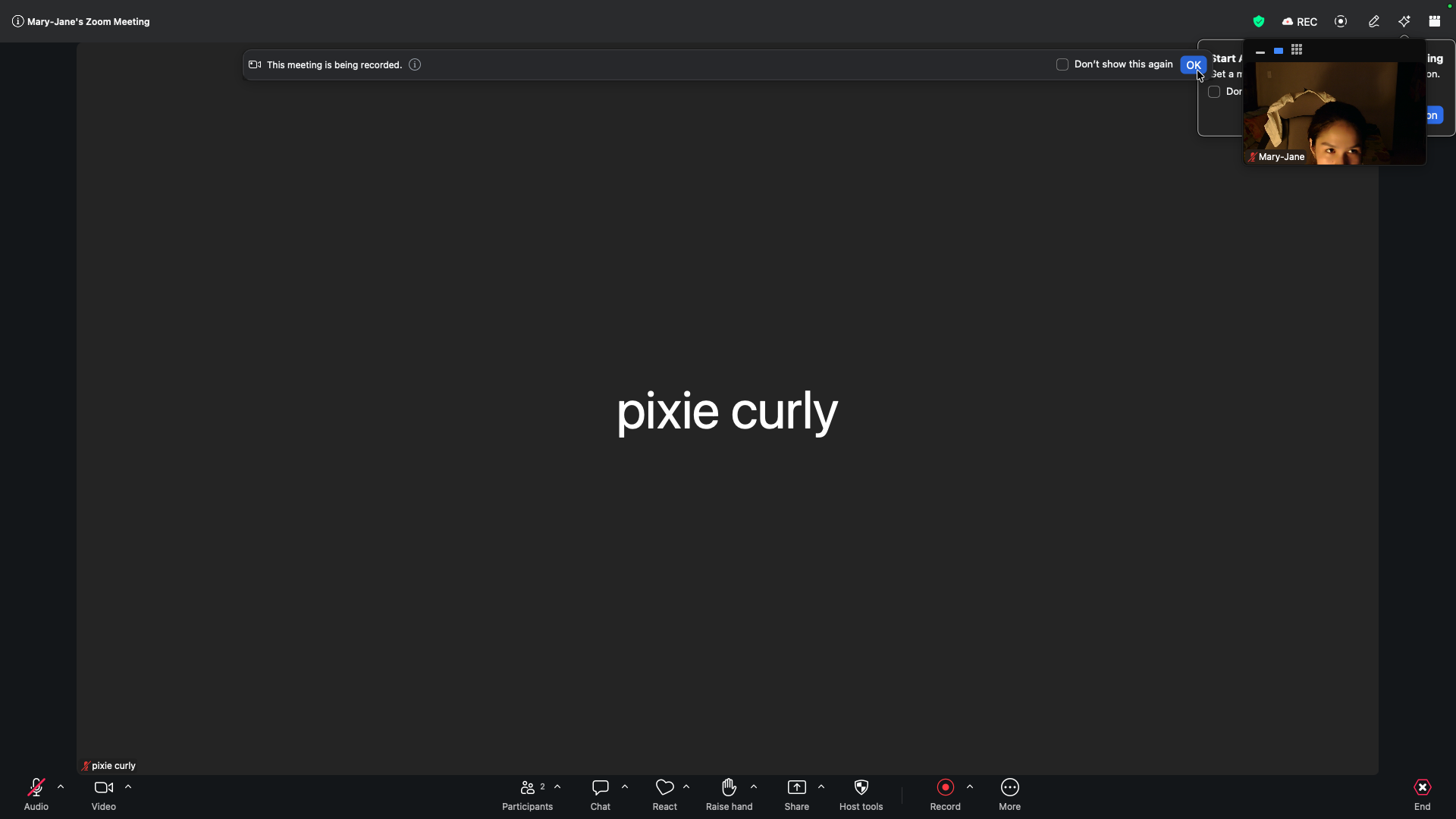
Record the Meeting
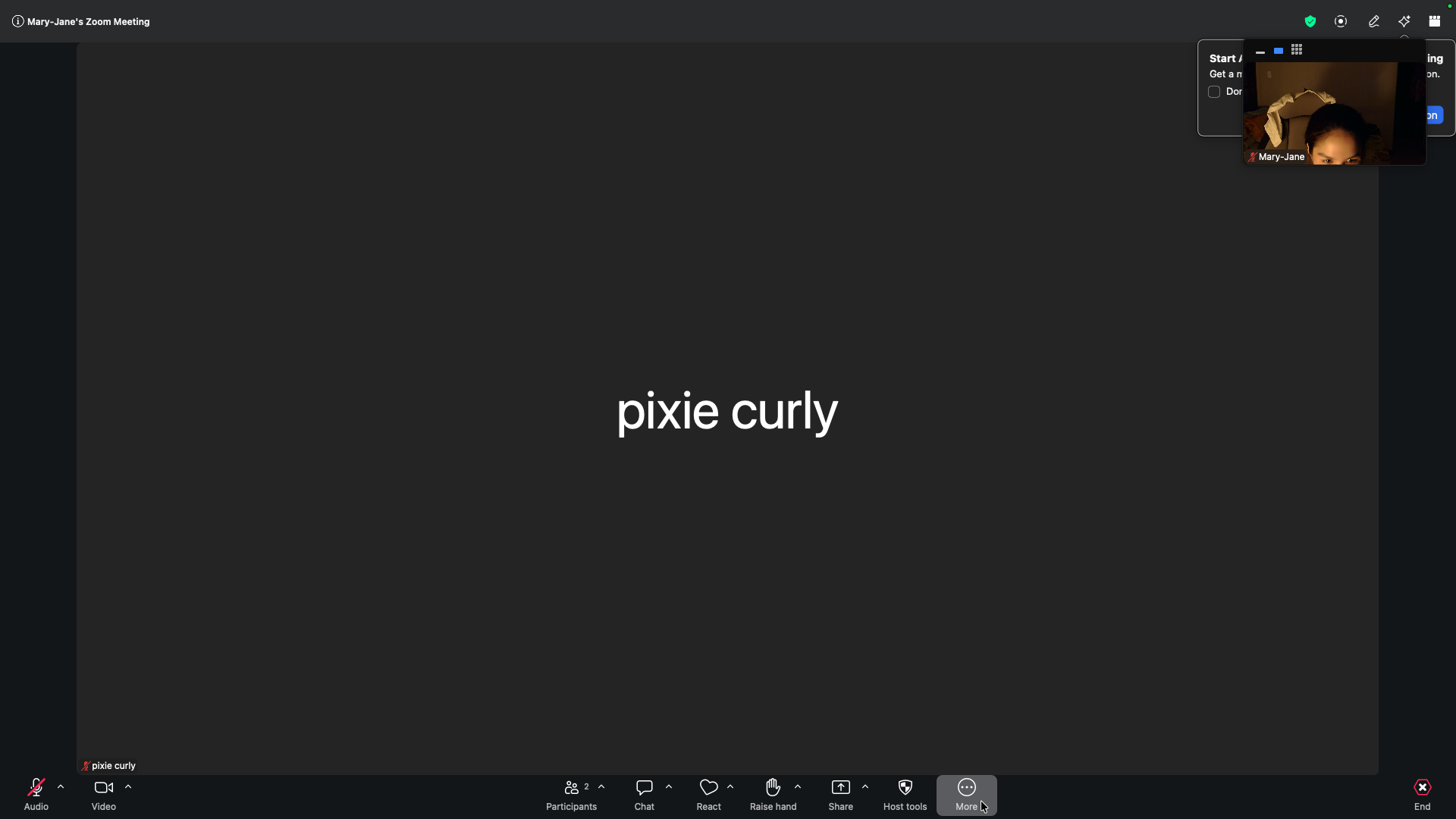
Because the meeting is in Focus Mode, recording the session will only capture the host's video and shared screen, maintaining the privacy of your participants.
FAQ
Q: Can participants see each other's videos in Focus Mode?
A: No, in Focus Mode, only the host and co-hosts can see participants' videos. Participants will only see the host and their own video.
Q: What happens when I ask a participant to unmute?
A: A pop-up appears on their screen saying "The host would like you to unmute," giving them the option to "Stay Muted" or "Unmute."
Q: Does the recording capture participant videos in Focus Mode?
A: No. When recording a session in Focus Mode, the recording only captures the host's video, ensuring the privacy of the attendees.
Glossary
Term | Definition |
|---|---|
Focus Mode | A Zoom feature designed to prevent attendees from seeing each other, keeping their attention entirely on the host. |
Host tools | A centralized menu in the Zoom toolbar that allows the meeting host to quickly adjust security and participant permissions on the fly. |
Waiting Room | A virtual staging area that prevents attendees from joining a meeting until the host explicitly admits them. |