
FE Registration Guide
Completing the rider onboarding form is essential for providing necessary personal information, selecting preferences, and submitting required documents for verification. This procedure ensures that applicants meet eligibility criteria, are appropriately matched with available opportunities, and have their accounts activated. This guide presents a thorough, step-by-step method for filling out a rider application on Flipkart, making it easier for prospective applicants to navigate the online form. It includes detailed instructions for each field, helping users avoid common mistakes and ensuring a successful submission. Utilizing this guide not only saves time but also improves the overall application experience, aiding riders in securing positions without unnecessary obstacles. To begin the rider onboarding process, it is vital to access the correct registration page for either Shadow fax or Better place and verify that you are on the appropriate platform before moving forward. The registration page contains all the necessary resources and guidance required to complete the onboarding form. Being aware of any specific requirements or documents needed beforehand can help streamline the process and avoid delays in registration.
By Nagesh A P
1
Go to FE Registration
2
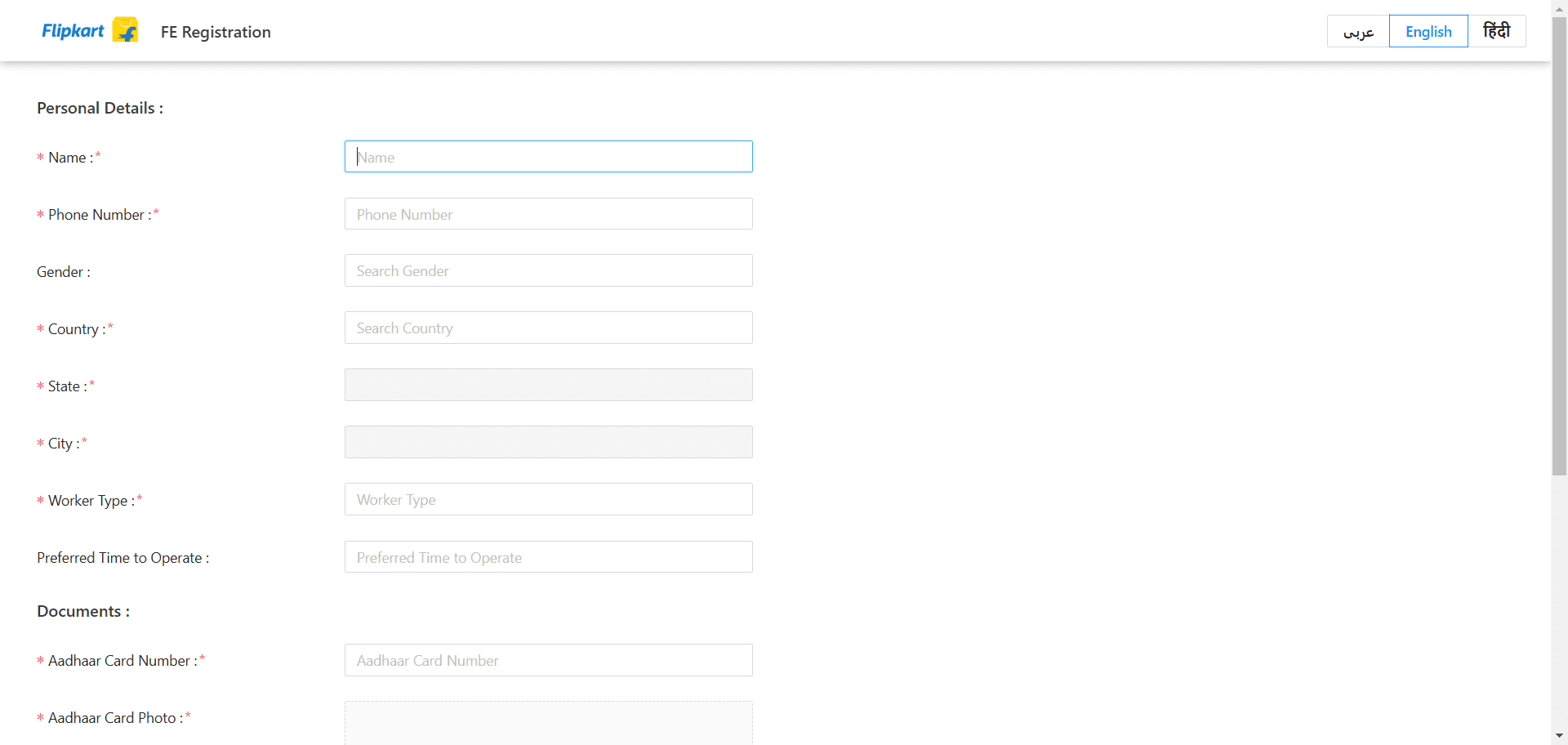
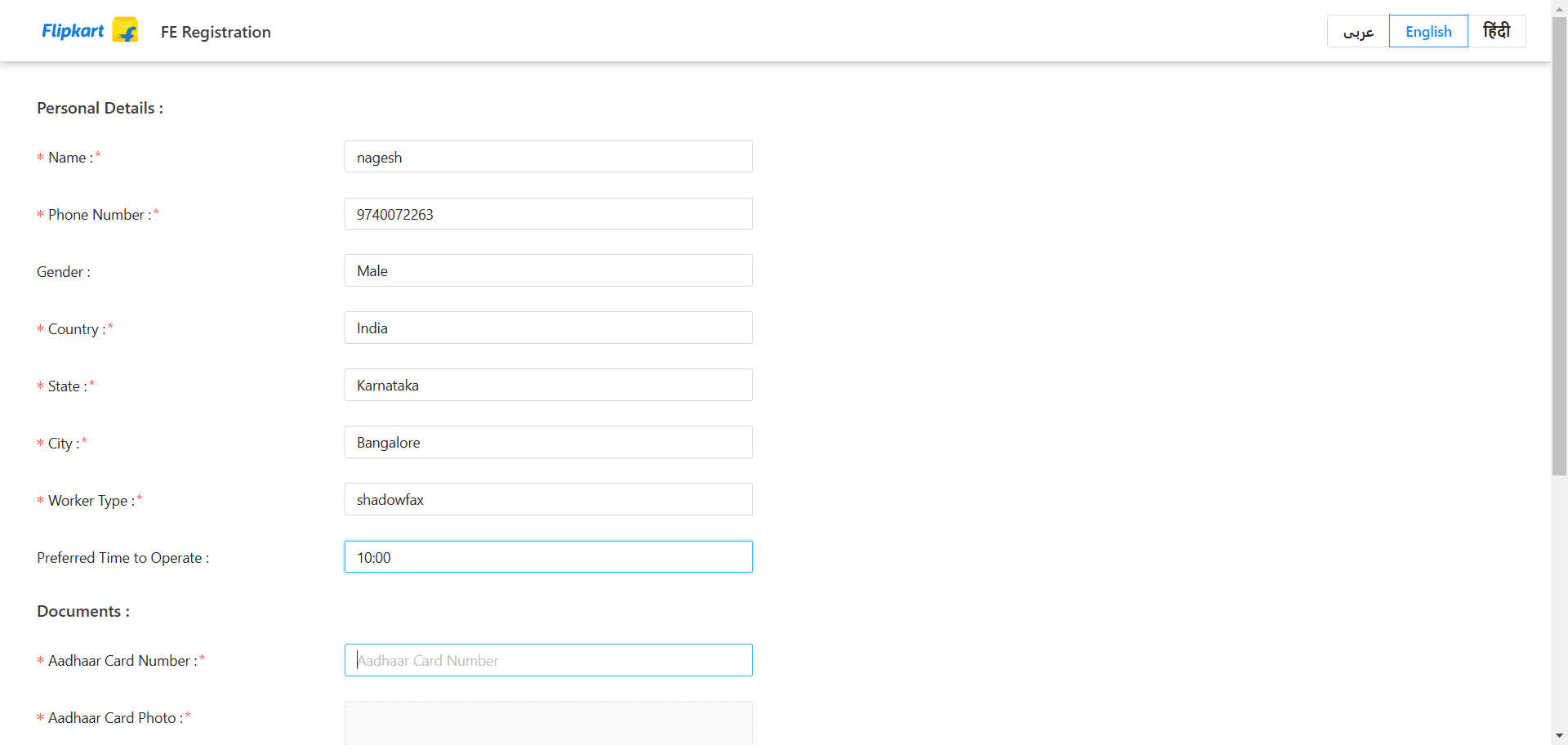
Provide the name of the rider as requested.
3
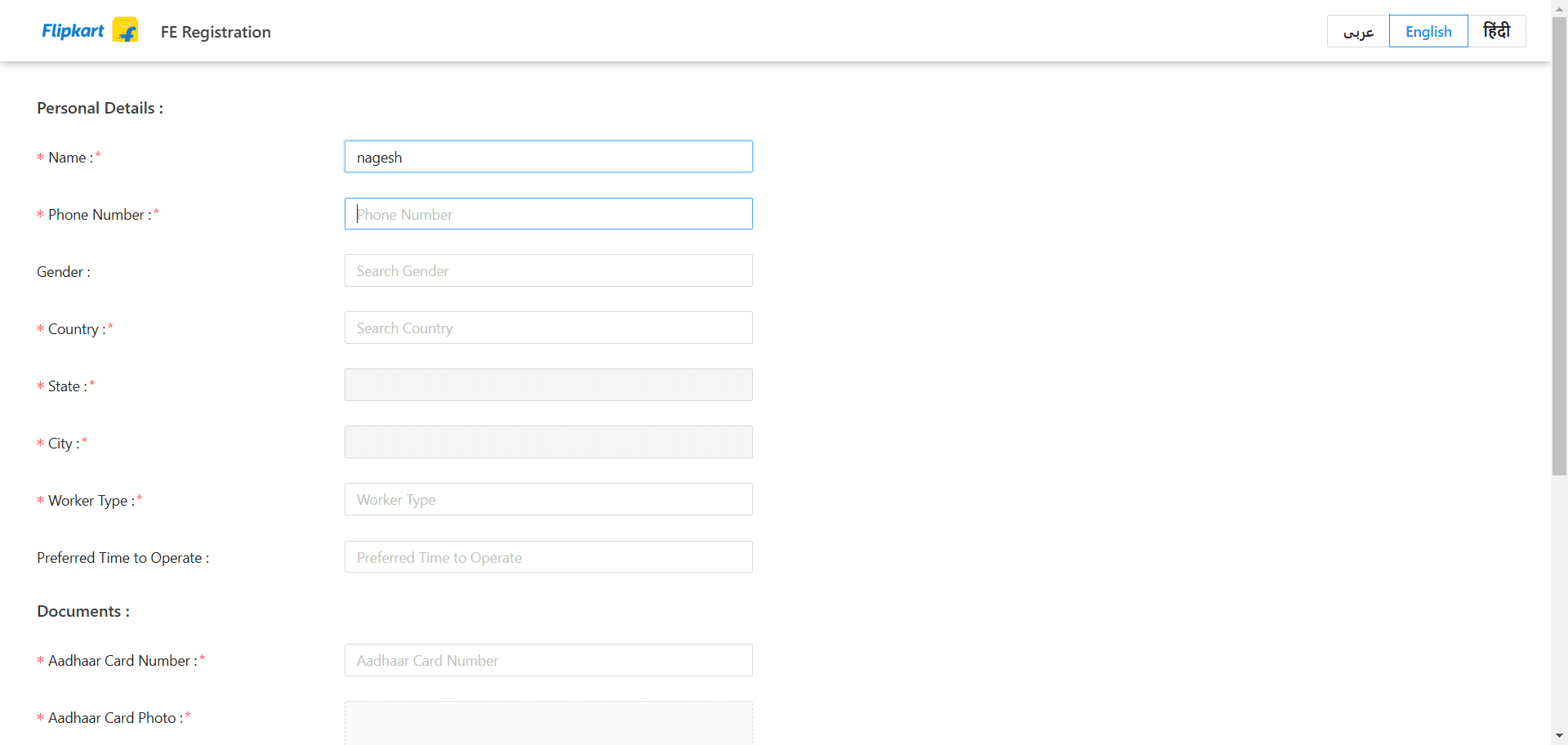
Provide the rider's mobile number as requested.
4
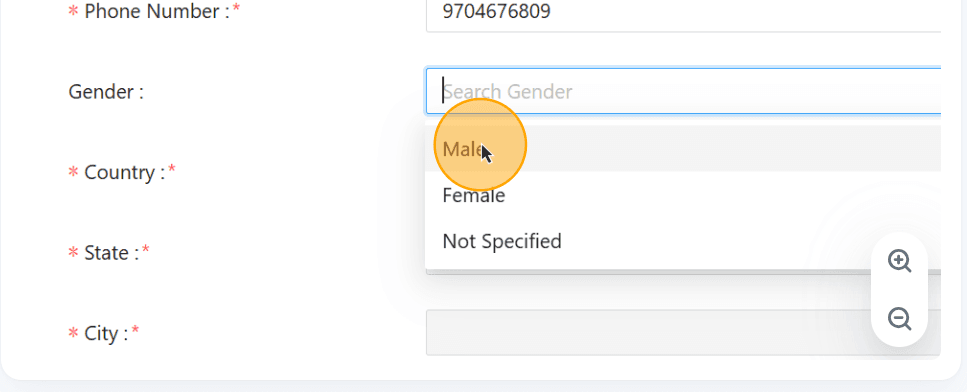
Select the gender of the rider.
5
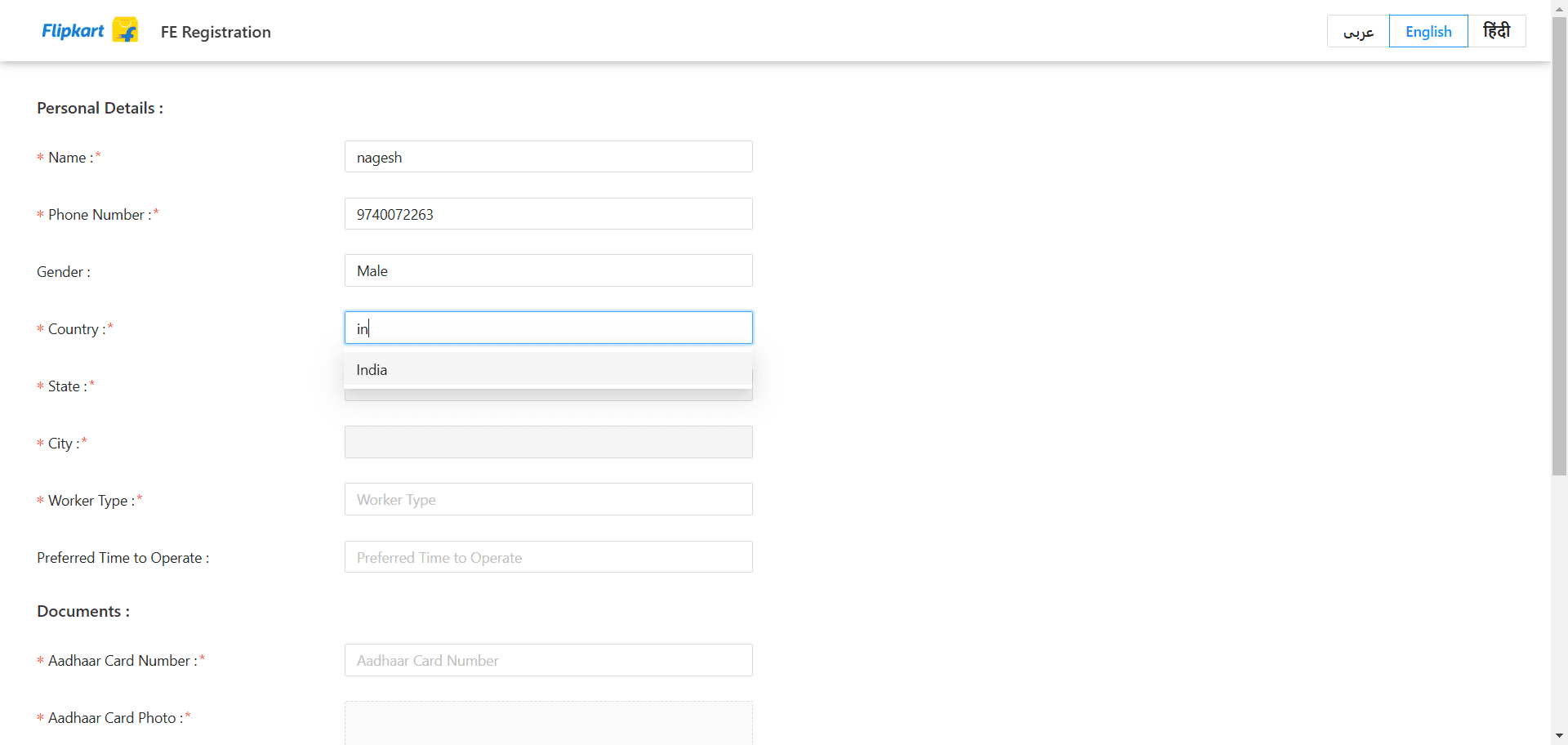
Choose the country of residence for the rider.
6
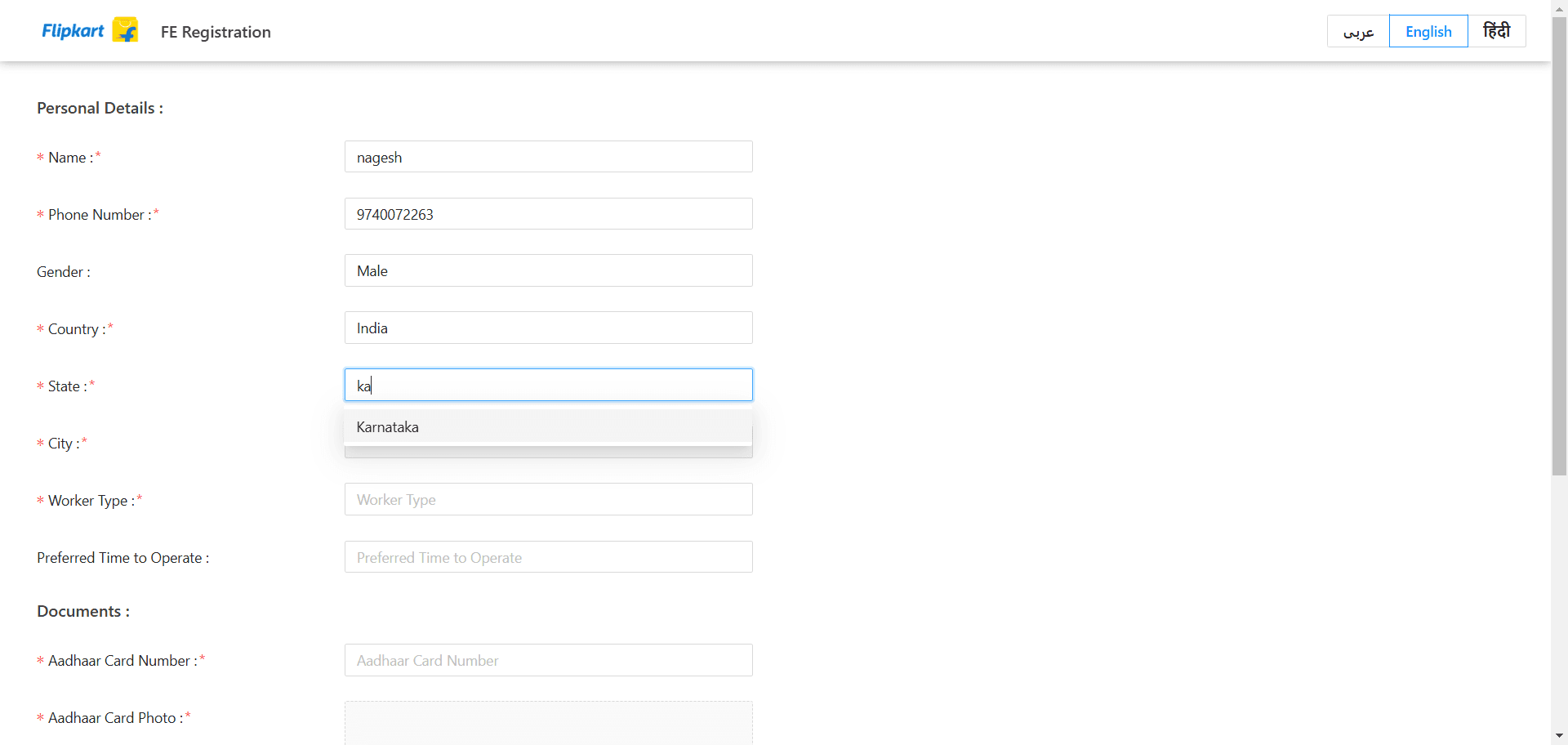
Select the state where the rider is domiciled.
7
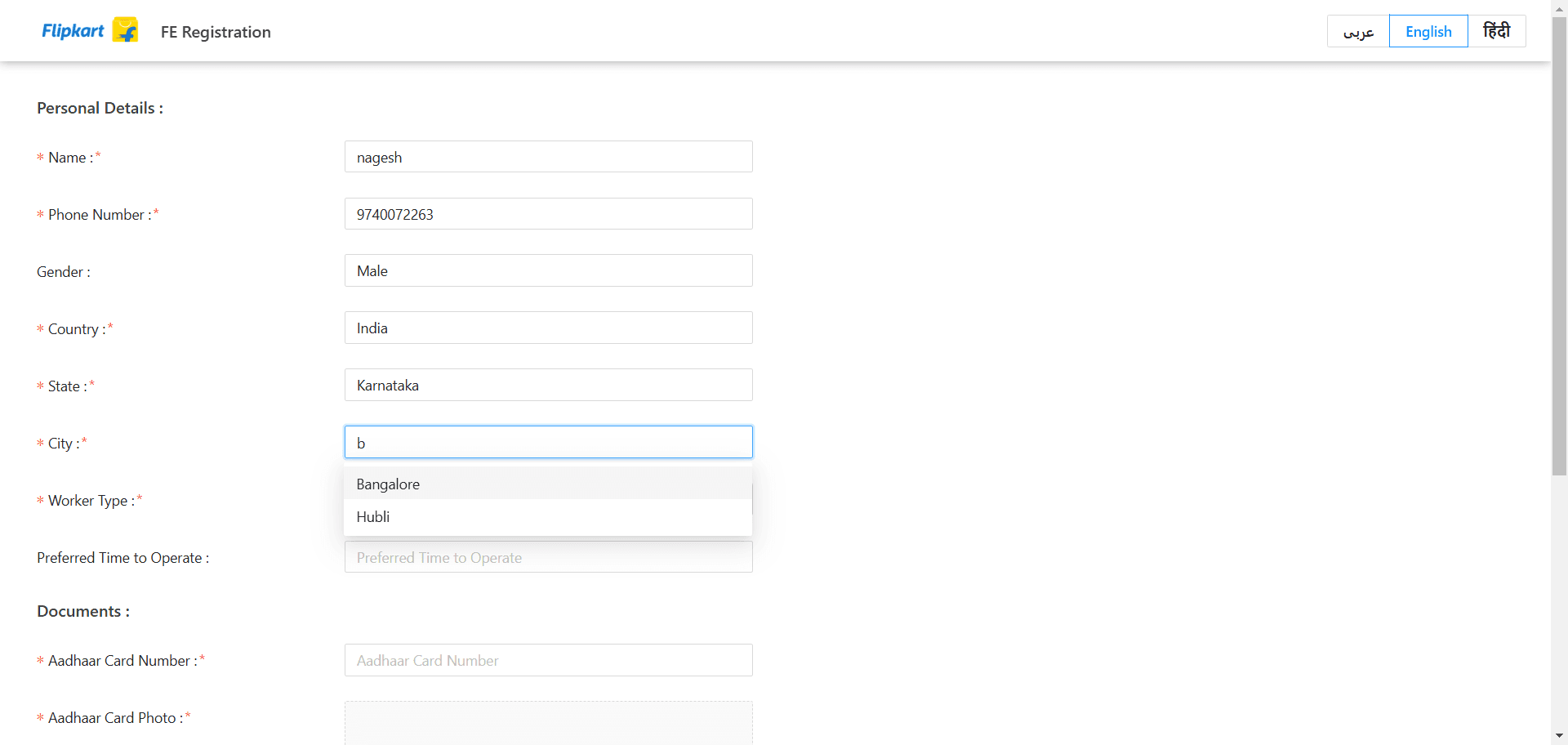
Choose the city in which the rider lives.
8
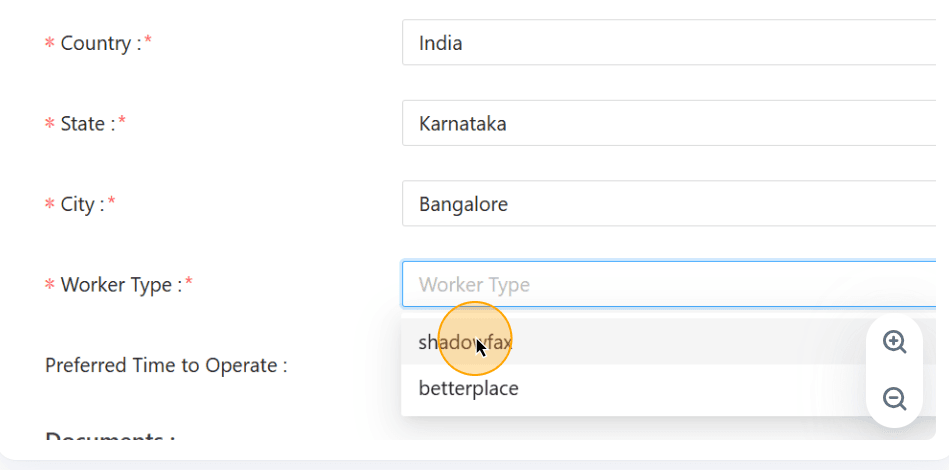
Determine the category of work that the rider wishes to pursue.
9
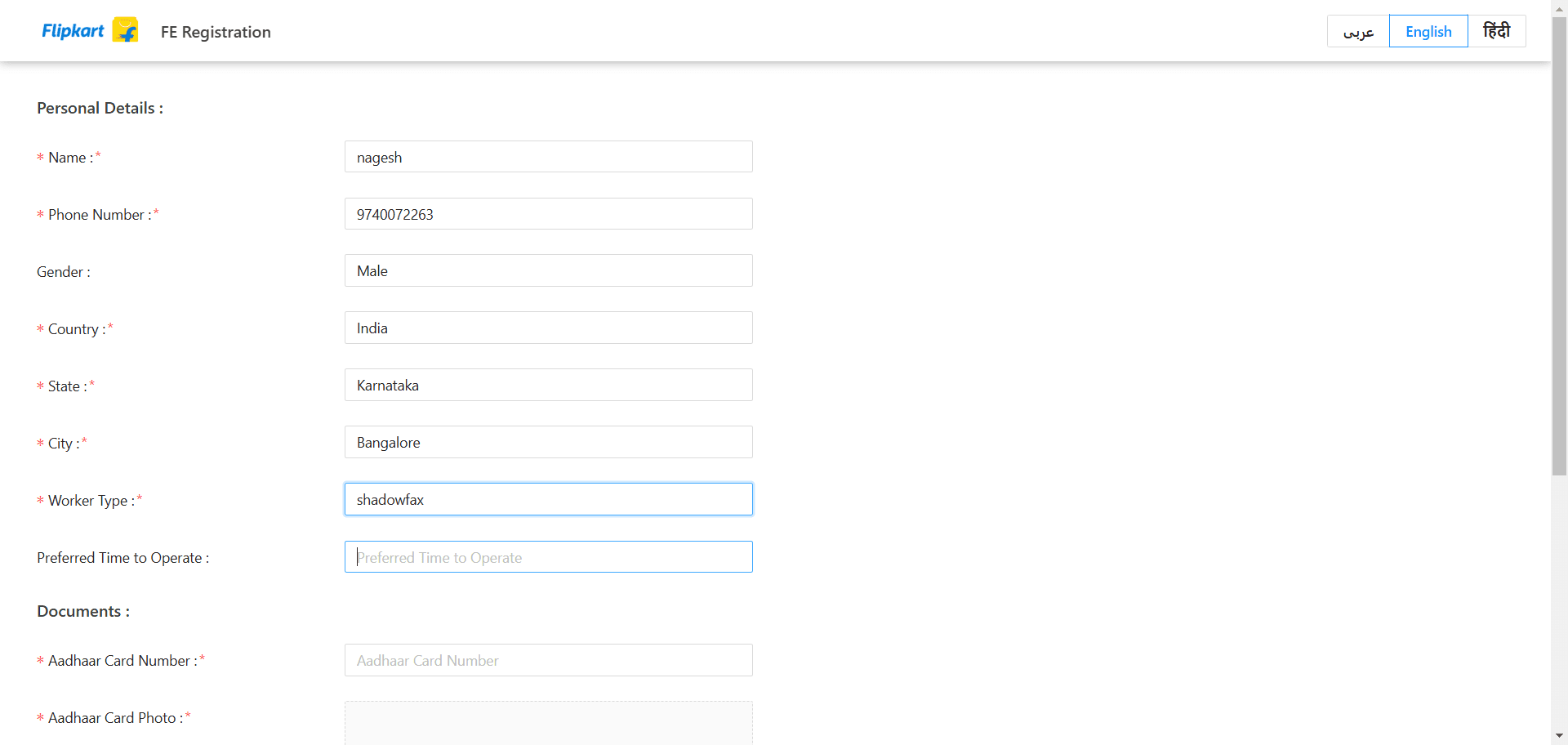
Specify the times the rider would like to work during their shifts.
10
In the 'Document' section, please enter the document number associated with the rider
.
11
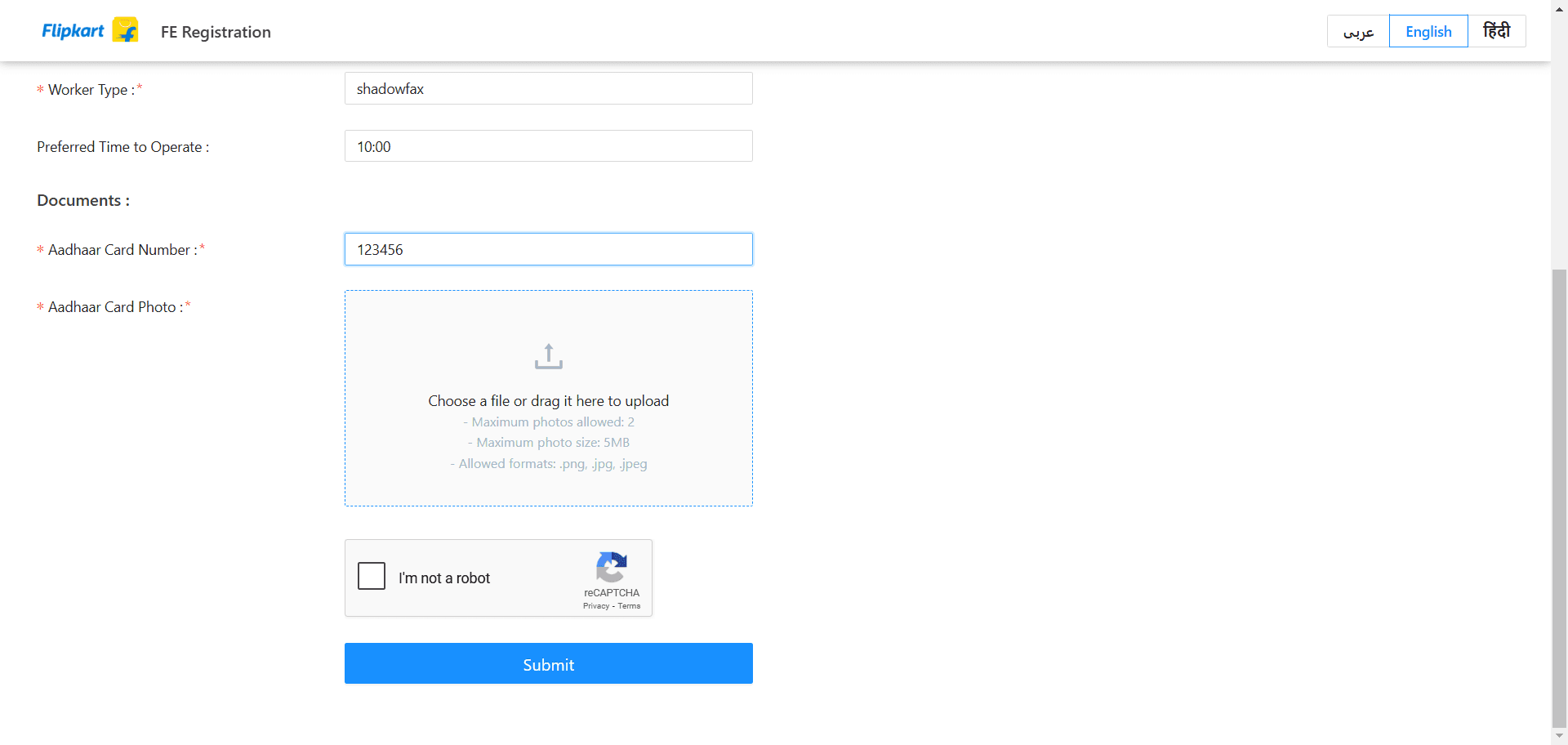
Click on the 'Photos' tab to upload the rider's document photographs.
12
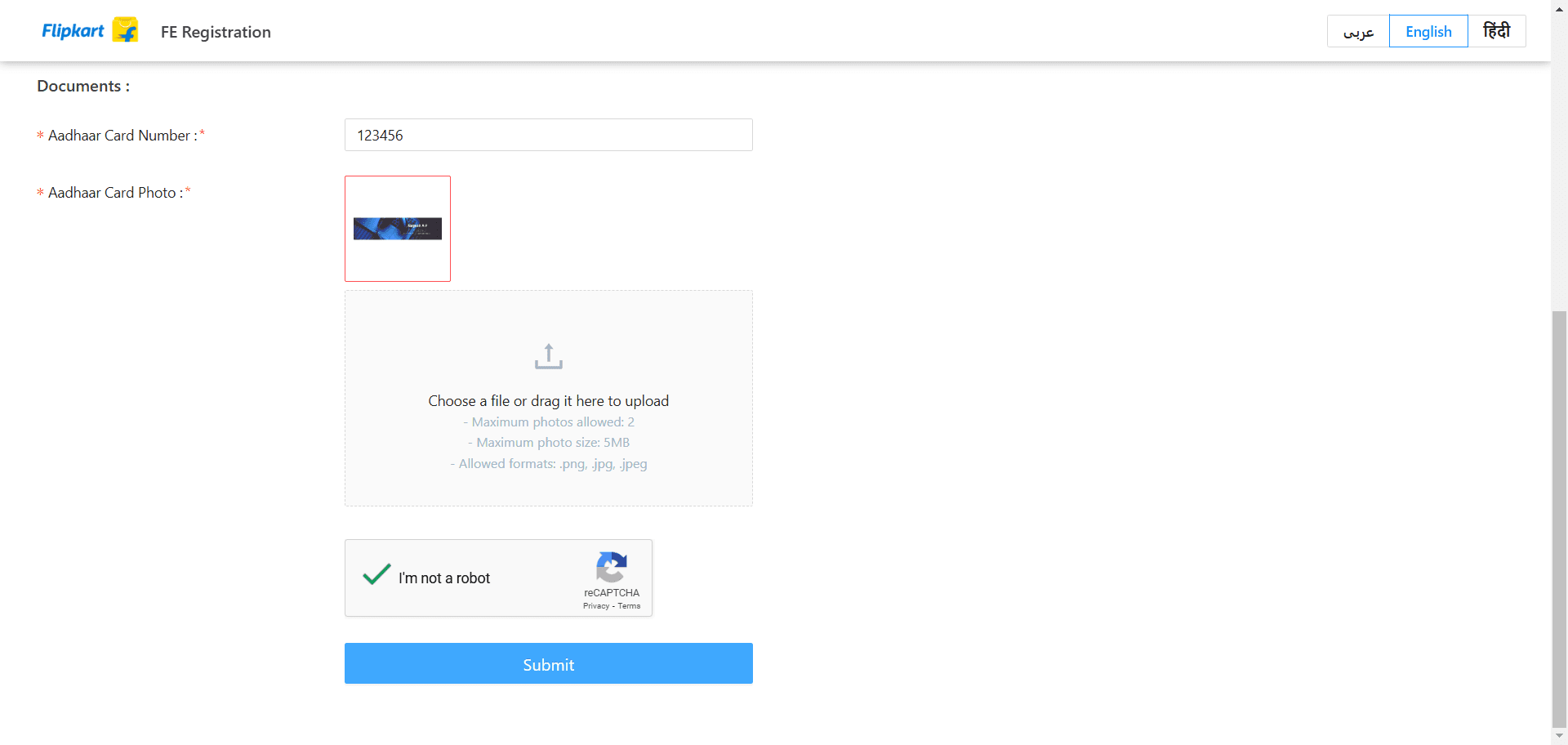
Confirm the CAPTCHA and then click the submit button to send the rider's information.
13
Upon clicking the submit button, the information will be logged in the OPS (Operational Dashboard), which is available to the Hub Manager. The Hub Manager has the authority to approve or reject the ride within the Rider Management system.
14
If the rider wishes to be onboarded directly by the Hub Manager, they should consult this document