
How to Create a New Secret Key in Krita AI with OpenAI Integration
Learn step-by-step how to create a new secret key in Krita AI using the OpenAI integration. Follow this simple guide to generate and copy your secret key efficiently.
By Alexander Hoehne
In this guide, we'll learn how to generate and use a new secret key for connecting Krita with OpenAI services. This process involves navigating through the Krita AI tab, accessing OpenAI, and creating a secret key for authentication.
You'll see how to enter the required information, generate the key, and copy it for use.
Let's get started
Click on the Krita AI tab. Then you move to OpenAI.
1
Click here
Hover here over each of these items. Then you type garbage.
2
Click here
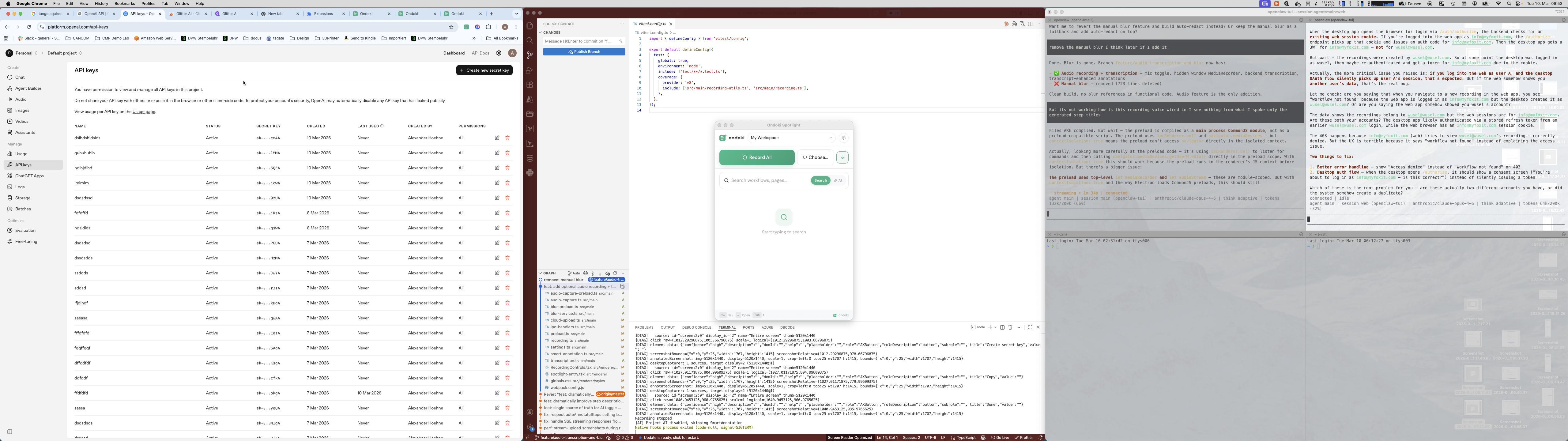
Click on Create New Secret Key.
3
Type "dshidshidids"
4
Click on "+ Create new secret key"
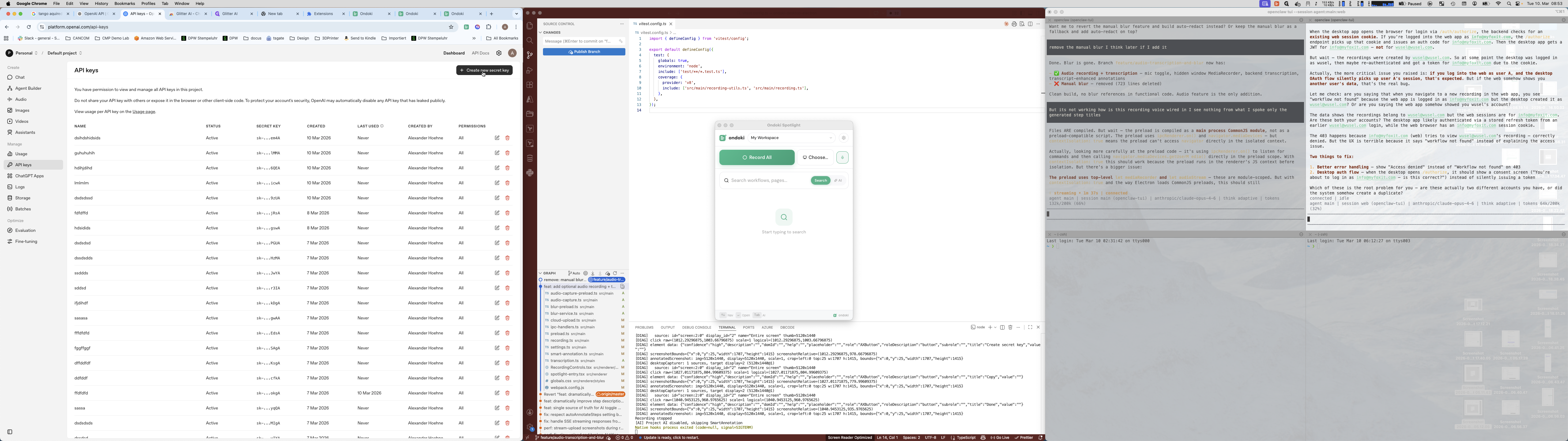
5
you
6
Click on "I"
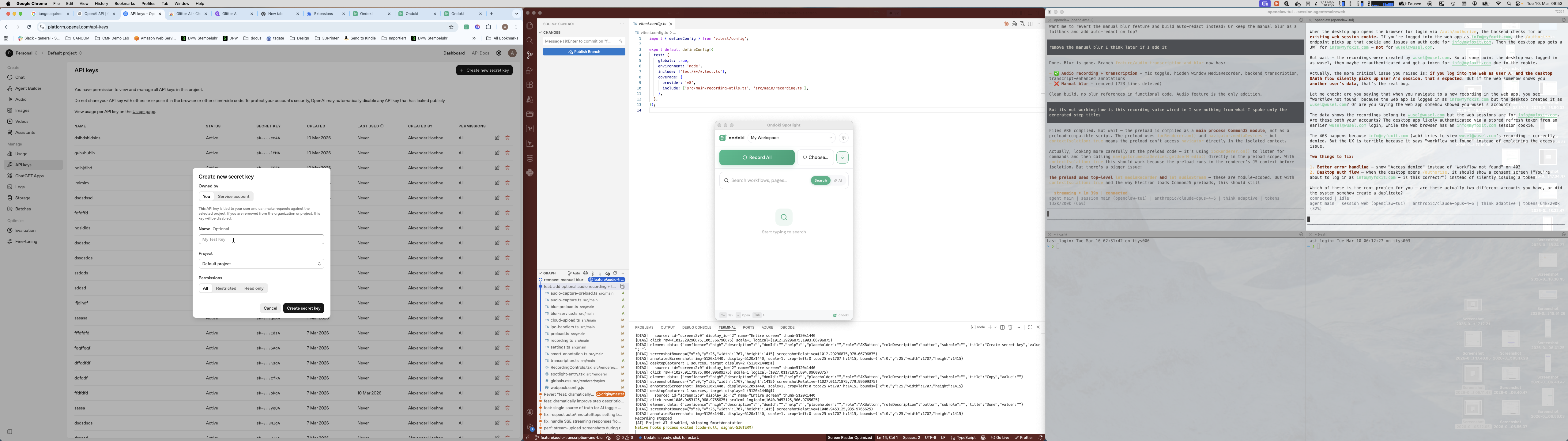
Try typing again.
7
Type "dshnikdsidns"
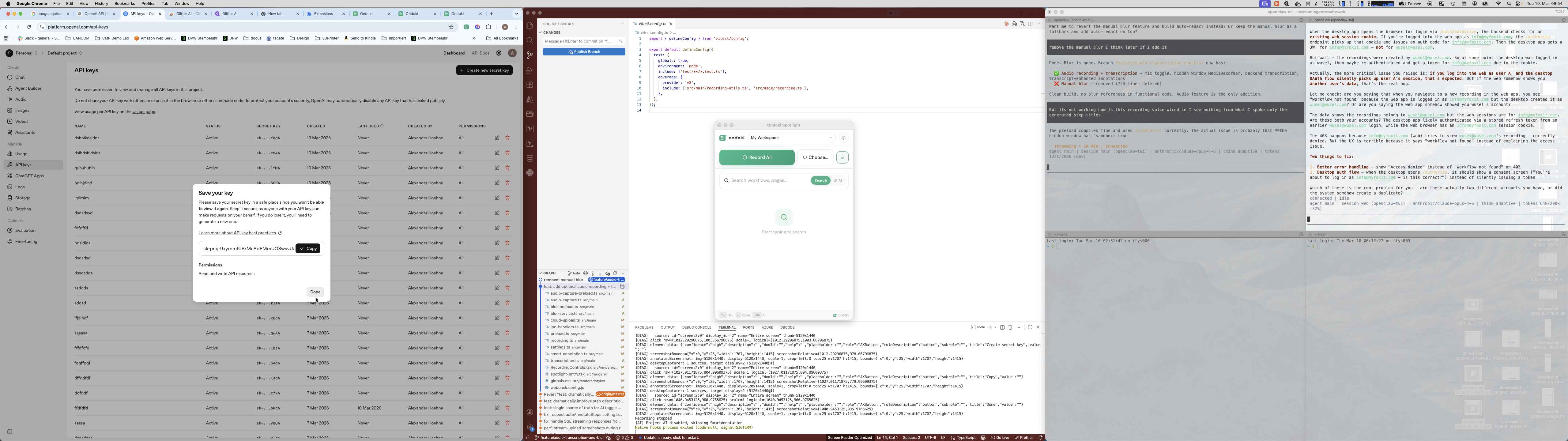
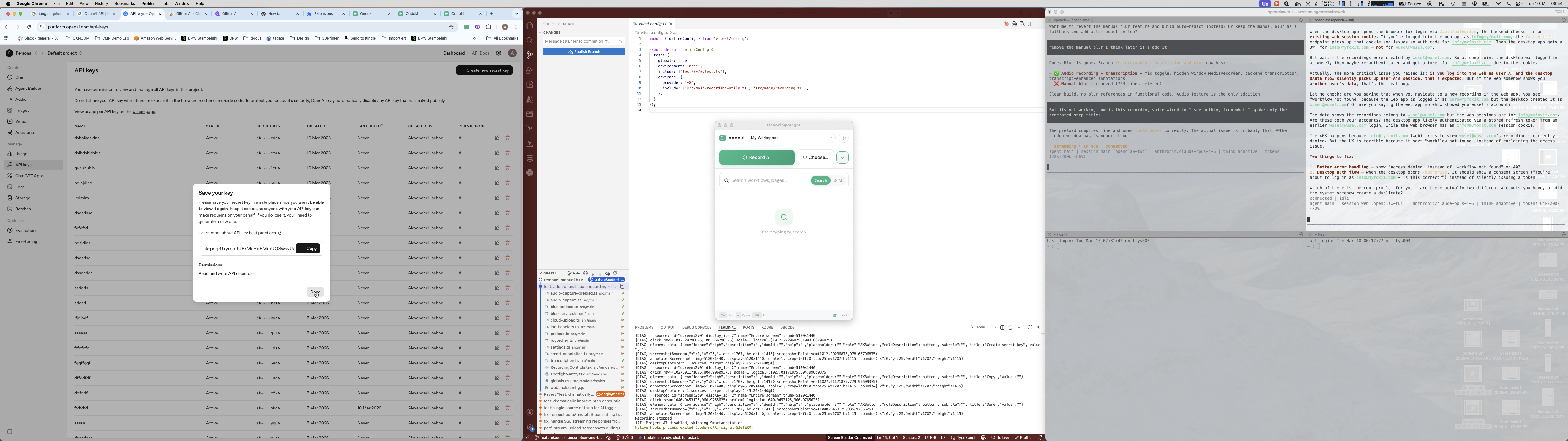
Press Create Secret Key. Copy and done.
8
Click on "→ Comm"
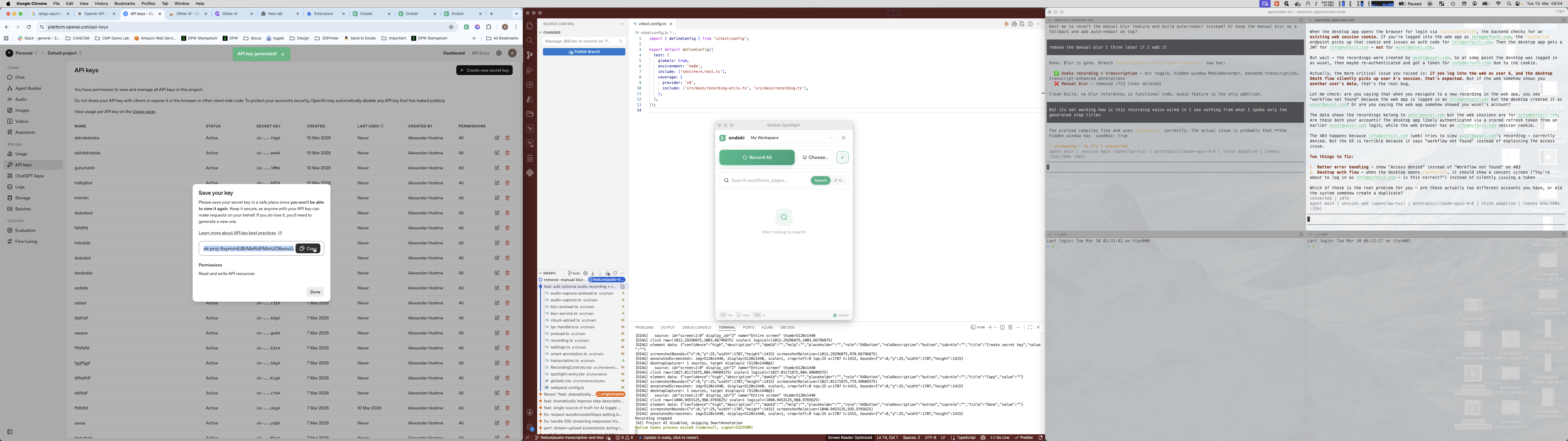
9
Click on "7 Mar 2026"
10
Click on "Done"
ddasdd