
How to Create a Post on Viva Engage: Step-by-Step Guide
Learn how to create a post on Viva Engage with this easy step-by-step guide. Discover how to start discussions, add images, mention people, and check analytics in your Viva Engage community.
In this guide, we'll learn how to create a post on Viva Engage. You will see how to choose the type of post, add text, mention people, and use formatting options. We will also look at how to make your post an announcement and check analytics after posting.
Let's get started
With this guide, I will show you how to create a post on Viva Engage. To do this, open Viva Engage from your bookmarks bar.
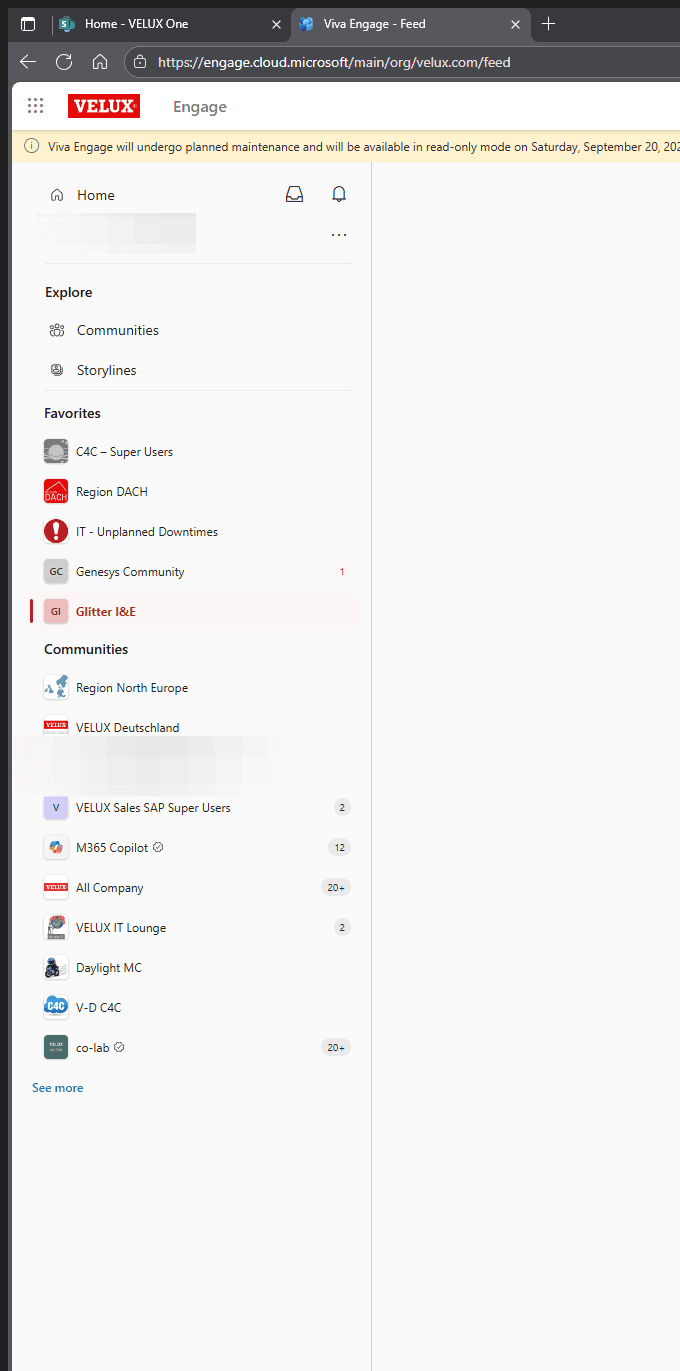
Next, open the community where you want to post.
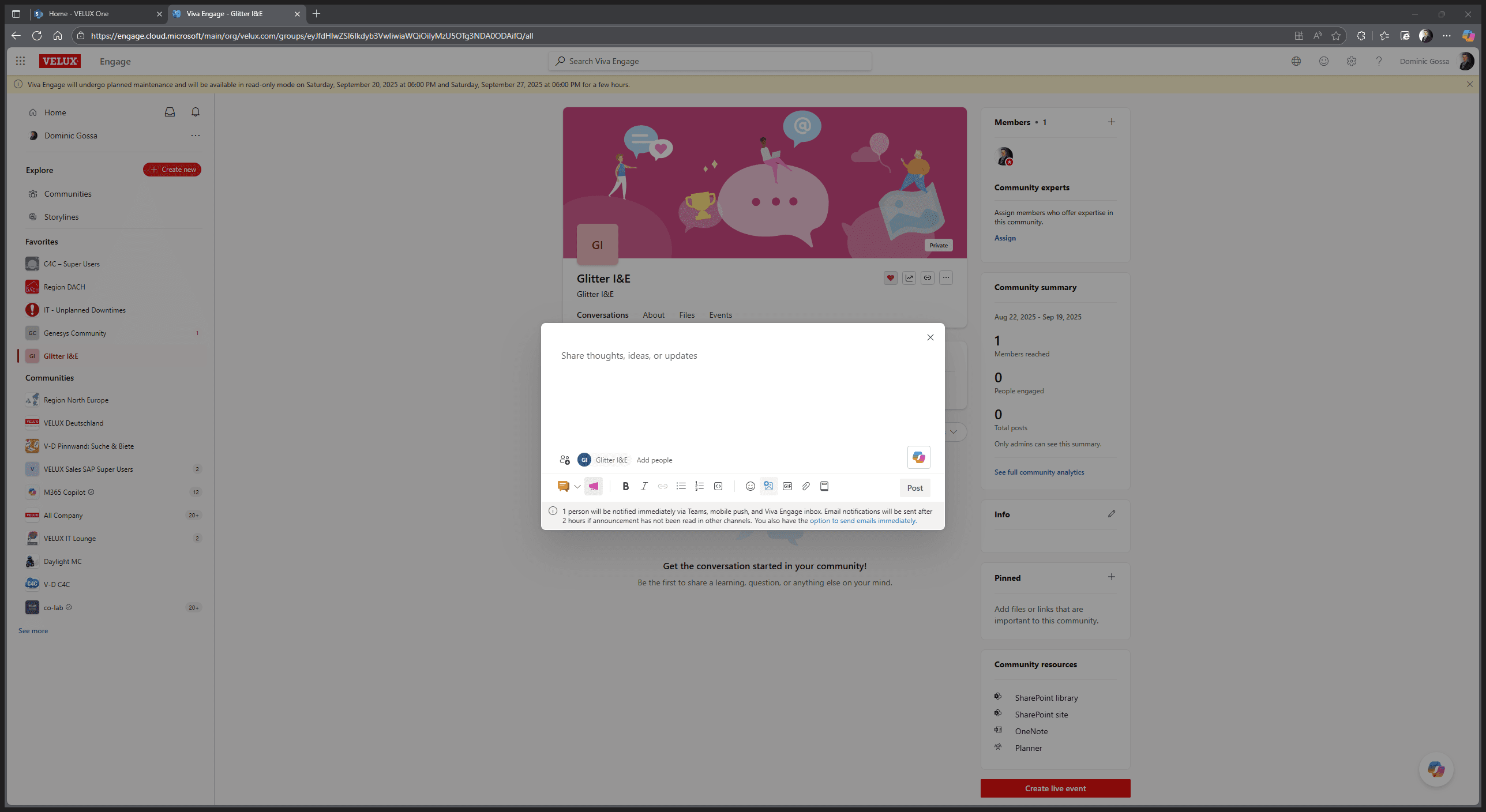
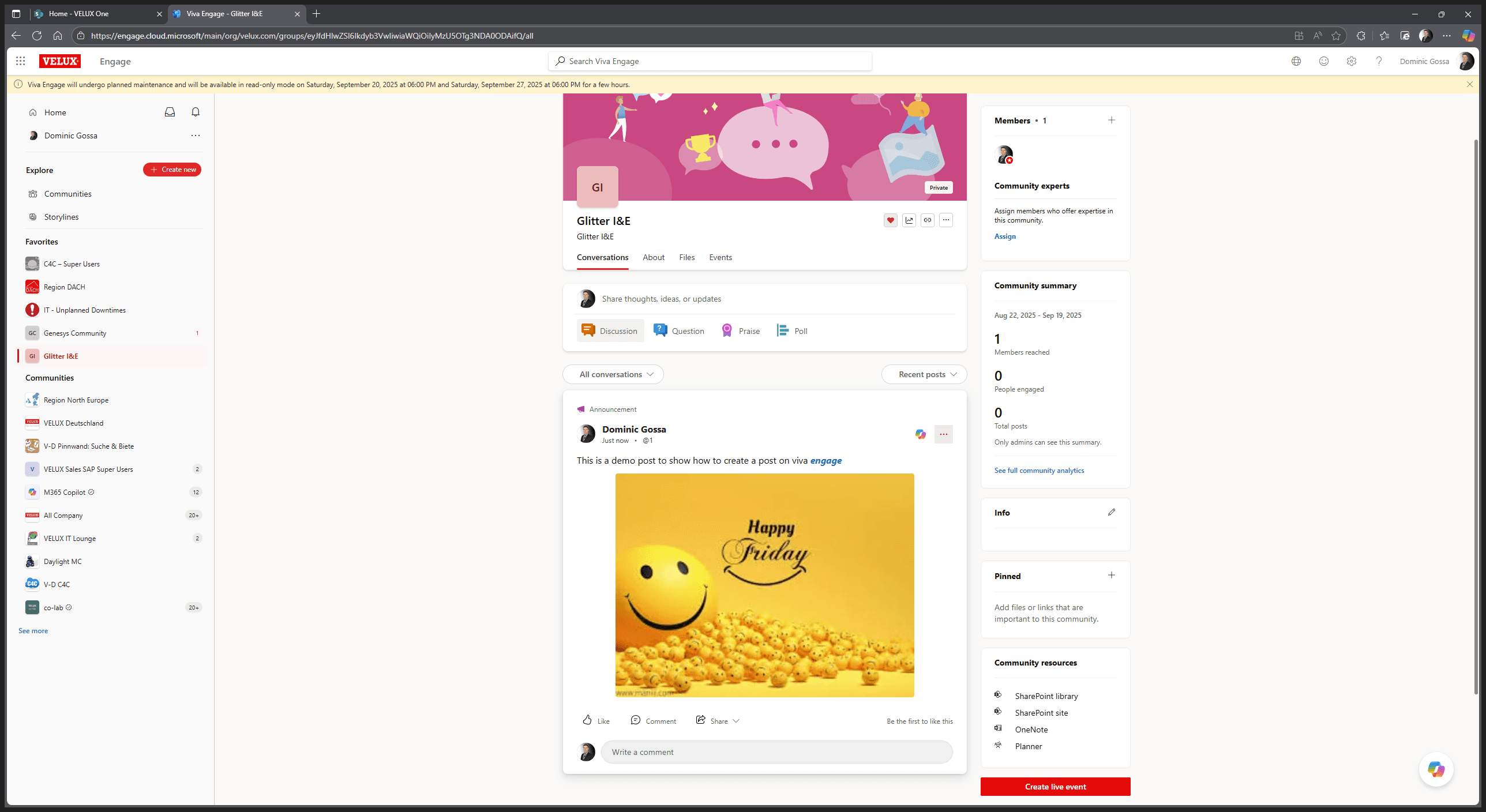
I created GLITTA Inform and Engage for myself, so I wouldn't bother anyone with my current posts. Here we are. On the middle pane, you can choose to open a discussion, ask a question, give praise, or start a poll. I go in and want to start a discussion. Here, I can still switch between discussion, question, praise, and poll.
For now, we will focus on discussion. We can make it an announcement so everyone gets notified. You will also see a description of this feature below. We can then upload a picture.
Happy Friday! Everyone is looking forward to the weekend.
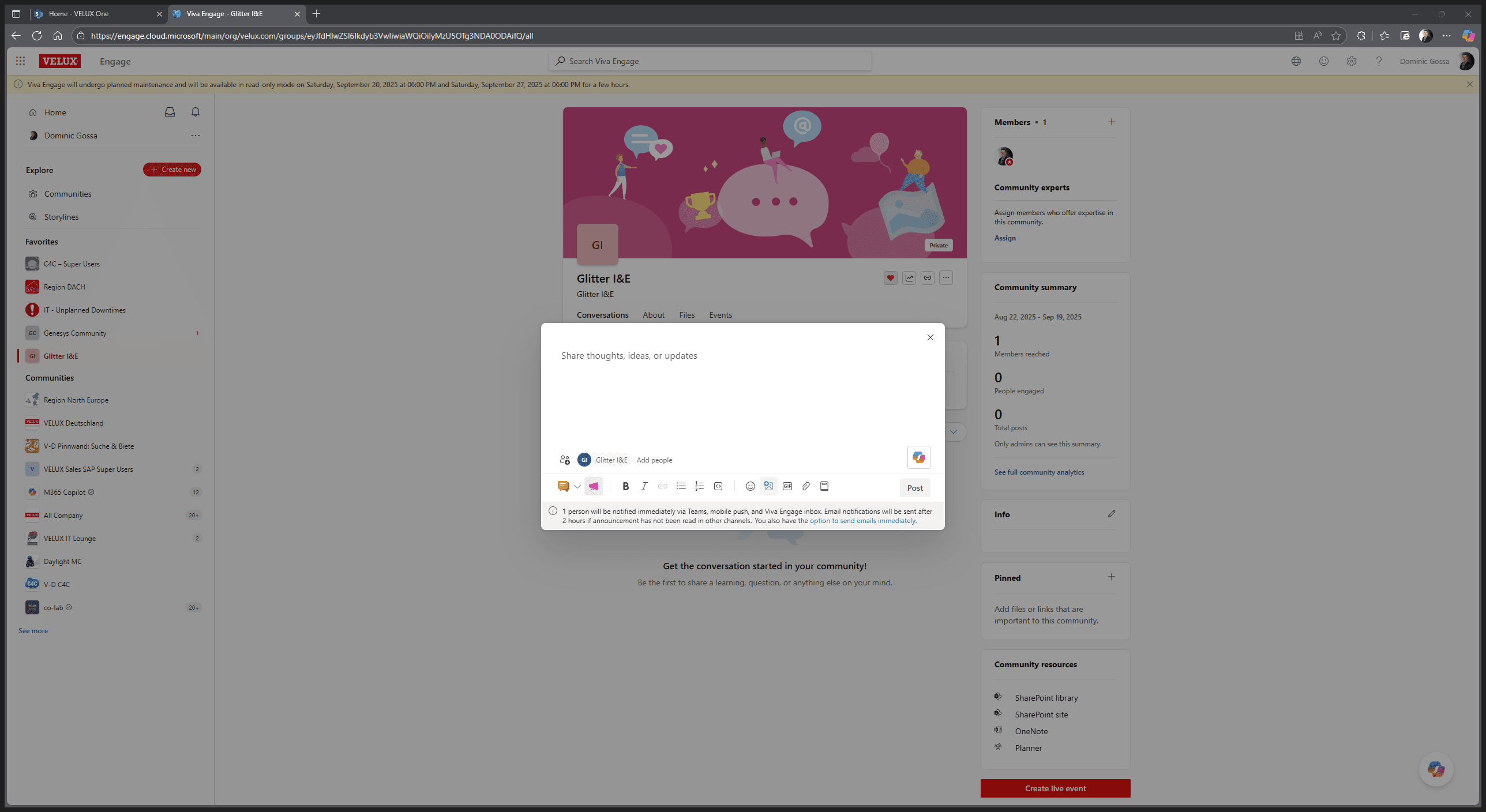
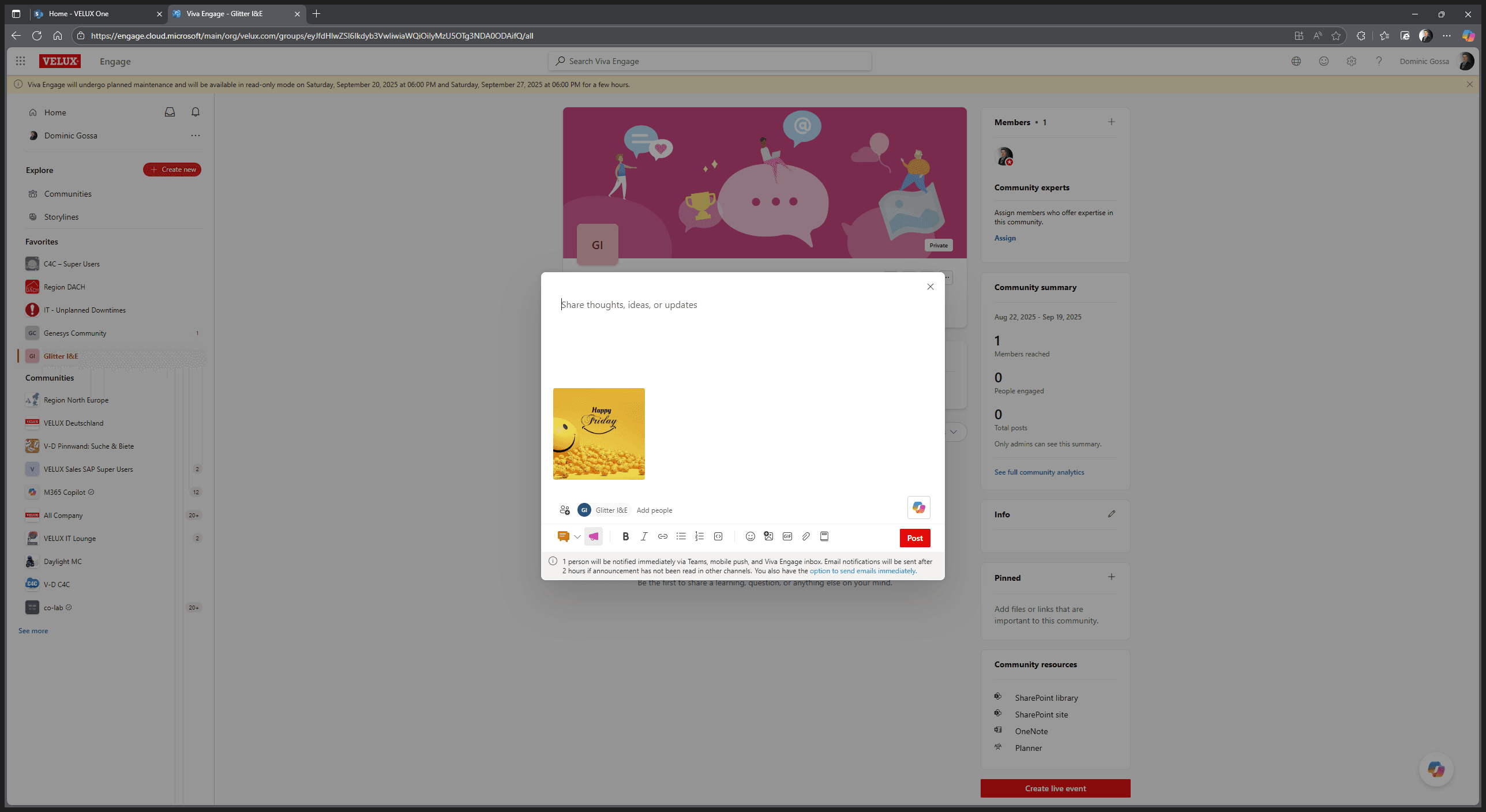
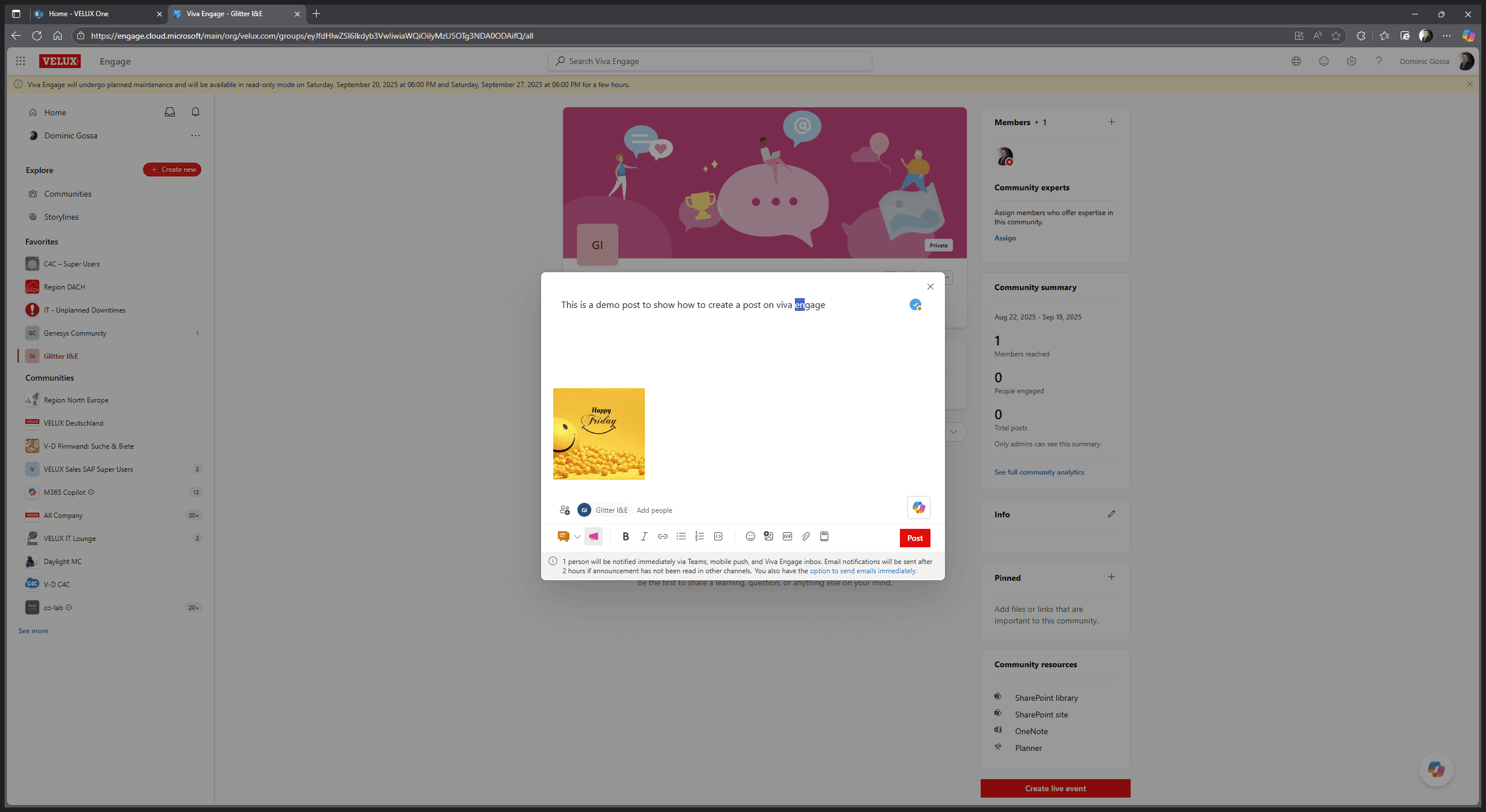
I can add text here. This is a demo showing how to create a post on Viva Engage. I can also adjust the text, make it bold, use italics, and more.
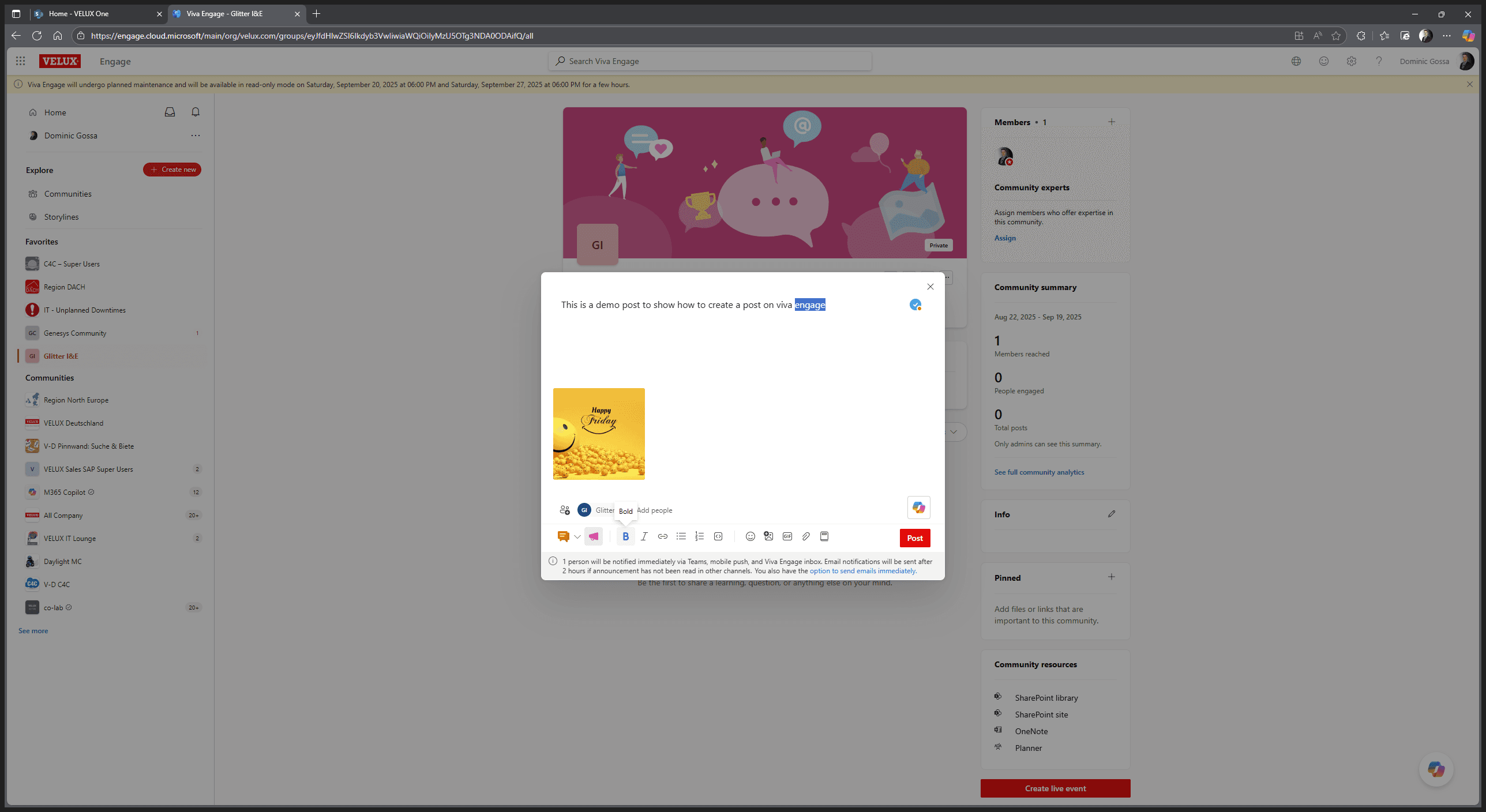
I can also enable a link to velux.com. That's about all I can do here.
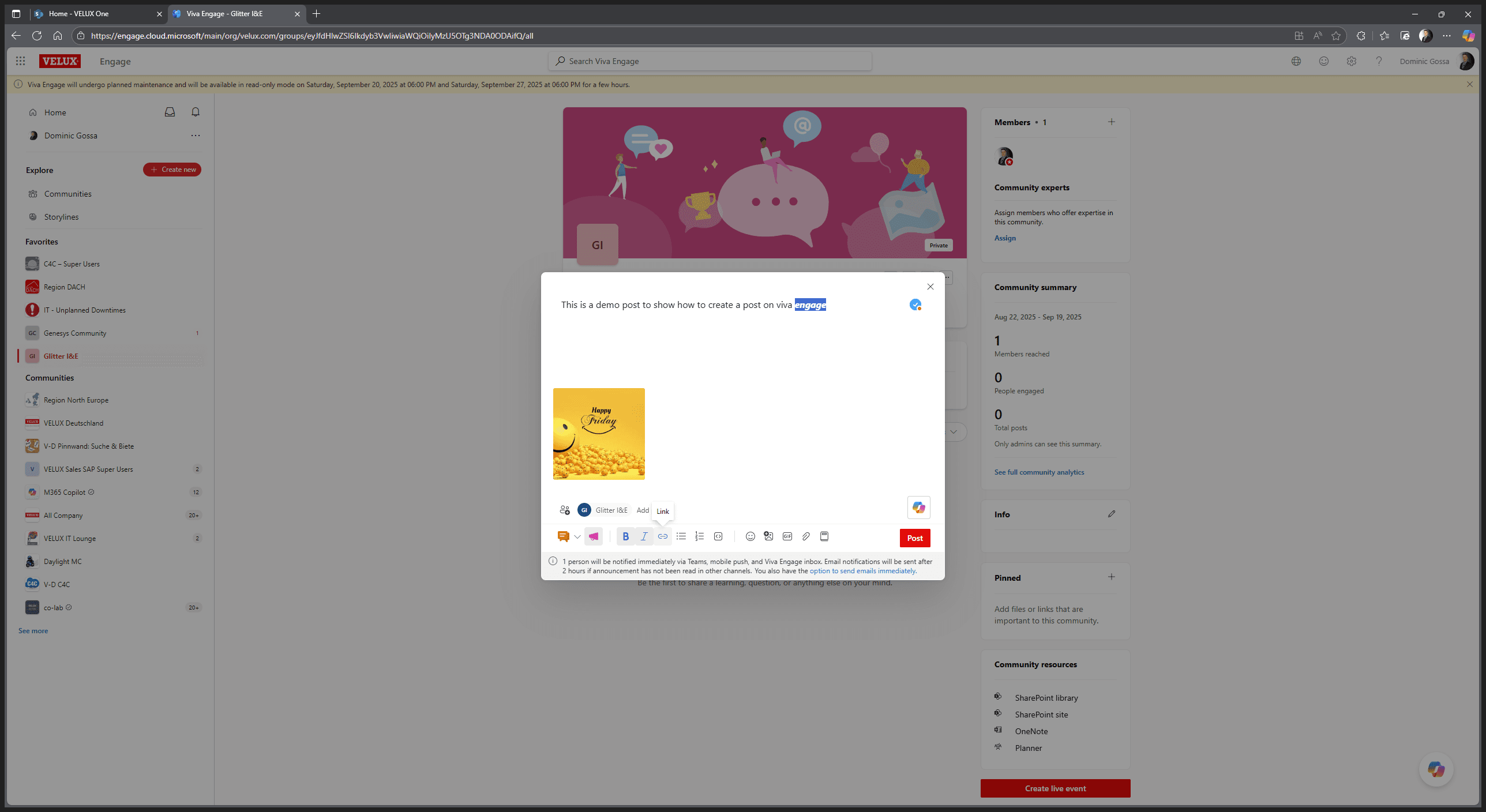
I can also add people.
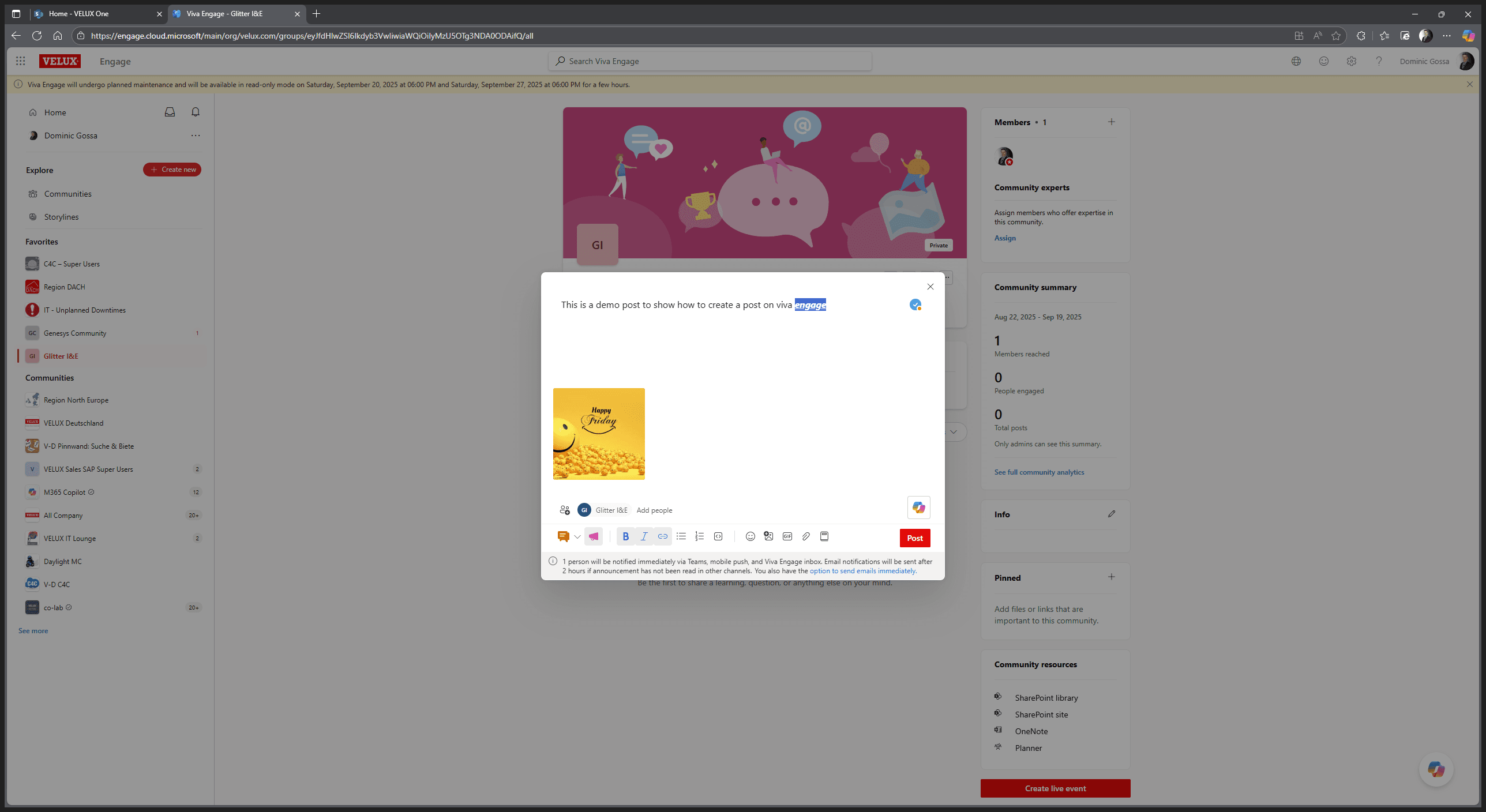
When I add Stefan, he will be notified that I made a post in this community and mentioned him.
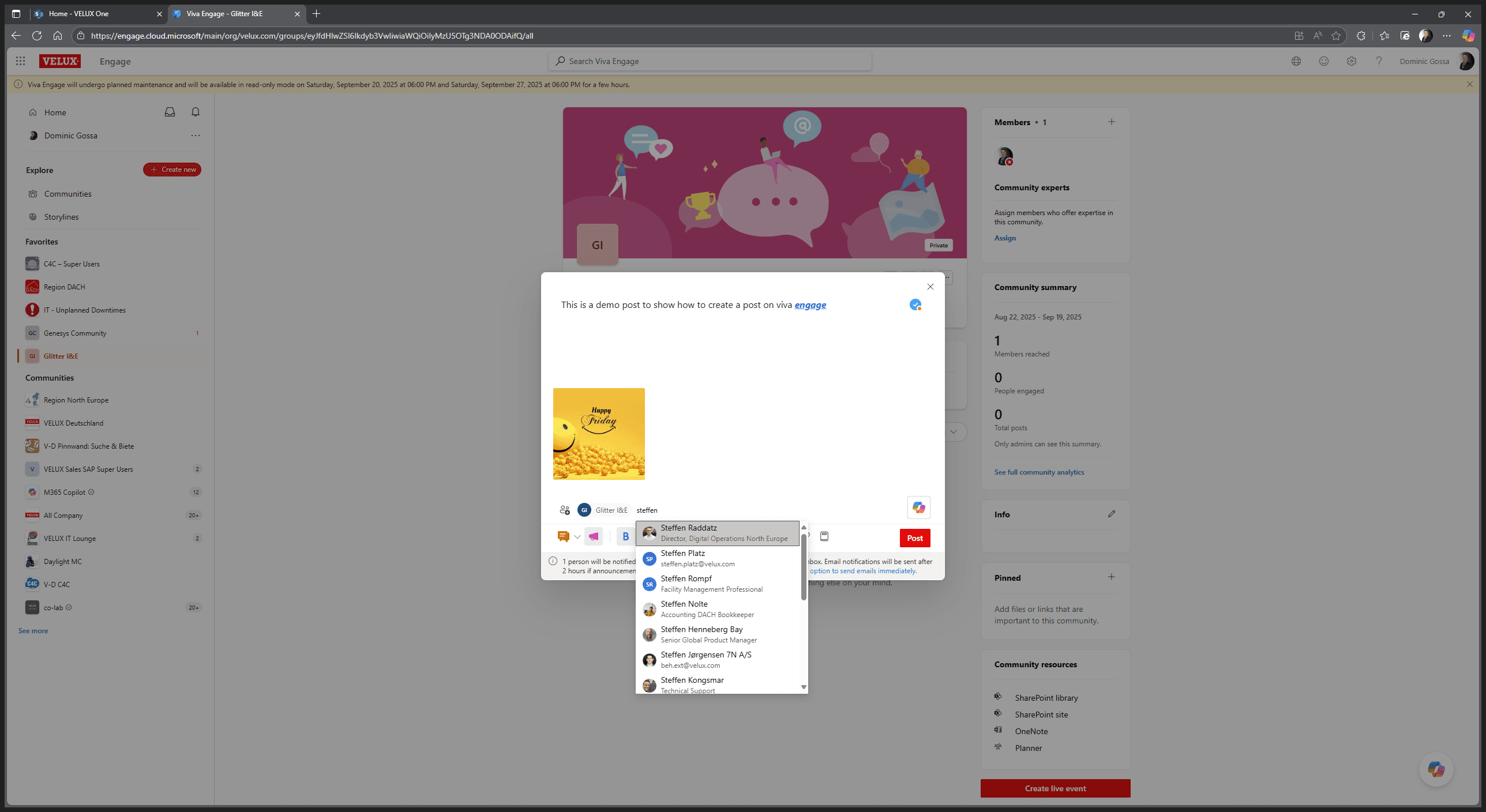
All the things I can do here are also described. Now, I just post, and we're done with the Viva Engage post.
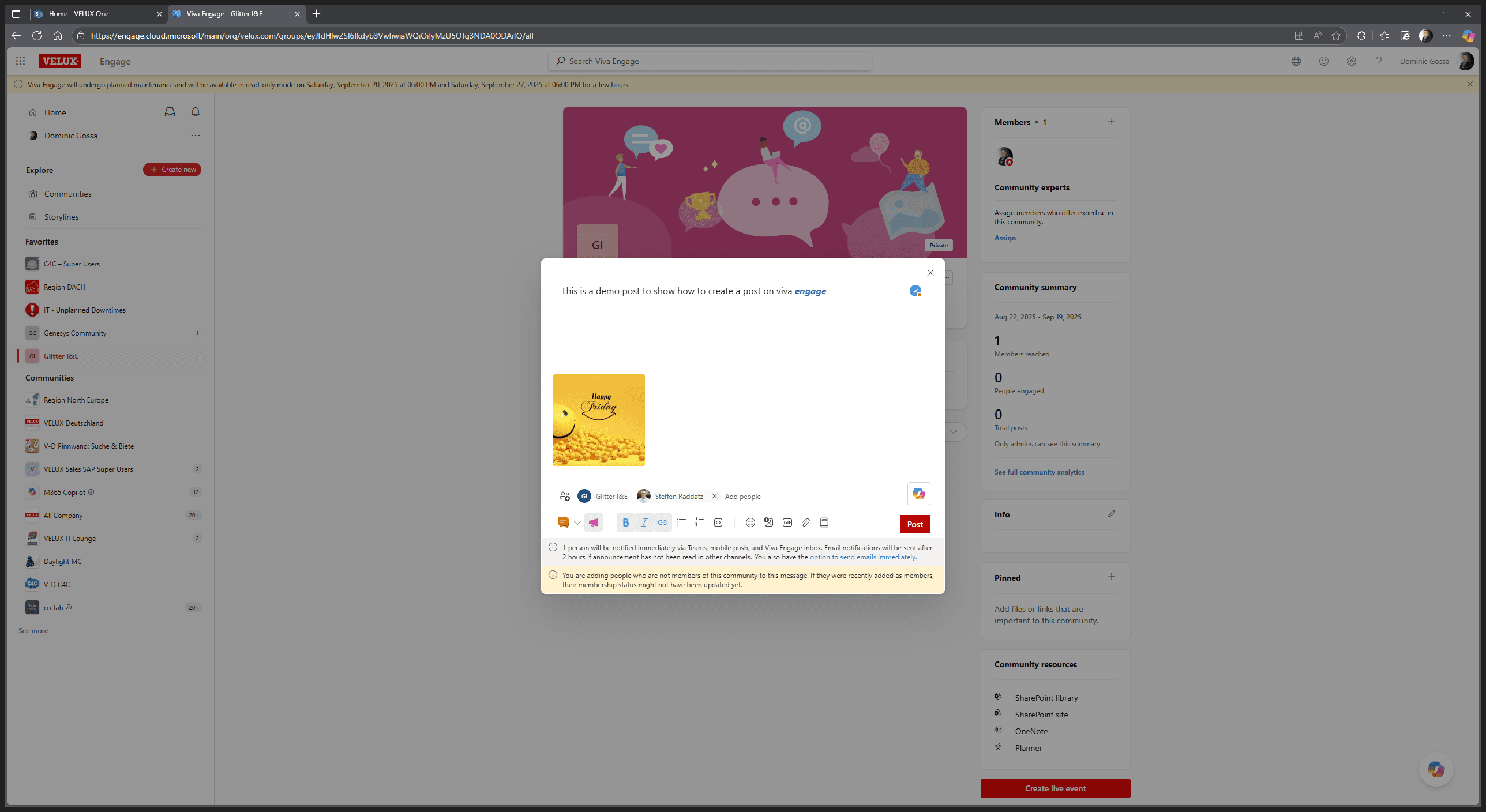
I can also check analytics afterward to see how many people viewed this post.
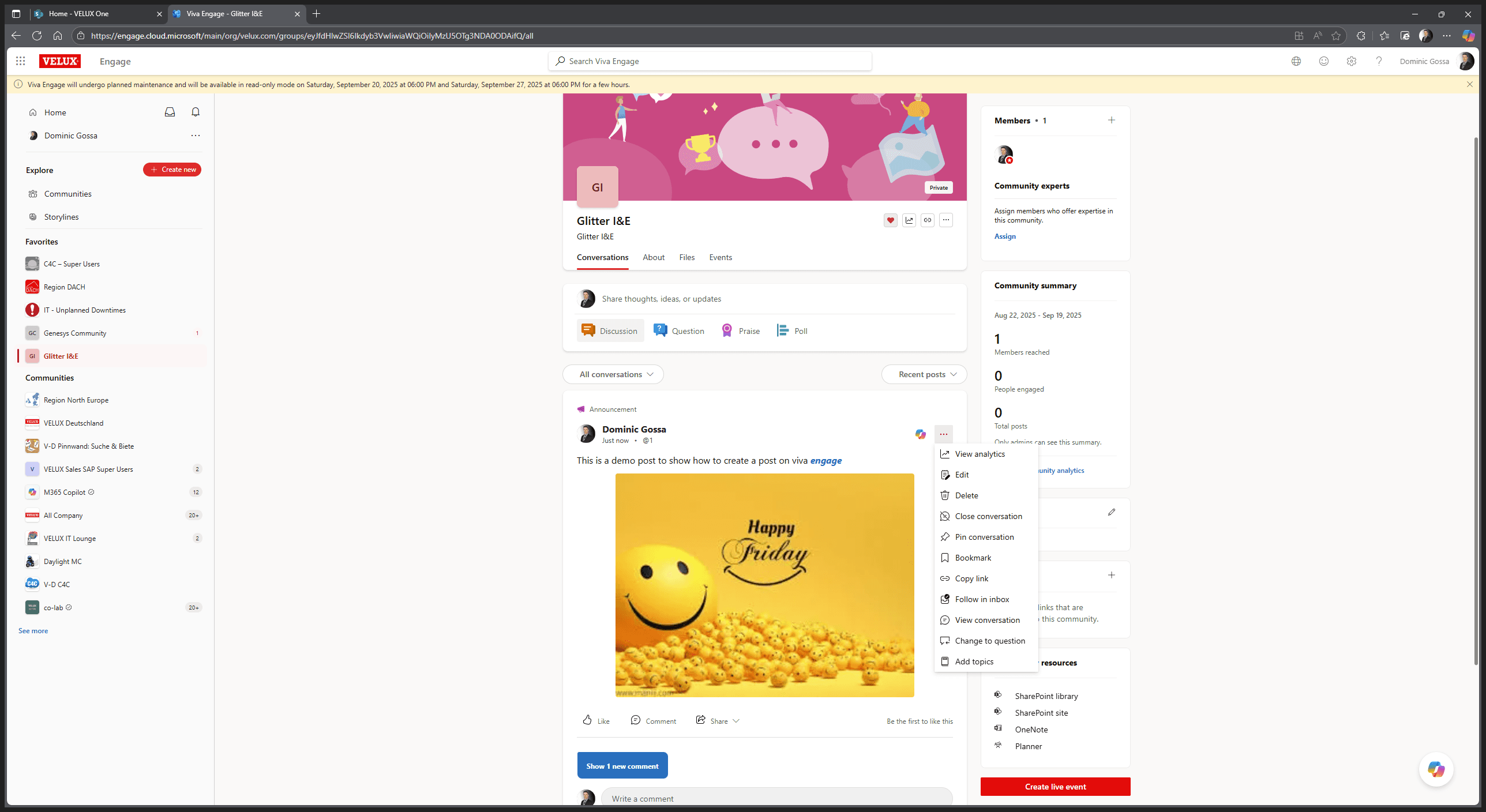
A new comment says I added Stefan to the conversation.
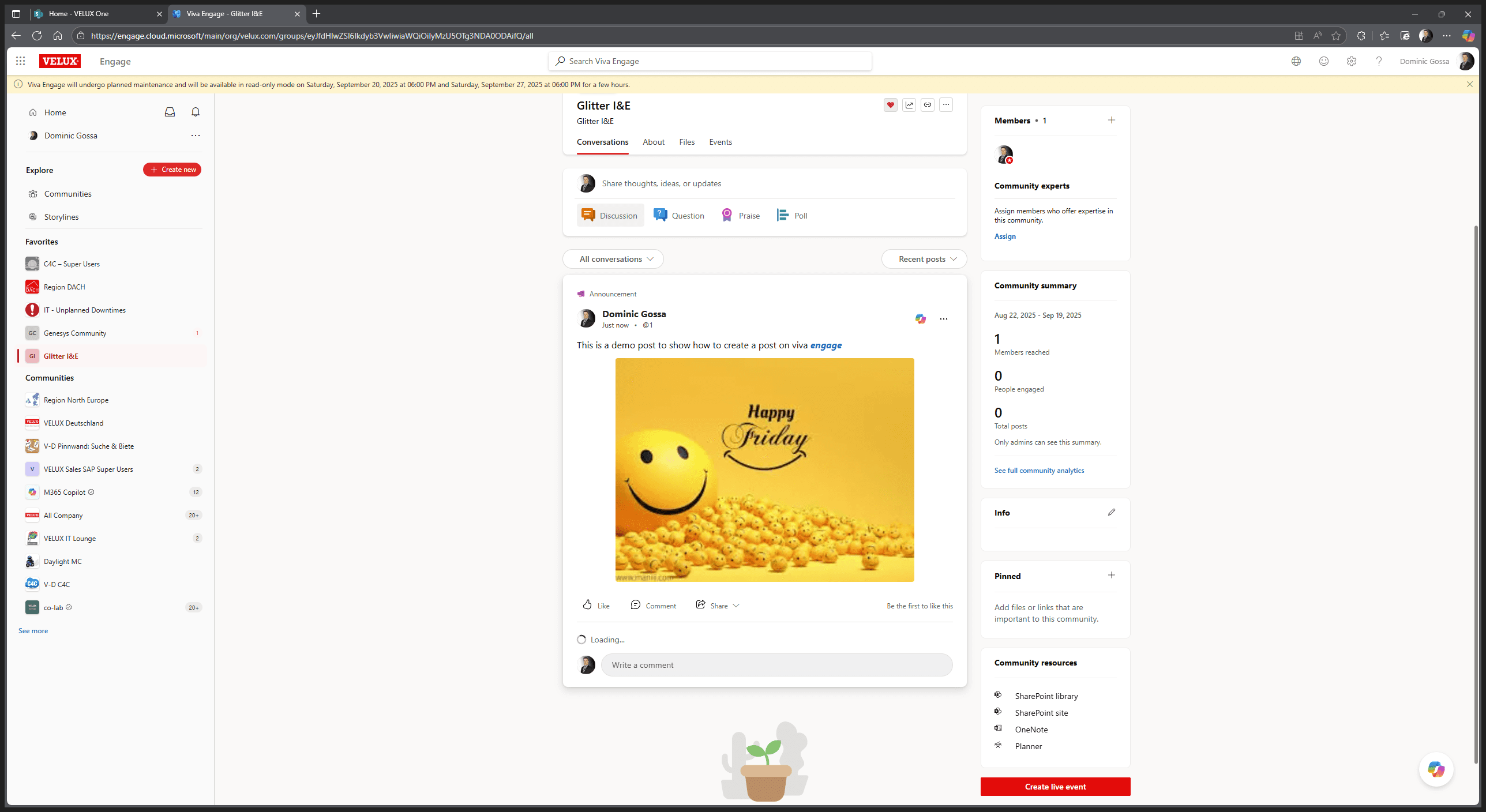
This is the manual on how to quickly create a Viva Engage post.