
How to Set Up an Ad Group in A New Campaign
Learn how to set up an ad group within your campaign, including naming, budget allocation, bid settings, offer selection, and advanced targeting options for platforms like Shopify. Perfect for advertisers looking to optimize their ad campaigns.
In this guide, we'll learn how to set up an ad group within a campaign on Koddi. We'll cover naming the ad group, setting flight dates and budgets, choosing eligible offers, and configuring bids. We'll also look at how to apply targeting rules to reach specific audiences or devices.
Let's get started
Ad groups are where we set the specific bidding/offers/targeting parameters.
You need at least one ad group within the campaign to go live, but you can have multiple ad groups if you want.
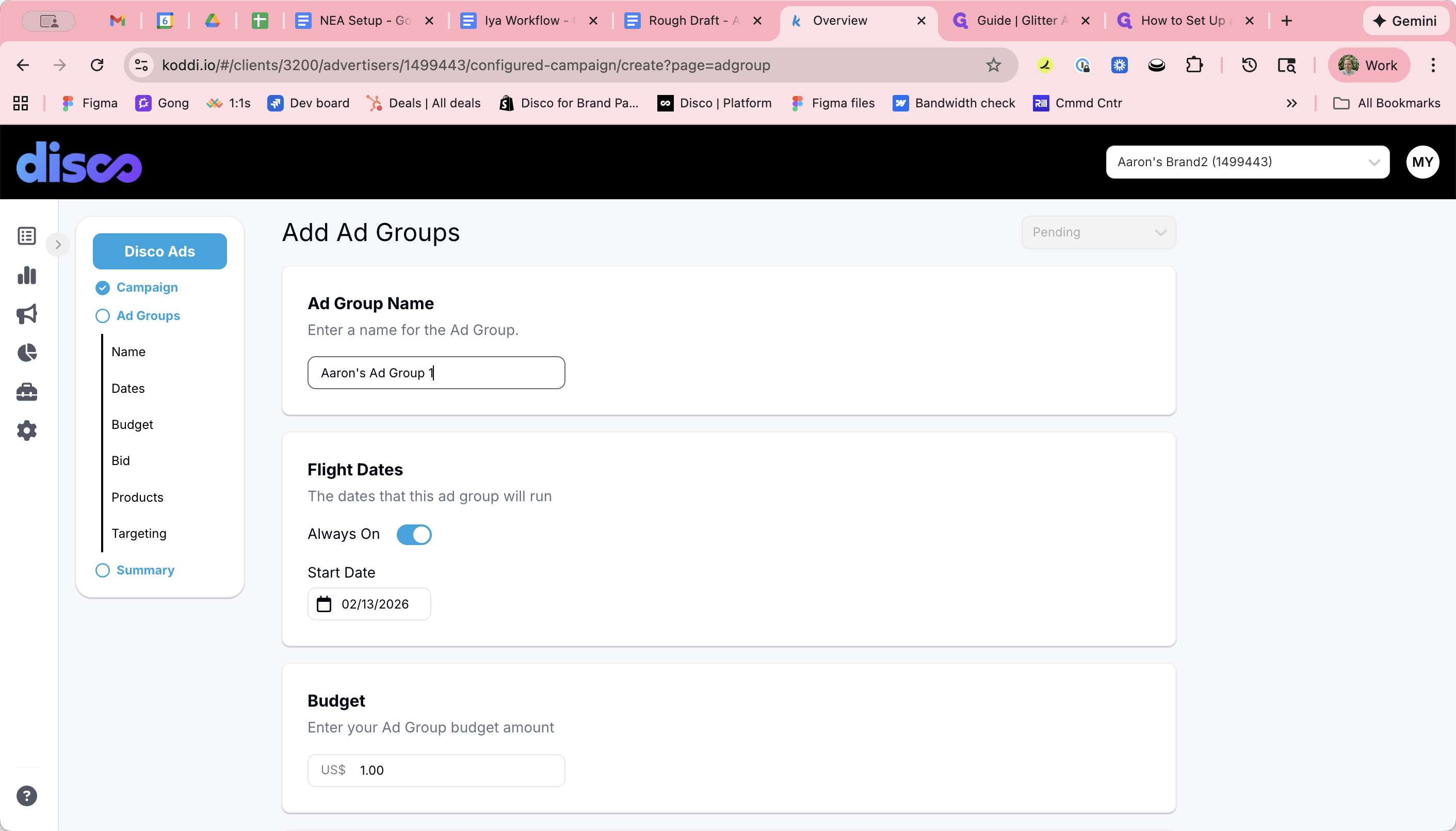
Then, we can update our flight dates for the Ad Group.
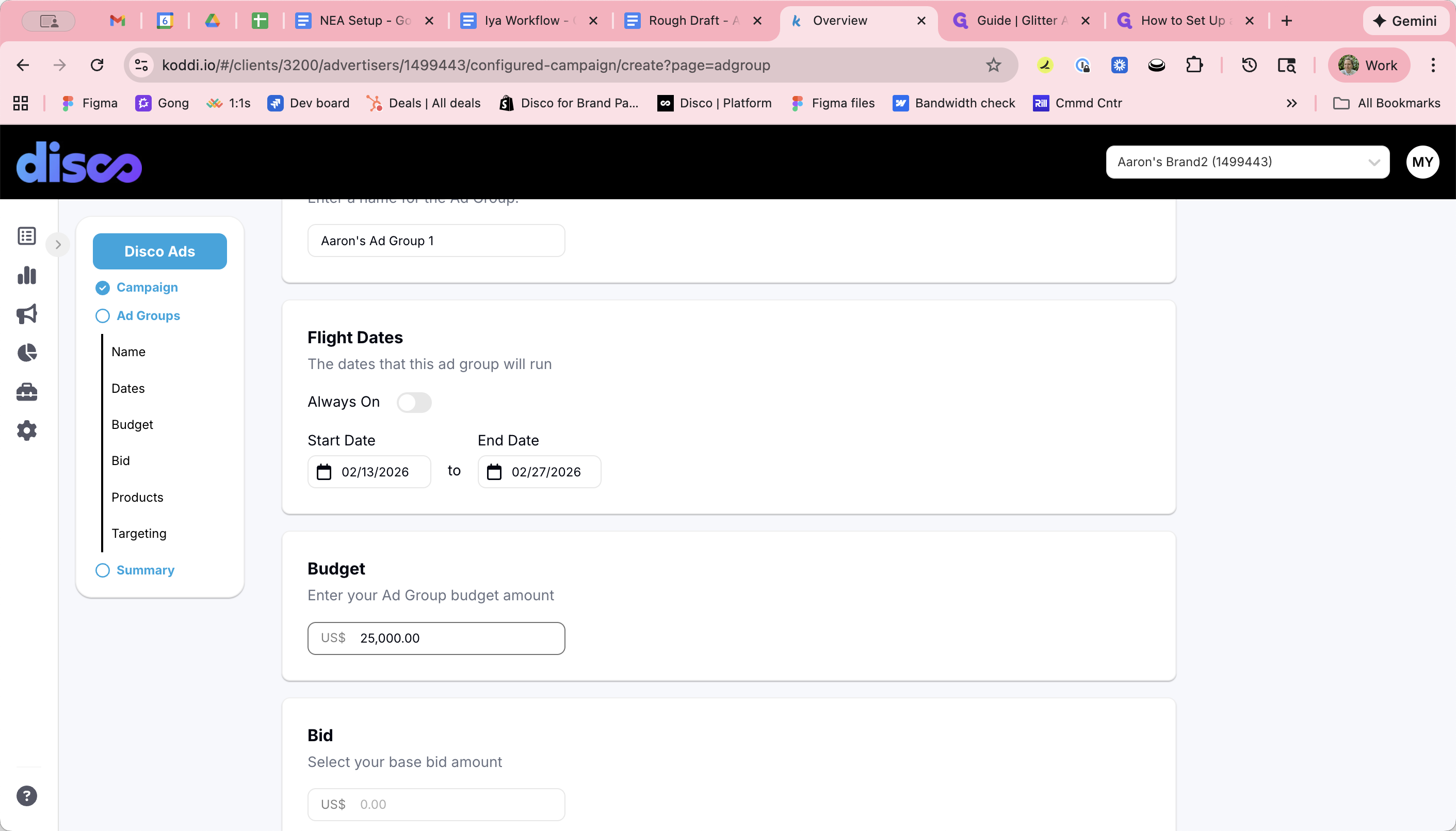
This will often match the campaign's flight dates (“Always on”).
Example - Partial Month Scenarios
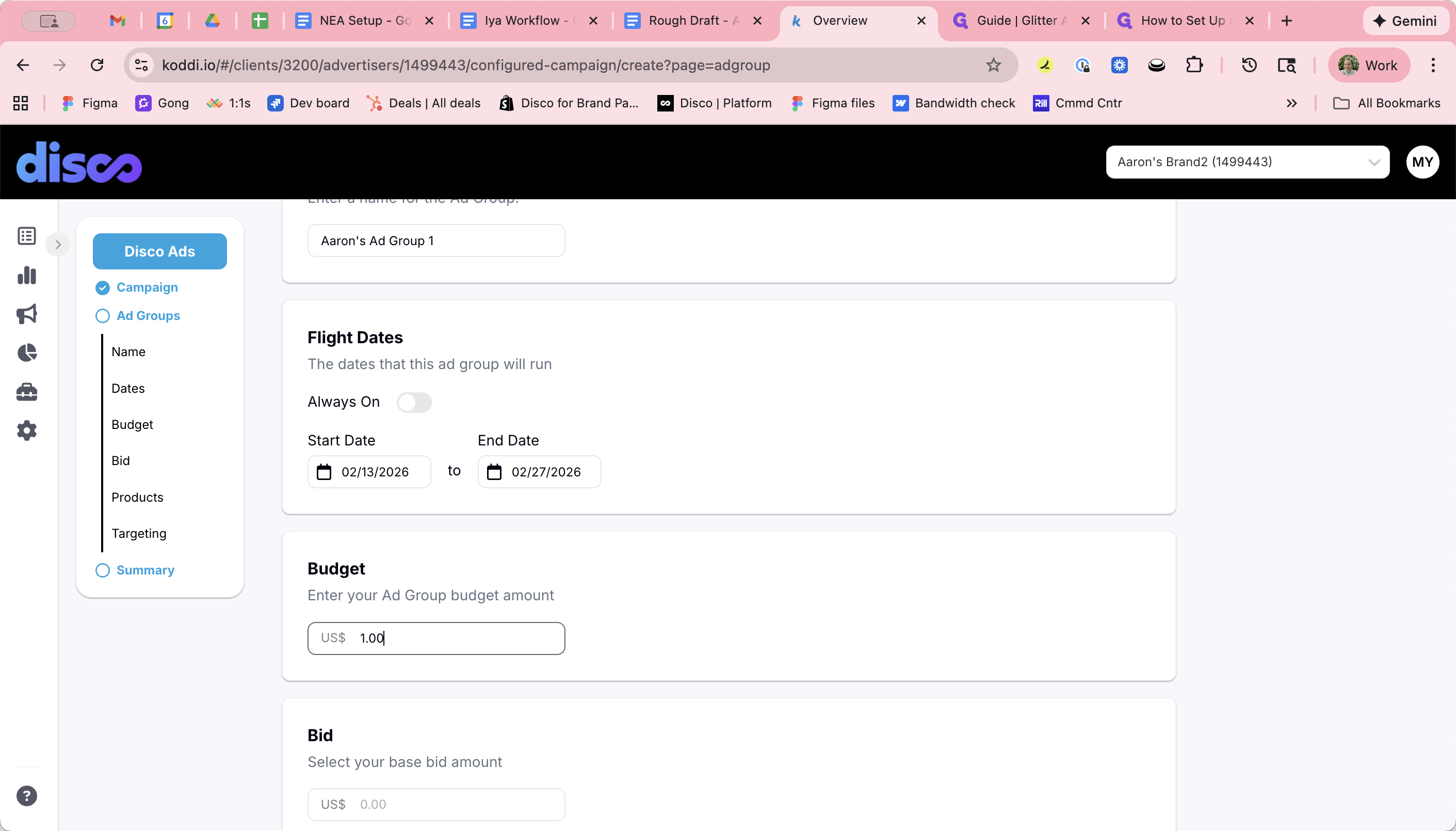
However, you can use an end date if needed for partial-month scenarios:
Example: brand starts mid-month with $50k/month; you may create:
Ad Group A ending end-of-month with $25k
Ad Group B “Always on” with $50k monthly for future months
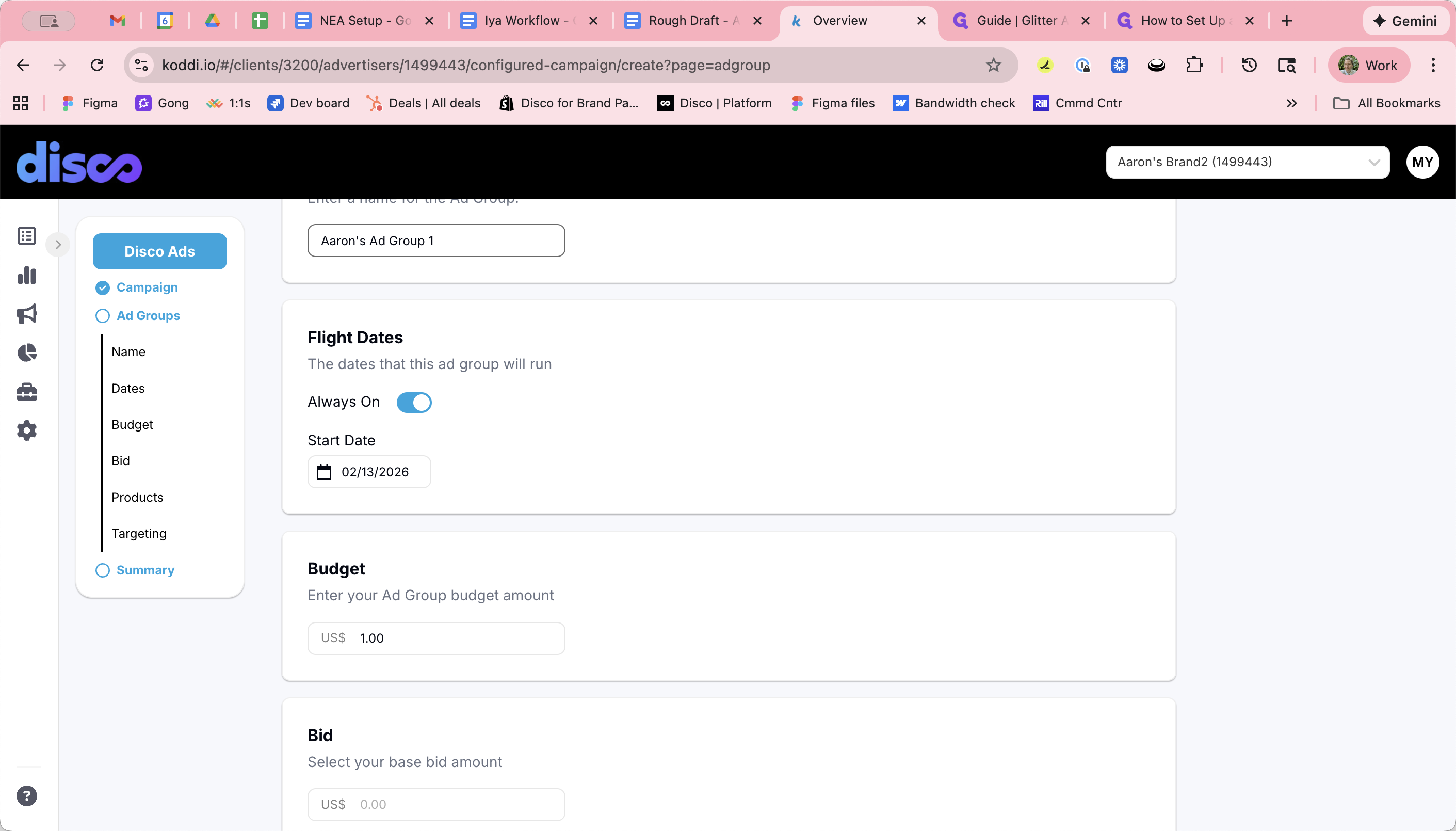
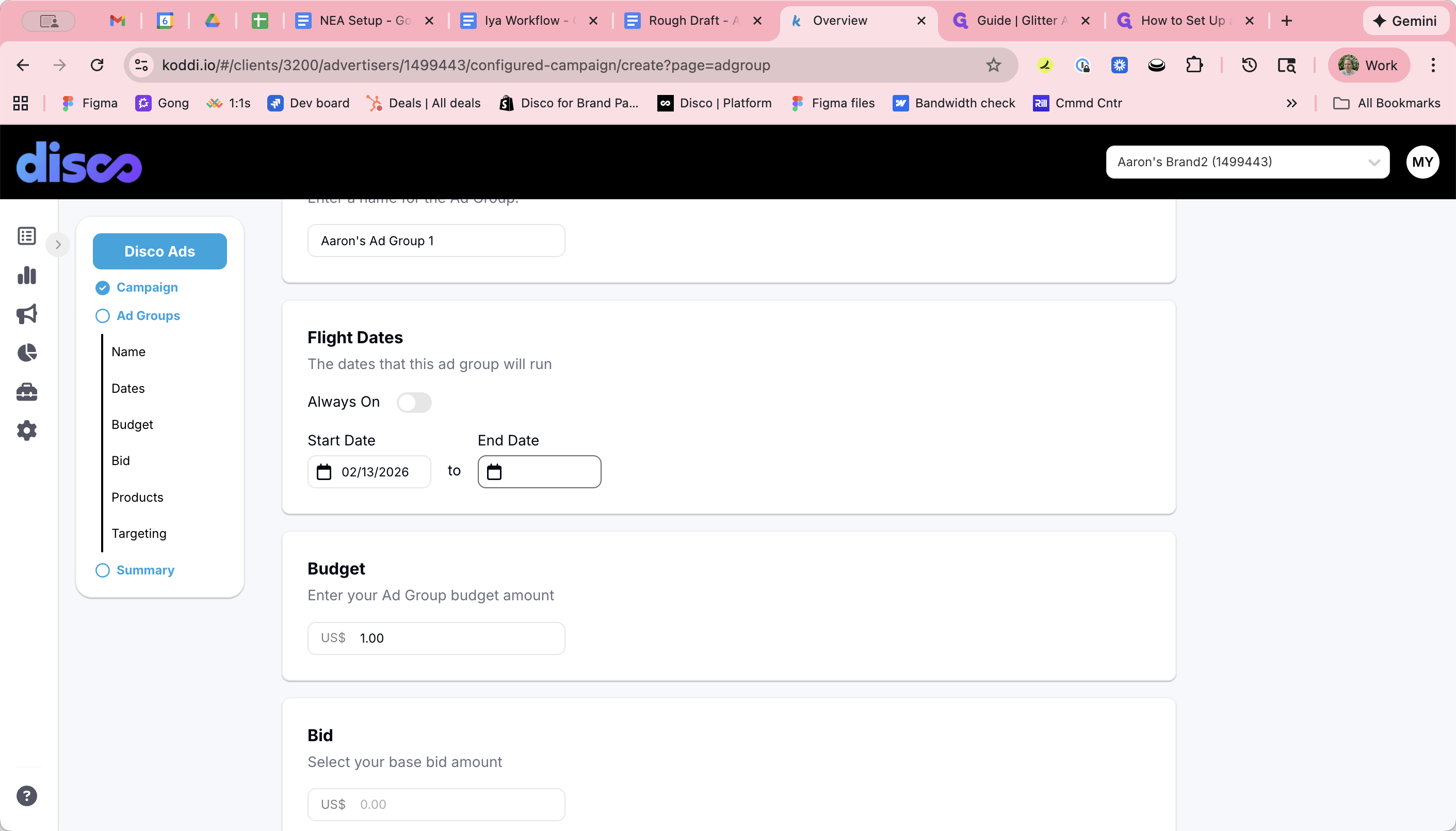
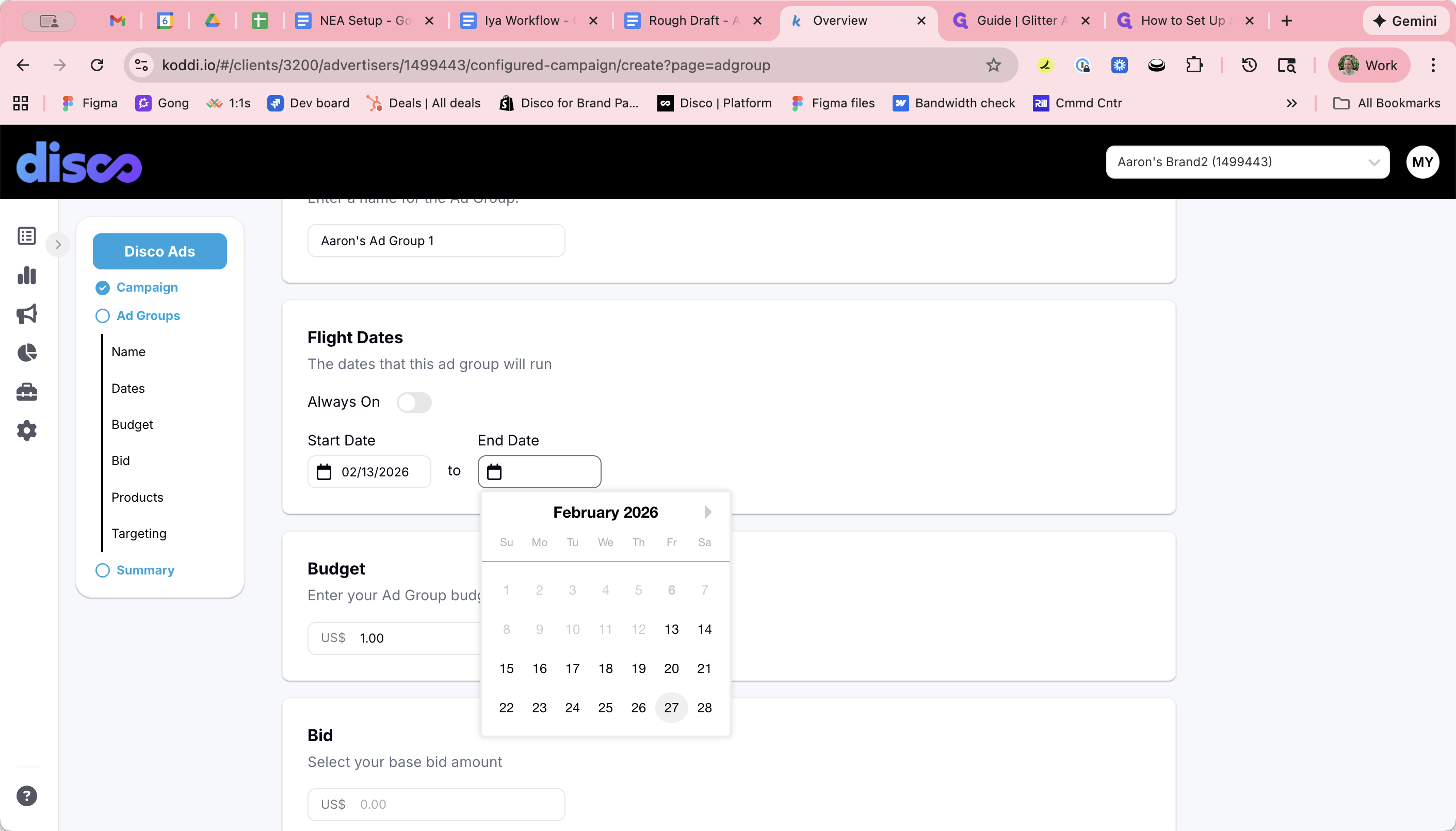
That's one example.
Back to Regular Set Up
For now, I'll leave the flight dates for the ad group set to Always On that will always be active with a $50,000 budget for future months.
Things to keep in mind:
Ad group budget cannot exceed campaign budget (hierarchy).
If you have multiple ad groups (e.g., mobile vs desktop offers), you may need to split budgets manually today.
Feature coming: dynamic budget spreading across ad groups without committing per-ad-group budgets (not available yet).
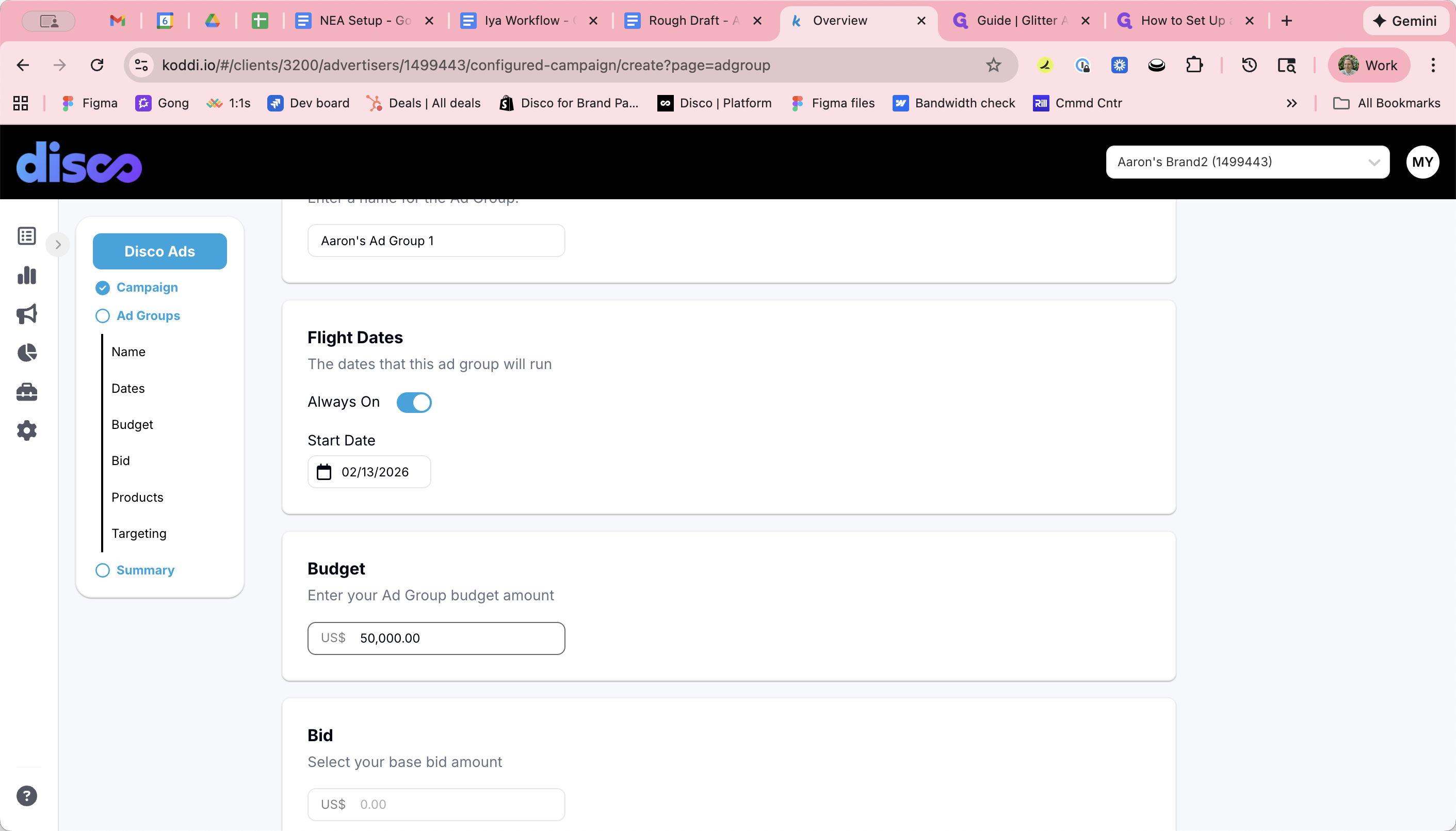
We will then note the base bid amount, which comes from the CPC bid form.
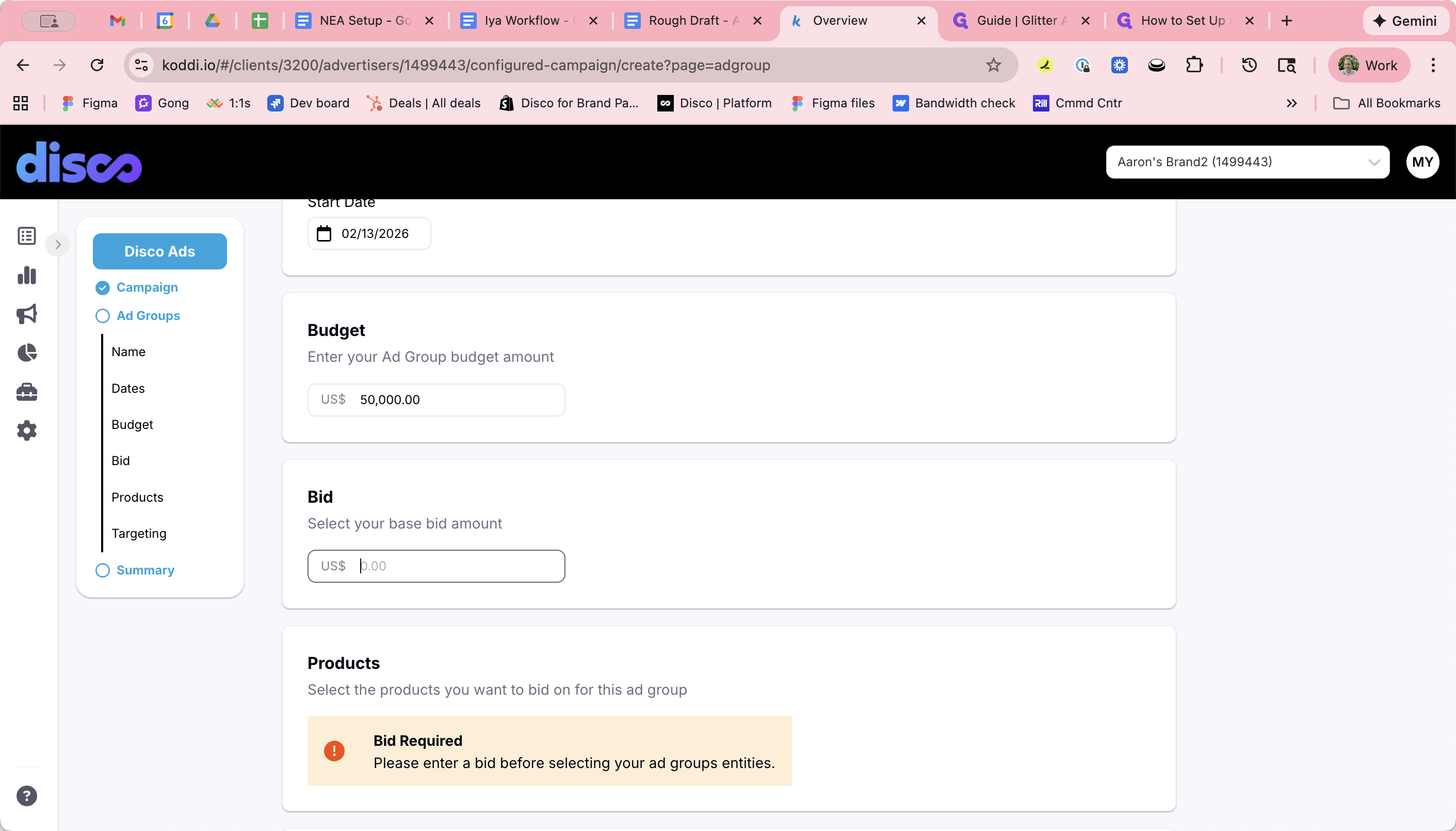
For bids, think of this as the minimum base network bid for the ad group. This base applies to most network traffic unless modified by targeting rules. This comes from the bid form submitted by the advertiser. We'll say it's $1.
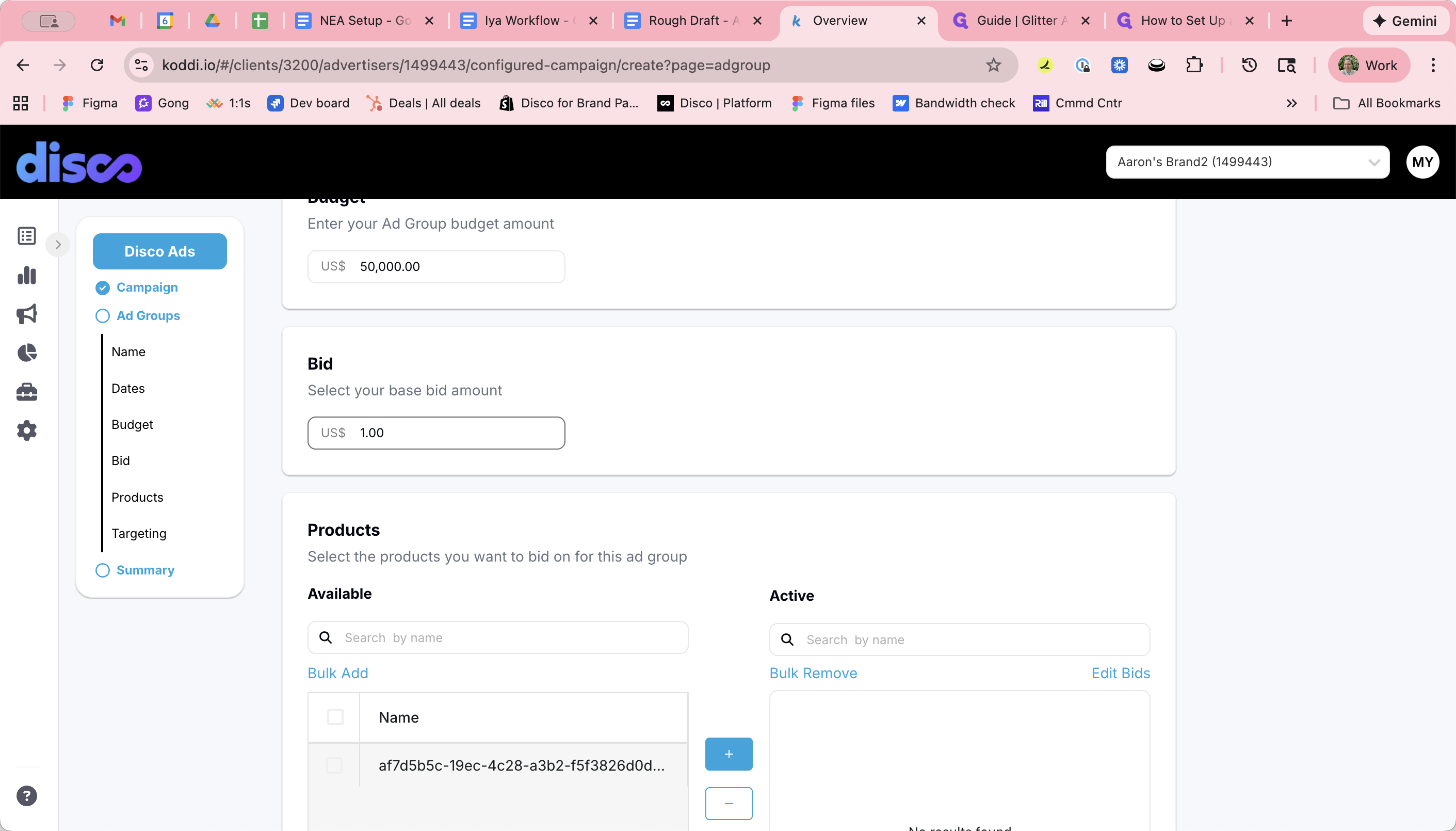
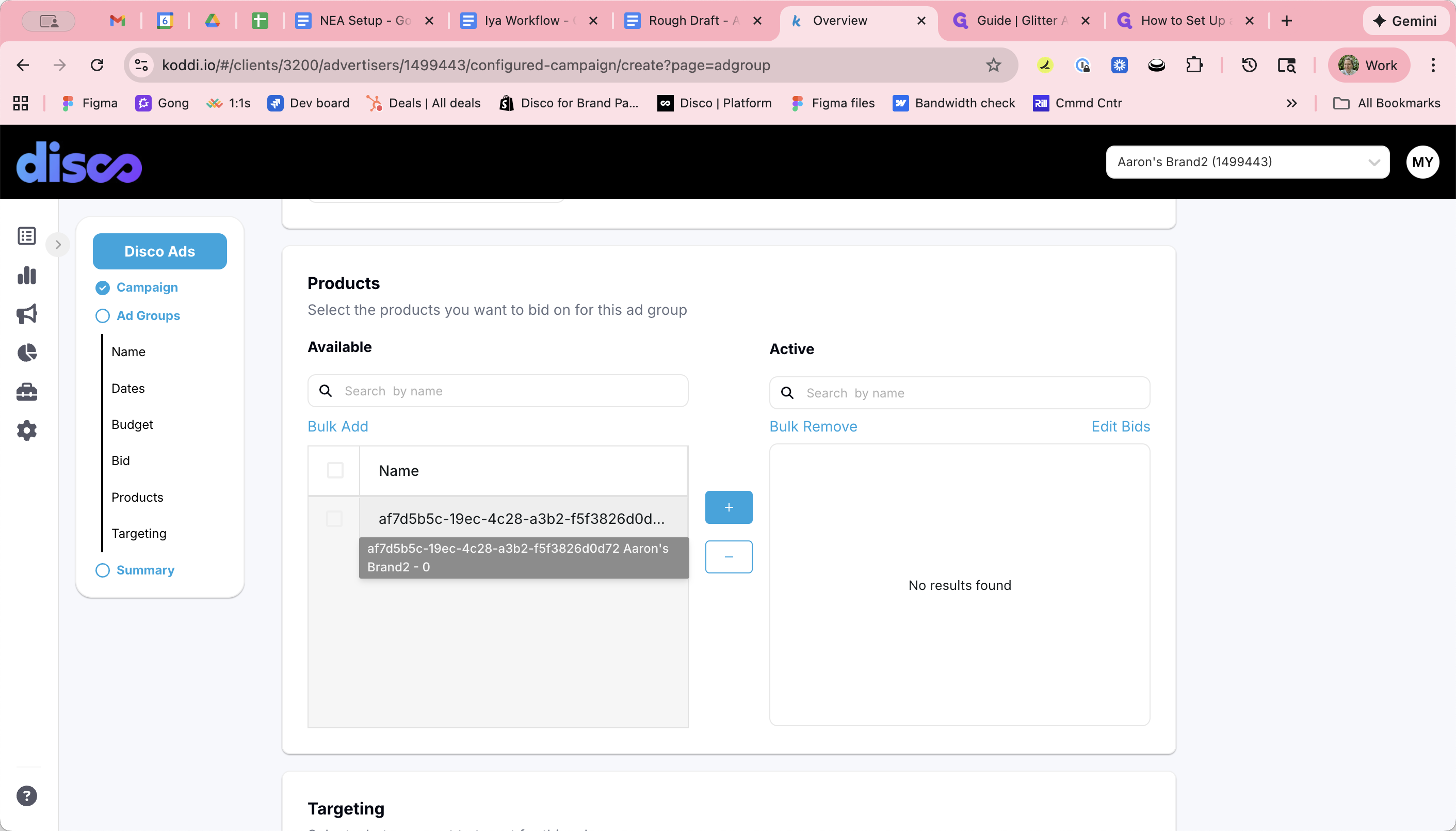
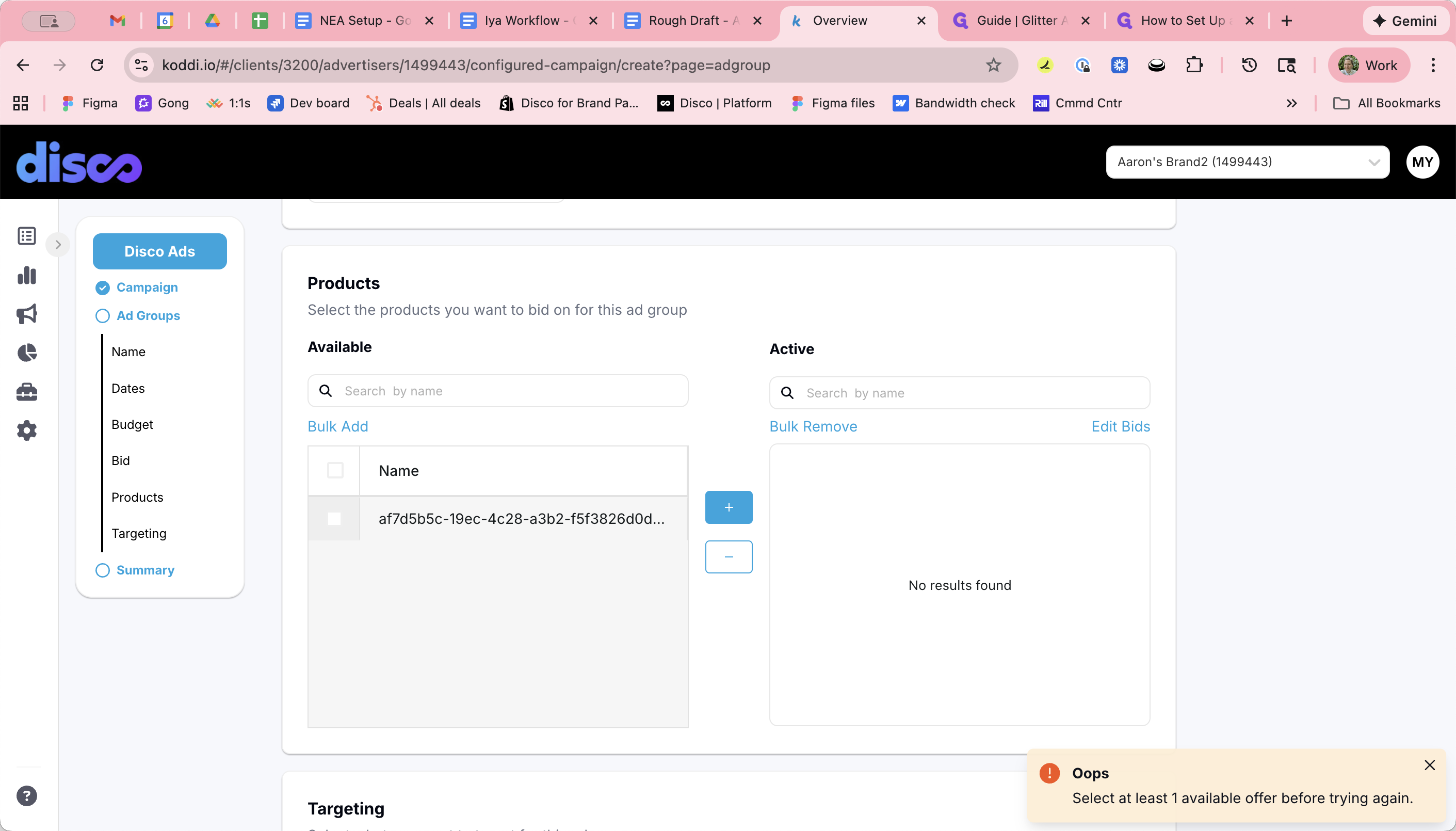
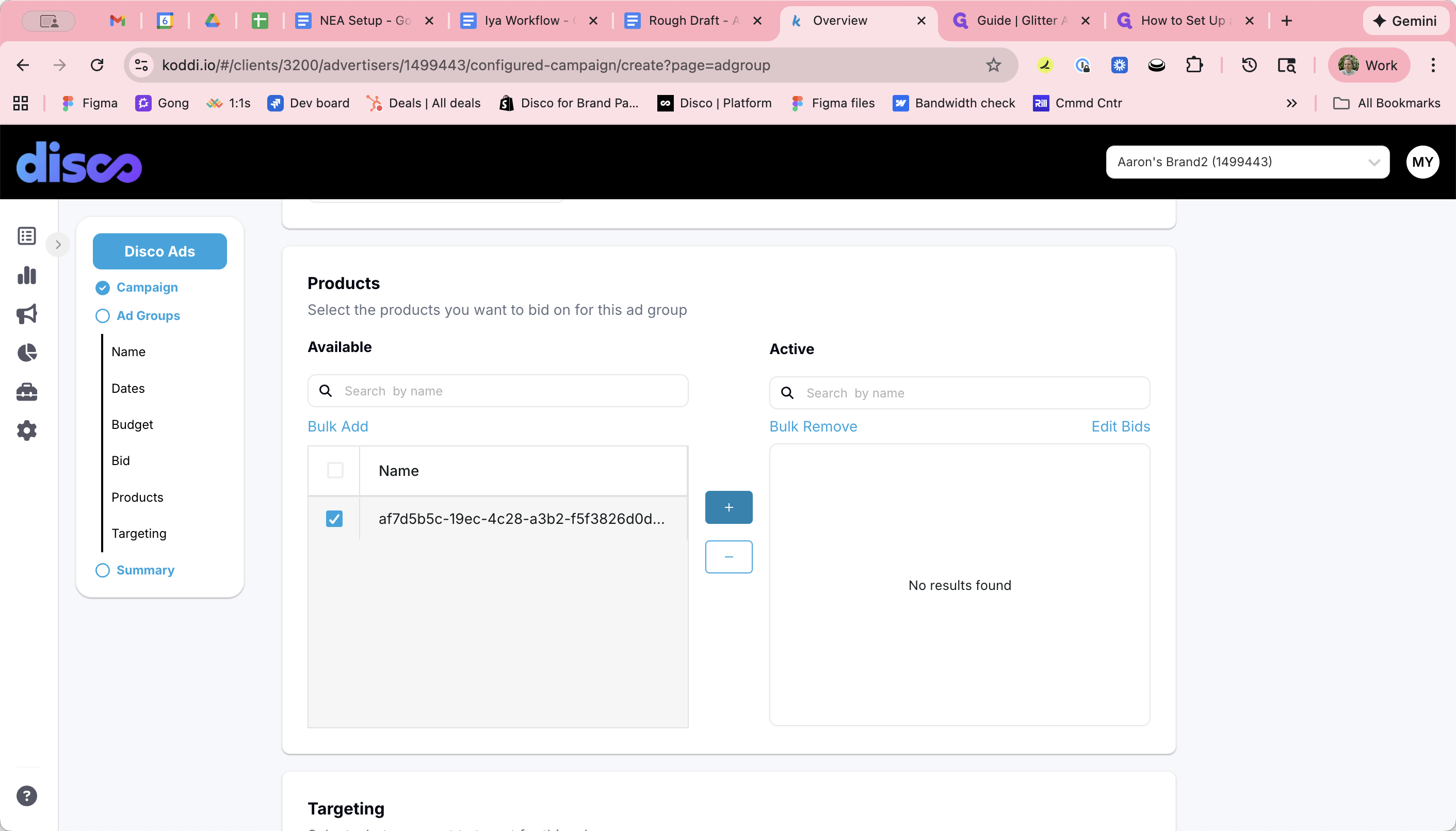
Next, select Eligible Offers to choose which offers will be included in this ad group.
As a reminder, you create offers in Disco's platform, and they automatically sync with Koddi. Koddi will display offer IDs. You can hover over them to view details and avoid selecting the wrong one.
Most campaigns will not require targeting parameters.
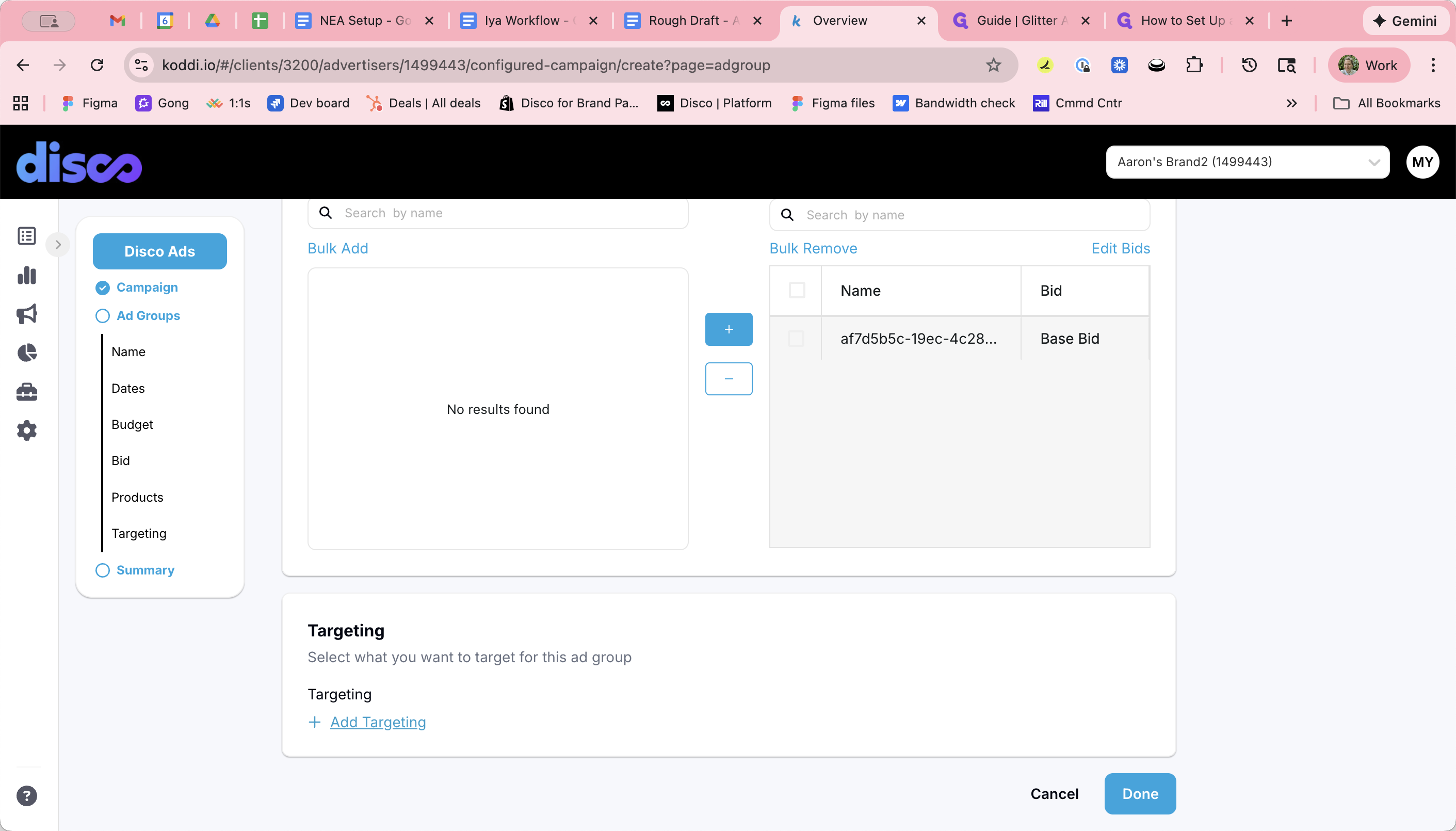
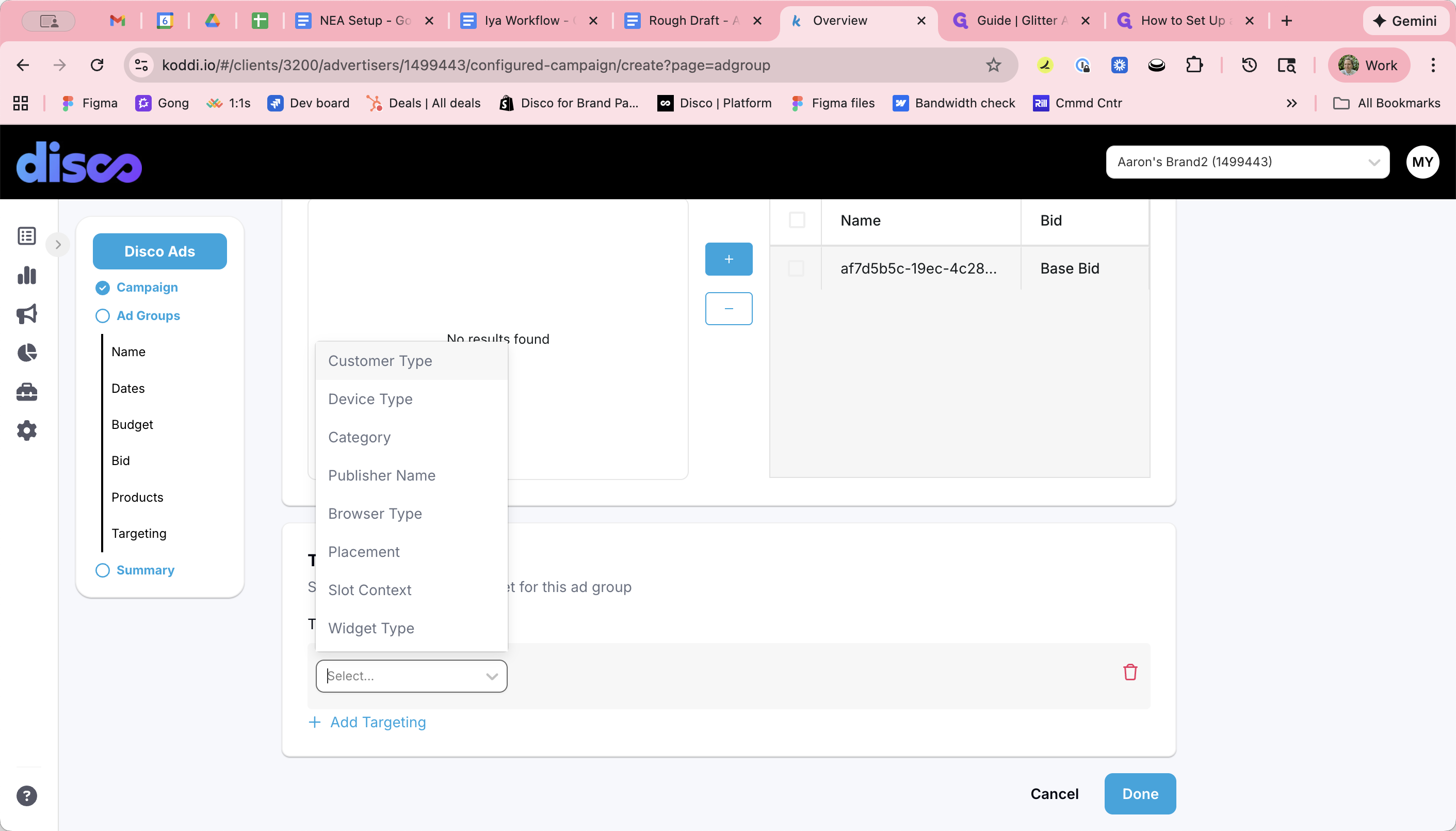
Available targeting types:
Customer type (Shopify supply only): lapsed / new / returning
Device type: include/exclude desktop/mobile
Publisher targeting: target specific publishers (multi-select to reduce spelling risk)
Page type targeting: e.g., order tracking pages (when available)
Future/publisher metadata: any attribute passed at ad-serve time and bucketed (e.g., cart value “over $100”), can become targetable
Let's say the advertiser only wants to target shoppers on desktop.
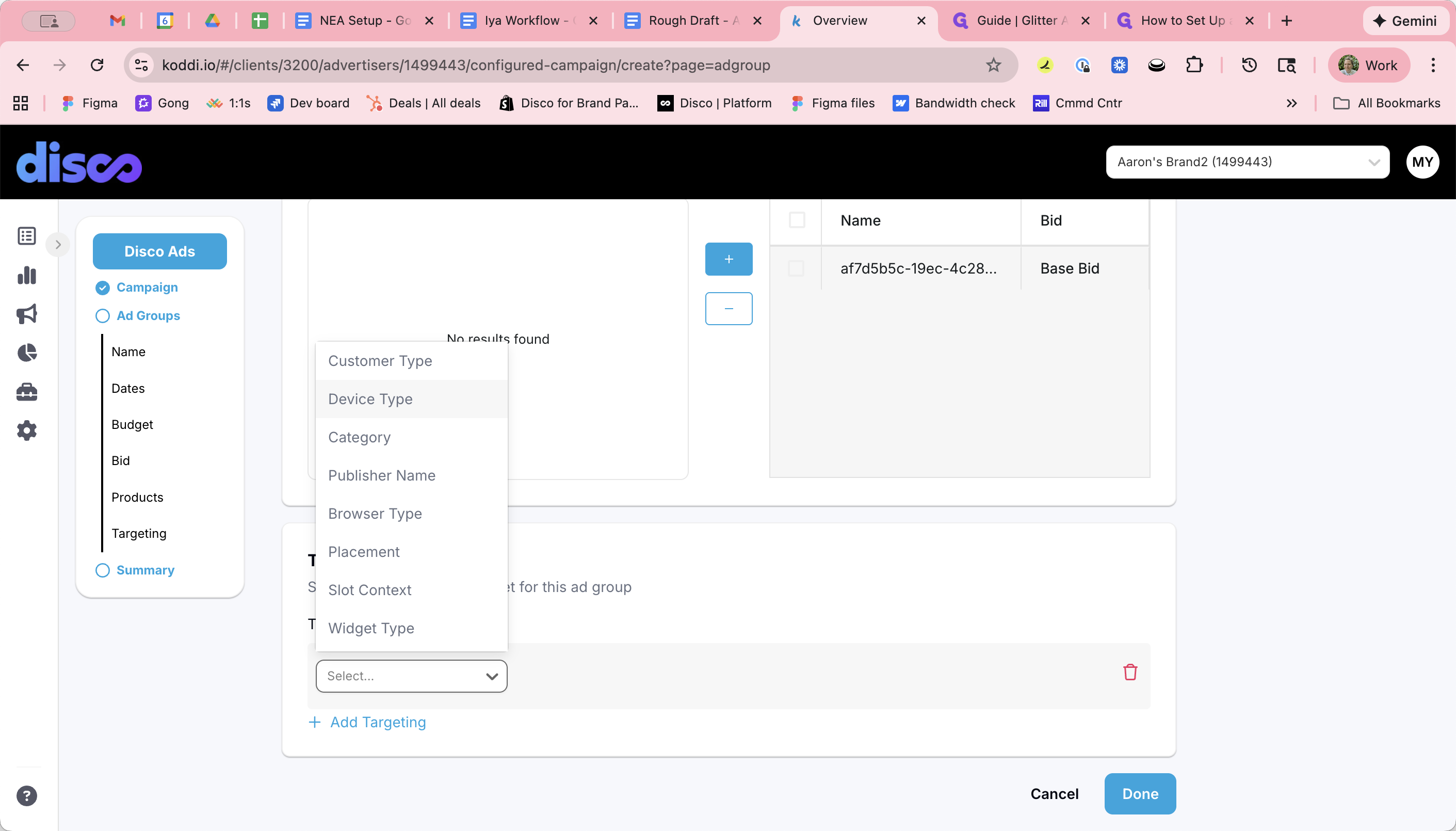
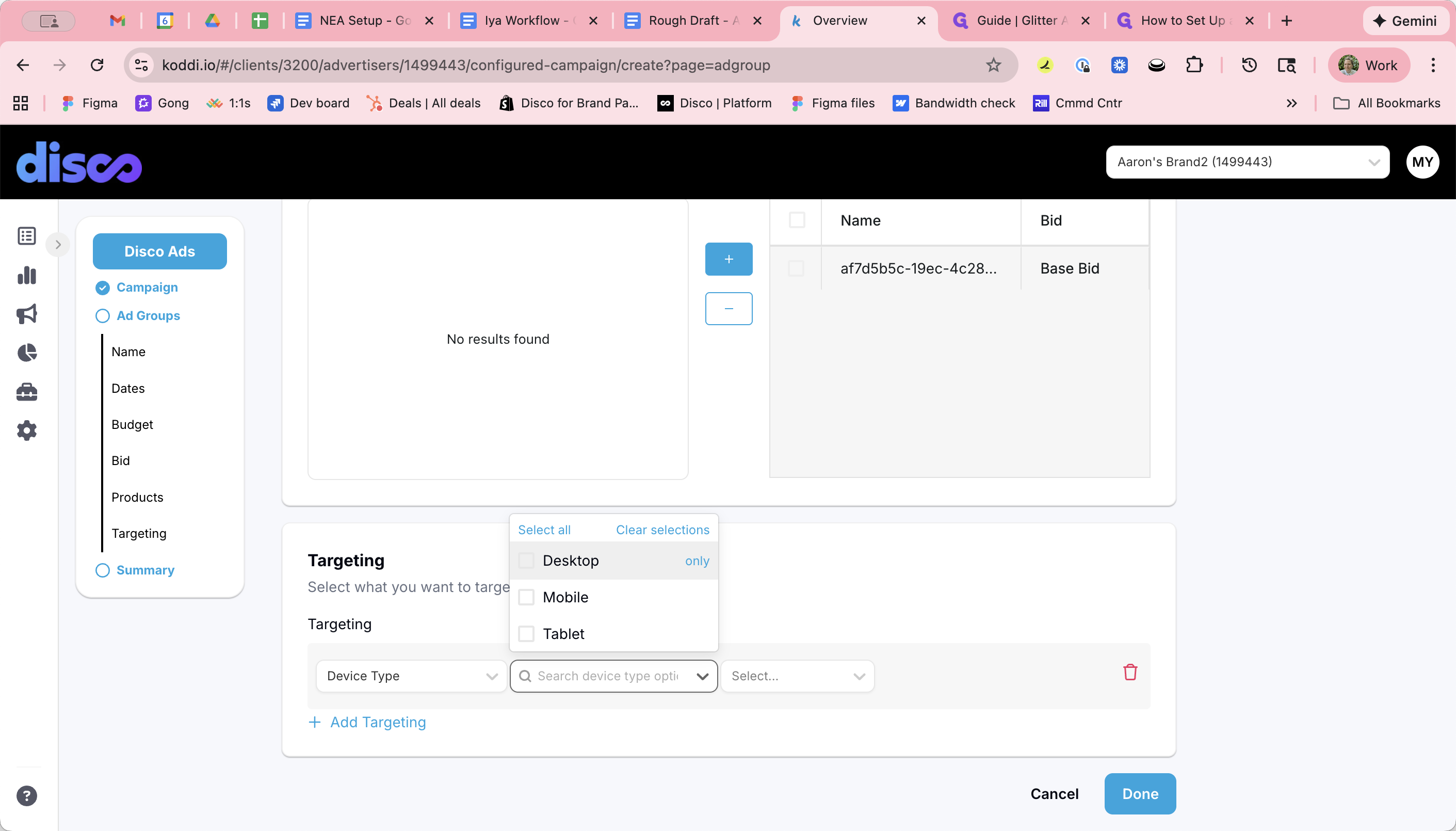
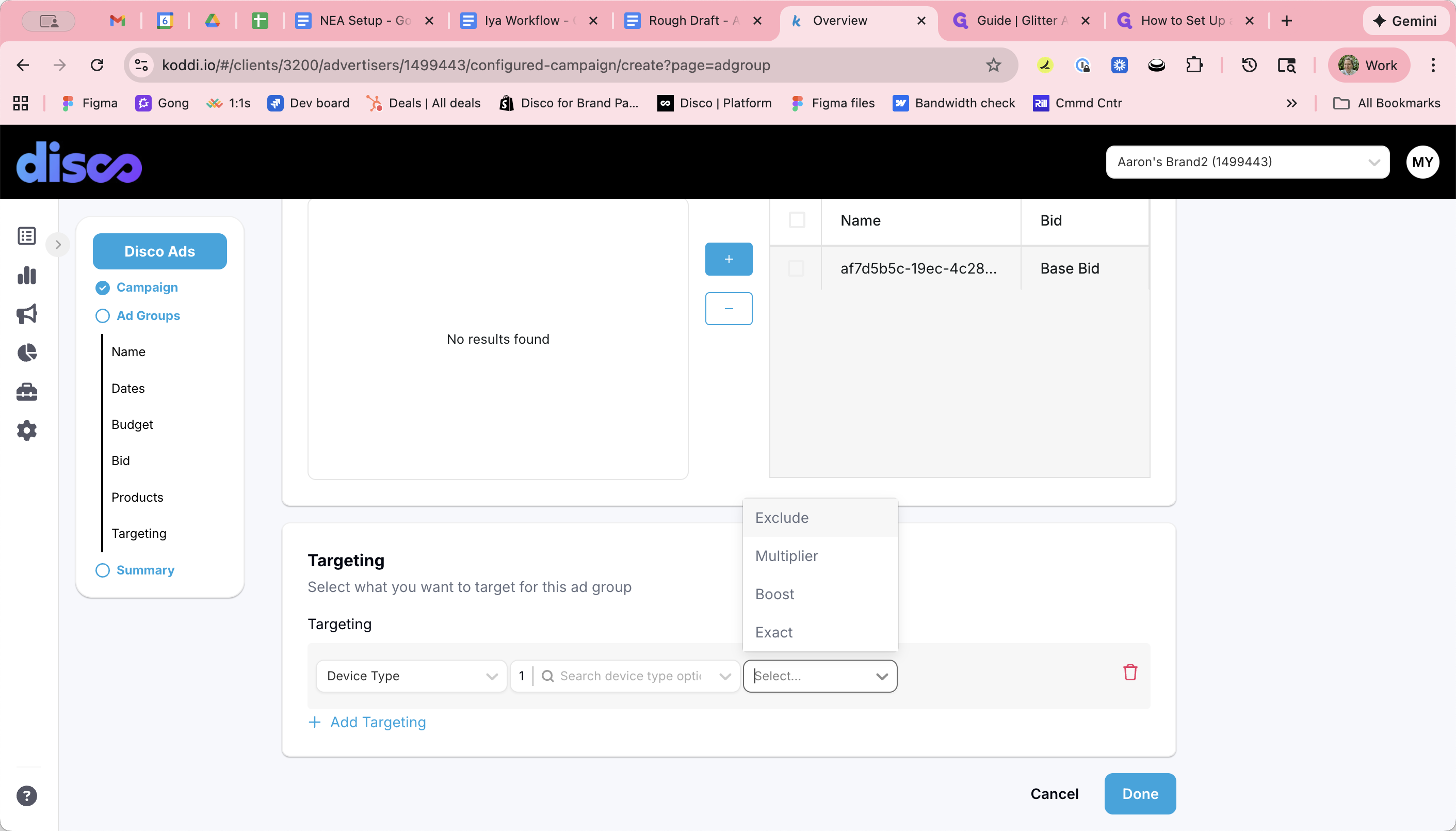
For any targeting rule, choose one of:
Exact: target only that cohort/placement/publisher
Multiplier: adjust bid by a percentage of the base bid (example: 70% of $1 = $0.70)
Boost: adjust bid by a fixed dollar amount (example: +$0.50 makes $1.50)
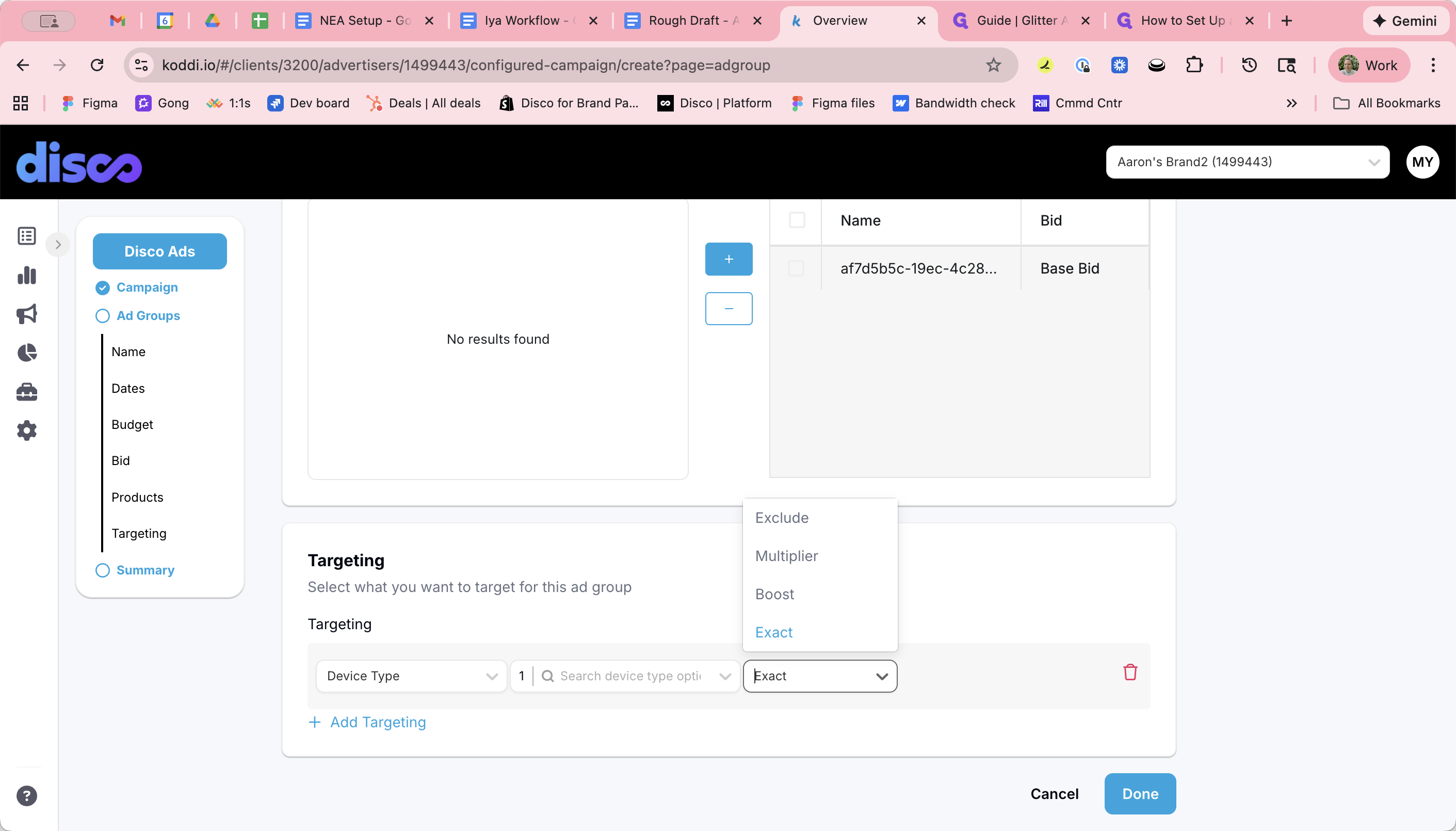
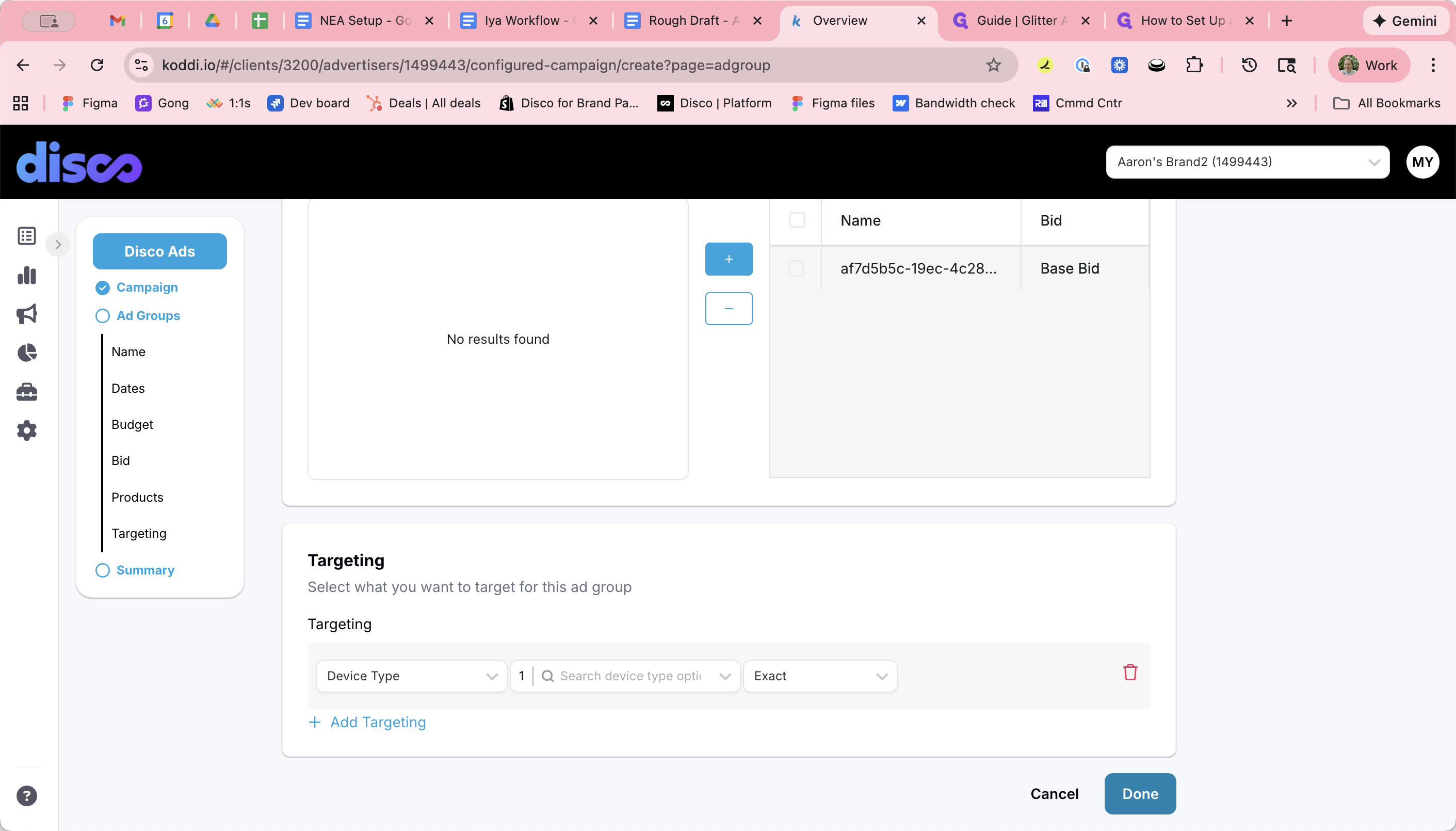
Then, click Done.
Best Practices & Tips
If you want offer-specific targeting, use multiple ad groups:
Ad Group 1: “Order tracking” offer + Page Type targeting set to Exact for order tracking only
Ad Group 2: “MindBody” offer + Publisher targeting set to Exact for MindBody only
If you want the rest of the network too, add Ad Group 3 with a generic offer and no special targeting
Budget allocation across multiple ad groups is manual today:
You may need to monitor and adjust because one ad group may under-deliver relative to budget.
Interim workaround: set higher budgets and “watch it” until Koddi ships dynamic budget spreading.
Editing and controls (what you can change after launch)
You can edit anytime: Budget, Bid, Offers, Targeting
You cannot change attribution windows mid-campaign:
Must create a new campaign if attribution windows need to change.
Pausing / ending:
Pause with the active/paused toggle (easy way to stop temporarily).
Campaigns auto-end once the monthly budget is fully spent, then resume next month.
You cannot set an end date in the past.
If you want offer-specific targeting, use multiple ad groups:
Ad Group 1: “Order tracking” offer + Page Type targeting set to Exact for order tracking only
Ad Group 2: “MindBody” offer + Publisher targeting set to Exact for MindBody only
If you want the rest of the network too, add Ad Group 3 with a generic offer and no special targeting
Budget allocation across multiple ad groups is manual today:
You may need to monitor and adjust because one ad group may under-deliver relative to budget.
Interim workaround: set higher budgets and “watch it” until Koddi ships dynamic budget spreading.
Editing and controls (what you can change after launch)
You can edit anytime: Budget, Bid, Offers, Targeting
You cannot change attribution windows mid-campaign:
Must create a new campaign if attribution windows need to change.
Pausing / ending:
Pause with the active/paused toggle (easy way to stop temporarily).
Campaigns auto-end once the monthly budget is fully spent, then resume next month.
You cannot set an end date in the past.