Request Office Supplies in the Atlantas Warehouse System
Learn how to access the internal product catalog, search for items, and submit an office supply request through the Atlantas Warehouse System.
This guide explains how to use the Atlantas Warehouse Supply Request System to browse the internal product catalog and submit an order for office supplies. Completing this task ensures your request is logged and routed properly for warehouse fulfillment.
This process applies to Atlantas employees who need to procure internal stock for their daily operations. You will use this system whenever you need to replenish your office supplies, functioning similarly to an internal e-commerce platform.
Accessing the Product Catalog
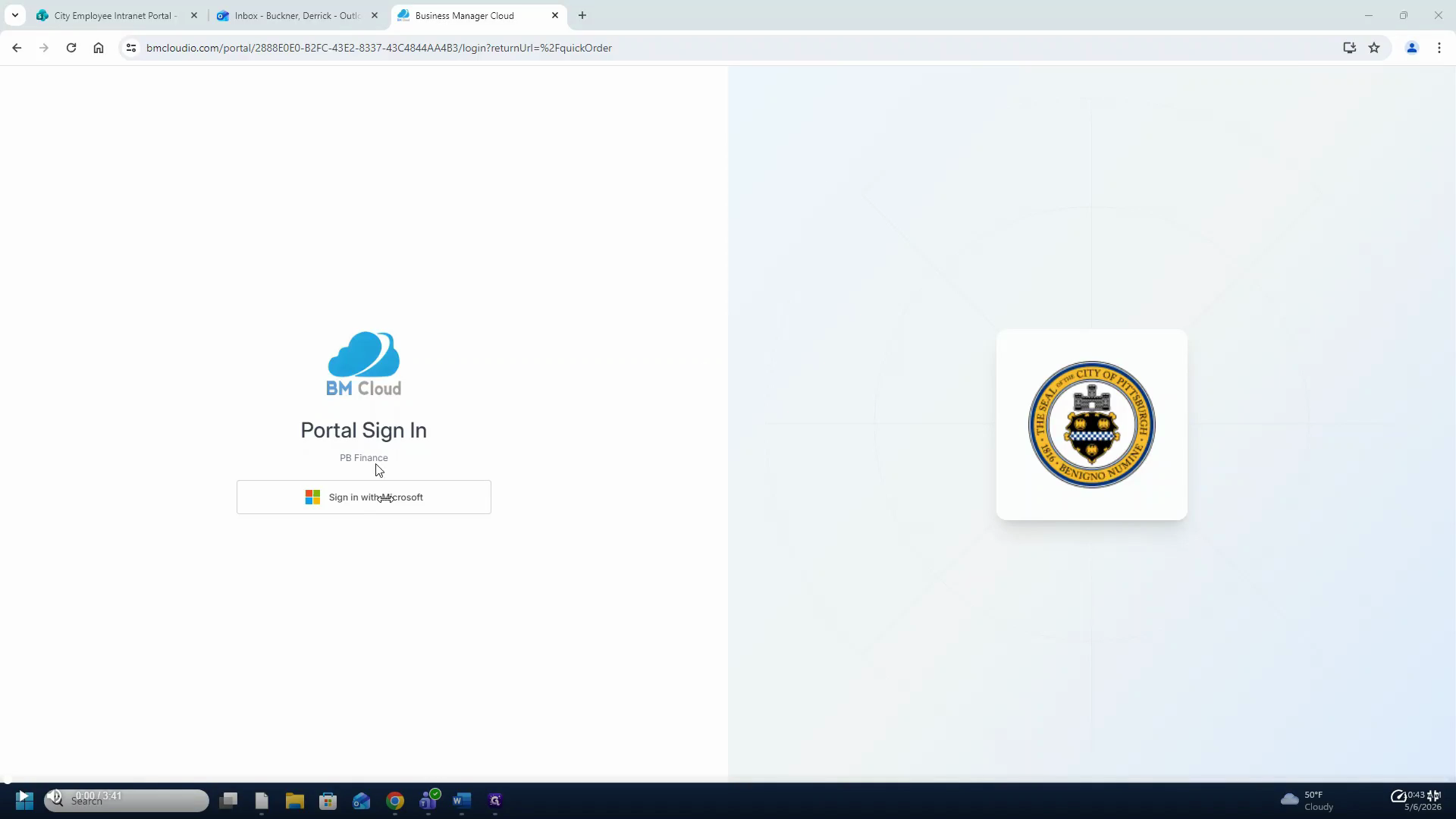
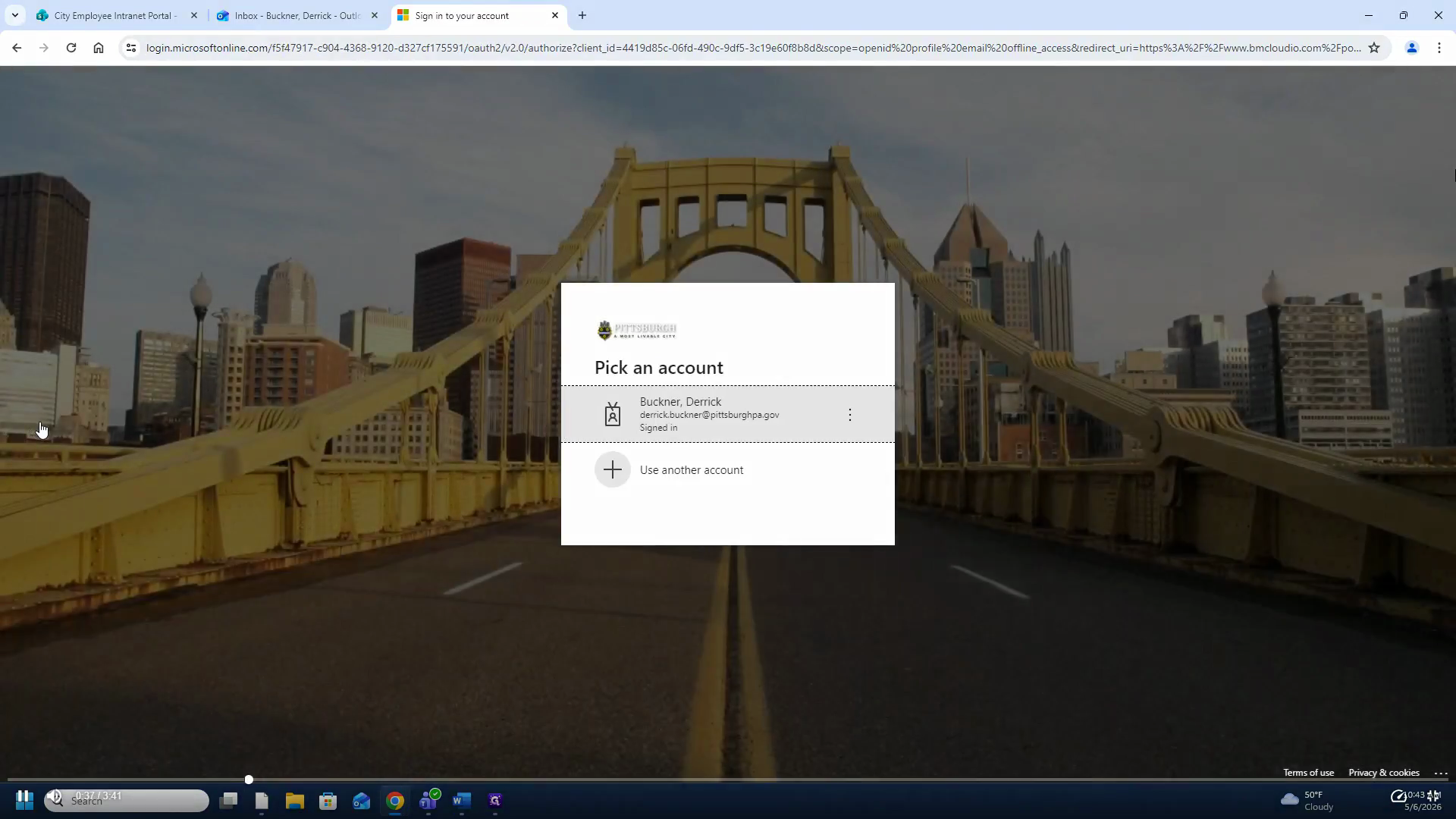
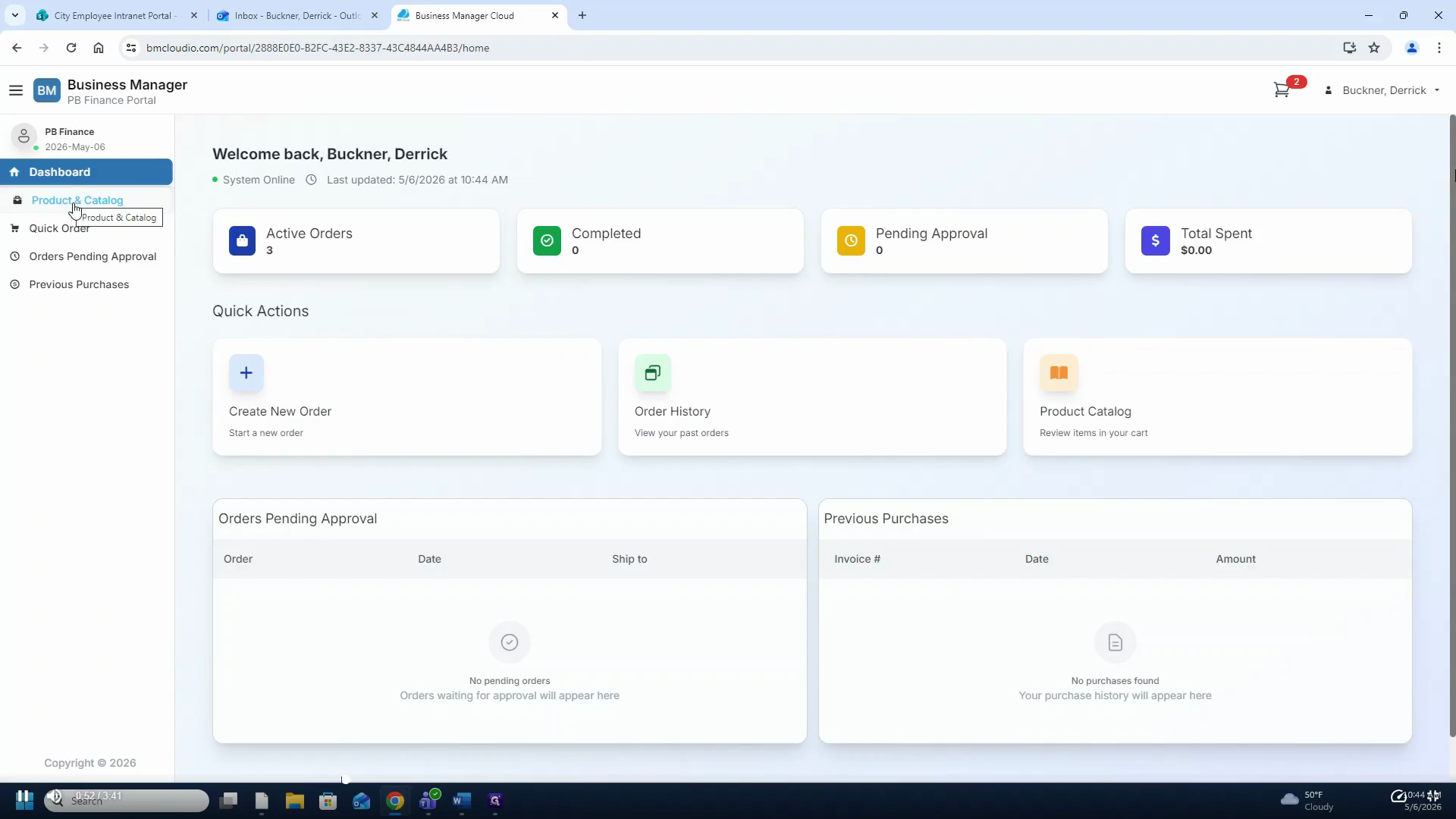
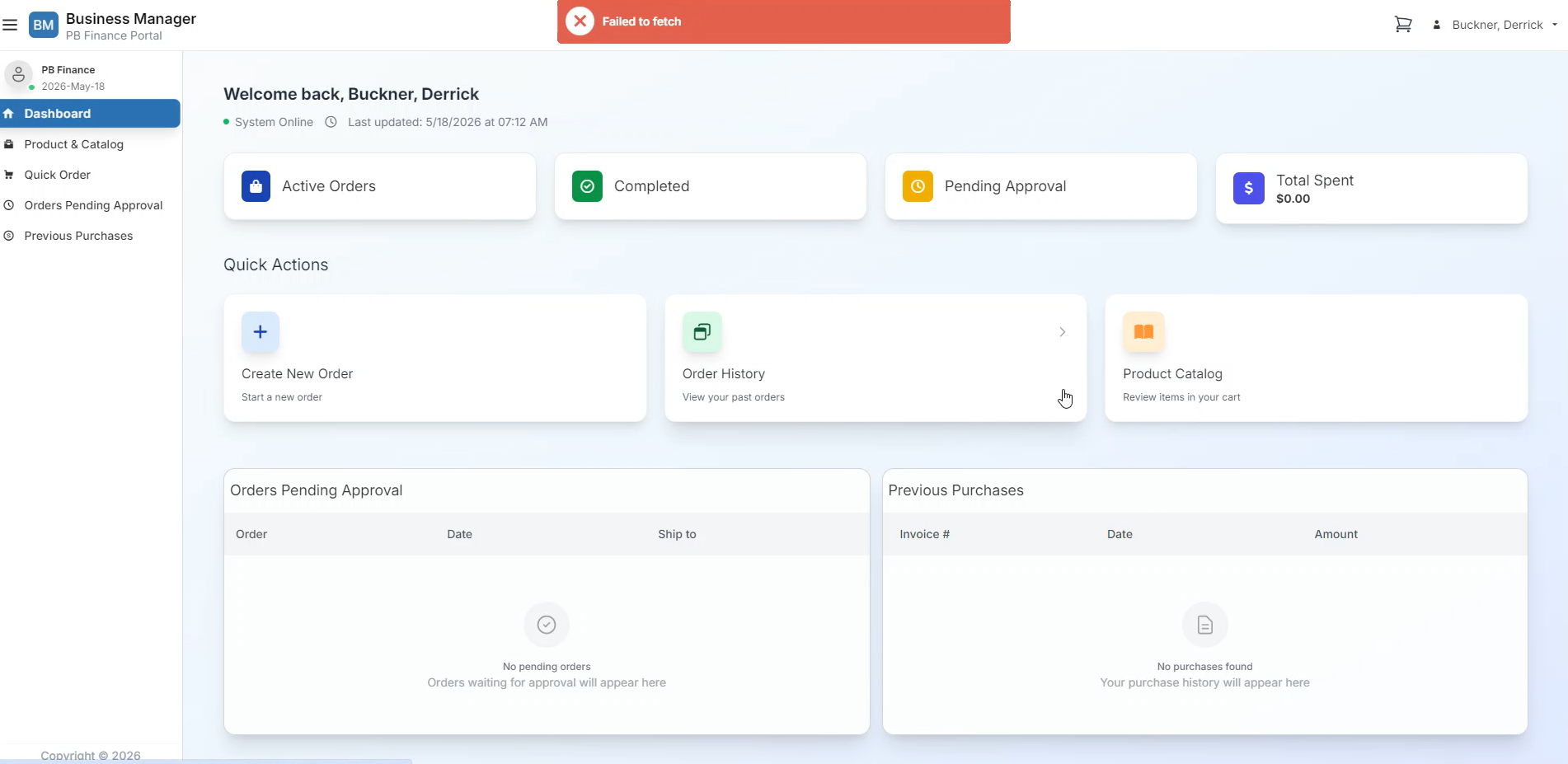
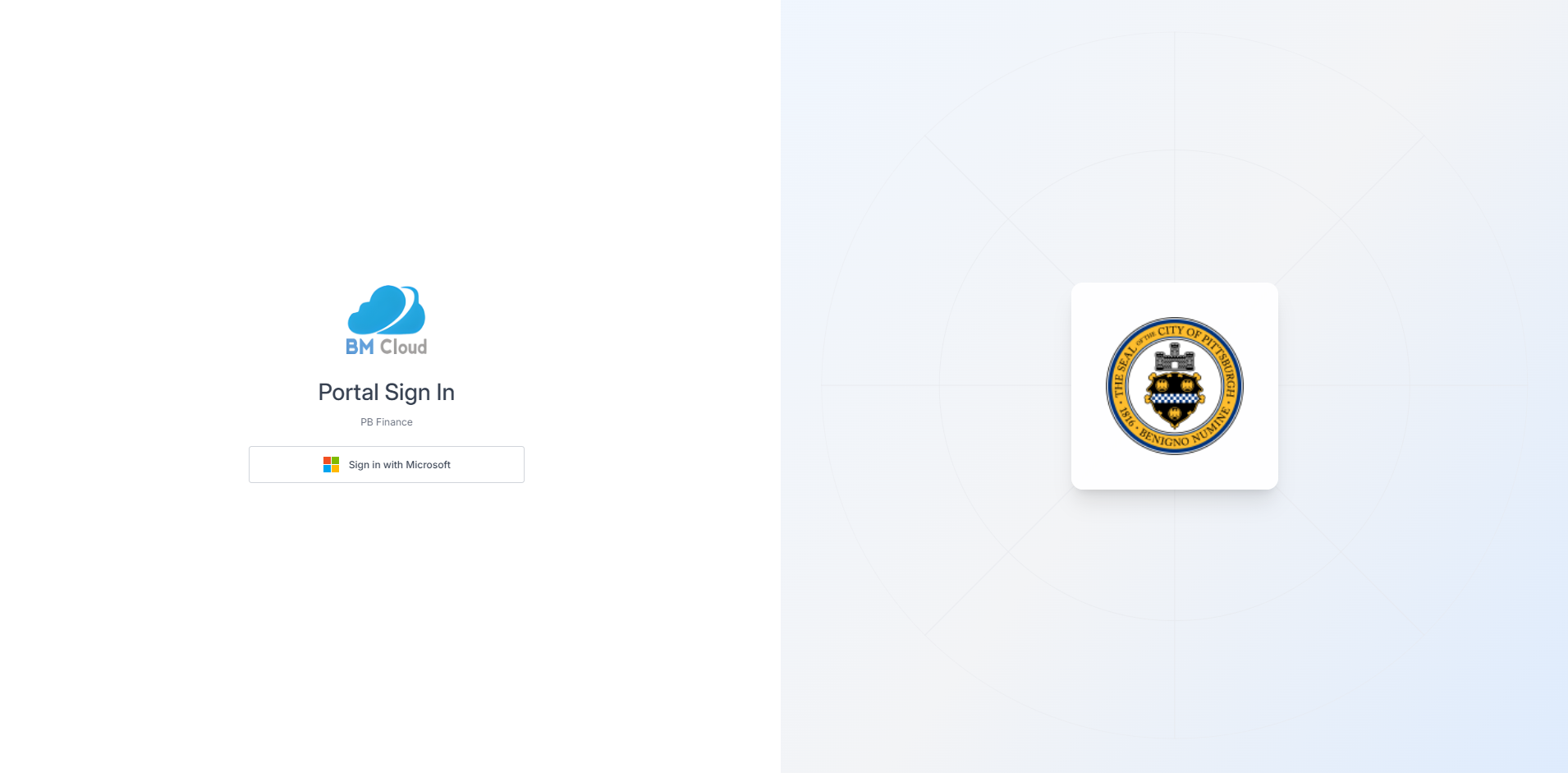
To begin your supply request, you must log into the Business Manager Cloud portal and locate the internal warehouse catalog.
Finding and Adding Items
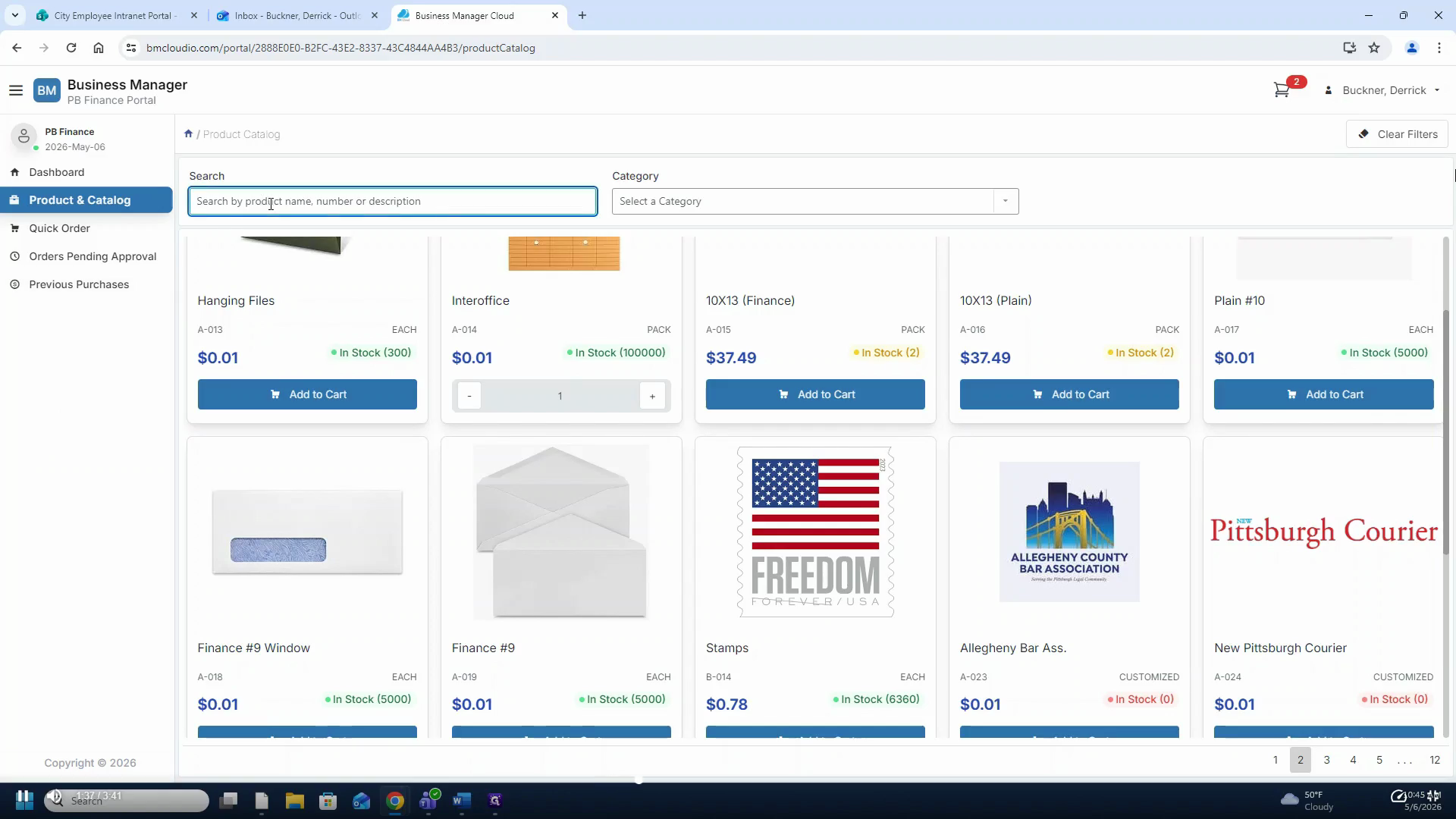
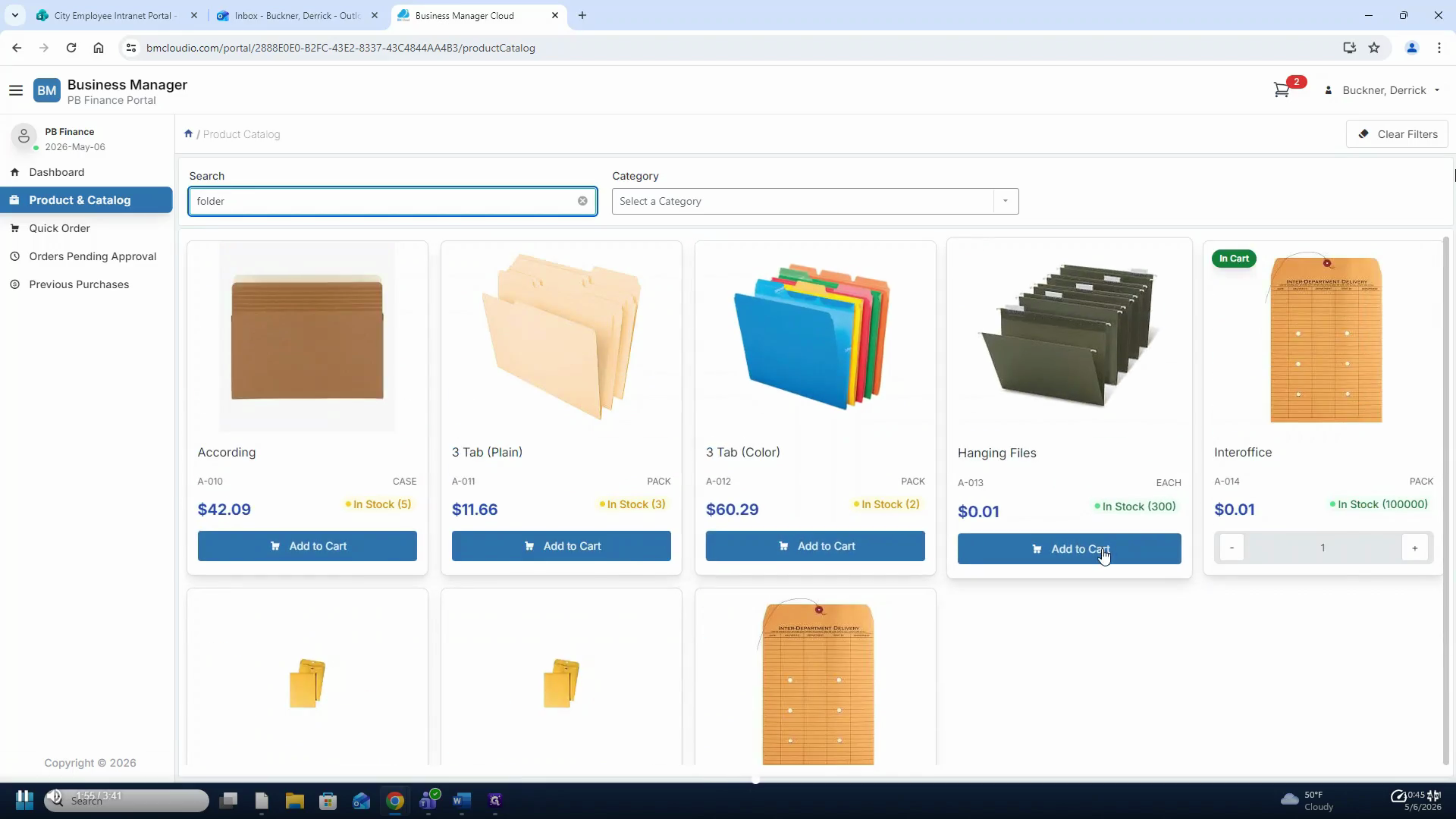
You have two primary methods for finding specific supplies in the product catalog:
Method | When to use | How it works |
|---|---|---|
Search Bar | You know the exact item you need (fastest method). | Enter the product name, number, or description into the search field. |
Pagination | You want to browse all available inventory. | Click the page numbers at the bottom right of the screen to browse manually. |
Submitting Your Request
Once you have added all necessary items (such as folders, paper clips, or pens) to your cart, you are ready to finalize your request.
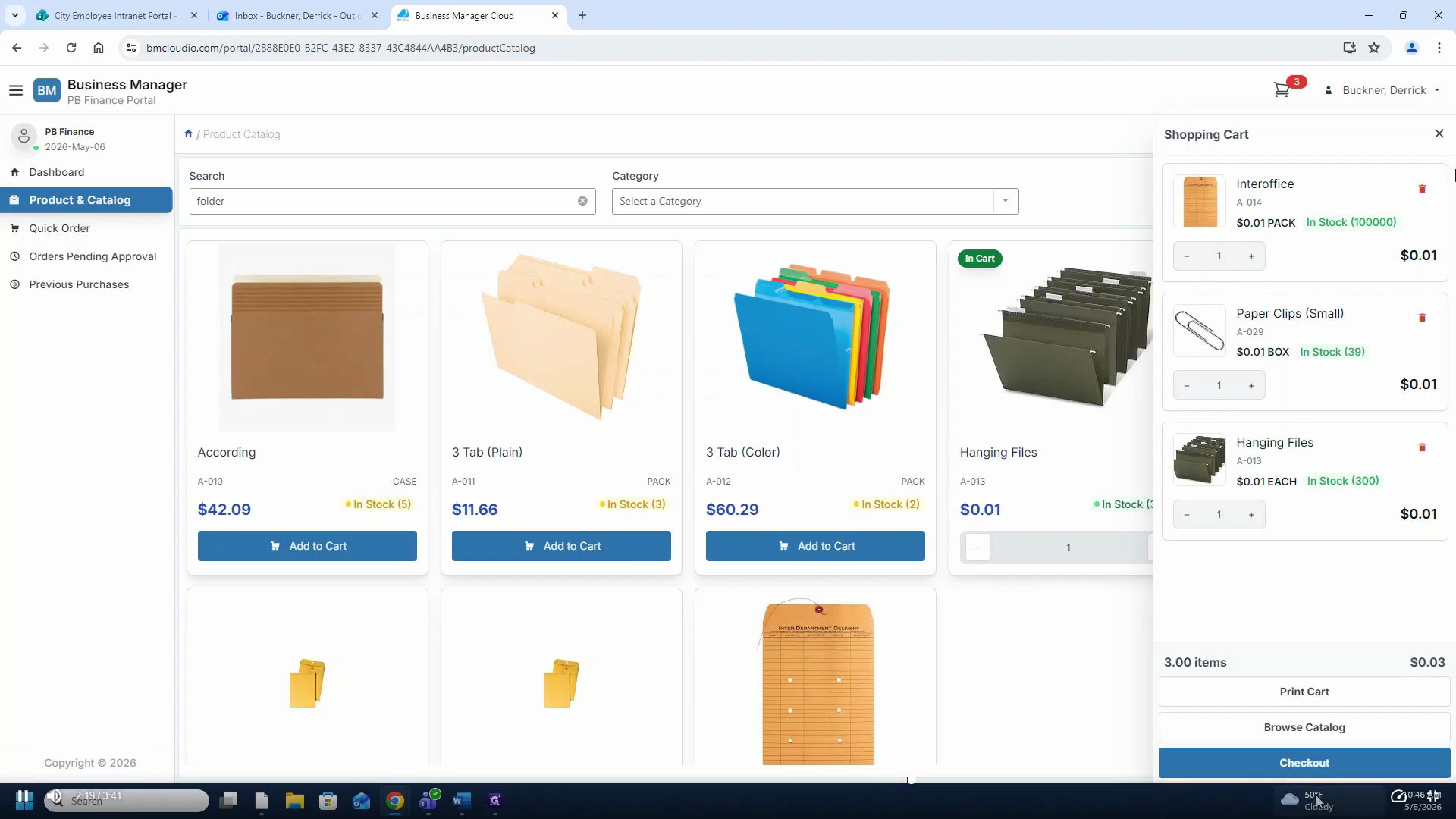
Finalize and Submit Order
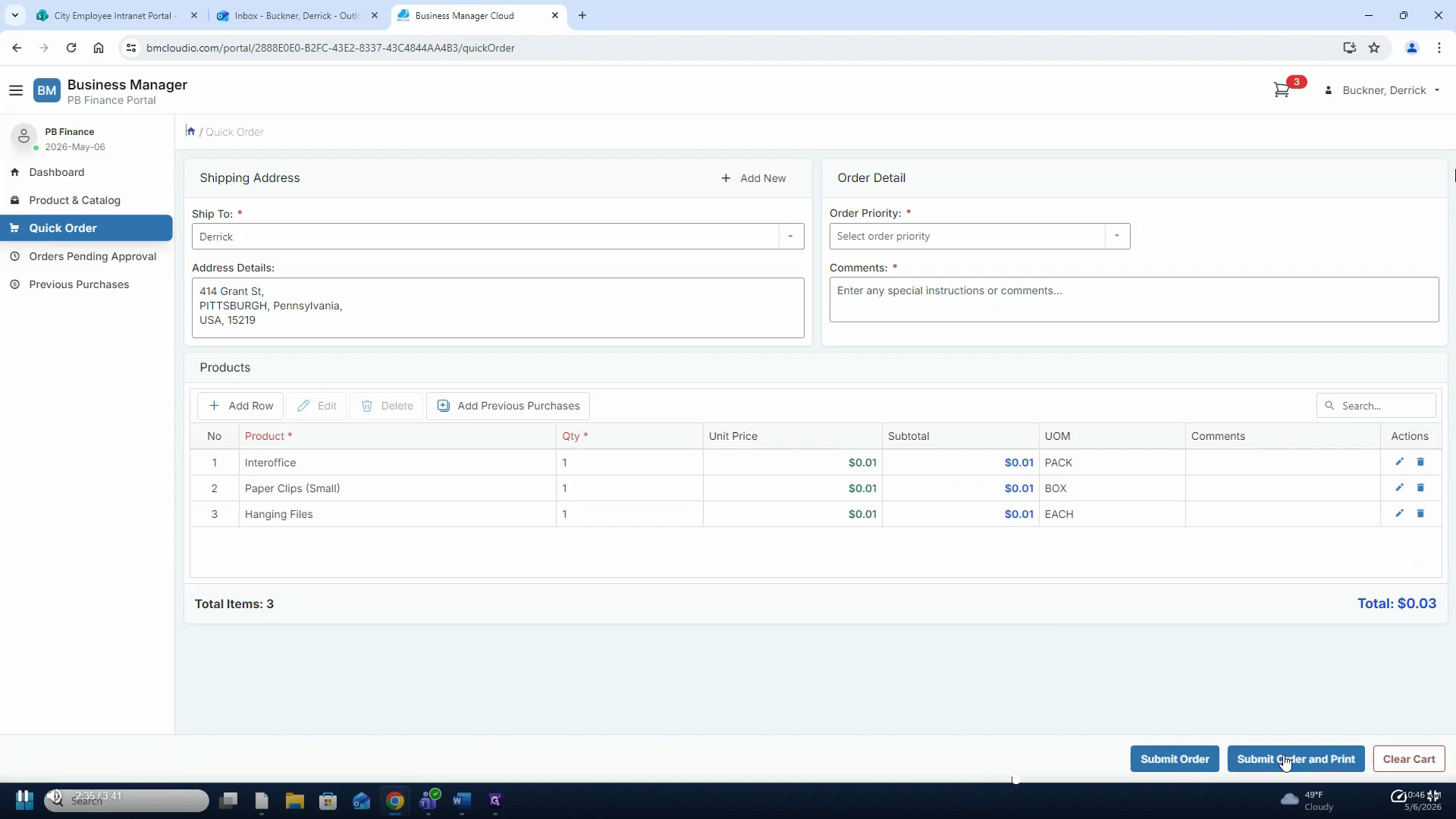
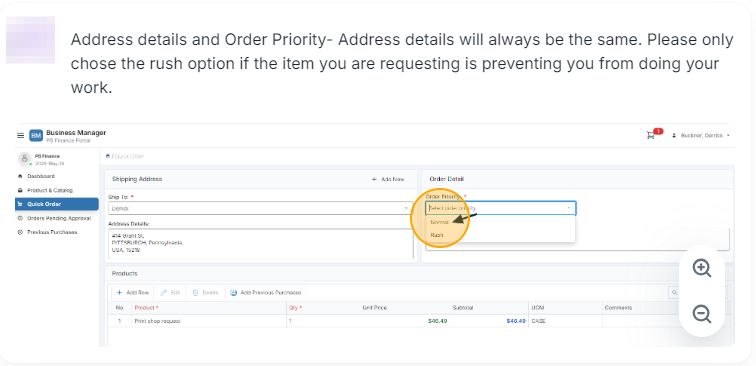
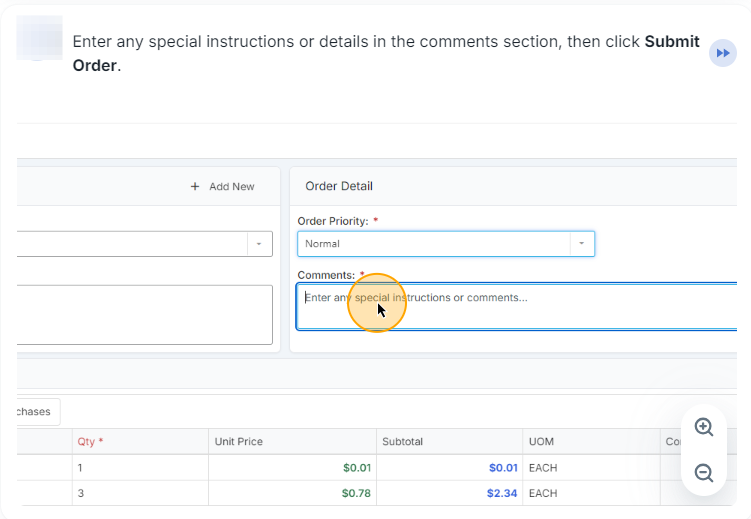
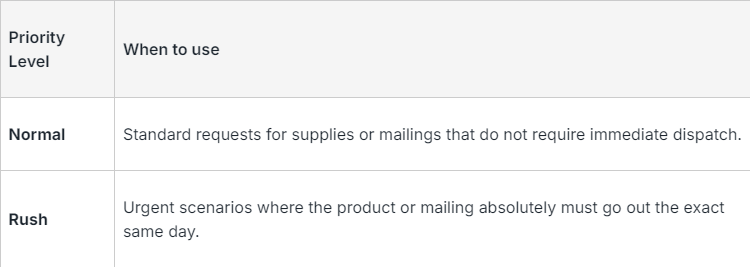
You will be brought to the order details page to review your requested items
What Happens Next?
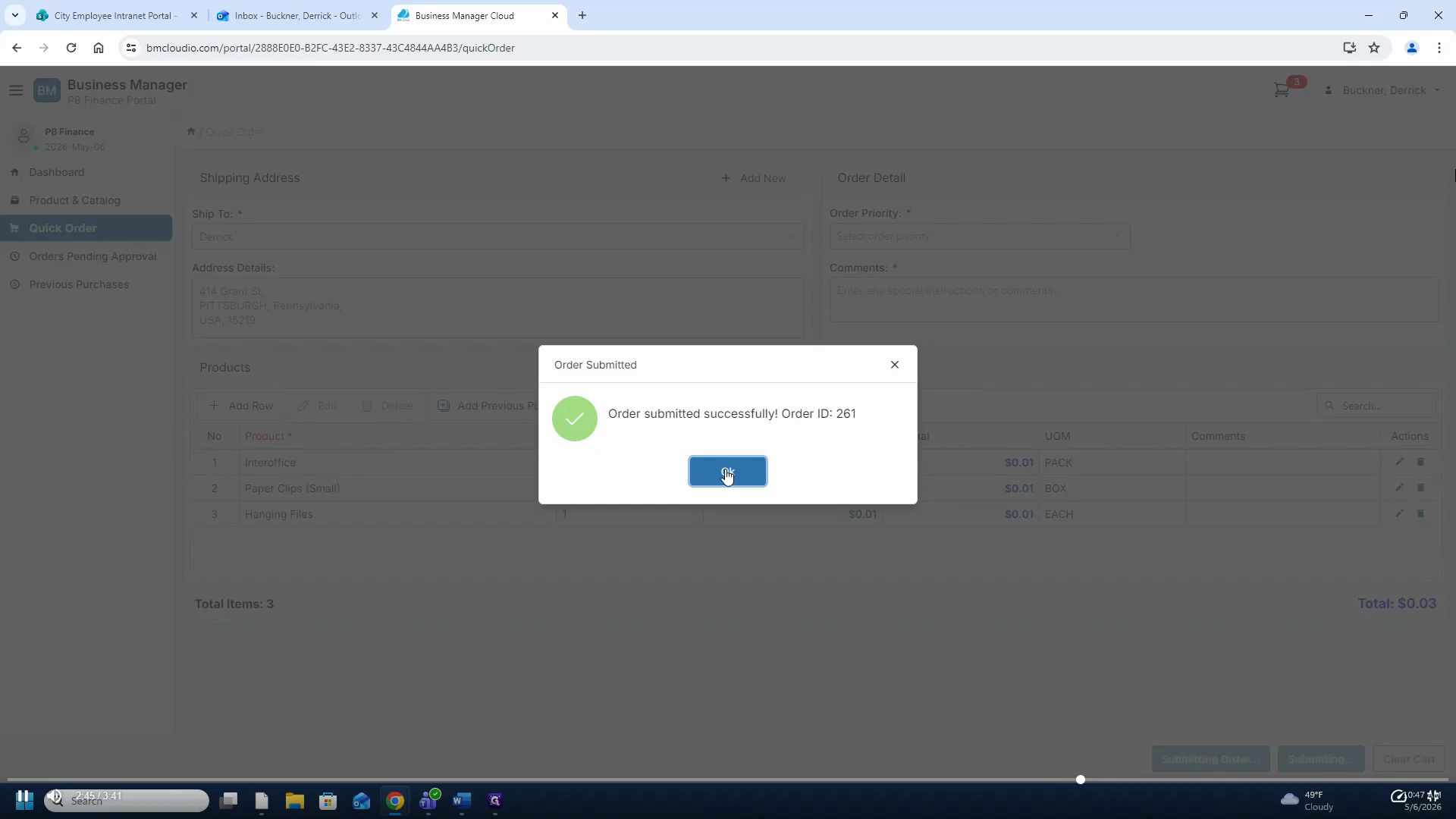
Your request has been successfully submitted and is now pending approval from your immediate supervisor. Once approved, the warehouse staff receives a notification and begins picking the items for your order.
When your order is complete, you will receive an email notifying you that your items are ready for pickup. This email will also include an invoice detailing your selected products and their costs.
FAQ
Q: What happens immediately after I submit my request?
A: Your request is routed to your immediate supervisor for approval. Once your supervisor approves the request, the warehouse staff receives a notification and begins selecting and packing your items.
Q: How do I know when my items are ready for pickup?
A: You will receive an automated email notification confirming your order is ready to pick up. This email includes an invoice detailing all the requested products and their internal costs.