
Read summarized version with
Scribe got popular for good reasons. You install the browser extension, click through your workflow, and out comes a step-by-step guide. That’s genuinely useful.
But Scribe isn’t your only option anymore. Depending on what you actually need, it might not even be the right fit.
I’m Yuval, founder of Glitter AI. Before building my own documentation tool, I spent years testing every option out there while running my first startup. I’ve got a decent feel for where Scribe works well and where teams start bumping into limitations.
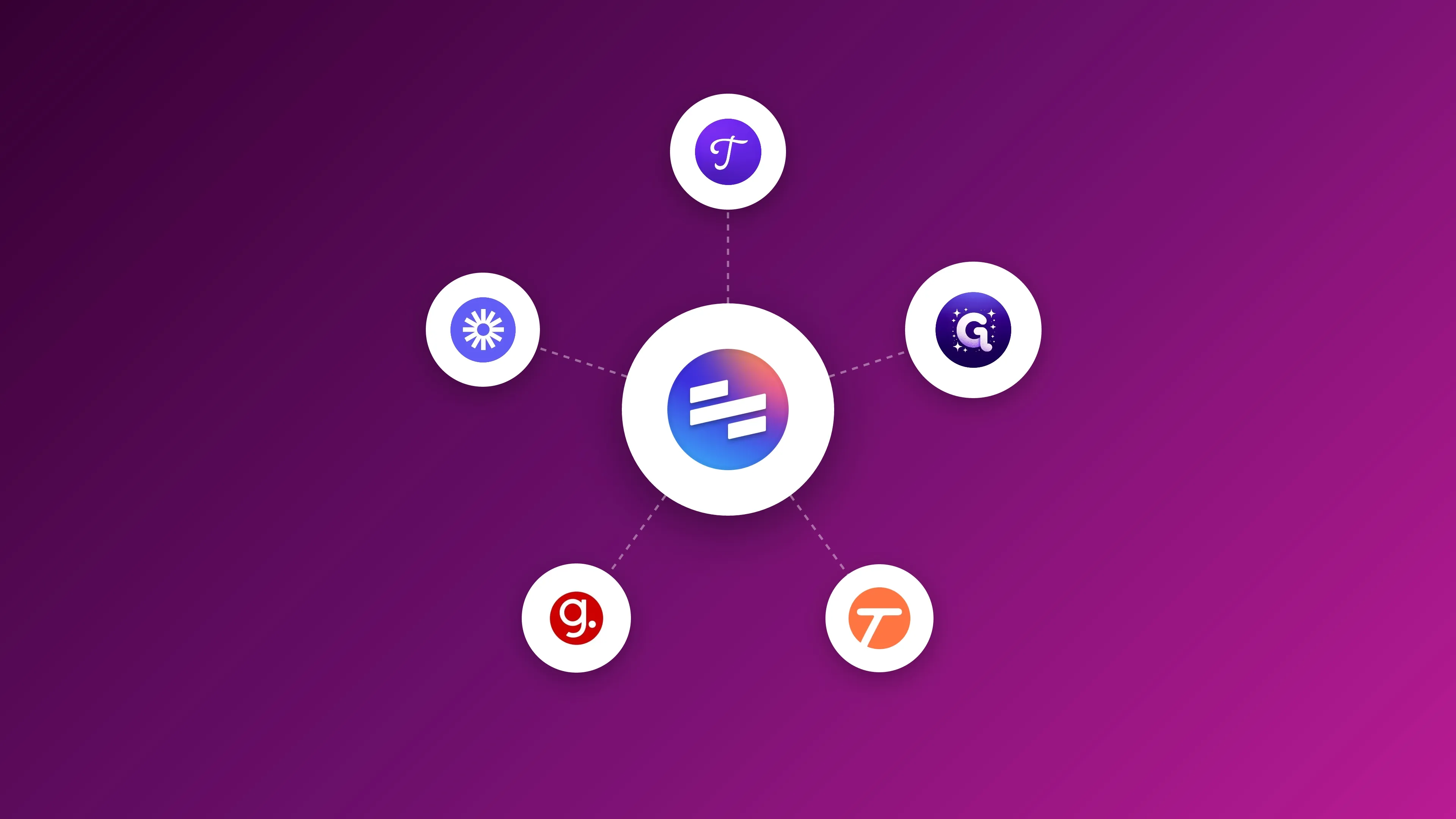
Here’s my honest take on the best Scribe alternatives for 2026, with real pros and cons for each. You can also see how Scribe stacks up head-to-head in our Scribe vs Glitter AI comparison.
Teach your co-workers or customers how to get stuff done – in seconds.


Top Scribe Alternatives at a Glance
| Tool | Best For | Starting Price | Desktop Support | Free Tier |
|---|---|---|---|---|
| Glitter AI | Voice-powered documentation | $20/mo | Yes | 10 guides total |
| Tango | In-app guidance | $22/user/mo | No | 15 workflows |
| Guidde | AI video guides | $18/mo | No (Business tier) | 25 videos total |
| Loom | Video communication | $15/user/mo | Yes | 25 videos, 5 min |
| Trainual | Training & onboarding | $249/mo | No | 7-day trial |
| Folge | One-time purchase | $70-120 one-time | Yes | 3 guides |
| Guidemaker | Budget teams | Free | No | Unlimited |
Why Look for Scribe Alternatives?
Scribe handles straightforward browser-based documentation pretty well. That said, teams often run into a few recurring frustrations:
Limited Editing Capabilities
Scribe captures your screen, but you can’t actually edit the UI in those screenshots. When your application gets updated, you’re basically re-recording everything. The captures also tend to pick up extra clicks you didn’t want, and making markups look consistent can be a headache.
The recorder also has trouble with certain UI interactions. Dropdown menus, hover states, and pop-up modals often get skipped entirely, which means manually recreating those steps or grabbing additional screenshots. This comes up frequently for people documenting complex web apps.
Desktop Recording is Paywalled
Need to record desktop apps? That feature is locked behind Pro and Enterprise plans. The free tier only includes the browser extension, so file management workflows, local applications, or anything outside Chrome won’t work.
Generic Output That Misses Context
With no narration, Scribe’s AI has to guess what you’re actually doing. You end up with steps like “Click here” or “Enter text” that don’t explain the why. Plan on spending time adding that context yourself.
Pricing Gets Complicated
Scribe’s pricing can surprise growing teams. Pro Personal costs $25/user/month annual ($35/month monthly), while Pro Team runs $13/user/month annual ($17/month monthly) but requires minimum 5 seats ($65/month minimum annual). Even with only 2-3 users, you’re paying for 5.
Enterprise pricing is where it gets interesting. Multiple users have reported quotes of $39 per user plus an additional $1,300 monthly platform fee, coming to around $18,000/year for just 5 users. One buyer called this a “bait and switch” after expecting prices closer to the published Pro rates.
Desktop App Can Be Buggy
The desktop app (needed for capturing non-browser apps) has reliability problems. Users frequently mention “blank scribes” where the recording finishes but shows zero steps captured. One user reported trying the same process 15 times with 95% coming up blank. That’s a real problem when you’ve just spent time recording something complex.
Export Options Feel Bare
On the free plan, you don’t get custom branding or the ability to export to PDF, HTML, or Markdown. If your team needs documentation in various formats, this becomes a real limitation.
No Video Option
Some processes just work better as video. Scribe only creates screenshot-based guides, so if you need video documentation, you’ll have to look elsewhere.
English Only
Scribe doesn’t support other languages, which is obviously an issue for global teams needing documentation in multiple languages.
Sales and Support Issues
Multiple users report being “ghosted” by sales after scheduling demos. One person tried three different times and never got a meeting. Support responsiveness also draws complaints, especially around billing and cancellations. This points to operational issues that could affect you if you need help.
What Real Users Are Saying
Here are actual complaints from Scribe users:
“I called to get enterprise pricing and was giving $39 per user plus an additional $1300 per month. So that is $18,000 per year for 5 users. I feel like this was a bait and switch.”
“I tried getting a demo on three different occasions, all scheduled, and got ghosted. They don’t have clue what they are doing. I can’t imagine what their support would be like.”
“I have recorded and completed the same process 15 or so times now- 95% of them show up as a blank scribe with ‘no steps’, even though it showed all steps before hitting complete.”
“Auto redaction feature needs improvement (set ours to auto redaction all private information and it doesn’t redact anything except the first name).”
“We have the enterprise version, but it’s not really enterprise without the upgraded plan that allows SCIM which prices it out of our budget. For that sole reason I’m recommending we shop around alternatives.”
These aren’t one-off incidents. They’re patterns that show up across review sites, Reddit, and social media.
Security and Compliance
If security matters to your organization, here’s what you should know:
- SOC 2 Type II: Scribe is compliant and undergoes annual audits
- HIPAA: Compliance features and BAA signing are available, but only on Enterprise plans
- GDPR: Compliant with data processing addendums available
- SSO/SAML: Single Sign-On is locked behind the Enterprise tier, which is a major cost driver for teams that need SSO
- Data Redaction: “Smart Blur” is available on Pro/Enterprise for manual redaction. Enterprise plans get “Smart Privacy Screen” for admin-enforced redaction, though users report it doesn’t always catch everything
- AI Training: Scribe explicitly states they do not use customer data to train third-party AI models
The key frustration here is that SSO, which many companies treat as a basic security requirement, forces you into expensive Enterprise pricing.
TL;DR: Our Top Picks
Best Overall Alternative: Glitter AI - Voice narration produces guides that sound like an actual person wrote them, roughly 11x faster than typing everything out. Desktop support comes included in the free tier.
Best for In-App Training: Tango - Their Guidance feature places visual prompts right on top of your software for hands-on learning.
Best for Video Documentation: Guidde - Creates video and text guides at the same time, with AI voiceovers in 25+ languages.
Best for Video Communication: Loom - The go-to for async video messages, though not really built for searchable step-by-step guides.
Best Budget Option: Guidemaker - Completely free with no limits on guides, though features are basic.
1. Glitter AI - Best Overall Alternative
Best for: Teams who want documentation that doesn’t read like a robot wrote it
I should be upfront: this is my company. I built Glitter specifically because I kept hitting the same walls with Scribe and similar tools.
How It Works
You record your screen (works for both desktop and browser) while explaining what you’re doing out loud. Glitter captures screenshots automatically and transcribes your narration into clear, natural steps. Something that used to take an hour with other tools takes maybe five minutes.
The difference is the narration. Instead of AI guessing something like “User clicked Submit button,” you get your actual explanation: “Click Submit to send the report to your manager for approval.”
Key Features
- Desktop and browser capture (both in the free tier)
- Voice narration in 99 languages with automatic transcription
- Magic Article: AI turns guides into full documentation pieces
- Upload existing videos and convert them to guides
- Screenshot editing with blur and annotation
- Export to PDF, HTML, Markdown, or PowerPoint
- No viewer fees for embedded guides
- 5-15 minute recording time depending on your plan
Pricing
- Free: 10 guides total (not monthly), 5 min recording time, desktop + web capture, Magic Article
- Pro: $20/month ($16/month annual) - Unlimited guides, 15 min recording time, Magic Editor
- Team: $60/month for 5 users billed annually ($75/month billed monthly) - 30 min recording time, collaboration features
- Enterprise: Starting at $8,000/year - SSO, audit trails, custom teams
Pros
- Output sounds natural because it’s literally your words
- Desktop support in the free tier (Scribe charges for that)
- Fastest creation time I’ve found across tools I’ve tested
- 99 languages vs Scribe’s English-only approach
- Up to ~54% cheaper than Scribe for individuals ($16-20/mo vs $25-35/mo)
- No viewer fees for embedded guides keeps costs predictable as you grow
- Can turn existing Loom recordings into guides
Cons
- You do need to talk out loud (can feel awkward in an open office)
- Newer product, so the template library isn’t as extensive as Scribe’s yet
- We’re still adding features, though we ship updates weekly
- No Safari support (Chromium browsers only)
- No GIF export currently
- AI voiceover/narration coming soon
- Sensitive data redaction available on paid plans only
My Take
I created Glitter because even the “fast” documentation tools still ate up editing time. Scribe captures your clicks but then you’re fixing generic steps. Loom gives you video but you can’t search it. With Glitter, you get searchable, editable guides that use your actual words, and it takes only as long as doing the task once.
Your first 10 guides are free - no credit card needed
2. Tango - Best for In-App Guidance
Best for: Teams who need interactive walkthroughs built into their software
How It Works
The browser extension watches your clicks and builds guides automatically, similar to Scribe. Where Tango stands apart is their Guidance feature: visual prompts that show up directly on your software to walk users through workflows.
Key Features
- Screenshot-based guide creation
- Tango Guidance (overlay prompts inside your app)
- Extensions for Chrome, Edge, Safari
- Export to PDF, HTML, Markdown
- Connects with Slack, Microsoft Teams, Google Workspace
- Usage analytics for your guides
Pricing
- Free: 15 workflows, up to 10 users, browser capture only
- Pro: $22/user/month (billed annually) or $26/month (billed monthly) - Browser and desktop capture, branded workflows, better analytics
- Business & Enterprise: Custom pricing
Pros
- The Guidance overlay is genuinely useful for software training
- Free tier gives you 15 workflows to test
- Interface feels clean and intuitive
- Works well for getting new hires up to speed on internal tools
Cons
- Browser only on free tier (desktop requires Pro at $22/month)
- Steps can feel generic without narration
- Editing options are more limited than some alternatives
- You’ll likely spend time cleaning up the AI-generated text
- The “Guide Me” interactive overlay only works for web apps, not desktop
As one G2 reviewer noted: “What I dislike about Tango is there is not much option for the user to edit the photo that is captured.” And Scribe’s own comparison points out that “Tango does not write out any text you type automatically… you’ll need to manually add the text.”
My Take
What makes Tango worth looking at is that Guidance feature. If you need in-app prompts that walk people through your software, it’s a solid pick. But the core recording experience feels fairly similar to Scribe: click-based, no voice option.
3. Guidde - Best for AI Video Documentation
Best for: Teams who want video and written docs from one recording
How It Works
Record with their Chrome extension or desktop app, and AI generates both a narrated video and a step-by-step text article. You can pick the AI voice, add your branding, and embed the guides wherever you need them.
Key Features
- One-click workflow recording
- AI voiceovers in 25+ languages
- Creates video AND text simultaneously
- Custom-branded video player
- Works on desktop and in browser
- Organize with workspace libraries
- Embeds into Notion, Confluence, and other knowledge bases
Pricing
- Free: Up to 25 videos total
- Pro: $25/month ($18/month billed annually) - Unlimited videos, no watermarks, blur tools (web capture only)
- Business: $55/month ($39/month billed annually) - Text-to-voice, desktop capture, interactive elements (up to 5 creators)
- Enterprise: Custom pricing - PII redaction, premium voices, auto-translation, SSO
Pros
- One recording, two formats (video and text)
- AI voices sound reasonably natural across 25+ languages
- Has desktop capture (on Business tier and up), unlike Scribe free and Tango free
- Good fit for customer-facing help content
- 14-day trial of the Business plan
Cons
- Free plan caps you at 25 videos total
- Desktop capture locked behind Business tier ($39/month)
- Video files take up more space than text guides
- Harder to search through than pure text
- Per-creator pricing can add up for bigger teams
- When your product UI changes, you may need to re-record entirely
As one Reddit user warned: “Decent for teams, but let’s be real - UI updates will have you re-recording often.” This is a fundamental challenge with video-first documentation.
My Take
Guidde’s selling point is getting both video and text from one recording. If you need video docs with AI narration, it’s probably your best option. Just keep in mind that video has downsides: you can’t quickly skim to find one step or copy instructions into a message.
Teach your co-workers or customers how to get stuff done – in seconds.
4. Loom - Best for Video Communication
Best for: Async video messages and quick walk-throughs
How It Works
Record your screen and camera with audio, get a shareable link with automatic transcription. It’s basically become the default tool for async video at this point.
Key Features
- Screen and camera recording
- Transcription in 50+ languages
- Easy link sharing and embeds
- Comments and reactions
- Basic video editing and trimming
- AI features for removing filler words, adding summaries, creating chapters
- Integrates with Slack, Google Workspace, and more
Pricing
- Starter: Free - 5 min videos, up to 25 videos per person total
- Business: $15/user/month (billed annually) - Unlimited videos, custom branding, better editing
- Business + AI: $20/user/month (billed annually) - AI titles, summaries, auto-chapters
- Enterprise: Custom pricing - SSO, security features, custom retention policies
Pros
- Dead simple to learn
- Great for async communication
- Transcription makes content findable
- Perfect for quick explanations or feedback
- Huge user base and lots of integrations
Cons
- Videos aren’t formatted like step-by-step guides
- Viewers have to watch through (can’t jump to a specific step easily)
- Updating means re-recording
- Video files are bigger than text documentation
- Can’t export to other formats
- AI features (filler word removal, auto-summaries) require $20/month Business + AI plan
Since Atlassian’s acquisition, users have reported login issues: “Everything was great until Loom switched to Atlassian’s login system. I used to sign in with my Google account and it worked perfectly. Now I can’t log in anymore…” And the 5-minute limit on free recordings frustrates many: “I was tired of paying $15/month for Loom when I barely use it.”
My Take
Loom does what it does really well: async video messages. But calling it a Scribe alternative is a bit of a stretch. Videos aren’t scannable or copy-pasteable like text guides. If you need real process documentation and not just video walkthroughs, you’ll probably want something else.
5. Trainual - Best for Full Training Programs
Best for: Organizations that need actual LMS capabilities
How It Works
This is a Learning Management System for building courses, assigning them to team members, and tracking who’s finished what. Quizzes, e-signatures, HR integrations, the whole package.
Key Features
- Course building and assignment
- Completion tracking with analytics
- Built-in tests and quizzes
- E-signatures for policies
- Connects to HR systems
- Template library for common procedures
- AI writing assistance
Pricing
- Core: $249/month (10 seats included, billed annually)
- Pro: $319/month (10 seats included, billed annually)
- Premium: $399/month (10 seats included, billed annually)
- Plus implementation fees and add-ons (premium courses $104/mo, unlimited e-signatures $29/mo, custom domain $14/mo)
Pros
- Excellent for tracking training completion
- Strong on compliance requirements
- Good for structured onboarding
- HR integrations save manual work
- Templates help you get started
Cons
- Pricey compared to Scribe ($249-399/month vs $35/month for individuals on monthly billing)
- You still write everything yourself (AI just helps)
- Takes time to learn the admin side
- Way more than you need if you just want documentation
- Mandatory $1,000 implementation fee for new accounts
As one Reddit user put it: “It wasn’t worth it. It’s an empty platform to hold your SOPs for a monthly fee… I found a consultant who had our SOPs custom-built for us on Notion. Way better than paying for an empty platform month to month.”
My Take
Trainual is really a training platform, not a documentation tool. It’s great for managing who’s completed what, running quizzes, handling compliance. But you’re still spending hours writing the actual content. If you need LMS features, worth a look. If you just want faster doc creation, wrong category.
6. Folge - Best One-Time Purchase Option
Best for: People who are done with subscriptions
How It Works
Desktop software for Windows and Mac that captures your screen and creates step-by-step guides. You buy it once and you’re done. No monthly fees.
Key Features
- Works offline from your desktop
- Automatic workflow capture
- Generates step-by-step guides
- One-time payment model
- No recurring charges
Pricing
- Free: Up to 3 guides
- Personal: Around $70 one-time (academic discount available)
- Business: Around $120 one-time
Pros
- Pay once, own it forever
- Desktop app with no browser dependencies
- Saves money over time compared to subscriptions
- Works without internet
- Makes sense for teams watching long-term costs
Cons
- Desktop only (no browser extension option)
- Fewer features than the SaaS tools
- Major updates might require buying again
- Limited integrations with other tools
- Some setup learning curve
My Take
If subscription fatigue is hitting you and you mainly document desktop apps, Folge’s pricing model is appealing. You trade cloud features and regular updates for a one-time cost. The math works out if you use it for several years.
7. Guidemaker by Tettra - Best Free Option
Best for: Teams with zero budget and basic needs
How It Works
Browser extension records your actions and generates screenshot-based guides. Completely free, made by the Tettra folks.
Key Features
- Automatic screenshot capture
- AI-generated step descriptions
- Simple, no-frills interface
- Plugs into Tettra’s knowledge base
- No limits on how many guides you create
Pricing
Free - That’s it. No paid tiers.
Pros
- Actually free, no catches
- No artificial limits or feature gates
- Fine for basic software walkthroughs
- Integrates if you’re already on Tettra
- Easy to figure out
Cons
- Feature set is pretty bare bones
- No narration (AI just guesses at context)
- Limited customization options
- Generic AI text needs cleanup
- Smaller community and slower updates
My Take
You can’t beat free. If you need basic screenshot guides and have no budget, Guidemaker gets the job done. But “free” loses its appeal if you’re spending hours editing the output. Consider time cost, not just subscription cost.
Feature Comparison: Scribe vs Top Alternatives
| Feature | Scribe | Glitter AI | Tango | Guidde | Loom |
|---|---|---|---|---|---|
| Desktop Capture (Free) | No | Yes | No | No (Business tier) | Yes |
| Voice Narration | No | Yes (99 langs) | No | AI voiceover (25+ langs) | Yes |
| Video Output | No | No | No | Yes | Yes |
| Text Guides | Yes | Yes | Yes | Yes | No (transcription only) |
| Edit Screenshots | Limited | Yes | Limited | Yes | No |
| Multi-Language | No | 99 languages | Limited | 25+ languages | 50+ transcription |
| Export Formats | Limited | PDF, HTML, Markdown, PPT | PDF, HTML, Markdown | Video, text | Video only |
| Free Tier Quality | Browser only, no exports | 10 guides total, full features | 15 workflows, browser only | 25 videos total | 25 videos, 5 min each |
| Minimum Seats | 5 for teams | None | None | None | None |
| Best Use Case | Simple browser docs | Natural documentation | In-app guidance | Video + text guides | Async video |
How to Choose the Right Scribe Alternative
Here’s a quick way to think about it:
Choose Glitter AI if…
- You want docs that actually sound like a person wrote them
- Desktop capture matters and you don’t want to pay extra
- You need things done fast, in minutes not hours
- Your team works across multiple languages
- You’re growing and don’t want per-seat viewer costs
Choose Tango if…
- In-app guidance overlays are what you really need
- Browser-only recording works for you
- You want a free tier to experiment with (though limited to 15 workflows)
- Simple software walkthroughs are your main use case
Choose Guidde if…
- You want both video and text from one recording session
- AI voiceovers in different languages would help
- Customer-facing documentation is important
- Your audience prefers video content
Choose Loom if…
- You need async video communication more than structured docs
- Quick video messages beat step-by-step guides for your use case
- Your team already knows and likes Loom
- Searchable text documentation isn’t a priority right now
Choose Trainual if…
- You need a real LMS with quizzes and completion tracking
- Compliance and e-signatures are non-negotiable
- Your budget can handle $249-399/month plus implementation fees
- Delivering training matters more than creating it quickly
Choose Folge if…
- Subscriptions drive you crazy
- Desktop-only documentation fits your workflow
- Long-term savings beat cloud convenience
- You prefer software that runs offline
Choose Guidemaker if…
- You have literally no budget
- Basic browser documentation is enough
- You’re fine editing generic AI output
- You already use Tettra for your knowledge base
Stay with Scribe if…
- It’s working fine for what you need
- Browser-only capture covers your use cases
- The pricing makes sense for you
- Those limitations aren’t actually blocking anything
Don’t switch tools just because you can. Move when there’s a real problem to solve. If you’re evaluating tools in this space more broadly, our guide to process documentation software covers additional options worth considering.
Common Questions About Switching from Scribe
Can I export my existing Scribe guides?
Yeah. Scribe lets you export, and most alternatives support importing or let you quickly recreate guides. Easiest approach: leave your current guides in Scribe while building new ones in whatever tool you switch to. Move the important stuff over gradually.
How long does it take to learn a new tool?
Usually 10-15 minutes for most Scribe alternatives. Glitter, Tango, and Loom are especially easy to pick up. If Scribe makes sense to you, these will too. Trainual has more of a learning curve because of all the LMS functionality.
Will I lose features I currently use?
Depends what you rely on. Scribe’s core features (screenshot capture, step generation) exist in most alternatives. Some tools add things Scribe doesn’t have (narration, video, in-app guidance). Check the comparison table above.
What about getting the whole team switched over?
Start small. Create a few guides in the new tool, get feedback from the team, then go all in. Most teams run both tools side by side for a few weeks during the transition.
Do I have to wait for my Scribe subscription to end?
Not necessarily. If Scribe’s limitations are eating up a lot of your time, switching mid-contract might actually save money. Do the math: hours spent editing vs. paying for two tools briefly. For most teams though, waiting until renewal makes sense.
Frequently Asked Questions
What is the best free Scribe alternative?
Glitter AI offers the most generous free tier with 10 guides total that include full desktop support, voice narration in 99 languages, and all core features. Guidemaker by Tettra is completely free with unlimited guides but lacks advanced features like narration and desktop capture. Tango has a free tier but limits you to just 15 workflows and browser-only capture. The best choice depends on whether you value feature quality (Glitter AI) or unlimited quantity (Guidemaker).
How is Glitter AI different from Scribe?
The main difference is narration. Scribe captures clicks and uses AI to guess what you're doing, often resulting in generic steps that need editing. Glitter AI captures your voice narration while you work, so the output uses your actual explanations - creating natural-sounding guides with less editing. Glitter also includes desktop recording in the free tier (Scribe locks this behind Pro/Enterprise), supports 99 languages vs Scribe's English-only, offers video-to-guide conversion, and has no viewer fees for embedded guides so you only pay for creators.
Which Scribe alternative works best for documenting desktop applications?
Glitter AI, Loom, Guidde, and Folge all support desktop capture. Glitter AI is the only one that includes desktop capture in its free tier while also combining it with voice narration for better documentation quality - plus it supports 99 languages. Guidde offers desktop capture but only on their Business tier ($39/month). Loom creates videos rather than step-by-step text guides. Folge uses a one-time purchase model but lacks narration. Scribe, Tango, and Guidemaker are browser-only on their free tiers and won't work for desktop applications without upgrading.
Are there Scribe alternatives without monthly subscriptions?
Folge is the main alternative with a one-time purchase model (around $70 for personal use, $120 for business). You pay once and own it forever, though major updates may require new purchases. This makes financial sense if you use it for several years. Guidemaker by Tettra is completely free. All other major alternatives (Glitter AI, Tango, Guidde, Loom, Trainual) use subscription pricing, though most offer free tiers for testing.
What's the best Scribe alternative for multilingual teams?
Glitter AI supports voice narration and transcription in 99 languages, making it the best choice for multilingual documentation. You can narrate in your language of choice and the guide generates in that language. Guidde offers AI voiceovers in 25+ languages, though this is primarily for video narration. Loom offers transcription in 50+ languages but creates videos rather than step-by-step guides. Scribe only supports English, with no translation features.
Can I switch from Scribe without losing my existing documentation?
Yes. Scribe allows you to export your guides, and most alternatives support importing or manual recreation. The recommended approach: keep existing guides in Scribe while creating new documentation in your chosen alternative. Gradually migrate high-priority guides as needed. With tools like Glitter AI where creation takes 5-10 minutes per guide, migration is faster than it sounds. Start with a pilot project before fully committing to any new tool.
Our Verdict
I built Glitter AI, so take what I say with that context in mind.
Here’s the honest truth: The right tool really depends on your situation.
Scribe works for plenty of teams. If it’s getting the job done and the limitations don’t bother you, there’s no reason to switch.
But if you’re reading this, something probably isn’t working. Maybe it’s the editing time, the desktop restrictions, the generic output, the pricing, or the English-only limitation.
For most teams looking at Scribe alternatives, Glitter AI tends to be the best fit because:
- Voice narration means you skip hours of editing
- Desktop support is in the free tier (Scribe charges $35/month for that)
- 99 languages vs Scribe’s English-only
- No viewer fees for embedded guides keeps costs predictable
- You can create docs about 11x faster
Tango is worth considering if in-app guidance matters more to you than narration.
Guidde makes sense if video documentation with AI voiceovers is specifically what you need.
Guidemaker works if your budget is zero and basic features are enough.
The right tool should make documentation easier, not harder. Glitter’s free tier (10 guides, no credit card required) lets you see if narration-based documentation clicks for you in about 15 minutes.
Try it on something real, not just a test. See how the output reads. Check if your team will actually use it.
Start for free: www.glitter.io
Your first 10 guides are free - see why teams are switching from Scribe