
Read summarized version with
Quick disambiguation up front, because there are two completely different products called “Tango”: this guide is about Tango from tango.us - the workflow documentation tool that generates step-by-step guides from your clicks. It is not about Tango Live (the social streaming app from tango.me), which is a different company and a different product entirely. If you landed here looking for Tango Live alternatives, this isn’t the page you want.
With that out of the way: Tango (tango.us) built its reputation as a solid tool for creating step-by-step process documentation. You click through your workflow, and it generates guides with screenshots and instructions. Simple enough.
But teams are starting to realize Tango isn’t the only option anymore. And depending on what you’re actually trying to do, it might not be the right fit either.
I’m Yuval, founder of Glitter AI. Before building my own documentation tool, I spent years testing pretty much every solution on the market while running my first startup. I know where Tango works well and where it doesn’t.
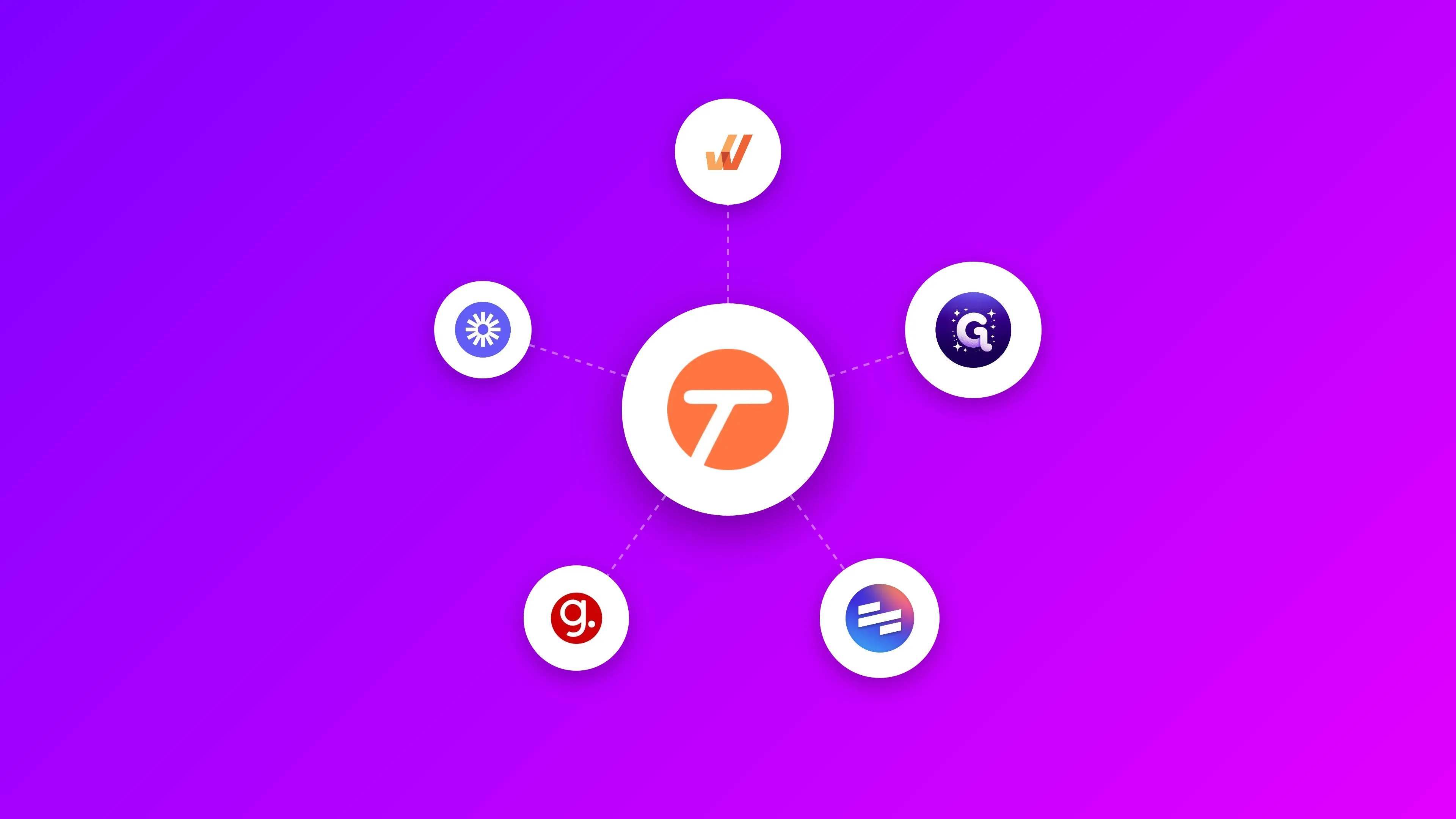
This guide covers the best alternatives to Tango (the documentation tool) for 2026, with honest pros and cons for each one. For a detailed head-to-head breakdown, see our Tango vs Glitter AI comparison.
Teach your co-workers or customers how to get stuff done – in seconds.


Top Tango Alternatives at a Glance
| Tool | Best For | Starting Price | Desktop Support | Free Tier |
|---|---|---|---|---|
| Glitter AI | Voice-powered documentation and software tutorials | $16/mo (annual) | Yes | 10 guides |
| Scribe | Quick browser-based docs | $25/mo annual (or $13/user annual with 5-seat min) | Pro only | Yes (limited) |
| Guidde | AI video guides | $18/mo (annual) | Business plan | 25 videos (web-only) |
| Loom | Video communication | $15/user/mo | Yes | Yes (limited) |
| Whatfix | Enterprise digital adoption | Custom | Yes | No |
| iorad | Interactive tutorials | $200/mo | No | Yes (limited) |
Why Look for Tango Alternatives?
Tango handles basic browser-based documentation reasonably well. But teams often run into some frustrating limitations:
Desktop App Capture Locked Behind Pro
Tango’s free tier only works in the browser. If you need to document workflows in Excel, Photoshop, SAP, or anything running outside your browser, you’ll need to upgrade to their Pro plan at $22 per user per month (annual billing) or $26/month (monthly). That adds up quickly when every team member who creates docs needs a paid seat.
Limited AI Capabilities
Other tango competitors have invested heavily in AI for voiceovers, translations, and auto-generated docs. Tango hasn’t really kept up. The result? More manual work when you’re putting together and polishing your guides.
No Voice Narration
Tango captures your clicks but not your voice. Without narration, the AI has to guess what you’re doing, which typically results in generic steps like “Click here” or “Enter text.” You lose all the context around why you’re taking each action. Plan on spending time rewriting those steps.
Restrictive Guidance Feature
Tango’s Guidance feature (interactive in-app overlays) looks great in demos. But there’s a catch: according to Tango’s own documentation, “Guidance is not available for workflows created with Tango’s Desktop app.” The interactive “Guide Me” feature only works for web-based workflows.
So if you’re documenting software like Excel, SAP, Photoshop, or any desktop applications, you’ll end up with static screenshots only. No interactive guidance. Plus, viewers need a Tango account, the extension installed, and access to that specific workflow. That makes sharing with customers, contractors, or anyone outside your immediate team a real headache.
Scaling Costs with Per-User Pricing
At $22-26 per user per month (depending on billing cycle), costs climb fast. A 10-person team pays $220-260/month, which is $2,640-3,120/year. The strict per-seat model also means you can’t mix Free and Pro users in the same workspace. Upgrading forces everyone in that workspace onto paid seats. Tango alternatives with per-creator pricing and no viewer fees can potentially save you thousands.
Missing Text Input Context
Tango doesn’t capture the text you type into fields automatically. As one comparison pointed out, “Tango does not write out any text you type automatically. If any of your steps involve very specific text entry, you’ll need to manually add the text.” Every step with specific text entry needs manual attention. That’s more work and more opportunity for incomplete documentation.
Limited Advanced Features
If you need tailored content, complex visuals, or sophisticated formatting, Tango probably won’t meet your needs. It handles straightforward instructions fine, but that’s about the extent of it.
What Actual Tango Users Say
Real complaints from G2 reviews paint a clearer picture:
On Editing Limitations: “What I dislike about tango is you there is not much option for the user to edit the photo that is captured.” Users also mention “editing difficulties with multiple saving steps and lack of an undo button, making the process frustrating.”
On Screenshot Issues: “Users report screenshot issues, such as missing captures and inconsistent auto zoom, affecting usability and accuracy.”
On Free Tier Restrictions: “The Free plan allows up to 10 users per workspace but limits workflows to 15… the workflow cap means growing teams will need to upgrade.” That 15-workflow limit hits active users fast, making the free tier feel more like a trial period.
On Pricing Friction: “The main issue with Tango’s pricing is that costs scale up quickly as teams grow. The per-user pricing model means larger teams will pay significantly more… every additional team member requires a separate paid seat.”
Security & Compliance Note
Tango is SOC 2 Type 2 compliant and states they don’t use customer data to train AI models: “Your data is never used to train, retrain, or enhance any OpenAI models, Microsoft Azure OpenAI, or Gemini foundation models.” SSO and SCIM are only available on Enterprise plans.
Red Flags to Consider
Product Pivot Alert: Tango is aggressively pivoting toward sales automation and “AI Agents” (automating CRM data entry) with new pricing starting at $12,500/year. If you’re buying purely for documentation, know that their R&D focus appears to be shifting toward active automation features you may not need. This could lead to feature bloat or price increases down the line.
“Guide Me” Misconception: Many teams purchase Tango specifically for the interactive “Guide Me” overlay feature, then discover later it doesn’t work for desktop applications. This comes up often and isn’t always clear during sales conversations. If desktop app guidance is important to you, this is likely a dealbreaker.
TL;DR: Our Top Picks
Best Overall Alternative: Glitter AI - Voice narration produces natural-sounding guides about 11x faster than writing manually. Desktop support included in the free tier.
Best for Quick Browser Docs: Scribe - Automatically captures browser workflows with solid editing options and plenty of integrations.
Best for Video Documentation: Guidde - Generates both video and text guides from one recording, complete with AI voiceovers in 25+ languages.
Best for Video Communication: Loom - The standard for async video messages, though not really designed for searchable step-by-step guides.
Best for Enterprise: Whatfix - A full digital adoption platform with in-app guidance, analytics, and all the enterprise features you’d expect.
1. Glitter AI - Best Overall Alternative
Best for: Teams who want documentation that actually sounds like a person wrote it
I built Glitter AI specifically because I kept running into the same problems with Tango and similar tools.
How It Works
Record your screen (desktop or browser) while talking through what you’re doing. Glitter captures screenshots automatically and turns your voice into clear, natural-sounding steps. What might take an hour with traditional tools takes about five minutes.
The difference comes from narration. Instead of AI guessing “User clicked Submit button,” it captures your actual explanation: “Click Submit to send the report to your manager for approval.”
Key Features
- Desktop and browser capture (both in the free tier)
- Voice narration in 99 languages with automatic transcription
- Magic Article: AI transforms guides into comprehensive documentation
- Video-to-guide conversion (upload existing videos)
- Screenshot editing with blur and annotation tools
- Multiple export formats (PDF, HTML, Markdown, PowerPoint)
- Embed guides anywhere with no viewer fees
- 5-15 minute recording time (depending on plan)
Pricing
- Free: 10 guides, 5 min recording time, desktop + web capture, Magic Article, Chromium browsers only
- Pro: $20/month ($16/month annual) - Unlimited guides, 15 min recording time, Magic Editor, sensitive data redaction
- Team: $75/month for 5 users ($15/user) - 30 min recording time, team collaboration
- Enterprise: Starting at $500/month - SSO, audit trails, custom teams, advanced security
Pros
- Natural-sounding output because it’s based on your actual words
- Desktop support in free tier (Tango requires Pro plan at $22/user/mo for desktop capture)
- Fastest creation time of any tool I’ve tested
- Multi-language support (99 languages vs Tango’s limited options)
- No per-viewer fees keeps costs manageable as teams scale
- Video-to-guide feature lets you repurpose existing Loom/screen recordings
- Better value than Tango for growing teams ($16/mo vs $22/user/mo annual pricing)
Cons
- You have to narrate out loud (can be awkward in open offices)
- Newer product means a smaller template library than Tango
- Still adding features (though we ship updates weekly)
- Chromium browsers only (no Safari or Firefox support)
- No GIF export option
- AI voiceover/narration is coming soon (not yet available)
- Sensitive data redaction requires paid plans (not available on free tier)
My Take
I built Glitter because even the “fast” documentation tools still ate up too much time with editing. Tango captures clicks but leaves you fixing generic steps. Loom records video but the content isn’t searchable. Glitter gives you searchable, editable guides using your actual explanations, in the time it takes to do the task once.
Your first 10 guides are free - no credit card needed
2. Scribe - Best for Quick Browser-Based Documentation
Best for: Teams that need fast browser workflow documentation
How It Works
A browser extension captures your clicks and generates guides automatically, similar to Tango. The AI figures out each step, adds screenshots, and creates instructions you can edit and customize.
Key Features
- Screenshot-based guide creation
- Browser extension for Chrome and Edge
- Desktop app (Pro/Enterprise only)
- Export to PDF, HTML, Markdown
- Integration with Slack, Microsoft Teams, Google Workspace
- Guide Me feature for interactive walkthroughs
- AI-powered workflow optimization suggestions
Pricing
- Basic: Free - Web-only, limited features
- Pro Personal: $29/month ($23/month annual) - Desktop capture, exports, no branding
- Pro Team: $75/month ($60/month annual) with 5-seat minimum ($15/user monthly, $12/user annual) - Team collaboration
- Enterprise: Custom pricing (reportedly $18,000+ annually for small teams) - Advanced security, compliance, SSO
Pros
- Intuitive interface, easy to pick up
- Clean, professional-looking guides
- Solid integration ecosystem
- Interactive Guide Me feature for in-browser walkthroughs
- Established product with a large user base
Cons
- Desktop capture locked behind Pro ($23/month minimum)
- Enterprise pricing can get steep (I’ve heard $18,000+ annually for small teams)
- No voice narration option
- English-only (no multi-language support)
- Generic AI-generated steps still need editing
- Desktop app reliability issues - users report “blank scribes” or “no steps captured” bugs
As one Reddit user noted: “I have recorded and completed the same process 15 or so times now - 95% of them show up as a blank scribe with ‘no steps’, even though it showed all steps before hitting complete.”
My Take
Scribe is probably Tango’s closest competitor in terms of functionality. If you’re leaving Tango because you want better editing or stronger integrations, Scribe delivers on those fronts. But if desktop support without the $25/month annual ($35/month monthly) price tag matters to you, or if you want narration-based documentation, you’ll want to look at other options.
3. Guidde - Best for AI Video Documentation
Best for: Teams who want both video and written guides from one recording
How It Works
A Chrome extension or desktop app records your workflow. Then AI generates both a video with voiceover and a step-by-step knowledge base article. You can customize the AI voice, add branding, and embed guides wherever you need them.
Key Features
- One-click workflow capture
- AI-generated voiceovers in 25+ languages
- Creates video AND text guides simultaneously
- Branded video player with custom themes
- Desktop and browser recording
- Workspace libraries for organization
- Embeds for Notion, Confluence, knowledge bases
- Over 100 AI-generated voice options
Pricing
- Free: Up to 25 videos total (web-only)
- Pro: $25/month ($18/month annual) - Unlimited videos, watermark removal, blur tools
- Business: $55/month ($39/month annual) - Text-to-voice, desktop capture, interactive elements (max 5 creators)
- Enterprise: Custom pricing - PII redaction, studio voices, auto-translation, SSO
Note: Free plan is capped at 25 videos total (not monthly), and desktop capture requires the Business plan at $39-55/month. The Business plan caps out at 5 creators, so teams of 6 or more need to go Enterprise.
Pros
- One recording produces both video and text
- AI voiceovers sound reasonably natural in 25+ languages
- Desktop capture available (unlike Tango)
- Works well for customer-facing documentation
- 14-day free trial of Business plan
- Solid multilingual support with auto-translation
Cons
- Free plan capped at 25 videos total
- Video files are larger than text-only guides
- Less searchable than pure text documentation
- Per-creator pricing adds up with larger teams
- Desktop capture requires Business plan ($39-55/month)
Something to consider: video maintenance. As one Reddit user noted: “Decent for teams, but let’s be real - UI updates will have you re-recording often.” Unlike text-based documentation where you can swap a screenshot, video takes more effort to update.
My Take
Guidde’s standout feature is generating both video and text from a single recording. If video documentation with AI voiceovers is what you need, it’s the best option out there. Just keep in mind video has its tradeoffs: you can’t quickly scan for one step or copy-paste instructions.
Teach your co-workers or customers how to get stuff done – in seconds.
4. Loom - Best for Video Communication
Best for: Async video messages and quick explanations
How It Works
Records your screen and/or camera with audio, then creates shareable video links with automatic transcription. It’s basically the industry standard for async video communication at this point.
Key Features
- Screen and camera recording
- Automatic transcription in 50+ languages
- Easy sharing via links and embeds
- Comments and reactions on videos
- Video trimming and basic editing
- AI-powered features (filler word removal, summaries, chapters)
- Integrations with Slack, Google Workspace, etc.
Pricing
- Starter: Free - 5 min videos, up to 25 videos per person (lifetime limit)
- Business: $18/user/month ($15/user/month annual) - Unlimited videos, custom branding, advanced editing
- Business + AI: $24/user/month ($20/user/month annual) - AI features like auto-titles, summaries, chapters
- Enterprise: Custom pricing - SSO, advanced security, custom data retention
Pros
- Dead simple to use
- Perfect for async communication
- Transcription makes videos searchable
- Great for quick explanations and feedback
- Large user base and ecosystem
- More affordable than Tango for video needs
Cons
- Videos aren’t structured like step-by-step guides
- Viewers have to watch entire videos (can’t scan for specific steps)
- Harder to update (requires re-recording)
- Large video files vs lightweight text guides
- No export to other formats
- AI features locked behind the more expensive Business + AI tier ($20-24/user/month)
- Atlassian account migration causing login issues for some users
As one Trustpilot reviewer mentioned: “Everything was great until Loom switched to Atlassian’s login system. I used to sign in with my Google account and it worked perfectly. Now I can’t log in anymore.”
My Take
Loom is great at what it’s designed for: async video communication. But it’s not really a Tango alternative in the documentation sense. Videos don’t have the scannable, copy-pasteable quality of text guides. If you need actual process documentation rather than video messages, look elsewhere.
5. Whatfix - Best for Enterprise Digital Adoption
Best for: Large enterprises with complex software rollouts
How It Works
A full digital adoption platform that provides in-app guidance, interactive walkthroughs, embedded support, and analytics to help employees learn and use enterprise software effectively.
Key Features
- In-app guidance and tooltips
- Interactive workflow automation
- Embedded help centers within applications
- Usage analytics and insights
- Content creation and management
- Multi-application support
- Self-help widgets and task lists
- Integration with LMS and knowledge bases
Pricing
- Custom pricing based on Monthly Active Users (MAUs), number of applications, and usage tiers
- Entry-level contracts typically start around $20,000-$25,000/year
- Average enterprise contract is around $32,000/year
- Large deployments can reach $50,000-$100,000+ annually
Pros
- Comprehensive digital adoption platform
- Great for large-scale software rollouts
- Strong analytics and usage tracking
- Purpose-built for enterprise environments
- Reduces IT support burden
- Named Leader by Gartner and Forrester
Cons
- Expensive and overkill for small teams
- Complex setup and implementation (often 1-3 months)
- Requires dedicated admin resources and technical knowledge
- Quote-based pricing (no transparency)
- Not designed for simple documentation needs
- Steep learning curve - creating sophisticated flows often requires CSS/JavaScript knowledge
As one Reddit user from the Instructional Design community noted: “We found that the flows were barely used and quite clunky. To me, the flows weren’t usable because they consistently timed out.”
My Take
Whatfix plays in a completely different league than Tango. It’s a full digital adoption platform meant for enterprises managing change at scale. If you’re a large organization rolling out new CRMs, ERPs, or HR platforms, Whatfix offers comprehensive support. But if you just need process documentation, it’s way more than necessary and priced accordingly.
6. iorad - Best for Interactive Tutorials
Best for: Teams creating step-by-step interactive training
How It Works
Captures user actions on screen and converts them into interactive tutorials. Users can click along and practice while following instructions in “try steps” mode.
Key Features
- Automatic step-by-step tutorial creation
- Interactive “try steps” mode for practice
- Live preview showing user experience
- Multiple output formats (interactive, PDF, video)
- Instant translation via Google Translate
- Highlights and editable text instructions
- Cloud storage and sharing
- Integration with Zendesk, Freshdesk, Atlassian
Pricing
- Free: Public tutorials only (indexed by search engines), basic features, iorad branding
- Individual: $200/month - Private tutorials, data masking, basic audio/voiceover
- Team: $500/month base + $50/month per additional creator - Custom branding, premium TTS audio, analytics, SSO
- Enterprise: Custom pricing (average ~$40,000/year) - AI translations, SCORM/SharePoint exports, dedicated support
Pros
- Interactive “try steps” mode for hands-on learning
- Multiple learning formats (interactive, print, mobile)
- Instant translation to many languages
- Works well for training and customer education
- Integrates with support platforms
Cons
- Expensive ($200/month for individual use, $500/month base for teams)
- No desktop recording (browser-only like Tango)
- Free plan forces all content to be public and indexed by search engines
- Enterprise pricing can reach $40,000+ annually
- Steep jump from free to paid - no middle ground
- Chrome extension can cause browser lag and slow down computers
As one reviewer noted: “As soon as I started recording my tutorial, the computer started to slow down to a point where it almost became impossible to use.” The $200/month price jump from free is also a significant friction point for freelancers and consultants.
My Take
iorad’s interactive “try steps” mode genuinely helps with training. But at $200/month for a single user, it’s one of the priciest options available. Unless you specifically need that interactive practice mode for software training, there are more affordable Tango alternatives worth considering.
Feature Comparison: Tango vs Top Alternatives
| Feature | Tango | Glitter AI | Scribe | Guidde | Loom | Whatfix |
|---|---|---|---|---|---|---|
| Desktop Capture | Pro only | Yes (free tier) | Pro only | Business plan | Yes | Yes |
| Voice Narration | No | Yes (99 langs) | No | AI voiceover (25+ langs) | Yes | No |
| Video Output | No | No | No | Yes | Yes | No |
| Text Guides | Yes | Yes | Yes | Yes | No (transcription only) | Help content |
| In-App Guidance | Yes (web-only) | No | Yes (Guide Me) | No | No | Yes (comprehensive) |
| Multi-Language | Limited | 99 languages | No | 25+ languages | 50+ transcription | Yes |
| AI Features | Limited | Yes | Yes | Yes | Yes | Yes |
| Export Formats | PDF, HTML, Markdown | PDF, HTML, Markdown, PPT | PDF, HTML, Markdown | Video, text | Video only | Multiple |
| Free Tier | 15 workflows | 10 guides (full features) | Limited browser only | 25 videos (web only) | 25 videos, 5 min | No |
| Starting Price | $22/user/mo (annual) | $16/mo (annual) | $23/mo (or $12/user w/ 5-seat min) | $18/mo (annual) | $15/user/mo (annual) | Custom (~$20k/yr min) |
| Best Use Case | Basic browser docs | Natural documentation | Browser workflows | Video + text guides | Async video | Enterprise DAP |
How to Choose the Right Tango Alternative
Here’s a quick framework to help you decide:
Choose Glitter AI if…
- You want documentation that sounds like a human wrote it
- Desktop support is non-negotiable (and you don’t want to pay extra)
- Speed matters, you need docs in minutes rather than hours
- You work in multiple languages
- Your team is growing (no viewer fees for embedded guides saves money)
- You want better value than Tango’s $24/user/month
Choose Scribe if…
- Browser-only documentation works for you
- You want a Tango-like experience with better editing
- Integration ecosystem matters
- You’re okay paying Pro prices for desktop capture
- Interactive Guide Me walkthroughs would help
Choose Guidde if…
- You need both video and text from one recording
- AI voiceovers in multiple languages are important
- Customer-facing documentation is a priority
- Your audience prefers video format
Choose Loom if…
- You need async video communication (not structured docs)
- Quick video messages matter more than step-by-step guides
- Your team already uses Loom
- Searchable text documentation isn’t critical
Choose Whatfix if…
- You’re a large enterprise (500+ employees)
- You’re rolling out complex software across departments
- You need a comprehensive digital adoption platform
- Your budget supports enterprise-level investment
- Analytics and usage tracking are critical
Choose iorad if…
- Interactive “try steps” practice mode is essential
- Training effectiveness justifies $200/month
- You need learners to actually practice within the tutorial
- Integration with support platforms adds value
Stay with Tango if…
- It’s working well for what you need
- Browser-only capture is enough
- You don’t need to document desktop apps
- The per-user pricing fits your budget
- The in-app Guidance feature provides unique value
Don’t switch just for the sake of switching. Change tools when they actually solve a problem you’re experiencing. If you’re evaluating tools in this space more broadly, our guide to software for documenting your processes covers additional options.
Common Questions About Switching from Tango
Can I export my existing Tango guides?
Yes. Tango lets you export guides to PDF, HTML, and Markdown formats. Most alternatives support importing or quick recreation. The simplest approach: keep existing guides in Tango while creating new docs in your chosen alternative. Migrate high-priority guides as you have time.
How long does it take to learn a new tool?
Most Tango alternatives take 10-15 minutes to figure out. Glitter, Scribe, and Loom are especially intuitive. If you can use Tango, you’ll be fine with these. Whatfix has a steeper learning curve given all its enterprise features.
Will I lose the in-app Guidance feature?
Tango’s Guidance overlay is fairly unique, though Scribe’s Guide Me and Whatfix’s in-app guidance offer similar functionality. If interactive overlays are critical for you, take a close look at Scribe or Whatfix. For most teams, better documentation quality and desktop support outweigh losing the Guidance feature.
What about team migration?
Start with a pilot. Create a few guides in the new tool, gather team feedback, then commit fully. Most teams run both tools in parallel for 2-4 weeks during the transition. Free tiers from Glitter, Scribe, and Guidde make testing risk-free.
How much can I save switching from Tango?
For a 10-person team, Tango runs $220/month or $2,640/year (annual pricing at $22/user/month). Alternatives like Glitter AI with per-creator pricing could cut costs by 50-70%. With Glitter’s Team plan at $60/month annual for 5 creators and no viewer fees for embedded guides, you’d save $160/month or $1,920/year. Even Scribe’s Pro Team at $65/month annual (5 users minimum) offers similar savings for small teams.
Frequently Asked Questions
What is the best free Tango alternative?
Glitter AI offers the most generous free tier with 10 guides that include full desktop support, voice narration in 99 languages, and all core features. Tango's free tier is limited to 15 workflows and lacks desktop recording (desktop capture requires Pro plan at $22/user/mo). Scribe's free tier is browser-only with limited features. Guidde offers 25 free videos total but web-only recording. For feature quality and desktop support, Glitter AI provides the best free alternative to Tango.
How is Glitter AI different from Tango?
The main differences: 1) Glitter supports desktop recording in the free tier, while Tango requires the Pro plan for desktop capture. 2) Glitter captures your voice narration while you work, creating natural-sounding guides, while Tango captures clicks without narration context. 3) Glitter supports 99 languages vs Tango's limited options. 4) Glitter has AI features like Magic Article for generating comprehensive documentation. 5) Glitter's pricing ($16/mo annual) is more affordable than Tango's per-user model ($22/user/mo annual). 6) Glitter has no viewer fees for embedded guides so you only pay for creators.
Which Tango alternative works best for documenting desktop applications?
Glitter AI is the best choice for desktop documentation because it includes desktop capture in the free tier with voice narration for better context. Guidde also supports desktop recording but requires the Business plan ($35-44/month). Scribe offers desktop capture but only in Pro/Enterprise plans ($25/month annual minimum). Loom creates desktop videos rather than step-by-step text guides. Tango offers desktop capture in the Pro plan ($22/user/mo), but importantly, Tango's interactive "Guide Me" feature does not work for desktop apps - only web-based workflows.
Does any Tango alternative have in-app guidance like Tango's Guidance feature?
Yes. Scribe offers Guide Me, which provides interactive in-browser walkthroughs similar to Tango's Guidance. Whatfix provides even more comprehensive in-app guidance with tooltips, automation, and embedded help, but at enterprise pricing. However, note that Tango's Guidance only works for web-based workflows - it does not support desktop applications. Tango's own documentation states "Guidance is not available for workflows created with Tango's Desktop app." Additionally, Tango's Guidance requires viewers to have a Tango account and extension installed, which limits external sharing. Scribe's Guide Me has similar requirements. For most teams, better documentation quality through narration (Glitter AI) or video (Guidde) provides more value than in-app overlays.
What's the best Tango alternative for multilingual teams?
Glitter AI supports voice narration and transcription in 99 languages, making it the best choice for multilingual documentation. You can narrate in your language of choice and the guide generates in that language. Guidde offers AI voiceovers in 25+ languages with auto-translation in the Enterprise plan. Loom offers transcription in 50+ languages but creates videos rather than step-by-step guides. Tango and Scribe have limited language support, making them poor choices for global teams.
Can I switch from Tango without losing my existing documentation?
Yes. Tango allows you to export your guides to PDF, HTML, and Markdown formats. You can keep existing guides in Tango while creating new documentation in your chosen alternative. Most alternatives support importing or manual recreation of guides. With tools like Glitter AI where creation takes 5-10 minutes per guide, migration is faster than it sounds. Start with a pilot project before fully committing to any new tool. The free tiers from Glitter (10 guides), Scribe (limited), and Guidde (25 videos) let you test before migrating everything.
Our Verdict
I built Glitter AI, so take this recommendation with that in mind.
Here’s the honest truth: The best tool depends on what you actually need.
Tango works for plenty of teams. If it’s solving your problems and the limitations aren’t bothering you, keep using it.
But if you’re reading this, you’ve probably hit one of Tango’s walls: desktop support locked behind Pro tier, limited AI features, per-user pricing that doesn’t scale well, or missing narration context. Or maybe you bought Tango for the “Guide Me” interactive feature, only to discover it doesn’t work for desktop applications.
For most teams looking to switch from Tango, Glitter AI is the best Tango alternative because:
- Natural-sounding output from voice narration cuts out hours of editing
- Desktop support in the free tier (Tango requires Pro plan at $22/user/mo for desktop capture)
- 99-language support vs Tango’s limited options
- No viewer fees for embedded guides keeps costs manageable as teams grow
- More affordable pricing ($16/mo vs $22/user/mo)
- AI-powered features that Tango lacks
- No “Guide Me” desktop limitation. While Tango’s interactive guidance doesn’t work for desktop apps, Glitter’s voice narration works consistently across web and desktop
Scribe is the runner-up if you want Tango-like click capture with better editing and don’t need desktop support.
Guidde wins if video documentation with AI voiceovers is specifically what you’re looking for.
Whatfix is best for enterprise digital adoption at scale (but massive overkill for simple documentation).
The right tool removes friction from documentation instead of adding to it. Glitter’s free tier (10 guides, no credit card) lets you test whether narration-based documentation works for you in about 15 minutes.
Try it on a real project, not a throwaway example. See how the output reads. Check if your team will actually use it.
Start for free: www.glitter.io
Your first 10 guides are free - see why teams are switching from Tango