
Read summarized version with
Looking to download quick reference guide templates?
I’ve created hundreds of documentation guides over the years, and I’ll tell you something that might sound strange: the best documentation is often the shortest.
Quick reference guides (QRGs) are the perfect example of this. They’re one-page cheat sheets that condense complex processes into scannable, actionable information that people can actually use in the moment, much like a quick start guide does for someone getting going for the first time.
But here’s what I’ve learned the hard way: making something short is actually harder than making it long. You have to know what to cut, what to keep, and how to organize it so people can find what they need in seconds.
I’m Yuval, founder of Glitter AI. I’ve spent years figuring out what makes documentation actually useful instead of just comprehensive. Here’s everything I know about creating quick reference guides, plus some free templates you can start using today.
Teach your co-workers or customers how to get stuff done – in seconds.


What is a Quick Reference Guide?
A quick reference guide is exactly what it sounds like - a condensed reference guide that someone can glance at to quickly find the information they need.
Think of it like a cheat sheet. Not in the academic sense, but in the “I need to remember how to do this task I don’t do very often” sense.
The key word here is “quick.” These aren’t meant to be read cover to cover. They’re meant to be scanned in under 30 seconds to find the exact step or piece of information you need right now.
What Makes QRGs Different from Other Documentation
Quick reference guides aren’t just shortened versions of your regular documentation. They serve a completely different purpose, in much the same way knowing the difference between a procedure and a process changes how you document each one:
Regular documentation teaches someone how to do something from scratch. It explains the why behind each step, provides context, and walks through the entire process in detail. That’s what work instructions and SOPs are for.
Quick reference guides assume you already know the basics and just need a reminder of the specific steps or key information. They’re memory joggers, not tutorials.
This is why you’ll often see QRGs as physical cards on people’s desks or pinned to walls near workstations. They’re meant to be accessible at the exact moment you need them.
When to Create Quick Reference Guides
Not every process needs a QRG. Here’s when they actually make sense:
Tasks People Do Infrequently
If your team does something monthly or quarterly, they probably won’t remember all the steps. A QRG sitting on their desk saves them from digging through full documentation every time.
Complex Processes with Many Steps
When there are 15+ steps to remember, even experienced people benefit from a checklist-style reference. It reduces errors and ensures nothing gets skipped.
High-Stakes Tasks Where Mistakes Matter
For processes where one wrong click could cause problems, a QRG serves as a safety net much like a well-built safety manual does for higher-risk operations. People can double-check they’re doing the right thing.
Software Shortcuts and Keyboard Commands
Nobody remembers all the keyboard shortcuts. A QRG taped near your monitor beats Googling the same commands over and over.
Troubleshooting Common Issues
When the same problems keep popping up, a QRG with quick fixes works much like a focused knowledge base article and saves your support team hours of repetitive explanations. Pair these with your broader employee training material for maximum impact.
Glitter AI creates polished documentation automatically - no templates needed
Types of Quick Reference Guides
QRGs come in different flavors depending on what you’re documenting:
Process Quick Reference Cards
These are step-by-step checklists for completing a specific task. They list out the actions in order, often with minimal explanation since the user already knows the basics.
Great for: Monthly closing procedures, system startup sequences, approval workflows
Keyboard Shortcut Reference Sheets
One-page listings of keyboard commands organized by function. Usually formatted as two columns with the action and the key combination.
Great for: Software tools, code editors, design applications
Troubleshooting Quick Guides
Organized as “Problem → Solution” pairs. People scan to find their issue and immediately see what to do about it.
Great for: Common error messages, printer issues, connectivity problems
Decision Tree Quick References
Flow charts that help people navigate through choices. “If this, then that” logic presented visually.
Great for: Customer service scripts, triage procedures, diagnostic processes
Reference Data Sheets
Tables or lists of important information people need to look up frequently but can’t possibly memorize.
Great for: Product specifications, conversion charts, approval thresholds, contact lists
Free Quick Reference Guide Templates
Here are some templates you can grab and customize. I’ve kept them simple because simple is what actually gets used.
Basic QRG Template
QUICK REFERENCE GUIDE: [Task Name]

PURPOSE
[One sentence explaining when to use this guide]

BEFORE YOU START
□ [Prerequisite 1]
□ [Prerequisite 2]

STEP-BY-STEP PROCESS
1. [Action step with specific detail]
2. [Action step with specific detail]
3. [Action step with specific detail]
4. [Action step with specific detail]
5. [Action step with specific detail]

COMMON ISSUES & FIXES
Problem: [Common issue]
Fix: [Quick solution]

Problem: [Another issue]
Fix: [Quick solution]

NEED HELP?
Contact: [Name/Team]
Email: [Contact info]
Software Quick Reference Card Template
[SOFTWARE NAME] QUICK REFERENCE

ESSENTIAL SHORTCUTS
Ctrl + S        Save
Ctrl + Z        Undo
Ctrl + Y        Redo
Ctrl + F        Find
Ctrl + C        Copy
Ctrl + V        Paste

COMMON TASKS
Export Data:
Menu → File → Export → Select Format → Save

Generate Report:
Dashboard → Reports → Select Type → Run

Import File:
Tools → Import → Choose File → Confirm

TROUBLESHOOTING
"Error 404": Refresh page, log out and back in
"Access Denied": Contact admin for permissions
"File Won't Upload": Check file size (max 10MB)

SUPPORT: help@company.com | Ext. 5555
Troubleshooting Quick Reference Template
[SYSTEM/PROCESS] TROUBLESHOOTING GUIDE

QUICK DIAGNOSTICS
□ Is the system powered on?
□ Are all cables connected?
□ Has the system been restarted?
□ Are you logged in with correct credentials?

COMMON PROBLEMS

Problem: [Specific error or symptom]
Likely Cause: [Most common reason]
Fix:
1. [First step]
2. [Second step]
3. [If still not working, next action]

Problem: [Specific error or symptom]
Likely Cause: [Most common reason]
Fix:
1. [First step]
2. [Second step]
3. [If still not working, next action]

[Repeat for 4-6 most common issues]

ESCALATION
If none of these fixes work:
Contact: [Support team/person]
Phone: [Number] | Email: [Address]
Include: Error message, what you tried, when it started
Process Checklist Quick Reference
[PROCESS NAME] CHECKLIST

Last Updated: [Date]
Owner: [Name/Department]

□ STEP 1: [Specific action]
  → Expected result: [What should happen]

□ STEP 2: [Specific action]
  → Expected result: [What should happen]

□ STEP 3: [Specific action]
  → Expected result: [What should happen]

□ STEP 4: [Specific action]
  → Expected result: [What should happen]

□ STEP 5: [Specific action]
  → Expected result: [What should happen]

□ FINAL CHECK: [Verification step]

COMPLETION
□ All steps completed
□ Results verified
□ Next team notified (if applicable)

Completed by: _________ Date: _____
Best Practices for Creating Quick Reference Guides
I’ve made plenty of QRGs that nobody used. Here’s what I learned from those failures:
Keep It to One Page
If it spills onto a second page, it’s not a quick reference anymore. Force yourself to be ruthless about what makes the cut.
The constraint is the point. It forces you to identify what’s truly essential.
Use Visual Hierarchy
People scan, they don’t read. Use different text sizes, bold for key terms, bullets for lists, and plenty of white space.
Your eye should immediately know where to look for different types of information.
Be Stupidly Specific
“Update the database” is useless. “Click Reports tab → Select Update Database → Click Confirm” is helpful.
Don’t assume people remember the details. That’s the whole point of having a reference guide.
Test It with Someone Who Doesn’t Know the Process
Hand your QRG to someone unfamiliar with the task. Can they complete it using only your guide? If not, revise until they can.
Fresh eyes always find the gaps you missed.
Update It When Processes Change
Nothing destroys trust in documentation faster than following a guide that’s out of date. Set calendar reminders to review QRGs quarterly.
Teach your co-workers or customers how to get stuff done – in seconds.
Quick Reference Guide Examples
Let me show you what these look like in practice:
Example 1: Monthly Reporting QRG
MONTHLY SALES REPORT QUICK GUIDE

DUE: 5th business day of each month

DATA COLLECTION
1. Export sales data: Salesforce → Reports → Monthly Sales → Run → Export CSV
2. Export expense data: Finance portal → Monthly Expenses → Download
3. Gather team updates: Check #monthly-updates Slack channel

REPORT GENERATION
4. Open monthly template: G Drive → Templates → Monthly Sales Report
5. Copy data from CSV into "Raw Data" tab
6. Verify auto-calculations update correctly
7. Add narrative highlights from team updates

FINAL STEPS
8. Save as: "Monthly Report - [Month Year]"
9. Share with: Leadership team (leadership@company.com)
10. Post summary to: #company-updates Slack channel

COMMON ISSUES
Numbers don't match last month → Check for duplicate entries in CSV
Chart not updating → Right-click → Refresh data
Template missing → Use backup: Drive → Archive → Templates

Questions? Contact Finance Team: finance@company.com
Example 2: Customer Onboarding QRG
NEW CLIENT SETUP - QUICK REFERENCE

ACCOUNT CREATION (Do First)
□ Create account in CRM (Admin → New Client)
□ Set billing tier (Standard/Premium/Enterprise)
□ Add primary contact info
□ Assign account manager

SYSTEM ACCESS (Within 24 hours)
□ Create login credentials
□ Send welcome email (use template: Welcome-Standard)
□ Schedule kickoff call
□ Add to Monday check-in calendar

DELIVERABLES (Before Kickoff)
□ Send branded welcome packet
□ Create shared Slack channel
□ Add to project management board
□ Prep customized onboarding roadmap

KICKOFF CALL AGENDA
1. Introductions (5 min)
2. Platform walkthrough (15 min)
3. Goals alignment (10 min)
4. Timeline review (10 min)
5. Q&A (10 min)

AFTER KICKOFF
□ Send call summary email
□ Share recorded session link
□ Create first week action items
□ Schedule week 2 check-in

STUCK? Reach Sarah (sarah@company.com, ext. 4444)
How to Format Quick Reference Guides
Format matters a lot for QRGs. Here’s what actually works:
Physical Format
If you’re printing these:
- Use thick cardstock paper
- Laminate it if people will handle it frequently
- Standard 8.5” x 11” works, but 5” x 7” cards are easier to keep at a desk
- Use landscape orientation to fit more columns
Digital Format
If these live on screens:
- PDF for easy sharing and consistent display
- Single-page design so no scrolling
- Include in searchable knowledge base
- Use clear file naming: “QRG-TaskName-Version-Date”
Typography
- Headings: 14-16pt, bold
- Body text: 10-11pt
- Fine print: 8-9pt
- Use sans-serif fonts (Arial, Helvetica) for better screen readability
- Stick to 2 fonts maximum
Color Coding
Use color strategically:
- Red for warnings or critical steps
- Yellow/orange for caution items
- Green for confirmation/success indicators
- Blue for additional information
- Black/gray for standard steps
Don’t go overboard. Too many colors make it harder to scan, not easier.
Just do the task while talking through it - Glitter AI creates the guide
Quick Reference Guide vs Other Documentation
People often confuse QRGs with similar document types. Here’s how they differ:
QRG vs Standard Operating Procedure (SOP)
SOPs are comprehensive, formal documents that explain the complete process in detail, including purpose, scope, responsibilities, and context.
QRGs strip out all that context and give you just the action steps. They assume you already know why and focus only on how.
Think of SOPs as the full instruction manual and QRGs as the cliff notes version taped to your monitor.
QRG vs Work Instructions
Work instructions provide detailed, step-by-step guidance for completing a specific task, often with screenshots and explanations.
QRGs give you the same steps but in condensed format without detailed explanations or extensive visuals.
Work instructions teach. QRGs remind.
QRG vs Checklists
This one’s subtle. Checklists are lists of items to verify or tasks to complete, usually with checkboxes.
QRGs often include checklists but also add quick reference information like troubleshooting tips, shortcuts, or key data.
A checklist is one component that might appear in a QRG.
QRG vs Job Aids
Job aids is actually a broader category that includes QRGs, along with decision trees, reference sheets, and other tools that support task completion.
So technically, QRGs are a type of job aid - just one focused on condensed step-by-step processes.
When Quick Reference Guides Aren’t Enough
Here’s the truth: sometimes a QRG isn’t the right tool.
If someone needs to learn a completely new process from scratch, don’t hand them a condensed reference card. They need actual training documentation that explains the context and walks through examples.
QRGs work when:
- People already have basic knowledge
- The process is reasonably standardized
- The information can actually fit on one page
- The task is performed periodically (not constantly or never)
QRGs don’t work when:
- The process varies significantly each time
- There’s complex decision-making involved
- People need to understand the reasoning, not just follow steps
- The task is brand new to everyone
For complex processes, create proper documentation first. Then extract a QRG from it as a reminder tool.
Creating QRGs with Glitter AI
Want to know the honest truth about creating quick reference guides manually?
It takes forever.
You have to:
- Document the complete process first
- Figure out what to cut
- Rewrite everything in condensed form
- Format it nicely
- Test it
- Revise it multiple times
For one QRG, you’re looking at hours of work minimum.
This is why I built Glitter AI. Instead of manually documenting and then condensing, you just perform the task once while explaining what you’re doing out loud.
Glitter captures everything - your clicks, your words, screenshots of each step - and generates polished documentation automatically.
Then you can export that documentation and quickly pull out the essential steps to create a QRG in minutes instead of hours.
Or better yet, share the full Glitter guide for comprehensive reference and create a one-page PDF summary for the QRG version. Best of both worlds.
Frequently Asked Questions
What is a quick reference guide template?
A quick reference guide template is a pre-formatted document structure designed for creating condensed, one-page reference materials. Unlike comprehensive documentation, QRG templates focus on delivering essential information that people can scan in under 30 seconds. These templates typically include sections for step-by-step procedures, common troubleshooting tips, keyboard shortcuts, or reference data - all organized for maximum scannability. The key feature of any good QRG template is strict one-page formatting that forces you to include only what's truly essential, making it a memory jogger rather than a teaching tool.
What should be included in a quick reference guide?
An effective quick reference guide should include only the most essential elements needed for task completion. Start with a clear title stating what task the guide covers, followed by a brief purpose statement explaining when to use it. Include prerequisite items that must be in place before starting, then list the specific action steps in sequential order using active verbs and concrete details. Add a troubleshooting section with 2-4 common problems and their quick fixes. End with contact information for help when needed. What you should NOT include: lengthy explanations, background context, training information, or anything that doesn't directly support someone already familiar with the basics.
How do you create a quick reference guide?
Creating a QRG starts with documenting the complete process first, then ruthlessly condensing it to one page. Begin by listing every step of the task, then eliminate any explanatory text or context that isn't absolutely critical for completion. Use specific action verbs and concrete details instead of vague instructions. Format the content with clear visual hierarchy using headings, bullets, and white space so people can scan quickly. Add only the 3-4 most common troubleshooting items. Test your QRG with someone unfamiliar with the process - if they can't complete the task using only your guide, revise until they can. The constraint of one page is the point; it forces you to identify what's truly essential.
What is the difference between a QRG and an SOP?
SOPs (Standard Operating Procedures) are comprehensive, formal documents that explain complete processes including purpose, scope, responsibilities, context, and detailed procedures. They're designed to teach someone the process from scratch and typically run several pages. Quick reference guides strip out all that context and provide only the condensed action steps on a single page. QRGs assume you already know why the process exists and the basic concepts - they focus purely on reminding you how to execute the steps. Think of SOPs as the full instruction manual and QRGs as the cliff notes version. You create SOPs first for training and formal documentation, then extract QRGs as reminder tools for people who already know the basics.
When should you use a quick reference guide instead of full documentation?
Use quick reference guides for tasks people perform infrequently but periodically - monthly closing procedures, quarterly reporting, or troubleshooting steps they need occasionally. QRGs work best when people already have basic training and just need a memory jogger for the specific steps. They're ideal for processes with many sequential steps where even experienced people benefit from a checklist, and for high-stakes tasks where one wrong step could cause problems. Don't use QRGs when someone needs to learn a brand new process from scratch, when the process varies significantly each time, or when understanding the reasoning behind steps is critical. For those situations, stick with comprehensive documentation or training materials.
How long should a quick reference guide be?
A quick reference guide should be exactly one page. If it spills onto a second page, it's no longer a quick reference - it's standard documentation. The one-page constraint isn't arbitrary; it forces you to be ruthless about what information is truly essential versus merely helpful. This constraint is what makes QRGs work as scannable, at-a-glance references. For physical QRGs, standard 8.5" x 11" paper works well, though 5" x 7" cards are easier to keep at a desk. For digital QRGs, single-page PDFs ensure no scrolling is required. If you genuinely can't fit the essential information on one page, the process might be too complex for a QRG format - create full documentation instead and consider breaking it into smaller sub-processes that could each have their own QRG.
Getting Started with Quick Reference Guides
Ready to create your first QRG? Here’s a practical action plan:
- Pick a process that your team does monthly or quarterly
- Document it fully first (or use existing documentation)
- List just the action steps without explanations
- Cut it down to fit one page - be ruthless
- Format for scannability with clear headings and bullets
- Test it with someone who knows the process
- Refine based on what they struggled with
- Distribute it where people will actually see it
Or skip steps 1-7 and just use Glitter AI to create documentation in minutes by doing the task once while talking through it. Your first 10 guides are free.
Download Free QRG Templates
Get started with these free quick reference guide templates:
Basic Quick Reference Guide Template
Free QRG template in Word format. Includes sections for purpose, prerequisites, step-by-step procedures, common issues and fixes, and contact information. Clean one-page layout designed for maximum scannability.
Download QRG Template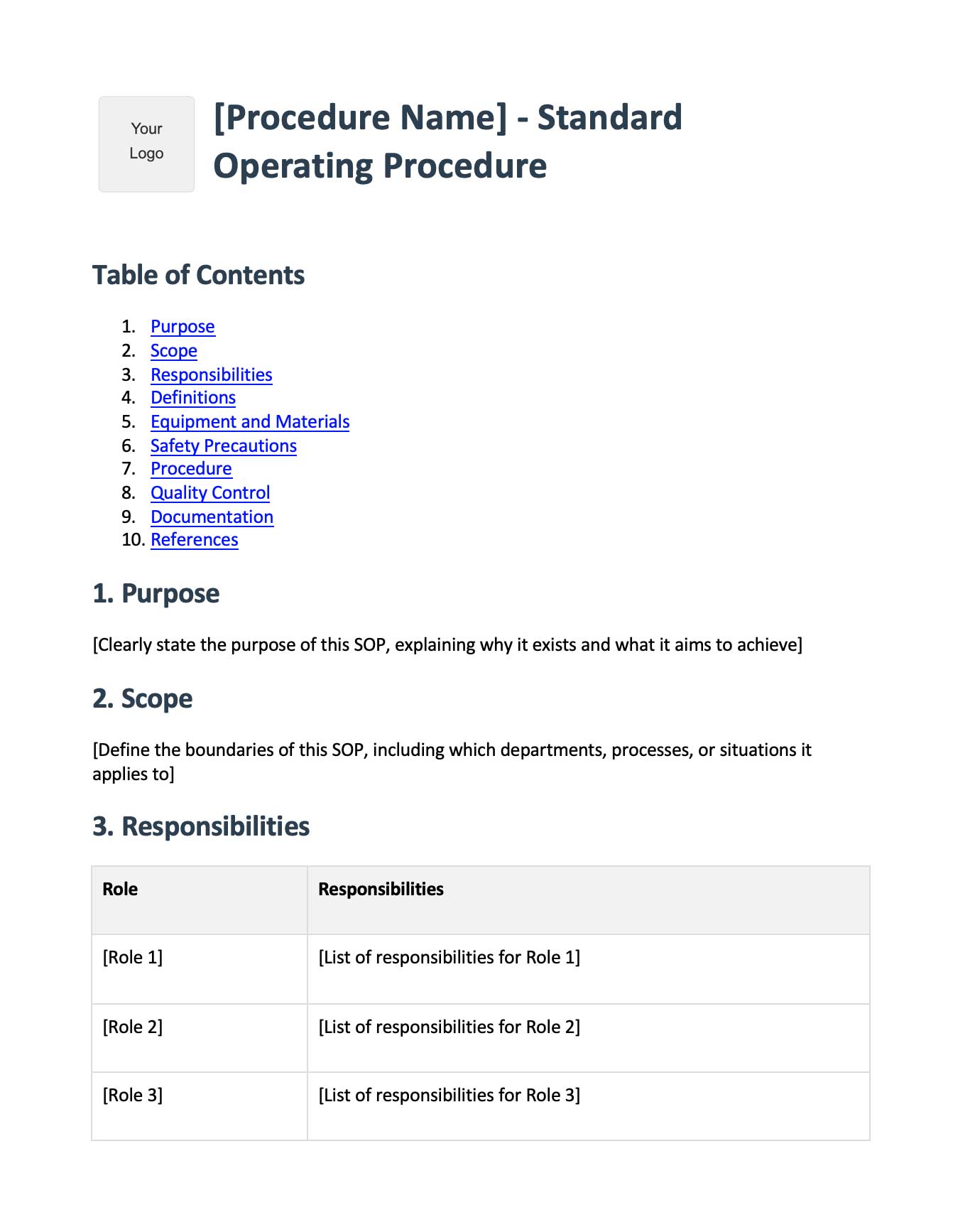
Software Quick Reference Card Template
Free software QRG template in Word format. Perfect for keyboard shortcuts, common tasks, and troubleshooting. Formatted for easy printing and desk reference. Works for any software application.
Download Software QRG Template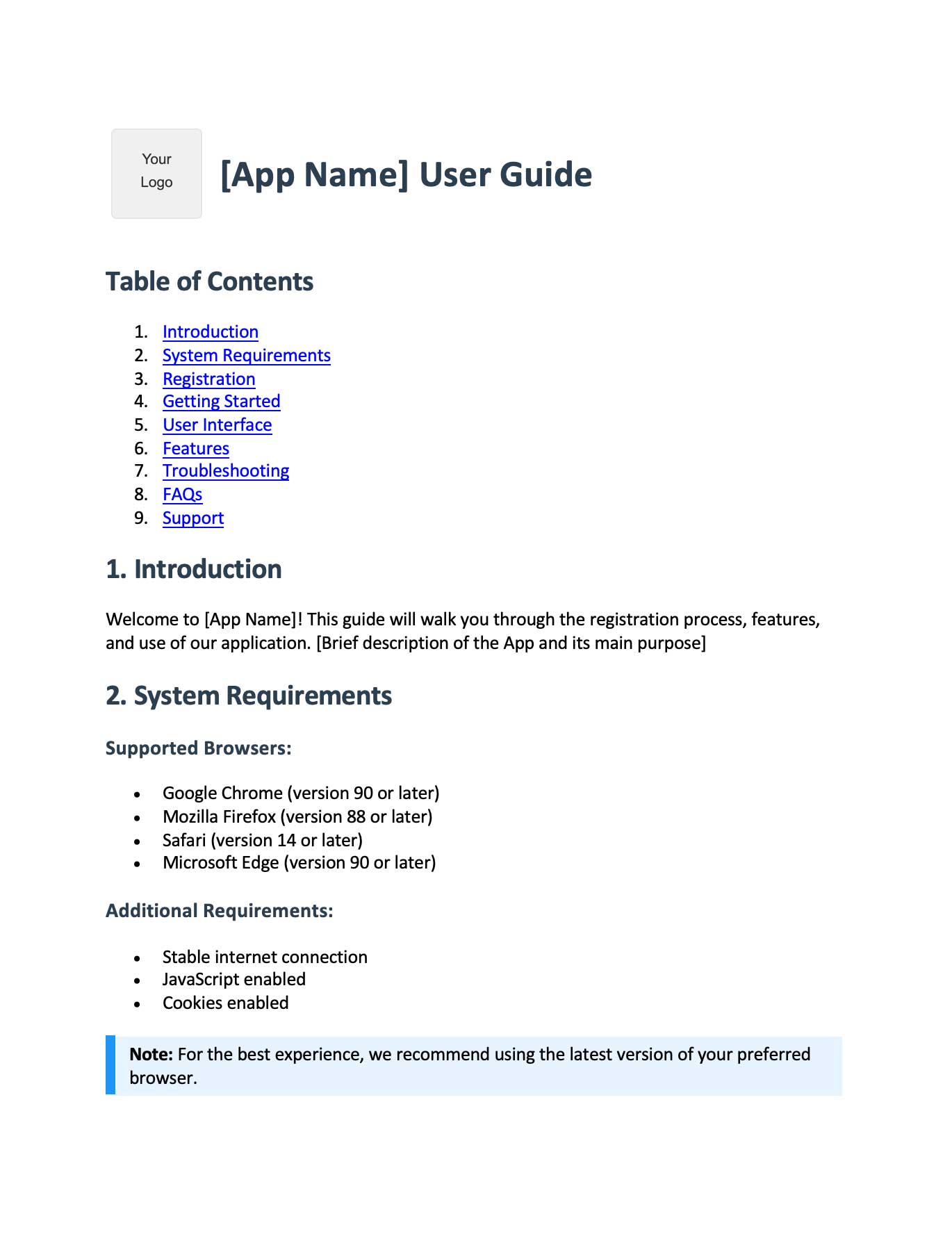
Troubleshooting Quick Reference Template
Free troubleshooting QRG template in Word format. Organized as problem-solution pairs with quick diagnostics checklist and escalation procedures. Ideal for help desk teams and support documentation.
Download Troubleshooting QRG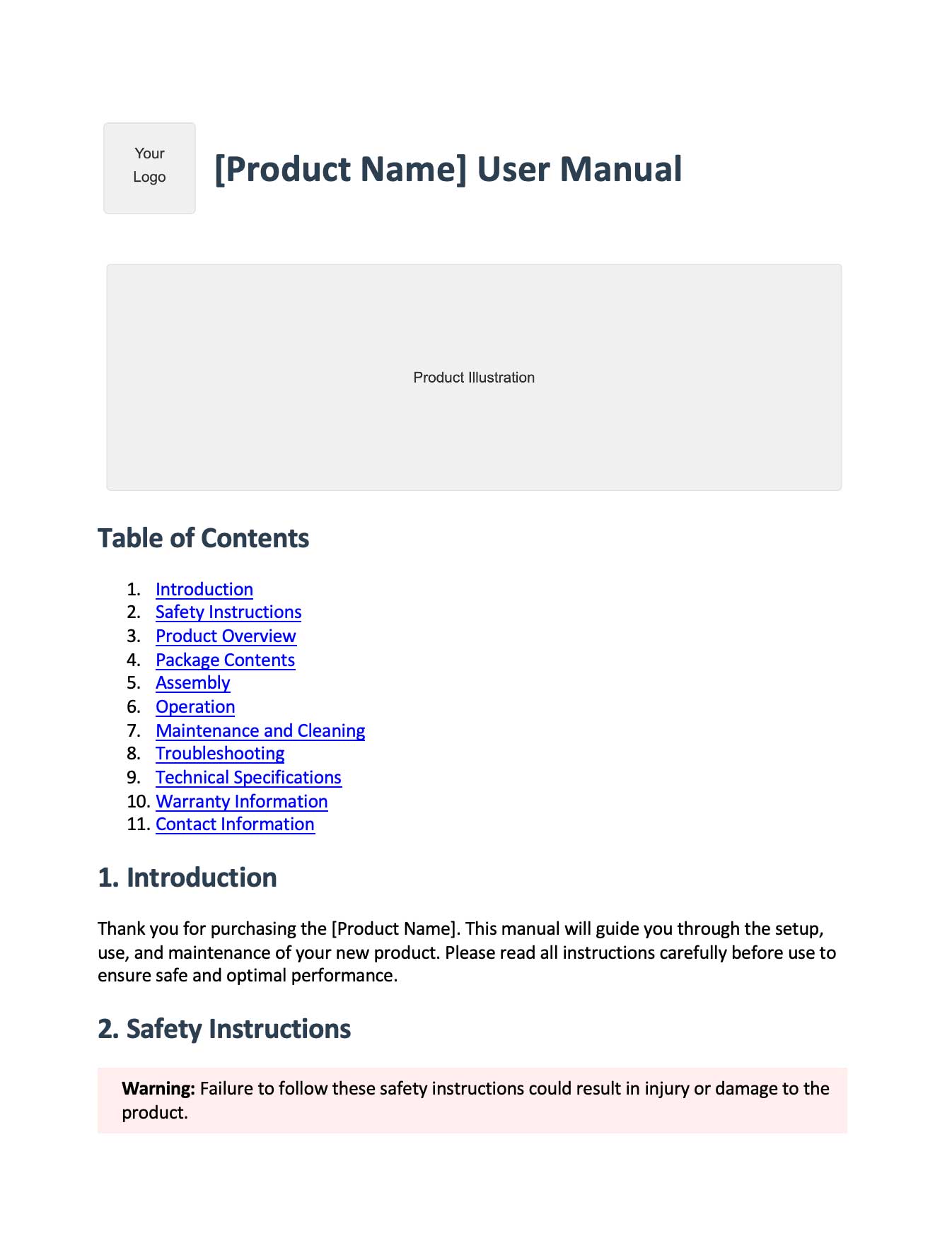
Process Checklist Quick Reference Template
Free process checklist QRG template in Word format. Includes checkbox format with expected results for each step, completion verification section, and sign-off area. Perfect for recurring procedures.
Download Checklist QRG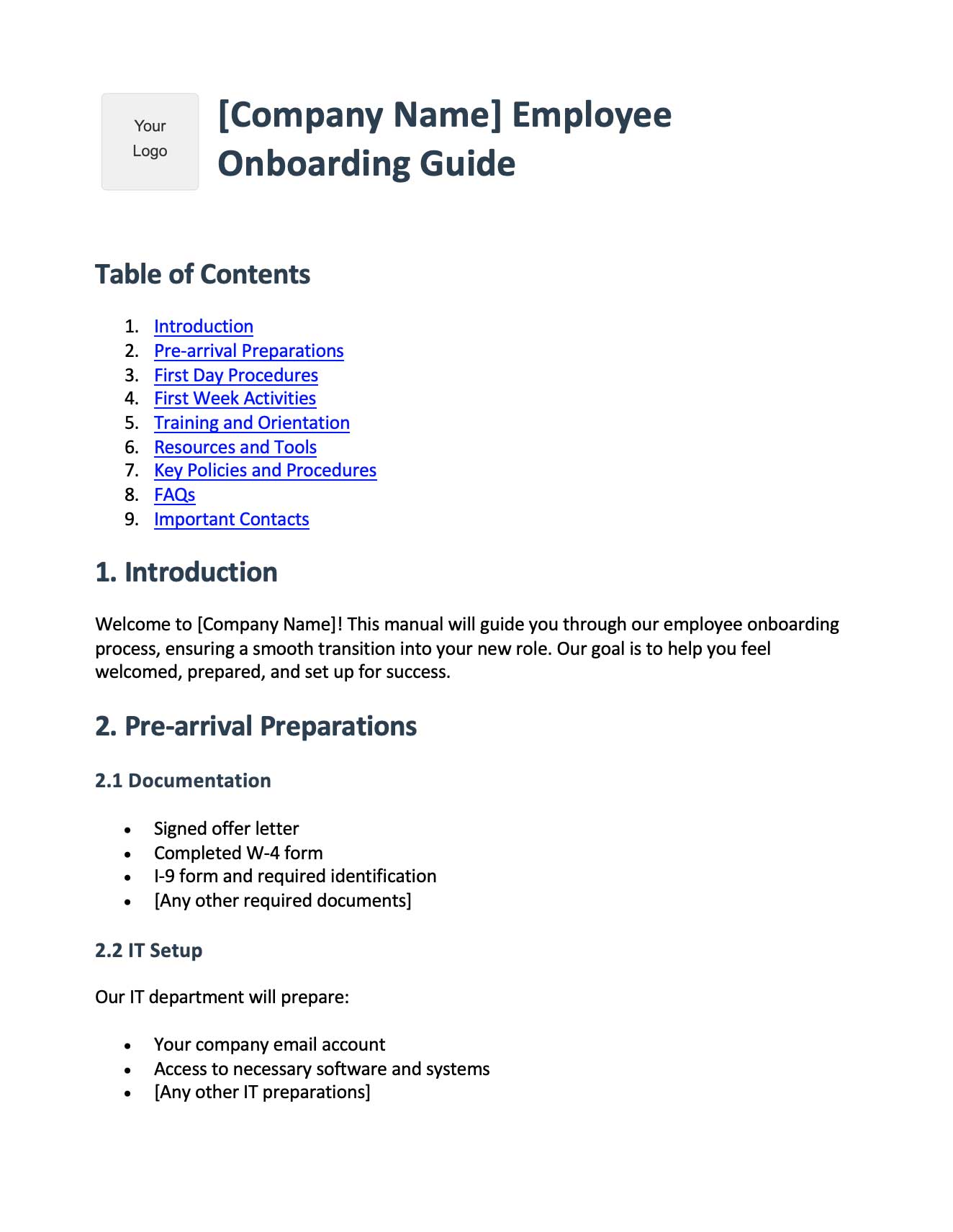
Glitter AI turns your screen recordings into polished documentation automatically