
Read summarized version with
If you’ve ever been the person responsible for WooCommerce training, you already know how it goes. Somebody quits, a new hire shows up, and suddenly you’re spending three weeks walking them through every button, tab, and buried setting in your store’s back end. Figuring out how to use WooCommerce is one thing – getting your whole team up to speed is another.
I’ve lived this. Not with WooCommerce specifically, but with internal tools at my previous company Simpo. We had a CRM that only two people truly understood. One left, and the other went on parental leave the same month. We were completely stuck. Orders got misrouted. Customer data was entered wrong. It was chaos, honestly.
That experience is a big part of why I built Glitter.
The Real Problem With WooCommerce Training Isn’t the Software - It’s Tribal Knowledge
Here’s what nobody tells you about e-commerce store training: the software itself isn’t the hard part. WooCommerce has decent documentation. What’s actually hard is your version of WooCommerce - with your custom plugins, your specific shipping rules, those weird tax configurations that took months to sort out, and the workarounds your team invented because the defaults didn’t quite cut it.
That’s know-how that was never written down anywhere. It lives in people’s heads. And it walks out the door the moment they leave.
I talk to ops managers every week who tell me basically the same story. They’ve got a WooCommerce store doing $50K - $500K a month, a small team of 3 - 8 people juggling everything from order processing to inventory to customer service, and zero documentation on how any of it actually works.
When someone new joins, they shadow a veteran for two weeks. The veteran resents it because they can’t get their own work done. The new person feels overwhelmed because they’re drinking from a fire hose. And three months later, they’re still pinging people with “Hey, how do I handle a partial refund for an international order again?”
Sound familiar?
Teach your co-workers or customers how to get stuff done – in seconds.


Why Traditional Documentation Fails for WooCommerce Training
I’ve watched teams try to fix this with written SOPs. They open a Google Doc, start writing out steps, and give up around step 14 when they realize they need screenshots for every single click.
So they try taking screenshots manually. Paste them into the doc, add annotations in some free tool, and two hours later they’ve documented one workflow. One. Out of dozens.
The trouble with traditional training documentation for something like WooCommerce is that the software is deeply visual and contextual. Telling someone to “click the Orders tab and then select the order you want to process” doesn’t help when they can’t find the Orders tab, don’t know what it looks like, or aren’t sure which of the fifteen things on screen they should be clicking.
Written steps without visuals leave too many gaps. Screenshots without narration lack context. And video on its own? Most people won’t sit through a 20-minute recording just to find the one thing they need.
You need all three working together. That’s not a nice-to-have. It’s the only way complex software training actually sticks.
How Glitter Solves This (Without Adding More Work)
Here’s how I describe Glitter to people running e-commerce store training: record your screen, talk through what you’re doing, and Glitter generates a complete training guide automatically.
That means video, annotated screenshots, and written step-by-step instructions, all from a single recording.
You don’t need to be a writer. You don’t need to be a designer. You don’t even need to be particularly organized. You just need to know how to do the thing you’re documenting, whether that’s a WooCommerce order, an eBay seller workflow, an ADP payroll run, or a wholesale fulfillment process. Which, if you’re reading this, you probably do.
Here’s what the process looks like in practice:
- Open Glitter and hit record. Navigate to the WooCommerce workflow you want to document.
- Talk through each step out loud. “Okay, first I’m going to the Orders page. I’m clicking on order #4521. Now I need to check that the shipping address matches what’s in our fulfillment system…”
- Do the workflow naturally. Don’t worry about being perfect. Just do it the way you’d show a coworker sitting next to you.
- Stop recording. Glitter takes your recording and generates a complete guide with a video walkthrough, automatically captured and annotated screenshots at each step, and clearly written instructions pulled from your narration.
That’s it. What used to take hours now takes as long as it takes to do the task once, and the same flow works just as well for order management in other commerce platforms or apparel operations tools.
And here’s the part I love most: because you’re talking through it naturally, the guide captures the why behind each step, not just the what. That context is what separates a guide people actually learn from and one that just gathers dust.
Record your screen, talk through the process, and Glitter creates a complete training guide with video, screenshots, and written steps.
The WooCommerce Training Workflows You Should Document First
Every WooCommerce store is different, but after talking to hundreds of e-commerce teams, I’ve noticed a pretty consistent set of core workflows that cause the most pain when left undocumented. If you’re building a WooCommerce onboarding program, start here.
1. Order Processing and Fulfillment
This is usually the most critical and the most complex. It includes:
- Reviewing new orders - checking payment status, verifying shipping details, flagging anything unusual
- Processing orders for fulfillment - printing packing slips, creating shipping labels, marking orders as complete
- Handling split shipments - when items in a single order ship from different locations or at different times
- Managing backorders - communicating delays to customers, tracking inventory ETAs
Every store handles these a little differently. Your custom plugins, your fulfillment partner integrations, your internal rules about when to hold vs. ship - all of that is tribal knowledge that needs capturing.
2. Inventory Management
Stock management in WooCommerce trips people up constantly, especially with variable products (like a t-shirt that comes in five sizes and three colors).
Document how your team:
- Updates stock levels after receiving shipments
- Sets up low-stock alerts and what to do when they trigger
- Manages product variations - adding new sizes, discontinuing old ones
- Handles inventory discrepancies between WooCommerce and your physical count
I’ve seen stores lose thousands of dollars because a new team member didn’t know the process for updating stock after a supplier delivery. They marked items as in stock that weren’t actually on the shelf. Customers ordered. Orders couldn’t ship. Bad reviews followed.
A five-minute Glitter recording could have prevented all of that.
3. Refunds and Returns
This one’s a minefield. So many edge cases:
- Full refunds vs. partial refunds
- Refunds with restocking vs. without
- Store credit vs. payment gateway refunds
- International order returns with customs implications
- Dealing with chargebacks and disputes
Each of these requires different steps in WooCommerce, and getting them wrong can cost real money. This is exactly the kind of workflow where annotated screenshots for each step beat written SOPs every time, because you need to see the exact buttons to click and fields to fill in.
4. Shipping Zone Configuration
If your store ships to multiple regions or countries, shipping zones are one of the most confusing parts of WooCommerce. The settings are buried in nested menus, the logic isn’t always intuitive, and one wrong configuration can either overcharge customers or eat into your margins.
Document the process for:
- Adding or modifying shipping zones
- Setting up flat rate, free shipping, and calculated shipping methods
- Configuring shipping classes for products with special handling
- Testing shipping calculations before going live
This is one of those workflows where people often get it wrong the first time, even experienced WooCommerce users. Having a guide to reference saves everyone a headache.
5. Product Listing Management
Adding and updating products sounds simple until you factor in:
- SEO-optimized descriptions with your specific formatting standards
- Product image requirements - sizes, naming conventions, alt text
- Category and tag taxonomy your store uses
- Cross-sells and upsells configuration
- Sale pricing and scheduled discounts
When your team publishes products inconsistently, your store starts looking sloppy. Customers notice. Document your standards and your process.
Teach your co-workers or customers how to get stuff done – in seconds.
6. Coupon and Discount Management
WooCommerce’s coupon system is powerful but easy to misconfigure. I’ve heard horror stories about coupons that stacked when they shouldn’t have, or discount rules that hit the wrong product categories.
Your training should cover:
- Creating different coupon types - percentage, fixed cart, fixed product
- Setting usage restrictions - minimum spend, product/category limits, email restrictions
- Configuring usage limits - per-coupon and per-user caps
- Scheduling promotions - start and end dates
- Testing coupons before announcing them
One team I spoke with accidentally created a 50% off coupon with no usage limit and no expiration date. It ended up on a coupon aggregator site. They lost $12,000 in a weekend before someone caught it. A documented process with a verification checklist would have flagged the missing restrictions.
7. Plugin Management and Updates
WooCommerce stores live and die by their plugins. Payment gateways, shipping calculators, inventory sync tools, email marketing integrations - they all need maintenance.
Your team should know:
- Which plugins are critical and what they do
- The update process - when to update, how to test, and how to roll back if something breaks
- Plugin configuration settings that have been customized
- What to do when a plugin conflicts with another
This is one of the most overlooked areas of WooCommerce training, and it’s often the most dangerous. A bad plugin update can take your entire store offline.
How to Structure Your WooCommerce Training Program
Now that you know which workflows to document, let me share how the best teams I’ve worked with actually structure their WooCommerce onboarding.
Start with a Recording Sprint
Set aside one afternoon. Identify your 5 - 7 most critical workflows. Record each one in Glitter. That’s it - you’ll have a starter knowledge base in a few hours.
Don’t aim for perfection. Aim for “good enough to keep someone from being stuck.” You can always re-record later when processes change.
Organize by Role, Not by Feature
Most e-commerce store training I’ve seen is organized by software feature: “Here’s how Orders work. Here’s how Products work. Here’s how Settings work.”
That’s how a software manual reads. It’s not how people actually learn their job.
Instead, organize your guides by role and task:
- Order Fulfillment Coordinator: processing orders, printing labels, handling backorders, issuing refunds
- Product Manager: adding listings, updating prices, managing inventory, running promotions
- Store Administrator: plugin management, shipping configuration, payment settings, user permissions
This way, a new hire looks at their role and immediately finds every guide they need. They don’t have to puzzle out which WooCommerce features are relevant to their job.
Layer Your Training
The best approach I’ve seen works in three layers:
- Day-one essentials - the 3 - 4 workflows someone needs to start doing basic work right away
- Week-one proficiency - the full set of workflows for their role, plus edge cases
- Ongoing reference - guides they’ll come back to for rare situations (annual tax updates, holiday shipping configurations, etc.)
This matches how people actually learn. Nobody absorbs 30 workflows on their first day. But if they can handle the basics and know where to find the rest, they’ll ramp up fast.
That’s exactly what I mean when I talk about training employees faster with documentation. It’s not about creating more content - it’s about creating the right content in the right order.
The best teams don't create one guide - they build an entire training library. Start with your most critical workflows.
Why Video + Screenshots + Written Steps Beat Any Single Format
I’ve had this conversation probably a hundred times. Someone asks: “Can’t we just record a Loom?” Or: “Can’t we just write it up in Notion?”
You can. But it won’t work nearly as well. Here’s why.
Video alone - whether that’s a Loom-style recording or a screen capture - is great for showing flow and context, but terrible for quick reference. Nobody wants to scrub through a 12-minute video to find the one step they forgot. And it’s painful to update - if one step changes, you’re re-recording the whole thing. Loom gives you video; it doesn’t give you a written guide viewers can skim.
Screenshots alone show you what to click, but they don’t explain why or what to watch for. They also go stale fast when the UI changes.
Written steps alone are precise but abstract. When someone’s staring at a complex WooCommerce settings page with 40 different fields, “configure the shipping zone settings” tells them almost nothing. They need to see it.
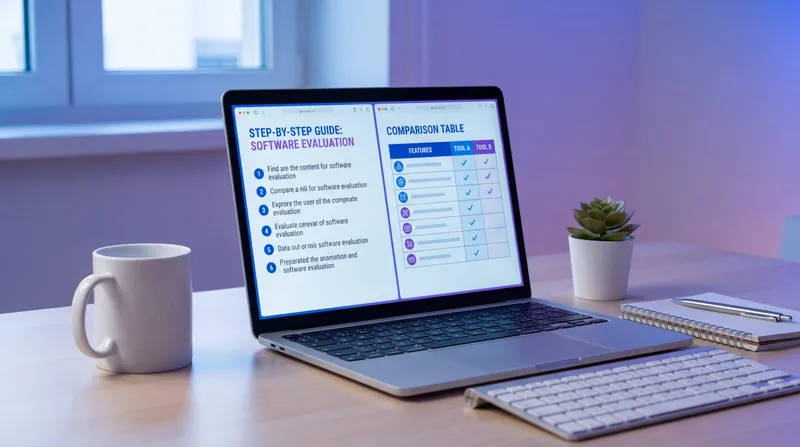
The combination is what makes training stick. Video for the overview and context. Screenshots for the exact visual reference at each step. Written steps for scanning, searching, and quick refreshers.
This is what visual SOPs are all about - giving people information in the format that works best for each moment. Sometimes they need to watch. Sometimes they need to scan. Sometimes they need to search for a specific step. A multi-format guide supports all of that.
With Glitter, you get all three from a single recording. No extra work.
Common WooCommerce Training Mistakes to Avoid
Let me save you some pain. These are the mistakes I see over and over.
Documenting Too Much at Once
You don’t need a guide for everything on day one. Start with the workflows that cause the most errors or the most questions. Build from there. Trying to document everything at once is a recipe for burnout, and nothing gets finished.
Not Updating Guides When Things Change
WooCommerce gets updates. Plugins change. Your processes evolve. If your training guides don’t keep up, people stop trusting them. The price you pay for processes nobody wrote down is real - but outdated documentation might actually be worse, because people follow incorrect steps with confidence.
With Glitter, updating a guide is as easy as re-recording the workflow. It takes minutes. Make it a habit: when a process changes, re-record it that same day.
Relying on One Person to Do All the Training
If only one person knows how to use WooCommerce well enough to train new hires, you’ve created a single point of failure. The whole point of documentation is to spread that knowledge around.
The best teams I’ve seen using Glitter document 5+ different operational workflows across their business. They aren’t creating one guide - they’re building an entire knowledge base for how their company runs. Everyone on the team contributes recordings for their area of expertise.
Ignoring the “Why” Behind Each Step
Steps without context breed rote behavior. When someone doesn’t understand why they’re checking a box or selecting a specific option, they can’t troubleshoot when something goes wrong. Always explain the reasoning - and talking through a recording naturally encourages this.
Getting Started Today
Here’s my honest advice: don’t overthink this.
Pick the one WooCommerce workflow that causes the most confusion on your team. The one that generates the most Slack messages, the most “Hey, can you show me again?” interruptions. Record yourself doing it in Glitter. Talk through each step like you’re showing a friend.
That’s your first training guide. It’ll take you 10 minutes to create and save you hours of repeated explanations.
Then do it again tomorrow with the next workflow. And the day after with another one.
Within a week, you’ll have a WooCommerce training library that actually works – a real WooCommerce onboarding system, not just a pile of docs. New hires can self-serve. Veterans can look up edge cases they’ve forgotten. And you can stop being the human encyclopedia for your e-commerce operations.
That’s the goal. Not perfect documentation. Not a fancy training program. Just captured knowledge that doesn’t walk out the door when someone leaves.
If you want to learn more about building effective training programs, check out these proven ways to train your team well. And if you’re the kind of person who doesn’t love writing things down, I wrote about how to document processes even if you’re not a writer - it’s more common than you think.
Try Glitter free and create your first WooCommerce training guide today. It takes less time than explaining the process one more time.
Frequently Asked Questions
How long does WooCommerce training take with Glitter?
Creating a guide takes about as long as it takes to do the workflow once. If processing an order takes you 5 minutes, recording it in Glitter takes 5 minutes. Glitter then automatically generates the complete guide with video, annotated screenshots, and written steps - no extra editing required.
What WooCommerce workflows should I document first?
Start with order processing and fulfillment, refunds and returns, and inventory management. These are the workflows that cause the most errors and the most repeated questions from team members. Once those are covered, move to shipping configuration, product listings, and coupon management.
Can non-technical team members learn how to use WooCommerce through training guides?
Absolutely. If you can do the task, you can create the guide. Glitter works by recording your screen and voice as you walk through a workflow naturally. You don't need any technical skills, writing ability, or design experience. Just talk through what you're doing like you're showing a coworker.
How do I keep WooCommerce training guides up to date?
Re-record the guide whenever the process changes. With Glitter, this takes minutes - just do the updated workflow while recording. Make it a team habit: when a plugin updates or a process changes, the person who handles it re-records the guide that same day.
Should I use video or written documentation for WooCommerce training?
Both - plus screenshots. Video provides context and flow, screenshots give exact visual references for each step, and written steps allow quick scanning and searching. Research shows multi-format training is significantly more effective than any single format. Glitter generates all three from one recording.
How many WooCommerce training guides does a typical store need?
Most stores need 10-20 guides to cover core operations. This typically includes 3-4 for order management, 2-3 for inventory, 2-3 for product listings, 2-3 for refunds and returns, and a handful for shipping, coupons, and plugin management. Start with 5-7 critical workflows and build from there.
What's the best way to structure WooCommerce onboarding for new hires?
Organize by role rather than by software feature. Group guides by job function - order fulfillment, product management, store administration - so new hires can find everything relevant to their role in one place. Layer training into day-one essentials, week-one proficiency, and ongoing reference materials.
How do I train remote team members on WooCommerce?
Glitter-created guides work perfectly for remote teams because they combine video walkthroughs with written steps. Remote team members can watch the video for context, follow the screenshots for visual reference, and use the written steps for quick lookups - all asynchronously, without needing to schedule a live training session.
Can I use Glitter to document WooCommerce plugin configurations?
Yes. Plugin configuration is one of the most important things to document because settings are often customized and hard to remember. Record yourself walking through each plugin's settings, explaining what each option does and why it's configured the way it is. This is especially valuable for payment gateways, shipping calculators, and inventory sync tools.
What happens to our WooCommerce training when team members leave?
If you've built a library of Glitter guides, the knowledge stays with the company. That's the entire point - capturing tribal knowledge so it doesn't walk out the door. The replacement hire can self-serve through the same guides, dramatically reducing ramp-up time and dependency on remaining team members.