
Read summarized version with
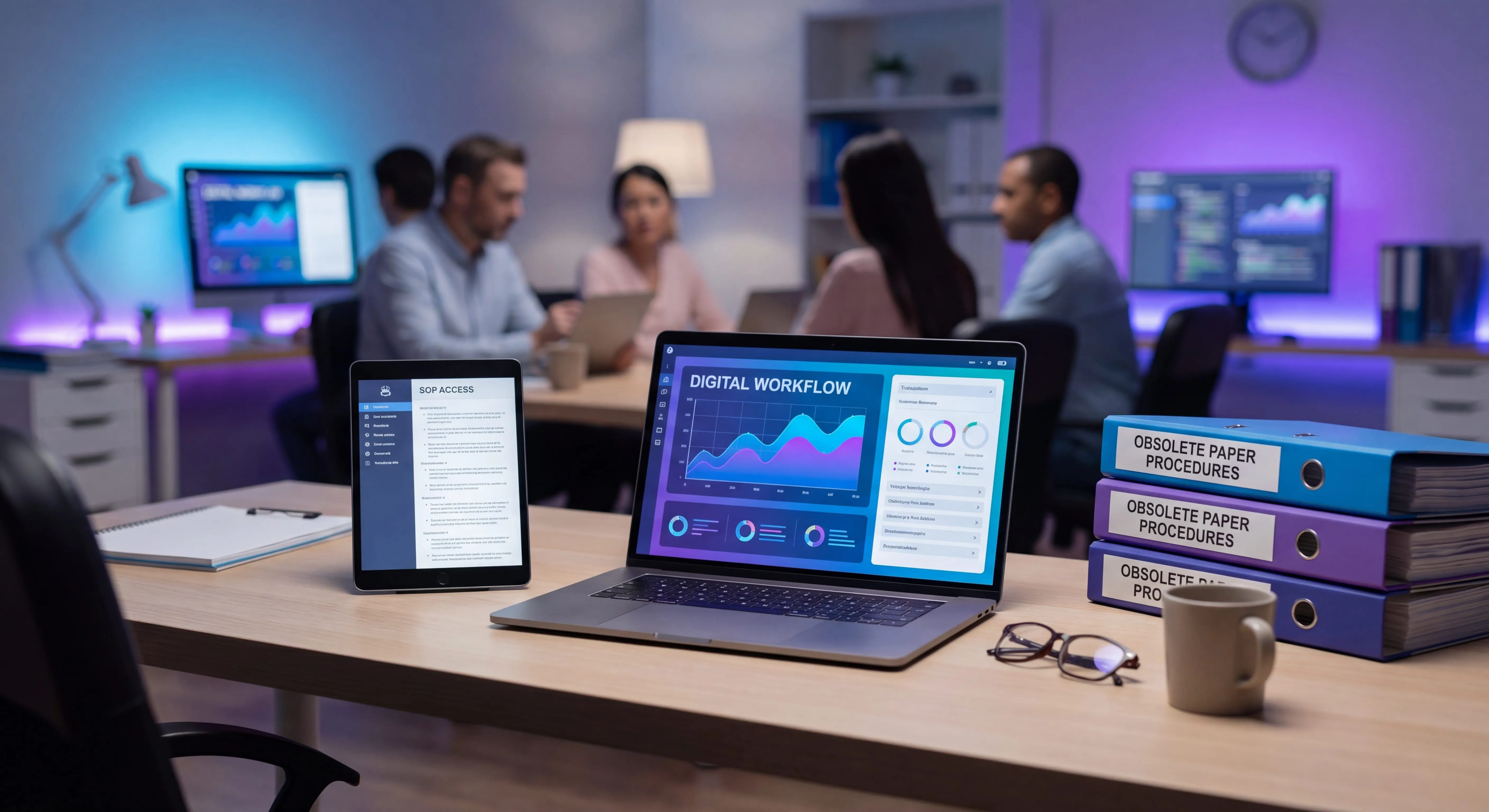
The first time I saw an SOP binder on a shelf was at a customer’s office, sitting on the desk of their ops manager. An actual binder. Three rings, plastic dividers, printed pages with handwritten edits scribbled in the margins. Right next to it: a laptop with a folder called “SOPs FINAL” holding forty-two Word docs, with names like Onboarding_v3_FINAL_updated_USE_THIS_ONE.docx.
The two versions didn’t agree. Neither matched how the team actually did the work.
If you run ops, HR, or finance at a small or mid-sized company, this probably sounds familiar. You inherited a library of paper and Word-based procedures. You know they’re stale, duplicated, and impossible to audit. But the migration feels like a mountain, so it gets pushed to next quarter. Again.
This is the playbook I wish someone had handed me. I’m Yuval, CEO of Glitter AI. We help teams turn legacy procedures into digital SOPs people actually open. Here’s how to run the migration without burning a quarter on it.
Teach your co-workers or customers how to get stuff done – in seconds.


Why Paper, PDF, and Word SOPs Fail
Before getting into the how, it’s worth being honest about why the old format is broken. Not because Word is evil, but because the medium shapes the behavior.
Versions diverge. The moment you email a .docx to someone, you’ve created a fork. They edit their copy, save it locally, and now there are two sources of truth. Multiply that by twelve people across four years and you have a graveyard of procedure files all claiming to be the latest.
There’s no audit trail. When the auditor asks “who approved this change to the refund process and when?”, a Word doc shrugs. File timestamps lie. Track changes get accepted and erased. SharePoint version history exists, but rarely gets reviewed.
Screenshots go stale instantly. Half of any real SOP is screenshots of software. The minute your CRM, ERP, or HRIS pushes a UI update, every screenshot in every doc is wrong. Nobody has time to manually re-screenshot 200 procedures, so the docs slowly drift into being misleading.
Nobody reads them. A 14-page Word doc with a wall of text and tiny screenshots isn’t a procedure people follow. It’s a compliance artifact. The actual work happens in someone’s head and gets passed along through Slack messages and shoulder-tapping.
Search is broken. When someone needs to know how to process a vendor refund, they search Slack, then ask in #ops, then maybe - if they remember it exists - open the SOP folder. Procedures buried in file shares might as well not exist.
If any of this rings true, you don’t have a documentation problem. You have a format problem.
What “Digital SOP” Actually Means
The phrase gets thrown around loosely, so let me be specific. A digital SOP is a procedure that lives in a system designed for living documentation, not in a static file. The minimum bar:
- Single URL per procedure that everyone references - no email attachments, no “latest version” confusion
- Version history with audit trail - who changed what, when, and why
- Embedded media that updates - screenshots, screen recordings, or step-by-step captures that can be regenerated
- Search across the library - fuzzy search, tags, or AI-powered lookup
- Permissions and ownership - clear owner per SOP, review cycles, access control
- Editable in place - no download/edit/upload loop
That’s it. You don’t need fancy AI or an automated workflow engine to call something a digital SOP. You need a system where the procedure is a live document, not a frozen artifact. For a deeper definition of the term, see our digital SOP glossary entry.
Teach your co-workers or customers how to get stuff done – in seconds.
The Migration Playbook
This is the part most teams get wrong. They try to migrate everything at once, run out of steam by week three, and quietly let the project die. Don’t do that. Run it in phases.
Phase 1: Inventory
Before migrating anything, you need to know what you have. Make a spreadsheet, one row per procedure. Columns:
- SOP name
- Current location (binder, file path, SharePoint URL)
- Current owner (or “unknown”)
- Last updated date
- Frequency of use (daily / weekly / monthly / rarely / never)
- Compliance relevance (SOX, SOC 2, HIPAA, none)
- Status (current / stale / duplicate / obsolete)
Walk through every folder, every binder, every Confluence space, every SharePoint site. Don’t try to assess quality yet. Just count. Most SMBs find they have somewhere between 50 and 300 documents claiming to be procedures, and 30% to 60% are duplicates or obsolete.
This phase usually takes a week of part-time effort. Resist the urge to start fixing things while you inventory. Just count.
Phase 2: Prioritize the 20%
You will not migrate everything. You shouldn’t. Apply Pareto: roughly 20% of your procedures account for 80% of the actual usage and risk. Sort the inventory by these criteria:
- High-frequency procedures that someone runs every week
- High-risk procedures that touch money, PII, or compliance
- Onboarding procedures that every new hire needs
- Bottleneck procedures where one person is the only one who knows the process
Everything else goes into a “review later” pile. About a third of that pile will turn out to be obsolete and you’ll just delete it. Another third will need to be merged with duplicates. The remaining third gets migrated in Phase 4 or 5, after you’ve built momentum.
Phase 3: Choose Your Tool
This is where teams over-think things. Honest truth: most digital SOP tools are good enough. The differences matter at the margins, not at the foundation. A few categories to consider:
- General knowledge bases - Notion, Confluence, SharePoint. Great if you already use them and the procedures are text-heavy. Weaker for screen-recording-heavy work.
- SOP-specific platforms - SweetProcess, Trainual, Process Street. Built for procedures with checklists, assignments, and training tracking. Heavier on structure.
- AI-generated procedures - Glitter AI. You record yourself doing the task once, and it generates the SOP with screenshots, written steps, and a video. Best when the work happens inside software (which is most ops, HR, and finance work).
- Hybrid setups - Many teams use Confluence or Notion as the index, and embed Glitter recordings for the screen-based procedures.
The single best filter is this: “Will the people doing the work actually open this?” If the answer is no, the tool is wrong, no matter how nice the admin dashboard looks. Read more in our breakdown of process documentation software.
Phase 4: Set Conventions Before You Migrate
This is the step everyone skips, and it’s why migrations turn into a second mess. Before you import a single SOP, agree on:
- Naming convention - verb-led, plain language. “Process a vendor refund” beats “Refund SOP v2”
- Folder or tag structure - by department, by system, by frequency, or some combination
- Template - every SOP has the same sections (purpose, when to run it, prerequisites, steps, exceptions, owner, last reviewed date)
- Owner per SOP - exactly one person, not a team
- Review cadence - quarterly, semi-annually, or triggered by system changes
- Change log format - what counts as a change worth logging
Spend half a day on this. Write it down on one page. The conventions matter more than the tool does.
Phase 5: Train the Owners
Migrating procedures is not the IT team’s job. The owner of each SOP - the person who actually does the work - is the one who should write or re-record it. Your job, as the migration lead, is to train them on the tool and the conventions, then get out of their way.
Two practical moves that work:
- Run a “migration day” - block half a day on the calendar, get 8 to 12 owners in a room (or Zoom), and have each of them migrate two or three of their own procedures with you available for help. Far more gets done in four hours than in four weeks of background nagging.
- Migrate by recording, not retyping - for any software-driven procedure, having the owner record themselves doing the task once produces a better SOP in five minutes than rewriting the Word doc would in two hours. This is the single biggest time saver in the whole migration.
Phase 6: Retire the Old Library
Once a procedure is digitized, the old version has to go. Not “archived in a folder nobody opens.” Actually gone, or at minimum clearly marked as superseded with a link to the new location.
Two reasons this matters. First, if both versions exist, people will keep finding the old one in search and following it. Second, auditors will find both versions and ask which is authoritative. Pick one.
Practical move: rename the old folder to _LEGACY_DO_NOT_USE_RETIRED_2026 and drop a README.txt at the top pointing to the new system. After 90 quiet days with no complaints, delete it.
Teach your co-workers or customers how to get stuff done – in seconds.
Format Choices: Text, Video, or Hybrid
One of the bigger debates in digital SOP migration is format. There’s no single right answer, but there are right answers per procedure type.
Text-only works for: policies, decision trees, escalation matrices, anything that’s mostly rules rather than software steps. A vendor approval policy doesn’t need a video.
Video-only works for: quick demos, executive walkthroughs, anything where the viewer needs to see context but won’t be following along step-by-step. Loom-style recordings.
Hybrid (written steps with embedded screenshots or short video clips) works for: most actual operational work. Software workflows, system procedures, anything where someone needs to follow along in their own browser.
This last category is where Glitter fits. Most ops, HR, and finance work happens inside software - Salesforce, NetSuite, Workday, QuickBooks, your HRIS, your ticketing system. For those procedures, recording yourself once and generating a written SOP with auto-captured screenshots is dramatically faster than writing it manually. The result is also easier to maintain, because you can re-record when the UI changes instead of re-screenshotting one image at a time.
The other thing the hybrid format buys you is options for the reader. Visual learners can scrub the video. Speed-readers can skim the text. Both can copy-paste the URL into a Slack thread. A Word doc gives you none of that.
Compliance Considerations During Migration
If you’re in a regulated environment - SOX, SOC 2, HIPAA, GDPR, ISO 27001 - the migration is also a compliance opportunity. Auditors and frameworks have moved past the era of accepting “final_v3.docx” as evidence of a controlled procedure. They want:
- Versioning - every change tracked with author and timestamp
- Approval workflow - for procedures touching financial controls or sensitive data, an approver other than the author
- Access logs - who viewed which SOP and when (matters for HIPAA and some SOX controls)
- Periodic review evidence - proof that the SOP was reviewed at least annually
- Single source of truth - one URL, not a fileshare with seventeen copies
Most digital SOP platforms give you the first four out of the box. The fifth is a discipline issue, not a tool issue. During migration, build the audit trail from day one. Even if no auditor is asking for it yet, you’ll thank yourself the first time one does.
A small but useful practice: for compliance-relevant SOPs, add a frontmatter or properties block to every digital SOP listing the related control (e.g., “SOX 404 - Refund authorization”) and the review cadence. Auditors love this and it takes thirty seconds per SOP.
Common Pitfalls
After watching dozens of these migrations, the same mistakes keep showing up.
Trying to migrate everything in one quarter. You won’t. Pick the 20% and ship those well. The rest can wait.
One person doing all the writing. This produces a beautiful library that’s wrong, because the writer wasn’t the doer. The owner of the procedure has to be the writer (or recorder).
Skipping the conventions step. Without naming and template conventions, your shiny new digital library becomes a mirror of the Word doc mess in a different system.
Not retiring the old version. If the binder and the Word folder are still accessible, people will keep using them. Cut them off.
Treating the migration as one-time. SOPs decay. The migration produces a baseline; keeping them current is an ongoing practice. See how to keep process documentation updated for the practices that prevent re-decay.
Choosing the tool before agreeing on conventions. The tool is the easy part. The hard part is agreeing on what good looks like.
Forgetting search and discovery. A digital SOP nobody can find is no better than a paper one. After migrating, test it: pick five questions a new hire might ask, and time how long it takes to find the answer. If it’s more than 30 seconds, your structure or search needs work.
What “Done” Looks Like
You’ll know the migration worked when three things happen:
- New hires get pointed to a single URL on day one and can self-serve most of their questions.
- When an auditor asks for a procedure, you send them one link, not a folder.
- Slack questions like “how do I do X?” start getting answered with a link instead of a long-form reply.
That’s the goal. Not a beautiful library. A library that gets used. For ongoing practices that keep your library that way, our guide to SOP management best practices is the next read.
If your team does software-heavy work and you want to skip the manual writing entirely, Glitter’s SOP generator records you doing the task once and produces the digital SOP. That’s the lowest-friction way I’ve seen to migrate a backlog of procedures, especially for the ops, HR, and finance teams who tend to be understaffed for documentation work.
Teach your co-workers or customers how to get stuff done – in seconds.
Frequently Asked Questions
What is a digital SOP?
A digital SOP is a procedure that lives in a system designed for living documentation rather than a static file. It has a single URL, version history, embedded media, search, ownership, and in-place editing - none of which a Word doc or PDF reliably provides.
How do I move SOPs from paper to digital?
Inventory every existing procedure first, then prioritize the 20% that get used most or carry compliance risk. Pick a tool, set naming and template conventions, train the owners to write or record their own SOPs, and retire the old versions once the digital ones are live.
Why are paper and Word SOPs a problem?
Paper and Word SOPs diverge across copies, lack audit trails, contain screenshots that go stale the moment software updates, are rarely searched, and almost never get opened by the people doing the work. The format itself drives the decay.
How long does an SOP migration take?
For an SMB with 50 to 300 procedures, the high-priority migration typically takes four to eight weeks of part-time effort. The inventory phase takes about a week, and the bulk of the writing happens during one or two focused migration days with the owners.
Should digital SOPs be text or video?
Most operational procedures work best as a hybrid - written steps with embedded screenshots or short video clips. Pure text suits policies and decision rules, while pure video suits quick demos. Software-driven work almost always benefits from the hybrid format.
What tools can I use to create online SOPs?
Common options include Notion, Confluence, and SharePoint for general knowledge bases, SweetProcess and Trainual for SOP-specific platforms with training features, and Glitter AI for auto-generated SOPs from screen recordings. Many teams combine a knowledge base for the index with a recording tool for software workflows.
How do I modernize SOPs for SOX or SOC 2 compliance?
Auditors want versioning, approval workflows, access logs, periodic review evidence, and a single source of truth. Most digital SOP platforms provide the first four; the single-source-of-truth piece comes from retiring old Word and PDF copies during migration. Tag each compliance-relevant SOP with its related control.
What is the biggest pitfall when migrating SOPs?
Trying to migrate everything at once. Teams burn out by week three and abandon the project. Pick the 20% that account for 80% of usage and risk, ship those well, and revisit the rest after the new system has built momentum.
Who should write the digital SOPs during migration?
The owner of the procedure - the person who actually does the work - should write or record it. Centralizing the writing in one person produces a polished library that is wrong, because the writer was not the doer. The migration lead trains and unblocks the owners.
What should I do with the old Word and PDF SOPs after migration?
Retire them. Either delete the old versions or rename the legacy folder to something like _LEGACY_DO_NOT_USE_ with a README pointing to the new system, and remove it after 90 quiet days. Keeping both versions accessible guarantees people will keep finding and following the old one.