
Read summarized version with
A process documentation template is a reusable skeleton for capturing how a task gets done: the trigger, the roles, the step-by-step actions, and the review dates. You fill in the brackets, and you have a repeatable record anyone on your team can follow.
That’s the textbook answer. The honest one is shorter: a template is a starting point, not a finish line. I’ve handed people gorgeous templates and watched them rot in a month. So this post does two things. It gives you a real template to download, and it shows you how to turn that template into something that actually stays current. Jump to downloads section.
I’m Yuval, founder of Glitter AI. I’ve spent years documenting processes for my own companies. I also burned a lot of hours doing it the slow way before I figured out what actually works. Here’s the template, a few examples, and the upgrade.
Teach your co-workers or customers how to get stuff done – in seconds.

What goes in a process documentation template
Every good process documentation template answers the same handful of questions. Skip one and the person reading it gets stuck at that exact spot. Here’s the structure I use. It’s also exactly what’s in the free download below.
- Process overview - what this process is and the result a completed run produces.
- Trigger and frequency - what kicks it off and how often it runs.
- Roles and responsibilities - who owns it, who performs it, who approves.
- Inputs and outputs - what goes in, what comes out, and who receives it.
- Tools and systems - the apps involved and the access someone needs.
- Process steps - numbered actions, each with an owner and a note or screenshot.
- Decision points and exceptions - what to do when it doesn’t go to plan.
- Revision history - version, date, author, and what changed.
That last one matters more than people think. Standards bodies like ISO 9001 treat documented information as something you’re supposed to control and review, not write once and forget. A revision block is the smallest habit that keeps a document honest.
Keep the template shorter than you want to
Here’s the thing about templates. The more fields you add, the less likely anyone fills them in. I’ve seen 12-section monsters that nobody ever completed, not once. Start with the eight sections above. If a process genuinely needs a safety block or a compliance sign-off, add it. But earn each field.
If you’re documenting a single tightly-scoped task rather than an end-to-end process, you may want an SOP or a work instruction instead. I break down the difference in SOP vs work instructions, and there’s a full walkthrough on how to write an SOP if that’s a better fit.
Process documentation examples
Templates click faster once you see them filled in. So here are three quick process documentation examples. Same skeleton, three very different processes.
Example 1: New customer onboarding
- Trigger: A deal closes in the CRM.
- Owner: Customer success.
- Steps: Send welcome email → schedule kickoff call → provision the account → walk through setup on a recorded call → confirm first value milestone.
- Exception: If the account isn’t provisioned within 24 hours, escalate to the ops lead.
Example 2: Monthly invoice run
- Trigger: The first business day of the month.
- Owner: Finance.
- Steps: Pull billable hours → generate invoices → review for errors → send to clients → log in the tracker.
- Exception: If hours are missing for a client, flag the account manager before sending.
Example 3: Publishing a blog post
- Trigger: A draft is marked ready for review.
- Owner: Content.
- Steps: Editor review → SEO check → add images → schedule → verify the live page.
- Exception: If the SEO check fails, send it back to the writer with notes.
Notice how the skeleton never changes. Only the content does. That’s the whole point of a process template: one shape, infinite processes.
Teach your co-workers or customers how to get stuff done – in seconds.
How to use the free process documentation template
Downloading a free process documentation template is easy. Filling it in is where people stall. Here’s the order that works for me.
- Name the outcome first. Before any steps, write the one sentence that describes what a finished run produces. It keeps the rest focused.
- List the steps out loud. Literally talk through the process as if you’re training someone. Then write down what you said. You’ll catch the “oh, and you also have to…” steps you’d otherwise forget.
- Assign an owner to every step. A step with no owner is a step nobody does.
- Add screenshots for anything on a screen. Words alone lose people the moment a button moves.
- Set a review date. Put it in the revision block and actually diary it.
That fourth step, screenshots for every on-screen action, is where the static Word doc starts to hurt. Taking, cropping, annotating, and re-pasting images every time a button moves? That’s the quiet tax that kills documentation. Which brings me to the upgrade.
The upgrade: from a static template to a living document
Here’s what I learned running my companies. The format isn’t the problem. Staleness is. A perfectly formatted template that describes last quarter’s process is worse than useless. It’s confidently wrong.
The fix isn’t a better Word template. It’s changing how the document gets made in the first place.
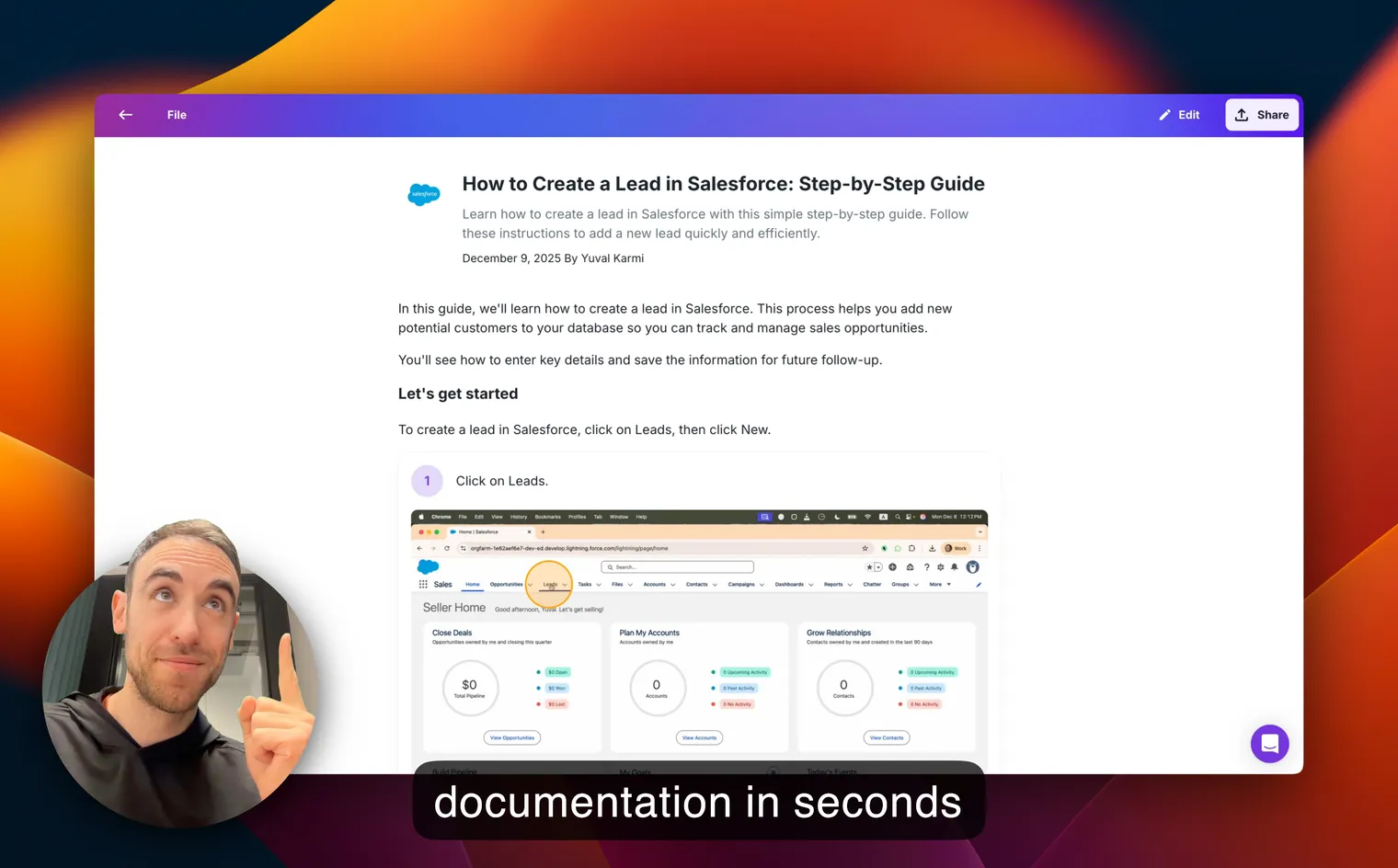
Instead of writing steps and manually capturing screenshots, I record myself doing the process once. Talk through it naturally, click through the real screens, and let AI turn that into a written guide (numbered steps, annotated screenshots, clean formatting) plus the original video. That’s what I built Glitter AI to do. A 5-minute recording becomes a publish-ready guide, and I keep the same template structure without hand-building any of it.
Why this beats the static file:
- Screenshots update by re-recording, not by re-pasting. When a process changes, you re-record the part that changed instead of hunting through a doc.
- You get both formats - a written SOP and a video walkthrough - from one recording. Some people read; some people watch.
- It’s searchable and shareable without emailing a Word file around. Share a link or embed it in your wiki, with no viewer fees for embedded guides.
I’m not saying throw away the template. The template is the shape, and it’s a good one. I’m saying stop building each document by hand when you can record it once and keep it current. If you want the deeper strategy, my process documentation guide covers the whole system, and I’ve written separately about keeping process documentation updated once you’ve got it.
As of August 2026, the free plan gives you 10 guides with full AI features and web, desktop, and mobile capture. No credit card required. That’s plenty to document your core processes and judge for yourself whether the recorded approach beats the blank template.
Teach your co-workers or customers how to get stuff done – in seconds.
Downloads
Grab the template, fill in the brackets, and you’ve got your first process documented today:
Download the Process Documentation Template
A free Word template with every section you need - overview, roles, steps, exceptions, and revision history. Fill it in and ship it today.
Download Process Documentation Template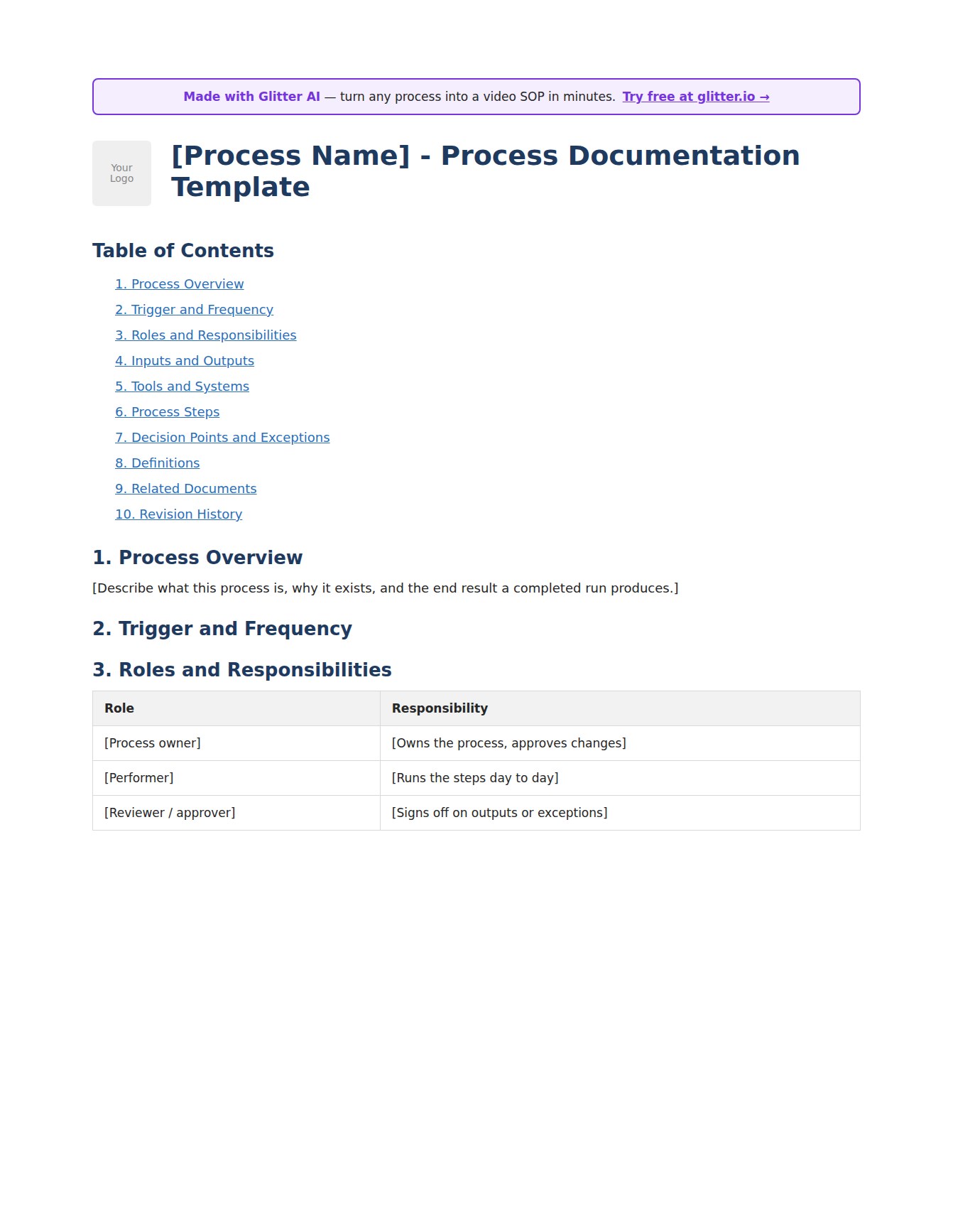
Frequently Asked Questions
What is a process documentation template?
A process documentation template is a reusable structure for recording how a task gets done, including the trigger, roles, step-by-step actions, exceptions, and review dates. You fill in the bracketed fields to produce a consistent, repeatable record your team can follow.
Where can I download a free process documentation template?
You can download a free process documentation template as a Word document from the Downloads section above. It includes process overview, roles and responsibilities, inputs and outputs, numbered steps, decision points, and a revision history block.
What should a process documentation template include?
At minimum it should include a process overview, trigger and frequency, roles and responsibilities, inputs and outputs, tools and systems, numbered process steps, decision points and exceptions, and a revision history. Keep it short so people actually fill it in.
What are some process documentation examples?
Common examples include new customer onboarding, a monthly invoice run, and publishing a blog post. Each uses the same template skeleton - trigger, owner, steps, and exceptions - with different content, which is exactly what makes a reusable template valuable.
What is the difference between a process documentation template and an SOP?
A process documentation template captures an end-to-end process across roles and systems, while an SOP usually documents one specific procedure in detail. Many teams use a process document for the big picture and link out to individual SOPs or work instructions for each step.
How do I fill in a process documentation template?
Start by writing the outcome the process produces, then list the steps out loud as if training someone. Assign an owner to every step, add screenshots for on-screen actions, and set a review date in the revision block.
Why does process documentation go out of date so fast?
Documentation goes stale because processes and software change but the document does not get updated - especially screenshots. The fix is to make updates cheap, for example by re-recording the part that changed instead of manually re-pasting images.
Can I create process documentation without a template?
Yes. With Glitter AI you record yourself doing the process while talking through it, and AI generates a structured written guide plus a video walkthrough. You still get a consistent structure without starting from a blank template.
Is the process documentation template really free?
Yes, the Word template above is free to download and use with no sign-up. Glitter AI also has a free plan with 10 guides and full AI features if you want to create recorded documentation instead of filling in a static file.
What format should process documentation be in?
A Word or Google Doc template works for text-heavy processes, but visual processes are far clearer as step-by-step guides with annotated screenshots or short videos. Many teams keep both - a written guide people can skim and a video walkthrough people can watch.